What is Model Context Protocol (MCP) and how does it help you build apps?


You know that more context produces better AI responses. So you start the hunt: you gather documents, round up files, and cram everything into a crafted prompt. But as you spend more time searching and lining everything up, you're now working for your AI agent, not the other way around. You're losing the driver's seat.
Model Context Protocol puts the controls back in your hands. You can use it to connect your favorite agents to software you use, so AI can search and securely manipulate your data on your behalf. No code or lengthy setup involved.
What is MCP?
MCP (Model Context Protocol) is an open standard that gives AI agents a common way to connect to external tools and data. It lets AI do two important things: pull in the context it needs and take permitted actions in the software you use. Created by Anthropic, it replaces custom connectors with a single interface, making the integration process simple and easy to maintain. This is why it's often referred to as the USB-C of software integrations: a single protocol that covers every app.
Why is MCP important?
AI assistants are powerful, but most business context lives somewhere else—in your CRM, inbox, project tools, databases and documents. And answering a question is only half the job. To actually get work done, AI needs a way to interact with those systems.
MCP provides a standard way to do both. Instead of creating a different integration between every AI assistant and every application, MCP gives compatible systems a common way to expose their data and capabilities.
For starters, it's much easier to set up for non-technical people. With MCP, you simply select the app you want to connect to, log in to your account in the external tool to approve permissions, and then it's ready to use.
Before MCP, you'd have to configure each individual capability in the chatbot interface or with code. Even if you were connecting to the same app such as Asana, you'd have to add a tool to read your projects and another one to create a new project. MCP just loads all the capabilities when the session starts, so you get access to the full list without the setup complexity.
Since app developers update their apps often, MCP saves you from having to actually go back into each tool to edit the details to comply with what's new. You don't have to do maintenance on the connector, so you can spend more time working on what's important, not on figuring out why your integration doesn't work every few months.
And since it's an open standard, more apps are now launching their MCP servers. The universe of possible connections keeps increasing, placing your AI agent at the center, letting you interact with all of them.
The protocol's popularity is taking off, going from a niche power tool to a mainstream feature. This is both thanks to how MCP has evolved and also tied to how newer AI models are becoming much better at what's called agentic tasks (the capacity to work with multiple tools and stay focused on a goal until it's complete to an acceptable degree).
How does MCP work?
MCP exposes the apps you use to your AI assistant, so you can access and act on them using natural language commands.
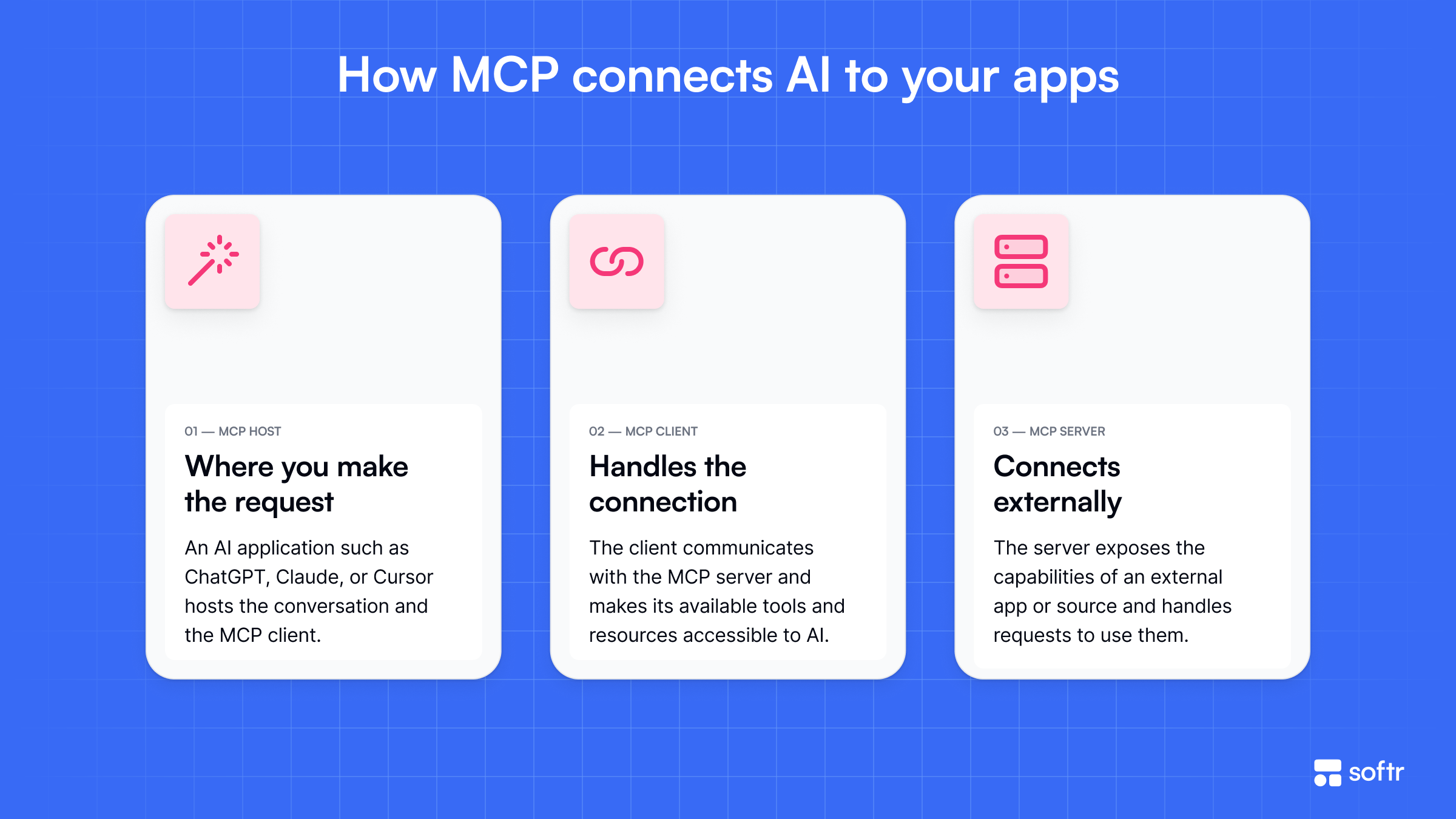
Here's an overview of how it works.
Finding MCP connectors
Apps like ChatGPT, Claude, or Cursor all have an MCP client, letting them send requests to external servers. The external apps, such as HubSpot or Stripe, provide MCP servers that process those requests and send the results back to your agent.
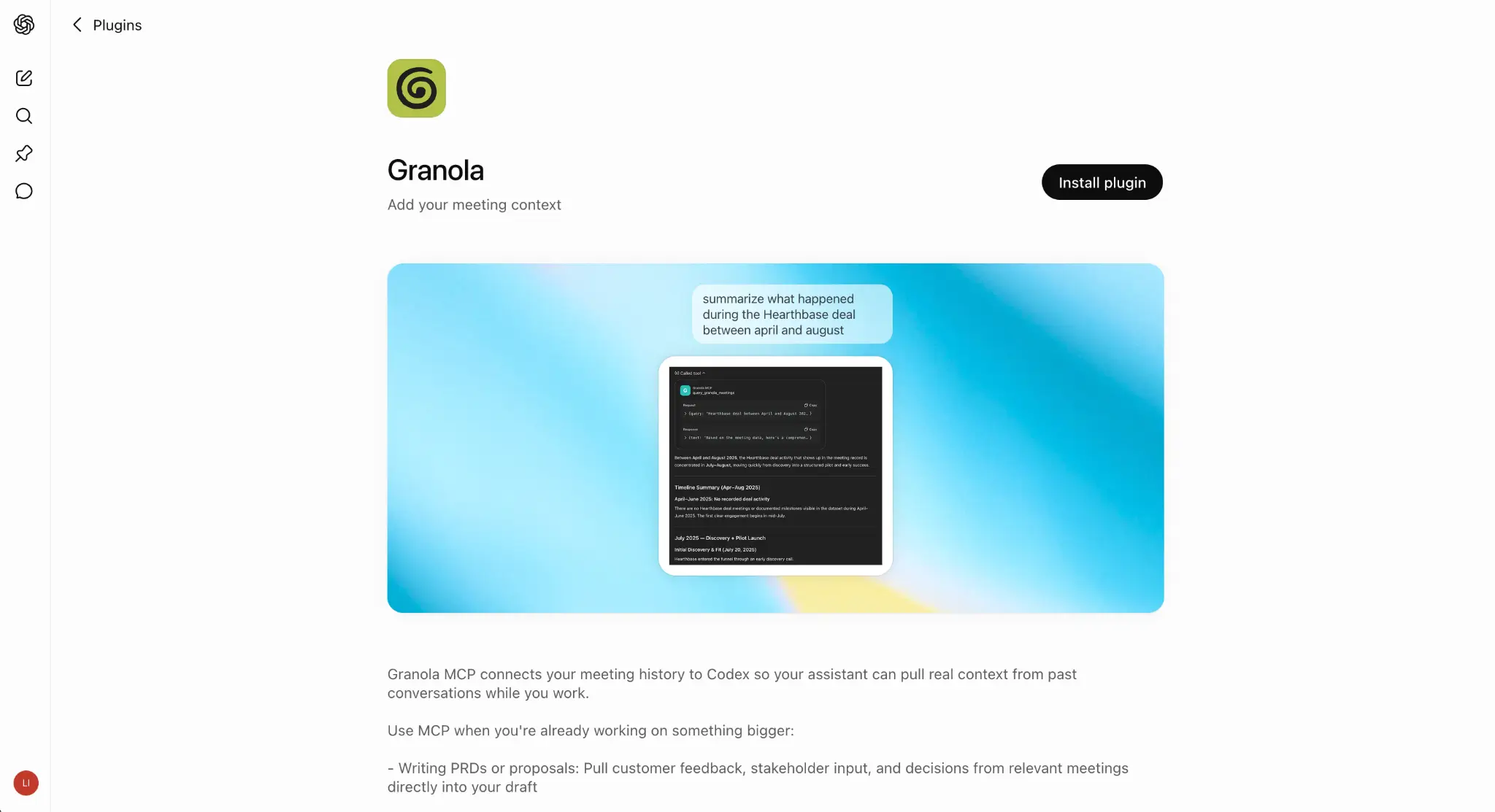
ChatGPT has a Plugins page with a full list of all supported MCP servers. When you open the details page, you can see the actions that the server supports. Not all apps allow full control over creating, updating, or deleting resources, so be sure to check to see if it has the capabilities you need.
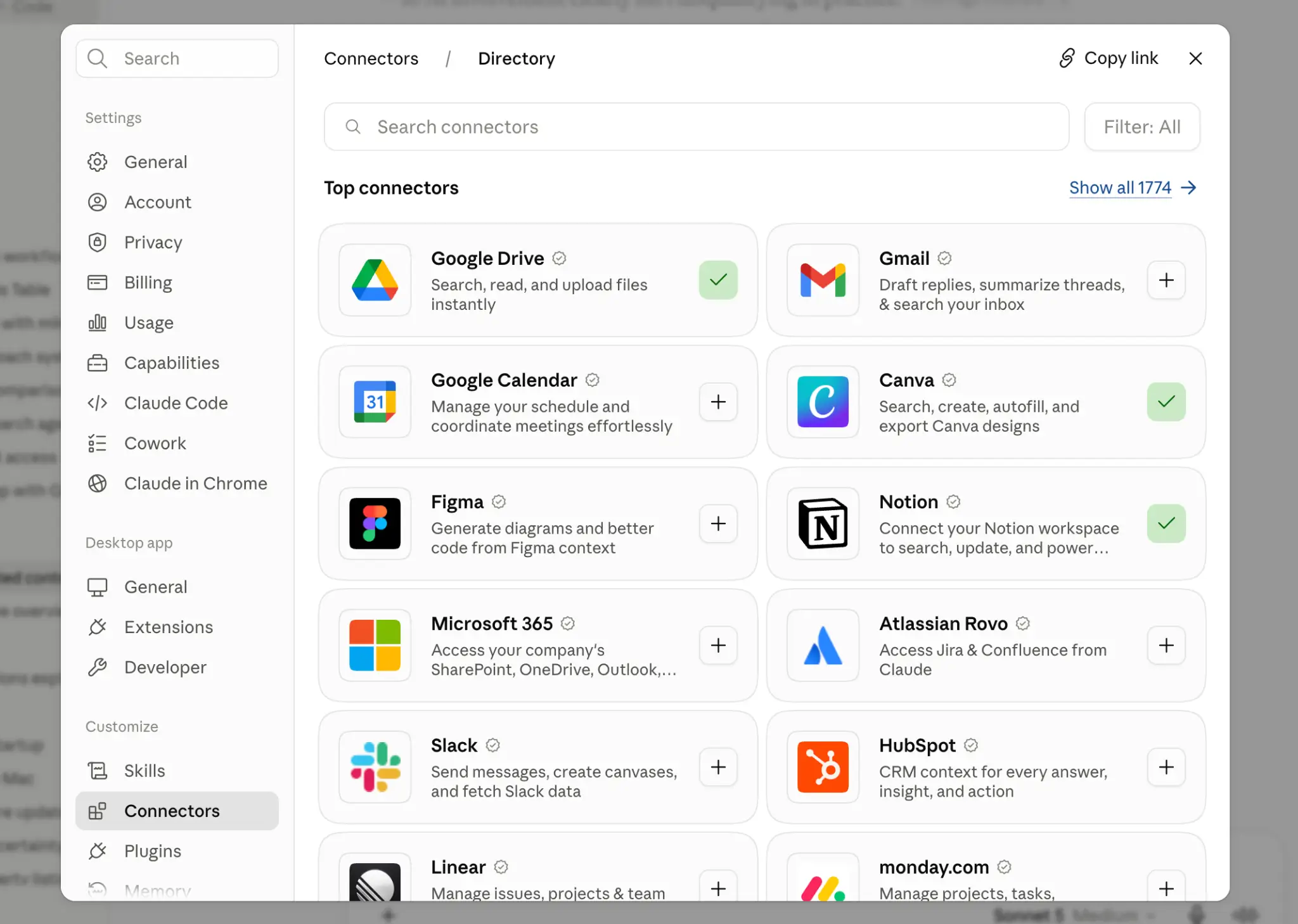
As for Claude, clicking the Connectors tab shows you all the native MCP integrations available. The information page also details what capabilities are included. On top of that, you can upload a file to set up a connector not present on the original list, so you can connect to niche software you need to work with.
Connecting for the first time
Once you select an MCP server from the list, the first step is logging into your account on the external platform and approving permissions. For example, if you're connecting ChatGPT to Notion, you'll be taken to Notion's login page and then through a dialog showing what privileges ChatGPT will have.
After finishing the authentication process, both apps are now connected and you can start a new chat to explore the new connector. For security reasons, you might be asked to log in again every few days or months, but the day-to-day is frictionless.
The data transmission between both platforms is secure; you can't see data from any other user that uses this external app, and no one else can see yours at any time.
MCP capabilities
When you start a new chat and use an MCP connector, both the server and your AI app remain connected for the entire session. The server exposes the range of capabilities it offers, similar to offering a restaurant menu to your agent. These can include:
- Tools, letting you create, read, update, or delete data, as well as running a process or workflow in the external tool you're connecting to. You can use these by telling the agent to take action on the external app (for example, "Mark my project as complete in Todoist")
- Resources, which are read-only documents provided by the server that you can select and add as context to the agent. You can ask the agent directly to read these documents.
- Prompts, which are instruction templates for interacting with the external platform.
MCP servers might have any combination of the above; the developers of the external tool decide which capabilities each MCP server has, which is tied directly to the app's features. Read the integration page to understand what you can and can't do.
If you ask to do an action that the server doesn't support, the agent will often tell you that it can't execute it; in very rare cases, it can go into a loop and try to find workarounds to get it done. If you find that your agent has been working for a long time without showing results, check whether the connectors lack the functionality you need.
How to know when you're using an MCP server
Depending on the agent you're using and your settings, you have to activate an MCP connector before using it in a new chat thread. This is usually done by selecting it from a dropdown menu in the prompt input field, typing a slash command, or explicitly naming the app you want to connect to (for example, "get my latest Gamma presentation").
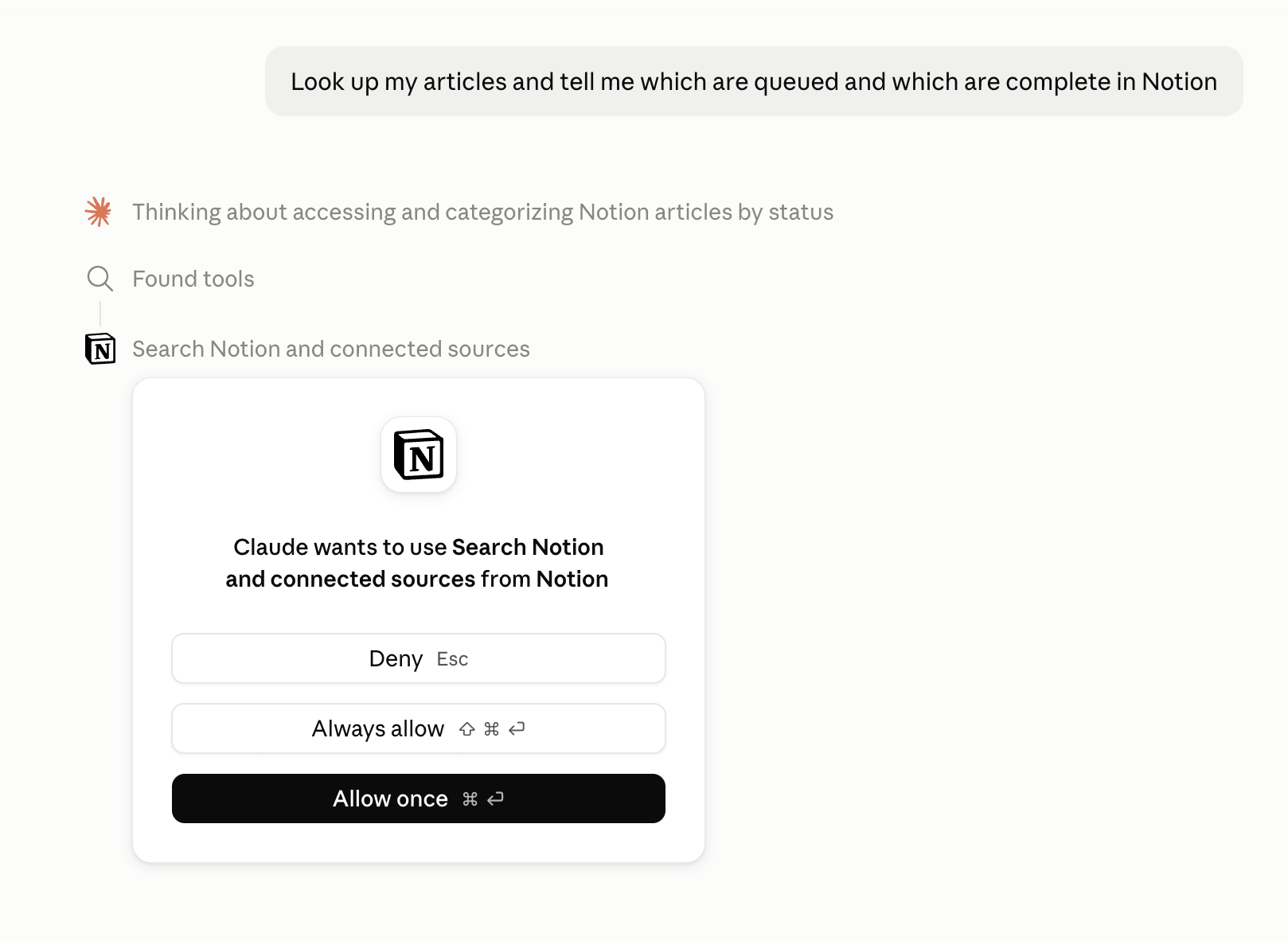
Accessing external data is a sensitive action, so most AI apps will ask before starting to use an MCP server. A permission request box will display in the chat thread or main interface, with options to allow or deny access.
If you set it to always allow until the end of the session, you can check the thought trace of the tool to see what it's accessing. This is the text that changes after you send your prompt, showing whether the model is thinking, searching the web, or using a tool.
Connecting multiple MCP servers to the same agent
You can connect multiple MCP servers to the same AI assistant, exposing it to a wide range of tools and resources. You can, for example, connect your Claude app to Google Drive, Figma, and Canva; the agent will always have a list of capabilities for all these apps at the same time.
As you chat, when the agent detects an intent or command that matches a connected MCP server, it sends out a request to the appropriate app. The external app receives and processes the request, sending back the response to the agent. You can now use the result of that response as context: for example, using the content of a Google Docs to create a new infographic on Canva.
There are caveats to connecting multiple MCP servers to the same agent. If you connect apps with similar features, the agent may get confused when using tools. For example, if you have both Google Drive and Dropbox connected, asking for your contract templates without telling the agent specifically which cloud drive it's on can have it try a random one.
If you keep facing situations where the agent is using the wrong tool, consider being more specific ("Find the contract templates in my Dropbox") or temporarily disabling an MCP server.
MCP vs API
If you've been building your own apps with visual development tools, you might have come across the API standard (application programming interface) for connecting to external platforms. By writing a few lines of code or setting them up in a visual interface, you can push or retrieve data into external apps from any app you're building.
MCP doesn't replace the API standard. In fact, it works as a translation layer on top of it: the MCP server routes the requests sent by agents to the respective API endpoints, and then returns the results once they're ready. If the API is updated at any time, the MCP server will offer new capabilities without any extra setup on your side.
What can you do with MCP?
The MCP standard is so flexible that users keep finding new ways of connecting agents and apps together. Combined with increasing model capabilities and more robust MCP servers, there's a lot to experiment with as you streamline and automate your work.
When most of your work happens in ChatGPT, you can integrate the MCP servers of the other apps you use more often. For example, when connecting to Google Workspace:
- You can ask for a breakdown of the top email threads in your inbox
- Talk about any file in your Google Drive, and have it adapted, repurposed, or transformed in any way you need
- Check your calendar by asking questions in natural language so you're on top of what's coming up on your schedule
Since you can use multiple MCP connectors in the same chat thread, you could even turn an email into an event on your calendar, or save an attachment from a message to your cloud drive.
Beyond chatting directly with your AI assistant, you can use scheduled tasks (available in both ChatGPT and Claude) to automate actions across apps you use. For example, you can connect the Notion MCP server and get a weekly summary of tasks complete, or a daily digest of Intercom customer service tickets handled. The agent fires at the day and time that you set, and executes the prompt using the connected tools and MCP servers to give you the response you want.
More complex use cases involve orchestration, where multiple systems come together to produce a response. Sales is a good example:
- You have a CRM with client data, enrichment services to look up information for new leads, and a wide range of company systems that hold product and service information, along with rules on how to build deals.
- Reps can use AI to enrich a contact, build a draft deal proposal, and get it ready to send to the client in minutes, all without leaving the same chat thread.
- The AI agent connects to each app, looks up the necessary information, and then keeps the CRM up to date, automating a lot of the manual work.
All of these steps require only natural language. You can still access the apps in the browser to check that the actions were performed correctly, but you'll find yourself doing it less once you start trusting your agent.
How does Softr use MCP to help you build apps?
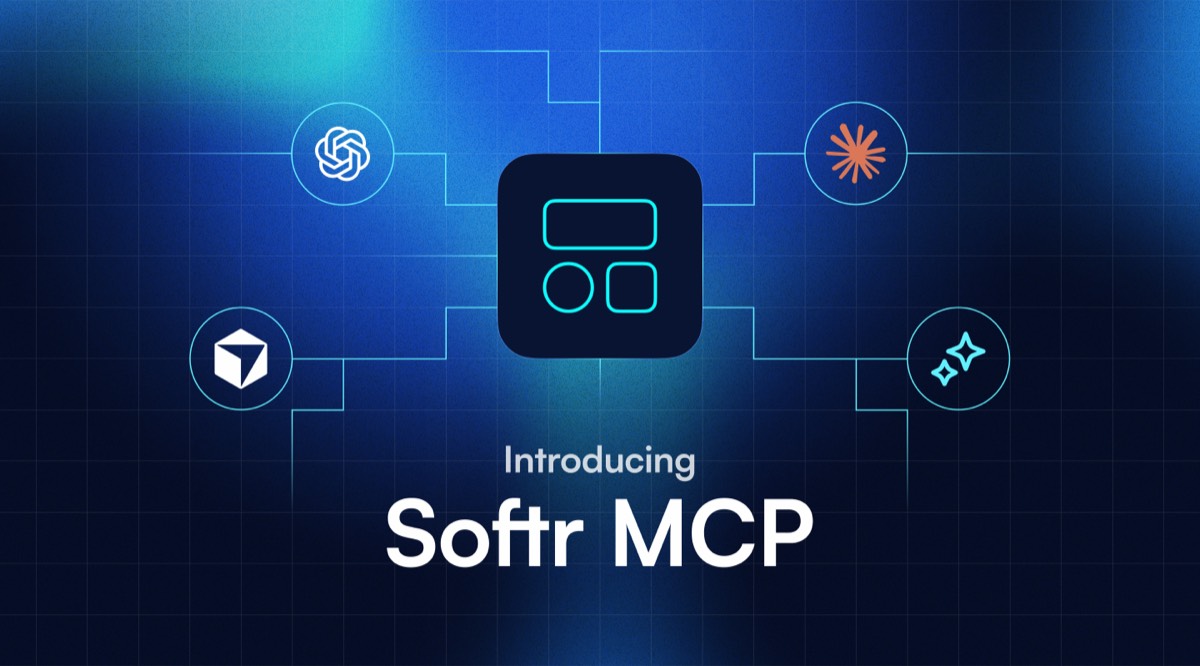
Softr MCP lets AI assistants work directly with your Softr workspace. You can build and make changes from Claude, ChatGPT, or another AI tool, while everything you create lives in Softr and remains available to inspect, edit, and manage in the builder.
Softr supports MCP in two ways, depending on whether you want your favorite AI assistant to help you build and manage in Softr or let people interact with an app you’ve built.
The Softr MCP Server is for builders. Connect an AI assistant such as Claude, ChatGPT, Codex, or Cursor to your Softr workspace, and you can use natural language to:
- Work with databases: Create and structure Softr Databases, add or update records, import data, and query or analyze it. Just describe what you need, and your AI assistant will create the database and tables, including the fields and field types needed to structure your data. Upload a CSV with your real data, then it will upload it for you—and you can take data analysis from there.
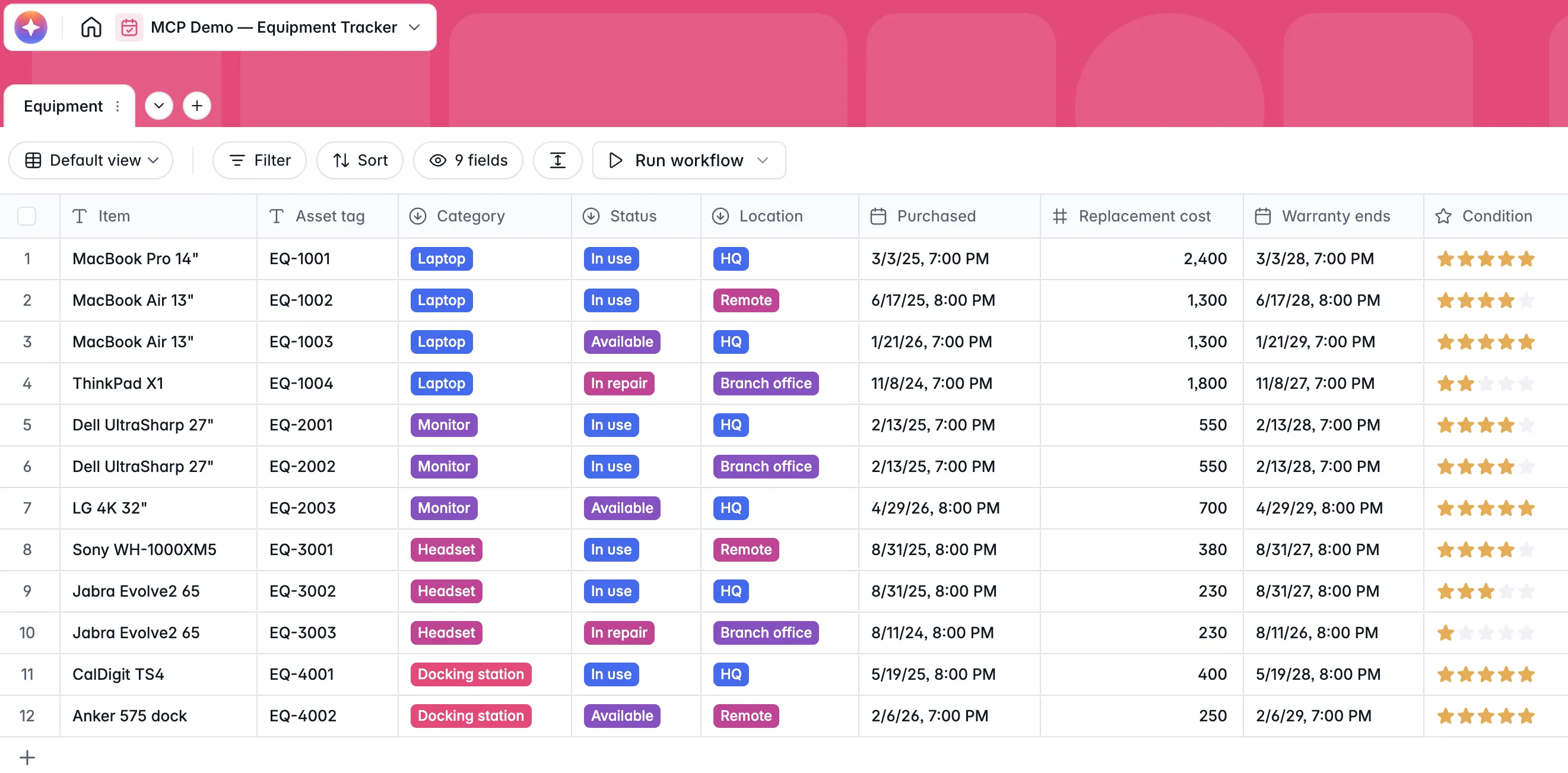
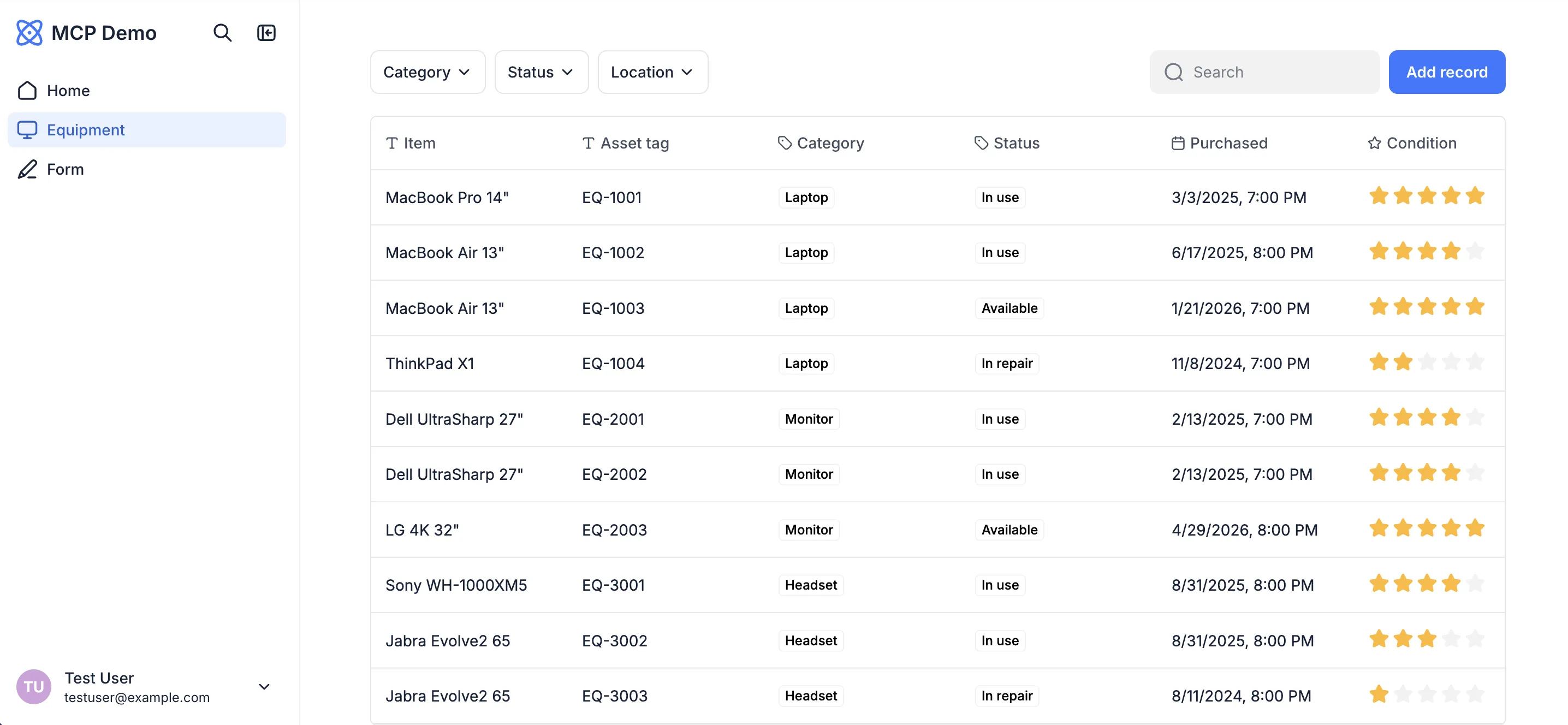
- Build and manage apps: Create apps and pages, manage users and user groups, configure access, and preview or publish on top of your databases. Your AI assistant can build the app around your data, add the pages you need, and set up who can access what.
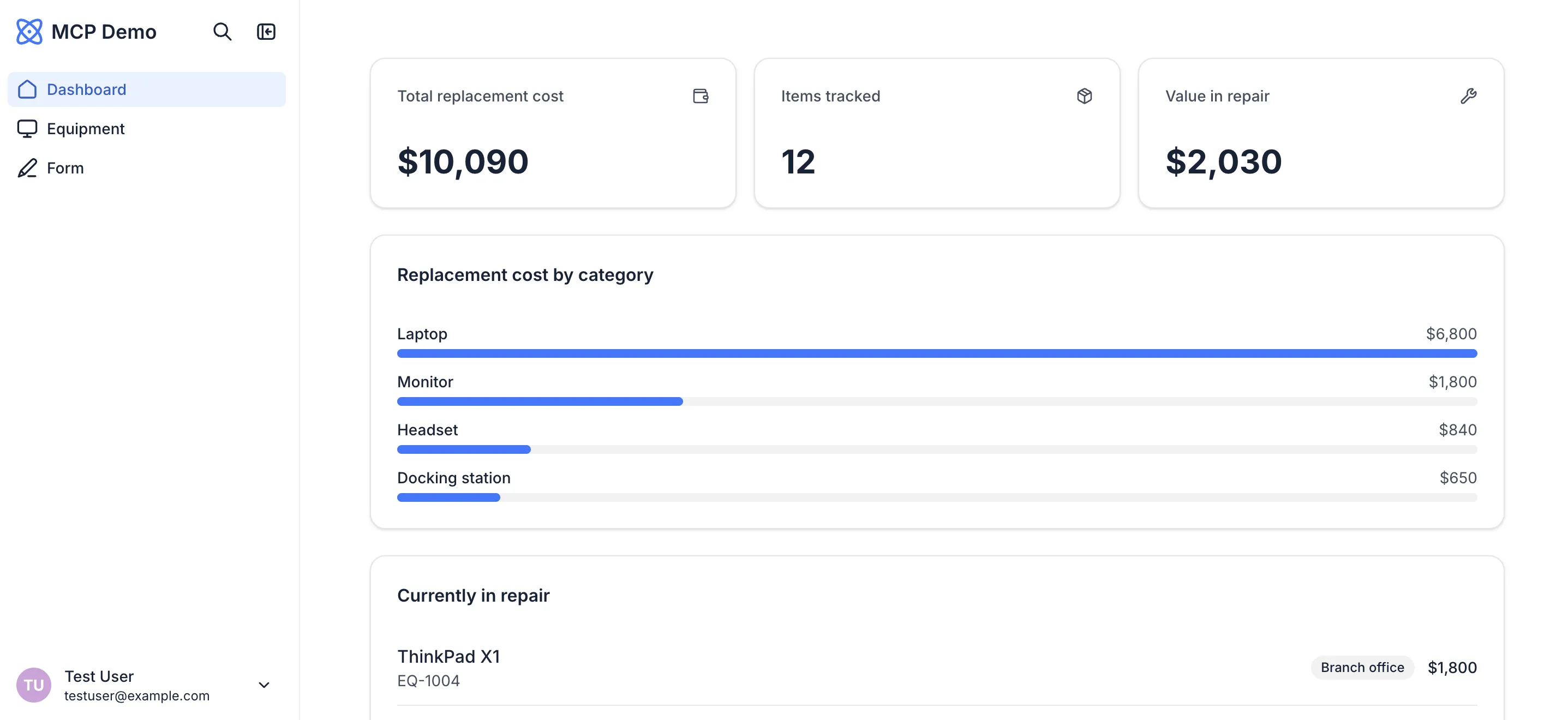
- Create Vibe Coding blocks: Build custom interfaces connected to your Softr data and manage their settings and visibility. Your AI assistant can create the component, connect it to a data source, and add it to the page you choose. You can use Vibe Coding blocks to create custom dashboards, calculators, forms, and other interactive interfaces.
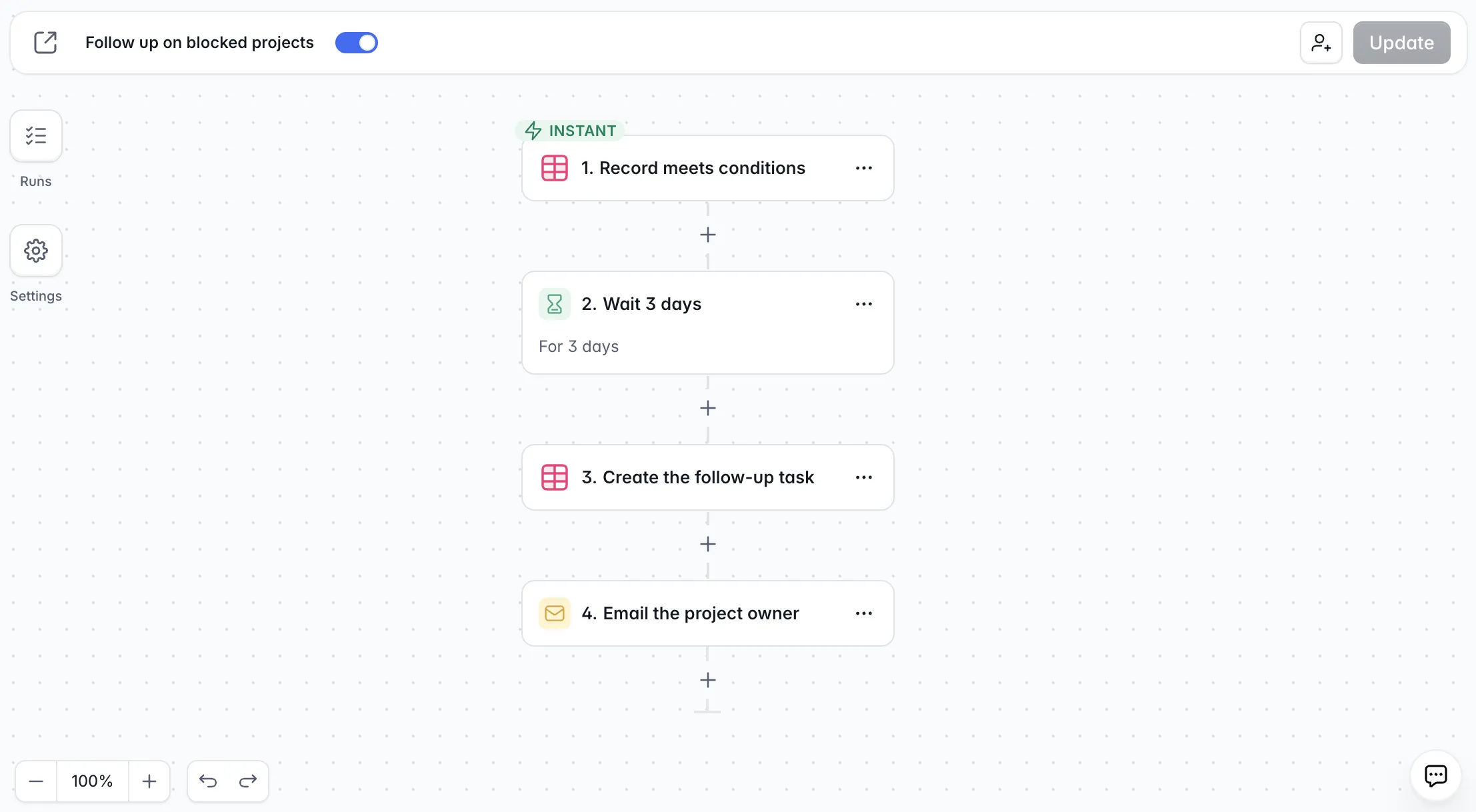
- Build workflows: Create, test, and refine automated workflows that connect to your databases and apps from a prompt. Describe what should happen, and your AI assistant can choose the appropriate trigger and actions, connect the steps, and build the workflow in Softr.
The AI works within the access you grant it. You set the level for each area (apps and forms, databases, and workflows), from no access to full access. Your data, app structure, permissions, and workflows remain in Softr, so you can open the builder at any point to review or edit what your assistant created. You can also switch AI tools without leaving your build behind.
The App MCP Server is for the users who use a published Softr app. It lets a signed-in user connect the app to their own AI assistant and do things they could normally do through the app—like looking up information, updating a status, or adding a record—using natural language.
Each request runs as that user, so the app’s existing user groups, page visibility, and data restrictions still apply. The blocks and actions available in the app determine what the assistant can do.
Both the Softr MCP Server and the App MCP Server are free to use on any Softr plan and don’t consume Softr AI credits. The AI processing happens through the assistant you connect, so you can use an AI tool you already pay for without also paying for additional Softr AI credits.
Softr also works as an MCP client. A Softr Agent can connect to external MCP servers such as Airtable, Notion, monday.com, Linear, or Supabase, or to any custom server by URL, and you choose Allow, Ask, or Deny for each tool. See how Softr Agents work.
MCP brings your AI tools closer to your work
MCP changes the way AI assistants interact with the tools you use. Instead of copying information between tabs and explaining the same context over and over, you can give an AI assistant controlled access to the tools and data it needs to answer questions and take actions on your behalf.
With Softr, that works in both directions: builders can use their preferred AI assistant to create and manage apps, databases, and workflows through the Softr MCP Server, while the people using those apps can connect their own AI assistants through the App MCP Server.
The result is less time moving information between tools and more ability to get work done from the AI assistant you already use.
👉 Try Softr free and connect your MCP server to Claude, Codex, or another AI platform today.
Frequently asked questions
What is an MCP server?
Is MCP the same as an API?
Does Softr support MCP?