How to add the Softr MCP server to Claude Code


Softr MCP lets you build in Softr directly from Claude Code. Once connected, you can prompt Claude to build and work with databases, apps, Vibe Coding blocks, and workflows, all housed and secured by Softr.
Here’s how to set it up.
What you’ll need
Before you start, make sure you have:
- A Softr account
- A Claude account
- Claude Code, or permission to install it
What can you do with Softr MCP in Claude Code?
The Softr MCP server gives your AI assistant direct access to your Softr workspace. Everything the AI does follows the permissions you've granted it, and lands in the Softr builder for you to edit as you like.
There's no separate AI layer holding a copy of your work, and you aren't locked to a chat window. That’s the biggest difference between Softr MCP and other vibe coding tools: you get the speed of building with AI, while your data, permissions, workflows, and app structure stay in Softr, where you can inspect and edit them yourself.
Before we get into the setup, here’s a quick overview of what you’ll be able to do once Claude Code is connected to Softr MCP:
- Applications: Create an app, add pages and user groups, manage the people who log in, then preview and publish.
- Databases: Create and structure databases, work with fields and records, query your data, and make updates.
- Vibe Coding blocks: Create and edit custom UI blocks, plus manage their settings, visibility, and version history.
- Workflows: Build and manage the automated workflows running behind your apps.
Note: Softr MCP is free to use on any Softr plan and doesn’t consume Softr AI credits. That means you can use an AI agent you already pay for, like Claude Code or ChatGPT, to build in Softr without double-token costs.
You don’t need a separate connection for each of these. They’re all available through the same Softr MCP server. That server also works with Claude, ChatGPT, Codex, and Cursor, so your setup carries over if you switch tools.
Softr uses one MCP server URL:
https://mcp.softr.io/mcp
For Claude Code, that’s the only Softr value you need. There’s no separate Softr server to install or API key to paste for the standard setup.
Now let’s connect it.
How to add the Softr MCP server to Claude Code desktop
If you run Claude Code in the desktop app, add Softr from Claude's connector directory and click Connect to Claude. You can also add it as a custom connector on your Claude account:
- In Claude, go to Settings > Customize > Connectors, click +, then Add custom connector.
- Name it
Softrand enterhttps://mcp.softr.io/mcpas the server url. Then click Continue > Add. Claude fills in the authentication settings itself, and there's no client secret to enter. - Click Connect, set permissions for what Claude can do, and click Allow. You can prompt Claude to "List my Softr apps" to verify that the connection worked.
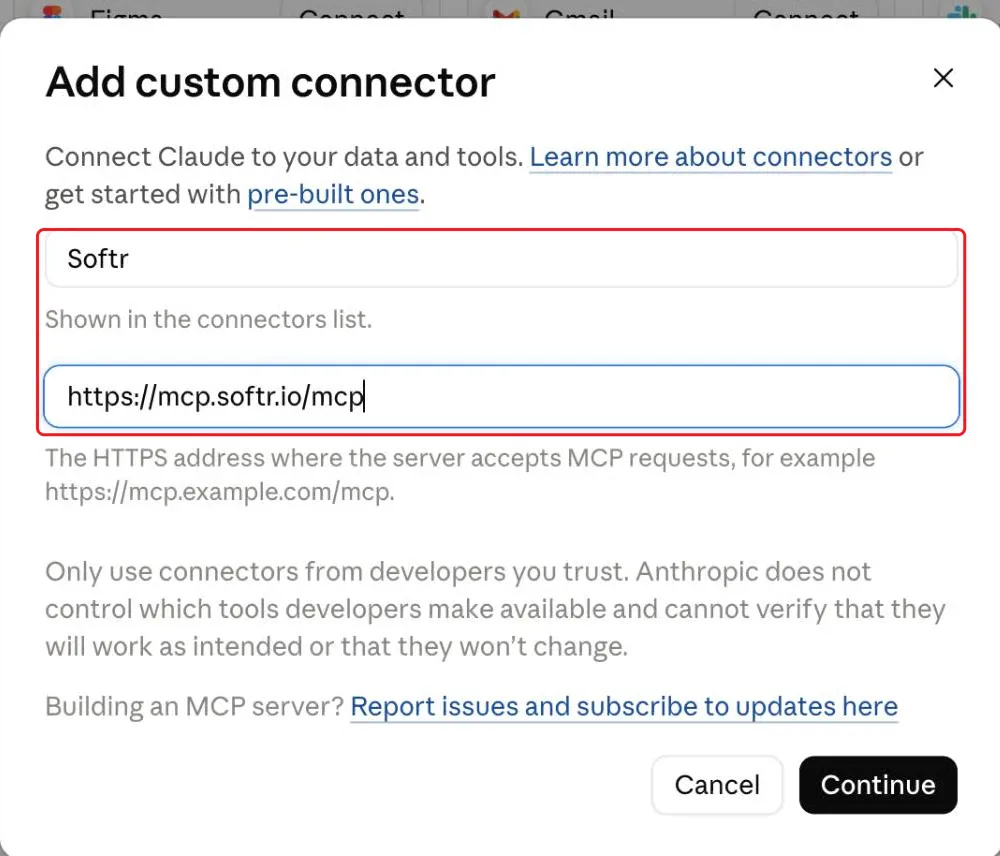
On a Team or Enterprise plan, only an Owner can add a custom connector. If you don't see the +, ask an Owner to add Softr. After that, every user connects from the same screen.
How to add the Softr MCP server to Claude Code in terminal
This path needs a terminal: Terminal on macOS, or PowerShell on Windows. If Claude Code is already installed and working, skip to step 2.
1. Install Claude Code
Claude Code runs from your computer’s command line. It also ships as a desktop app for Mac and Windows, as a web app, and as an extension for VS Code and JetBrains. This section covers the command line setup.
The first step is slightly different depending on whether you’re using a Mac or Windows.
On a Mac
Press Command + Space, search for Terminal, and open it.
First, (if you’re not sure), you can check whether Claude Code is already installed by running this command into your terminal:
claude --version
Press Return.
If you see a version number, Claude Code is installed and you can move on to Step 2.
If you see something like:
zsh: command not found: claude
Just install Claude Code by running:
curl -fsSL https://claude.ai/install.sh | bash
Press Return and wait for the installation to finish.
Then run:
claude --version
If you see a version number, you’re ready to continue. If you’re still having trouble, follow any PATH instructions shown in your Terminal, then run claude --version again.
On Windows
Open the Start menu, search for PowerShell, and open it.
Check whether Claude Code is already installed:
claude --version
Press Enter.
If you see a version number, Claude Code is installed and you can move on to Step 2.
If it isn’t installed, follow Anthropic’s current Windows installation instructions. Once installation is complete, open PowerShell again and run:
claude --version
If you see a version number, you’re ready to continue.
Good to know: The rest of the Softr setup is essentially the same on Mac and Windows. From here, you’ll be entering the same Claude Code commands regardless of which operating system you’re using.
2. Add the Softr MCP server
Now you’ll connect Claude Code to Softr.
In Terminal on Mac or PowerShell on Windows, run:
claude mcp add --transport http softr https://mcp.softr.io/mcp
Press Return on Mac or Enter on Windows.
This adds the Softr MCP server to your current Claude Code project.

By default, the Softr MCP server is added only to the Claude Code project (folder) where you set it up. If you later use Claude Code from a different folder, you may need to add the Softr MCP server again.
If you want Softr to be available in Claude Code regardless of which folder you’re working from, add --scope user when you set it up:
claude mcp add --transport http --scope user softr https://mcp.softr.io/mcp
This doesn't give Claude access to everything in Softr. You'll choose which Softr apps, databases, and workflows it can access in the authorization step below.
3. Check that Softr was added
Before authenticating, check that Claude Code can see the Softr MCP server.
In Terminal or PowerShell, run:
claude mcp list
You should see Softr in the list.
At this point, Softr may show Needs authentication. That’s expected. It just means the server has been added successfully but still needs to be connected to your Softr account.
You’ll do that next.
4. Authenticate your Softr account
Start Claude Code by running:
claude
Once Claude Code opens, enter:
/mcp
This opens the MCP server menu.
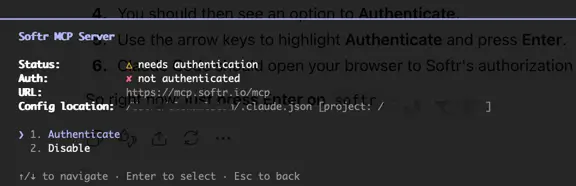
Select Softr, then choose Authenticate.
Claude Code will open Softr’s authorization screen in your browser.
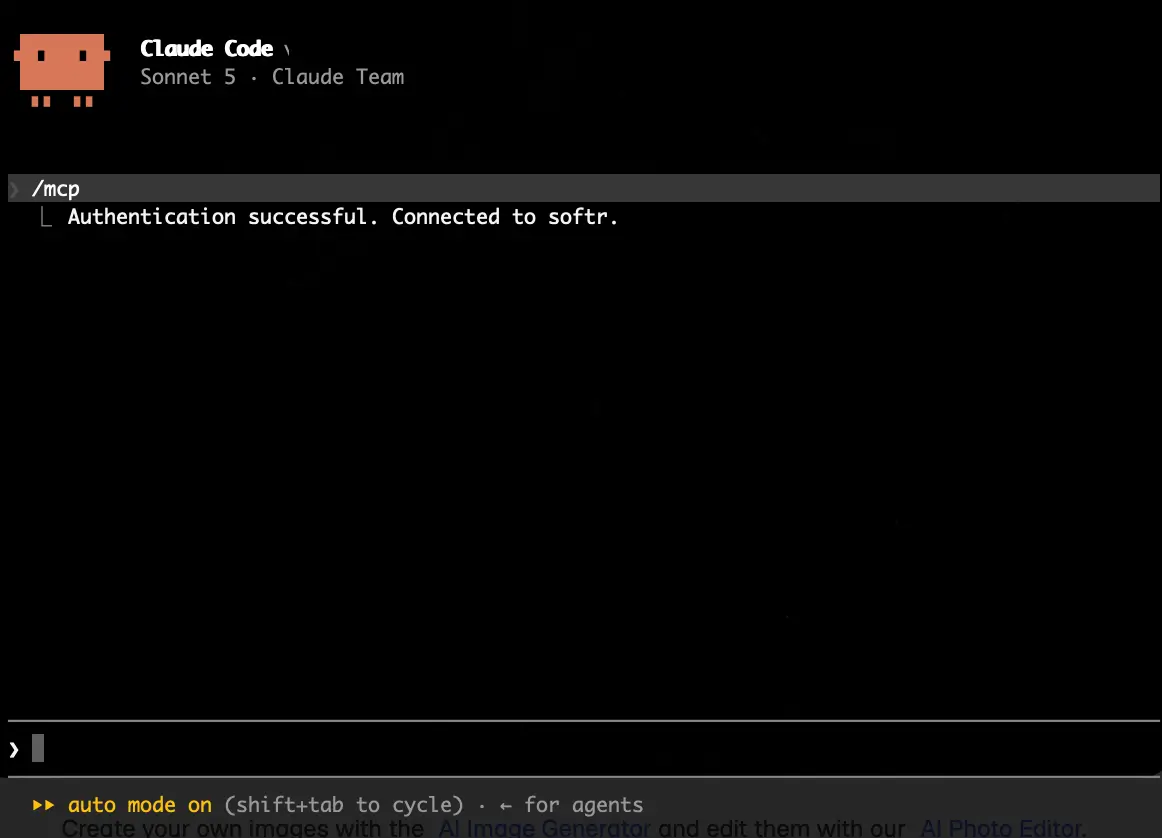
Once authorization is complete, return to Claude Code. This is what you’ll see:
Good to know: Claude Code has its own permission controls for MCP tools. Run /permissions in Claude Code to review the rules for MCP tools and choose whether Claude should allow, ask for approval, or deny their use.
5. Test the connection
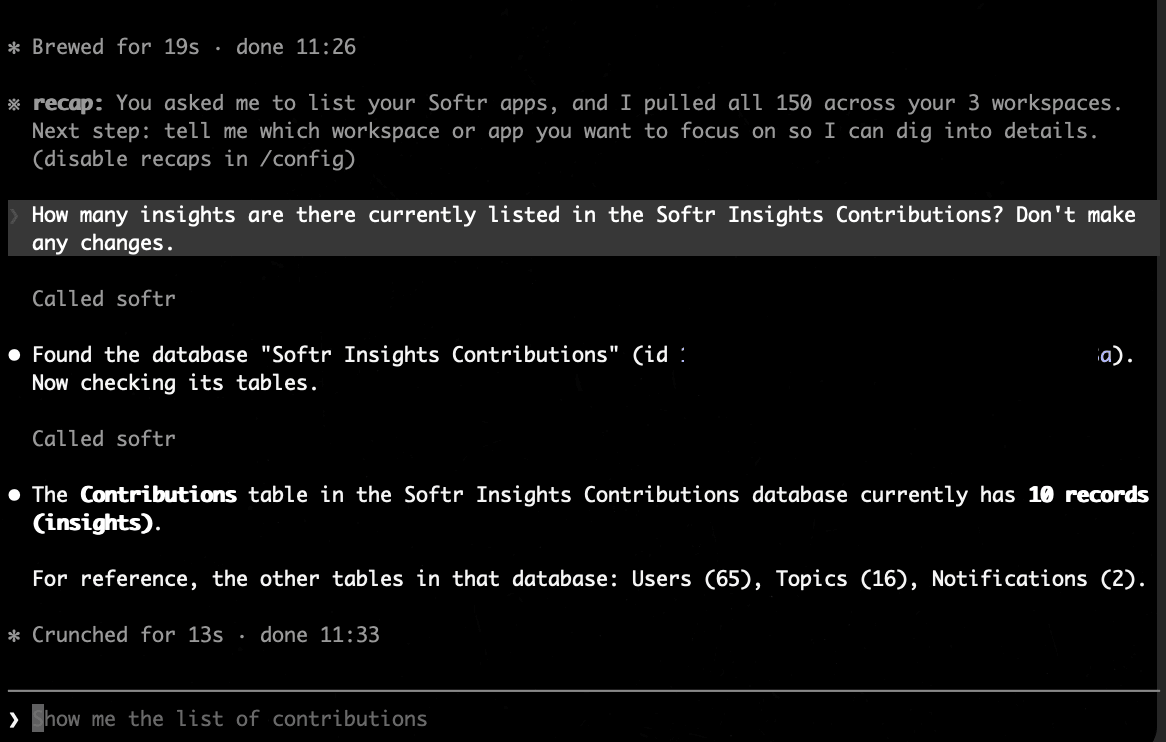
Before creating anything, start with a simple read-only request.
Ask Claude:
List my Softr apps.
Or:
Show me the Softr databases I have access to.
Claude should use the Softr MCP server to retrieve the requested information from your workspace.
If it can see your apps or databases, the connection is working.

From here, you can start working with the Softr resources you already have. For example, you could ask Claude Code to query an existing database, summarize records, inspect an app, or help you make changes, depending on the access you granted.
Choose what Claude Code can access
Before you approve the connection, Softr lets you decide which parts of your Softr workspace Claude Code can access.
You choose these permissions during authorization—they aren’t automatically determined by Claude Code—and you can change or revoke access later. (This step is the same whether you connect through terminal or the desktop app.)

First, choose which Softr resources the connection can reach. You can grant access to everything in the workspace or choose Select specific to limit access to particular apps, databases, and workflows.
Then set the appropriate access level for:
- Applications & Forms: access to your apps, pages, forms, users, and related app resources
- Databases: access to your Softr Databases, including their structure and records
- Workflows: access to your automated workflows
For each area, you can choose None, Read only, or Full access. This means you don’t have to give Claude Code permission to change everything just to use the MCP connection.
Review the resources and permissions you’re granting, then approve the connection.

Build an app in Claude Code with Softr MCP
You can use Claude Code to build apps from scratch in Softr. That’s what we’ll do next.
For the examples below, I’ll use a content management portal, but you can follow the same process for whatever you want to create in Softr.
Work with Softr Databases
Softr MCP can create and manage databases, tables, fields, and the records inside them with Softr Databases. Because most apps need good data to back them up, it makes sense to start with a database.
For my example, I asked Claude Code to create the data layer for a content management portal:
Create a content database with fields for title, content type, author, status, publish date, target keyword, and URL.
Claude created the database and its structure directly in my Softr workspace.
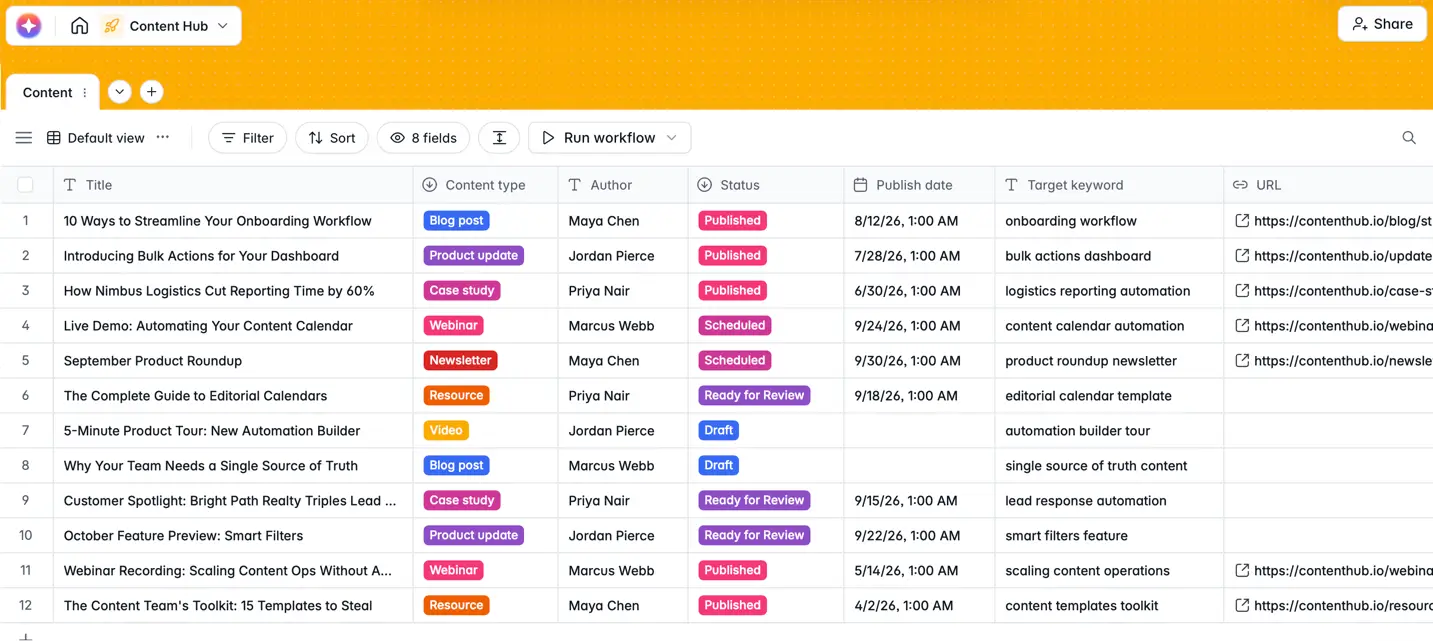
You can take the same approach for whatever you’re building. Softr MCP supports field types including text, dates, attachments, linked records, formulas, and rollups, so you can describe the structure you need rather than creating every field manually.
If you already have data, you can also give Claude Code a CSV and ask it to add those records to your database.
For example, I could continue my content portal with:
Import this CSV of existing content into my Content table and match the columns to the appropriate fields.
As we mentioned before, once your data is in Softr, you can query it through Claude Code. For my example:
Show me how many pieces of content are in each status and group the published articles by author.
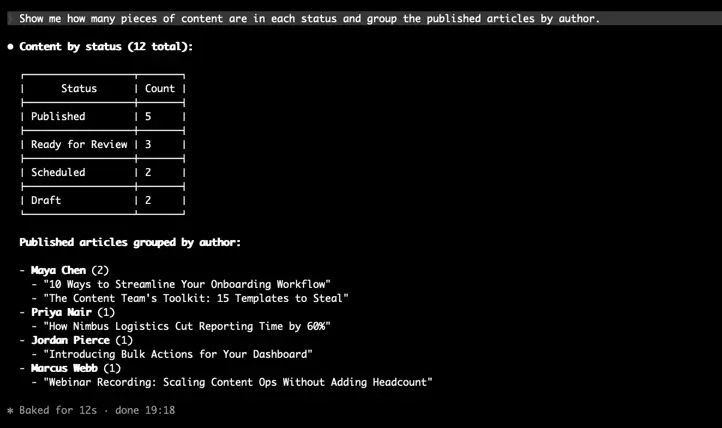
Claude can filter, sort, and summarize records to answer questions about your data without you having to open your database each time.
Build a Softr app on top of your data
Once your data is ready, you can ask Claude Code to build an app around it.
For my example, I asked:
Create a content management portal using my Content database.
From there, I could continue building the app with prompts such as:
Add a content library page where the team can view and filter all content. Add a dashboard page for drafts, content waiting for review, and recently published articles.

Your app obviously doesn’t have to be a content portal. You could use the same approach for an inventory system, client portal, CRM, internal tool, or another app you want to build in Softr.
Claude Code can also help you manage who uses the app and what they can access. You can create user groups, add or remove users, and deactivate accounts. Deactivating a user prevents them from signing in without deleting their account or associated data.
For my content management portal, I could start by creating the roles I need:
Create Editor and Writer user groups for my content management portal.
Then configure what each group can access:
Give Editors access to all content. Set up Writers so they can only access the content they’re responsible for.
You can also ask Claude Code to audit your app’s access controls:
Audit the Editor and Writer user groups in my content management portal and tell me which pages and blocks each group can access.
Claude can review your pages, blocks, user groups, and page permissions and summarize who can access what, helping you identify anything that isn’t configured as intended.

Create custom interfaces with Vibe Coding
Softr MCP can also create Vibe Coding blocks when you need a custom interface.
For my content management example, I could ask:
Create a Gantt chart based on my Content Management Database for my team to plan and track content from draft through publication. Make it accessible only to the Admin user group.

Claude creates the component, connects it to the appropriate data source, and adds it to the page.
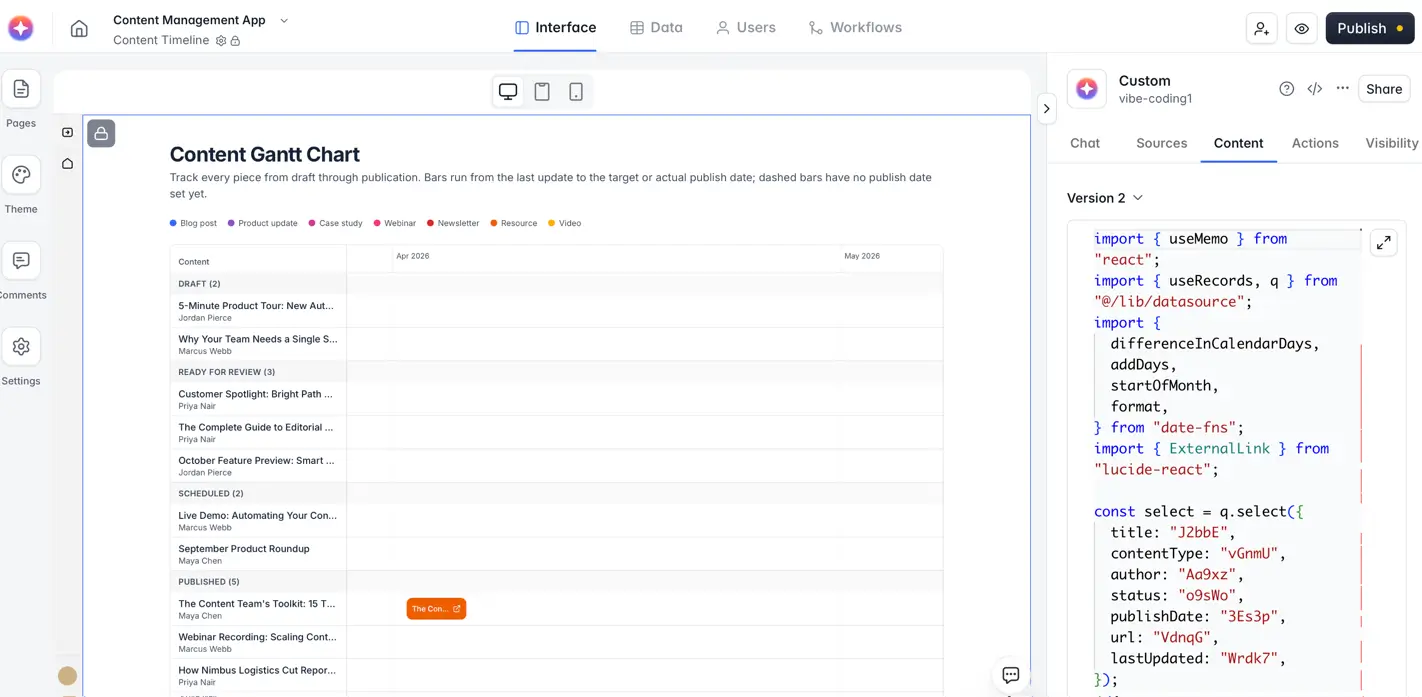
You can then iterate on it:
Add filters for content type, author, and status.
Or refine how the timeline works:
Color-code each item by status and highlight overdue content.
The same approach works for other custom interfaces, including dashboards, calculators, forms, interactive tools, and workflow screens.
Build automated workflows
You can also describe an automation in plain language and ask Claude Code to build it as a Softr Workflow.
For my content portal, an obvious next step would be automating the review process:
When a piece of content moves to Ready for Review, notify the assigned editor. If it’s still waiting for review after three days, send the editor a reminder.
Claude can find the appropriate workflow triggers and actions, assemble the steps, and connect data between them.

I could then refine the workflow with another prompt:
Only send the three-day reminder for high-priority content.
Claude updates the existing workflow rather than requiring you to rebuild it from scratch. Plus, it also tests as it builds, so it will flag any issues and you can refine as you go.
Troubleshooting
Softr shows “Needs authentication”
If Softr appears in your MCP list but shows Needs authentication, open Claude Code:
claude
Then enter:
/mcp
Select softr, choose Authenticate, and complete the authorization process in your browser.
Return to Claude Code and try:
List my Softr apps.
If Claude can retrieve your apps, authentication is working.
Claude can view something but can’t change it
Check the access level you selected on Softr’s authorization screen.
For example, if you gave Claude View only access to Databases, it can inspect your databases but won’t be able to make changes that require edit access.
Claude’s own MCP tool permissions may also require you to approve an action before it runs.
The Softr MCP server isn’t showing up
Exit Claude Code and run:
claude mcp list
If Softr isn’t listed, add it again:
claude mcp add --transport http softr https://mcp.softr.io/mcp
Or, if you want Softr available across your Claude Code projects:
claude mcp add --transport http --scope user softr https://mcp.softr.io/mcp
Then open Claude Code and authenticate through /mcp.
Claude isn’t recognized on Windows
If PowerShell says that claude isn’t recognized, make sure Claude Code installed successfully.
If you just installed it, close PowerShell, open a new window, and run:
claude --version
If it still isn’t recognized, follow Anthropic’s current Windows installation troubleshooting instructions.
Claude Code installed on Mac, but Claude doesn’t work
If installation completed but Terminal still can’t find claude, look for a message about .local/bin not being in your PATH.
Follow the PATH instructions provided during installation, then run:
claude --version
💡 For the full reference on every tool and permission, see the Softr MCP documentation.
Build in Claude Code, run on Softr
Softr MCP gives you another way to build in Softr without replacing the builder itself. You can start with Claude Code to move quickly, then open Softr whenever you want to inspect what was created, make changes by hand, or keep building there.
And because Claude is configuring Softr’s databases, permissions, workflows, and app structure—not generating a separate app that only exists inside the AI tool—you can turn what you build into something your team or clients can securely log into and use.
Your build stays in Softr, so you can keep working on it even if you switch AI tools later.
👉 Try Softr free and connect your MCP server to Claude, Codex, or another AI platform today.
Frequently asked questions
What can I do with Softr MCP in Claude Code?
Does Softr MCP use Softr AI credits?
Can I control what Claude Code can access in Softr?
What is MCP?