How to build a custom MCP for your team (the secure way)

[.blog-callout]
TL;DR:
- Every Softr app can act as its own MCP server. Your team members connect their AI assistant (Claude, ChatGPT, Mistral) and work with the app from there.
- The assistant acts as the signed-in user, so user groups, page visibility, and data restrictions all still apply. It can never do more than that user could do in the app.
- What the AI can do mirrors your app's screens: a list block means read, a form means create, inline editing means update. No block, no access.
- Enabling it takes one toggle in Settings → MCP. Users connect with just the server URL and an OAuth sign-in.
[.blog-callout]
A growing share of everyday work now runs through AI assistants. People draft in Claude, plan in ChatGPT, and dictate notes to an assistant on their phone between meetings. MCP (Model Context Protocol) is the standard that connects those assistants to actual tools, and it's spreading fast.
But most MCP connections come with a governance problem: they either grant far more access than anyone intended, or they lack the specific actions your team actually needs. At Softr, we took a different approach. Any app you build can become its own MCP server with a single toggle. When someone connects an AI assistant, it can only access the data and perform the actions that user is already allowed to.
AI assistants as a second interface for your apps
Until recently, there was one way to use a business app: open it and click around. That's changing. If your inventory tool, CRM, or HR portal is reachable through MCP, your team can also work with it conversationally, from whichever AI assistant they already use.
Softr's CTO Artur Mkrtchyan described it this way in a recent podcast interview at No Code Week in Frankfurt:
"It's just another interface. You have a reliable app on the back, but you still interact with it through different means." — Artur Mkrtchyan, CTO and Co-founder at Softr
That framing matters. The app remains the source of truth, with its database, logic, and access rules. The assistant is simply a new door into it, one that happens to understand natural language.
The problems with most MCP connections
Connecting an AI assistant to a generic MCP server usually means authenticating with an API token or an admin-level integration. That creates two problems for any team that cares about its data:
- Over-permissioning: Tokens are often scoped to the whole workspace or the whole database. The assistant of a junior teammate ends up with the same reach as an admin, and one careless prompt can touch data it should never have seen.
- Missing the right tools: Generic connectors expose generic actions. They rarely match the actual operations your team performs, like "log a support ticket with these three required fields" or "adjust stock for this warehouse only."
For personal experiments, that's tolerable. For a company rolling out AI access to a CRM or an ERP, it's not.
With Softr, your app's permissions become the AI's permissions
Every Softr app can act as its own MCP server. Once you enable it, the people who use that app can connect their assistant and do, from a chat window, exactly what they could already do while signed in, and nothing more. Every request runs as that specific user: user groups, page visibility, and data restrictions all still apply.
Concretely, the assistant's capabilities are derived from the blocks you've built into the app:
| What the app contains | What the assistant can do |
|---|---|
| A list, grid, or table block | Read records |
| A form or sign-up block | Create records (only the fields shown in the form) |
| A profile block or inline editing | Update records |
| A delete action | Delete records |
The consequence is simple to reason about: the MCP surface mirrors your app's screens. If there's no block for a table, the assistant can't touch that table, even if the underlying data source contains it. Hidden fields stay invisible. And to expose more (or less) to AI clients, you just change what your app shows: add a form to allow creation, or restrict a block by user group to limit access.
This is what makes the setup safe by design. You're not writing a permission policy for the AI on top of the one you wrote for the app. There's only one policy, the app's, and the AI inherits it.

App MCP use cases
Once the connection is made, the assistant becomes a hands-free way to get real work done in your apps. A few examples from apps our users commonly build:
- Inventory management: A warehouse employee asks their assistant "how many units of the X200 do we have left?" and gets the answer straight from the app's data. If the app gives them editing rights, they can follow up with "log that 40 units just shipped."
- CRM: A sales rep leaving a meeting dictates a voice note, and the assistant creates the new contact in the CRM, filling exactly the fields the app's form exposes.
- Help desk: Anyone on the team can say "log a ticket: the printer on floor 2 is down again" without opening the internal tool at all.
- HR portal: Employees check their team's availability or book time off in one sentence.
That last one is the example Artur used in the interview:
"You can just voice or type it: hey, first week of August I want to be on vacation, can you book it for me? If you've connected the app as an MCP, it will act on your behalf as your app user, and it will do that work for you." — Artur Mkrtchyan
Notice what's constant across all of these: the assistant never gains a special account. The sales rep's assistant sees the sales rep's records. The employee's assistant books vacation as that employee.
Multiple apps, one conversation
MCP connections also compose. An assistant can hold several of them at once, which means your Softr apps can participate in workflows that span tools, with natural language as the glue.
Say a manager has connected two things to their assistant: a reporting tool with its own MCP, and your Softr client portal. They can ask the assistant to pull last month's usage numbers from the first system and log a summary record in the portal for the client to see. The assistant reads from one connection and writes to the other, and each side enforces its own permissions independently.
You could do the same between two Softr apps: fetch a project's status from the internal project tracker, then post an update in the client-facing app. No integration was built for that specific hand-off. The user just described it.
Already have a Softr app? Enable MCP with a toggle
If your team already runs on a Softr app, there's nothing to rebuild. Enabling MCP is a settings change:
- In the app's left sidebar, open Settings → MCP and click Enable MCP.
- Copy the Server URL (it follows your app's published domain, like
https://acme.softr.app/v1/mcp). - Share it with your app's users. In their AI tool, they add it as a connector, sign in to the app through the OAuth window, and they're set.
Quick-setup cards walk users through the exact steps for Claude, Claude Code, ChatGPT, and other clients. For the full details, including advanced OAuth settings, see the App MCP Server documentation.
This is different from the workspace-level Softr MCP, which lets builders create databases, build workflows, and manage apps from their own AI assistant. The App MCP Server is for your app's users, and that's precisely why it can be rolled out to a whole team with confidence.
Starting from scratch? Build an app first
If you don't have the app yet, it's faster than you'd expect to make one. The permissions you'll rely on for MCP are set up as part of building the app, not bolted on afterward. Here's the short version of going from zero to an AI-ready app.
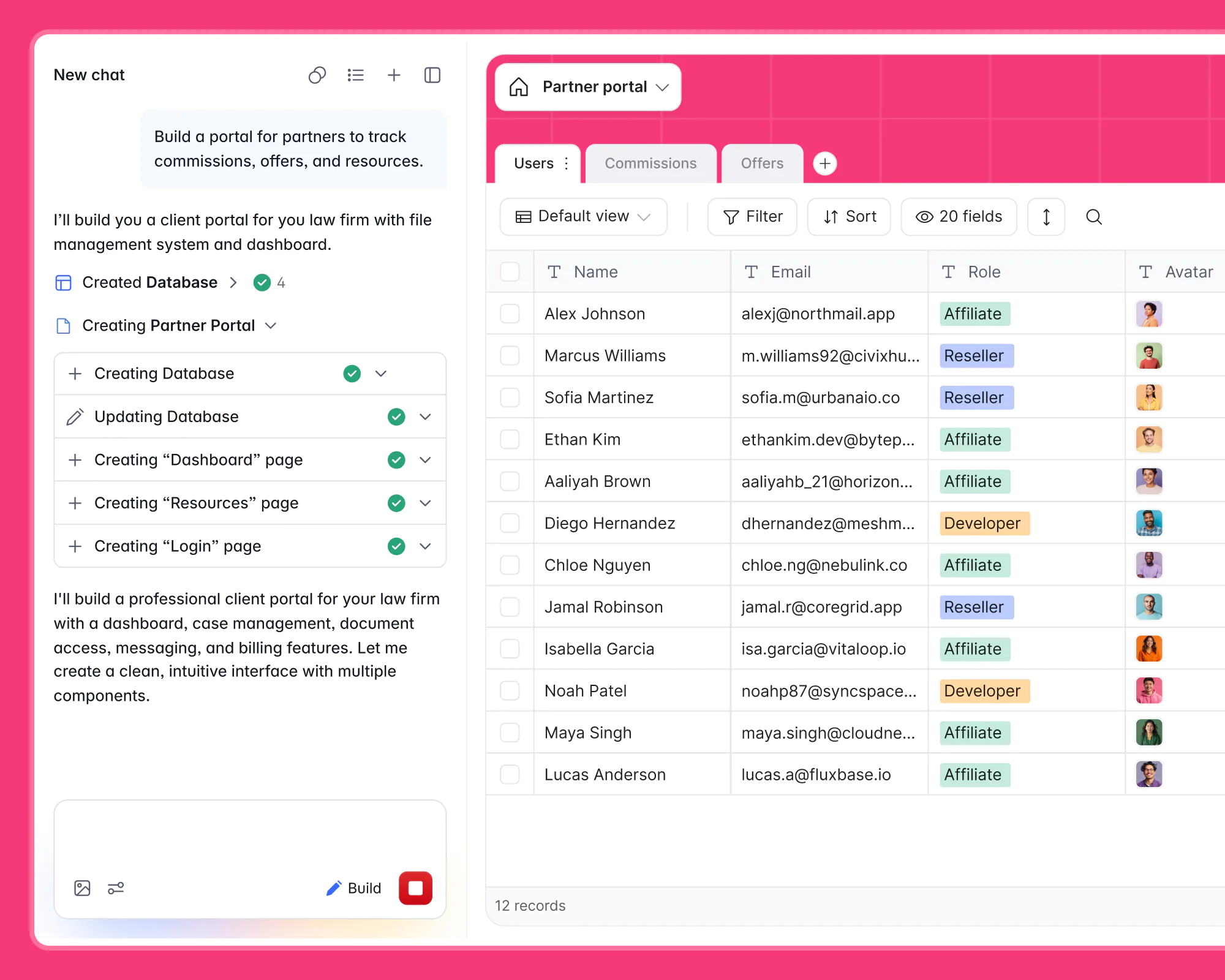
Start by describing what you need to Softr's AI Co-Builder. From a single prompt, it builds a complete, working application: database tables with sample data, pages, blocks matched to each use case, and user groups with sensible permissions.
From there, a handful of steps get you to an app your team can use through their assistants:
- Connect or refine your data. Keep the Softr Database the Co-Builder created, or connect one of 21+ external data sources like Airtable, Google Sheets, or HubSpot. This is the data your app, and later the AI, will read and write.
- Set your user groups and permissions. Define who belongs to which group and what each group can see and do. This step matters twice: it secures the app, and it becomes the exact boundary the AI enforces. Learn more in our guide on user groups and permissions.
- Add the blocks your team needs. Remember that the blocks define the MCP surface: a list to read, a form to create, inline editing to update. Build the screens people will actually use, and the AI capabilities follow.
- Publish the app, then enable MCP with the toggle described above.
Everything the AI Co-Builder assembles is fully editable by hand, so you're never locked into prompting. Build with AI for speed, then adjust visually for precision.
The app is the guardrail
The safest way to give AI access to company data turns out to be the most familiar one: build a proper app first. When your business app already defines who belongs to which user group and who can see which records—rather than opening a new risk surface—AI access is just the same app through a new door.
That foundation is enterprise-grade on Softr. Every app ships with SOC 2 Type II compliance, GDPR-ready data hosting in Europe, and options like SSO, so opening an app to AI doesn't mean loosening your security posture.

If you've already built your tools on Softr, try flipping the MCP toggle on one of them and connecting your own assistant. And if you haven't, start with building an app: the permissions you set up today are the guardrails your team's AI will follow tomorrow.
Sign up free today to give it a try.
Frequently asked questions
What is an MCP server?
Can an AI assistant bypass my app's permissions through MCP?
Which AI assistants can connect to a Softr app's MCP server?
What's the difference between the App MCP Server and the Softr MCP?
How do I control what the AI can do in my app?