[.blog-callout]
TL;DR
- Connect your Google Sheets file to Softr as a data source, or describe your app to the AI Co-Builder and let it generate the database, pages, and blocks for you in minutes.
- Softr's no-code editor turns spreadsheet rows into a real business app: dashboards, portals, CRMs, and more, complete with logins and permissions.
- Once connected, your app stays in sync with your sheet, and you can layer on custom design, user groups, and automations without writing code. [.blog-callout]
Whether you're managing data for inventory, tracking employees, or handling client projects, Google Sheets offers a simple, familiar way to store your information. The problem is that a spreadsheet alone isn't built for the people who need to use that data: clients want a clean portal, not raw rows and columns; teammates need permissions, not a shared link anyone can edit.
By turning your Google Sheet into an app, you get a user-friendly, secure interface that provides a real experience for whoever is using it, without asking your data to live somewhere new.
The fastest way to do that is with Softr. In this guide, I'll show you how to turn your Google Sheets data into a working app using Softr's no-code platform, whether you describe it to the AI Co-Builder, start from a template, or build it manually. It's fast, efficient, and perfect for anyone looking to streamline operations and get more out of their Google Sheets, all without writing a single line of code.
Step 1: Sign in or create a Softr account
First, log in to your Softr account. You can sign up for free if you don't have an account yet.

To get started, go to the Softr homepage, click "Sign up for free," and follow the easy steps.
Step 2: Create a new application
Once logged in, you have three ways to start building: describe your app to the AI Co-Builder and let it generate a working app from a prompt, choose one of Softr's customizable app templates, or start from scratch and build it manually.
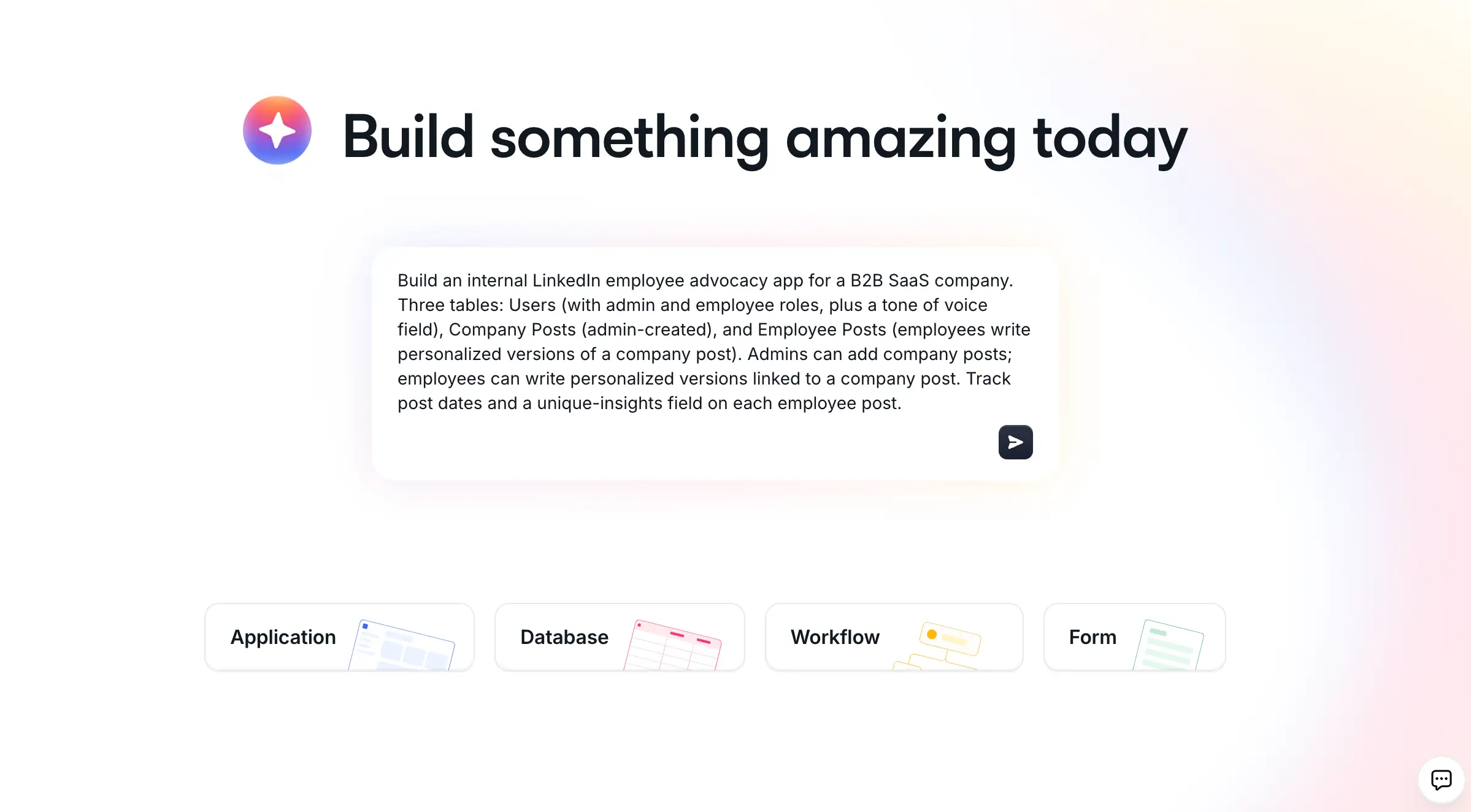
For a Google Sheets-based app, describing your use case to the AI Co-Builder (for example, "a client portal that shows each client their projects and invoices from my Google Sheet") gets you a working starting point in minutes, complete with pages, blocks, and user groups already mapped to your data. From there, you can keep refining it manually or with more prompts.
If you'd rather start from a proven structure, Softr also offers a variety of templates to help you develop your app, like the Inventory Management, Employee Directory, or Sales CRM app templates.

For this guide, I'll use the Client Portal Template. Select your preferred template and click "Use Template" to proceed.

Related resource: Read our blog on how to use Google Sheets as a database to prepare your data
Step 3: Connect to Google Sheets
After choosing your template, you'll be prompted to select a data source. Softr recommends Softr Databases, its own native database, as the default for new apps because it's faster and comes with more advanced permissions out of the box. But since we're building on top of an existing Google Sheet, choose Google Sheets from the list of available source data, then click "Continue."
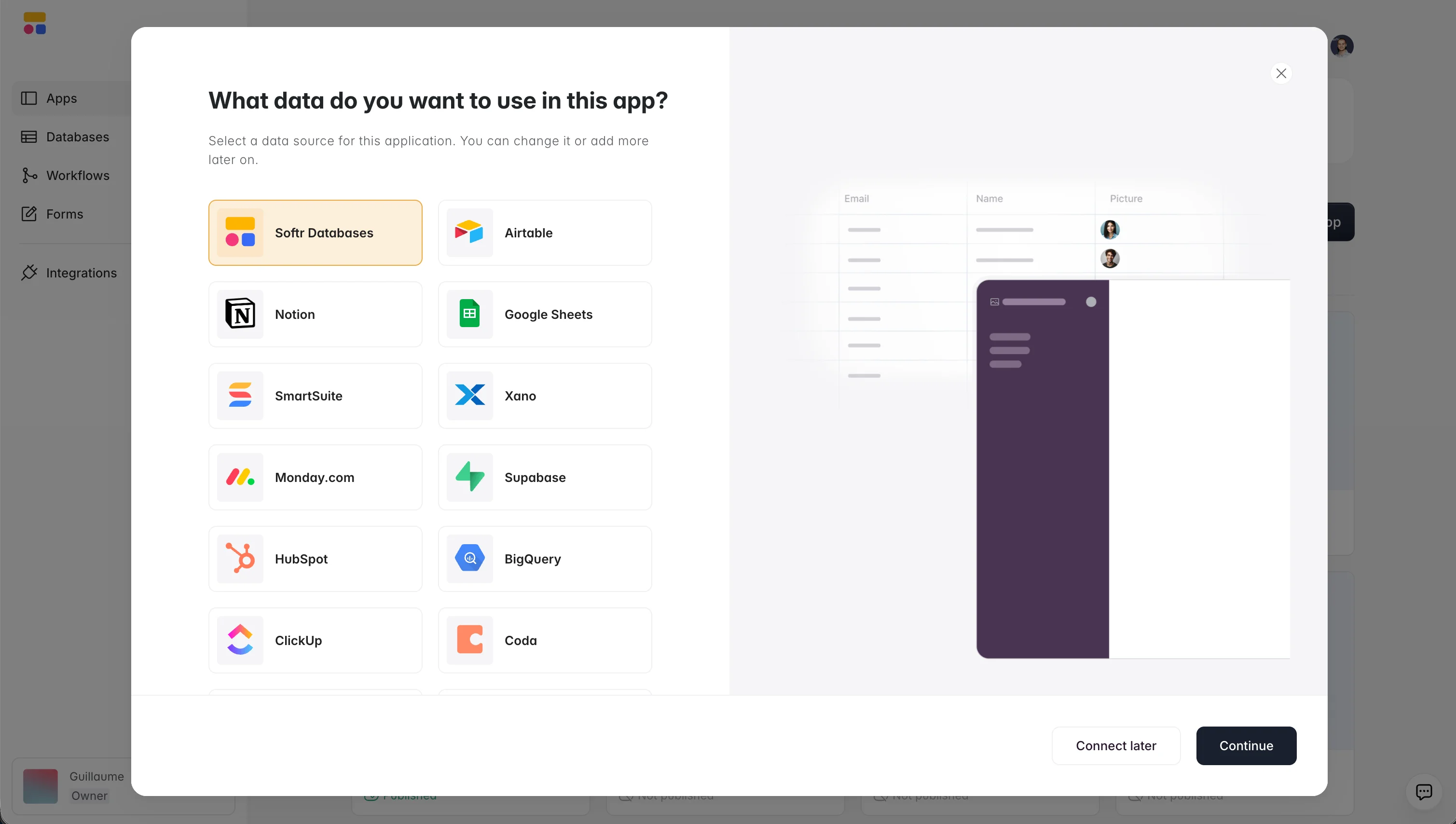
Next, connect Softr to your Google Sheets account. A window asking you to sign in to your Google account will pop up.

Choose the account where your data is stored, and then grant Softr access to your Google Sheets by clicking "Select All" and "Continue."

This connection allows Softr to access your spreadsheet data to power your app.
Once your Google account is connected, click "Go to application."

Step 4: Choose your Google Sheets file and map data
Once Softr and Google Sheets are connected, you'll need to choose the file you want to use for integration. Open one of the template blocks. On the right-side panel, under the Source tab, click the "Document" dropdown menu to select your Google Sheets file.

Choose the appropriate sheet and map the columns to the correct blocks of your app, connecting data to the proper places. If you're adding several blocks or tables and want to save time, you can also describe your data structure to the Database AI Co-Builder and let it map fields and set up relationships between sheets for you.
Step 5: Customize your new app
Now that integration is complete, it's time to customize your new app to match your brand's style and needs.
Modify your app's user interface by clicking "Theme" on the left menu to customize your font, colors, and app styles.

Adjust the block paddings, margins, colors, add a logo, and more by clicking on any block to open a sidebar with style options.

You can also add new blocks to create additional sections in your app. Click the "+" icon in the top-right corner and search for the block you need, or ask the AI Co-Builder to add it for you by describing what you're looking for (for example, "add a kanban board showing my Projects sorted by status").
An app can contain several pages. For example, our Client Portal Template includes a user login page, a password reset page, a client list, a project list, and more. You can include as many blocks as needed on each page.
Make sure to connect any new blocks to the appropriate Google Sheets data set and map the fields.
If you need something the standard blocks don't cover, like a custom calculator, a Gantt chart, or a branded CSV importer, the Vibe Coding block lets you generate it from a plain-language prompt. It connects directly to your Google Sheets data, respects your app's permissions, and automatically inherits your theme, so it fits right in without any extra styling work.

Step 6: Add users and adjust visibility
To add users like team members or clients, navigate to the Users panel from the left menu and click "Add Users."

You can manually add their details or import users by uploading a CSV file with user data.
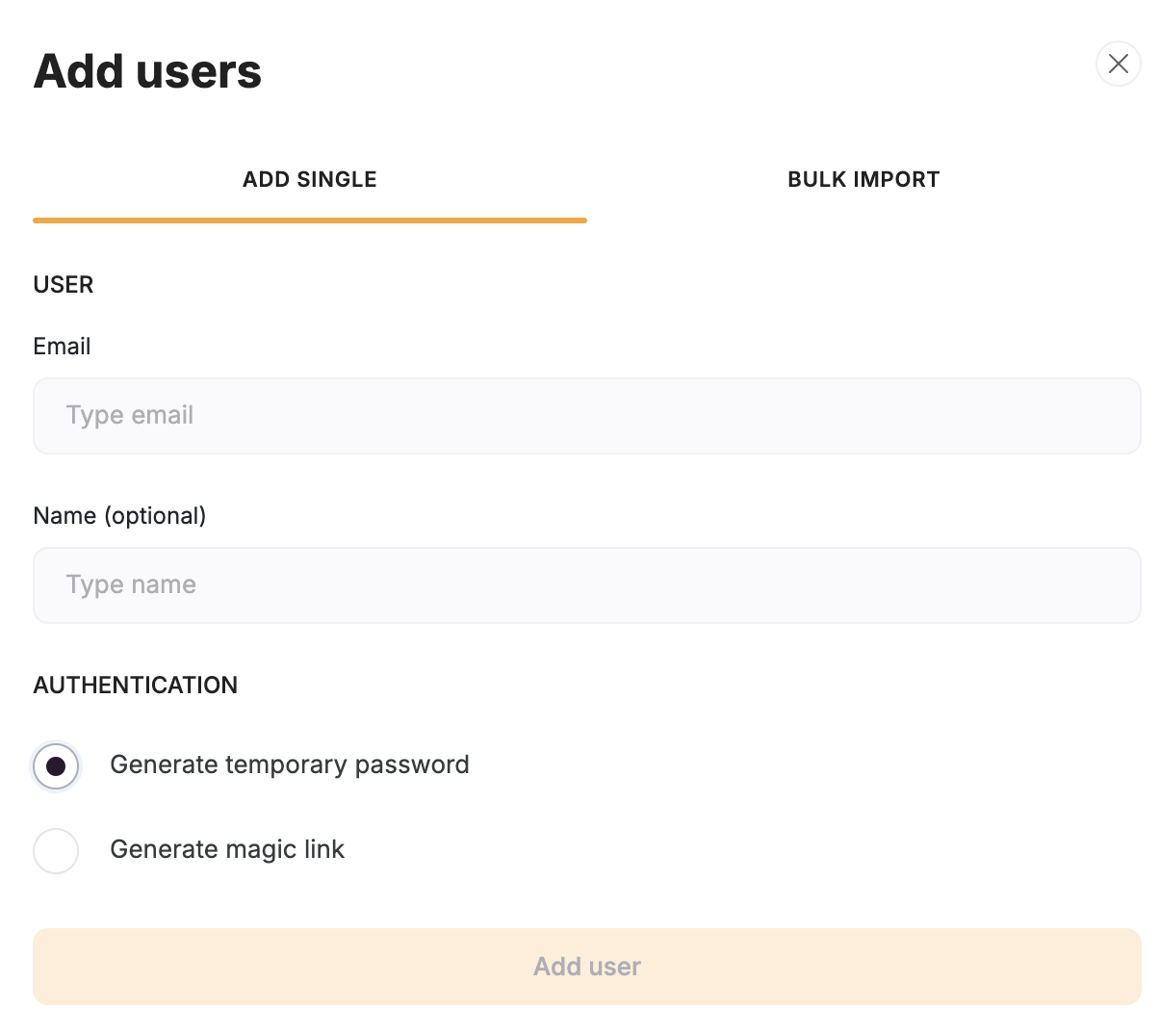
Once you've added users, you can assign them different permissions to control what they can see or do within the app.
You can also create user groups, to which you can add multiple members and assign the same permissions to each group of users. This is what separates a shared spreadsheet from a real app: instead of one open document anyone can edit, each user group gets its own view of the exact same underlying data.
"Managing external partners through emails and spreadsheets is a nightmare. A portal allows you to only surface the information that is relevant to them and make approvals on the fly." - Shiran Brodie, Head of Marketing at Softr
To create user groups, click on the User Groups tab and then on "Add user group." Name the group and add the users manually or based on certain conditions.
Before you deploy your app, you can customize views to control which users or groups can view specific pages or blocks. In the Visibility tab for each page or block, app creators can set the permissions based on user roles or groups.
Click on the cog icon at the top left, then open the Visibility menu to define which users or user groups can see that page.
To change the visibility of a specific block, click on it to open the sidebar on the right side. Then, open the Visibility tab to define access for users or user groups.
Step 7: Publish your app
Once you're satisfied with your app's design and data setup, it's time to deploy your app.
Click the "Publish" button in the top-right corner of the page. A confirmation popup will appear; hit "Publish" again, and your new app will be live for users to access.

You can also turn your web app into a PWA (Progressive Web App) with just one click for desktop or mobile device access.
Now you're ready to share your app. As your needs grow, you can keep refining it, add automations, and expand to new teams without breaking what already works.

Build more no-code apps with Google Sheets
From managing internal operations to building client-facing tools, Softr makes app creation easy, no coding required.
Here are just a few of the use cases and different types of apps you can create with Softr:
1. Internal tools and dashboards
Turn your business data into internal tools and dashboards to monitor critical metrics. Create live dashboards that update in real time as your business data changes to track sales data, employee performance, project management, and more. Display information in charts, graphs, grids, lists, and more, making it easier to make data-driven decisions.
2. Custom client portals
With a custom client portal, you can give clients secure access to a specific data set stored in your Google Sheets. Customize views and permissions for a tailored user experience. Clients only see what's relevant, so you can share invoices, project updates, documents, and more.
3. Inventory management system
With Softr, you can turn your inventory tracking spreadsheet into a fully functional inventory management app. Create views for different team members or departments, and track and manage products and inventory, all using spreadsheet data.
Related resource: How to use Google Sheets for inventory management
4. CRM apps
Build a CRM app with your Google Sheets data and customize it to your sales process. Your sales team can manage leads, track customer interactions, and follow up on sales opportunities all in one place.
Related resource: How to use Google Sheets as a free CRM
5. Vendor portal
Using Google Sheets as a backend, you can create vendor portals to keep all vendor data organized and easily accessible, with custom permissions for each vendor.
6. Employee portal
Create an employee portal app for onboarding, managing employee information, sharing internal documents, and more.
7. Team intranet
Use Softr's no-code platform to build a team intranet that improves internal communication and collaboration. Your team can access documents, announcements, and project information, keeping everyone connected and informed.
If your data needs grow beyond what a spreadsheet can comfortably handle, most of these use cases also work well on Softr Databases, Softr's native database, which you can adopt later without rebuilding your app's interface.
Start building your Google Sheets app today
Now that you know how to create an app from Google Sheets, it's time to start building. Whether you're a small company or a growing team, Softr makes app creation simple and scalable, and you don't have to choose between speed and control: describe your app to the AI Co-Builder, start from a template, or build it by hand.
Try Softr for free and turn your Google Sheets data into a functional app today.
Frequently asked questions
- Do I need to know how to code to build an app from Google Sheets?
- Will my app update automatically when I edit my Google Sheet?
- Is Google Sheets a good long-term data source for a business app?
- Can I restrict what different users see in my Google Sheets app?
- Can I customize the design of my Google Sheets app?