If you’ve used a no-code app builder before, you’ll know how frustrating it is when pre-built blocks and customization options just can’t get you the results you want. In the past, hitting that wall meant looking for a workaround, bringing in a developer, or settling for a less functional app than the one you had in mind.
The Vibe Coding block changes all that. Built directly into Softr—an AI-powered platform for creating real business software—it lets you go beyond native blocks to generate fully custom tools and interfaces by simply describing what you want.
To get the most out of the block, it’s important to know how to use it. That’s what this guide will cover. Keep reading for a step-by-step tutorial, best practices for iteration, and examples of what you can build with Softr and vibe coding.
What is the Vibe Coding block?
The Vibe Coding block is a tool that lets you instantly generate custom app interfaces with AI. Just input a prompt in plain English and Softr’s AI will build an interface. You can connect it to your live data, add CRUD actions, and make text and design edits directly without re-prompting.

Every version you generate is saved automatically, so you're able experiment and iterate without the risk of losing (or breaking) work you liked.
The Vibe Coding block sits inside Softr's existing infrastructure, which means it automatically inherits your app's theme, connects to the same data sources your other blocks use, and respects the same user permissions. Use it in combination with Softr’s native blocks to build custom, production-ready business apps.
How to use the Vibe Coding block
Using the Vibe Coding block is simple, and you don’t need a background in coding or any experience with AI to get results. These steps will show you how to add, prompt, and configure your block, so you can go from idea to working interface as quickly as possible.
1. Add the Vibe Coding block and enter your prompt
Open your Softr app, click Add block, then select AI → Vibe Coding block.
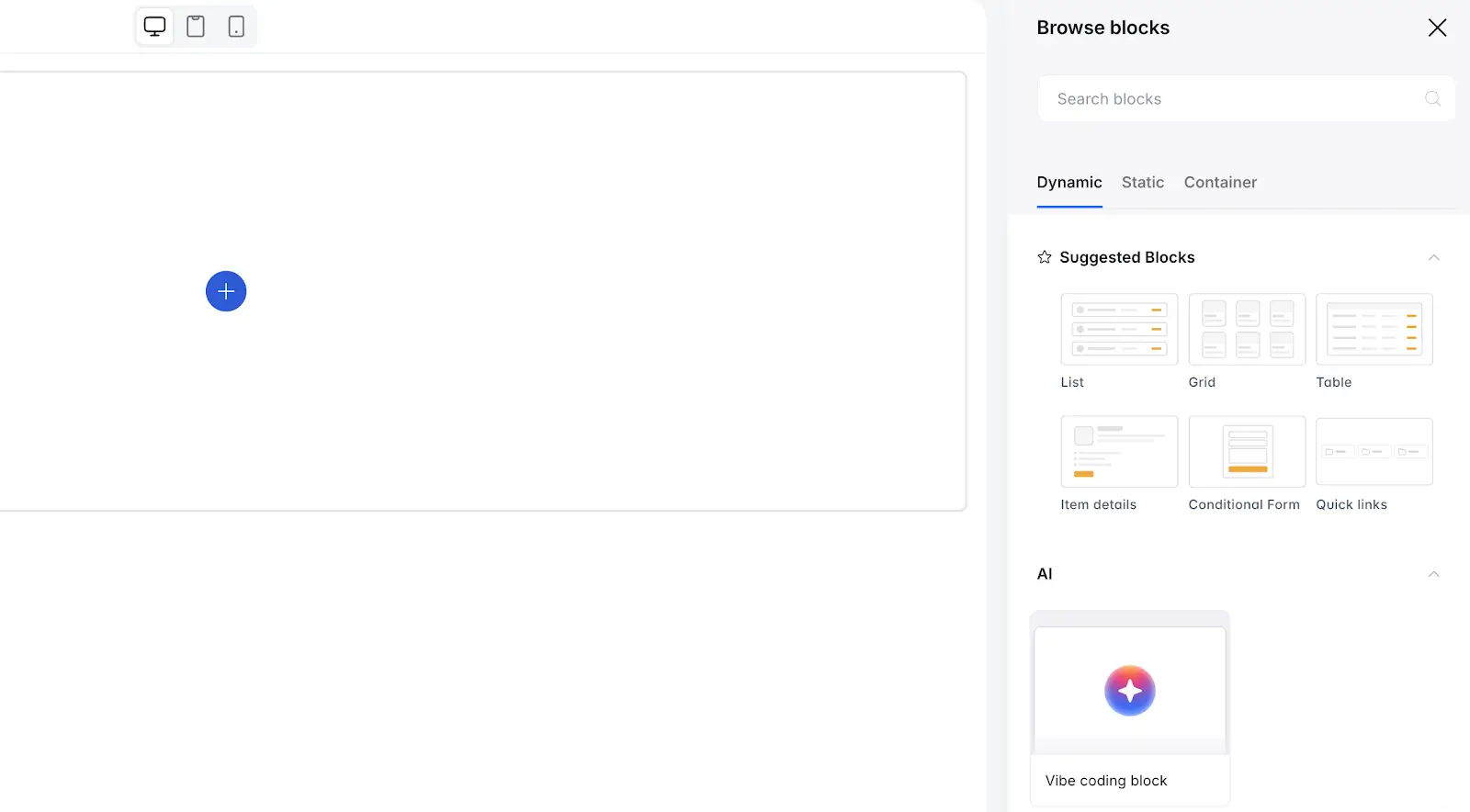
In the chat, describe whatever you want to build in plain English. It helps to be as specific as possible at this stage, and to limit your prompt to a single feature instead of asking for too many things at once.
Note that the Vibe Coding block supports both static and data-connected blocks. So, you could ask for:
- A static layout like a page header, pricing table, or content section
- A dynamic, data-connected block like a dashboard, booking tool, or admin view that pulls from live data
You can also attach an image to your prompt by clicking the image icon in the bottom left of the chat box. This is useful for sharing a design reference or screenshot of what you’re going for.
Once you submit your prompt, Softr’s AI will generate the interface inside the block. From this point, you can iterate by re-prompting or make direct text and image tweaks with Softr’s visual editor.
2. Connect a data source
If you want your block to dynamically display live data, select the Source tab and connect a data source. Choose the broader Database you want to sync with and the specific Table the block should connect to.
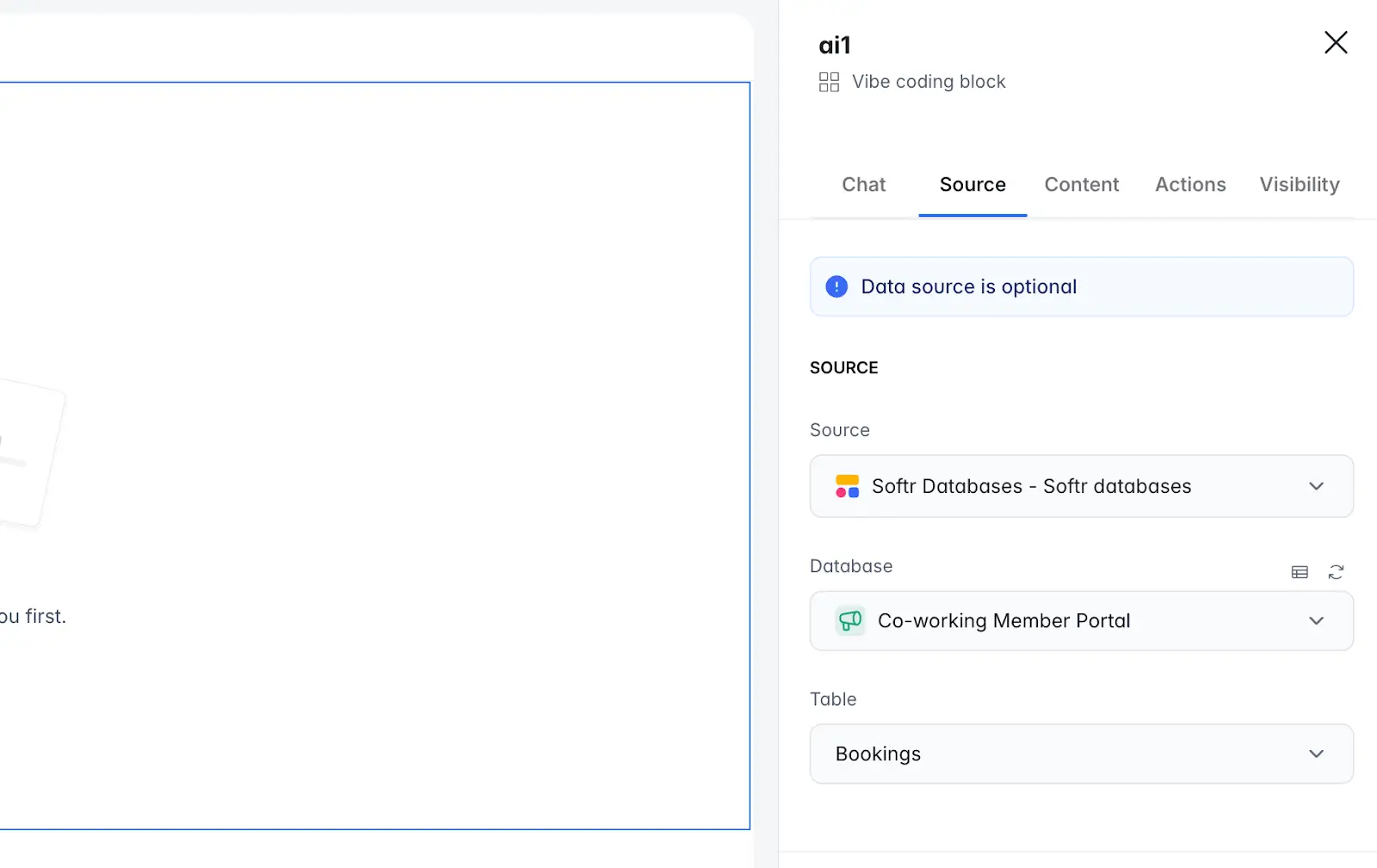
You can also add conditional filters here to control exactly which records get pulled in. This can be useful for showing only relevant data to a specific user group, or narrowing results based on status, date, or any other field in your table.
The Vibe Coding block supports native Softr Databases and 21+ external data sources, including Airtable, Google Sheets, Notion, HubSpot, SQL, and more.
3. Add and configure CRUD actions
With your interface generated and data source connected, you can now prompt the AI to add action buttons for users, such as:
- Create/add records
- Edit/update records
- Delete records
After generating these actions in the UI, you can:
- Go to the Actions tab in the Vibe Coding block.
- Review each action and configure permissions, conditions, or connected workflows as needed.
For example, you could prompt: “Add a button that lets users submit a new booking request.” The AI will generate the UI and create a corresponding action you can then configure in the Actions tab. This is where you control how each action behaves — like setting permissions to determine which user groups can perform it, or connecting it to any workflows you want to trigger as a result.
See Guillaume’s video below for a more detailed breakdown of CRUD actions in the Vibe Coding block:
4. Control visibility and access
Use the Visibility tab to control which users can see the block. This step is key when the same page is shared across different user groups: for example, showing a block to admins but hiding it from clients.
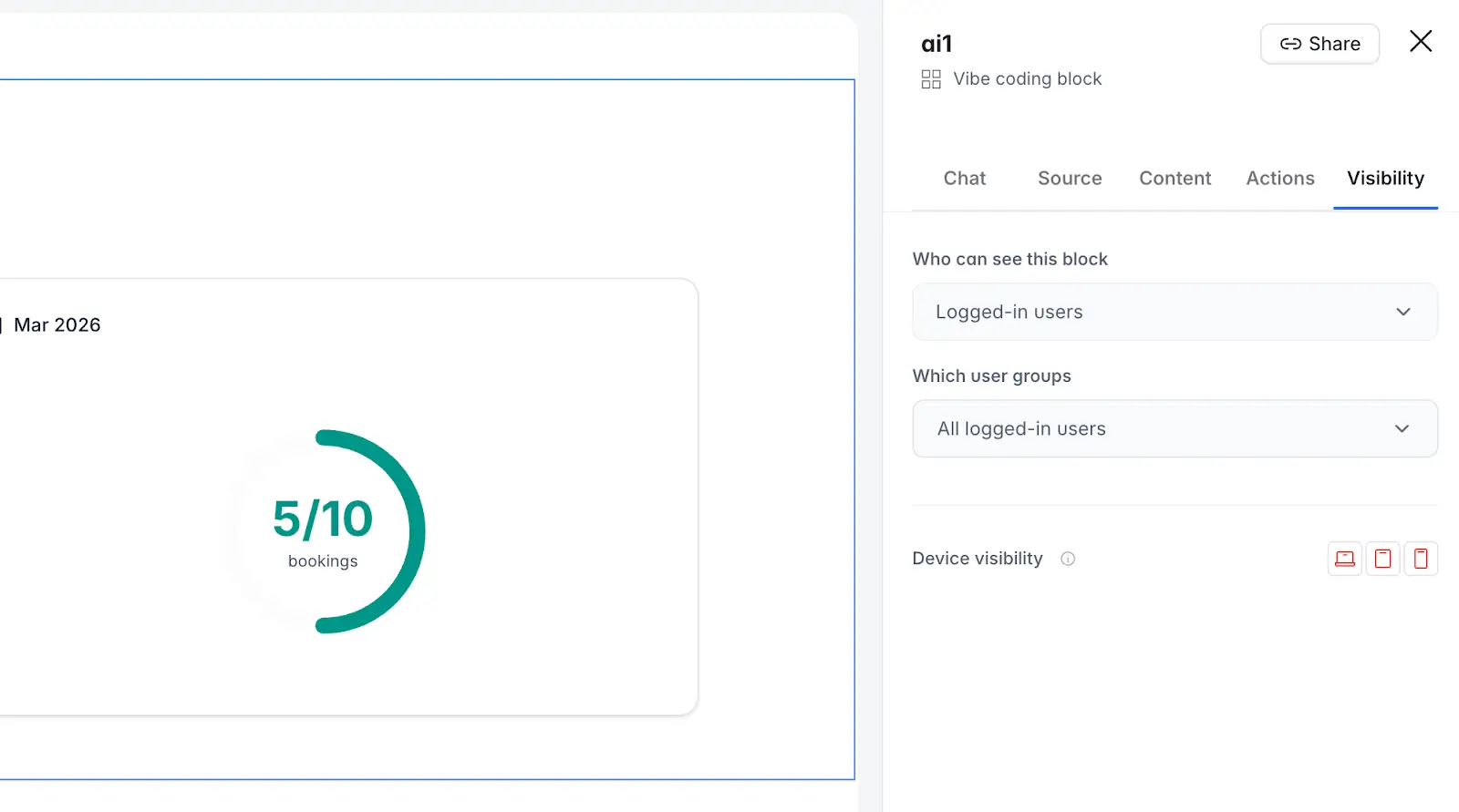
As mentioned above, you can also set conditional filters in the Source tab. This lets you restrict which database records are pulled into the block based on specific field values. So even if two users can both see the block, they'll only ever see the data that's relevant to them.
5. Manage version history
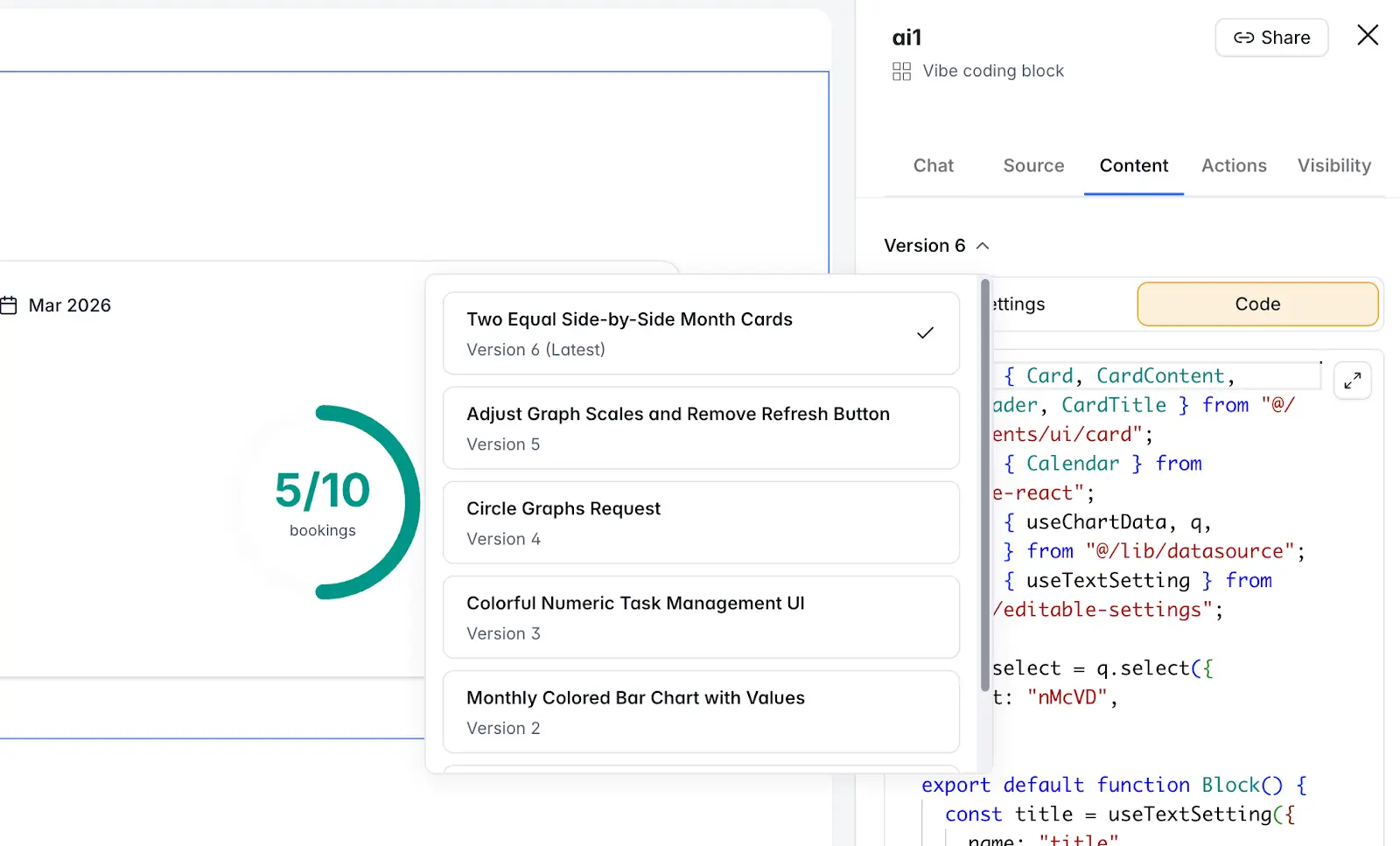
Each time you re-prompt the block, Softr saves a new version, meaning every iteration is tracked and recoverable. This allows you to experiment freely without losing or overwriting earlier work.
To view or revert versions:
- Open the Content tab.
- Click the Version dropdown at the top of the tab.
- Select a previous version and click Restore to revert (or Duplicate as new to duplicate the block).
6. Edit text in the vibe-coded block
Not every change you make needs a new prompt. From the Content tab, go to Settings to edit text fields directly — things like hero text, testimonials, button labels, or images. This option appears whenever the AI generates editable text fields in your block.
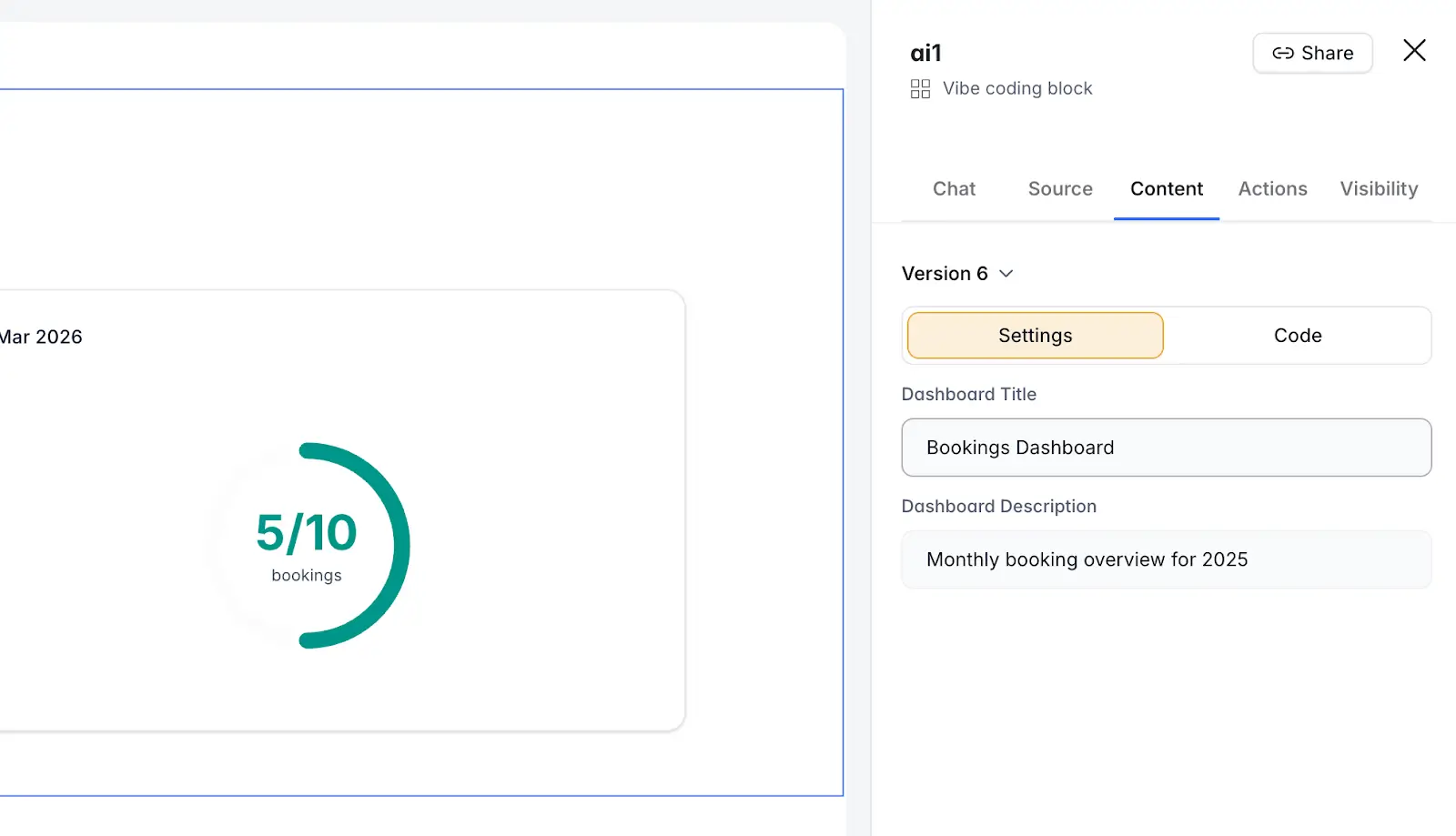
If a field you want to edit isn't showing up in Settings, you can simply ask the AI to make it editable and it will add it to the panel for you.
7. Edit generated code
If you want to make manual changes beyond what prompting can do, you’re also able to edit the underlying code yourself. Go to the Content tab → Code to see the full generated code output. Once you make your changes, click Save to apply them.
You can use the AI chat for bigger structural changes—adding new sections, reworking the layout, introducing new functionality—and jump into the code for fine-tuned adjustments. You can also update Vibe Coding blocks from your own AI assistant using the Softr MCP. All three approaches work together within the same block.
8. Copy the block to another project
Softr lets you generate a vibe-coded block once and then reuse it across other apps. To copy a vibe-coded block to a different project, hover over the block until the action icons appear in the upper-right-hand corner. Then, click the Copy to icon and select the destination project.
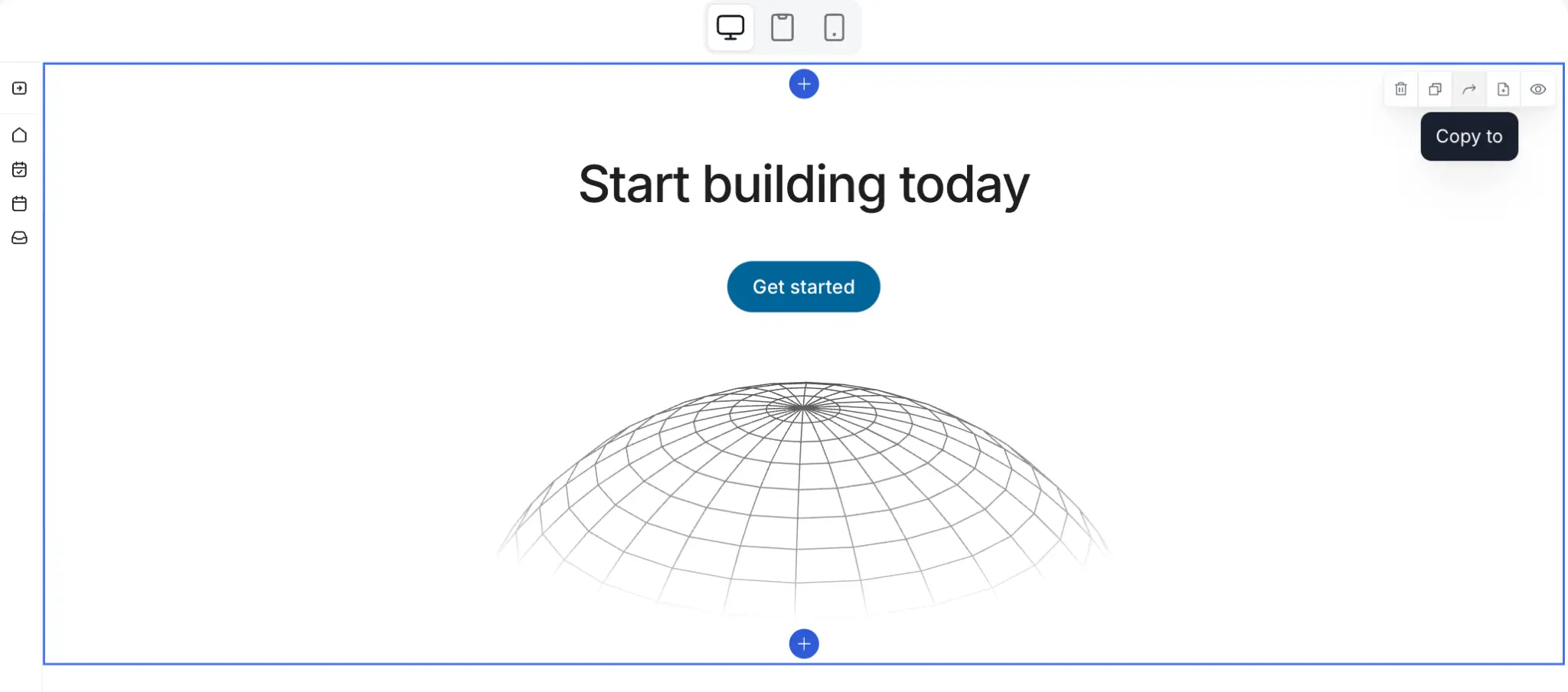
This is especially useful if you've built a tool or UI pattern that solves a problem likely to come up across multiple apps. Rather than rebuilding from scratch, you can bring the block over and adapt it to your new project's data and theme.
What can you build with the Vibe Coding block?
When it comes to building with the Vibe Coding block, the possibilities are vast: client dashboards, booking tools, progress trackers, calculators, notification feeds, partner portals, and more.
Vibe coding is a versatile tool, but you shouldn’t use it for every part of your app. For essential, predictable features, Softr’s native blocks are battle-tested and cover the fundamentals for most use cases.
The Vibe Coding block is there for anything that standard blocks can’t do. Here are some areas where it can bring genuine value to your apps:
- Highly specific behaviors: Multi-step CSV imports, drag-and-drop scheduling, audio recording, and complex custom workflows embedded directly in the UI
- Bespoke visualizations: Custom progress steppers, status trackers, and data visualizations tailored to a specific domain
- New interaction patterns: Resizable time blocks, conditional animations, and batch operations with multi-select — interactions that go beyond what native blocks can be configured to do
- Non-standard UI elements: Floating chat bubbles, sticky action bars, and icon-triggered modals that live outside the normal page flow and behave like embedded widgets
Check out the videos below for some real-world examples:
[.blog-callout]
💡 Learn more about which block type to use when building apps in our full guide on native vs. Vibe Coding blocks.
[.blog-callout]
Pricing and AI credits
Using the Vibe Coding block will consume AI credits. Every Softr plan (including the Free plan) comes with a monthly credit allowance, so you can try it at no added cost. Learn more about AI credits here.
Use vibe coding and no-code to build real business apps with Softr
The Vibe Coding block is just one part of what makes Softr the best tool for creating business software without code. Native blocks handle the fundamentals, workflow automation streamlines your processes, and Databases gives you a relational back-end to store and manage information — all on a single app-building platform.
👉 Try Softr free to start building with AI and the Vibe Coding block today.
Frequently asked questions
What's the difference between the Vibe Coding block and Softr's native blocks?
Do I need coding experience to use the Vibe Coding block?
Can I connect the Vibe Coding block to live data?