How to build a business app with AI (in under 10 minutes)


Every operations team hits the same wall at some point: a process outgrows spreadsheets, a tool’s cost starts to outweigh its value, or a workflow needs something so specific that no off-the-shelf product fits. Your first instinct might be to file a ticket with IT or create another messy Google Sheet, because "building software" sounds like a six-month project.
It isn't anymore. This tutorial walks you through building a complete business app in Softr using the AI Co-Builder, from a single prompt to a published, secure app ready for your team — in less than 10 minutes. We'll use a document management app as the running example, but every step applies whether you're building a CRM, a client portal, an inventory tracker, an internal HR tool, or something totally custom.
Read on for a step-by-step guide, or follow along with our video tutorial:
What is Softr?
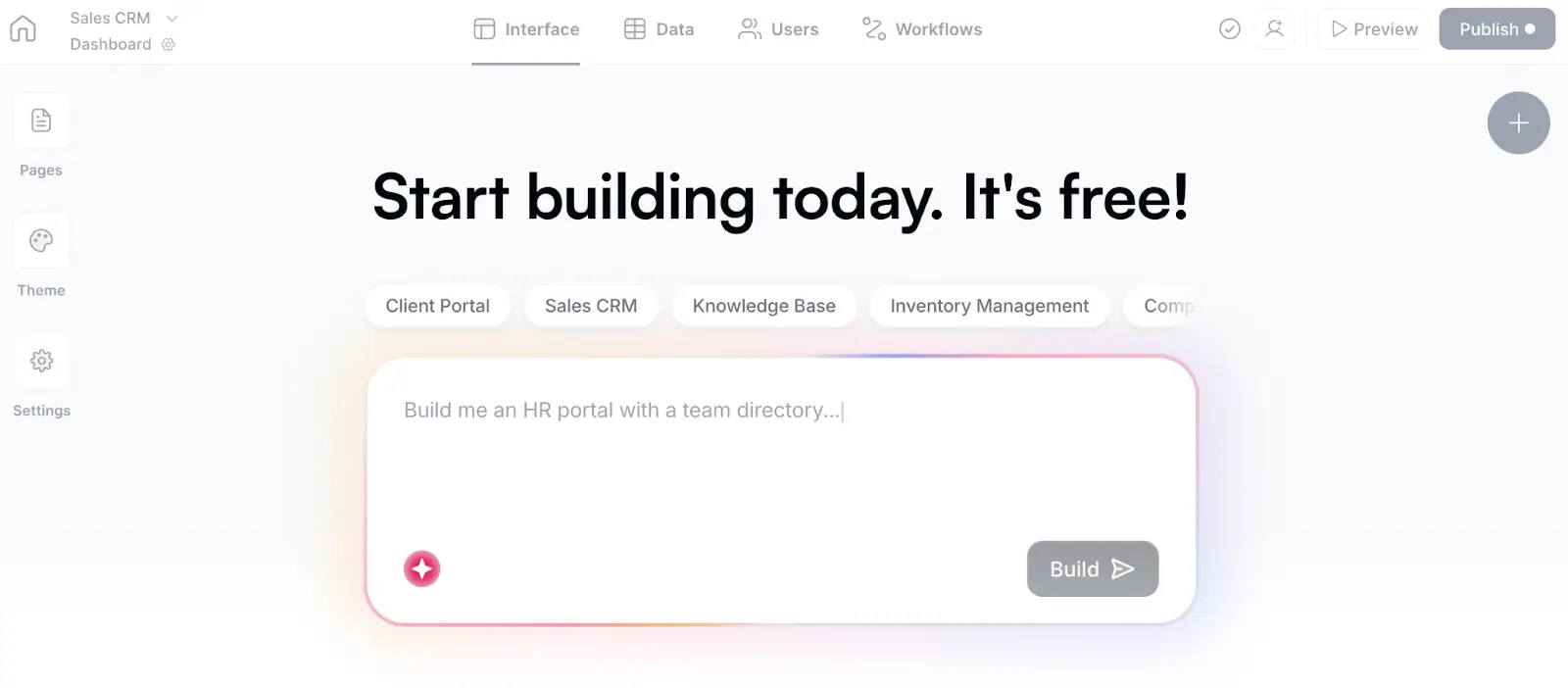
Softr is an AI-native platform for building business software without code. You describe what you need, and the AI app builder creates the database, pages, permissions, and business logic, all already connected and secure.
What makes Softr different from pure vibe-coding tools is its hybrid approach: AI handles the heavy lifting, but you're never locked into prompting. Every feature the AI builds, you can also edit visually, and vice versa. You can also build and manage apps, databases, and workflows from your own AI assistant through the Softr MCP.
This matters because business apps aren't demos or prototypes. They involve real users, real data, and real permissions. Softr's interface builder, databases, users and permissions, and workflows all work together natively, so apps are ready for day-to-day use from the moment you publish them.
What you'll learn in this guide
- How to generate a complete app from a single prompt using the AI Co-Builder
- How to structure and enrich your database with AI agents
- How to set up user groups and restrict features by role
- How to build custom UI components using the Vibe Coding block
- How to automate actions like Slack notifications with Softr Workflows
- How to customize the theme, connect a custom domain, and publish
The example: a document management app
To make this concrete, we'll build an app that lets admins manage company documents (contracts, policies, SOPs) and lets employees access them with view-only permissions.
User groups and jobs to be done
- Admins: Need full control to upload, edit, organize, and delete documents
- Employees: Need fast, searchable access to the files relevant to their role, without the ability to modify anything
This admin-vs-user split is the backbone of almost every business app, whether it's a CRM (sales reps vs managers), a client portal (staff vs clients), or an inventory tool (warehouse staff vs buyers). If you're building something different, substitute your own roles as you follow along.
App blueprint
Core pages
| Page | Purpose |
|---|---|
| Home | Main document list with search and filters, plus a bulk uploader |
| Documents | View and download individual files |
| Collections | Browse and manage document folders like R&D, client deliverables, etc. |
| Document analytics | Charts breaking down documents by status, type, and collection |
Database tables
| Table | Purpose | Relationship |
|---|---|---|
| Users | Stores user profiles, roles, and authentication details | Drives dynamic user groups (Admins vs Employees) |
| Documents | Stores the actual files, titles, types, and metadata | Linked to Collections (many-to-one) |
| Collections | Logical folders like HR, Legal, Operations | Each collection contains many documents |
Step 1: Generate the app from a prompt
Success in Softr is 80% data structure, and the AI Co-Builder knows this. It builds your database first, then the interface and app logic on top.
1.1 Submit your prompt
From the Softr dashboard, describe the app in plain language directly in the prompt box:
I need an app to store and manage our company documents. Admins can create and edit documents. Employees have read-only access.
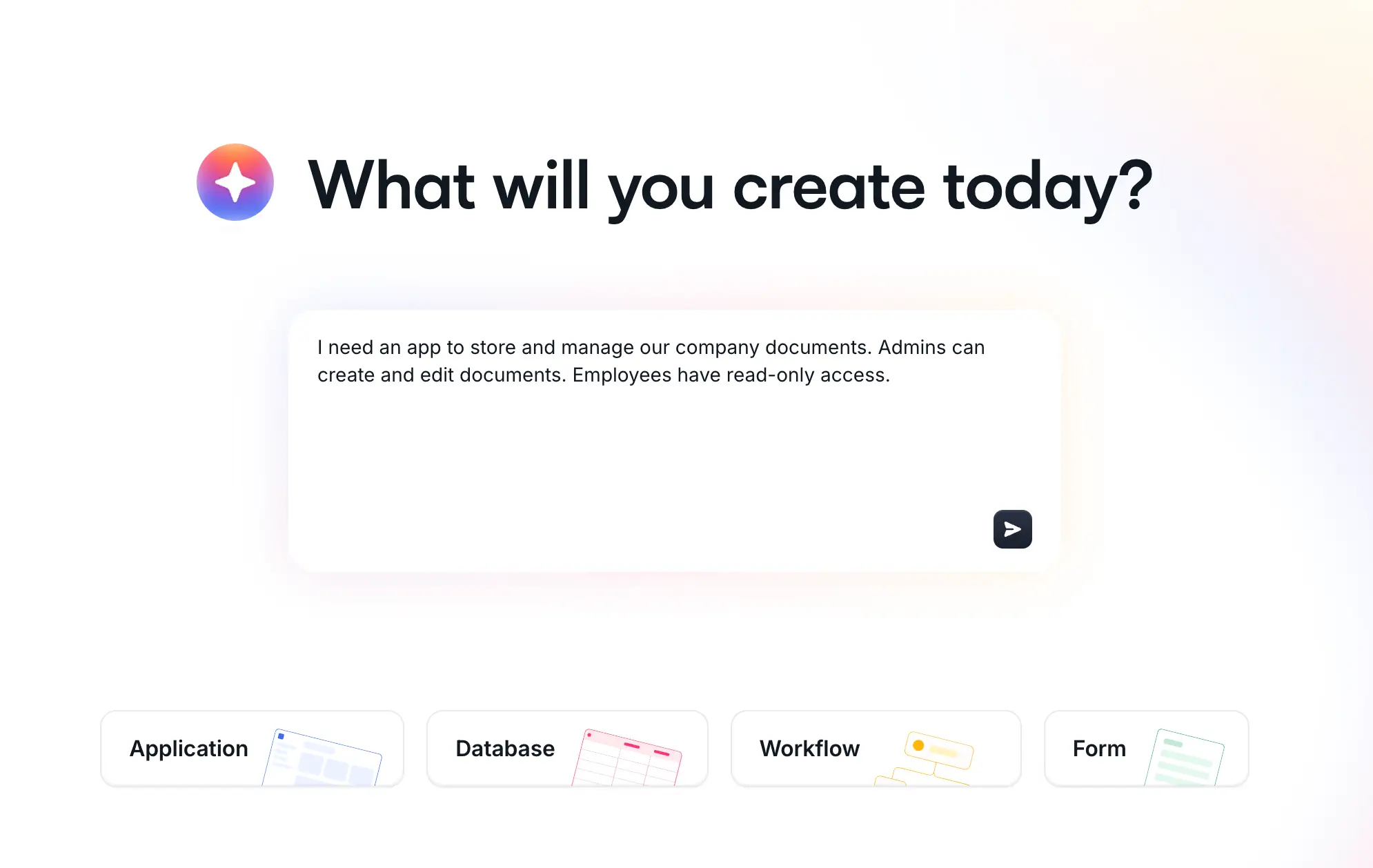
After you submit the prompt, the AI will ask a few clarifying questions: how documents will be stored (file uploads), how users will browse them, and whether we need an approval workflow.
1.2 Configure authentication
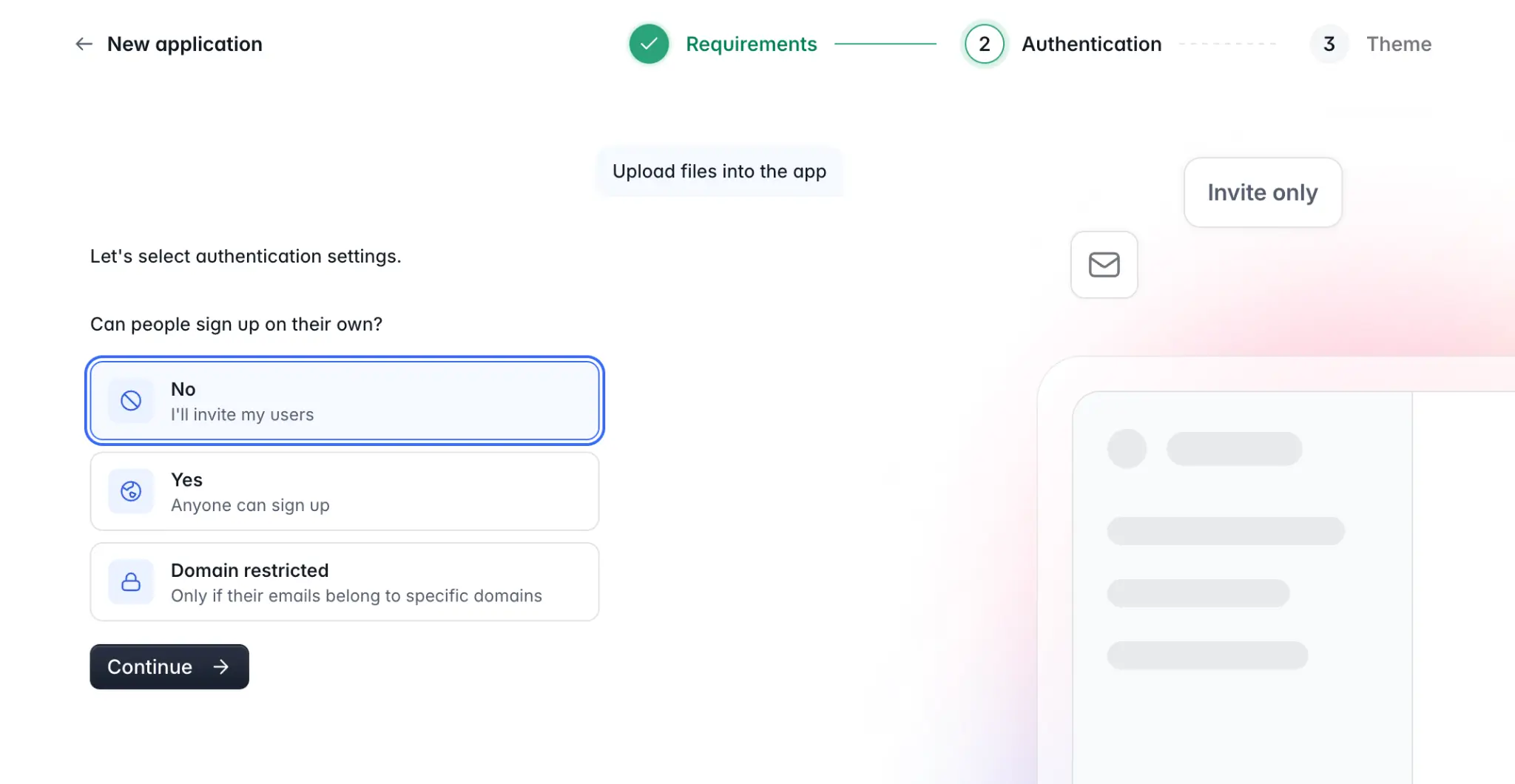
Next, the Co-Builder asks about login. We'll select email login with restricted sign-ups so only invited users can access the app. Softr handles login pages, password resets, and sessions natively, so there's nothing to configure on the backend.
1.3 Pick a theme
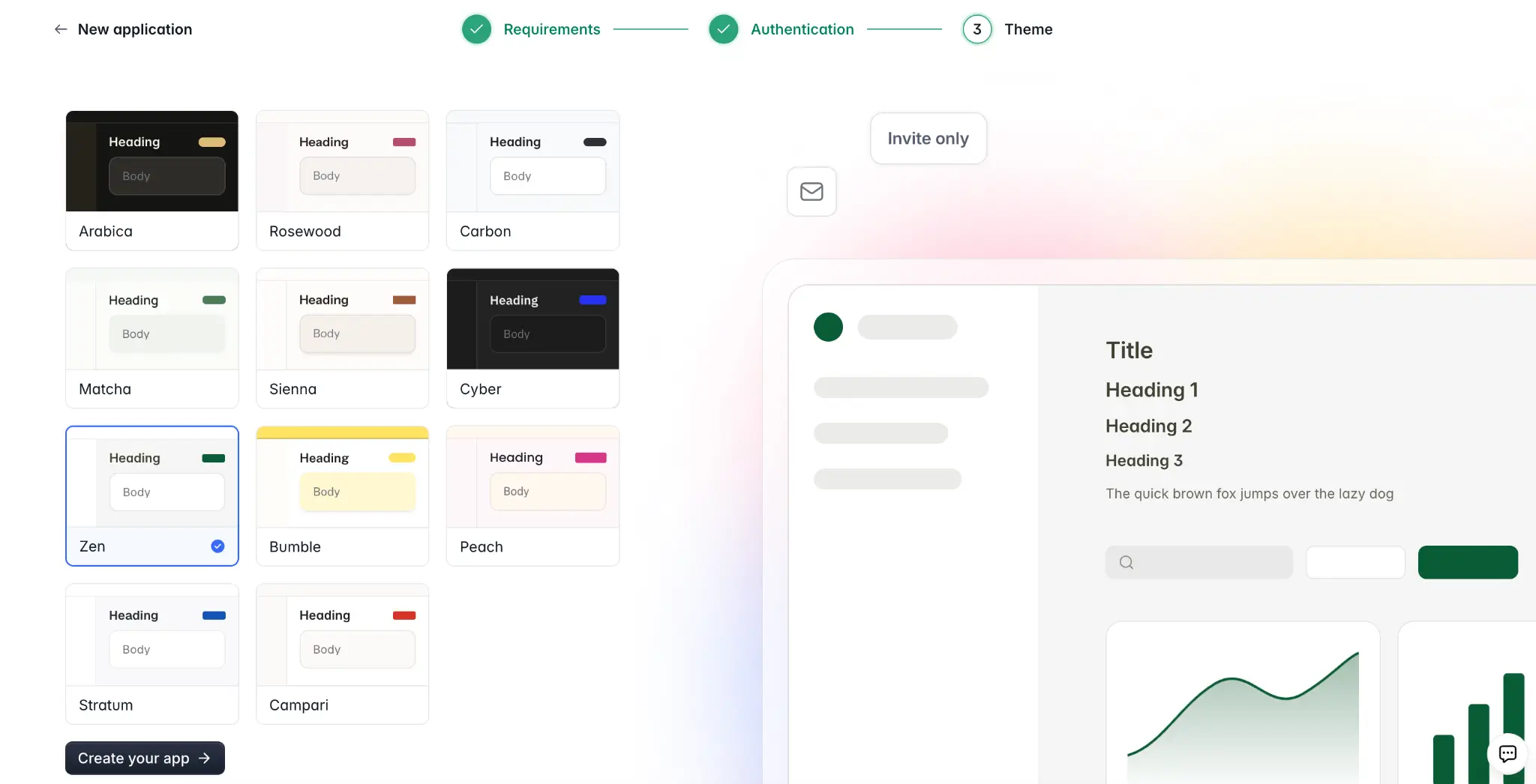
You’ll now choose a navigation layout and visual theme. Don't agonize over this. You can switch themes, fonts, and colors anytime from the global settings after your app is generated.
1.4 Watch the app build
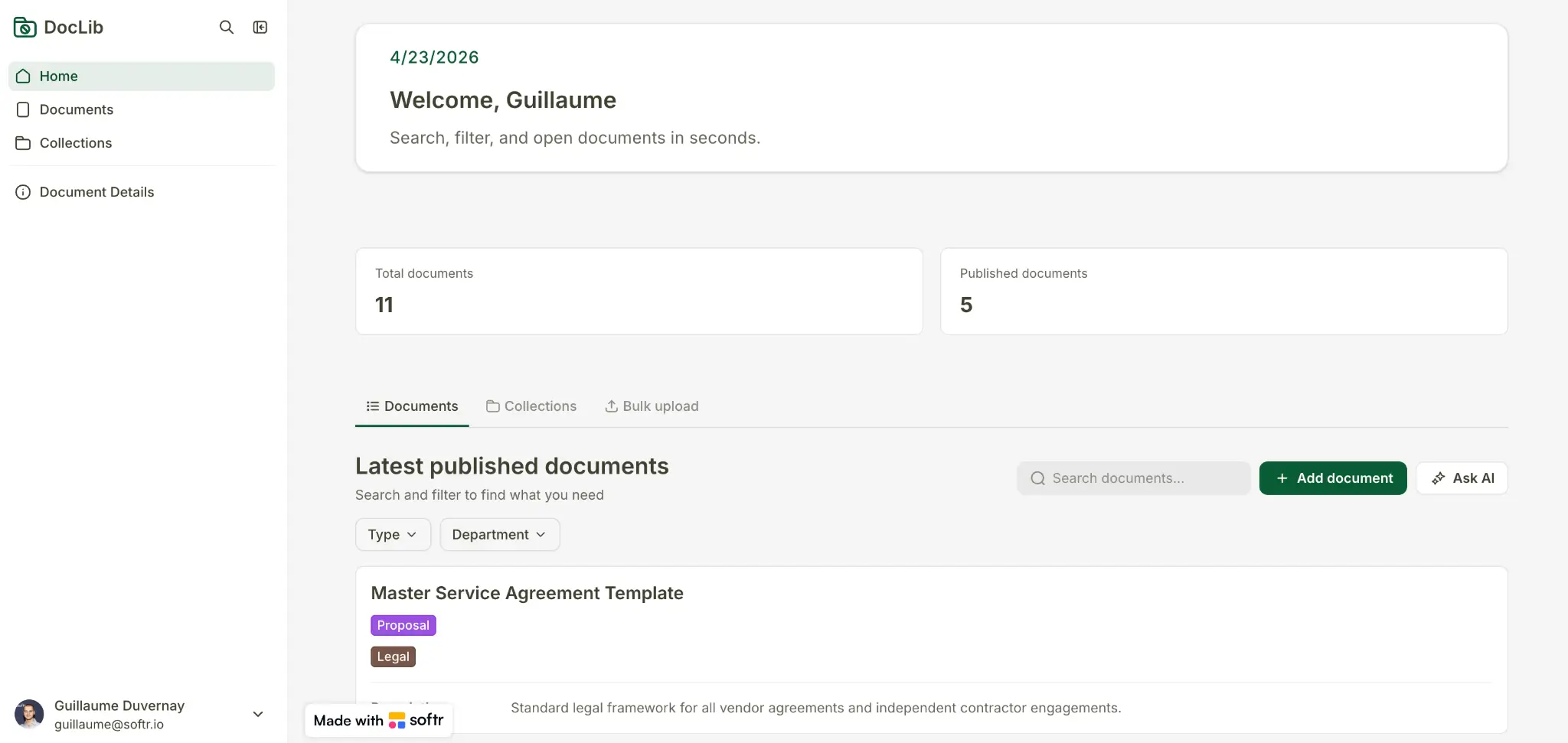
Once you click Create your app, the AI Co-Builder generates:
- The Users, Documents, and Collections tables with sample data and relational links
- Pages for listing documents, viewing details, and managing collections
- Blocks configured with the right data sources, filters, and layouts
- User groups for admins and employees, with permissions already applied
- A clean navigation structure
Within a few minutes, you can preview the app as an end user. Because you're in the Admin group, you'll see edit and add buttons (but employees wouldn't).
This same app-building flow produces a CRM if you prompt for "a sales pipeline with deals and contacts," or a vendor portal if you prompt for "a portal where vendors submit invoices and track payment status." It all depends on what you ask for.
Step 2: Refine the database with AI agents
The AI generated a solid starting data schema with sample records. Now you can enrich it.
Open the Documents table and look at any field. Say the Document Type field currently requires manual selection. We can turn it into an AI-powered field that reads each file and classifies it automatically.
Open the dropdown menu for that column and select Edit field. Then, enable AI agent and enter a short prompt:
Detect the type of document based on @File.
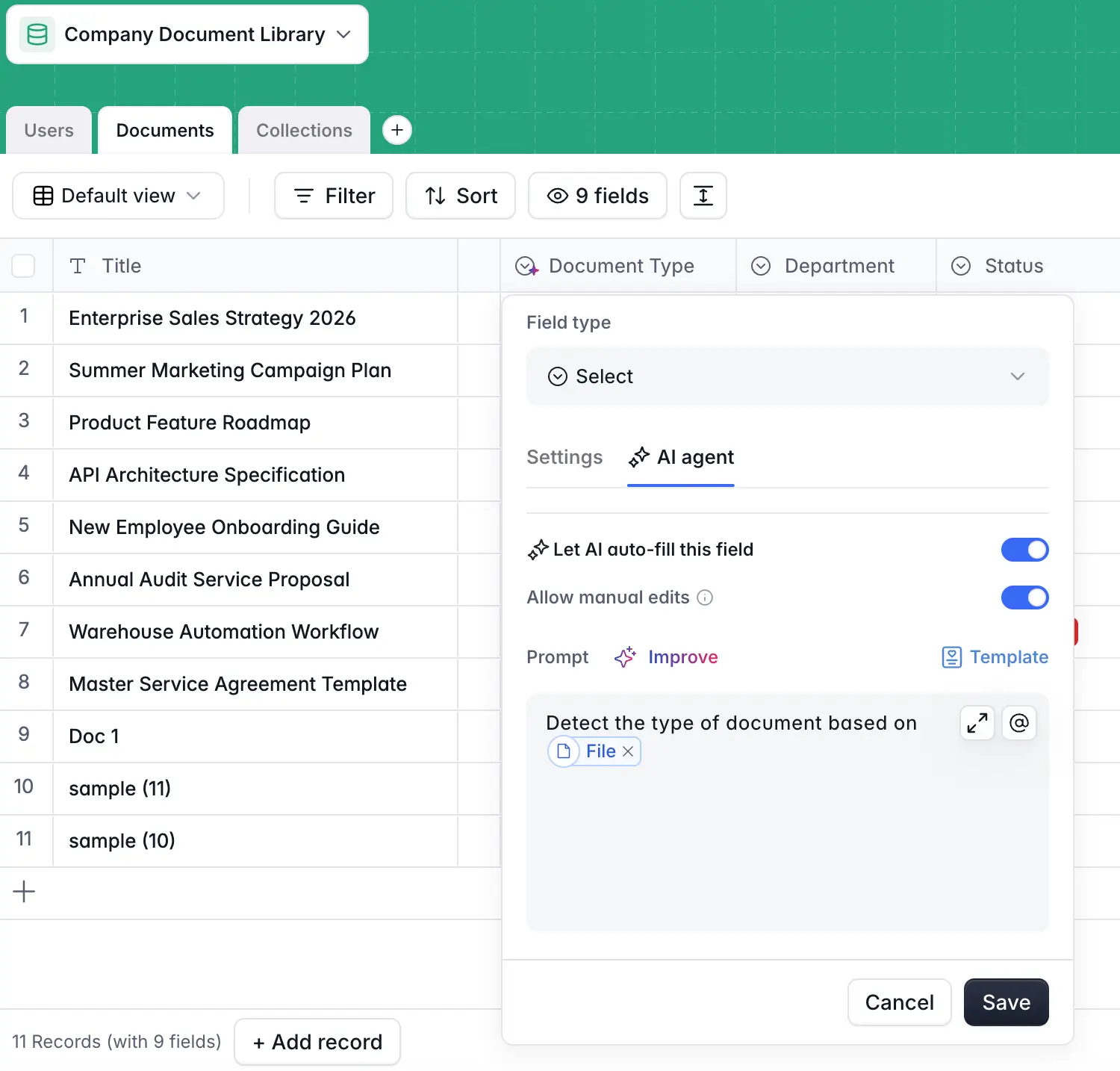
You can configure when the agent runs (on record creation, on update, or manually), whether it overwrites existing values, and which LLM model powers it.
This same pattern works for any enrichment task: summarizing lead notes in a CRM, tagging ticket sentiment in a support tool, or categorizing expenses in a finance app. The database becomes self-enriching when you add agents.
Step 3: Design the interface
With our data structure solidly in place, let's look at the app’s interface.
3.1 Edit blocks manually or with AI
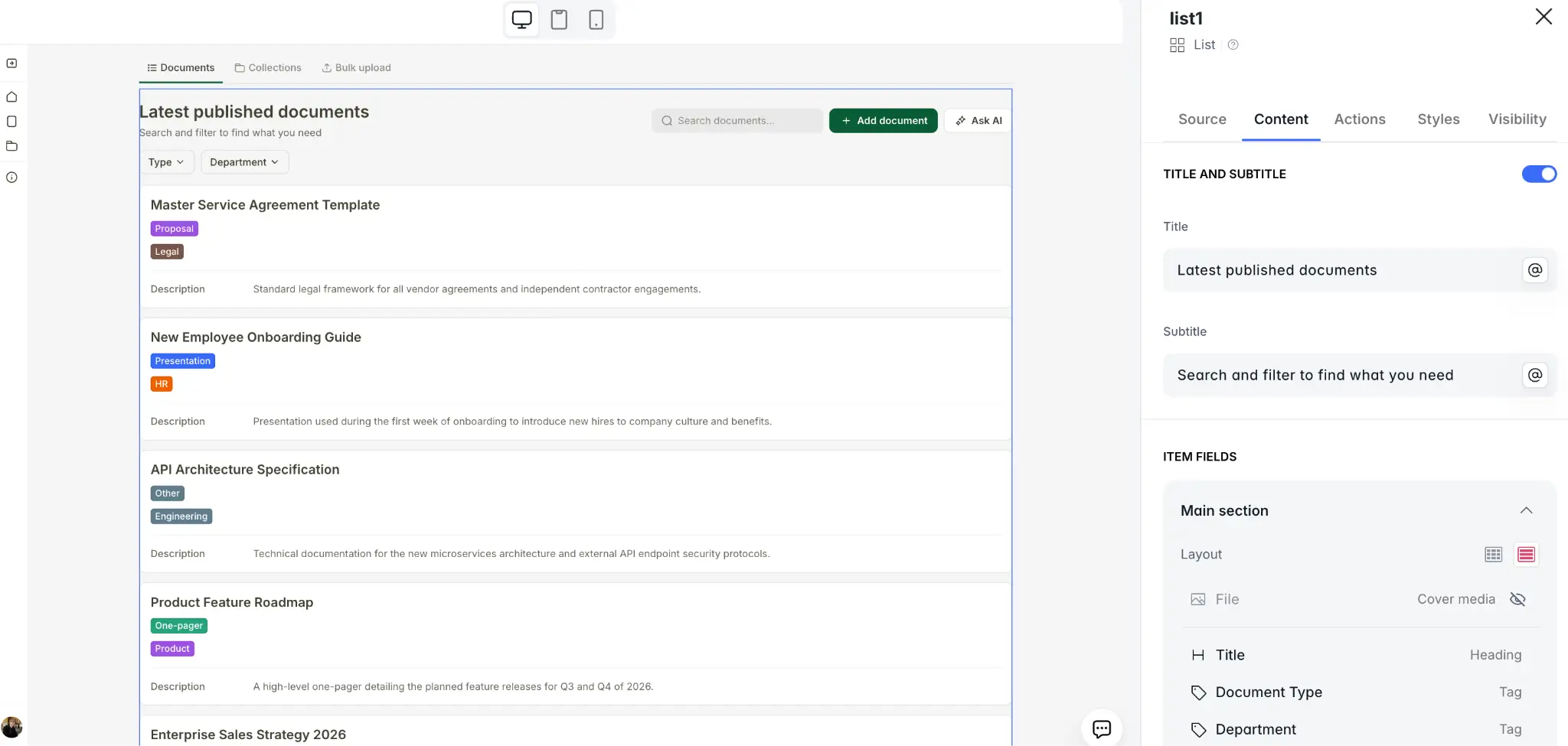
Go to Interface → Pages and you’ll see all the AI-generated pages in the app. When you open a page (e.g., Home), you can click any block (e.g., the document list) and edit its data source, content, filters, visibility settings, and styling directly. Or you can prompt the AI to make changes.
3.2 Add a new page with the Co-Builder
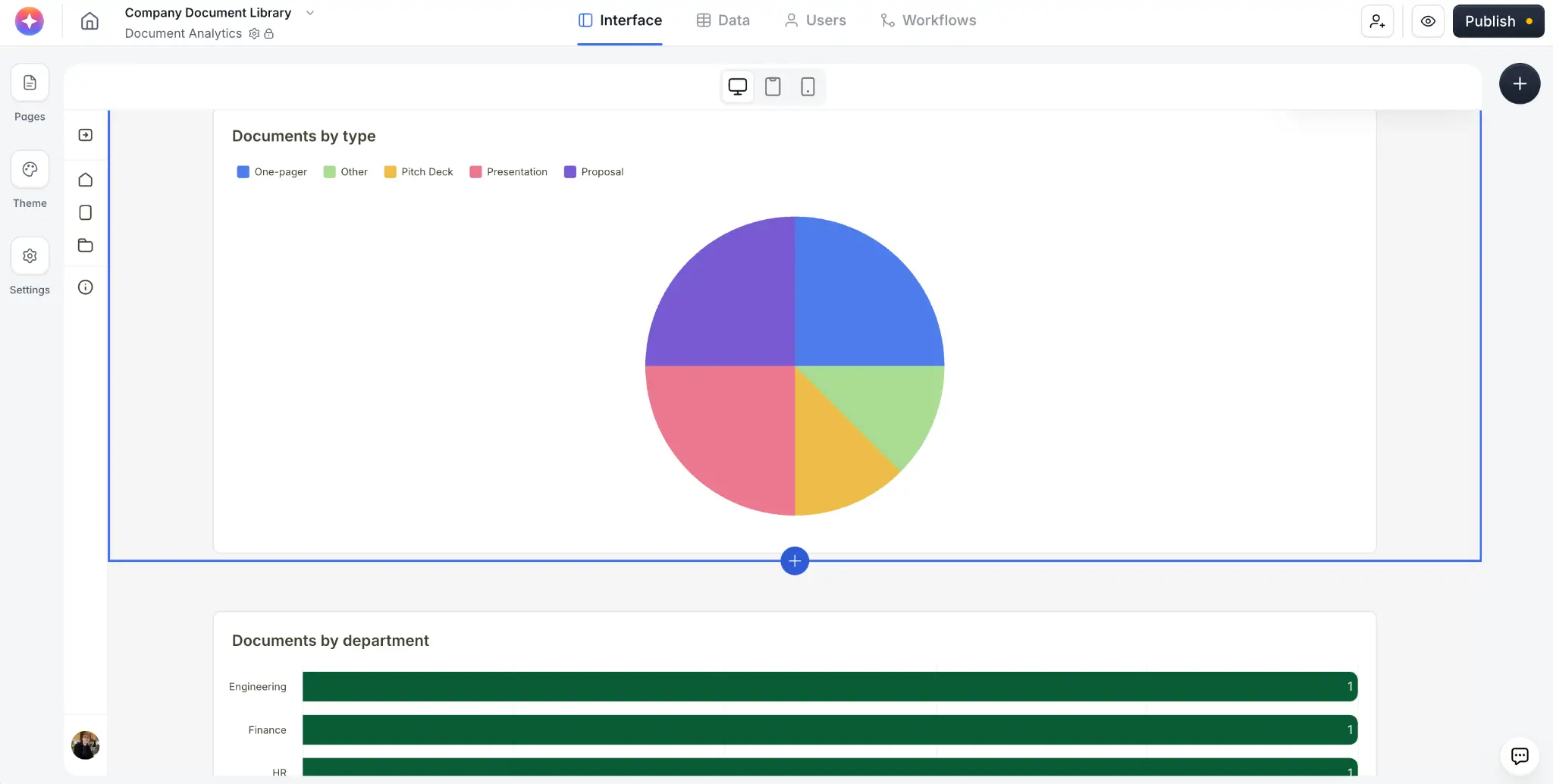
The AI Co-Builder isn't just for initial creation — it handles ongoing additions and edits, too. Open the Co-Builder panel (located in the top-right corner) and type:
Add a new page with charts breaking down documents by type, by collection, and by upload date.
The AI will add the page, pick appropriate chart blocks, connect them to the right data source, and configure the groupings. And remember: anything the AI can do, you can do manually with the visual editor (and vice versa).
3.3 Customize the theme
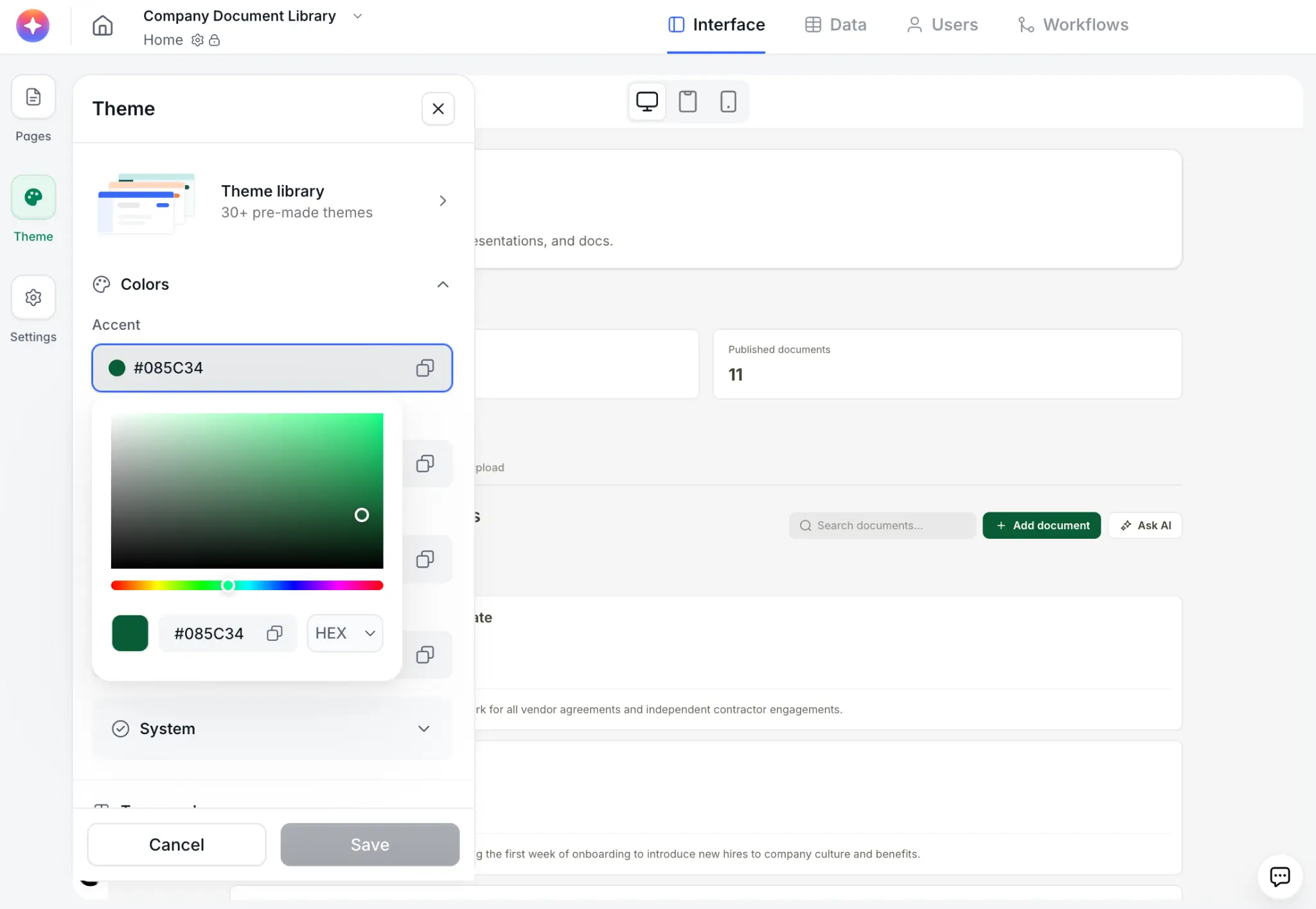
Select Theme on the left to open the global theme settings. Here, you can change primary colors, heading and body fonts, border radius, and sizing. Everything updates app-wide so your branding stays consistent across every page.
Step 4: Set up user groups and permissions
This is where Softr really stands out for business software: granular permissions are built into the foundation of any app you build, not bolted on after.
In the Users tab, you'll see the user groups the AI created: Admins and Employees. Groups can be static (manually assigned) or dynamic (based on a database field like "Role"). We're using dynamic groups, so new users get sorted automatically based on their profile.
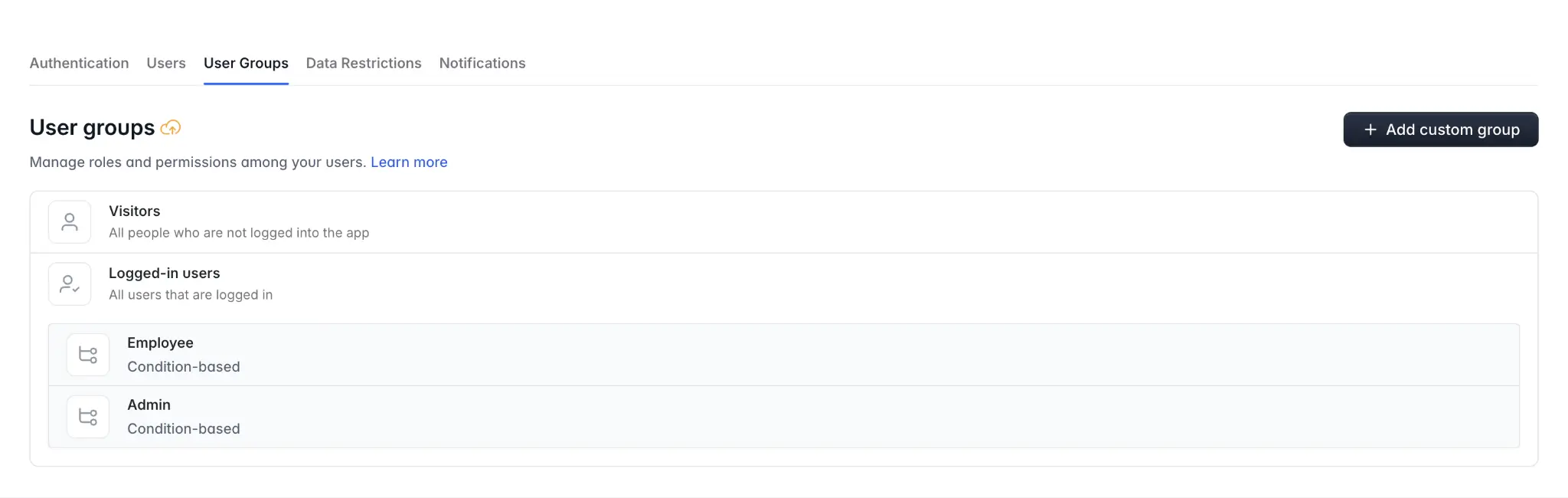
You can also set global data restrictions, add individual users manually, adjust authentication settings, and add custom groups.
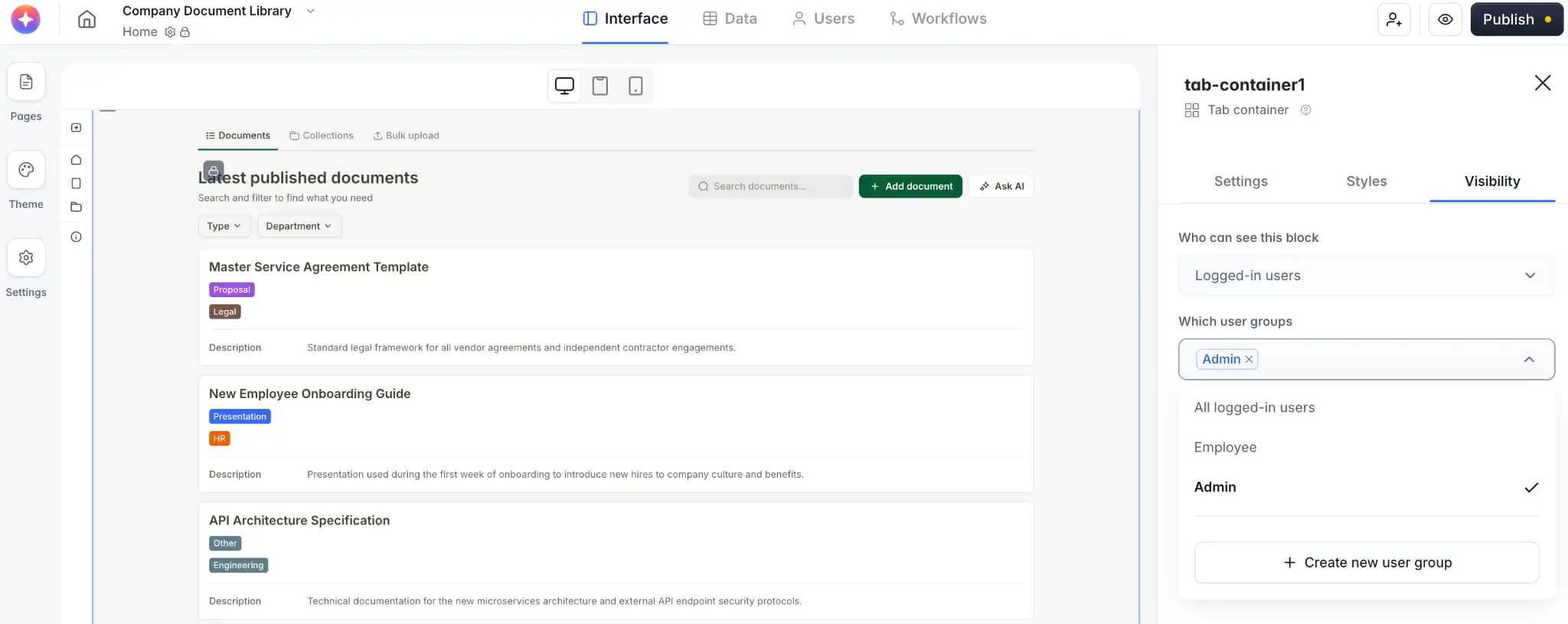
Visibility works at three levels: pages, blocks, and individual action buttons. For example, you might:
- Hide the entire admin bulk upload tab from employees
- Show the delete button only to admins, even on pages everyone can view
- Restrict which records a user sees based on ownership (row-level security)
That last one is huge for client portals or multi-tenant apps. Each client logs in and sees only their own records, automatically.
To set app visibility rules, go to Interface → Pages and click the Page rules button shown below. (You can also click the button next to the page title to configure visibility for each individual page.)

For block-level visibility, click on a specific block and select the Visibility tab. For button-level visibility, choose a block that has a button and make changes in the Actions tab.
Step 5: Build custom UI with the Vibe Coding block
Softr's pre-built blocks (tables, lists, kanban boards, calendars, charts, forms) cover about 80% of what most business apps need. For the other 20%, there's the Vibe Coding block.
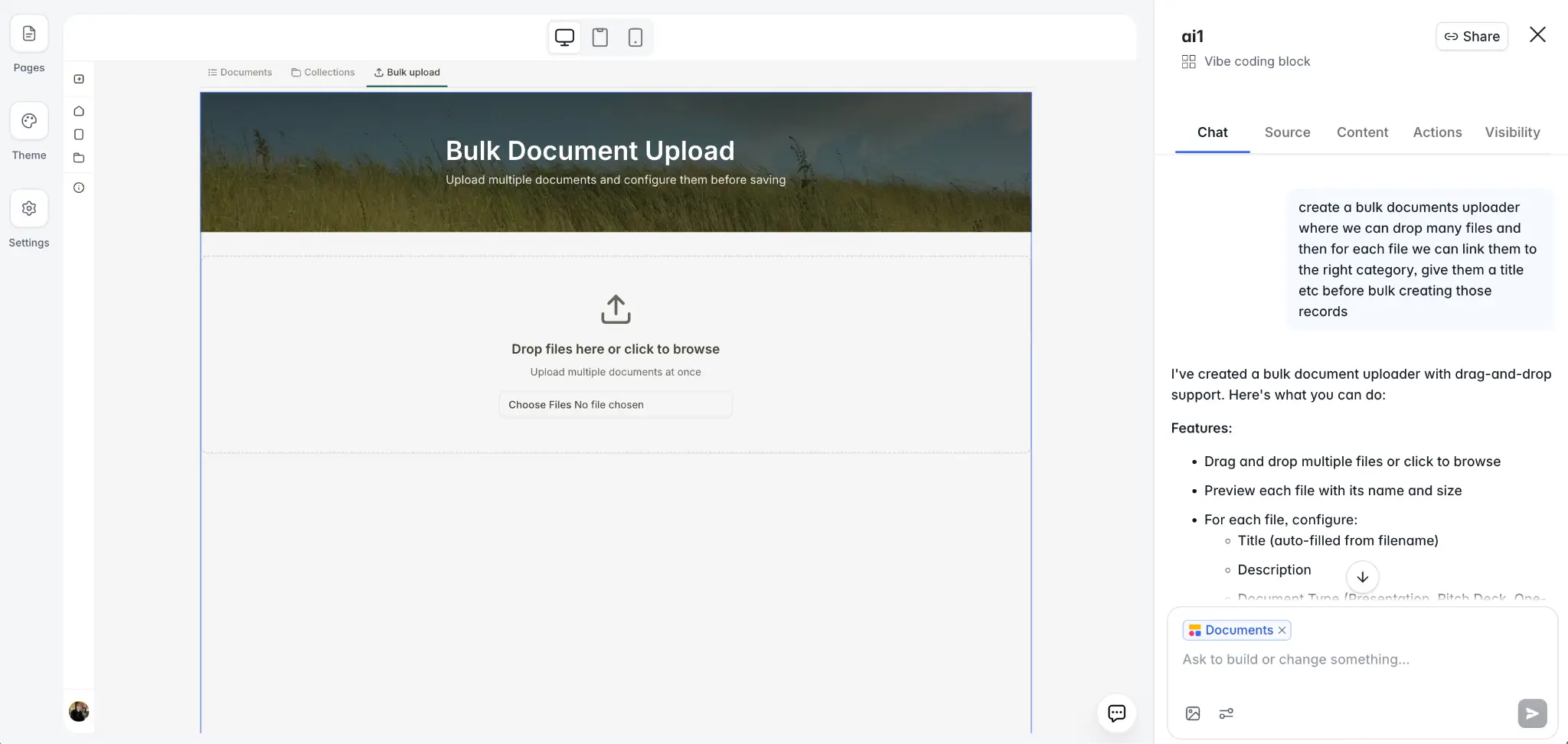
For our example, we want admins to bulk upload multiple PDFs, review them in a custom preview, and send them all to the database at once. This isn’t a feature that exists as a standard block, but we can generate it.
5.1 Add the Vibe Coding block
On the home page, create a new Bulk Upload tab (next to Documents and Collections) and restrict it to admins. Under this tab, add a Vibe Coding block, connect it to the Documents table, and enter something like this in the prompt box:
A bulk document uploader. Users drag and drop multiple PDFs, preview them in a list, edit the title of each, and upload all of them at once.
The AI will generate a custom React component. The block inherits your app's theme automatically, so colors and fonts match the rest of the app.
5.2 Edit without re-prompting
The Vibe Coding block is where AI meets no-code. In the Content tab, you can edit text, images, and colors visually. The Actions tab shows the CRUD operations the block performs (here, creating records), and you can apply permission rules to each action.
5.3 Test it live
Enter Preview mode by clicking the eye icon in the top-right corner. Drop three PDFs into the uploader. You get a custom preview screen where you can confirm each file. Click upload, and three records appear instantly in the Documents table.
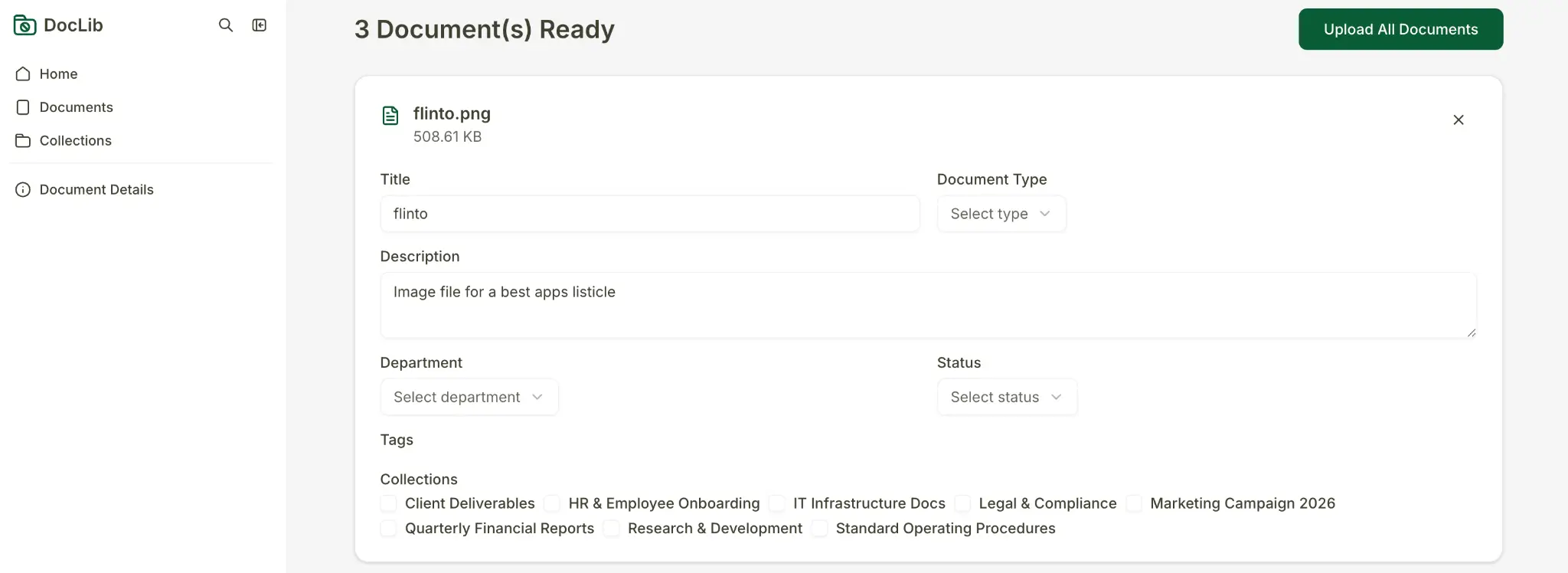
The Vibe Coding block is how you extend a Softr app beyond standard blocks without giving up the safety of the underlying infrastructure. Other common uses include pricing calculators, custom importers, interactive Gantt charts, or human-in-the-loop AI flows.
Step 6: Add logic with workflows
The last piece is backend logic. When a new document is uploaded, we want a Slack notification to post in the #operations channel.
Open the Workflows tab and create a new workflow. It should only take a few clicks:
- Trigger: When a record is added in the Documents table (instant, because we're using Softr Databases)
- Action: Slack → Post channel message
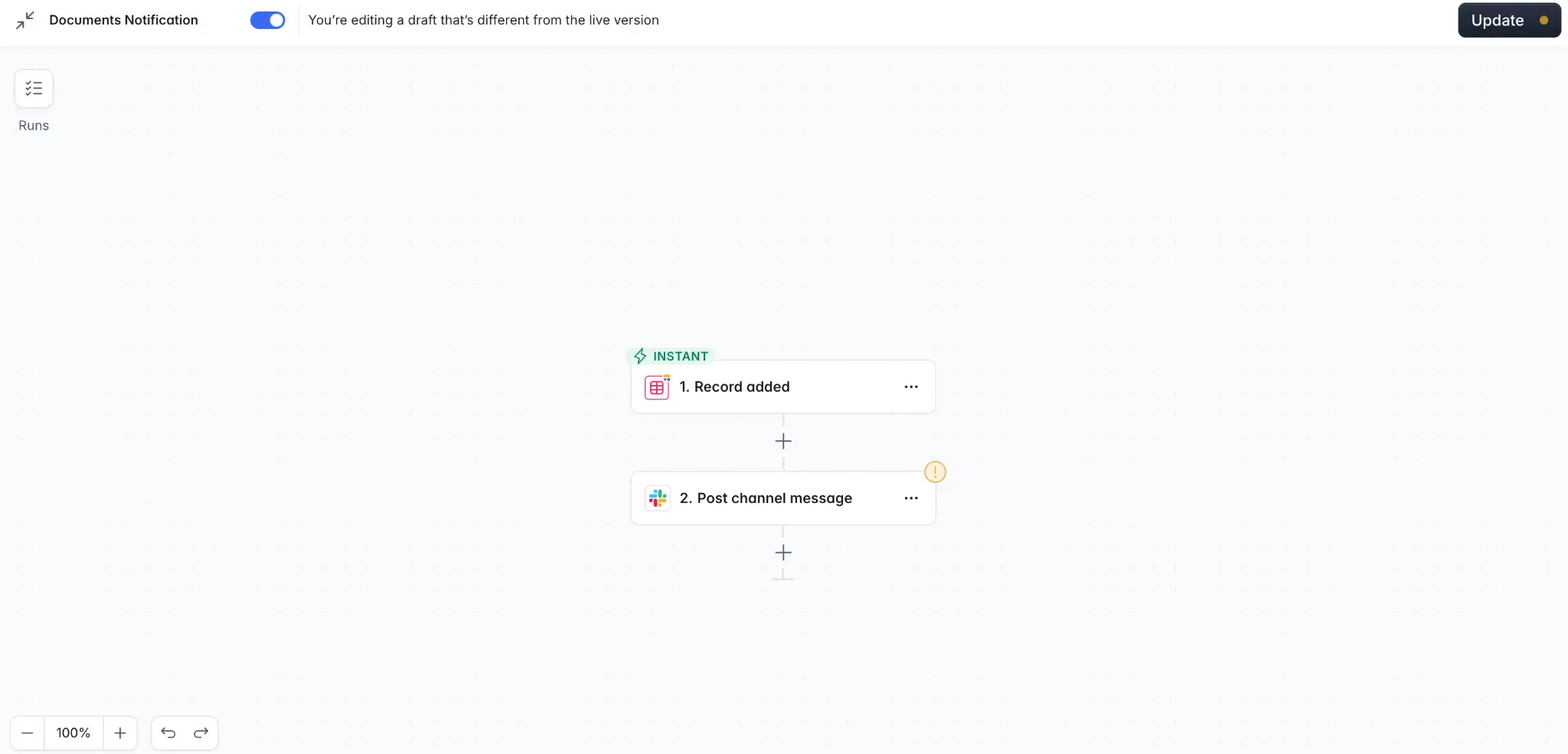
Use dynamic variables from the record to write the message:
New document uploaded: @Title (type: @DocumentType). View it here: @Link.
Test it out, click Turn on, and you're done.
Workflows in Softr go far beyond notifications. You can chain conditional branches, loop over arrays, call any external API via HTTP, and insert AI steps to process data mid-workflow. The same engine powers workflow patterns across any app type: lead routing in a CRM, approval chains in an HR tool, or auto-invoicing in a vendor portal.
Step 7: Publish
From the app settings, connect a custom domain (like docs.yourcompany.com) or use a free Softr subdomain.
Hit Publish, and your app is live. Every app ships with authentication, user management, row-level permissions, hosting, and SOC 2 Type II compliant security already built in. There's no deployment step and no developer handover. You invite your team, and they can start using it that same day.
Build business apps that actually work with Softr
The real lesson of this guide isn't that you can build a document management app in under 10 minutes (even though you just did). It's that the same workflow can get you a CRM, client portal, inventory tracker, or other app just as quickly — and that you can keep evolving any of them without starting over. Pick a pain point, describe it to the Co-Builder, and go.
👉 Try Softr free and create a custom, secure app in minutes from a single prompt.
Frequently asked questions
How long does it actually take to build a business app in Softr?
Can I build any type of business app this way, or just a document management system?
Can I connect Softr to my existing data instead of using Softr Databases?
What's the difference between the AI Co-Builder and the Vibe Coding block?
Is my data and my users' data secure?