Build a CSV uploader in your Softr app with the Vibe Coding Block

Any custom business app worth its salt needs a way for its users to populate it with data specific to their company. From customer data to inventory lists and beyond, that information powers the records, dashboards, and workflows that make your app work.
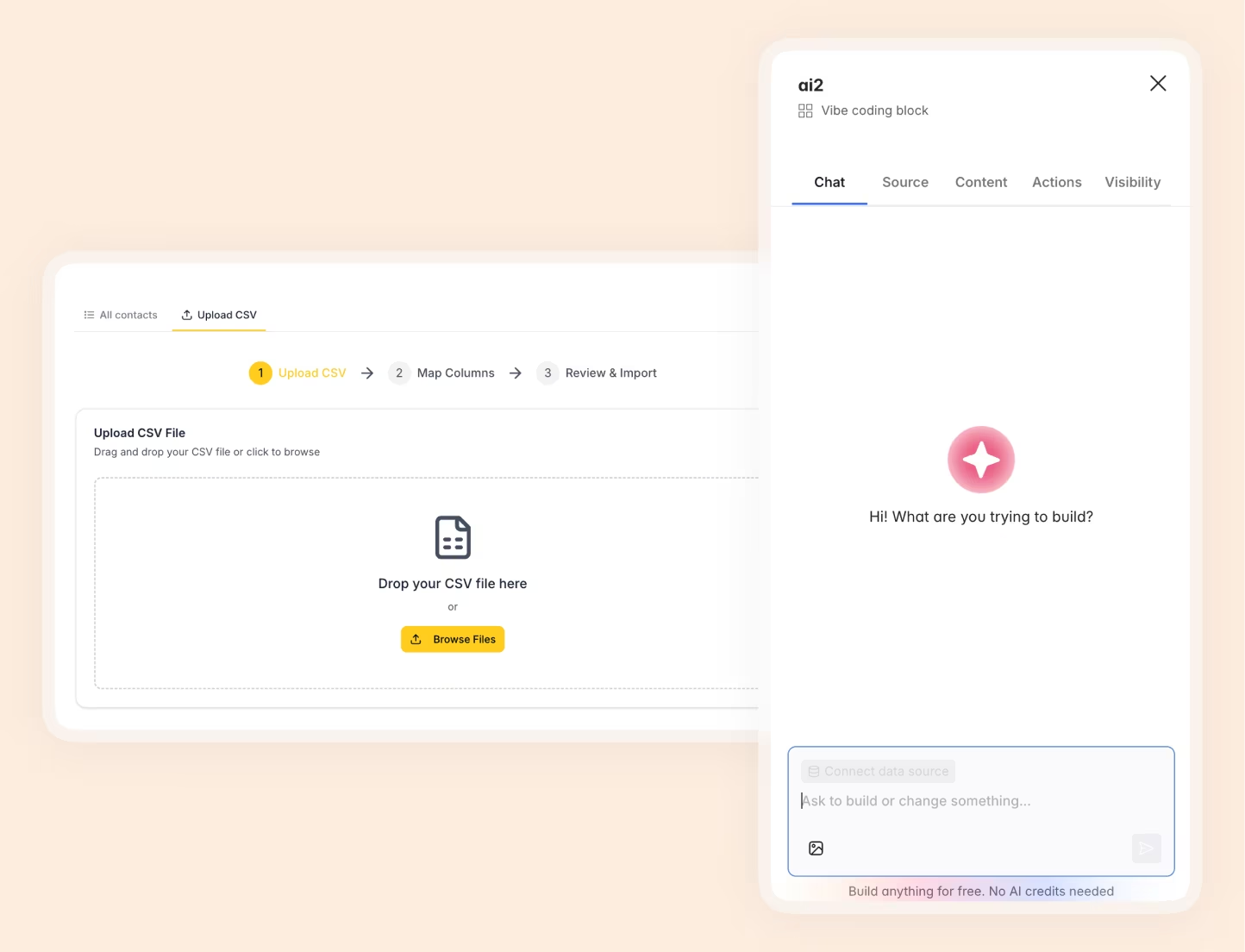
When that data lives inside other apps or legacy systems, you’ll often find the easiest way to bring it into your app is by uploading it as a CSV file. A custom CSV importer for your app—with rules and safeguards—should translate into core functionality such as:
- Drag and drop functionality so users can easily upload files
- Column mapping so that each column in the file matches the right field in your app
- Data validation to catch missing fields or flag duplicate entries
- Row preview/review so users can verify data before importing
For a long time, that was strictly developer territory. You’d hire an expert to write React components, connect APIs, and handle tricky edge cases like mismatched columns.
That's no longer the case. With Softr's vibe coding block, you can describe custom features in plain language and have AI generate them. The result is fully integrated into your existing application, connected to your data, all while adhering to your app's theme and permissions.
In this tutorial, we'll put it to the test. Using Softr's vibe coding block, we’ll build a sophisticated CSV upload tool with just two prompts. First, we’ll create a drag-and-drop importer with column mapping and fuzzy matching. Then, we’ll add a review stage before import. We’ll do all this without writing any code—or stitching together external tools.
Want to skip the build? You can start building with Softr and try this yourself in minutes.
What is Softr's Vibe Coding block?
Softr is a full-stack app builder that combines Softr Databases, an interface builder, and Softr Workflows, letting teams build production-ready business apps without code. You can also build Vibe Coding blocks like this one from your own AI assistant through the Softr MCP.
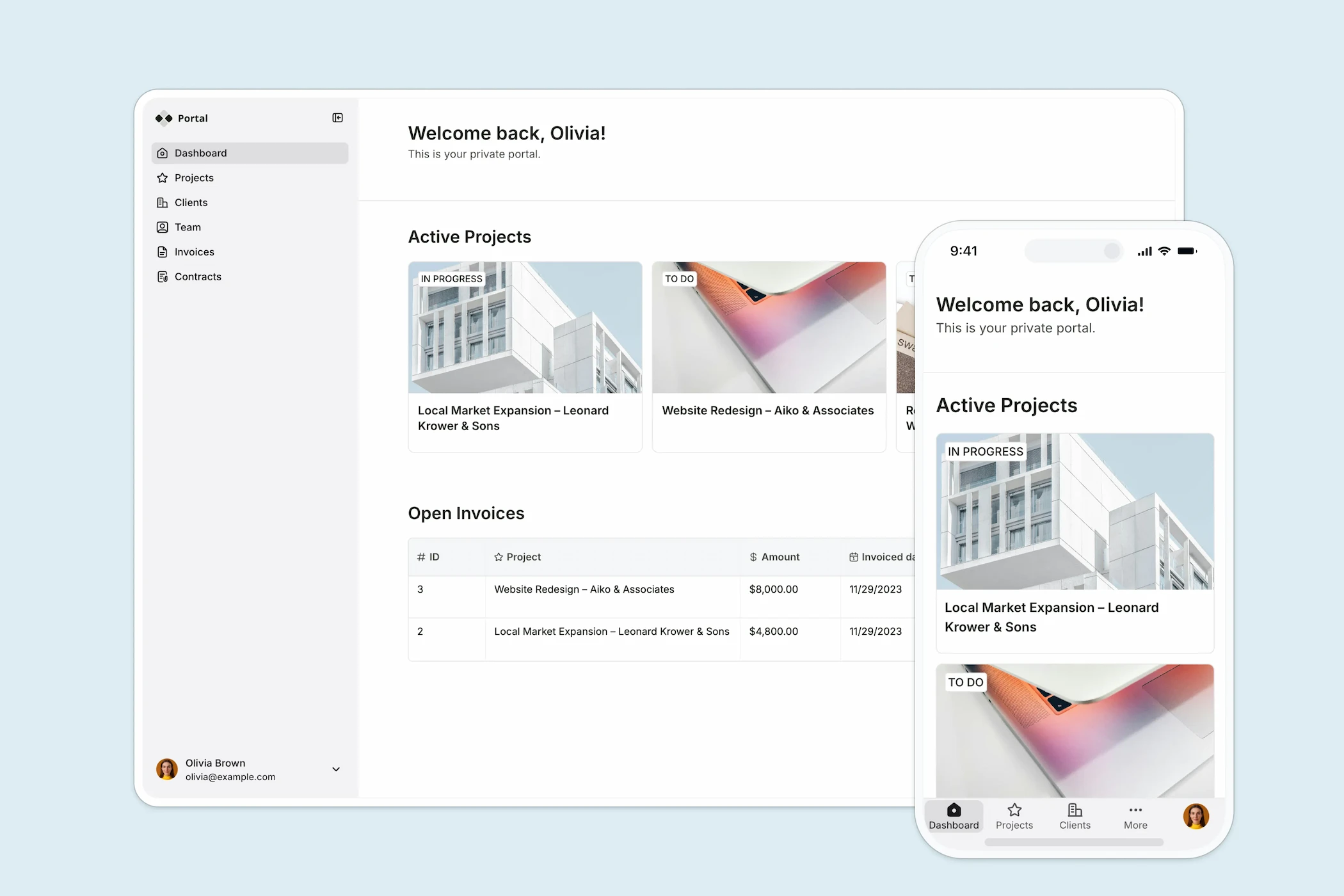
For most of what a business app needs, Softr provides pre-built, native blocks: Tables, Lists, Kanbans, Charts, Forms, and more. These are battle-tested, fully responsive, and handle fundamentals like user authentication, permissions, and theming out of the box. These are things you really don't want to re-prompt and debug every time you build something new.
But occasionally you need something that goes beyond what a standard block offers, such as a specific behavior, a unique UI, or a custom workflow like a CSV importer. That's where the vibe coding block comes in. You describe what you want in plain language, and AI generates the component for you.
What makes this fundamentally different from general-purpose vibe coding tools:
- It's a block, not a full app. You're generating a single component within an existing, secure application, instead of prompting an entire app from scratch and hoping the navbar stays responsive.
- It connects natively to your data source. The block can read from and write to your Softr Databases without any custom API setup. It has full CRUD support (Create, Read, Update, Delete) within the boundaries you configure.
- It inherits your app's theme. The generated UI automatically matches your accent color, fonts, and border radius. Change your theme, and the block updates with it.
- It's version-controlled. Every iteration is saved as a new version. You can restore a previous version, branch out to test a new idea, or manually edit the generated React/CSS/JS if you want.
What you'll learn
In this guide, you will:
- Set up a simple Contacts database in Softr.
- Write a single natural-language prompt to generate a multi-step CSV import flow (drag-and-drop, column mapping, and row review).
- Iterate with a follow-up prompt to add fuzzy matching for auto-mapping columns.
- Polish the interface with Tab Containers for a clean, professional layout.
Who is this for?
This tutorial is ideal for:
- Sales Operations teams that need a fast way to bulk-import leads after events, webinars, or partner exports.
- Business Operators managing any kind of database (contacts, projects, inventory) who want to empower their teams with self-service imports.
- Anyone building with Softr who wants to see the Vibe Coding Block in action on a practical, real-world use case.
The app blueprint
Our finished app will have two sections:
| Tab | What it does |
|---|---|
| All Contacts | A Table block displaying the current contacts in the database. |
| Upload CSV | The Vibe Coding block: a drag-and-drop CSV uploader with column mapping, review, and bulk import. |
The database: A single Contacts table with fields like Email, First Name, Last Name, LinkedIn URL, and Job Title.
This is the minimum setup we've built for this tutorial, but a larger application would include other tables depending on your needs. For instance, a complete CRM would typically include tables for Companies, Users (your team using the CRM), Deals, and more.
If you're looking for a more comprehensive solution, we recommend the Softr AI CRM template, which now includes this CSV uploader built-in.
Part 1: Setting up the database
Core principle: Success in Softr is 80% data structure. Always start with the database.
1.1 Create a new app and database
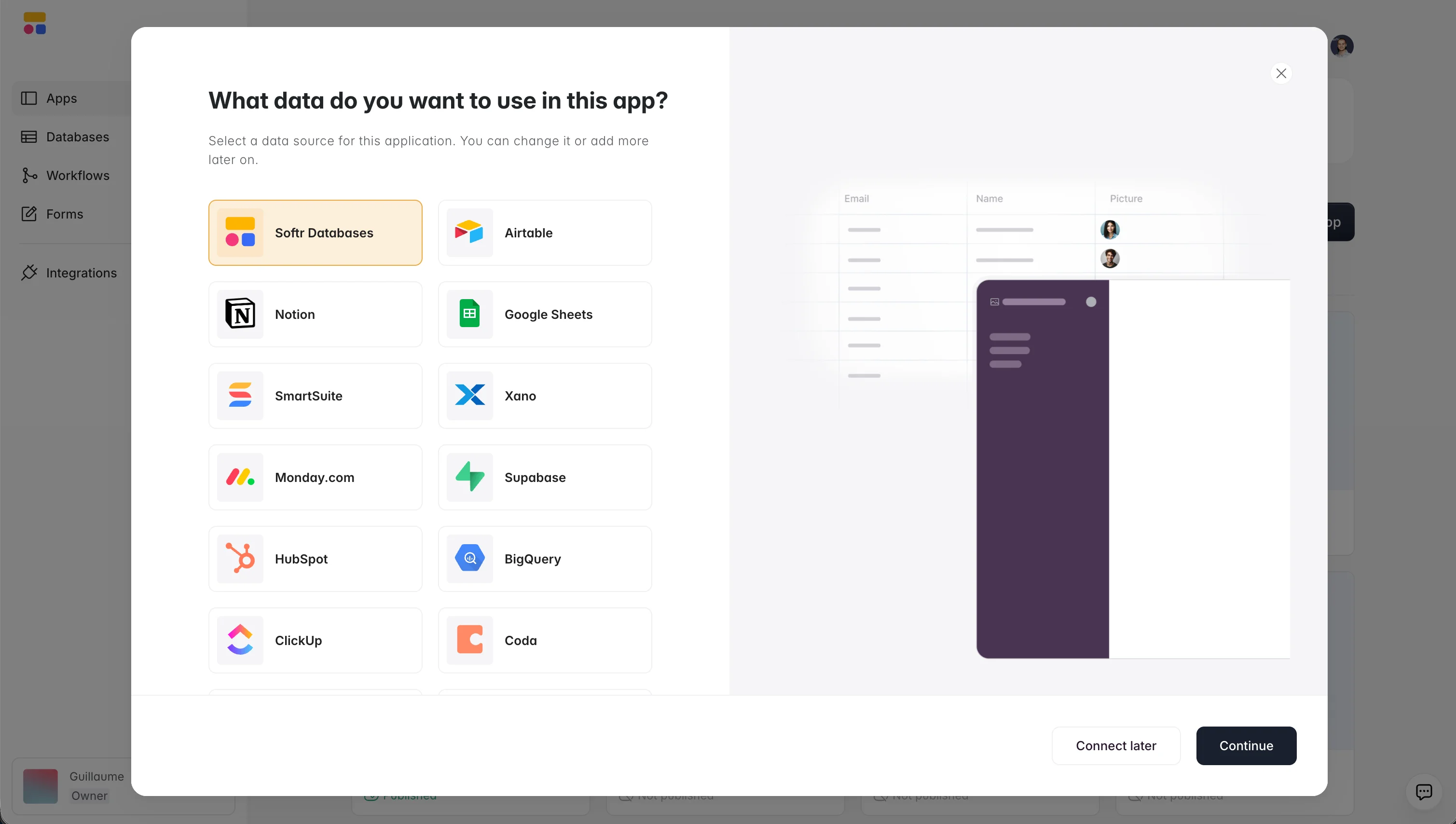
- From your Softr dashboard, click Create New App and select Softr Databases as your data sources.
- Rename your app (e.g., Contact Manager) and give the same name to your database.
1.2 Design the Contacts table
In the Softr Database studio, you can build your database manually or use the AI Co-Builder to generate your table structure. You can simply type:
I need a table with first name, last name, email, LinkedIn URL, and job title.
The AI will scaffold the table with the right field types: short text for names, email for email, URL for LinkedIn, and so on.
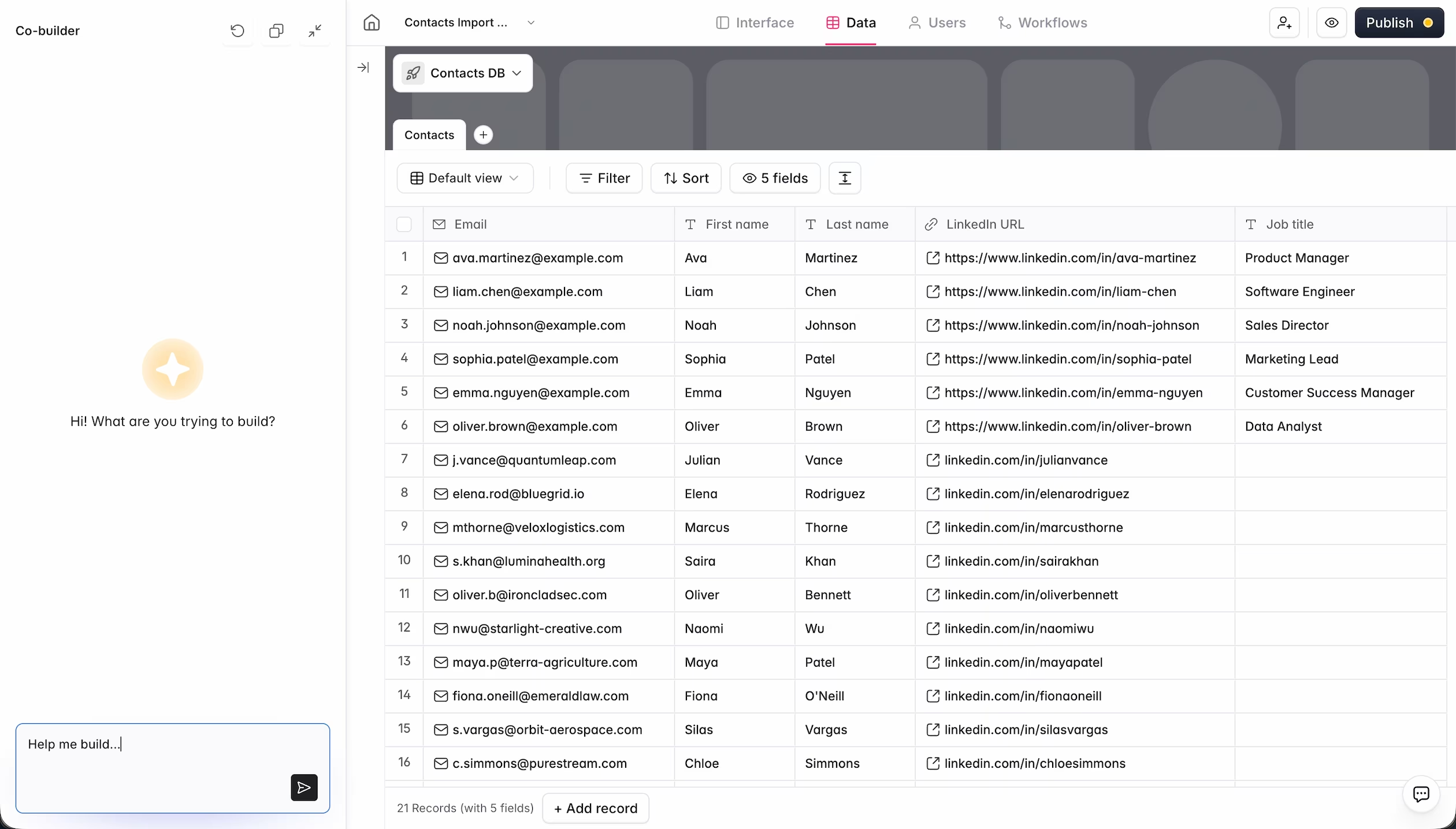
1.3 Add demo data
To make your app feel real during development, ask the AI Co-Builder to populate it:
"Can you add six records of demo data?"
You'll now have a working Contacts table with sample data. This is the foundation we'll build on top of.
Part 2: Building the interface
2.1 Display your contacts with a Table block
Back in the Softr Studio, convert the default block on your homepage into a Table block connected to your Contacts table. Map the columns you want to display (Name, Email, LinkedIn URL, Job Title) and you instantly have a searchable, filterable view of all your contacts.
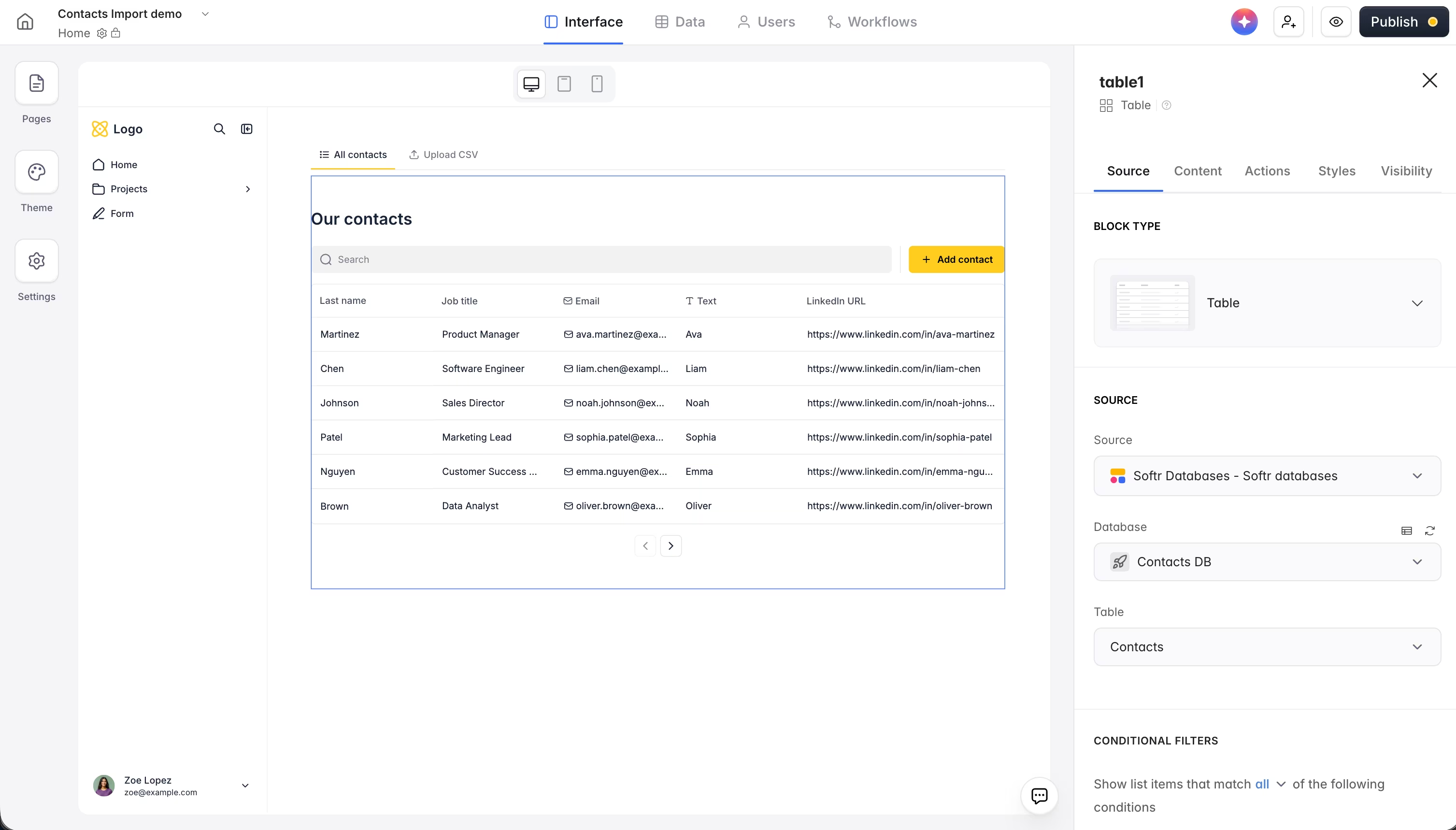
You could stop here and add a simple Add Record button for one-by-one entry. But that's exactly the problem we're solving.
2.2 Add the Vibe Coding block
Add a new block and select Vibe Coding (under AI blocks).
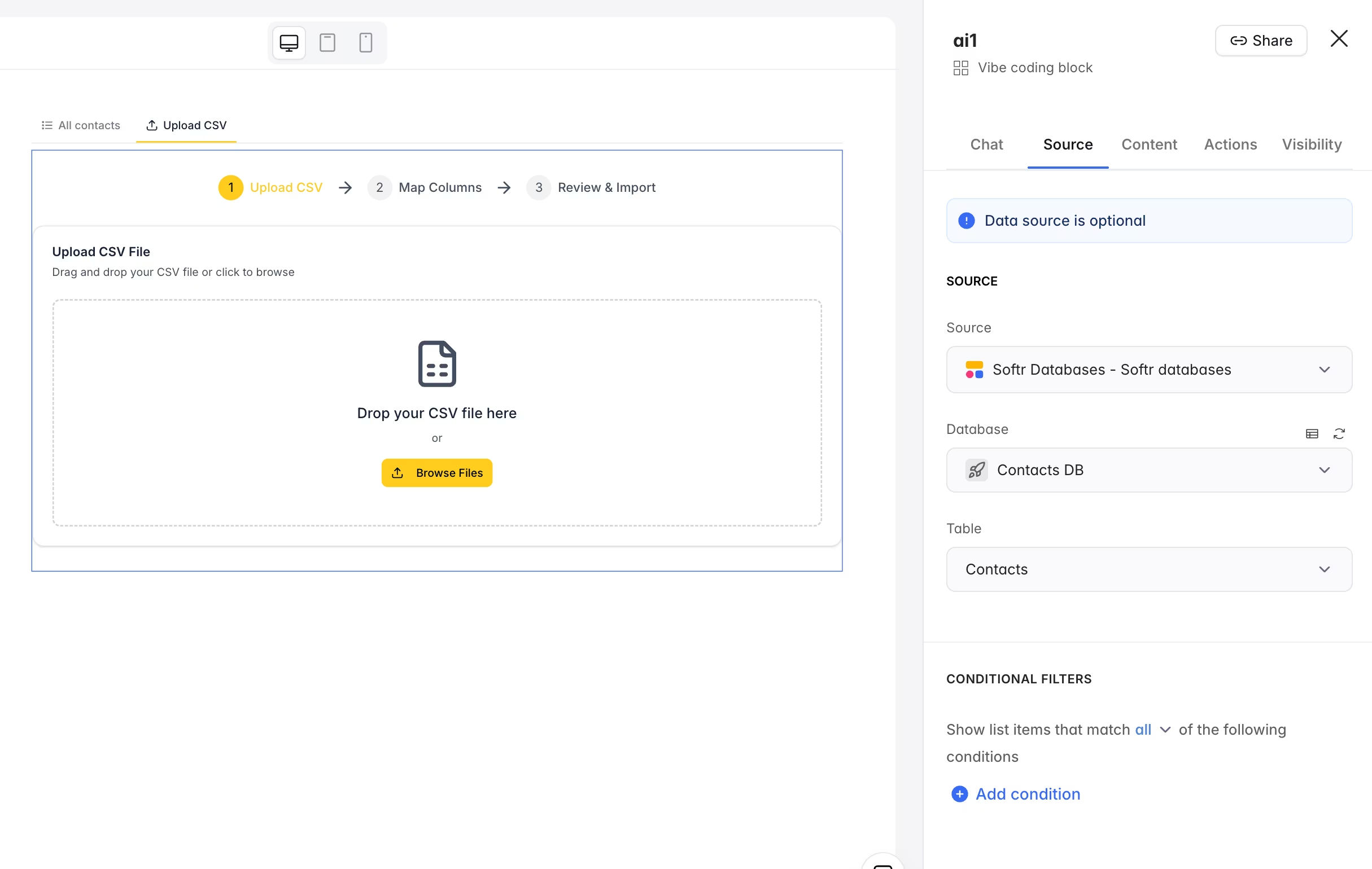
Step 1: Connect to your data source.
Select the Contacts table. This is critical as it allows the AI-generated block to read your table's schema and write records directly to it.
Step 2: Write your prompt.
This is the most important part of the build. Be specific. Be structured. Here is an example prompt:
I need a block that allows me to drag and drop a CSV that I have with many contacts so that we can then bulk create these contacts in the database that we have connected.When we drag and drop the CSV in there, we need to then display a way to map the columns from my CSV with the columns of the database. We need a very nice and intuitive interface where we can map those but also decide if we skip one of the columns or not. We need also to make sure that we can only map to the destination columns once to avoid any conflict. And we need a visual way to present the way this mapping works. Once we are done with the mapping, we would go to the next stage that would actually list all the records from the CSV. Then one by one we can either select or deselect them as records to import. We would also have an option at the top to import all of them, removing the ones that we have already rejected.
That's it—three paragraphs of plain English.
Pro Tip: Use a dictation tool to speak your prompt naturally. It's faster than typing and makes it easier to share as many details as needed to provide clear instructions for the AI.
Step 3: Let the AI generate.
Hit send, and the AI builds your entire component.
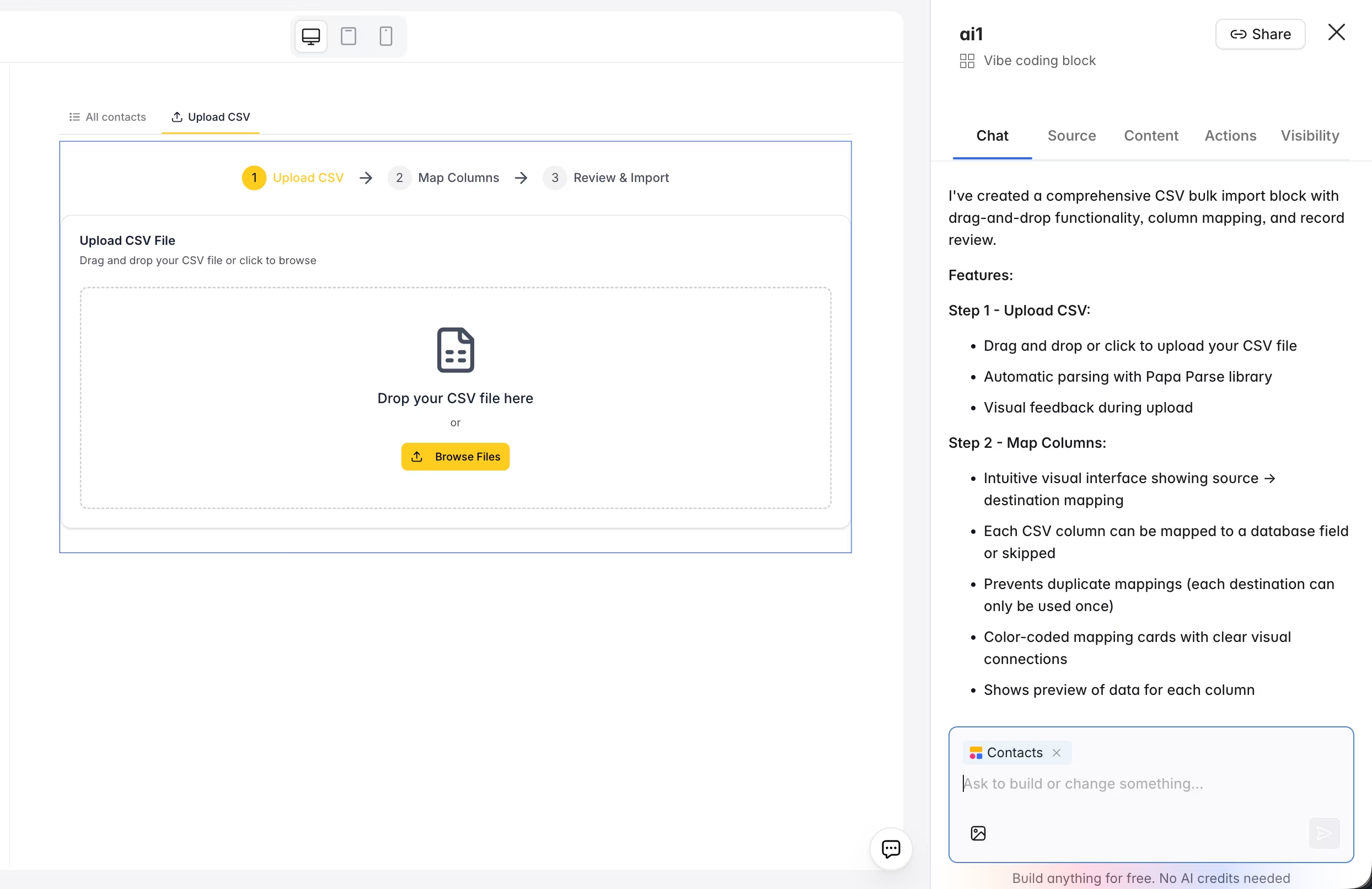
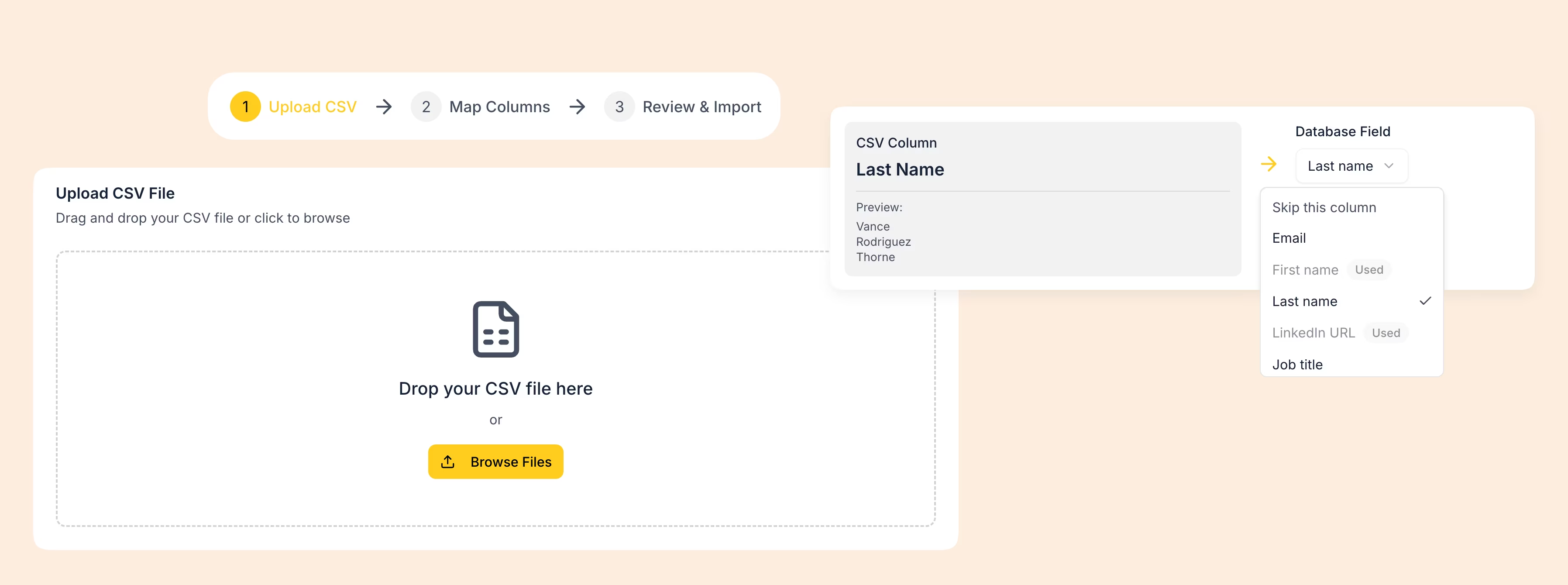
The result is a React-based code block with three stages:
- Drag & Drop zone: Upload your CSV file.
- Column mapping: Each CSV column shows a preview of its values (the first three entries) next to a dropdown to select the matching database field. You can also choose to "Skip" a column. Crucially, once a destination field is selected, it's locked to prevent duplicate mappings.
- Row review: All records are displayed with checkboxes. You can deselect specific rows you don't want to import, or use the "Import All" button. Rejected rows are excluded from the final batch.
2.3 Test the import
Click Preview to try your block live:
- Drag a CSV file into the upload zone.
- Map the columns. Notice that the block shows preview values for each CSV column—this makes mapping intuitive even when column names don't match your database.
- Review the rows, deselect any you don't want, and click Import.
- Go back to your Table block. You'll see the new records right there.
Part 3: Iterating with AI: adding fuzzy matching
After the first test, you'll notice an opportunity. If your CSV has a column called "email" and your database has a field called "Email," it should auto-map them. The same goes for "Last Name" vs. "Surname"; the AI should be smart enough to suggest a match.
This is the power of iterating with vibe coding. You don't need to start over. You can just send a follow-up prompt:
For the column mapping, maybe you could try to pre-match columns based on fuzzy names, so you can recognize when the column names seem to match. If not, then you can skip, but that might help us save some time in the second step.
The block rebuilds, and now, when you drop a CSV, columns that closely match your database fields are pre-mapped automatically. You can still override any mapping, but the common cases are handled for you instantly.
How versioning works: Each time you iterate, the block saves a new version. You can access previous versions at any time, and if you're comfortable with code, you can even manually edit the generated React/CSS/JS and save your own version. Need to undo? Just click Restore on any previous version.
Part 4: Polishing the interface
Right now, we have a Table block and the CSV importer stacked on a single page. Let's make the experience more professional.
4.1 Add a Tab Container
Softr provides Tab Containers, a layout block that lets you organize content behind clean, switchable tabs.
- Add a Tab Container to your page.
- Name the first tab All Contacts and drag your Table block into it.
- Name the second tab Upload CSV and drag your custom block into it.
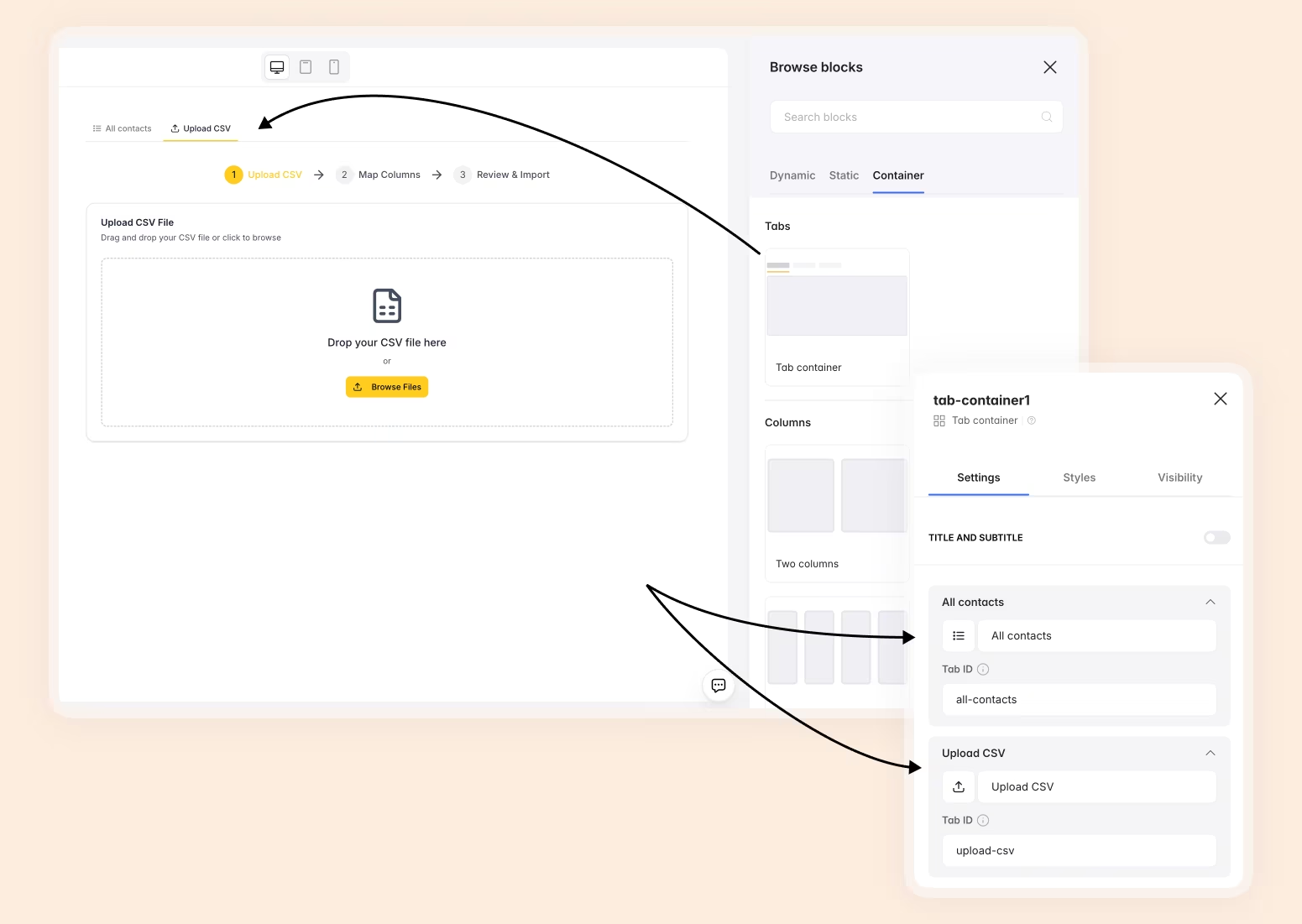
Now, when you preview the app, you have a modern, intuitive interface: browse your contacts on one tab, upload a batch on the other.
4.2 Theme consistency
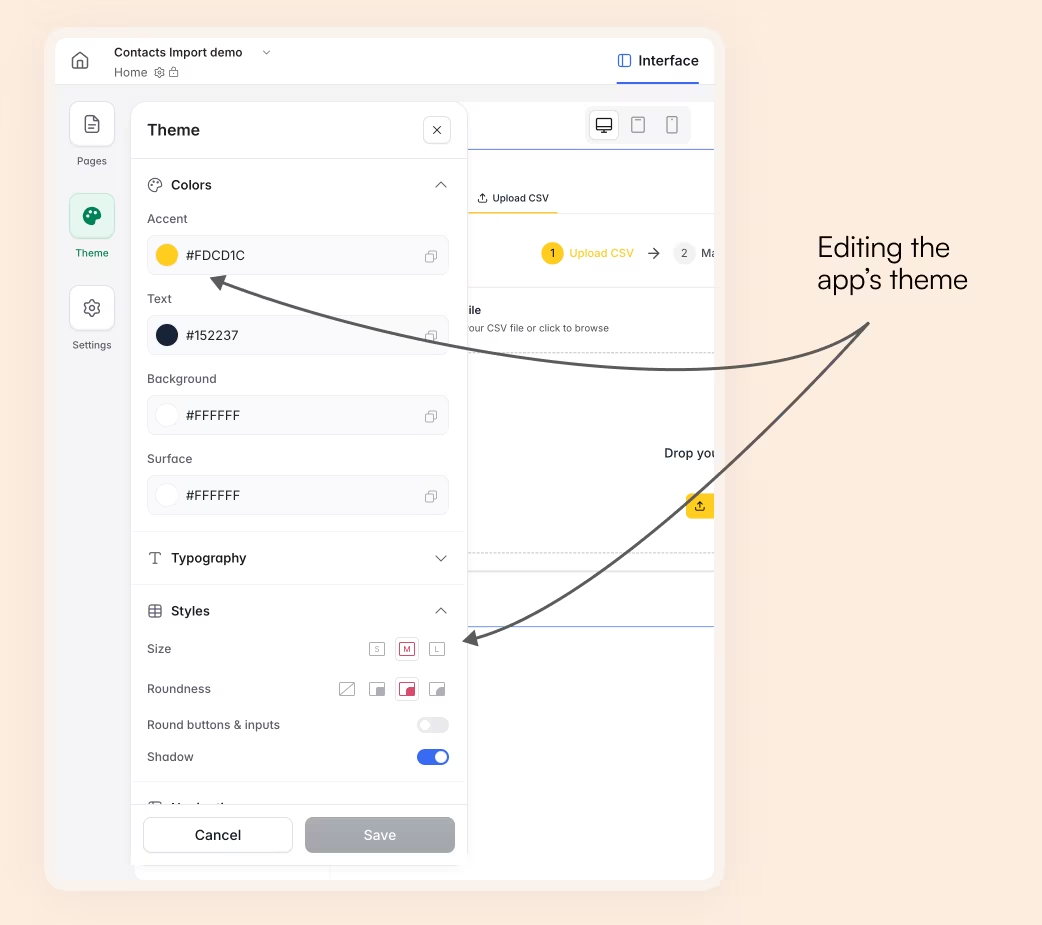
Because both blocks, the native Table and the AI-generated CSV importer, respect Softr's global theme, they look like they belong together. If you change your accent color to yellow, both tabs update. There’s no CSS to maintain.
Going further: Adapt this to any table
This approach isn't limited to contacts. You can apply the exact same pattern to any table in your Softr app:
- Uploading projects from a PM tool export.
- Importing inventory from a supplier spreadsheet.
- Batch-creating tasks from a planning document.
All you need to do is add a Vibe Coding block, connect it to the relevant table, and describe the import behavior you need. Two prompts, and you have a production-ready bulk import tool.
A CSV uploader in two prompts
All it takes are two natural-language prompts, zero lines of hand-written code, and about 10 minutes. The result is a drag-and-drop CSV importer with column mapping, fuzzy matching, row-by-row review, and a polished tab layout.
This is what makes Softr's approach different from general-purpose AI code generators. You're not building a standalone prototype and hoping it holds together. You're generating a secure, data-connected component inside a real application that already handles authentication, users and permissions, and deployment.
Ready to build?
Frequently asked questions
What is the Vibe Coding block in Softr?
Can I build a CSV importer in Softr without writing code?
How does column mapping work in the CSV uploader?
Does the CSV uploader work with any Softr Database table?
Can I customize or iterate on the AI-generated block?