The promise of business apps is efficiency. You build a CRM so sales reps stop losing deals in spreadsheets. You build a vendor portal so invoices don't arrive as email attachments. You build an intranet so announcements don't get buried in Slack.
But there's a hidden efficiency killer that many apps can’t solve: manual data entry and repetitive processing. A sales rep still has to research every new lead, admins still have to categorize every announcement and managers still have to scan 30 emails to understand a deal's status. Even if an app organizes the data, humans are still doing the grunt work around it.
AI changes this equation, not by replacing the app, but by making it more efficient from the inside. Before you start adding AI everywhere, though, you need a framework to decide where it actually helps cut manual work. That framework starts with your database.
Step 1: Map every field (data point) you actually need
Before thinking about AI at all, start with a simple audit: for every table in your database, list every field and ask yourself why it exists.
A field earns its place in your database for exactly three reasons:
- It's displayed in the app. Users see it in a list, a detail page, a dashboard, or a report. If no one ever sees it, there's no reason to store it.
- It's used in an automation or workflow. Think conditional triggers, notification templates, formulas, and filter conditions. These fields drive logic even if users never look at them directly.
- It has to be stored for future reference. Compliance, audit trails, historical analysis — you might not use them today, but you'll need them later.
If a field doesn't meet any of these three criteria, it shouldn't exist. Every unnecessary field is a burden that has to be filled in and maintain it, even if it serves no real purpose.
Once you've mapped every field across every table, you have a clear picture of the data your app actually depends on. Now you can move to the next important question: how should each field get its value?
Step 2: Categorize every field (manual, automated, or AI-generated)
Not every field needs human input. For each field in your database, determine which category it falls into.
Manual input — the human provides the value
These are fields where a human has to make a decision or provide information that can't be derived from anything else. They typically come from two moments:
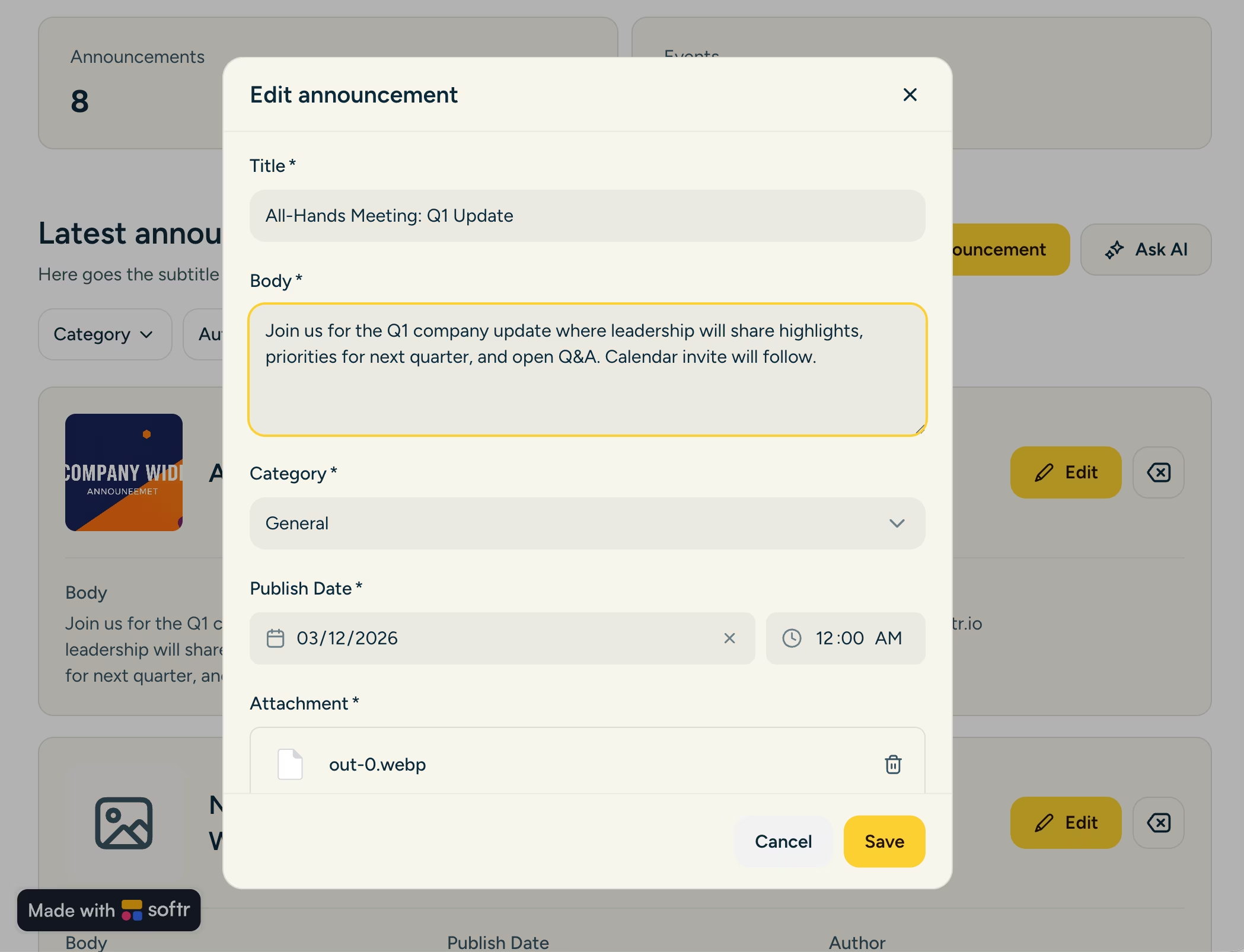
- At record creation. A user fills in a form, provides a description, sets a due date, assigns a person. When creating a new task, for example, the task description and assignee are decisions that only the human can make.
- At record update. A user changes a status, adds a note, edits a detail. In your CRM, a sales rep updates a deal's status to "Closed Won" because they just got the news. That's a judgment call only the rep can make.
The goal is to minimize these fields across your database. Every point of manual entry adds friction, and every one you can remove or automate will save you time.
Automated — the value follows deterministic rules
These are fields that don't require human judgment because they follow strict, predictable logic:
- System-generated values. The creation date, the logged-in user who created the record, or the related project passed through a hidden input. These are handled natively by the software.
- Formulas. If you need a date in a specific format, a concatenation of other fields, or a calculated value, that's a formula. The rules are strict and the output is deterministic. A formula field in your Tasks table, for example, could consolidate the task title, status, and description into a single formatted string for use downstream.
- Event-driven record creation. Sometimes the record itself should be created automatically. In an invoice management app, for example, whenever an email arrives at a specific address with an attachment containing the word "invoice" in the filename, a new record is automatically created and the file is attached. That's an automation, not AI. It follows clear conditional logic.
AI-generated — the value requires intelligence
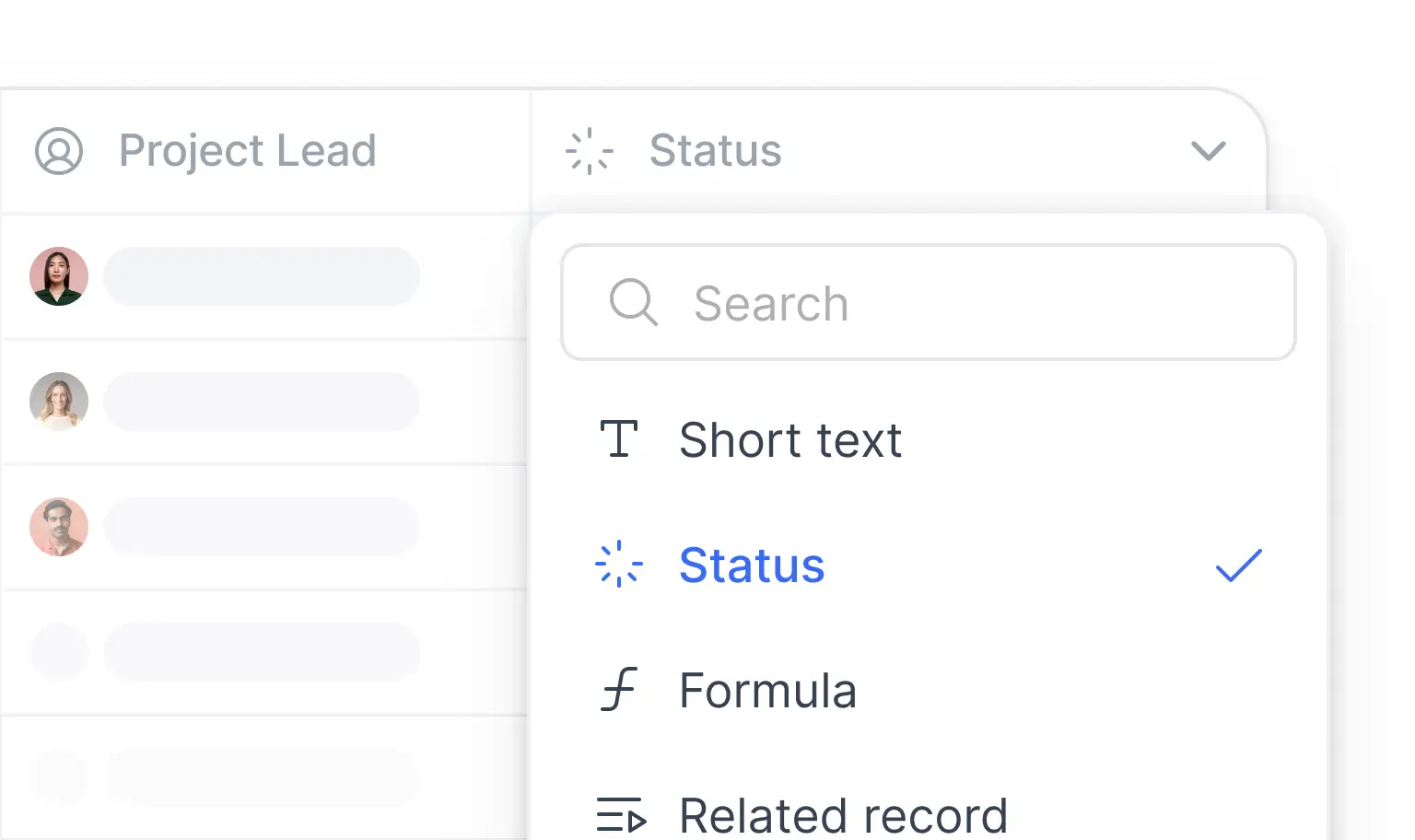
These are the columns where you’ll want to leverage AI. The output can't be determined by a simple rule, but it can be derived from other data by a model that understands context, language, and meaning. This is field type the rest of this article will focus on.
How AI fills your fields: from same-table intelligence to cross-object operations
Once you've identified which fields should be AI-generated, you need to choose the right mechanism for each one. There's a natural progression, from the simplest (fields derived from other columns in the same table) to the most advanced (multi-step workflows combining multiple data sources).
The sections below go through each level of that progression — and show you how to set the mechanisms up in Softr.
Database AI Agents: the simplest, most powerful starting point
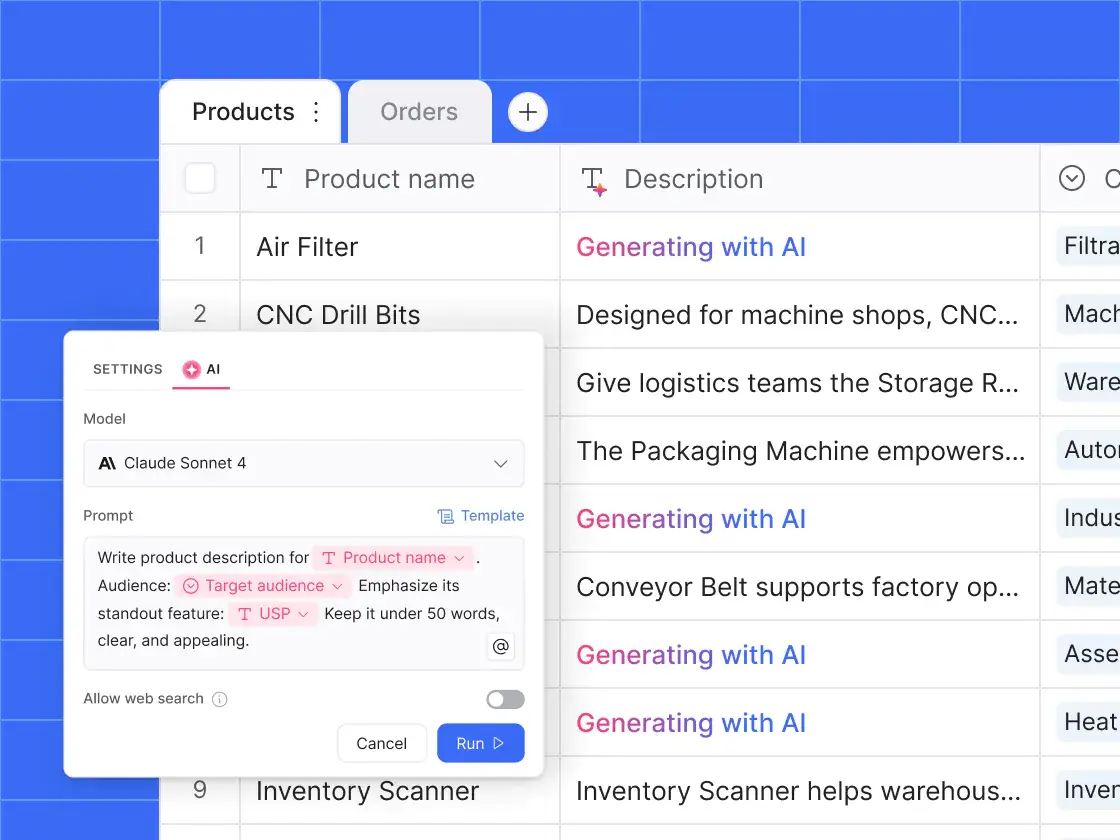
Database AI Agents are AI-powered fields that run directly inside your Softr database tables. You configure them with a prompt, reference other columns using the @ symbol, and choose when they fire. They're the first tool to reach for because they require no workflow and no external setup. Just a field and a prompt.
Deriving fields from other columns in the same table
This is a super common pattern: a richer field exists, and you want AI to extract or transform something from it.
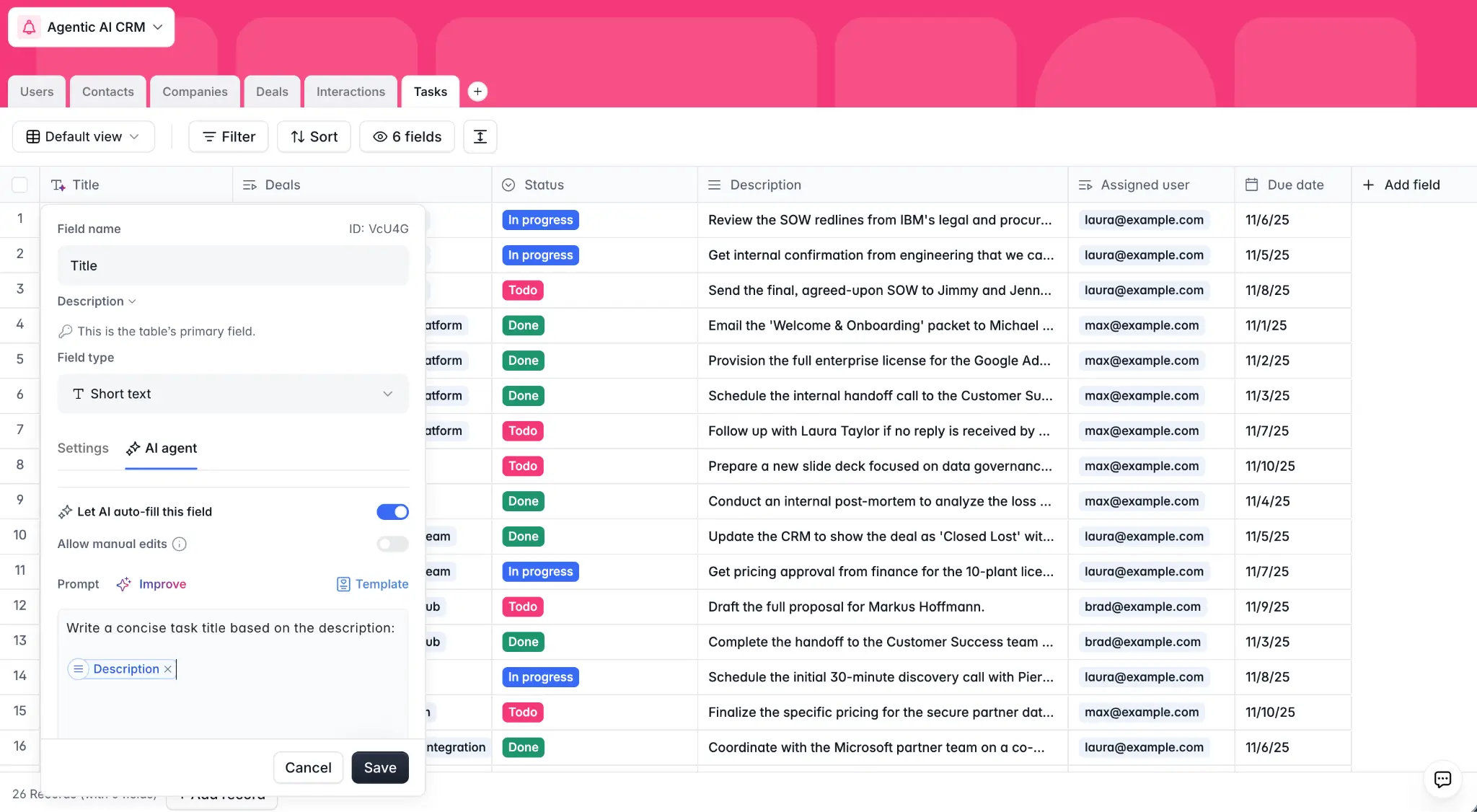
Auto-generating titles from descriptions: In a task management app, you could require the user to only fill in the task description. A Database AI Agent on the Title field uses the prompt: "Write a short, actionable title for this task based on the @Description. Follow this naming convention: [verb] + [object]." The title is generated automatically, and the user can still edit it if they want.
Categorization and sentiment analysis: If you're classifying incoming emails or customer feedback, AI can automatically tag the sentiment (positive, neutral, or negative) based on the content. This works especially well when you add business-specific context to the prompt: "In our context, negative sentiment means the customer is explicitly unhappy with the product or threatening to churn. Neutral means they're asking a question without frustration." With that guidance, the AI does a reliable first pass.
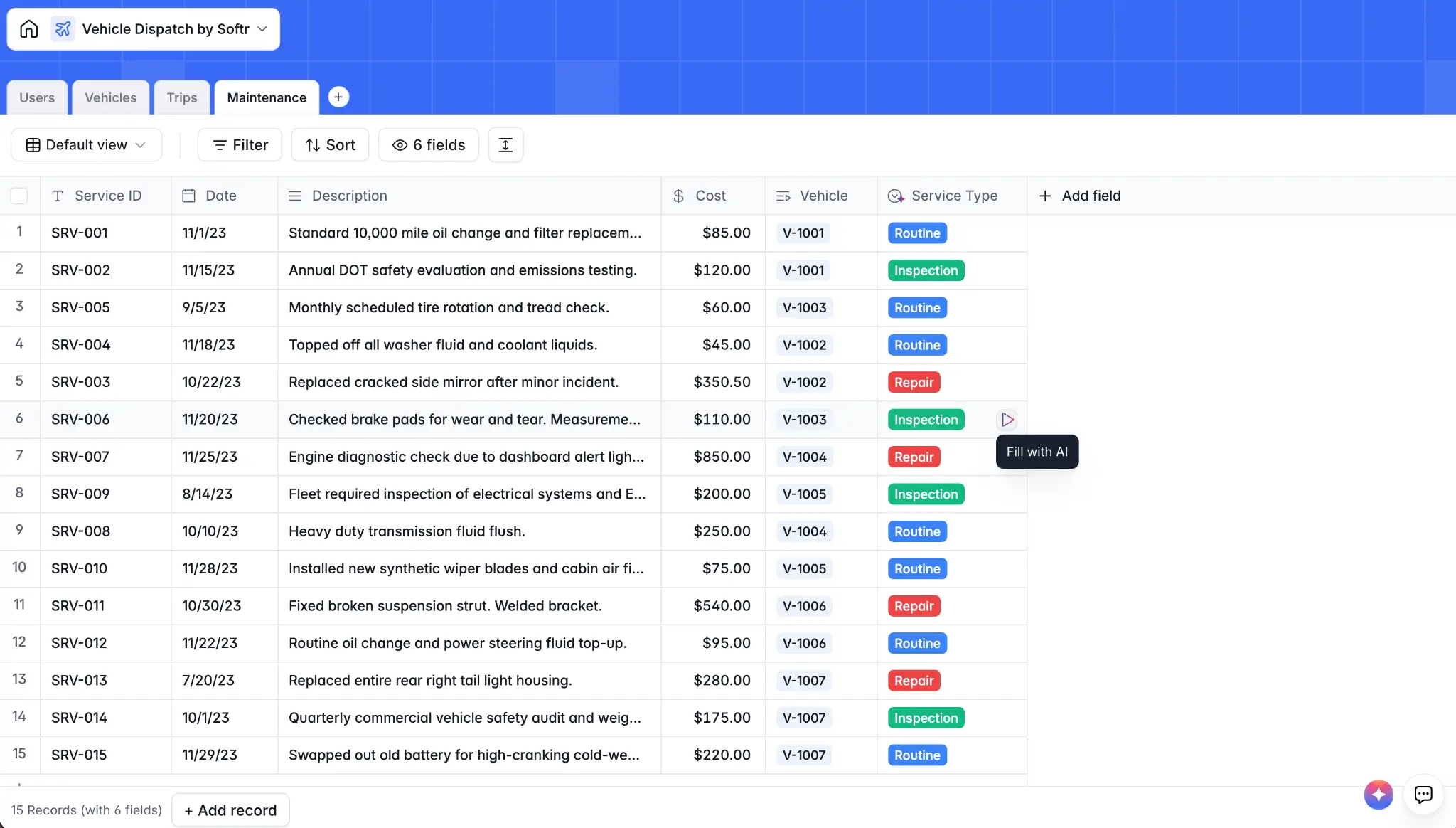
Why does this matter? Because you can then build your interface around it. Imagine a dashboard for your customer success team that shows a priority list of feedback with negative sentiment.
The AI does the triage, while the human expert reviews the surfaced items and reclassifies if needed. Even if the AI occasionally tags neutral feedback as negative, that's fine. It was surfaced for a human to review, and the cost of checking one extra item is far lower than the cost of missing a genuinely upset customer.
Almost all field types in Softr (numbers, dates, select fields, short text, long text) can be toggled to AI-powered with a single switch. You get fine-grained control over:
- When it runs: On record creation? On specific field updates? You can select exactly which fields should trigger a reprocess.
- Manual override: Allow users to edit the AI-generated value, or lock it.
- Model selection: Choose a lightweight model (Gemini Flash, Claude Haiku) for simple categorization, or a more capable one for complex generation.
This level of control means you manage AI costs precisely and keep the behavior predictable.
Cross-table intelligence with lookups
Database AI Agents become even more useful when combined with relational data.
Example: Auto-generating a project status summary from related tasks
Here's the pattern:
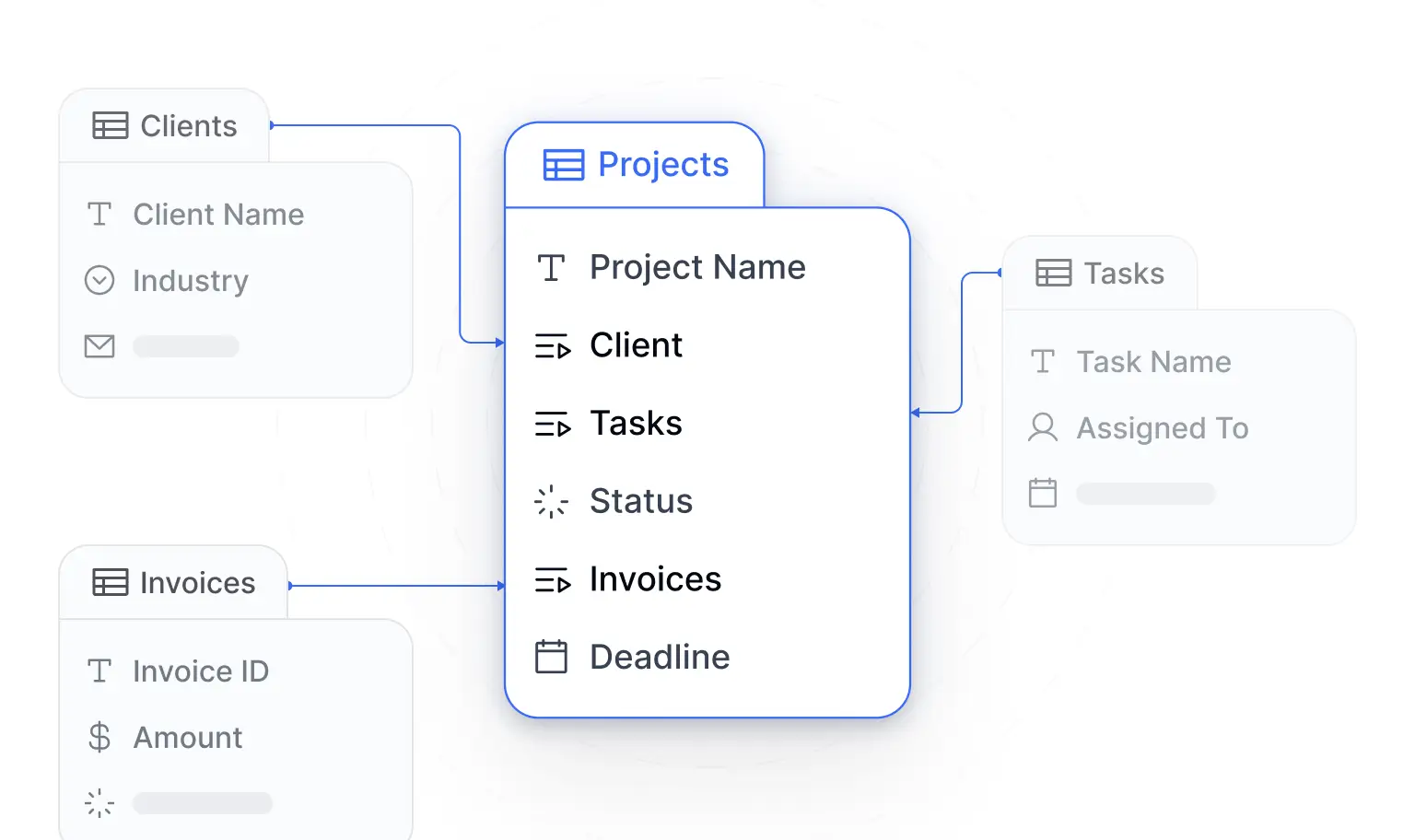
- In your Tasks table, add a formula field that consolidates key information: the task title, status, and description into a single formatted string.
- In your Projects table, add a Lookup field that pulls this formula field from all linked tasks. This gives you, for each project, a consolidated view of every related task's details.
- Add a Database AI Agent on a
Project Summaryfield in the Projects table with the prompt: "Based on the following task details: @Task Lookup, generate a concise summary of this project's current status. Highlight any blockers or overdue items."
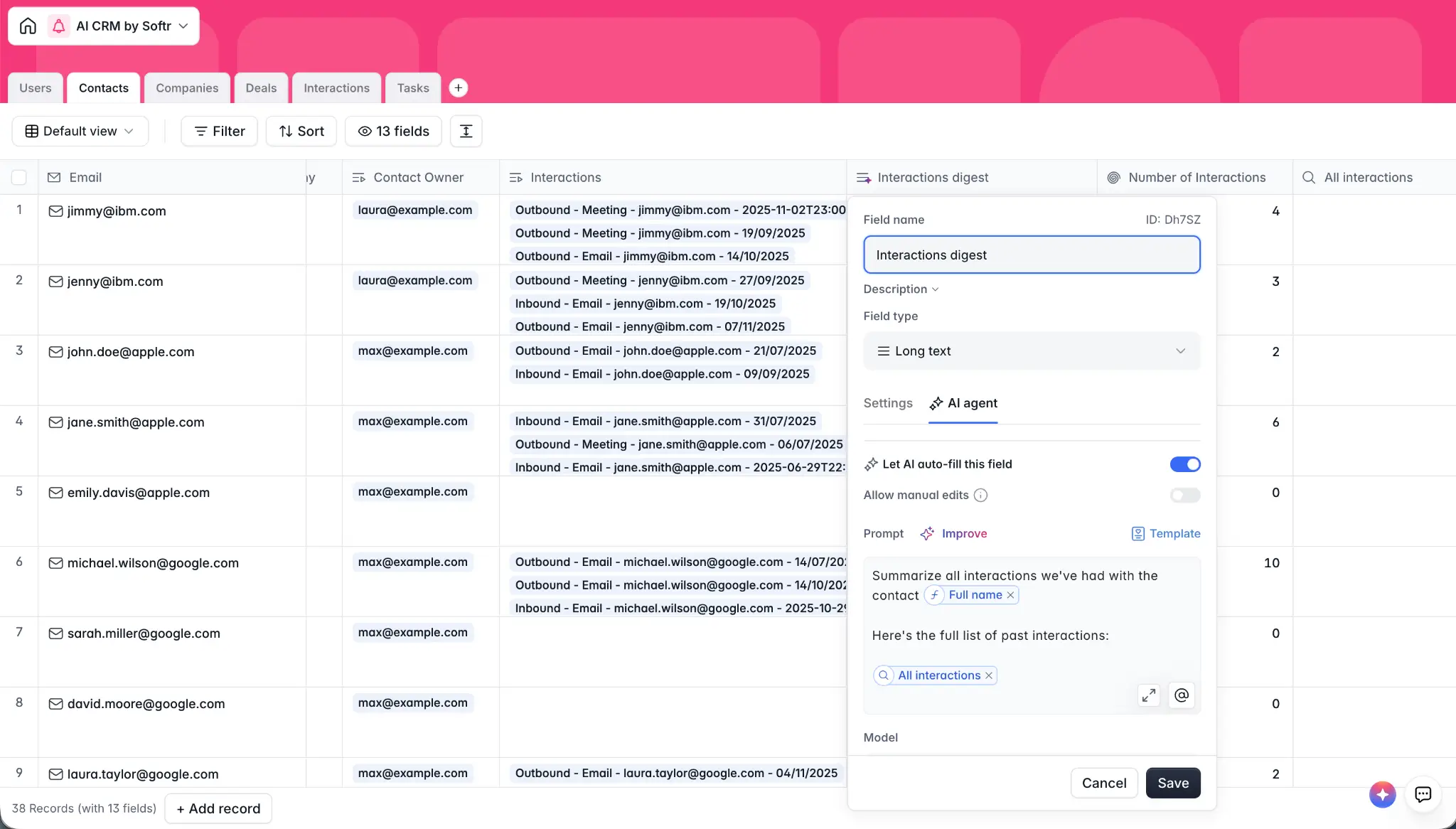
This is cross-object intelligence, but it's still happening directly in the database: structured, easy to maintain, and fully automatic. Every time a task is updated, the project summary can reprocess to reflect the change.
Web-powered enrichment
For data that doesn't exist anywhere in your database yet, Database AI Agents support a Web Search toggle. When enabled, the AI searches the internet to find information before generating its output.
CRM example: A sales rep adds a company with just a name and website URL. Database AI Agents handle the rest:
- Activity Description: "Generate three concise bullet points describing the company's activity, based on @Company Name and @Website." (Web Search enabled)
- Number of Employees: "Return the most accurate number of employees for @Company Name. Return only the number." (Web Search enabled)
- Industry: "Classify the industry of this company based on @Company Name and the @Activity Description."
Now, a sales rep types "acme.corp" and within seconds they get a fully enriched company profile (industry, size, description) without opening a single browser tab. This would otherwise take 5–10 minutes of manual research per lead. Multiply that by 500 companies in your CRM and you've saved 40+ hours of busywork.
PDF and document extraction
If you map an attachment field to a Database AI Agent, it can read through uploaded PDFs and extract structured information.
Invoice management example: You store one invoice per row. The AI agent reads the attached PDF and extracts:
- The invoice date, stored in a Date field
- The total amount, stored in a Number field
- The vendor name, stored in a Text field
Document classification in a vendor portal: Vendors upload files: contracts, insurance certificates, W9 forms. A Database AI Agent on the Document Type field reads the filename (or the document content) and automatically classifies each upload as "NDA," "Insurance Certificate," "Invoice," etc. Admins can immediately filter and search by type, and compliance checks become a simple query rather than a manual review of every file.
Core principle: Database AI Agents are passive intelligence. They run in the background, keep your data clean and enriched, and require zero effort from your users after the initial setup.
Workflows: when AI needs more than one step or more than one table
Softr Workflows include native AI steps you can insert at any point in an automation. The AI processes data mid-workflow and the result feeds into the next step, creating records, sending notifications, or updating fields.
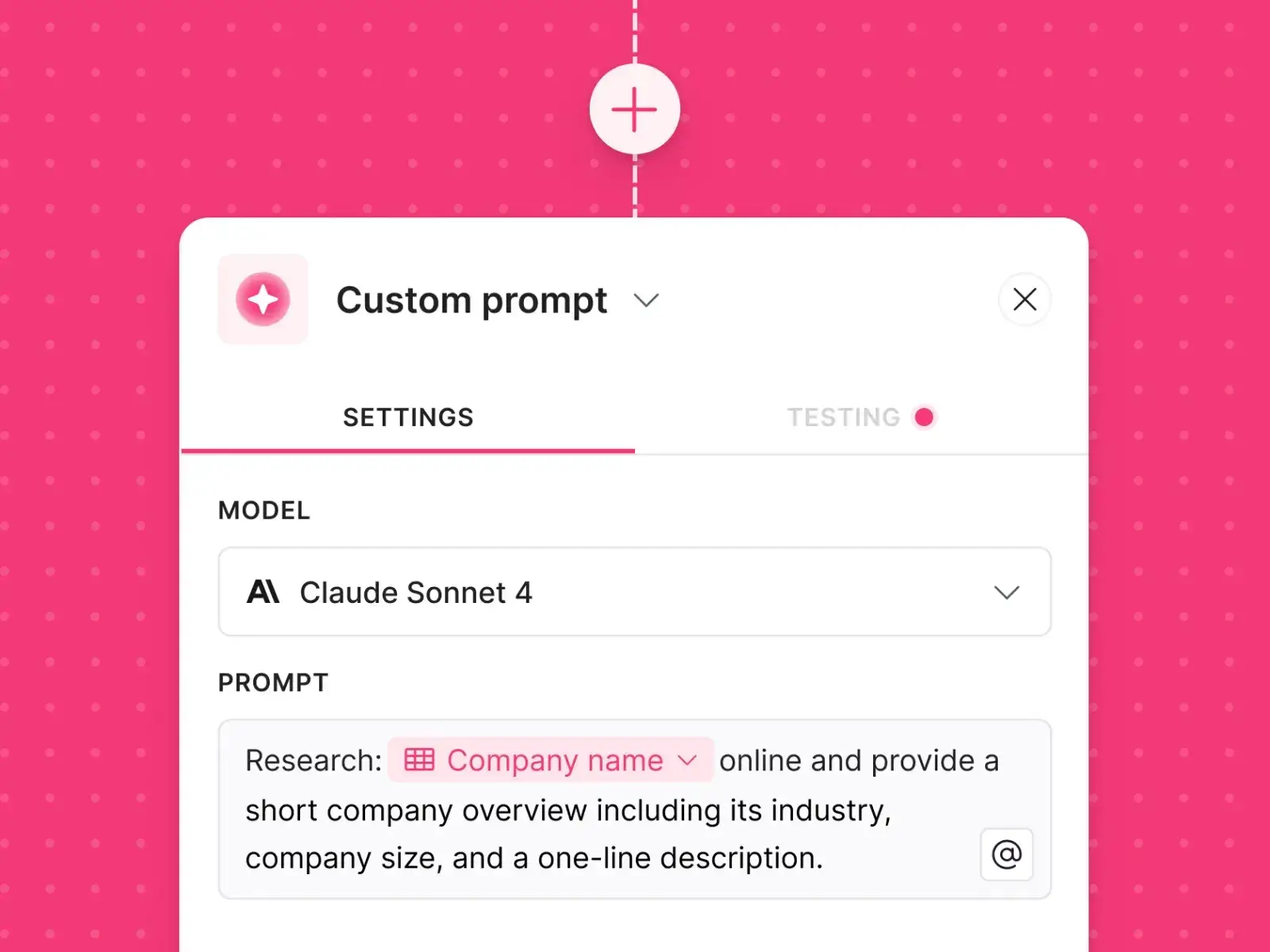
When to use workflows over Database AI Agents: Use workflows when the data you need to process isn't available in a single table, when you need to chain multiple AI steps together, when you need to call external APIs, or when the trigger is something other than a database event (a schedule, a form submission, a button click).
Multi-step AI with chained operations
Workflows can combine multiple AI steps sequentially, which goes beyond what Database AI Agents can do alone.
Example: Smart demo request routing
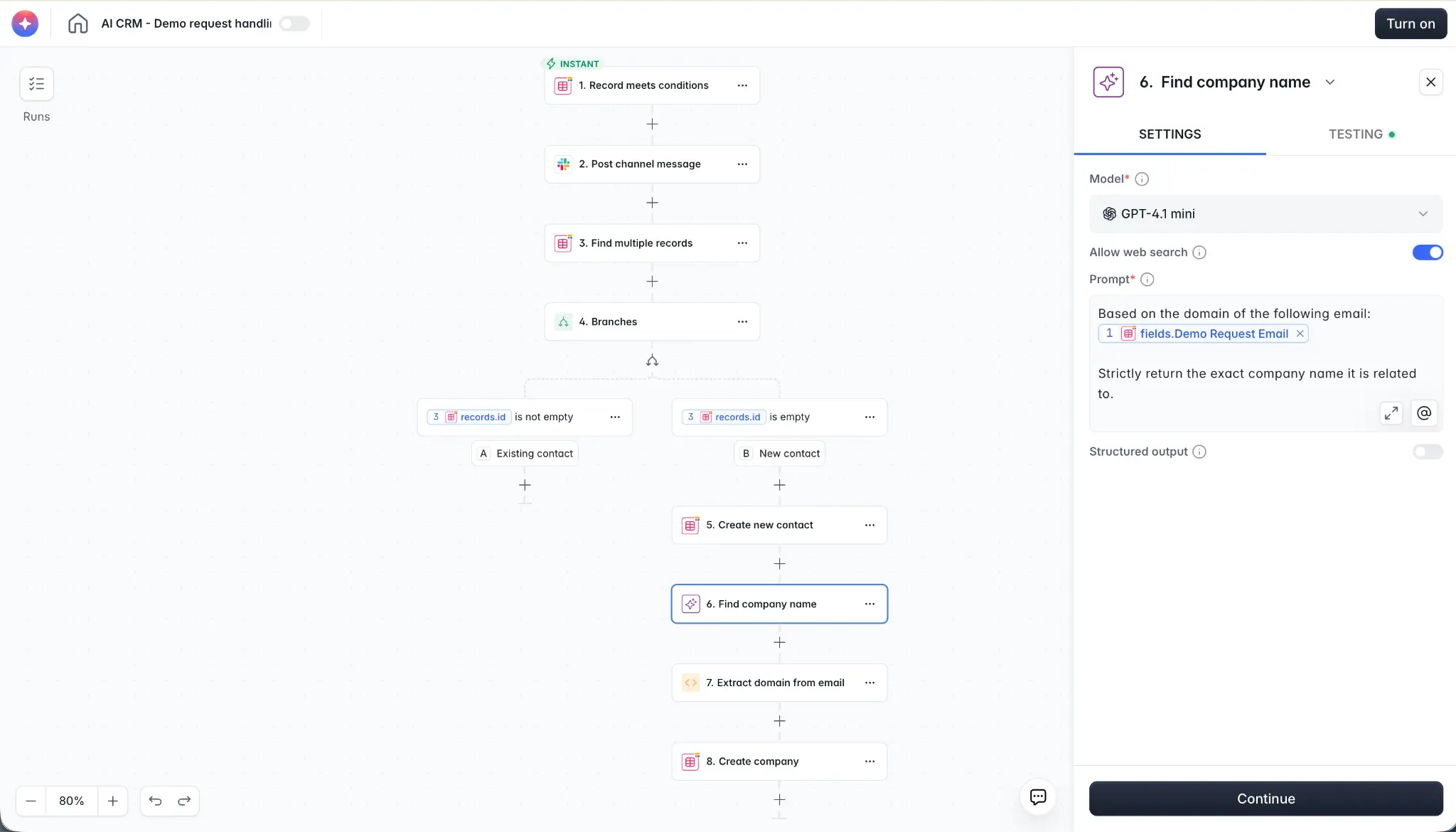
You have a table of sales reps with their specializations and a table of demo requests that gets a new record every time someone books a demo. Here's the workflow:
- Trigger: New record in the Demo Requests table.
- Step 1: Extract the company name, either directly from the form submission or by parsing it from the domain of the business email the prospect used.
- Step 2 (AI + Web Search): "Find information about this company: @Company Name. Describe their industry, size, and main products in three sentences."
- Step 3: Fetch the list of all sales reps from the database, including each rep's specialization and record ID.
- Step 4 (AI): "Given this company description: @Step 2 Result. And these sales reps and their specializations: @Step 3 Result. Which sales rep is the best match to handle this demo? Return only their record ID."
- Step 5: Update the demo request record to link it to the matched sales rep, or create a new Deal record with the assignment pre-filled.
This is a multi-step, multi-table, web-enhanced AI operation that runs automatically every time a demo is requested. The AI handles the company research, the rep matching, and the record update. The rep gets notified with a fully enriched lead.
Smart notifications and personalized communication
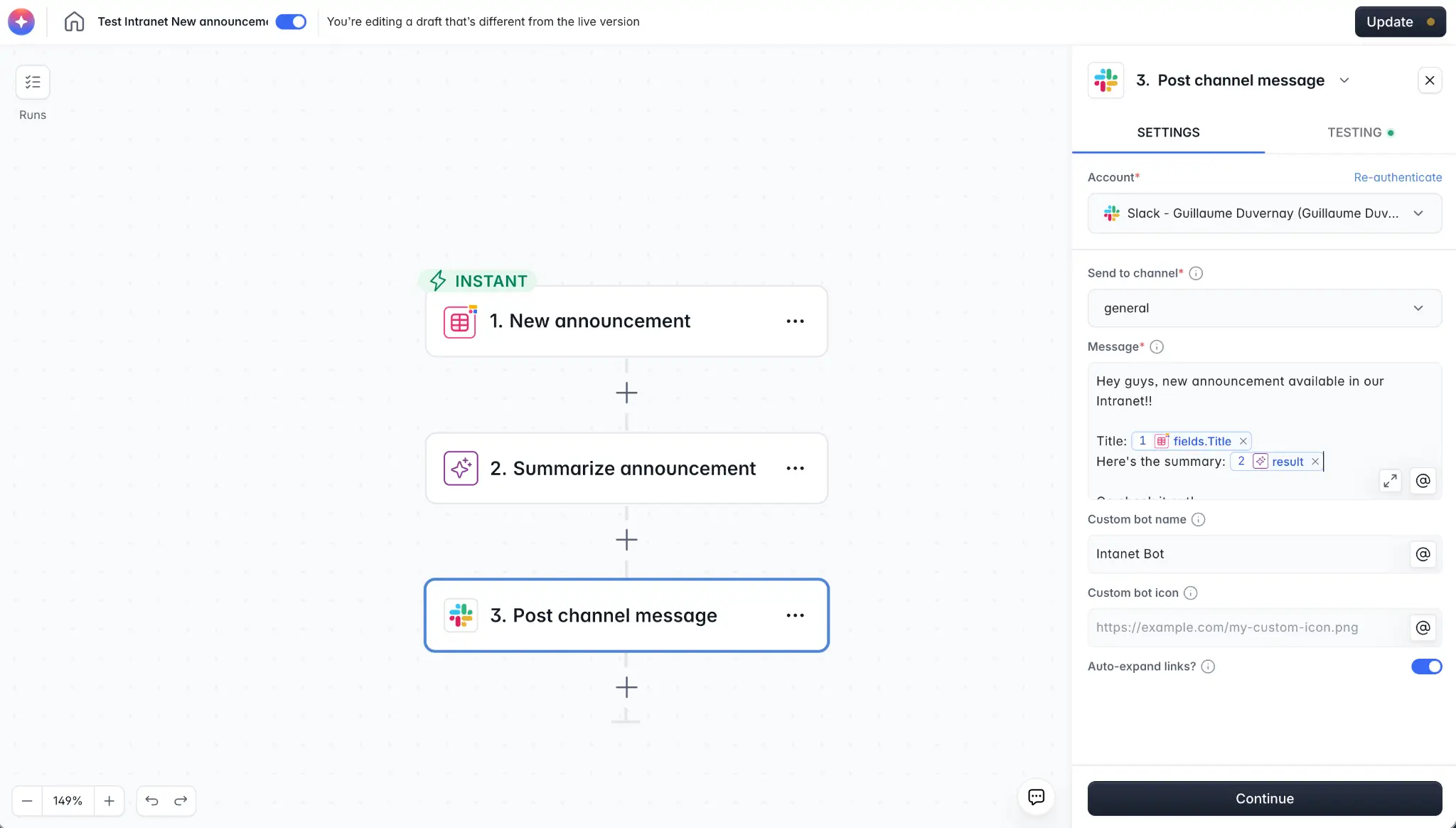
Slack summaries: When a new announcement is posted on the company intranet, dumping a 500-word announcement in Slack isn't useful. Instead:
- Trigger: New record in the Announcements table.
- AI step: "Summarize this announcement in one sentence: @Title, @Content."
- Action: Post to Slack with the message: "New announcement: @Title. TL;DR: @AI Summary."
Personalized task reminders: In a vendor portal, generic "You have a task due tomorrow" emails get ignored. With an AI step, each reminder references the specific task and reads like it was written for that vendor, which increases action rates considerably.
Structured data extraction from unstructured input
This is one of the most useful workflow patterns, and it connects directly to the framework we've been discussing.
In the AI Meeting Task Manager, a user pastes a meeting transcript into a form. Instead of manually going through the transcript and creating individual tasks:
- The workflow fetches all team members from the Users table.
- An AI step processes the transcript with a structured JSON output schema, extracting every task mentioned, with assignee, description, and priority.
- A bulk action loop creates individual Task records for each extracted item.
- A second AI step generates a title for the meeting.
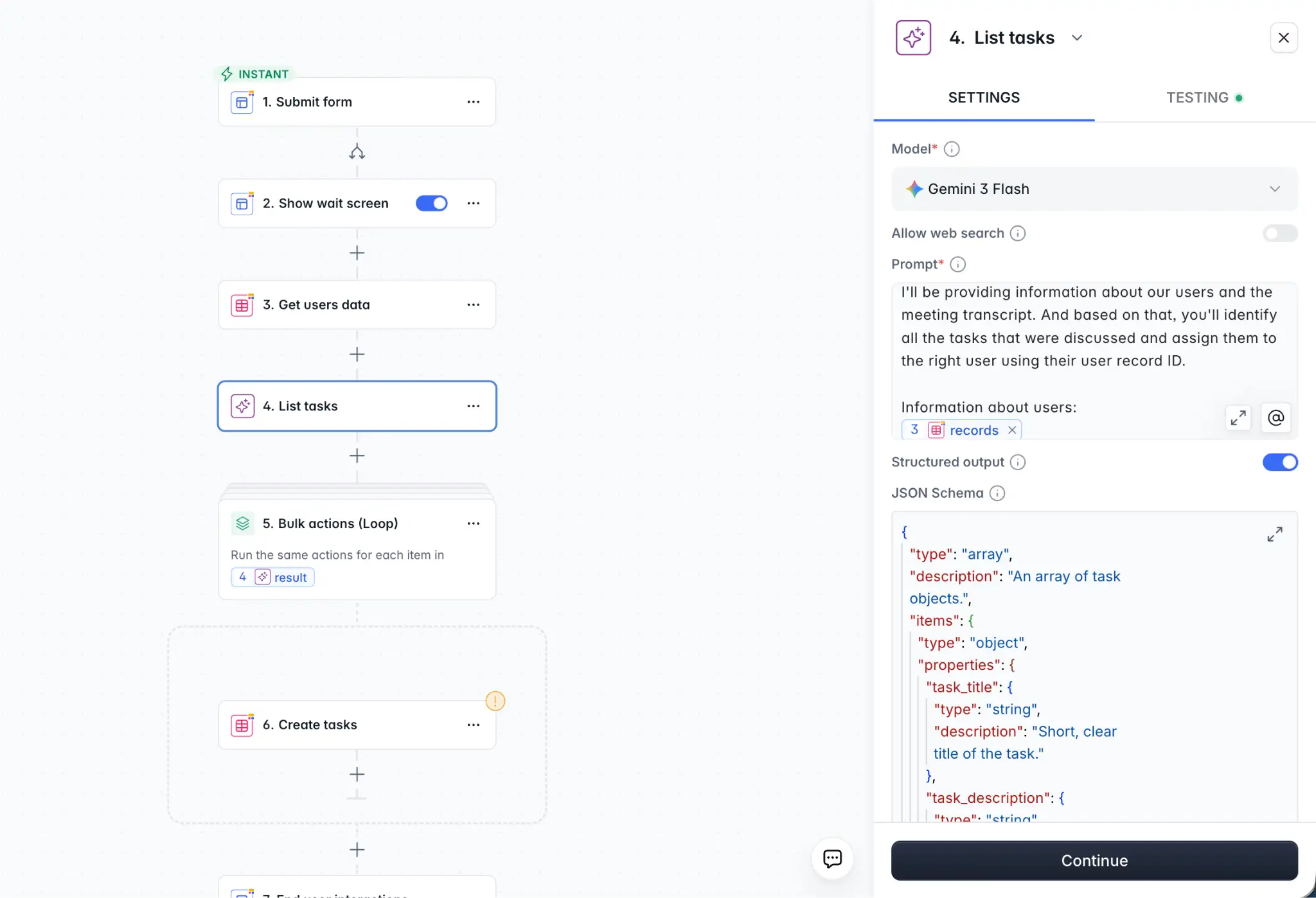
The user pastes a transcript and gets back a structured task list with assignees. That's 30 minutes of manual note processing eliminated, and every field in those newly created task records is either automatically generated or AI-derived. The only manual input was pasting the transcript.
This pattern works for any scenario where unstructured input needs to become structured records: meeting notes, customer feedback batches, support ticket escalations, and more.
AI-powered helpers in the UI: the human-in-the-loop layer
By combining the Vibe Coding block with Softr Workflows via webhooks, you can build custom AI-powered interfaces where the user provides input, AI processes it in the background, and the result is returned directly in the app for review.
Example: AI email drafting in a CRM
In the AI CRM build, sales reps need to write personalized outreach emails. Instead of crafting each one from scratch:
- A Vibe Coding block provides a text input and a "Generate" button.
- The rep types a quick instruction: "Mention that we're both in Paris."
- The block sends this instruction (plus the prospect's enriched data) via webhook to a Softr Workflow.
- The workflow uses an AI step to draft a full personalized email based on the lead's data, interaction history, and the rep's instruction.
- The result is returned via Respond to Webhook and displayed in the interface.
- The rep reviews, tweaks the last 5%, and clicks "Send."
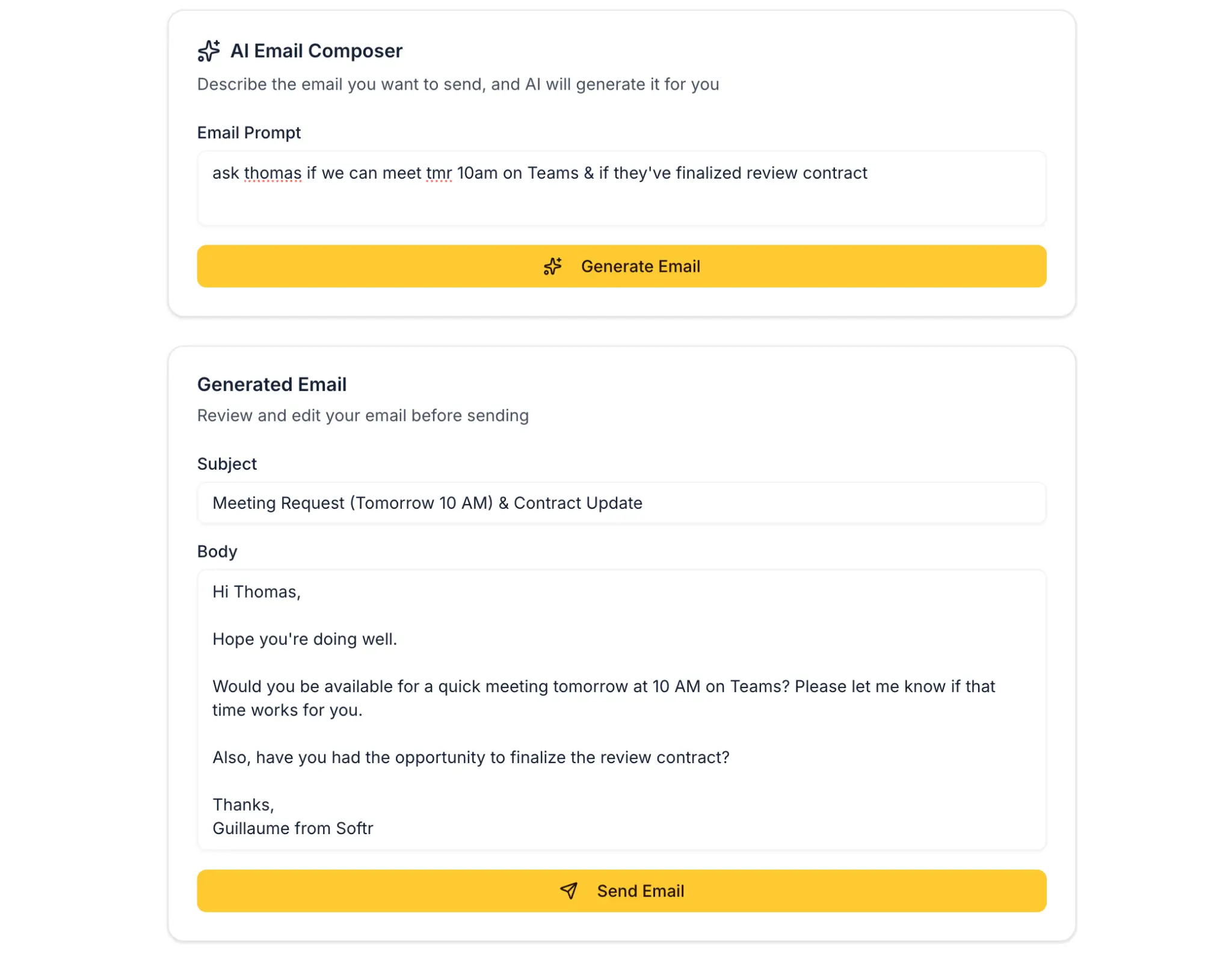
This is what human-in-the-loop looks like. AI does the heavy lifting (80%); the human refines and approves (20%). The email never gets sent without human review, which keeps quality high and builds trust over time.
The same pattern works for:
- Voice memo transcription: A user records a voice note after a meeting. A workflow transcribes it, extracts action items, and stores them in the database.
- Semantic search: A user types "web dev" in a search bar. A workflow uses AI to match the query semantically against a database, returning results even when the exact words don't match.
- Document summarization: A user selects a document and clicks "Summarize." AI returns a concise brief.
Ask AI: let users query their data in natural language
Ask AI adds a conversational chatbot on top of any data block (list, table, grid, Kanban). Users ask questions in plain language and get answers based on the actual records, with full respect for app permissions.

Use Ask AI when your users need quick answers from large datasets and traditional search or filters are too slow or too rigid.
CRM deal intelligence: On a Deal Details page, sales reps can ask: "What was the main objection in our last meeting?" or "Summarize all interactions from the CFO." Instead of reading through 30 emails to prepare for a call, the rep gets an instant answer from the actual interaction data.
Company intranet: Employees ask: "Are there any renovations scheduled?" or "Summarize all announcements from this month." The AI scans the visible records and answers conversationally, without any need for filters or category browsing.
Setting this mechanism up is straightforward:
- Select any list, table, or grid block.
- Go to the Actions tab.
- Toggle Ask AI on.
- Add instructions and choose which fields the AI can access.
One toggle, and your users can ask questions about everything in that dataset.
Step 3: Design your interfaces around the framework
Once you've mapped your fields and determined which are manual, automated, and AI-generated, you can simplify your app's interfaces significantly.
Take the task creation example. Without this framework, your task creation form might have 8 fields: title, description, category, priority, assignee, project, due date, status. That's a lot of manual input for anyone creating a task.
With the framework applied, the user fills in one field. Everything else is handled automatically. That's the difference between a form that takes 2 minutes and one that takes 15 seconds.
This pattern scales further when the input itself is unstructured. When a user pastes a meeting transcript or submits a batch of customer feedback, a single workflow can create dozens of records, each with AI-generated fields already populated.
The compound effect: AI at every layer
You get maximum value when you combine these approaches to AI across your entire app. Take a CRM as an example:
- Database AI Agents auto-enrich every new company with industry, size, and description, so sales reps don't have to research each lead manually.
- AI in Workflows routes demo requests to the right sales rep, summarizes deal interactions, and sends context-rich notifications, so reps spend less time digging through email threads.
- AI-powered Helpers (Vibe Coding + webhooks) let reps draft personalized outreach emails with one click, so they're never starting from a blank screen.
- Ask AI lets reps query their deal data conversationally, so they don't need to configure complex filter combinations.
Each layer eliminates a different type of manual work. Together, they transform an app from a place where people enter data into a place where people use data.
How to get started
You don't need to implement all of this at once. Start with the basic framework:
- Map your fields. For every table, list every field and confirm it belongs (displayed, used in automation, or stored for future reference).
- Categorize each field. Manual, automated, or AI-generated. If it can be automated or AI-generated, it probably should be.
- Start with Database AI Agents. They're the lowest-effort, highest-impact place to start. Five minutes per field, and your data starts enriching itself.
- Add workflows for cross-table operations. When you need multi-step logic, external data, or chained AI steps, workflows are the right tool.
- Build UI helpers for human-in-the-loop scenarios. Use these where AI does most of the work but a human needs to review and approve before anything is sent or saved.
- Toggle Ask AI on your list blocks. A couple of minutes of setup, and your users get conversational access to their data.
Each of these builds on Softr's existing infrastructure. Instead of adding a separate AI tool, you're activating intelligence that's already inside the platform.
Ready to build?
Frequently asked questions
Do I need technical skills to set up AI features in Softr?
How much does AI cost in Softr?
Can AI auto-categorization handle custom categories specific to my business?
What's the difference between Database AI Agents and AI in Workflows?
Can AI features work with external data sources like Airtable?