7 best calendar apps in 2026 (and how to choose the right one)


[.blog-callout]
✨ TL;DR:
- Most calendar apps solve scheduling—not operations: They’re great for tracking meetings and availability, but fall short when scheduling connects to staff assignments, approvals, bookings, or client workflows.
- The right tool depends on your use case: Google Calendar and Apple Calendar are best for simple scheduling, Outlook fits Microsoft 365 teams, Calendar.com focuses on booking, and Morgen/Fantastical add premium productivity features.
- Softr is the best pick if you need more than a calendar: It lets you build a custom scheduling system with databases, workflows, dashboards, client portals, and automation—all in one platform.
[.blog-callout]
The Apple Lisa, a pioneering personal computer, featured one of the first-ever digital calendars. You could create appointments, set reminders, add descriptions, and see a list of events for any day—and because it was released in 1983, you could do it all in 1-bit monochrome glory. (As long as you had a spare $9,995 sitting around, that is.)
Forty-plus years later, calendar apps are free, cross-platform, and increasingly powered by AI. The best ones have evolved well beyond scheduling and reminders: you can connect your events, tasks, tools, and workflows in a single place. You can even build entirely custom scheduling systems designed around how your operations actually run.
In this guide, we've broken down the seven best calendar apps so you can find the right fit without testing all of them yourself. Here’s what we found.
What is calendar software?
Calendar software helps people schedule events, manage time, and coordinate with others on their team. At its most basic, it's a shared view of who's doing what and when. At its most capable, it's a layer that connects your schedule to your tasks, your tools, and the workflows that run your day.
Many advanced calendar apps now include:
- Shared calendars and team visibility
- Scheduling links and meeting automation
- Task and calendar integration
- AI scheduling and time blocking
- Cross-platform syncing
You won’t necessarily get all of these features with every calendar app, which is why it’s good to sort out what you’re looking for ahead of time. Some tools are purely for personal event tracking. Others are full-on scheduling systems with AI planning, booking links, and cross-platform task management. And some—like Softr—aren't calendar apps at all, but platforms that let you build the precise custom scheduling system your business needs.
Types of calendar software
- Basic personal calendar apps: These handle simple event tracking, reminders, and shared calendars with no setup required. Google Calendar and Apple Calendar are good examples of this category. Individuals and small teams that need shared visibility and basic coordination usually start here.
- Team and enterprise calendars: These add shared visibility, resource booking, and deep integration with existing workplace tools. Microsoft Outlook Calendar is the clearest example (or Google Calendar within Google Workspace). If your organization is already running on a platform like Microsoft 365, using the calendar that goes with that software suite is an obvious next step.
- Scheduling and booking tools: If you’re focused on scheduling meetings both internally (with teammates) and externally (with clients), some apps are purpose-built to juggle between those worlds. Calendar.com is one of them: you get meeting polls, shareable booking liks, and round robin features. Tools like this are especially useful for consultants, account managers, and anyone who regularly needs to let clients or colleagues book time.
- AI and smart calendar tools: A new category of “smart calendar” has emerged that helps you figure out what to do and when to do it. Morgen is a good example: its AI Planner analyzes your task list and available time, then suggests where to block time for focused work. This category works best for individuals who've outgrown basic calendar apps and want more intelligent time management.
- Flexible and no-code platforms: Full, custom scheduling systems are beyond the scope of traditional calendar tools, but no-code platforms like Softr can handle them easily. You can combine a database, custom app interfaces, and workflow automation in one place. This approach works best for businesses whose scheduling connects to client data, staff assignments, or approval flows.
Best calendar software at a glance
Here's a quick look at all seven calendar apps before we dig into the details.
| Tool | Category | Best for | Key features | Pricing |
|---|---|---|---|---|
| Softr | AI app builder with no code | Custom scheduling systems with client portals, AI features, and automated workflows built in | AI Co-Builder and Ask AI; built-in database and automated workflows; granular permissions | Free plan; paid plans from $19/month |
| Google Calendar | Personal/team calendar | Free shared calendars for individuals and Google Workspace teams | Shared calendars; Gmail integration; cross-platform; universal compatibility | Free for individuals; teams get access via Google Workspace from $7/user/month |
| Microsoft Outlook Calendar | Team/enterprise calendar | Organizations already running on Microsoft 365 | Room booking; Scheduling Poll; Exchange support; Microsoft 365 native | Free for individuals; teams get access via Microsoft 365 from $6/user/month |
| Calendar.com | Scheduling/booking tool | Scheduling links and time analytics in one subscription | Unified calendar; scheduling links; calendar analytics; meeting polls | Paid plans from $8/user/month |
| Apple Calendar | Personal calendar | Apple-first users who want a free, zero-setup calendar | iCloud sync; Siri support; multi-account; clean UI | Free |
| Fantastical | Personal/smart calendar | The most polished calendar experience on Apple and Windows | Natural language input; multi-provider sync; scheduling links; calendar sets | Free plan; paid plans from $4.75/month |
| Morgen | AI/smart calendar | AI-assisted time blocking for professionals managing multiple calendars | Multi-provider sync; AI Planner; time-blocking; scheduling links included | From $15/month (annual) |
1. Softr — best for building custom scheduling systems and dashboards with AI
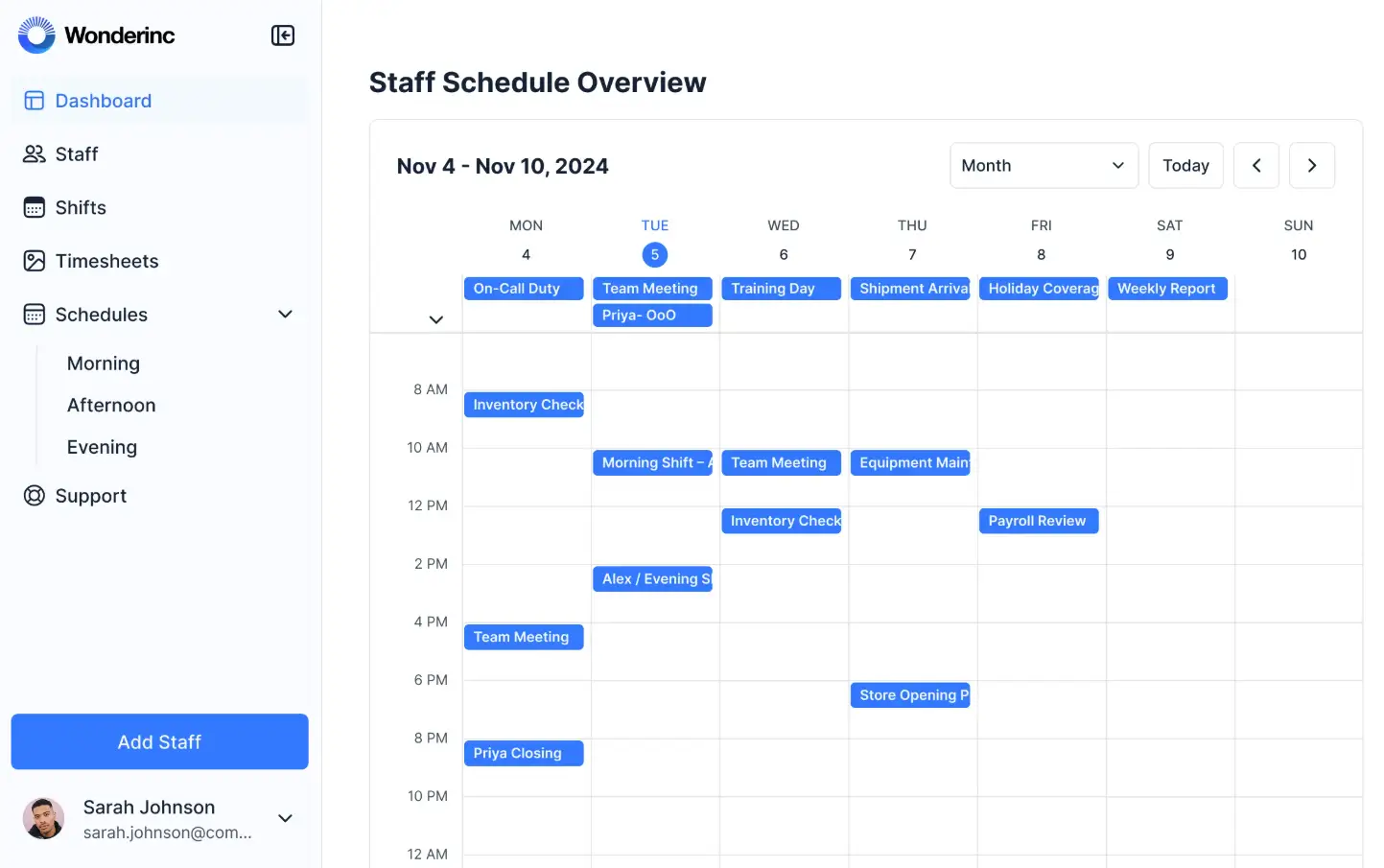
Softr is an AI-native platform for building custom business apps. Whereas traditional calendar apps focus on bookings and events, Softr lets you create custom scheduling systems that include intake forms, staff assignments, timesheets, client portals, approval workflows, and automated follow-ups.
Everything is connected to your Softr Database. Since your bookings, tasks, workflows, client records, and staff availability are all accessible within the same system, it’s easy to build dashboards and portals that tie everything together. Creating a custom scheduling system is straightforward with Softr’s AI app generator, which generates a custom app from a text description. You can also connect to 21+ data sources including Airtable, Google Sheets, and HubSpot, which means you can add more real-time context to your scheduling system without migrating your data from other apps.

Softr gives you full visual control over layout, branding, and access. Staff, clients, and managers each see only what's relevant to their role, and the whole thing runs under your own branding. And since Softr includes an AI app builder, native relational database, and workflow automation tool—all of which work seamlessly together—it can replace multiple tools in your stack.
Softr pros and cons
Pros:
- Flat-rate pricing from $19/month covers Team: 5 + Client: 5 app users, with no per-booking or per-seat charges as your team or bookings grow
- Real-time two-way sync means changes in Airtable, Google Sheets, or HubSpot appear instantly in your Softr app, with no manual exports or data duplication
- AI app builder generates your full system (app, database, workflows) from a text description in minutes
- Fully white-labeled with your logo, colors, fonts, and custom domain
- Modify any part of your scheduling system without a developer as your needs change
Cons:
- More upfront setup than plug-and-play scheduling tools, though the AI app building features and pre-built templates cut this significantly
- Not designed for personal time management or individual calendar planning (Softr’s Calendar block is available on all plans)
Softr best features
- AI Co-Builder: Describe your scheduling system and AI generates the app, database structure, and workflows, including booking forms, calendar views, and user permissions, from a single prompt.
- Custom booking and registration forms: Use conditional forms to capture service type, date, time, and any other details your workflow needs.
- Calendar views inside your app: Display all scheduled appointments in a visual calendar, filterable by staff member, service type, or location, embedded directly in your branded app.
- Automated workflows: Trigger booking confirmations, reminders, approval requests, and cancellation notices automatically using Softr Workflows.
- Granular permissions: Assign roles for staff, managers, and clients so each person gets access only to the bookings and actions relevant to them, with controls down to the individual user level.
- 21+ data source integrations: Connect your scheduling app to Airtable, Google Sheets, HubSpot, or any REST API, or manage everything natively in Softr Databases.
- Ask AI: Team members and clients can ask scheduling questions in plain language ("Which staff are available Thursday?" or "How many bookings this week?") and get instant answers inside the app.
Pricing
- Free: Unlimited apps, with access to Softr Workflows and Softr Databases, 5 app users, 5,000 database records
- Basic: $19/month (billed annually), unlimited apps with 42+ integrations, Team: 5 + Client: 5 app users, 50K records
- Pro: $99/month, unlimited apps with 45+ integrations and custom code, Team: 10 + Client: 50 app users, 500K records
- Business: $329/month, unlimited apps with 52+ integrations, Team: 30 + Client: 100 app users, 1M records
- Enterprise: Custom pricing for larger teams
👉 Start with a free plan to build your first scheduling system, or browse our templates to launch in minutes.
2. Google Calendar — best free calendar for teams

Google Calendar is the default scheduling app for millions of individuals and teams. It’s free for individuals across web, iOS, and Android, and comes included with Google Workspace plans for teams. Because it integrates seamlessly across the Google ecosystem, Gmail events, Meet links, and Drive attachments flow into calendar entries without any setup. It’s a great starting point if your team needs shared visibility and basic coordination, particularly if you already have access via Google Workspace. Google Calendar is easy to use and offers lots of helpful UX touches; as one executive assistant highlights, you can "just grab time on the calendar with a person and it automatically titles the meetings for you."
Google Calendar pros and cons
Pros:
- Free for individuals; included in every Google Workspace plan from $7/user/month
- Smart event suggestions automatically parse details from Gmail and offer to add them to your calendar, with no manual entry
- Nearly every productivity tool in your stack already syncs with it, from AI planners and CRMs to project managers and scheduling apps
Cons:
- No native time-blocking, task planning, or AI features beyond basic scheduling
- Shows your schedule but doesn't help you manage around it
Google Calendar best features
- Universal compatibility: Almost every productivity tool syncs with Google Calendar, making it the reliable foundation for most setups even when you layer more specialized tools on top.
- Gmail event detection: Smart suggestions automatically parse event details from your inbox and offer to add them to your calendar without manual entry.
Google Calendar pricing
Google Calendar is free for individuals. For teams, it's included in every Google Workspace plan.
- Free: Personal use, unlimited events
- Business Starter: $7/user/month (billed annually)
- Business Standard: $14/user/month (billed annually)
- Business Plus: $22/user/month (billed annually)
3. Microsoft Outlook Calendar — best for Microsoft 365 teams

Outlook Calendar is Microsoft 365's built-in scheduling tool. If your organization uses Microsoft 365, the case for Outlook is simple: it's included in your subscription, integrates natively with Teams and Exchange, and includes room and resource booking. (Most competing calendar tools require a separate add-on or third-party integration to replicate that last point.) Scheduling Poll is also included, which lets you propose multiple times, collect votes, and confirm the winner automatically.
Microsoft Outlook Calendar pros and cons
Pros:
- No additional cost for Microsoft 365 subscribers
- Room and resource booking built in
- Scheduling Poll handles multi-person coordination
- Exchange support for organizations that need on-premises mail infrastructure
Cons:
- More complex interface than newer calendar apps
- Integrations with tools outside Microsoft 365 require more configuration than most competitors
- Only makes sense if the broader Microsoft 365 suite already fits your stack
Microsoft Outlook Calendar best features
- Microsoft Teams integration: Schedule and join Teams calls directly from calendar events, with no separate link management needed.
- Room and resource booking: Reserve meeting rooms and shared equipment as part of the same event creation flow, with availability visible in real time.
- Scheduling Poll: Propose multiple available times and let attendees vote. Proposed slots are automatically blocked until a time is confirmed.
- Exchange support: Works with on-premises Exchange infrastructure for organizations with strict data residency or compliance requirements.
Microsoft Outlook Calendar pricing
Outlook Calendar is included with every Microsoft 365 plan. A free browser-only version is available at outlook.com.
- Free: Browser access at outlook.com (for personal use)
- Business Basic: $6/user/month (billed annually)
- Business Standard: $12.50/user/month (billed annually)
- Business Premium: $22/user/month (billed annually)
4. Calendar.com — best for scheduling and analytics
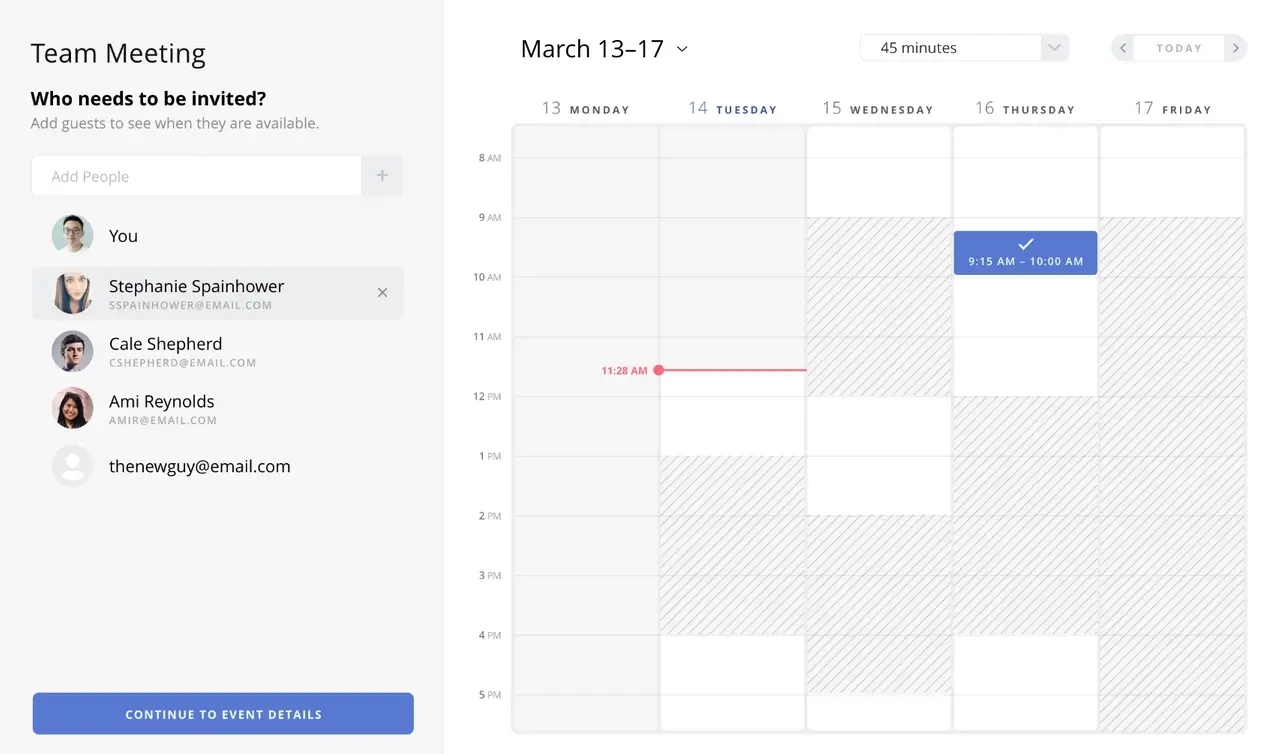
Calendar.com combines external scheduling links and calendar analytics into a single subscription. The analytics side is unique: most calendar tools just show your schedule, but Calendar.com tracks how you're actually spending your time. You can see meeting counts by day, patterns across weeks, and breakdowns of who you meet with most. Calendar.com’s analytics and booking features are particularly useful for consultants, account managers, and anyone billing by the hour.
Calendar.com pros and cons
Pros:
- Calendar analytics break down your schedule by meeting count, day of week, and contact
- Scheduling links and meeting polls are built in
- Connects Google Calendar, Office 365, and Outlook in a single unified view
Cons:
- Booking customization is limited, with no intake forms, payment collection, or routing logic
- Team scheduling features are fairly basic and not suited for multi-staff resource management
Calendar.com best features
- Calendar Analytics: See how your time breaks down by meeting count, day of week, and contact, with trends visible across weeks and months.
- Scheduling links: Share a booking page that checks availability across all connected calendars and prevents double-booking automatically.
- Meeting polls: Propose multiple available times, let attendees vote, and confirm the winner without back-and-forth email.
- Unified calendar view: Connect Google Calendar, Office 365, and Outlook accounts in one interface so you're not toggling between tabs.
Calendar.com pricing
Calendar.com offers a free 14-day trial. After that, you’ll need to upgrade to one of the below.
- Standard: $8/user/month (billed annually)
- Pro: $12/user/month (billed annually)
- Enterprise: Custom pricing
Do note that the prices above reflect a 50% promotion, which is currently applied universally on Calendar.com but may change in the future.
5. Apple Calendar — best for Apple ecosystem

Apple Calendar pros and cons
Pros:
- Free and pre-installed on every Apple device
- Syncs instantly across iPhone, iPad, Mac, and Apple Watch via iCloud
- Supports Google, Outlook, and Exchange accounts alongside iCloud in the same view
Cons:
- No scheduling links, time-blocking, or AI features beyond basic event creation
- Noticeably weaker outside Apple devices; the Windows iCloud app is limited
- No integrations with most third-party productivity tools
Apple Calendar best features
- iCloud sync: Events created on any Apple device appear instantly across every other one, with no manual sync or setup required.
- Siri integration: Create, update, and check events by voice across all Apple devices, useful for quick additions without opening the app.
Apple Calendar pricing
Apple Calendar is free with every Apple device. There are no paid plans.
6. Fantastical — best for design and usability

Fantastical is a premium calendar app for the Apple ecosystem (and now for Windows too). It’s built around natural language event creation: type "Team standup every Monday at 9am on Google Meet" and it instantly parses the recurring event, conferencing link, and time, with no dropdowns or form fields. With Calendar Sets, you can group calendars by context, work, personal, and side projects, and switch between them in one click. Fantastical’s interface is perhaps the most polished of any calendar app on any platform; it’s the kind of app that inspires devotion from both users ("some of the best UI/UX I have found in a calendar app”) and reviewers (”you can throw all your other calendar apps in the trash”).
It’s worth mentioning that Fantastical’s Team plan is a bit different than some competitors. It covers centralized billing and SSO, and it lets you link multiple hosts to a booking so that users can book with anyone who’s available. However, you don’t get shared calendars or collaborative scheduling features; team members continue to manage their own private calendars.
Fantastical pros and cons
Pros:
- Natural language input is the best in its class; type a full event description and it creates the correct recurring event, time, location, and conferencing link in one go
- Calendar Sets let you separate work, personal, and side projects and switch between views with a single click
- Scheduling links and meeting proposals are built into paid plans, covering most standard Calendly use cases without a separate subscription
- Available natively across the full Apple ecosystem, including Mac, iPhone, iPad, Apple Watch, and Apple Vision Pro, with everything syncing seamlessly
Cons:
- Team plan doesn't include shared calendars; centralized billing and SSO only
- Monthly billing is significantly more expensive than the annual rate
- No Android version; iOS-only on mobile
Fantastical best features
- Natural language event creation: Describe any event in plain English and Fantastical parses the time, location, attendees, and conferencing link instantly.
- Calendar Sets: Group calendars by context and switch between work, personal, and other views with one click, without hiding anything permanently.
- Fantastical Openings: Share a booking link so contacts can self-schedule based on your real availability across all connected calendars.
- Multi-provider sync: Connects Google, Outlook, Exchange, and iCloud calendars in a unified, color-coded view.
Fantastical pricing
Fantastical offers a 14-day free trial. The free tier covers basic calendar viewing; you'll need a paid plan to access scheduling links, Calendar Sets, and meeting proposals.
- Free: Basic calendar viewing
- Individual: $4.75/month (billed annually)
- Family (up to 5 people): $7.50/month (billed annually)
- Team: $4.75/user/month (billed annually)
7. Morgen — best AI calendar planner
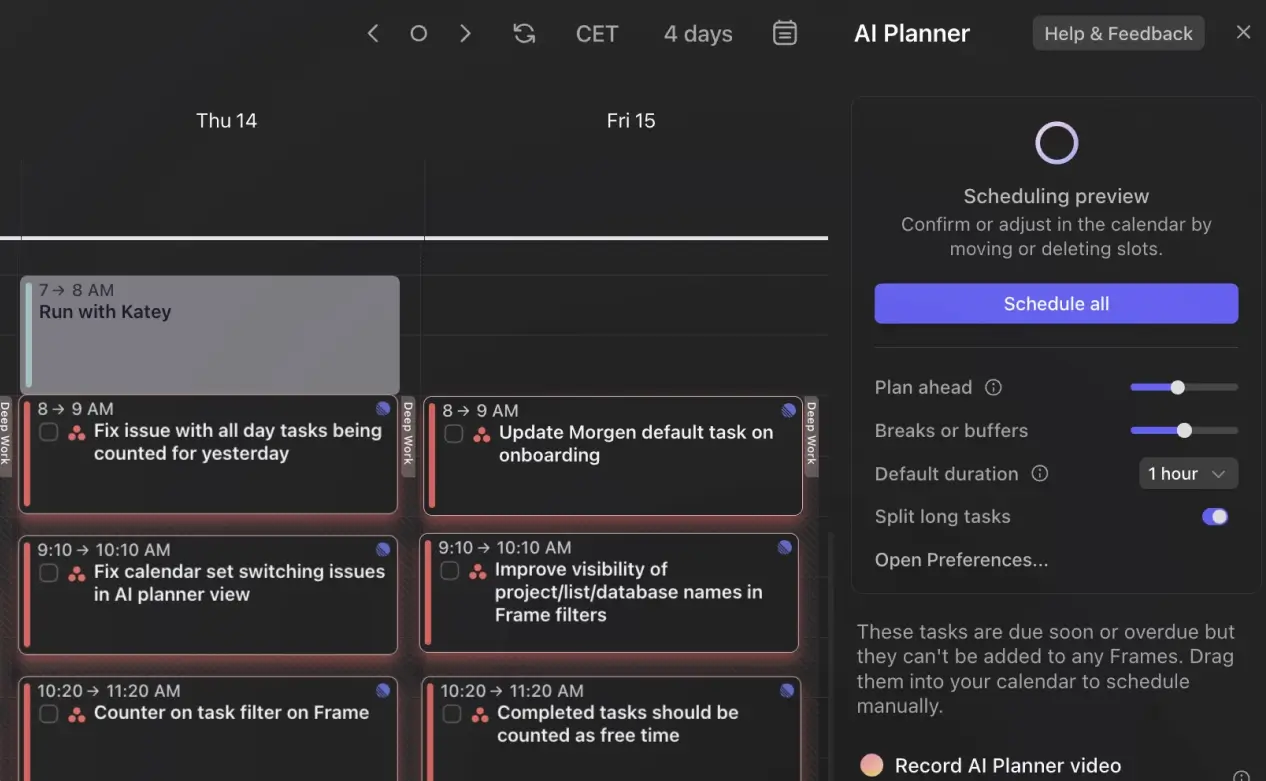
Morgen does something most calendar apps don't: it tells you which tasks to do and when to do them, rather than just providing an overview of meetings and events. Morgen syncs with task management apps like Notion, ClickUp, Linear, and Todoist; its AI Planner then suggests where to block time for those tasks based on your availability and scheduling preferences. (You approve each suggestion before anything lands on the calendar). You also get traditional calendar features like reminders, built-in scheduling links, and team availability. One thing to be aware of going in: the monthly billing rate ($30/month) is frequently cited by users as a drawback. Most users opt for the annual plan at $15/month.
Morgen pros and cons
Pros:
- Imports calendar feeds from Google, Outlook, iCloud, Fastmail, and any CalDAV source
- AI Planner suggests time blocks for tasks without taking over your calendar; you review and approve before anything is added
- Scheduling links are built in
Cons:
- No free plan; a 14-day trial is the only way to test it before committing
- Annual pricing is competitive, but monthly billing (at $30/month for individual plans) is on the high end for a calendar app
Morgen best features
- AI Planner: Analyzes your task list and open time slots, then suggests where to schedule each task. You approve before anything is added to your calendar.
- Frames: Set rules for how the AI schedules your work (for example, "only schedule deep focus tasks between 8am and noon") so suggestions work around your actual patterns.
- Multi-calendar consolidation: Connect Google, Outlook, iCloud, Fastmail, and any CalDAV source in one color-coded view, with no toggling between accounts.
- Task integrations: Pull tasks directly from Notion, ClickUp, Linear, Todoist, and others so you can time-block them against your calendar in one place.
- Built-in scheduling links: Generate booking pages that check availability across all connected calendars to avoid double-booking.
Morgen pricing
Morgen’s annual discount—50-60%—is substantial, so it’s worth considering whether you’d be able to commit to an annual plan.
- Individual: $15/month (billed annually); $30/month (billed monthly)
- Team: $10/seat/month (billed annually, 2-seat minimum); $25/seat/month (billed monthly)
A discount of 25% is available for students and nonprofits.
How to choose the right calendar tool
If you’re still not quite sure which app to go with, here’s a decision-making framework that might help.
For simple scheduling, pick Google Calendar or Apple Calendar. Both are free, require no setup, and handle personal event tracking reliably. Google Calendar also makes sense for many organizational use cases, assuming you’re already using Google Workspace.
For team coordination in Microsoft 365, go with Outlook Calendar. If your organization already pays for Microsoft 365, Outlook Calendar is included and handles room booking, shared calendars, and Teams integration without an additional subscription.
For a premium calendar that boosts productivity, choose Fantastical or Morgen. Both are aimed at people who've outgrown the default options and want more from their calendar. If you’re looking for AI to proactively schedule your work around your meetings, go with Morgen. Otherwise, go with Fantastical for a premium calendar experience—it’s particularly strong in the Apple ecosystem, with apps for virtually every Apple device.
For custom scheduling systems, Softr is the best choice. You can use AI prompts to generate a custom scheduling app that handles your organization’s specific scheduling needs. With databases, workflows, dashboards, portals, timesheets, and staff assignments, there’s no limit to the customization you can do.
Find the best calendar app for your team
Most of the tools on this list didn’t exist 10 years ago. The category has moved fast: with scheduling, tasks, automation, and AI in one place, the best options today would have looked like science fiction next to the Apple Lisa. But even the best calendar app can only do so much. If you're managing staff schedules, client bookings, or approval processes alongside your calendar, you'll end up stitching together tools to fill the gaps.
Softr lets you build the whole thing in one place: the database, the app, and the workflows, connected from the start and customizable without a developer.
Try Softr for free to build a custom scheduling system, or get started with templates to see what's possible.
Frequently asked questions
What's the best free calendar app?
What's the difference between a calendar app and a scheduling system?
Which calendar app is best for AI-powered scheduling?
Which calendar app works best across multiple devices and platforms?