Softr building modes explained: AI, visual editing, and vibe coding

Most app builders force a single way to build. You either prompt the AI for everything, or you click through a visual editor, or you write code. Each path has trade-offs: AI is fast but loses precision, visual is precise but slow, and code is flexible but risky.
Softr takes a more holistic approach. You get three modes to build the same app, and you can switch between them at any moment: the AI Co-Builder for parts that are repetitive or scaffolded; visual editing for parts you want to control with absolute precision; the Vibe Coding block for the custom 20% no native block can produce.
What makes Softr unique is that anything the AI can do, you can also do visually — and vice versa. The platform achieves near-parity between visual and AI building, which means you stop choosing one mode and start using the right one for each task. This guide shows you how to make that call confidently, every time.
What is Softr?
Softr is the first AI-native platform for building business software without code. It combines Softr Databases, an interface builder, and Softr Workflows in one platform. Teams use it to build client portals, internal tools, CRMs, vendor portals, intranets, and any other custom business app, all from a single workspace.
The hybrid building experience is the part most builders miss when they first try Softr. You get an AI Co-Builder embedded everywhere (interface, database, workflows). You get a full visual editor that's been refined over five years of building production apps. And you get the Vibe Coding block for the rare cases where neither the Co-Builder nor native blocks fit. All three work on top of the same secure foundation, the same data, and the same permissions.
Want to try it yourself? Start building with Softr.
What you'll learn
In this guide, you will:
- Understand Softr's hybrid principle: AI and visual editing have near-parity, by design.
- Learn when the AI Co-Builder is the fastest path and why.
- Learn when visual editing is the right call and why.
- See how the Vibe Coding block fits into both modes.
- Walk through one complete build that uses all three modes.
- Get practical tips for switching fluidly without losing your work.
Who is this for?
This guide is for anyone building business apps with Softr:
- Operators (Ops managers, team leads) who want to ship working apps without becoming prompt engineers or visual editor experts.
- Builders who already use Softr's visual editor and want to speed up with AI while still maintaining control.
- Anyone evaluating AI app builders who wants to understand how Softr is structurally different from prompt-only tools.
The hybrid principle: AI and visual editing have near-parity
This is the foundation of how Softr apps are built. Every feature the AI Co-Builder can generate, you can also configure visually. And every visual configuration you can set up, you can also ask the AI to handle for you. The two modes target the same outcome from different directions.

This is a structural design choice rather than a marketing claim. The AI Co-Builder doesn't generate code. It uses the same building blocks, configurations, and database schema you'd use yourself if you opened the visual editor. That's why apps built with Softr AI don't break when you switch to manual editing, and vice versa: there's only one underlying system.
"Anything you actually work with AI to generate, it's going to work 100% of the time. It's not going to hallucinate, because it's building on the infrastructure and blocks that we already have in Softr." — Mariam Hakobyan, co-founder and CEO of Softr
To put it plainly, you don't pick one mode for the entire app-building project. You pick the mode that suits the task in front of you, and switch the moment another mode is faster.
When to use the AI Co-Builder
The AI Co-Builder shines when the task is well-defined, repetitive, or follows a known pattern. It does the boring parts so you don't have to.
1. Scaffolding a new app from a prompt
The most obvious case is this: you have an idea for a business app, and you want a working version in five minutes instead of an afternoon.
Start with a prompt like: "Build a company intranet that lets employees access internal resources, share updates, and stay informed about announcements. Admins are managers who manage employee profiles and resources."

The AI Co-Builder will ask one or two clarifying questions (sign-up flow, navigation layout, theme), then generate the full database with relationships, sample data, the pages, the user groups, and the permissions for each role. You get a working app you can publish to real users that same day.
This is exactly what we walked through in the Inside the AI Co-Builder live session — a complete intranet, ready for users, in under five minutes.
2. Repetitive configuration across many blocks
Adding edit and delete buttons to a list block takes a few clicks. Adding them to fifteen list blocks takes fifteen sets of clicks. The AI Co-Builder can do all of them in one prompt.
The same goes for action visibility settings, conditional filters, and field-level configuration. If you find yourself doing the same configuration multiple times, AI is faster.
Analytics pages are a good example of this. Setting up six charts on a dashboard means picking the data source for each one, choosing the chart type, configuring the axes, deciding which fields to aggregate, picking colors, and thrn arranging the layout.
A prompt like "Add a dashboard page with metric cards for total deals, total revenue this month, and conversion rate, plus a bar chart of revenue by month and a pie chart of deals by stage" gets you the entire page in one shot, configured against your existing database. You can then tweak any individual chart visually if the AI's choice isn't quite right.
3. Database changes (relationships, rollups, formula fields)
Setting up a rollup field means knowing which related table to link, which field to aggregate, and which function to apply. The Database AI Co-Builder handles this from a simple description: "Add a rollup on Company Posts that counts the related employee posts."
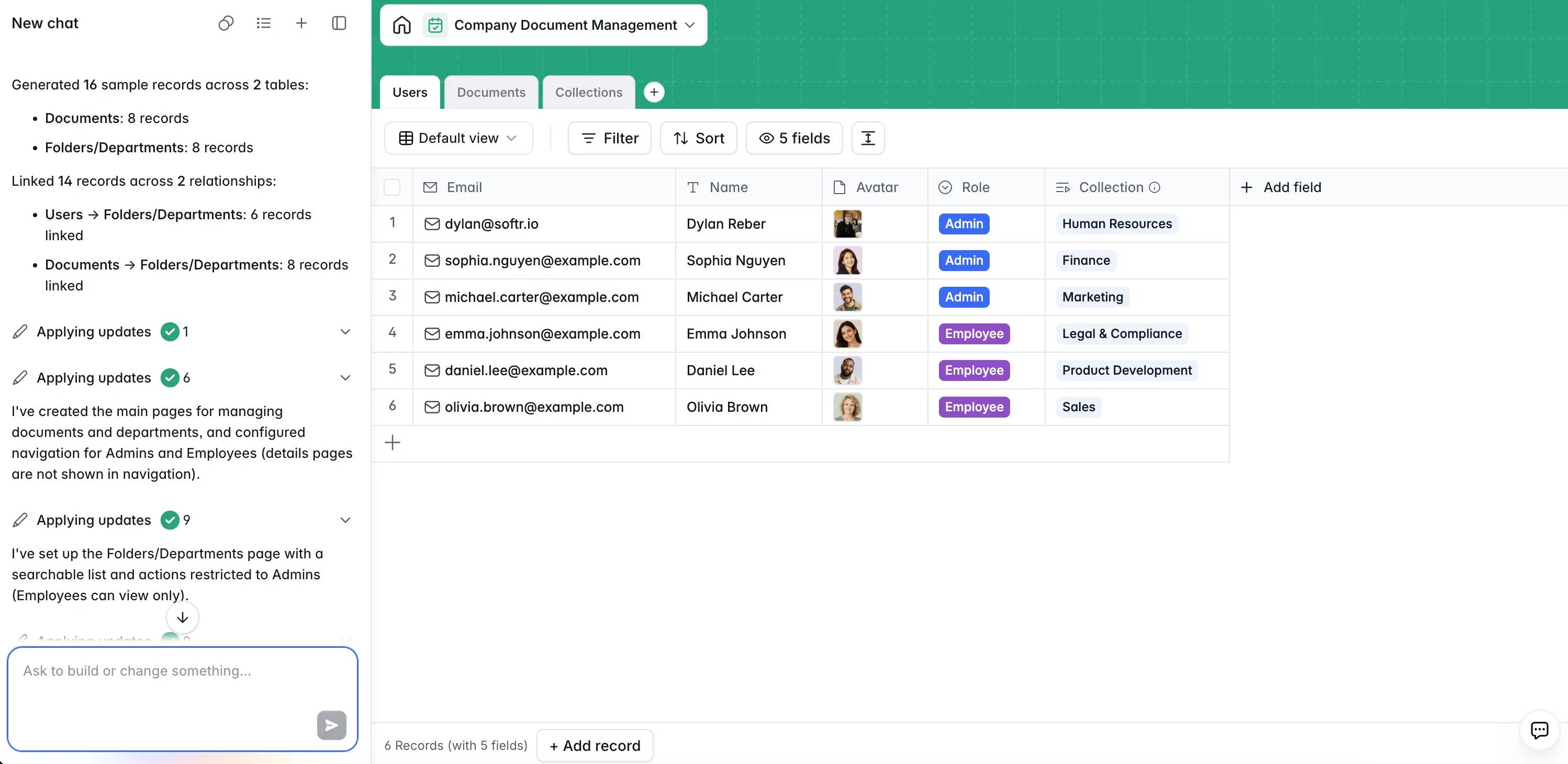
This is also true for adding a related-records field, creating a formula field, or generating an entire new table with proper relationships to existing ones.
4. Whenever you'd have to learn a feature you've never used
The AI Co-Builder is also a faster way to learn the platform. Instead of reading docs about how rollup fields work, ask the AI to add one and see what it does in practice. You’ll learn the visual configuration by inspecting what the AI just produced, and you can then edit it yourself next time.
When to use visual editing
Visual editing wins when you want absolute precision, when an edit is small enough that describing it would take longer than changing it (adding a block, hiding a field, changing a label), and when control matters more than speed.
1. Permissions on individual buttons and pages
This is the most important case. When you set the visibility of a delete button to "admins only," you need to know with certainty that only admins see it. Doing this visually means clicking the button, opening the visibility panel, and confirming the user group settings. This leaves no room for ambiguity.

You can ask the AI to do this. But visual editing isn’t meaningfully slower here, and it gives you explicit verification that you’re setting the rule you want. For anything security-related, it’s worth the manual click.
2. Global data restrictions
Global data restrictions are the app-wide safety net that ensures users can never see records that don't belong to them, even if a specific block forgets to filter properly. They're the most important security feature in any multi-user app — the kind of thing you want to set up yourself, deliberately, with full visibility into what each rule does.
This is the kind of configuration where you read the rule, mentally walk through "what happens if a client tries to access another client's data," and only commit when you're sure. The AI can write the rule for you, but you should verify it visually anyway.
3. Connecting workflows to interface elements
When a Vibe Coding block triggers a workflow via a webhook, you need to copy the webhook URL into the block's prompt and verify the response key matches what the block is listening for. This is a precise plumbing task. Doing it visually (open the workflow, copy URL, paste into block prompt, confirm key names match) takes a minute, while asking AI to do it across both layers can introduce failure modes.
The same logic applies to setting up workflow triggers, mapping fields between steps, and configuring the response payload. Workflows reward precision, and precision is what visual editing is for.
4. Trial-and-error refinement
Sometimes you don't know exactly what you want in an app until you see it. You drag a column to make it wider. You change the accent color. You toggle the search bar on, then off, then on again. You move a tab to the third position instead of the second.
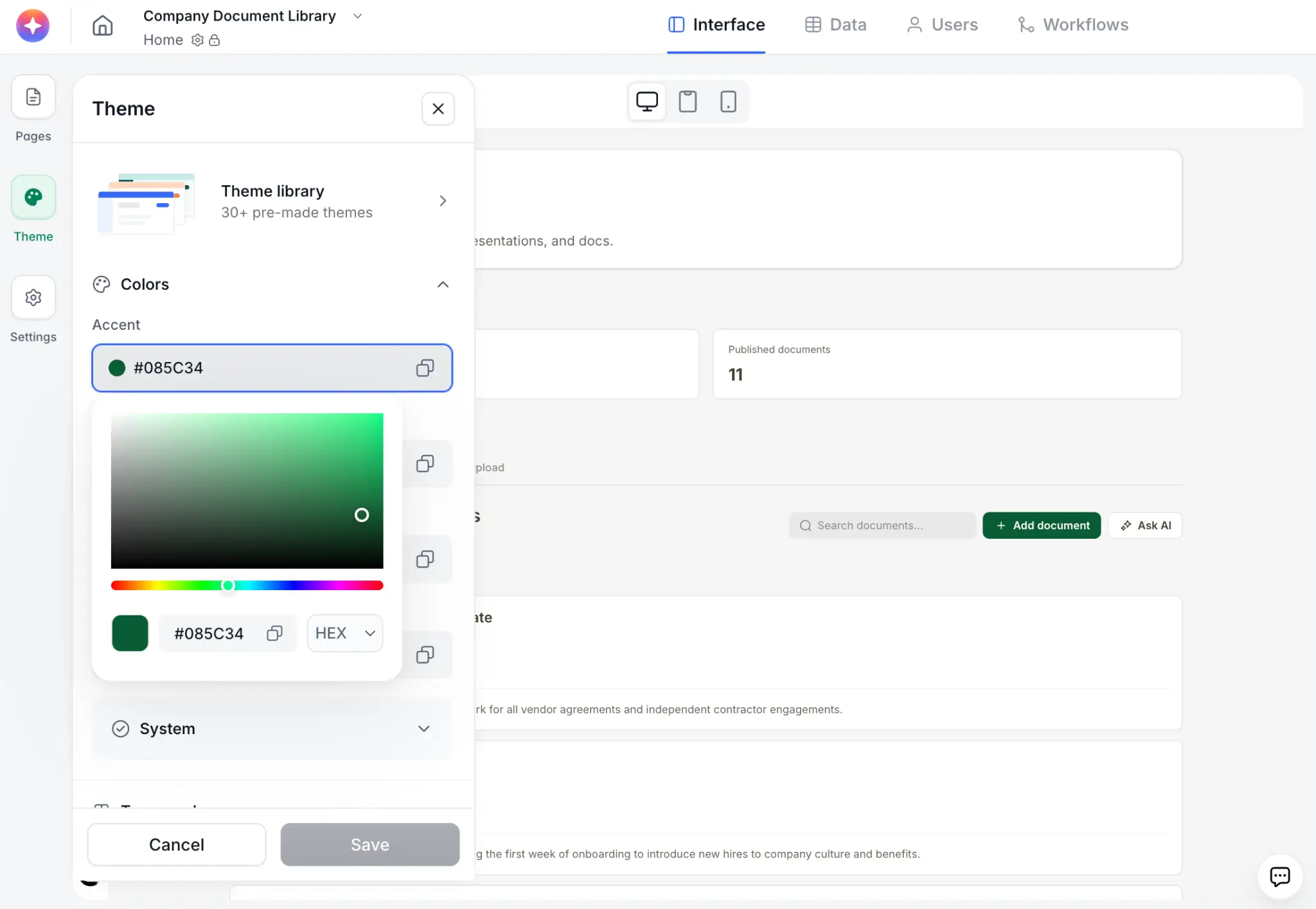
This is the bread and butter of visual editing. Asking AI to "make the table a little wider, but actually keep the search bar where it was, and then move the analytics tab" is slower than refining app elements yourself.
5. Anything you want to be able to point at and explain
If you're building an internal tool that another team member will eventually maintain, the act of configuring it visually means you can show them exactly where each setting lives (and what they do). AI prompts are easy to write but harder to hand off to somebody else. Visual configurations live in the editor's UI, where the next person can easily find them.
When to use the Vibe Coding block
The Vibe Coding block is for the custom parts of software that no native block can produce. It's an AI-generated UI component, contained at the block level, that inherits your app's data, permissions, and theme automatically.
Use it when:
- A behavior is genuinely specific (drag-and-drop scheduling, audio capture, custom data visualizations).
- You need a non-rectangular UI element (floating chat bubble, sticky action bar, modal triggered by an icon).
- You want to send data to a workflow and listen for the response (human-in-the-loop AI flows).
The Vibe Coding block is generated by AI, but it's a different kind of AI. The AI Co-Builder uses Softr’s existing native blocks and configurations, while the Vibe Coding block generates new code for one specific (and custom) component. Both tools are AI-powered, both are reliable in their own scope, and both fit into the visual editor as first-class blocks.

For the full breakdown of when to reach for vibe coding, see when to use the Vibe Coding block vs. native blocks in Softr.
A complete build using all three modes
Here's how all three modes combine in a real Softr build. For this example, I built an internal LinkedIn employee advocacy app where employees turn one company post into a personalized draft using AI.
- AI Co-Builder for the scaffold: A single prompt describes the three tables (Users, Company Posts, Employee Posts), the two roles (admin, employee), and the workflow (admins post, employees write personalized versions). Five minutes later, the database, the pages, the user groups, and the basic admin permissions are all in place.
- Visual editing for the database details: Open the database editor and add the fields the AI didn't specify: a long-text Tone of Voice field on Users, a single-select Language field, a rollup on Company Posts that counts related employee posts, a formula field on Employee Posts that becomes the primary key. Each of these is a five-second visual edit.
- Visual editing for permissions: Confirm that the edit and delete buttons on Company Posts are admin-only. Set up a global data restriction to prevent any employee from accidentally seeing draft posts.
- AI Co-Builder for the analytics page: A prompt like "Add a dashboard page with metric cards for total company posts, total remixes this month, and remix rate, plus a bar chart of remixes by employee" generates the entire page in one shot.
- Vibe Coding block for the custom remix interface: No native block can produce a "read source post + add insights + click to generate + edit + save" flow. This is what the Vibe Coding block is for. One prompt describes the layout, the webhook destination, and the save action. The block generates the component, connected to the right data.
- Visual editing for the workflow: Build the AI personalization workflow step by step in the visual workflow editor: webhook trigger, two find-record steps, AI custom prompt, respond to webhook with structured JSON.
- AI Co-Builder for the Slack notification: A second workflow ("when a new company post is added, send a Slack message to #marketing with the post title and a link") is faster to describe than to build manually.
You just moved through three modes without ever thinking about it consciously. AI for scaffolding and repetitive configuration. Visual editing for permissions, plumbing, and refinement. Vibe Coding for one custom interaction. Each mode handled what it does best.
Tips for switching between modes
Start with the AI for the bones, then refine visually
The AI Co-Builder is great at the first 70% of an app. The remaining 30% (specific permissions, exact field types, fine-tuned configurations) can be faster to manage visually. Trying to get the AI to nail every last detail wastes credits and tries your patience. Generate the structure with the Co-Builder, then take the wheel.
Trust but verify, especially for permissions
Whenever the AI sets up a permission rule, click into the visibility panel and read what it actually configured. Most of the time it's right. The few times it's not, you’ll catch it before a real user does. The AI Co-Builder also requires confirmation for any destructive change, which is your safety net.
Use visual editing as a learning tool
If the AI does something you don't understand, open the visual editor and inspect the result. The configuration is fully exposed (no hidden code), so you can see exactly what was set up. Next time, you'll know how to do it yourself.
Don't fight the AI on small visual changes
If you've been going back and forth with the AI to nudge a heading three pixels to the right, stop and do it visually. The AI is faster for ten edits at once but slower for one tiny edit.
Keep the Vibe Coding block focused
When you reach for the Vibe Coding block, give it one job. Don't try to combine a barcode scanner, a product form, and an inventory chart into a single block. Each Vibe Coding block should solve one specific custom problem. For the rest, native blocks plus the AI Co-Builder will get you there faster and more reliably.
Build with the right tool, not just the fastest one
The reflex with AI tools is to use them for everything, because they feel fast. The reflex with visual editors is to use them for everything, because they feel safe. Softr's design rejects both reflexes. The right answer is mode-by-mode: AI when it saves real time, visual when precision matters, and Vibe Coding when nothing else fits.
Shipping fast in Softr comes from knowing when to switch modes, not from committing to just one. Builders who develop that instinct ship reliably, and rarely have to think about which tool they're reaching for.
Ready to build?
Frequently asked questions
Can the AI Co-Builder modify an existing app, or only generate new ones?
Will visual edits I make survive future AI prompts?
How do I know if the AI got my permission rules right?
Is the AI Co-Builder going to replace the visual editor?
What happens to my app if the AI hallucinates something?