How to build an app with Claude Code and run it on Softr


Softr MCP connects Claude Code to your Softr workspace, letting you build apps, databases, and workflows by prompting your AI assistant.
In this tutorial we'll build a permissioned client project portal directly through the MCP. If you want to skip the guide, simply paste this prompt into Claude Code once you've connected to the Softr MCP server:
Build me a client project portal in Softr. Create a database called Client Project Tracker with tables for Clients, Users, Projects, Tasks, and Requests, linked so that every project belongs to a client and every task belongs to a project. Keep all people in the Users table with a Role field of Admin, Team, or Client, and link each client contact to their company. Then create the app, turn on login, and vibe code a dashboard where a client sees only their own projects.
This gets you a relational database and a functional dashboard. The steps below cover the same build and then expand on it, adding a project timeline, request form, internal triage view, and an automated workflow.
What is Softr MCP for Claude Code?
Softr MCP connects your AI agent to Softr workspaces. Through the MCP, Claude Code can create and edit databases, apps, workflows, and user groups, and everything it builds stays in Softr for you and your team to manage.
- Databases MCP creates and analyzes databases, tables, fields, and records in Softr Databases.
- App-building MCP creates apps and pages, manages the people who log in, and configures user groups.
- Vibe code block MCP generates custom UI components and wires them to your data.
- Workflows MCP builds automations with Softr Workflows, including the trigger, the steps, and a test run.
All four areas run through the same MCP server. Connecting is free on every plan, including Free, and using the MCP doesn't consume Softr AI credits.
Why build a Softr app with Claude Code
Claude Code keeps the whole build in one conversation you can re-read and correct, and it can see the files on your machine. Softr keeps everything it produces as configuration you can open and change by hand, so the app doesn't depend on the AI you used to make it. For the full case, see our introduction to Softr MCP.
Step 1: Structure your data with Databases MCP
Successful business apps have solid data structure. Get the schema and relationships right and it makes the rest of the build much easier. Here's how to do that through the MCP.
1.1 Add the Softr MCP server to Claude Code
Add Softr from Claude's connector directory, sign in to Softr, and then approve the connection. Claude Code picks up the connector when you're signed in with the same Claude account. Our guide on how to add the Softr MCP server to Claude Code covers this process in detail for both the desktop app and terminal.
1.2 Create the tables and their links
In a prompt, describe your desired data model. You'll also want to name the workspace you're building in if you have more than one.
In my Agency workspace, create a Softr Database called Client Project Tracker with five tables: Clients, Users, Projects, Tasks, and Requests. Link Projects to Clients, Tasks to Projects, and Requests to Projects. Keep everyone in Users with a Role field of Admin, Team, or Client, and link client contacts to their company.
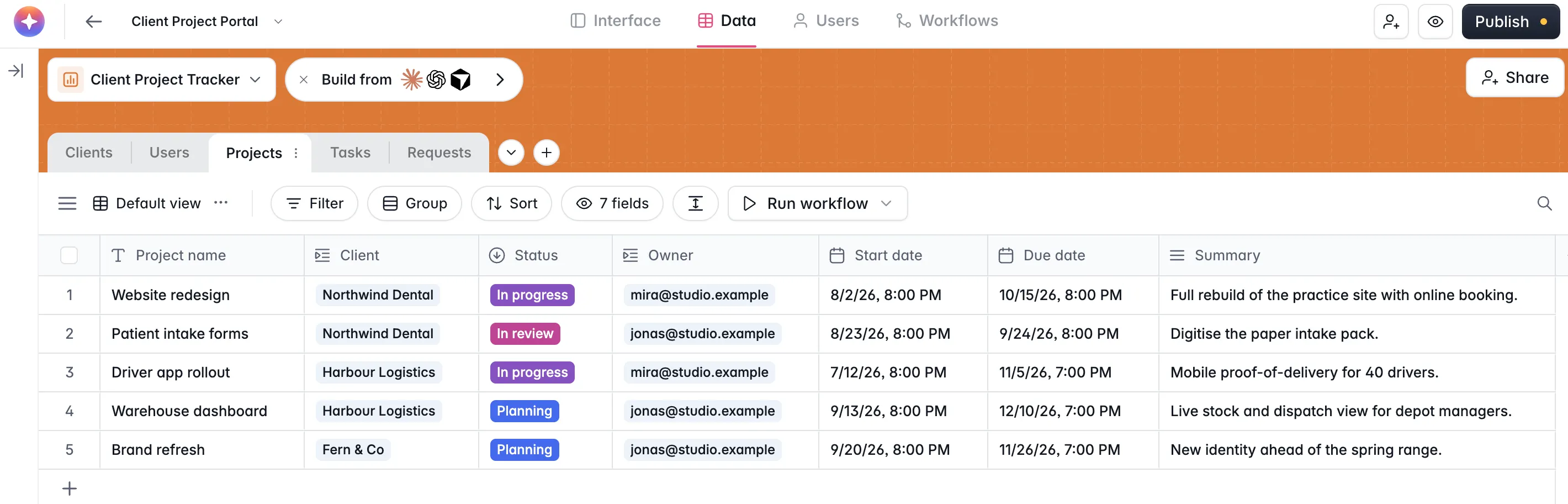
1.3 Fill the tables with real records
Claude Code can populate your tables from a file you share, or you can describe the records you want and they'll be filled in with dummy data. Here's an example prompt using a CSV file:
Import the clients, projects, and tasks from ~/exports/clients.csv into the matching tables. Then add a row in Users for each person, with their Role, and a link to their company for client contacts. Add two or three sample requests as well.
You can then ask Claude to double-check that the import landed correctly with a prompt like this:
How many projects are in each status, and which ones are due in the next 30 days?
Step 2: Generate the app, pages, and user groups
With your data in place, it's time to ask Claude to create the app and its pages.
Create an app called Client Project Portal on the Client Project Tracker database. Turn on end-user login, and add pages for a project detail view, a requests page, and an internal admin page.
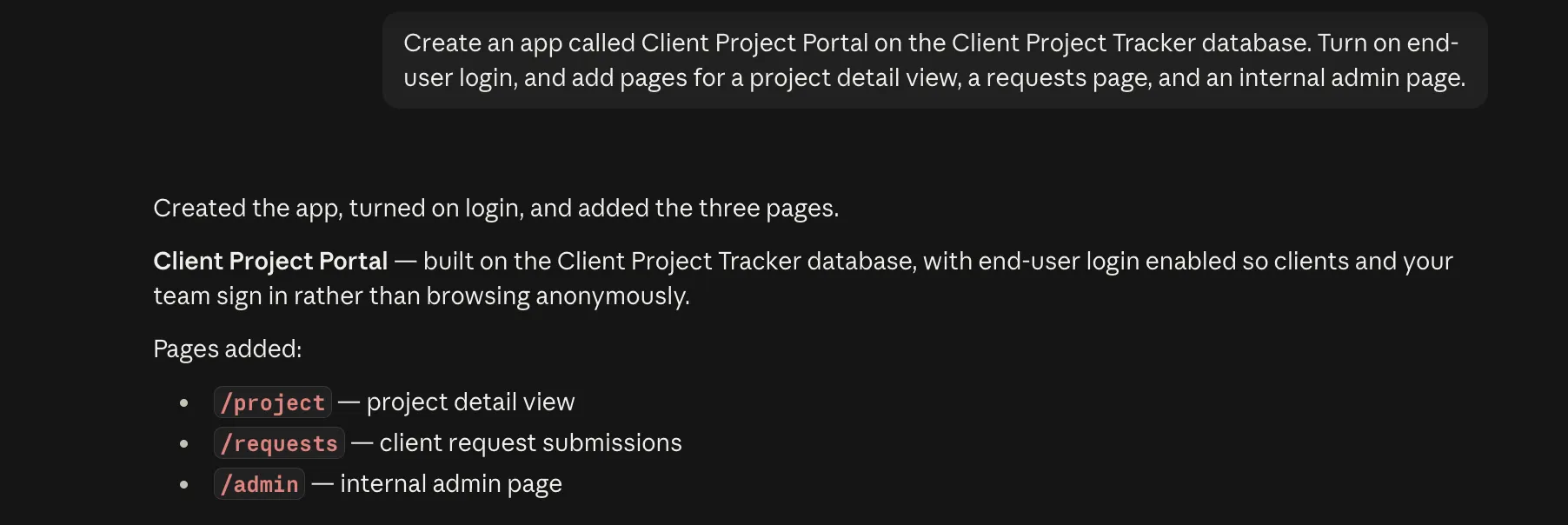
You can either add native blocks by hand in Softr Studio, or ask Claude to drop in Vibe Coding blocks (more on that below). Next, we'll ask Claude to create an Agency user group and add a couple people to it:
Add Priya Raman (priya@northwinddental.example) and Tom Okafor (tom@harbourlogistics.example) as app users, then create a user group called Agency containing my own team's email addresses.
App users are sign-in accounts, which are separate from the rows in your Users table. Each person needs both: an account to log in with, and the database row that carries their Role. Claude can set up both of these through the MCP.
The admin page is still empty, so let's give it something to restrict:
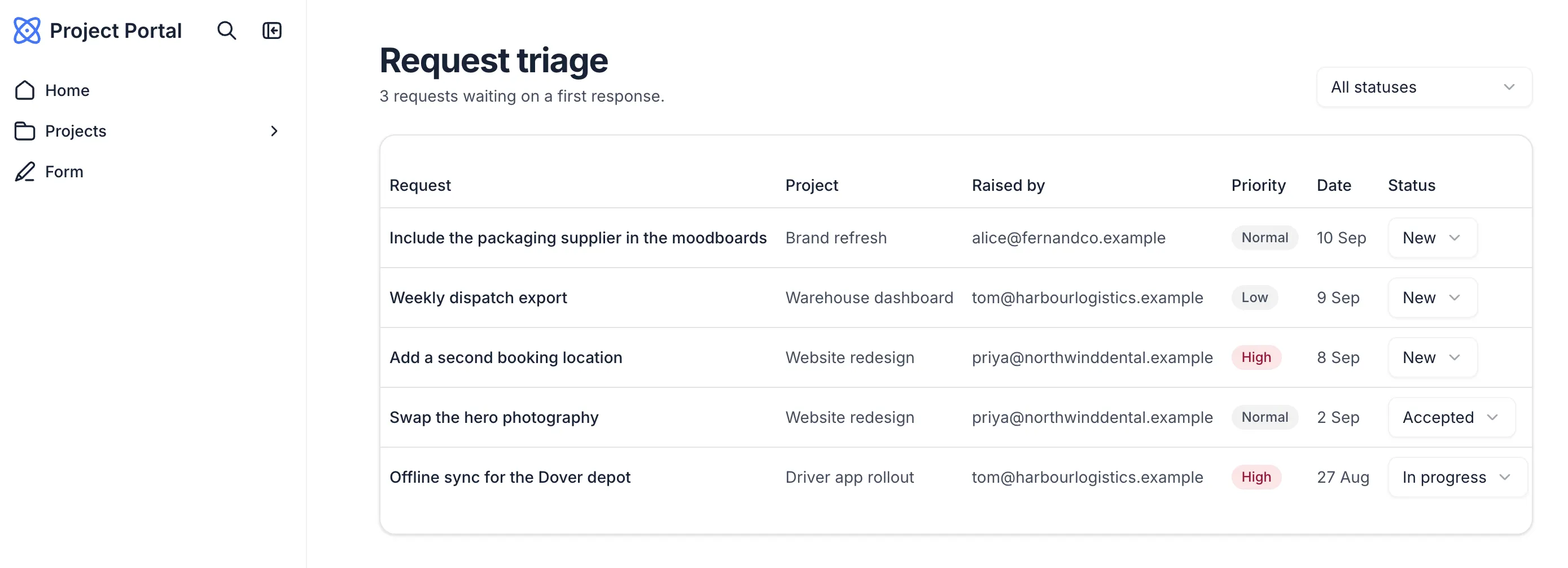
On the admin page, build a triage table of every client request, with the project, who raised it, priority, and date. Let my team change a request's status from the table.
This request produces a Vibe Coding block: a custom component that Claude Code writes, wires to the relevant data, and drops onto the page. Now ask Claude to lock down both the block and the action inside it:
Restrict that block and its status action to logged-in users in the Agency user group only.
2.1 Scope each client to their own records
User groups decide which pages and blocks a person can open. They don't determine which rows appear inside a block that a person is allowed to open. Both of these security layers matter in a client portal.
Priya and Tom both need the same dashboard, but neither should see the other's projects. So, build the dashboard once and let it scope itself to the user who's signed in.
On the home page, build a dashboard that greets the signed-in user and lists their projects as cards with status, owner, and due date. Look the person up in the Users table by their email, follow their Client link, and show only projects for that company. My own team should see every project instead.
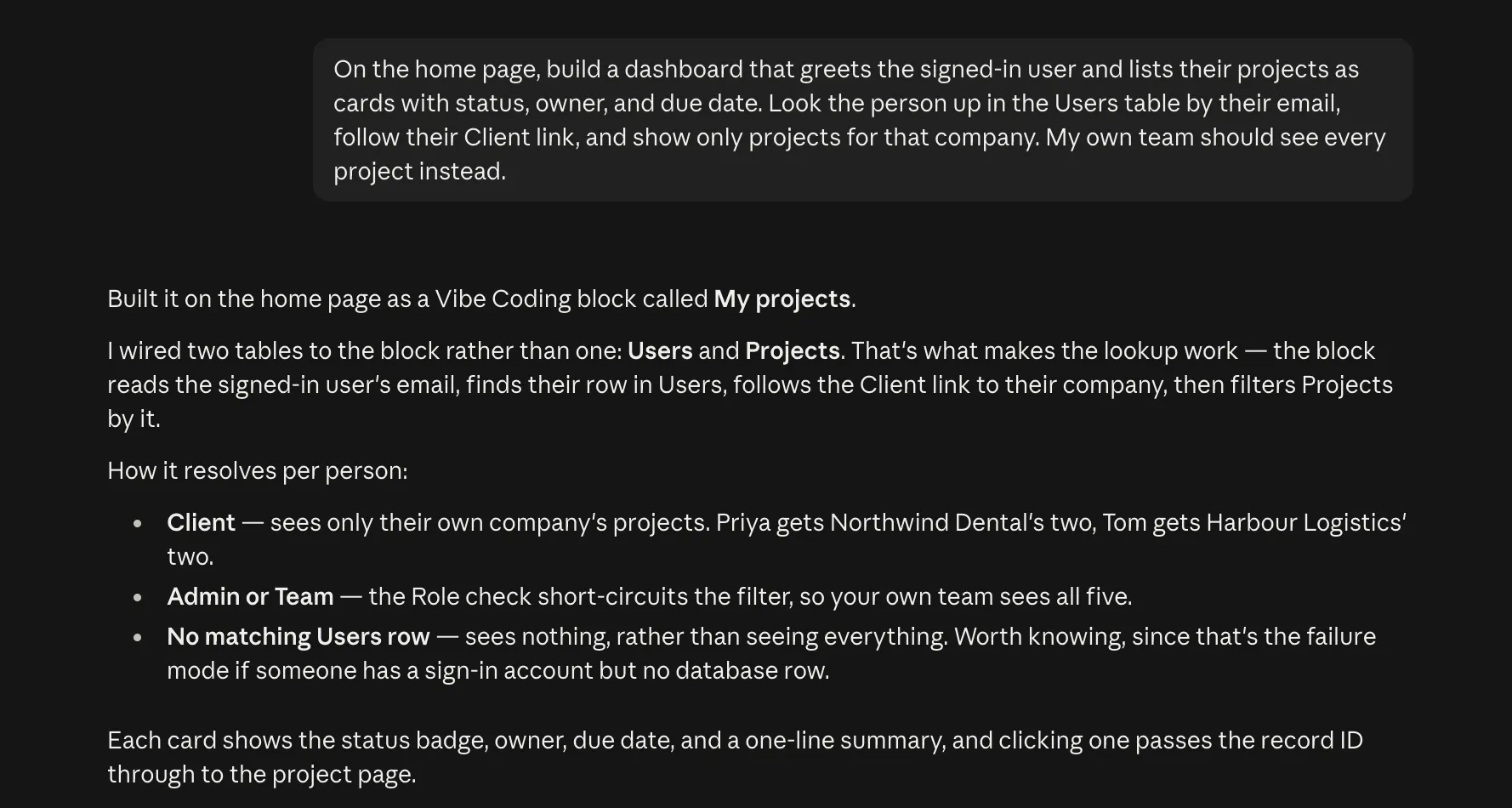
This block needs two tables rather than one. Claude Code wires both Users and Projects to it, and a block can read several tables at once.
The filtering runs on Softr's side, not in the browser, so a client can't widen their access by editing a request. Softr handles roles this way throughout the entire app, through user groups, data restrictions, and visibility settings on pages, blocks, and actions.
Step 3: Vibe code a project timeline with Claude
Softr has native blocks for tables, calendars, Kanban boards, and more. You can add these yourself in Softr Studio. But if you want to build entirely through Claude Code, it'll generate custom UI through the Vibe Coding block. The dashboard we made in the previous step was vibe-coded; now we'll ask for a project timeline:
On the project page, build a timeline of the project's tasks as horizontal bars across the project dates, colored by status. Clients should only see tasks marked visible to the client. If a client opens a project belonging to another company, show a message instead of the data.
You can continue refining in the same conversation:
Keep every month in the range labeled. Group the bars by assignee, with a subheading for each person.
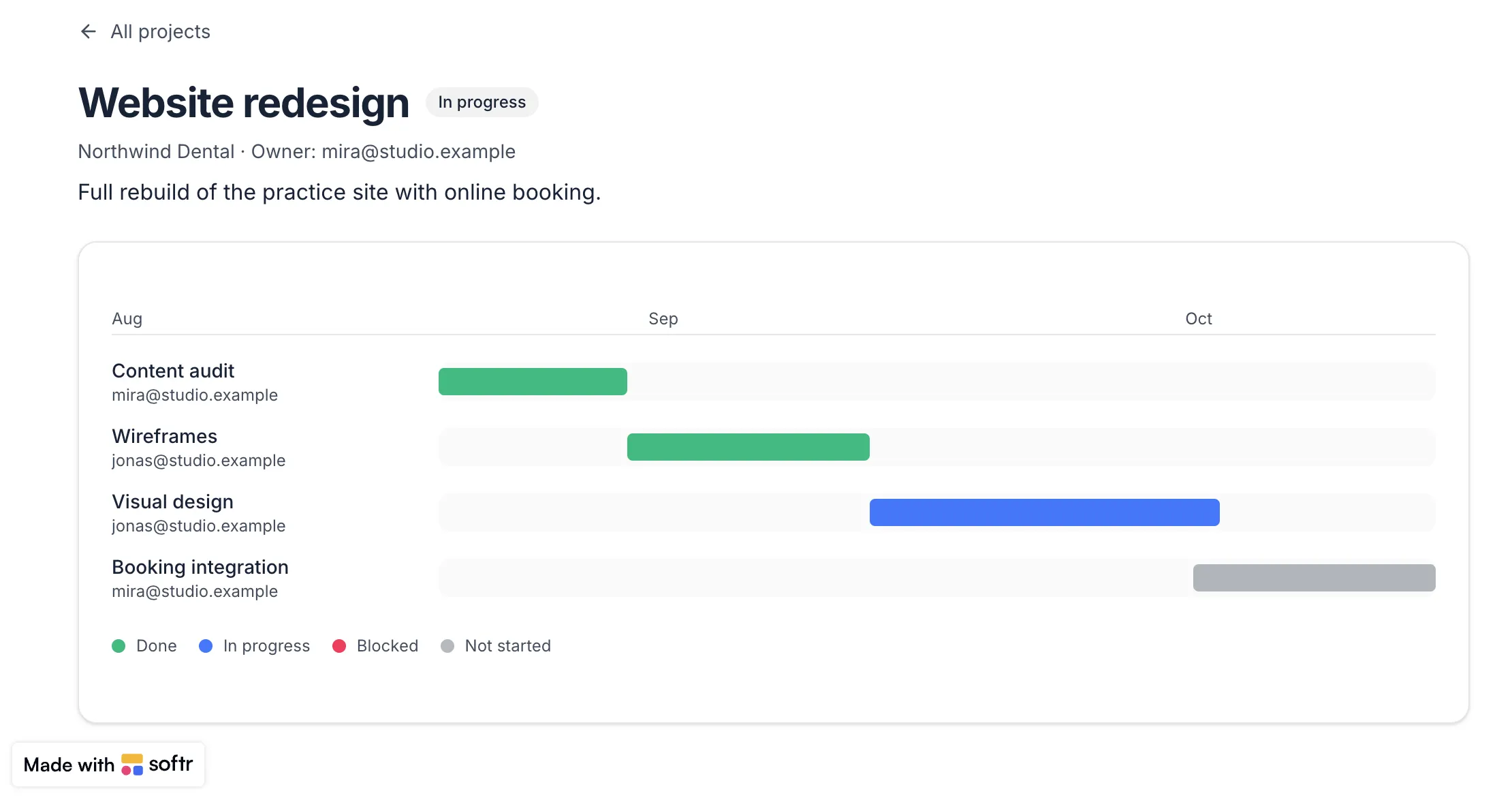
Softr saves a version every time the block changes, so you can compare and restore an earlier one if needed.
[.blog-callout]
💡 Recompiling a block deletes and recreates its actions with default permissions, so any restriction you set is dropped without warning. Check the block's actions after every code change.
[.blog-callout]
Step 4: Automate the request handoff
Next, the portal needs somewhere for requests to arrive. Try a prompt like this one:
On the requests page, build a form where a client can raise a request against one of their own projects, with a list of the requests they've already sent and the status of each. Only offer projects belonging to their company.
The generated form writes directly to our Requests table. Now add an automation so each new request reaches the correct user every time:
When a new record is added to Requests, find that project in Projects, email the project's owner with the request details, then send the client a confirmation.
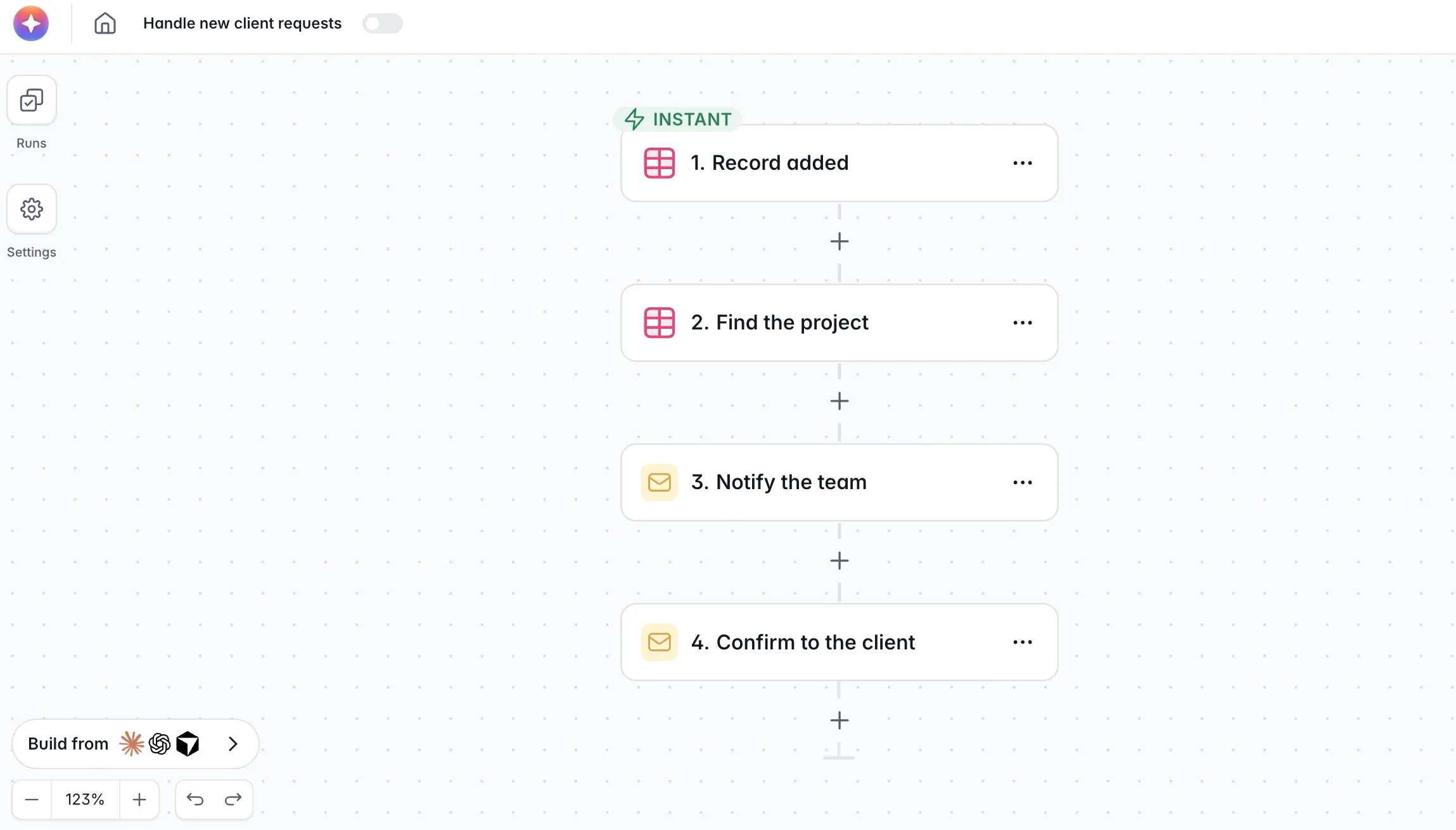
Claude Code builds a Softr Workflow with the trigger and both steps, then runs a test on each one and reports the results. You can open it in Softr to see the trigger and steps laid out visually. Nothing runs until you publish the workflow, so don't worry about accidentally emailing a client while testing.
Step 5: Preview, verify, and publish
We're in the home stretch now. Ask Claude Code for a preview link to see the app in its current state.
Give me a preview link for the portal, opening on the dashboard.
You can click around, test the functionality, and verify access rules by previewing as a specific user. Explore the portal as one of your clients and confirm three things before moving on:
- The dashboard lists only that client's projects.
- The internal admin page is not visible.
- A project belonging to another client refuses to open, even with its record ID in the URL.
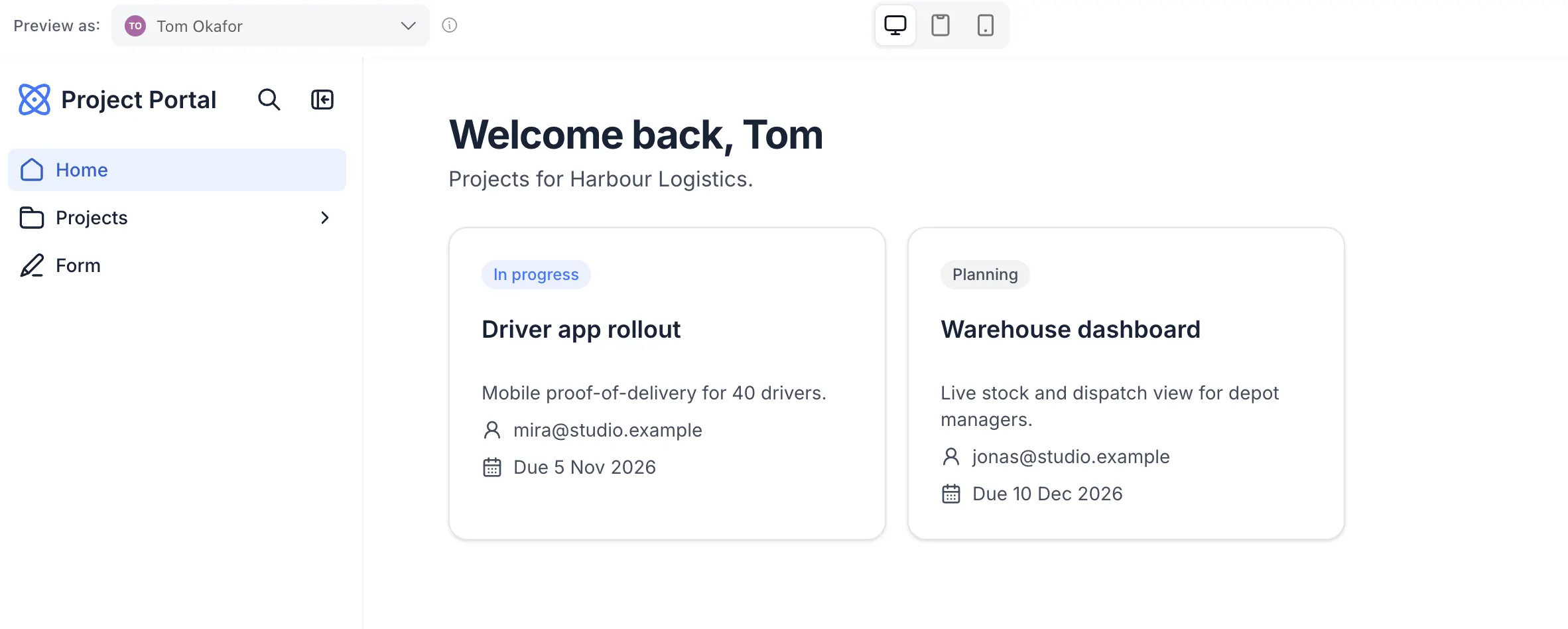
Or, ask Claude to list the app's pages, blocks, groups, and page permissions, then review that list.
List every page and block in the portal with its visibility settings, and tell me which groups can see each one.
Once everything's in order, simply tell Claude to publish. It's even able to set the domain and subdomain for you. With your app live, you can share it with real users and trust that your permissions will work as intended.
Build business apps in Claude Code, then run them on Softr
The best part of building this way isn't the speed (but the speed is nice). It's that Claude Code builds on the same secure infrastructure every Softr app is built on. Every piece of it stays visible and editable by anyone on your team, even if you cancel your Claude subscription.
Once the portal is live, you can go one step further and give the app its own MCP server. Your clients can then ask their own AI agent about their projects without opening the portal, and every request follows the permissions you set.
👉 Try Softr free and connect the Softr MCP server to Claude Code today.
Frequently asked questions
Do I need to know how to code to build a Softr app with Claude Code?
Does building over MCP use Softr AI credits?
Can I edit what Claude Code builds inside Softr?
What's the difference between building with Claude Code and Softr's AI Co-Builder?
Can my clients log in to an app that Claude Code built?