How to build a database with Claude Code



In this tutorial, I'll show you how to build a database in Claude Code: an order and inventory tracker in Softr, set up directly through the MCP. If you want to skip the guide, simply paste this prompt into Claude Code once you've connected to the Softr MCP server:
Create a Softr Database called Order & Inventory Tracker with tables for Products, Suppliers, Orders, and Order Items. Link products to suppliers, orders to suppliers, and order items to both orders and products. Then add a line total to Order Items, an order total to Orders, and a low-stock flag to Products.
This will get you a working relational database you can fill in with real data. The steps below cover the build in detail, while adding an inventory portal on top of it. You can also watch this video for a walkthrough that covers a different use case.
What is Softr MCP for Claude Code?
Softr MCP connects your AI agent directly to Softr workspaces. Through the MCP, Claude Code can create and edit databases, apps, workflows, and user groups, and you maintain full control over everything it builds.
- Databases MCP creates and analyzes databases, tables, fields, and records in Softr Databases.
- App-building MCP creates apps and pages, manages the people who log in, and configures user groups.
- Vibe code block MCP generates custom UI components and wires them to your data.
- Workflows MCP builds automations with Softr Workflows, including the trigger, the steps, and a test run.
You can connect for free on every plan (Free included), and using the MCP doesn't consume Softr AI credits.
Why build a database with Claude Code and Softr?
Through Softr MCP, Claude Code can design a database and fill it from a file or a prompt. That data lands in a structured, secure Softr workspace your team can use too. They can work with it directly in Softr Databases, through a permissioned app interface, or from their own AI agent over the MCP.
Step 1: Connect Claude Code to Softr
Add https://mcp.softr.io/mcp as a custom connector in Claude Code, sign in to Softr, and then approve the connection. Our guide on how to add the Softr MCP server to Claude Code covers this process in detail for both the desktop app and terminal.
Softr's authorization screen lets you set the connection's scope. For Databases, you can choose None, Read only, or Full access. For this guide, we'll give Claude full access.
Step 2: Create the tables and their links
Now it's time to structure and generate the database. In a prompt, simply describe your desired data model and/or use case:
Create a Softr Database called Order & Inventory Tracker with tables for Products, Suppliers, Orders, and Order Items. Link products to suppliers, orders to suppliers, and order items to both orders and products.
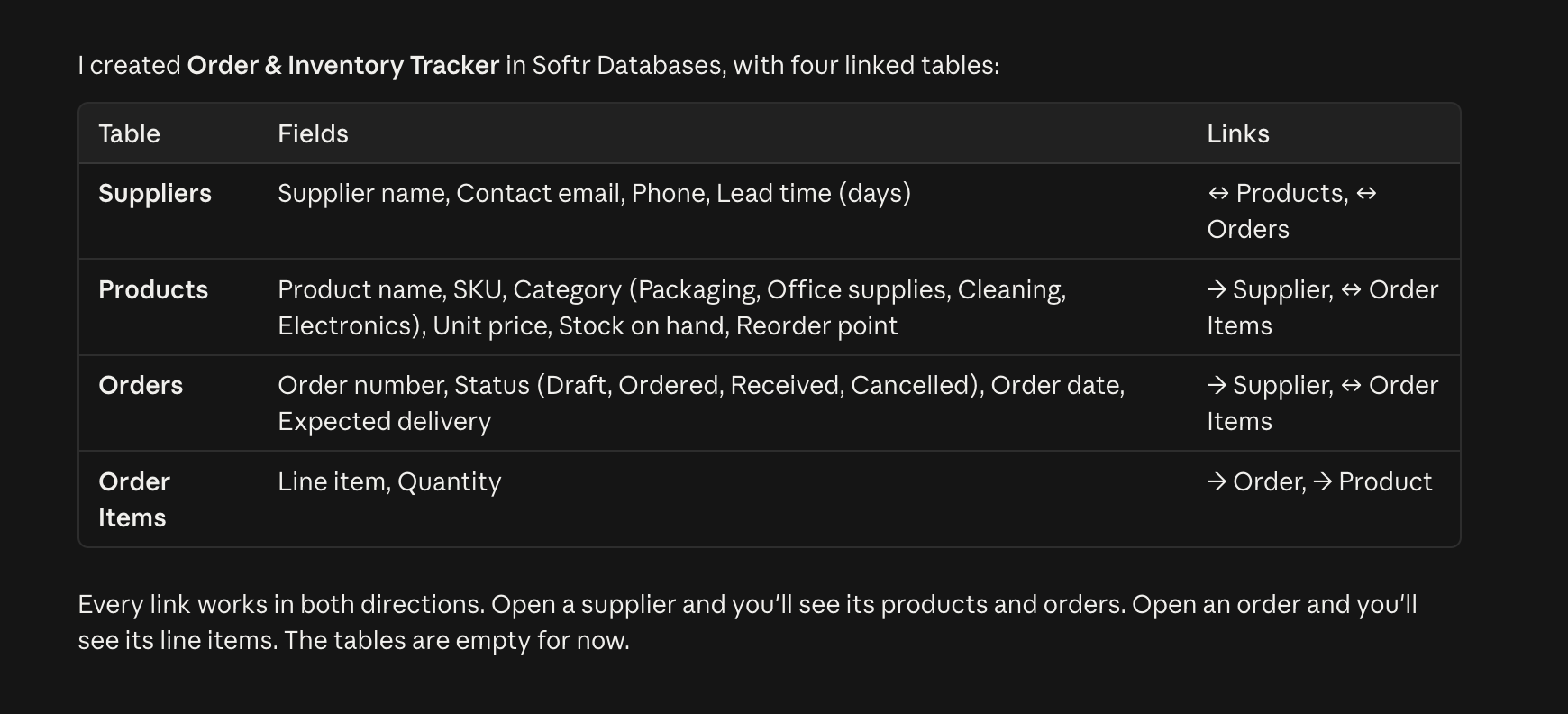
Claude Code selects the fields for each table, like "Unit price" for products and "Delivery date" for orders. Every data relationship works in both directions, so a supplier shows its products and orders, and an order shows its line items.
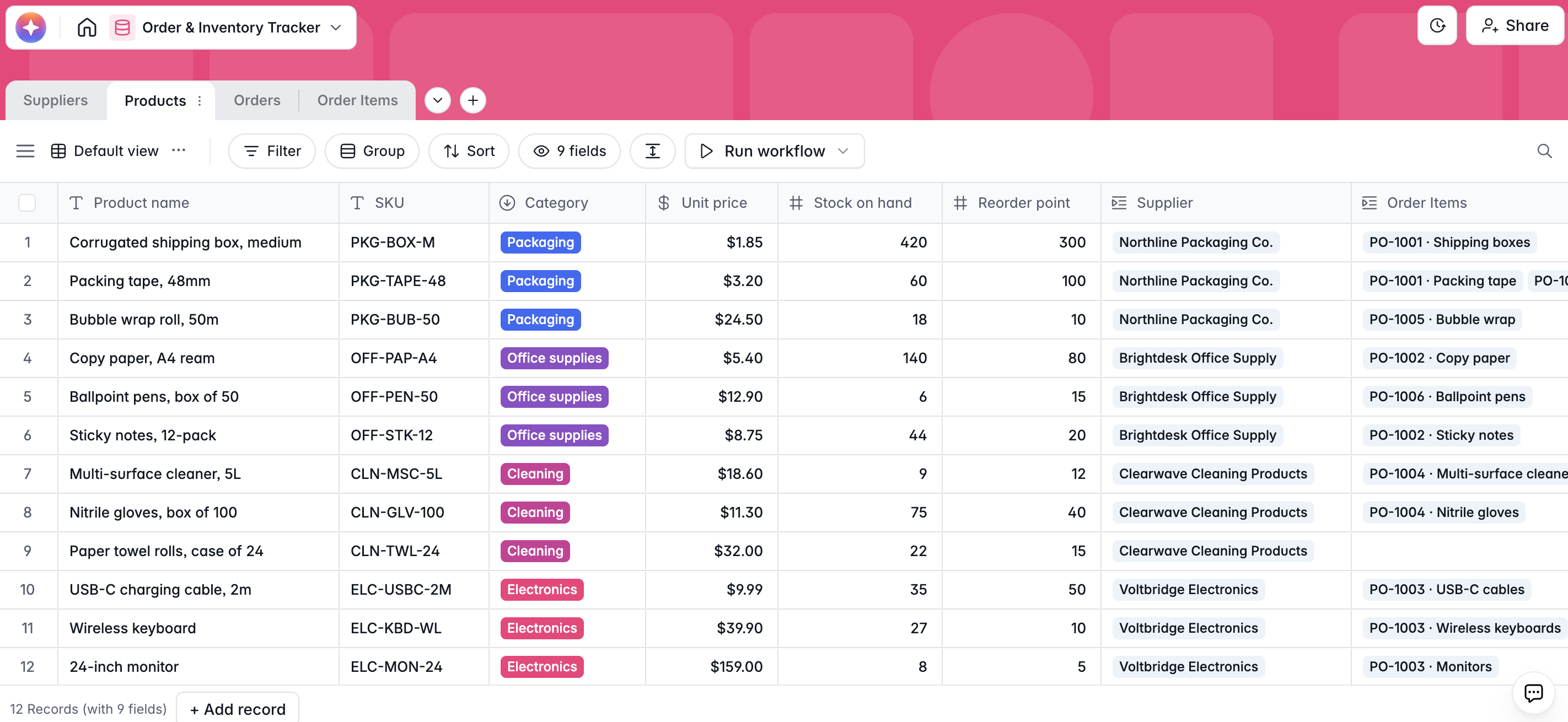
For this tutorial, I had Claude Code fill the tables with some sample data. To add real data, Claude Code can populate your tables from a file you share.
Step 3: Add formulas and rollups
With your data structured and in place, ask Claude Code to include some formulas relevant to an inventory management use case:
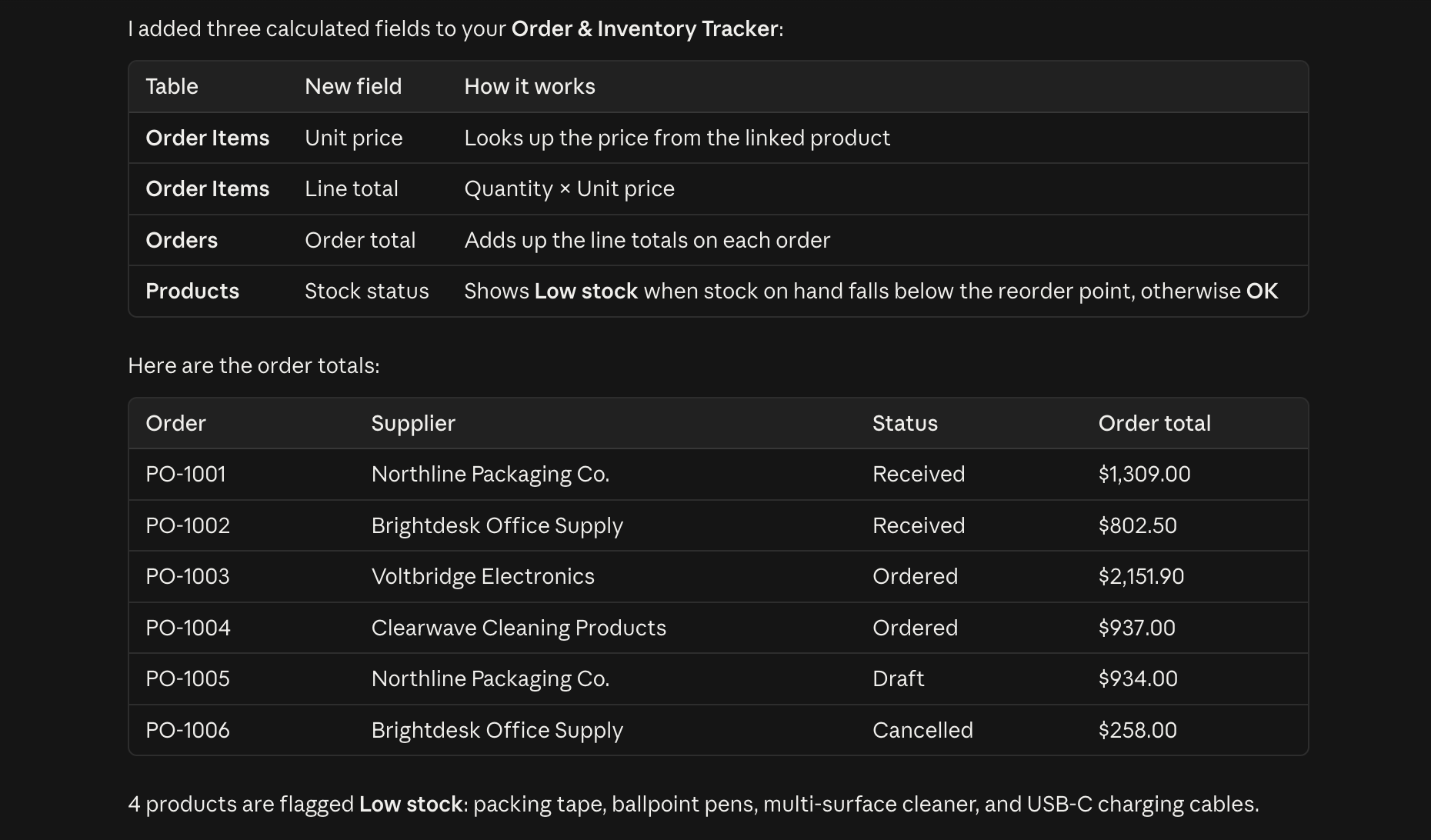
Add a line total to Order Items using the product's unit price, an order total to Orders, and a low-stock flag to Products when stock on hand falls below the reorder point.
Claude Code adds a lookup for each item's unit price, a formula for the line total, a rollup that sums each order, and a formula that flags low stock. These fields update on their own as records change.
Step 4: Query your data in plain language
Once your data is in Softr, you can query it at any time through Claude Code. Just ask a question in plain language and Claude will filter, sort, and summarize your records to answer it. Here's an example:
Which products are low on stock, and are any open orders past their expected delivery date?
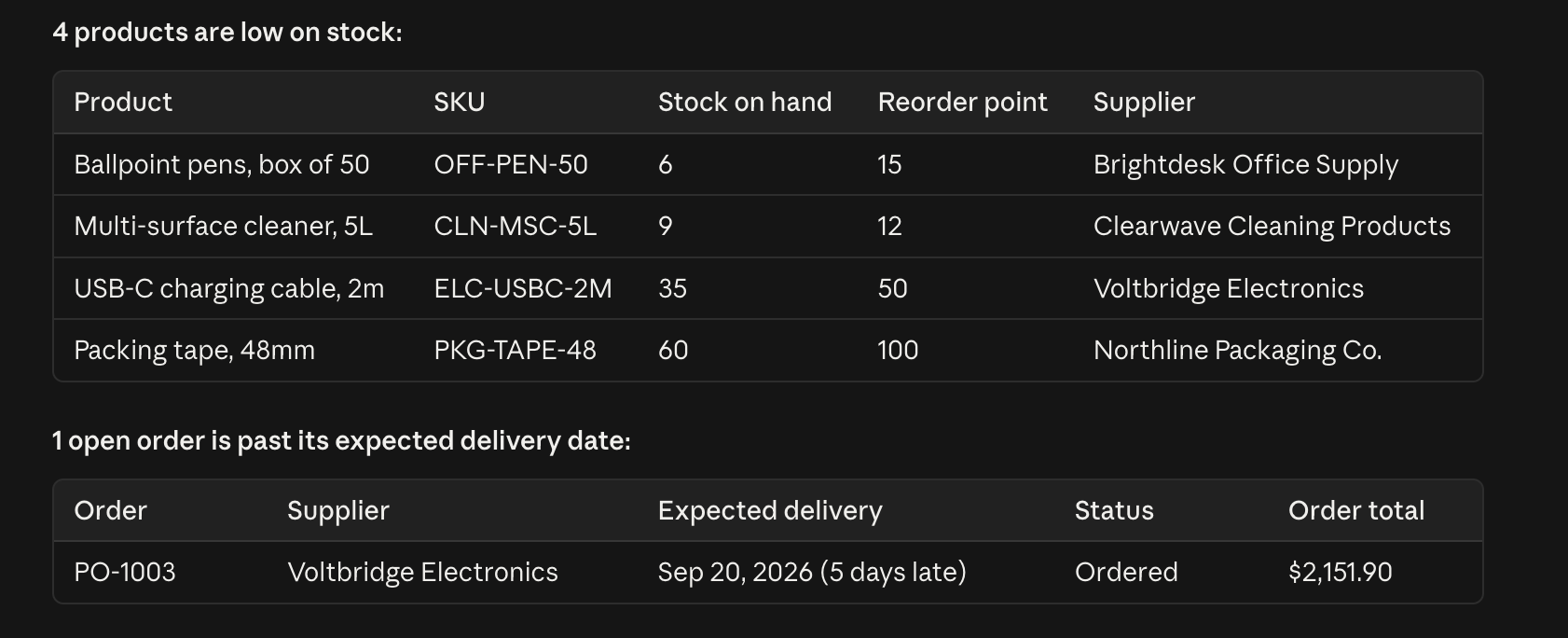
As you can see, Softr MCP makes data analysis possible in Claude Code without even opening your database.
Step 5: Update records and structure
The MCP can also edit and update the database as easily as it reads it. Try a prompt that changes the schema and the records at once:
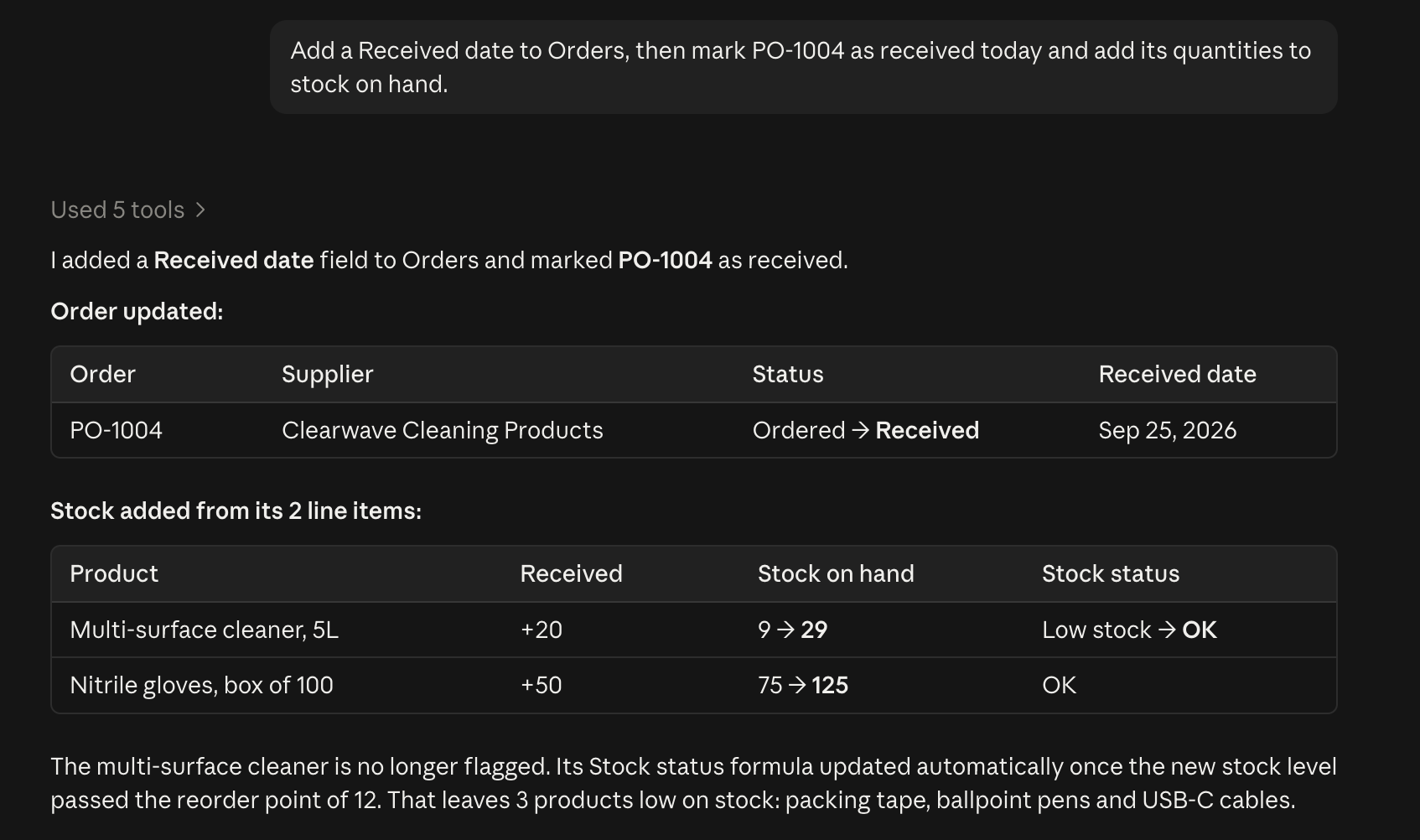
Add a Received date to Orders, then mark PO-1004 as received today and add its quantities to stock on hand.
Claude Code adds the field, updates the order, and raises stock for both products on it. The multi-surface cleaner then moves from Low stock to OK, because the formula from Step 3 recalculates automatically.
And if you're worried about accidentally erasing records, Softr MCP rejects the first attempt to delete a database or table that still holds data. Also, a connection set to Read only can't delete at all.
Step 6: Build an app on top of your data
Once your data is ready, you can ask Claude Code to build an app around it. It's as simple as inputting a prompt like this one:
Build an Inventory Portal on my Order & Inventory Tracker with a dashboard of low-stock products and open orders. Add Purchasing and Warehouse user groups. Only Purchasing sees order totals, and Warehouse can mark orders as received.
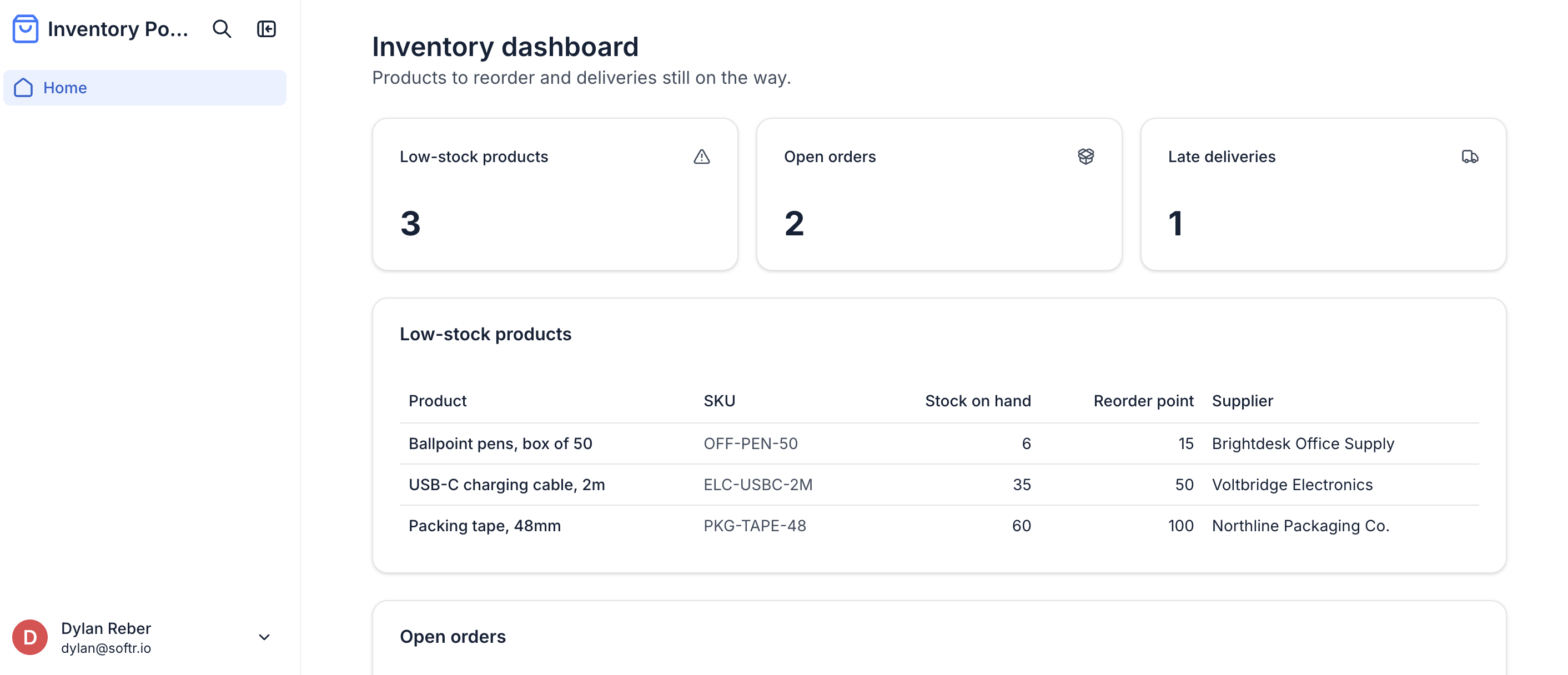
User groups decide which pages and blocks a person can open. In this app, both groups see the dashboard, only Purchasing sees order totals, and only Warehouse gets the Mark received button (shown below).
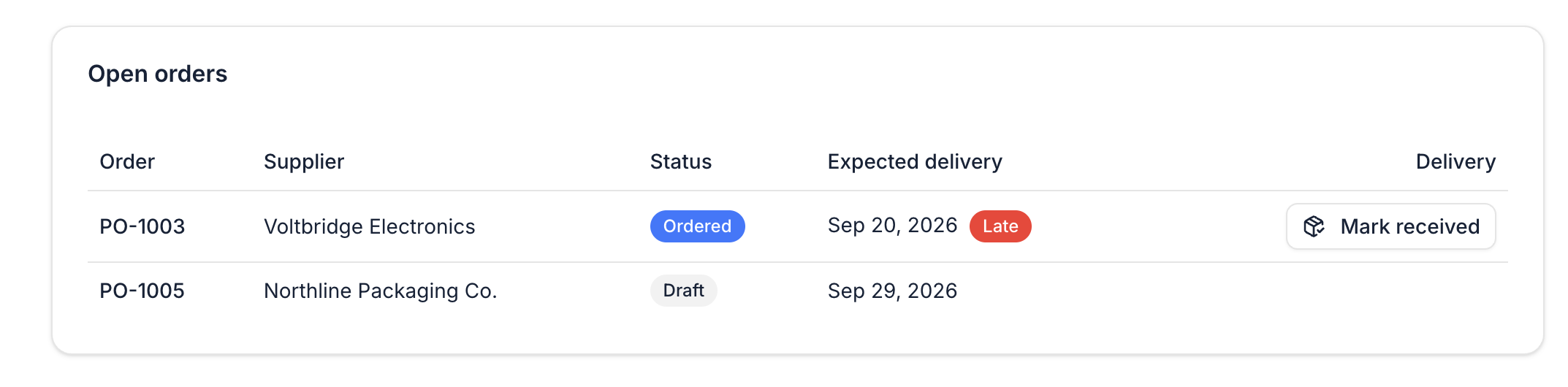
At this point, you can explore the app in preview mode, add additional blocks yourself in Softr, or hit Publish and start inviting real users. The app is wired to your database, so any changes you make there will be reflected in the live dashboard.
For a full MCP walkthrough of pages, user groups, and permissions, see our guide on how to build an app with Claude Code and run it on Softr.
What if I already have data stored somewhere else?
Claude Code can see data sources you've already connected to your Softr workspace, like Google Sheets and Airtable. Ask it to list them and show the tables and fields inside one.
Show me the data sources connected to my Softr workspace.
The MCP works on Softr Databases, so bring your external data into Softr if you want Claude Code to be able to query or update it. Alternatively, you can export a CSV or Excel file and ask Claude Code to add it to a Softr Database.
Import ~/Downloads/inventory.csv into my Order & Inventory Tracker database and match the columns to the appropriate fields.
Prefer to keep the data where it is? You can point the app at 21+ external data sources instead. Connecting a new source is a one-time step in Softr Studio, since the MCP can browse existing connections but can't add new ones.
Build your database in Claude Code, run it on Softr
Softr MCP gives you another way to build in Softr without replacing the builder itself. You can set up a database directly in Claude Code, then open Softr whenever you want to inspect what was created or make changes by hand. The database you build with Claude Code and Softr MCP remains visible and editable by anyone on your team, even if you switch AI tools later.
👉 Try Softr free and connect the Softr MCP server to Claude Code today.
Frequently asked questions
Does building a database over MCP use Softr AI credits?
Can I control what Claude Code can access in my Softr Databases?
What happens to my database if I stop using Claude Code?
What's the difference between the Softr Database MCP and App as MCP?
How do I connect Claude to my database?