.webp)

Tracking activities, updating statuses, and moving tasks from one stage to the next is the easy part of project management. But running projects from kickoff through delivery — approvals, handoffs, updates, and status changes — pushes most project trackers past their core capabilities.
While some project management trackers are built for quick task management, others were designed to handle complex operations. And a few let you build the exact system you need, so you’re not stuck with workarounds.
There’s no single best project tracker. It all depends on how your team actually operates. How big are your projects? How often do you collaborate with external teams? Do you need a simple to-do list or an engine to power workflows?
Your answers determine which project tracker is best for you. We’ve rounded up the six best project trackers in 2026, so you can choose which one most suits your needs.
Best project trackers at a glance
| Tool | Key features | Pricing | |
|---|---|---|---|
| Softr | Building complete, custom project systems with AI | • AI app building • Multiple views • Native relational database • Workflow automations • Custom portals • Granular permissions • Multi-source syncing | Free plan available; paid plans from $19/month |
| Asana | Cross-functional teams that want clear visibility across projects | • Multiple project views • Built-in automation • Reporting dashboards • 400+ integrations | Free plan available; paid plans from $10.99/user/month |
| ClickUp | Creating one highly customizable workspace for work and documentation | • Custom fields • 100+ automations • 15+ view options | Free plan available; paid plans from $7/user/month |
| monday.com | Visual project planning and quick team alignment | • Custom boards • Workflow automations • 200+ integrations | Free plan available; paid plans from $9/user/month (3 seat minimum) |
| Jira | Engineering teams running sprints and release cycles | • Scrum and Kanban boards • Backlog management • Issue tracking • Reporting tools • Developer integrations | Free plan available; paid plans from $7.91/user/month |
| Notion | Small teams and freelancers managing light workflows and documentation | • Custom databases • Docs and wikis • Notion AI and agents • 30,000+ templates • Integrations | Free plan available; paid plans from $10/user/month |
What is a project tracker?
A project tracker is a tool teams use to create, assign, and monitor tasks in real time, so projects stay on schedule. Project trackers often act as the single source of truth for project progress and typically include features like:
- Status updates
- Progress visualization
- Milestones and deadlines
- Team collaboration
Project management trackers give everyone a shared view of what’s happening in a project. What you get beyond that depends on whether you’re using a more basic task tracker or a full workflow system.
The first is a digital to-do list, while the latter focuses more on complex work, leveraging features like automations, dependencies, approvals, and cross-team reporting.
If you’re a small team working on straightforward projects, a basic tracker could work. But if you’re on a cross-functional team running client-facing projects, handoffs, and recurring workflows, you’ll need more robust project management software.
What to look for in a project tracker

When evaluating project trackers, look for one that checks all the boxes. These criteria are a good starting point:
- Flexible views: We all process information differently — make sure your project tracker offers different ways to visualize projects. Look for options like lists, Kanban boards, Gantt charts, and calendars.
- Task and workflow logic: The best project trackers take task management one step further, with automations that trigger actions that were once manual, like sending notifications or moving tasks.
- Effortless collaboration: Projects rarely get done in silos, which is why collaboration features are crucial. Look for easy commenting abilities, @mentions, file sharing, and activity feeds that keep everyone working on the project aligned.
- Reporting and visibility: Great project management software paints a clear picture of what’s going on across projects without manually reviewing individual tasks. Make sure yours has customizable dashboards, progress tracking, and resource allocation views.
- Smooth integrations: Avoid app switching and connect your systems. Project trackers should integrate smoothly with the tools in your stack, like Slack, your CRM, and Google Sheets.
- External sharing and permissions: Need to share project views with clients, contractors, or stakeholders? Make sure your project tracker has strong permissions that let you control who can see what and who can make edits.
- Scalability: Invest in project management trackers that grow with you, so you’re not constantly bolting on additional solutions every time your process changes or your team grows. For example, you could start with a basic tracker and then add a dashboard or portal as you grow to centralize every aspect of client work.
“We thought we'd need developers, a product manager, and UX designers before launching a new project management system. With Softr, we built it ourselves in weeks.” - Natalie Neumann, COO, Designity
1. Softr — best for building complete project tracking systems with AI

Most project trackers prioritize organizing tasks, but Softr is an AI-native platform that lets you build the system those tasks actually live in, no coding required.
Use Softr’s AI Co-Builder to generate fully custom business apps for project tracking, client delivery, internal operations, and more. Just describe what you need in plain English, and Softr creates the database, the application, and the business logic, already secure and connected.
So: you’re not just logging work, but planning how it moves through your business.
This is especially important for more complex, involved projects. For example, many project management trackers show status updates, but they fall short when work requires approvals, handoffs, or external visibility and collaboration.
Softr combines apps, a native relational database, workflow automation, and permissions so you can easily link tasks to real data, like clients, assets, or requests. It also closes the gap between internal and external work. Build partner, vendor, or client portals with complete control over exactly what each user group can see, edit, create, or delete.
Softr is one of the best project trackers for more than just basic task tracking. It’s built for operators, team leads, and service-based businesses that want smooth, repeatable systems.
For example, creative agency Designity uses Softr to run its entire project management system without developers, designers, or product managers.
Softr pros and cons
Pros:
- Fast to launch: Create your own project tracking system quickly, without waiting on developers or toggling between tools.
- All-in-one app-building: Softr combines databases, interfaces, automations, infrastructure, and hosting in one secure platform. You can build project trackers, task management systems, client portals, and more tailored to your exact business logic, no code required.
- Built for operational work: Ideal fit for a wide range of operations — like project workflows, portals, CRMs, internal tools, and inventory systems — rather than just simple task lists.
- Easy to share securely: Create dedicated portals to control exactly what clients, partners, and internal teams can view, edit, or approve.
- Versatile customization: Use AI, select one of Softr’s project planning templates, or build your app from scratch with the visual drag-and-drop editor, if you prefer.
- Connect your tools: Sync with 17+ native data sources or connect external tools through the API to avoid managing work through scattered apps.
- One place for data and workflows: Manage structured data, workflows, and user access in a single, accessible platform.
Cons:
- Not ideal for simple task tracking: If you only need a lightweight project to-do list without the need to ever scale, Softr might be more platform than you need.
Softr best features
- AI app building: Generate business apps and workflows fast, using your own prompts. No need to start from zero or write code.
- Multiple views: Choose how you want to view and manage projects, including Kanban boards, performance dashboards, lists, grids, and calendars.
- Native relational database: Model and manage structured business data directly in the Softr platform.
- Granular user permissions: Customize access for internal and external teams, clients, and vendors.
- Workflow automation: Trigger actions based on changes across apps, databases, and connected tools to save team members time and keep projects running smoothly.
- Custom portals: Build secure client, partner, and internal portals around shared workflows to streamline collaboration.
- Multi-source syncing: Bring everything together, including data from spreadsheets, CRMs, and external systems.
Softr pricing
Softr’s pricing is simple and predictable, with a generous free plan and access to all 90+ templates — including a project tracker template you can launch in minutes. Every plan comes with an AI credit allowance (monthly) that you can use for Ask AI or Database AI Agents.
All prices are when billed annually.
- Free: Unlimited apps and collaborators, with access to Softr Workflows and Softr Databases, 5 app users, 5 AI credits, and 5,000 Softr Database records.
- Basic: $19/month for unlimited apps with 42+ integrations, Team: 5 + Client: 5 app users, 10 AI credits, 50K records.
- Pro: $99/month for unlimited apps with 45+ integrations and custom code, Team: 10 + Client: 50 app users, 50 AI credits, 500K records, and 3 custom user groups.
- Business: $329/month for unlimited apps with 52+ integrations, Team: 30 + Client: 100 app users, 100 AI credits, 1M records, and custom user groups (up to 10).
- Enterprise (custom pricing, contact sales). Includes all Business plan features, plus priority support, a dedicated success manager, and advanced security features.
💡Ready to build a project tracker that actually fits how your team works? Try Softr's AI Co-Builder for free and launch your first system in minutes.
2. Asana — best for clear visibility and structured team collaboration
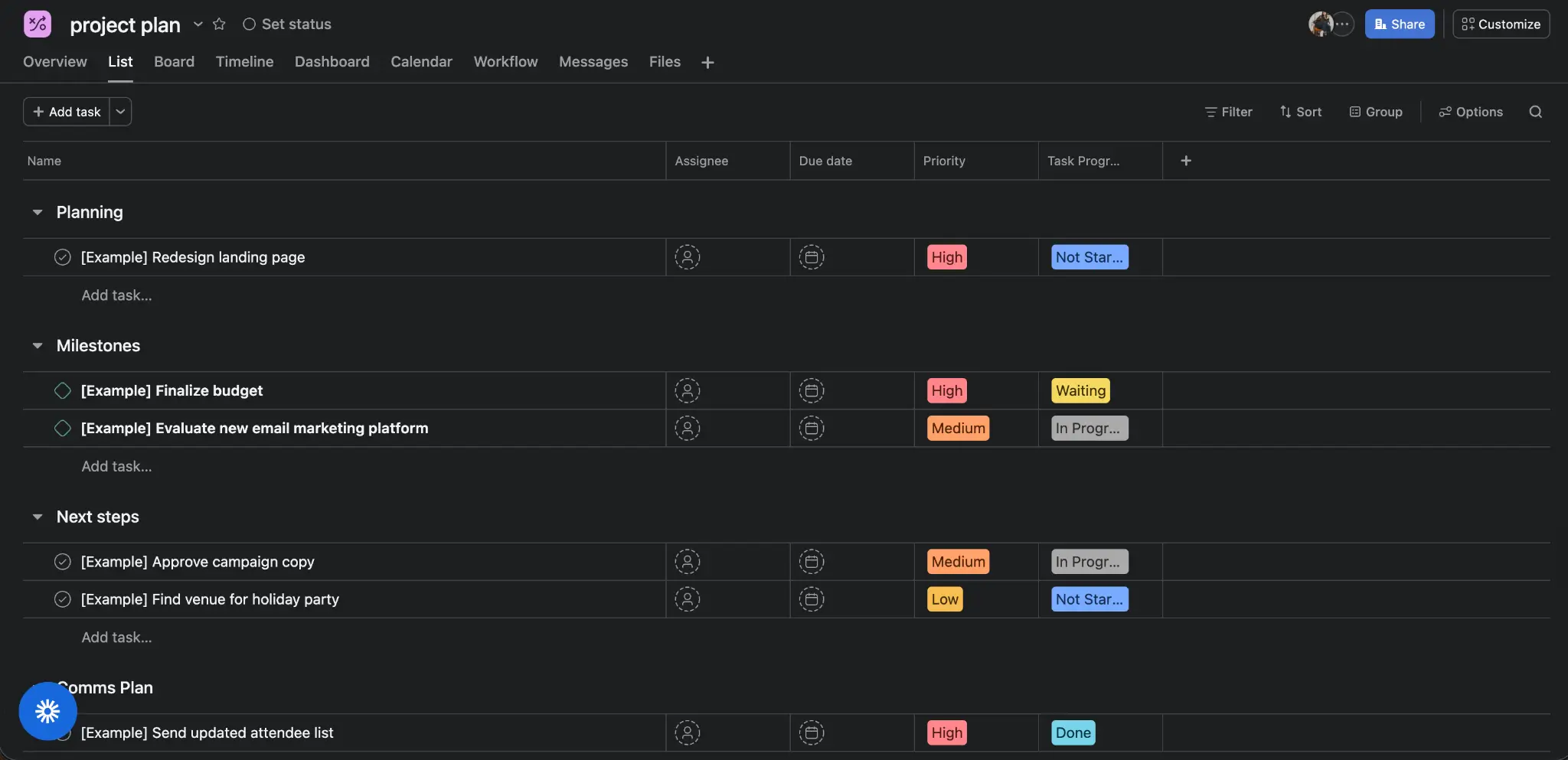
As far as robustness goes, Asana is a solid project management tracker. Teams across industries use it to provide clarity and visibility across multiple projects without a complex setup.
The tool is built around tasks, but adds structure through timelines, progress tracking, and reporting. You can organize work into specific projects, assign task owners, and track progress in real time, making it especially useful for cross-departmental teams where visibility is crucial.
Toggle between list, board, calendar, and timeline views, depending on which works best for you. If you're a manager, you can choose a high-level overview, while your direct reports can zoom in on their own tasks. Meanwhile, Asana's "rules-based automation" can handle repetitive updates like assigning tasks or changing statuses, helping reduce extra manual work without adding extra tools to your stack.
That said, Asana is still very much task-focused. If workflows require more features, such as approvals or client-facing processes, you might need an alternative project management tool.
Asana pros and cons
Pros:
- Clear project visibility: You can choose from multiple views based on specific needs and how you prefer to work.
- Strong collaboration functionalities: There are plenty of collaboration features, like comments and updates that stay tied to tasks for easy communication with teammates.
- Easy to adopt: Minimal setup required.
Cons:
- Task-focused architecture: Best for tracking work, but less flexible for orchestrating workflows beyond tasks, like client portals or approval flows.
- Top features locked behind higher tiers: Goals, Portfolios, and workload management require the Advanced tier ($24.99/user/month), which can scale costs fast for larger teams.
- Rigid workflow structure: Asana is optimized for linear project management, so teams with complex, cross-functional, or operational workflows may find its project/task hierarchy limiting and difficult to adapt to more dynamic processes.
Asana best features
- AI Teammates: Delegate work to prebuilt AI agents like the Campaign Brief Writer, Workflow Optimizer, or Compliance Specialist.
- Multiple project views: Organize your projects however you prefer, using lists, calendars, timelines, or Kanban boards.
- Built-in automation: Reduce the need for manual updates by applying rules.
- Reporting dashboards: Track progress in real time across projects using visual reporting dashboards.
- 400+ integrations: Connect with hundreds of tools, including Slack, Google Workspace, and Microsoft.
Asana pricing
Asana’s pricing is straightforward, and all paid plans include access to AI Studio Basic, a tool to help you leverage AI to replace manual work. Prices shown below are billed annually:
- Personal (free): 2 users, unlimited tasks and projects, multiple views, 100+ free integrations, and unlimited storage.
- Starter: $10.99/month per user. Unlimited users, 50K AI Studio Basic credits, AI Teammates, reporting dashboards, and unlimited automations.
- Advanced: $24.99/month per user. AI Studio Basic with 75K credits, AI Teammates, unlimited portfolios, enhanced security, time tracking, support for Salesforce, Tableau, and Power BI.
- Enterprise: Custom pricing. Includes all Advanced plan features, plus 200K AI Studio Basic credits, SAML authentication, admin controls and guest permissions, and capacity planning.
Want to see how Asana fairs against other project management apps? Check out our full roundup: Asana vs monday.com, Airtable vs Asana, and last but not least: the best Asana alternatives.
3. ClickUp — best for all-in-one customization and extra features
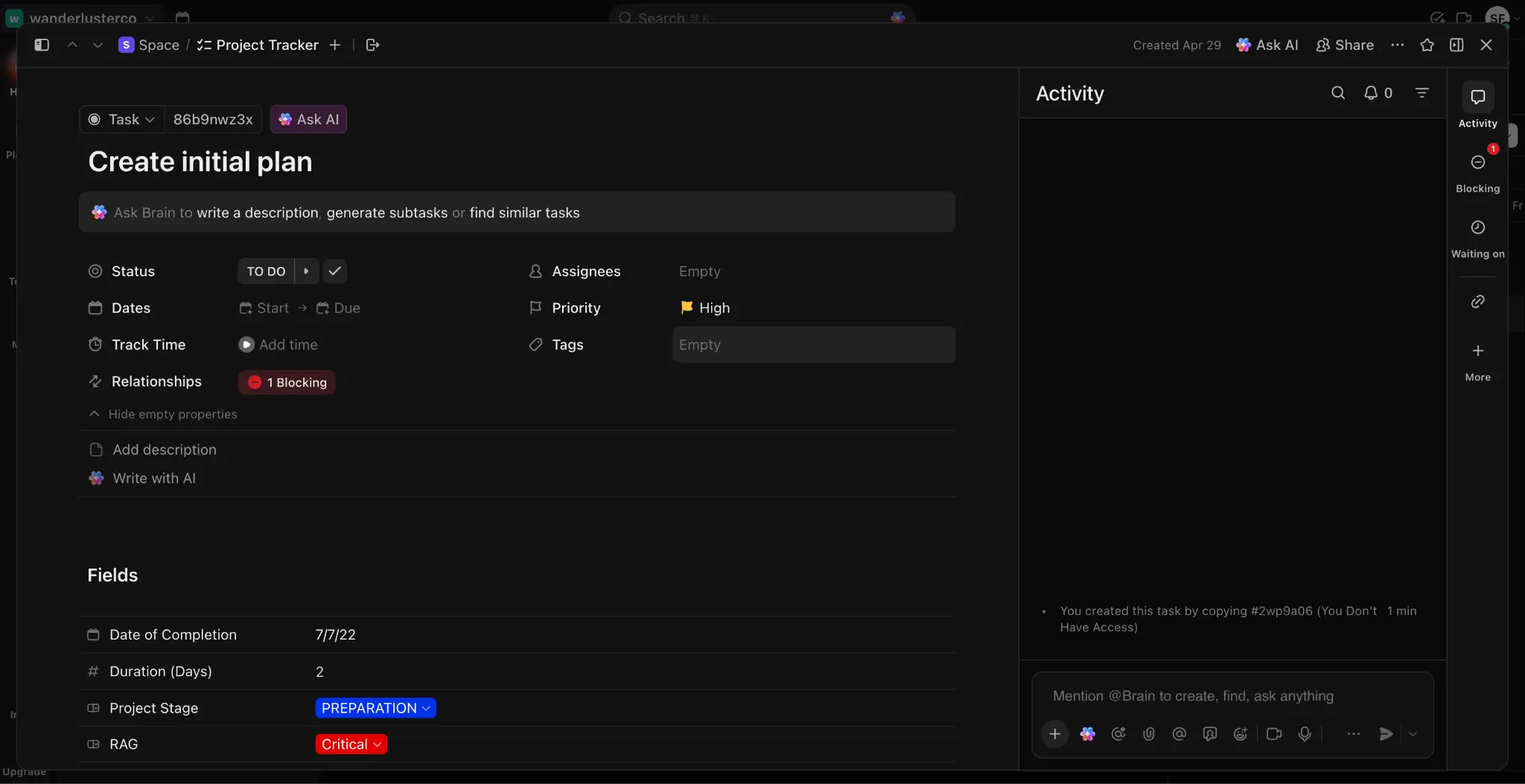
ClickUp is for teams looking for a single platform to manage tasks, docs, and workflows with high customization capabilities. On top of the basics like task tracking, dashboards, and goal setting, you can also use ClickUp to create workflows using custom fields and statuses.
It’s great project management software for teams with evolving processes. It combines multiple tools into one system — documentation, time-tracking, reporting — so you might not need additional software.
Choose from hundreds of automations to streamline manual, repetitive work. The trade-off? Complexity. ClickUp’s platform and huge range of features can feel overwhelming, and setup can be complex.
If you’re looking for more straightforward project trackers, check out some ClickUp alternatives.
ClickUp pros and cons
Pros:
- An all-in-one platform: Access tasks, documents, and reporting all in one hub.
- Highly customizable workflows: Fully tailor your workflows, complete with custom fields and statuses.
- Built-in collaboration tools: Docs, whiteboards, and chat are built directly into ClickUp, so teams can plan, discuss, and execute work without switching between tools.
Cons:
- Steep learning curve: ClickUp can take some getting used to, and it isn’t suitable for those without time on their hands or enough technical skills to really dive into learning.
- Setup required: Requires onboarding and configuration to work well.
- Busy interface: It might feel too cluttered, especially if you’re looking for something simple.
ClickUp best features
- Custom fields: Add data fields to your tasks and projects, so everything you need is at your fingertips.
- ClickUp Docs: Collaborative documentation is built directly into the platform, so you can see version history and find the right doc for the right project in seconds.
- 100+ automation options: Leave tedious tasks behind with a library of pre-built automations.
- 15+ view options: Choose how you prefer to display your work, including lists, boards, and calendars.
- ClickUp Brain: An AI assistant that summarizes tasks, generates content, and answers questions (paid add-on).
ClickUp pricing
ClickUp's free plan covers basic task management for unlimited users, while paid plans offer more views, automations, and storage. All prices are when billed annually. When billed monthly, costs are up to 30% more expensive.
- Free Forever plan: Unlimited users and tasks, multiple views, limited storage, and 24/7 support.
- Unlimited: $7/month per user. Includes guests with permissions controls, time tracking, and unlimited storage, custom fields, integrations, and spaces.
- Business: $12/month per user. Everything in Unlimited, plus enhanced security, automation integrations, and unlimited dashboards, activity views, and timeline views.
- Enterprise: Custom pricing. Unlimited custom roles, 250K automations, enterprise permissions, and a dedicated Customer Success Manager.
4. monday.com — best for clear, visual project tracking

Are you more of a visual thinker? If so, monday.com’s color-coded boards and visual workflows might be worth a look. At its core are customizable boards where teams can track tasks, owners, timelines, and project statuses in one place.
Its customizable layout makes it simple to understand progress with just a quick glance, without spending too much time digging into details.
Customize boards for different project workflows using AI, from marketing campaigns to operations. monday.com’s easy-to-apply automations reduce the need for manual updates, like changing task statuses or sending notifications.
monday.com is easy to adopt, especially for teams looking for structured project management software that isn’t too overwhelming. Keep in mind that it does focus on project tracking, so if you need more advanced workflows, you might want to consider another option.
monday.com pros and cons
Pros:
- Clear visual interface: The clean, color-coded interface makes it easy to understand project statuses at a glance.
- Strong AI capabilities: monday Sidekick handles a wide range of work, from generating updates and summarizing tasks to suggesting automations.
- Quick setup: Minimal onboarding required, and 200+ templates help teams get started fast.
Cons:
- Less orchestration, more tracking: Great for keeping tabs on tasks, but more limited when workflows require complex approvals or multi-step processes.
- 3-seat minimum on paid plans: Even small teams or solo users pay for at least three seats, with bucket pricing in groups of 5 beyond that. Costs add up fast.
- Limited external collaboration: With metered external guest access, monday.com isn’t ideal for teams needing to share project views with clients or contractors.
monday.com best features
- Customizable boards: Track work with flexible columns for status, owner, timeline, and priority, so everyone has a clear overview of projects.
- monday Sidekick: Account-level AI assistant that summarizes tasks, provides updates, suggests automations, and answers questions.
- Workflow automations: Trigger rule-based actions like notifications, status changes, and assignments based on what's happening in your boards.
- Multiple views: Tailor your view by easily switching between Kanban, Gantt, calendar, timeline, and dashboard views.
- 200+ integrations: Connect with tools like Slack, Google Workspace, and CRMs, to keep workflows in sync across your stack.
monday.com pricing
monday.com offers a free option that works well for freelancers or small teams, and all its paid plans include AI credits. The only caveat is that all paid plans require a minimum of three seats.
All prices are when billed annually. When billed monthly, costs are up to 18% more expensive.
- Free: Up to 2 users. Includes 200+ templates, iOS and Android apps, and up to 3 boards.
- Basic: $9/month per user. AI credits and unlimited free viewers and items. Prioritized customer support.
- Standard: $12/month per user. Includes AI credits and access to AI Sidekick (lite), plus multiple views, 250 automations, and integration actions.
- Pro: $19/month per user. Comes with AI credits, access to AI Sidekick (lite), multiple views, and limited automations and integration actions.
- Enterprise: Custom pricing. Includes AI credits and AI Sidekick (plus), advanced reporting, enterprise support, and enterprise-grade integrations and automations.
5. Jira — best for agile development teams

Jira is built specifically for software teams using agile workflows like Scrum and Kanban. With it, you can plan sprints, manage backlogs, and track issues through highly customizable workflows. Developers can break work into separate tickets and monitor progress across various stages.
This project management software also offers advanced reporting, including sprint metrics and velocity tracking. It’s a specialized tool, which is great if you have the right skills and resources, but that means it’s less intuitive and more confusing for non-technical teams.
While Jira is perfect for software development, teams running cross-functional or client-facing work might need something with broader workflow capabilities.
Jira pros and cons
Pros:
- Some of the best agile workflows: 20+ years of refinement on Scrum and Kanban make Jira one of the most mature project management software options.
- Atlassian ecosystem: A tight integration with Confluence (docs), Bitbucket (code), and Jira Service Management creates a complete software development workflow.
- Comprehensive reporting: Burndown charts, velocity tracking, cumulative flow diagrams, and customizable dashboards provide complete visibility.
Cons:
- Steep learning curve: With a feature-dense interface and a 2-3-week ramp period for new users, Jira can feel overwhelming for non-technical teams.
- AI features locked behind Premium: Atlassian Intelligence — Jira's AI layer for natural language queries and summaries — requires the Premium tier, which can increase costs quickly.
Jira best features
- Atlassian Intelligence: Jira’s AI-powered features for summarizing tickets, generating descriptions, and using natural language to query JQL (paid add-on).
- Scrum and Kanban boards: Plan and run sprints, track work in progress, and manage tasks through customizable workflows.
- Backlog management: Prioritize, organize, and edit upcoming work before it enters a sprint.
- Issue tracking: Create detailed tickets with custom fields, statuses, and workflows to match dev processes.
- Reporting tools: Track sprint progress, velocity, and team performance with built-in agile reports.
- Developer integrations: Link issues to code in tools like Bitbucket and GitHub for end-to-end visibility.
Jira pricing
Jira’s pricing is transparent, letting you preview pricing based on how many users you’ll have.
While its free plan supports up to 10 users, its paid plans increase the price per user based on team size. So, if you have a team of 300, you’ll get a better deal than if you’re a small team of 15, making it a better project management software option for enterprise teams.
All prices shown are billed monthly:
- Free: 10 users. Unlimited projects, tasks, and goals, plus reports and dashboards. Also includes multiple views and support from the Atlassian Community.
- Standard: $7.91/month per user (for 300-person team). Includes Rovo Search, Chat, and Agents. 1,700 automations, external collaboration capabilities, and user roles and permissions.
- Premium: $14.54/month per user (for 300-person team). Everything in the Standard plan and customizable approval processes and onboarding, unlimited storage, and per-user automation limits.
- Enterprise: Custom pricing. 24/7 support, up to 150 sites, unlimited automation rule runs, and advanced admin controls and security features.
6. Notion — best for lightweight project tracking and documentation
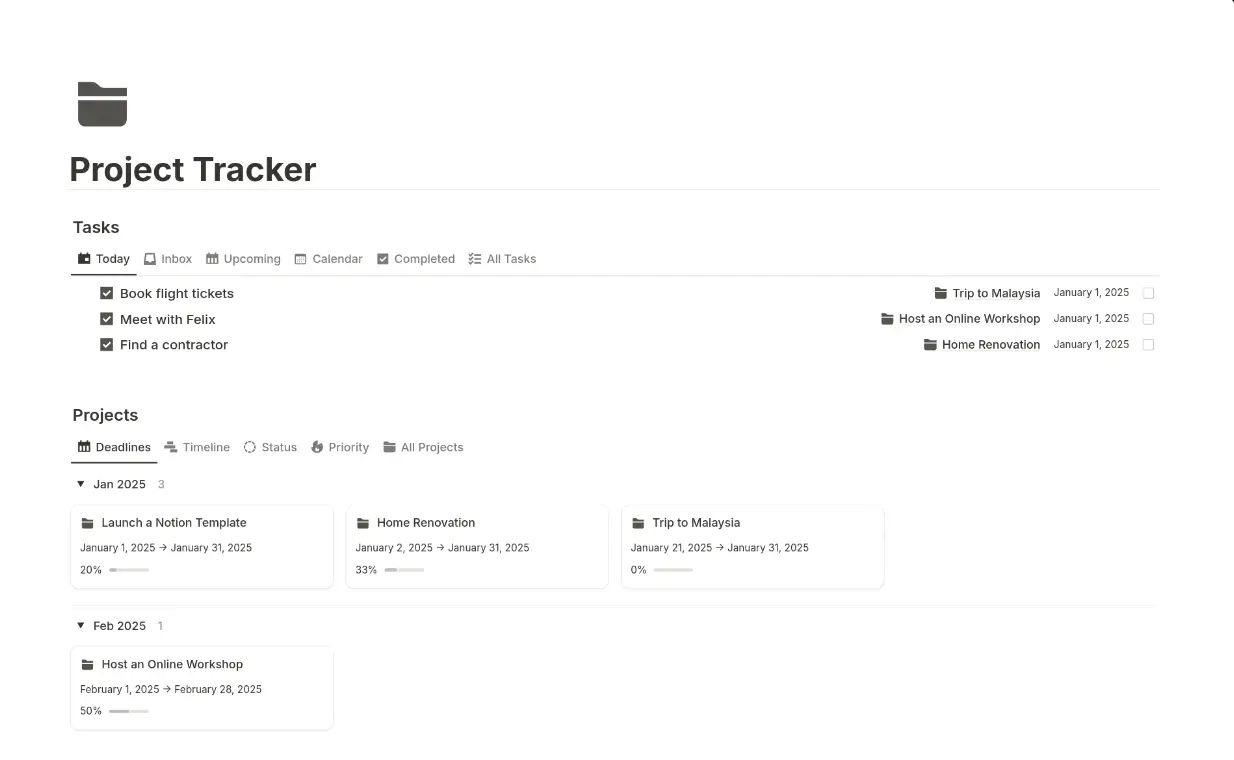
Notion brings together documents, databases, and basic task tracking in one workspace. You can build simple project trackers using databases, boards, and tables, making it a great solution for small teams, freelancers, and anyone managing lighter workflows.
Its biggest strength is its flexibility. Instead of forcing you into a fixed project structure, Notion gives you the building blocks to create your own system. Generate task trackers, meeting notes, project docs, and internal wikis in one space.
While Notion is flexible, it's not built for complex workflows or teams that need heavy automation. That’s why many teams pair Notion with Softr. They keep content and docs in Notion while building client-facing apps on top with Softr.
Notion pros and cons
Pros:
- All-in-one workspace: Combine tasks, notes, and documentation into a single, easy-to-navigate system.
- Flexible structures: Build custom workflows using databases, properties, and views like boards, tables, and calendars.
- Clean interface: The simple, distraction-free layout is easy for both freelancers and small teams to navigate.
- Real-time collaboration: Edit pages together, leave comments, and tag teammates for smooth communication and collaboration.
Cons:
- Limited automation: Lacks advanced workflow automations compared to many other project management trackers, limiting work orchestration.
- Cross-app automation gaps: Notion's native automations work well within a single database but can’t handle cross-database or cross-app workflows, often requiring Zapier or Make to fill the gap.
- AI agents only for higher tiers: Custom Agents and AI Meeting Notes require the Business plan, and heavy usage draws from a credit-based system that can scale costs.
Notion best features
- Create custom databases: Design flexible project trackers with filters, views, and linked data.
- Docs and wikis: Store project notes, processes, and knowledge alongside tasks for easy access and learning.
- Notion AI and agents: Autonomous AI agents handle complex workflows like drafting reports, updating database entries, and routing tasks.
- 30,000+ templates: Launch straight into workflows with access to thousands of prebuilt templates, including plenty of project planning templates.
- AI Meeting Notes: Transcribe meetings with one tap, then auto-generate summaries, action items, and shareable docs.
Notion pricing
Notion's pricing covers everything from solo creators to enterprise teams. Notion AI features (including Notion Agent and AI Meeting Notes) are bundled into the Business and Enterprise plans, while Free and Plus get a trial. All prices are when billed annually — monthly billing runs up to 20% more.
- Free: Includes a trial of Notion AI capabilities, basic sites and forms, and databases, including subtasks, custom properties, and dependencies.
- Plus: $10/month per user. Notion AI trial, custom forms and sites, plus unlimited charts, file uploads, and collaborative blocks.
- Business: $20/month per user. Access to Notion Agent and AI Meeting Notes. Includes premium integrations, private teamspaces, enhanced security, and granular permissions.
- Enterprise: Custom pricing. Everything in the Business plan, plus user provisioning, advanced security and integrations, an audit log, and no data retention with LLM providers.
Find the right project tracker for your team
The best project trackers are the ones that actually do what you need them to do. If you mainly need to assign tasks, track deadlines, and collaborate with teammates easily, then classic project trackers like Asana or monday.com probably work well. But if your workflow is heavier or more complex — requiring approvals, handoffs, clear client visibility, or repeatable processes — tracking tasks is only one part of the job.That’s where Softr stands out. Instead of just helping you manage tasks, we help you build the entire system around them, orchestrating work across teams.
Try Softr for free and build your own AI-powered project tracker in minutes. No coding required.
Frequently asked questions
What’s the difference between project trackers and project management software?
Can I build my own project tracker instead of using a pre-built one?
What’s the best free project tracker?