Requests come through email, Slack, meetings, and notes. Tasks live in multiple places, priorities shift, and a lot of time goes into working out what’s happening instead of moving work forward. Task management software gives teams one place to organize work and assign ownership. Here’s which tools excel, and in what areas.
Best task management software at a glance
| Tool | Best for | Standout features | Pricing |
|---|---|---|---|
| Softr | Building secure task management applications with an AI-Co Builder | • Tasks connected to projects, clients, and databases • Role-based portals for teams and clients • Workflow automation and AI assistants • Dashboards and operational reporting | Free plan available; paid plans from $19/month |
| ClickUp | Teams wanting an all-in-one project management workspace | • Custom workflows and statuses• Multiple views (list, board, timeline, calendar) • Built-in docs, whiteboards, and collaboration | Free plan available; paid plans from $7/user/month |
| monday.com | Visual workflow and task tracking across teams | • Customizable project boards • Automation rules and notifications • Multiple project views (Kanban, timeline, calendar) | Free plan available; paid plans from $9/seat/month |
| Notion | Teams managing tasks alongside documentation and knowledge | • Relational task databases • Pages, docs, and project planning in one workspace • Multiple task views | Free plan available; paid plans from $10/user/month |
| Trello | Simple visual task tracking using Kanban boards | • Board-based task management • Task cards with comments and attachments • Workflow automation with Butler • Power-Ups integrations | Free plan available; paid plans from $5/user/month |
| Microsoft 365 | Organizations managing tasks inside the Microsoft ecosystem | • Planner boards and To Do lists • Tasks integrated with Teams and Outlook • Automation via Power Automate | From $6/user/month |
| Asana | Structured team task coordination and project planning | • Task ownership and dependencies • Multiple project views • Workflow automation rules | Free plan available; paid plans from $10.99/user/month |
| Hive | Teams needing flexible project views with built-in collaboration | • Multiple views (Kanban, Gantt, calendar) • Built-in messaging and collaboration • Time tracking and reporting dashboards | Free plan available; paid plans from $5/user/month |
| Wrike | Managing complex projects across large teams | • Custom workflows and request forms • Interactive Gantt charts • Advanced dashboards and reporting | Free plan available; paid plans from $10/user/month |
What is task management software?
Task management software gives teams one place to plan and track work. Tasks can be created, assigned to the relevant person, given a deadline, and updated as they move between stages: from “planned” to “in progress” to “done.”
Instead of work being scattered across messages, spreadsheets, and notes, everything lives in a centralized system where your team and external clients can see what needs attention and who’s responsible. Most tools also add simple workflow structure through lists, boards, or timelines so teams can organize tasks and keep work moving without constant check-ins.
What to look for in task management software
Here are the key things to evaluate when choosing a task management software for your team.
- Ease of use and adoption: If adding, updating, or finding tasks takes too much effort, it’s a clear red flag. Look for a system where tasks can be created, assigned, and edited quickly without heavy setup or training time.
- Clear task ownership: Every task should have a clear owner, deadline, and status. This makes it easy to see who’s responsible and what needs attention.
- Simple workflow structure: Good tools help tasks move through a process using statuses, boards, or lists. This makes progress visible without requiring manual check-ins.
- Flexible task organization: Teams organize work differently. Look for options to group tasks by projects, lists, tags, or priorities so the structure fits your workflow.
- Collaboration around tasks: Work rarely happens in isolation. Comments, mentions, and file attachments help teams keep discussions connected to the tasks themselves.
- Automation for repetitive steps: Recurring tasks, status updates, or simple triggers can remove manual work and keep processes consistent.
- Integrations with other tools: Tasks often connect to other systems like calendars, messaging apps, or CRM tools. Integrations help reduce duplicate work and keep information in sync.
- Visibility into progress: Dashboards, timelines, or workload views help teams understand what’s moving, what’s blocked, and where priorities need to shift.
1. Softr — best for building custom task management portals around daily tasks & real business processes

Softr isn’t a traditional task management tool. It's an AI-native platform that lets you build portals and internal tools to share with clients or teams.
Unlike standalone task managers, you just describe what you need, and Softr’s AI Co-Builder instantly creates the database, task management app, and business logic—already connected, secure, and ready for real users. Create central hubs with different user permissions where documents, project timelines, dashboards, payments, and resources all live together. Tasks connect to projects, clients, documents, and processes — linked relationally in a native database.
In Softr, tasks aren’t isolated checkboxes. They live inside the broader operational system that runs your business. You can build dashboards, automate manual workflow steps, and share updates with employees or clients through a secure portal. The result is a task management solution that reflects how work actually moves across the organization. Here’s an example of how automation works in Softr 👇🏻
[.blog-callout]
Turn meeting transcripts into tasks automatically →
Meetings often end with action items that never make it into your task system. This guide shows how to build an AI workflow in Softr that analyzes a meeting transcript, extracts actionable tasks, assigns them to the right team members, and creates task records in your database automatically.
[.blog-callout]
Softr pros and cons
Pros:
- All-in-one app-building: Softr combines databases, interfaces, automations, infrastructure, and hosting in one secure platform. You can build task management systems, portals, internal tools, CRMs, dashboards, and more tailored to your exact business logic, no code required.
- Scales with your operations: Add new processes, tasks, or teams without re-platforming or navigating sudden per-seat pricing jumps.
- Performance visibility without manual reporting: Track goals, KPIs, and results through live dashboards instead of compiling updates from multiple tools.
- Client and partner collaboration: Teams can share task progress, documents, or updates through secure portals with role-based access and without exposing internal systems.
- Automation support: Workflow triggers and integrations help automate updates, notifications, and routine steps across processes.
- AI-powered with no-code customization: Teams can start by building their system with AI and then visually update workflows, fields, and logic without tagging in a developer.
Cons:
- Because Softr lets you build your own system, it takes some initial setup compared with using a pre-built task manager.
Softr best features
- Build on top of your data wherever it lives: You don’t have to copy data between tools. Instead, store and manage information in Softr's native database, or connect to your data sources with real-time, two-way sync. Pull from Airtable, SQL databases, Notion, Supabase, HubSpot, and 21+ other integrations (or use the REST API connector).
- Clear task ownership: Define who sees what with role-based access, field-level visibility, and granular permissions. Easily control exactly who can view or update tasks, records, and project dashboards.
- Account management: Employees, clients, or partners can log in to view tasks, leave comments, tag each other, update records, or access shared resources.
- Reporting and dashboards: Build dashboards that track project progress, workloads, and key metrics connected to your task data.
- Search, filtering, and AI-powered insights: App users can quickly find projects, tasks, documents, invoices, requests, or past conversations using advanced filters or Ask AI for natural-language search. Add AI to your interface and ask questions like “What’s the status of my task?” Get instant answers without even contacting your team.
- Project management: Provide a shared view of timelines, tasks, and progress so teammates can see what’s happening and your team can update work in real time.
- Knowledge bases and resource hubs: Offer self-service materials tailored to each team by building comprehensive knowledge bases.
Softr pricing
Softr has predictable pricing tiers and a generous free plan so you can try before signing up. All pricing shown billed annually.
- Free: Unlimited apps, with access to Softr Workflows and Softr Databases, 5 app users, 5 AI credits, and 5,000 database records
- Basic: $19/month for unlimited apps with 42+ integrations, Team: 5 + Client: 5 app users, 10 AI credits, 50K records
- Pro: $99/month for unlimited apps with 45+ integrations and custom code, Team: 10 + Client: 50 app users, 50 AI credits, and 500K records
- Business: $329/month for unlimited apps with 52+ integrations, Team: 30 + Client: 100 app users, 100 AI credits, and 1M records
- Enterprise: Custom pricing for larger teams
2. ClickUp – best for teams that want an all-in-one project management workspace
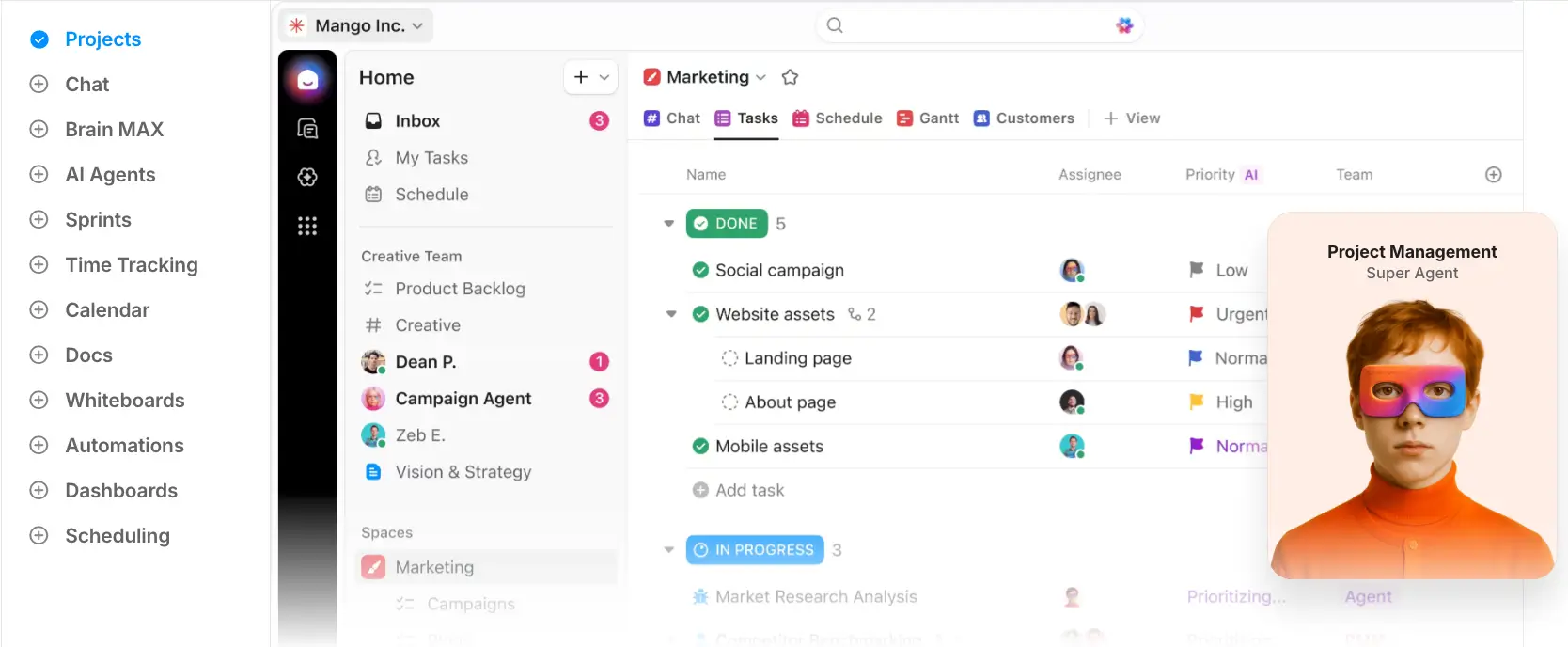
ClickUp is a work management platform that helps teams organize tasks, projects, documents, and collaboration in one place. Projects are broken down into tasks and subtasks, assigned to teammates, and tracked across different views like lists, boards, timelines, or calendars. Because the platform is highly customizable across fields, automations, and dashboards, it works best for teams that need flexibility to structure project management workflows around their processes.
ClickUp pros and cons
Pros:
- All-in-one workspace: ClickUp combines task management, docs, whiteboards, dashboards, and chat so teams can coordinate work without relying on multiple tools.
- Highly customizable workflows: Custom fields, statuses, and automations allow teams to tailor projects and processes to how they actually work.
- Multiple project views: Teams can visualize work as lists, kanban boards, timelines, Gantt charts, or calendars depending on the type of project.
- Strong free plan: The free tier includes unlimited tasks and core project management capabilities for individuals or small teams.
- Automation capabilities: Built-in automation rules can assign tasks, update statuses, or trigger notifications to reduce manual work.
- Collaboration features: Comments, shared documents, and whiteboards help teams coordinate work and capture information in the same workspace.
Cons:
- The large number of features and customization options can make the platform difficult to learn and overwhelming for new users.
- Some teams report slow loading or lag when working with large workspaces or heavy dashboards.
- Without clear structure and governance, workspaces can become cluttered and difficult to manage.
ClickUp best features
- Custom workflows: Teams can create custom statuses, fields, and task structures to match how projects move through their processes.
- Multiple work views: Projects can be managed through lists, kanban boards, calendars, timelines, and Gantt charts depending on the team’s workflow.
- Built-in documents and collaboration: Teams can write docs, comment on tasks, and collaborate on whiteboards without leaving the platform.
- Automation rules: Repetitive actions like assigning tasks or updating statuses can run automatically based on triggers.
- Dashboards and reporting: Custom dashboards allow teams to track project progress, workloads, and performance metrics.
ClickUp pricing
Pricing shown reflects annual billing.
- Free Forever: Free plan with core task management features
- Unlimited: $7/user/month
- Business: $12/user/month
- Enterprise: Custom pricing (contact sales)
[.blog-callout]
✨ Already using ClickUp? Build custom portals and internal tools on top of your data. With Softr’s connection to ClickUp, you can turn your tasks and lists into secure apps, dashboards, or client portals without coding. Changes sync in real time, so your team and external users always see the latest information without exporting or duplicating data. Check it out →
[.blog-callout]
3. monday.com – best for visual task and workflow management
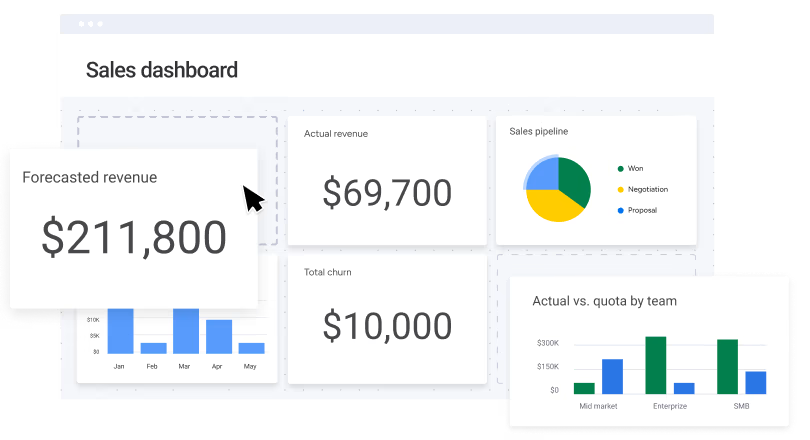
monday.com is a work management platform teams use to organize tasks, track projects, and coordinate work in a shared workspace. Users create visual boards where work is assigned, tracked, and updated in real time. Each board can be customized with columns for owners, status, timelines, and priorities, so teams can design workflows that match how they operate. With built-in automation, dashboards, and multiple project views, monday.com is commonly used by marketing teams, agencies, product teams, and operations groups that need a flexible system for managing ongoing work.
monday.com pros and cons
Pros:
- Highly visual task management: Color-coded boards, statuses, and columns make it easy to see task progress and team workload at a glance.
- Flexible workflow customization: Teams can design boards, fields, and processes to match how their work actually moves.
- Multiple project views: Tasks can be displayed as Kanban boards, timelines, calendars, or Gantt charts depending on planning needs.
- Built-in workflow automation: Repetitive updates like reminders, notifications, and task status changes can run automatically.
- Easy onboarding for teams: The interface is widely considered intuitive, which helps teams adopt it quickly without heavy training.
Cons:
- Pricing can increase quickly as teams grow or need advanced features locked behind higher tiers.
- Workspaces can become difficult to manage as boards, automations, and dashboards multiply across teams.
- Performance can slow down when boards contain very large numbers of items or complex reporting setups.
monday.com best features
- Customizable boards: Teams structure work using columns for status, owners, dates, priorities, and other fields tailored to their workflow.
- Automation rules: Users can automatically trigger updates such as moving tasks, sending notifications, or assigning owners when conditions are met.
- Multiple project views: Work can be visualized as Kanban boards, timelines, calendars, or Gantt charts depending on how teams plan and track progress.
- Cross-project dashboards: Managers can combine data from multiple boards to monitor workload, project status, and team performance in one place.
- Collaboration inside tasks: Comments, files, and updates live directly within each task, keeping discussions tied to the work itself.
- Integrations and app marketplace: The platform connects with many external tools to sync data and automate cross-tool workflows.
monday.com pricing
Prices shown billed annually.
- Free: For up to 2 seats
- Basic: $9/seat/month
- Standard: $12/seat/month
- Pro: $19/seat/month
- Enterprise: Custom pricing (contact sales)
[.blog-callout]
✨ If you already manage projects or tasks in monday.com, Softr lets you turn that data into client portals, dashboards, or internal tools your team or customers can actually use. Your monday.com boards connect directly to Softr with real-time, two-way sync, so updates stay aligned across both systems. From there, you can create role-based portals, combine data from multiple boards, and share work updates without giving everyone access to your Monday workspace.
[.blog-callout]
4. Notion — best for flexible task and project systems built alongside documentation
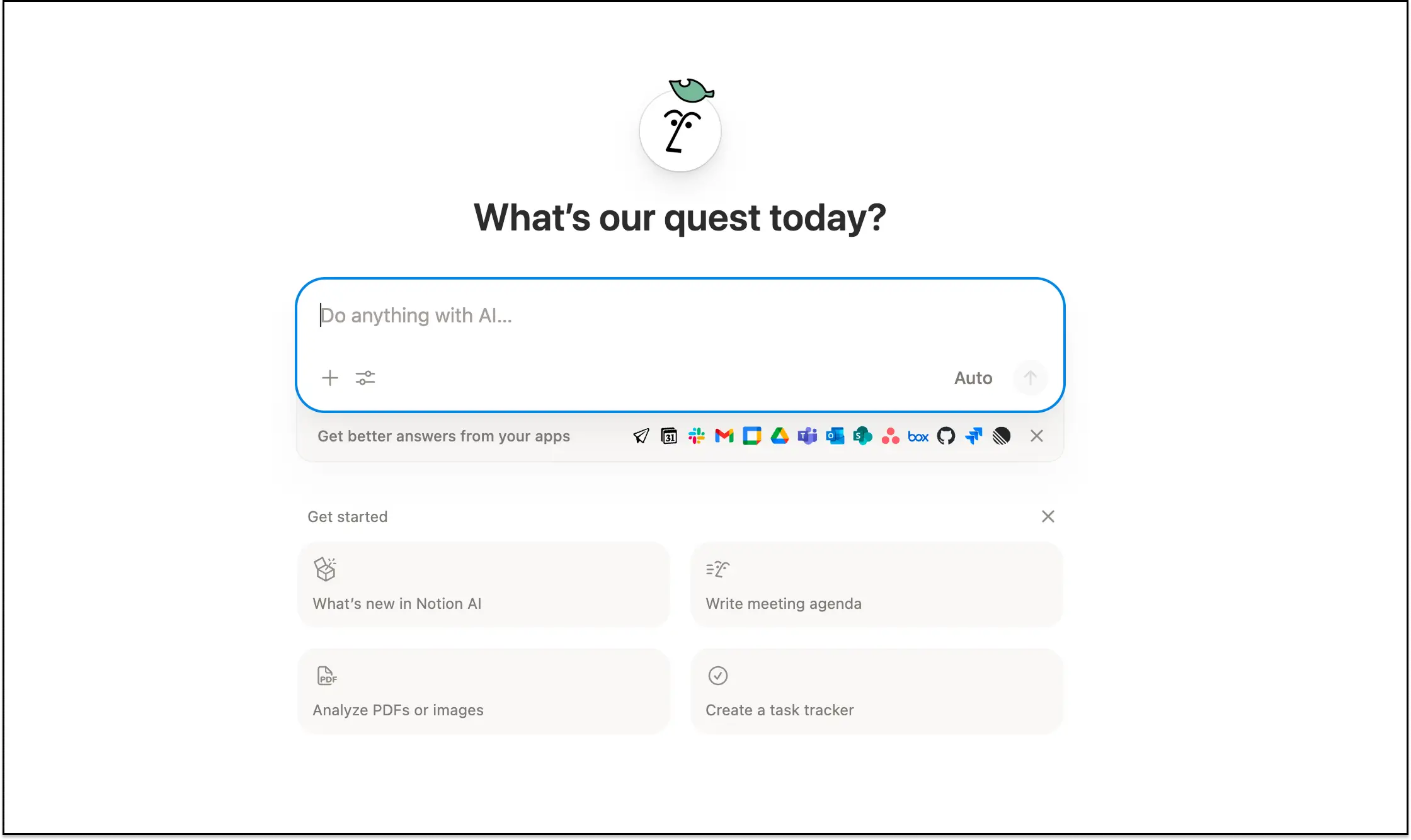
Notion is an all-in-one workspace where teams can manage tasks, organize projects, write documentation, and store knowledge in the same place. Instead of using a fixed project management structure, Notion lets you build your own task systems using customizable databases, pages, and dashboards. Teams can track work in kanban boards, calendars, tables, or timelines and link tasks to projects, notes, and resources. This makes it especially useful when work management is closely tied to documentation, planning, and internal knowledge.
Notion pros and cons
Pros:
- Tasks and documentation in one workspace: Projects, notes, wikis, and task boards all live together in the same system.
- Flexible database structure: Tasks, projects, and resources can be connected through relational databases for better organization.
- Multiple task views: Work can be managed through kanban boards, tables, calendars, or timelines depending on the workflow.
- Strong collaboration features: Teams are able to comment, mention teammates, and work on pages together in real time.
- Useful for lightweight project management: Many small teams use Notion successfully for planning, documentation, and simple task tracking.
Cons:
- Teams often need to build their own task management structure before they can start using the tool effectively.
- Workspaces with complex dashboards or large task databases may become slower to navigate.
- Compared to dedicated tools, it lacks deeper automation, reporting, and operational workflow capabilities.
Notion best features
- Custom task databases: Tasks can be organized in structured databases with fields like status, assignee, due date, and priority.
- Multiple workflow views: The same tasks can be displayed as kanban boards, tables, timelines, or calendars depending on how teams prefer to work.
- Relational data linking: Projects, tasks, documentation, and resources can be connected so teams can see related work and context in one place.
- Pages and collaborative documents: Teams can create documentation, meeting notes, or project briefs directly alongside their task systems.
- Notion AI capabilities: Built-in AI tools can help summarize content, generate notes, and assist with documentation inside the workspace.
- Workspace dashboards: Teams can build custom project dashboards that combine tasks, documents, and progress views in a single page.
Notion pricing
- Free: $0 per member/month Basic sites, forms, and databases
- Plus: $10/member/month
- Business: $20/member/month
- Enterprise: Custom pricing
[.blog-callout]
✨ Connect Notion as a Softr data source and build client portals, internal tools, or directories on top of your existing data without coding. Changes stay in sync automatically, and you control exactly what your team, clients, or partners can view or edit through a clean, customizable interface.
Turn your Notion databases into secure portals and apps with Softr →
[.blog-callout]
5. Trello – best for visual task tracking & simple team workflows
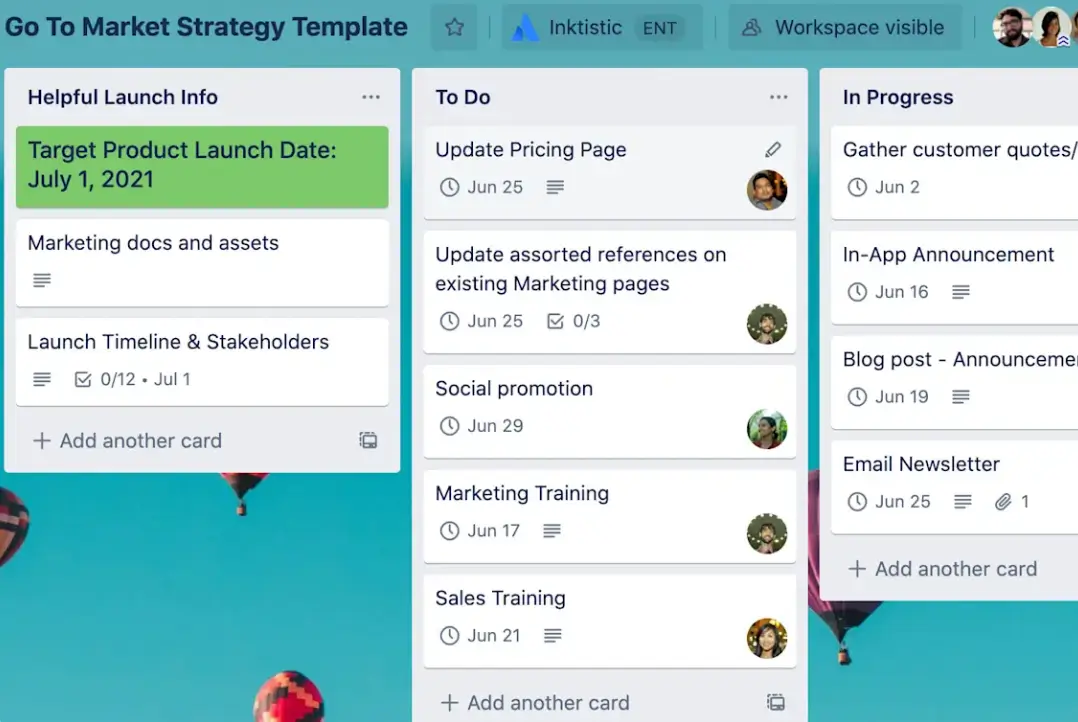
Trello is a visual task management tool built around Kanban-style boards. Teams organize work using boards, lists, and cards that represent projects, workflow stages, and individual tasks. Because the interface is simple and visual, Trello is widely used for lightweight project management like editorial calendars, marketing tasks, or small team projects. It works best when teams need a clear overview of tasks without the complexity of full project management software.
Trello pros and cons
Pros:
- Visual workflow management: Boards, lists, and cards make it easy to see the status of work and move tasks through different stages.
- Very easy to learn and adopt: Most teams can start organizing work immediately without training or complex setup.
- Flexible board structure: Teams can adapt boards for many workflows such as project tracking, content planning, or internal task management.
- Strong integration ecosystem: Trello connects with many third-party tools through Power-Ups to extend functionality.
- Accessible free plan: The free tier supports small teams with core task management features.
Cons:
- Trello lacks built-in features like dependencies, resource planning, and advanced scheduling.
- Teams often need integrations or other tools to track performance and workload.
- Large projects with many tasks can make boards difficult to manage and navigate.
Trello best features
- Kanban boards: Trello organizes work visually with boards, lists, and cards so teams can track progress at a glance.
- Task cards with collaboration tools: Each card supports comments, attachments, due dates, and mentions to keep discussions tied to the task.
- Custom fields and advanced checklists: Teams can structure tasks with additional details and track subtasks inside cards.
- Multiple workflow views: Calendar, timeline, table, and dashboard views help teams see tasks from different perspectives.
- Automation with Butler: Built-in automation rules reduce repetitive work by triggering actions like moving cards or sending notifications.
Trello pricing
Listed pricing is billed annually.
- Free: $0 (up to 10 collaborators per workspace)
- Standard: $5/user/month
- Premium: $10/user/month
- Enterprise: $17.50/user/month (enterprise security and admin controls)
6. Microsoft 365 – best for teams already working in the Microsoft ecosystem
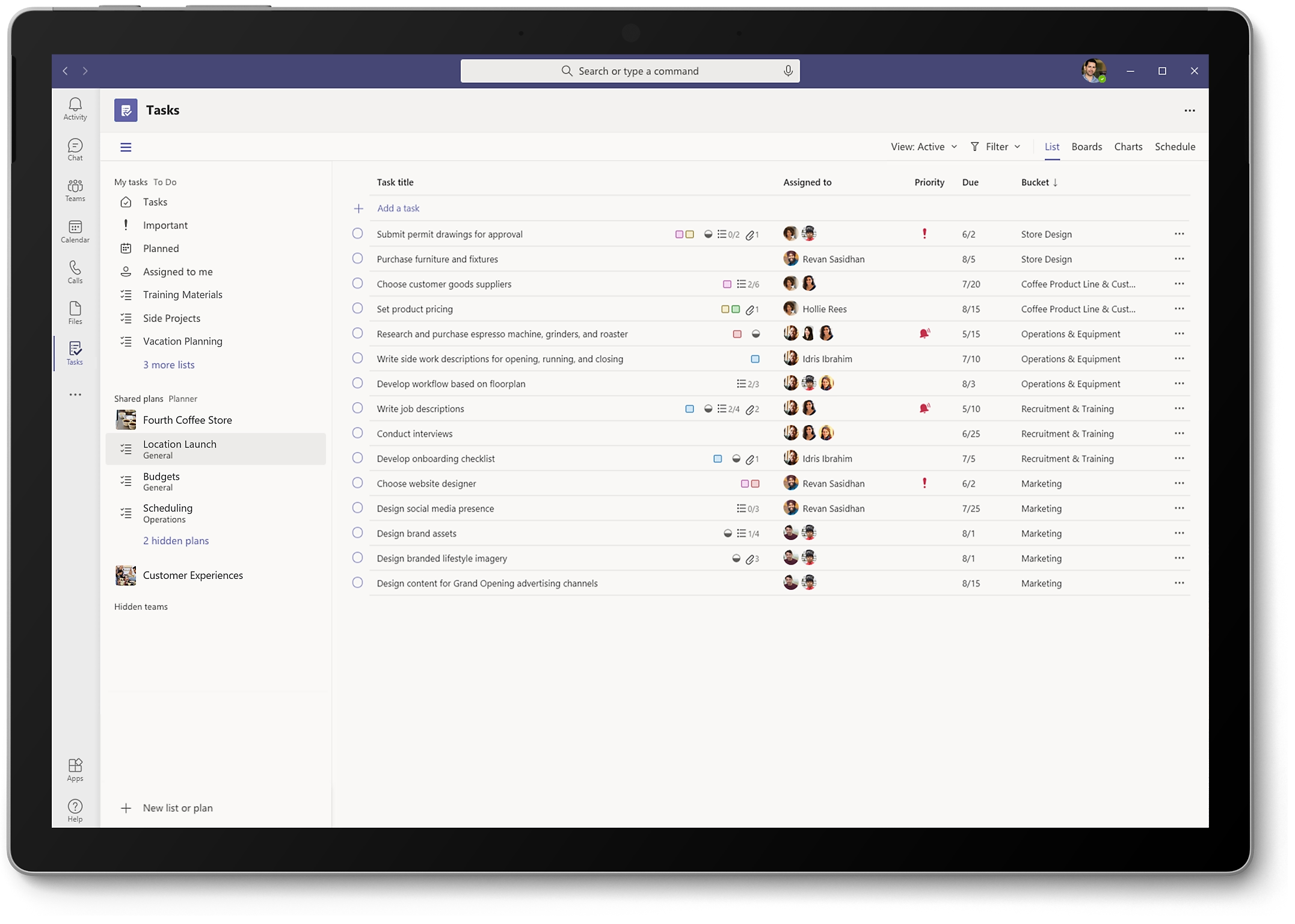
Microsoft 365 is a cloud productivity suite that includes several tools used for task and work management across teams. Instead of relying on one dedicated task management app, it combines tools like Microsoft Planner, Microsoft To Do, Microsoft Teams, and Microsoft Project to organize work. Teams can assign tasks, track progress, manage projects, and collaborate alongside files, meetings, and email. For organizations already using apps like Outlook, SharePoint, and OneDrive, this single-ecosystem approach makes it easy to manage everyday work without adding another platform to the mix.
Microsoft 365 pros and cons
Pros:
- Deep integration across Microsoft apps: Tasks connect directly with Outlook, Teams, SharePoint, and OneDrive so teams can manage work alongside conversations, files, and meetings.
- Multiple task management layers: Microsoft To Do supports personal task tracking while Planner and Project handle team planning and more structured project work.
- Familiar tools for most workplaces: Many teams already use Microsoft products, which reduces onboarding time and makes adoption easier.
- Strong collaboration through Teams: Tasks can be created, assigned, and discussed inside Microsoft Teams where many organizations already coordinate work.
- Enterprise-grade security and compliance: Microsoft provides advanced identity management, data protection, and security features used by many large organizations.
- Scales from simple tasks to enterprise projects: Teams can start with Planner for lightweight coordination and move to Microsoft Project for more complex planning.
Cons:
- Work is spread across multiple apps like Planner, To Do, Teams, and Project, which can make it unclear where tasks should live.
- Planner in particular lacks advanced workflow automation, reporting, and customization found in specialized platforms.
- Teams often need Power BI or other tools to create meaningful progress reports and dashboards.
Microsoft 365 best features
- Microsoft Planner boards: Teams can organize tasks in visual boards, assign owners, set deadlines, attach files, and track progress across projects.
- Microsoft To Do personal task management: Individuals can manage daily tasks, reminders, and priorities while syncing tasks from Outlook and other Microsoft apps.
- Tasks in Microsoft Teams: A centralized view that brings together tasks from Planner and To Do so teams can track work without leaving their collaboration hub.
- Microsoft Project for advanced planning: Organizations managing complex projects can use timelines, dependencies, and resource planning tools.
- Integrated file and document collaboration: Tasks can link directly to documents stored in OneDrive or SharePoint, making it easier to work from the same files.
- Automation with Power Automate: Teams can create automated workflows that trigger actions when tasks are created, updated, or completed.
Microsoft 365 pricing
Prices shown reflect annual billing.
- Microsoft 365 Business Basic: $6.00/user/month
- Microsoft 365 Business Standard: $12.50/user/month
- Microsoft 365 Business Premium: $22.00/user/month
7. Asana — best for structured team project and task coordination
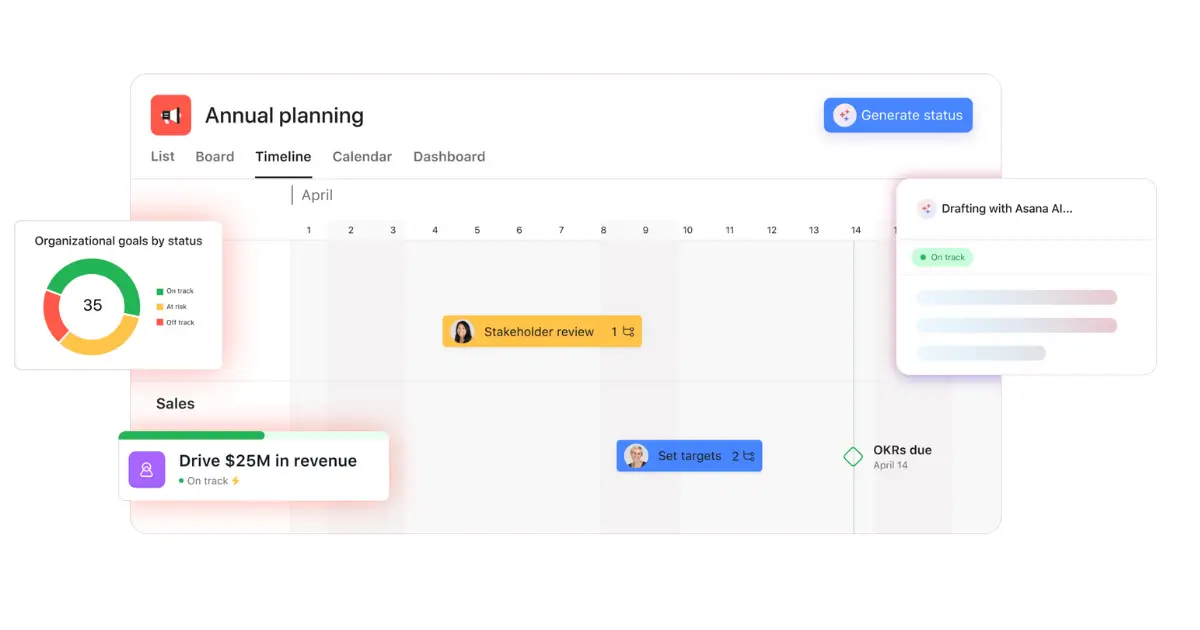
Asana is a work management platform that lets teams plan complex projects, assign tasks, and track progress in one place. Teams use it to break larger initiatives into clear task structures with owners, deadlines, and status updates. Work is organized into projects where everyone can see what needs to be done and who’s assigned what. With views like lists, boards, timelines, and calendars, Asana is good for teams that want a structured way to manage campaigns, projects, and daily workflows.
Asana pros and cons
Pros:
- Clear task ownership: Tasks, subtasks, and due dates make responsibilities visible so teams always know who owns what.
- Multiple project views: Teams can switch between list, board, calendar, and timeline views depending on how they prefer to plan work.
- Strong collaboration inside tasks: Comments, file attachments, and mentions keep conversations connected to the work itself.
- Workflow automation: Rules help automate repetitive actions like assigning tasks or updating statuses.
- Goal tracking: Teams can connect day-to-day tasks to larger company goals and track progress across projects.
- Scales across teams: Permissions, portfolios, and reporting tools support coordination across departments.
Cons:
- The platform focuses on task tracking and lacks built-in time tracking, budgeting, or invoicing tools.
- Managing many projects, dependencies, and automations can become difficult at scale.
- Many advanced features are only available in higher-tier plans.
Asana best features
- Task and project management: Tasks can include owners, due dates, subtasks, attachments, and comments so work is organized and trackable.
- Project views: Teams can visualize the same project as a list, Kanban board, calendar, or timeline to match their planning style.
- Workflow automation rules: Automated actions can move tasks, assign owners, or update fields when certain conditions are met.
- Goals and reporting: Teams can connect tasks to strategic objectives and monitor progress through built-in reporting.
- Workload management: Managers can see how tasks are distributed across teammates and rebalance work if someone is overloaded.
- AI assistance: Asana AI can summarize updates, help generate workflows, and surface insights about project progress.
Asana pricing
Prices shown billed annually.
- Personal: Free
- Starter: $10.99/user/month
- Advanced: $24.99/user/month
- Enterprise: Custom pricing
- Enterprise+: Custom pricing
8. Hive — best for teams that want flexible project views and built-in collaboration
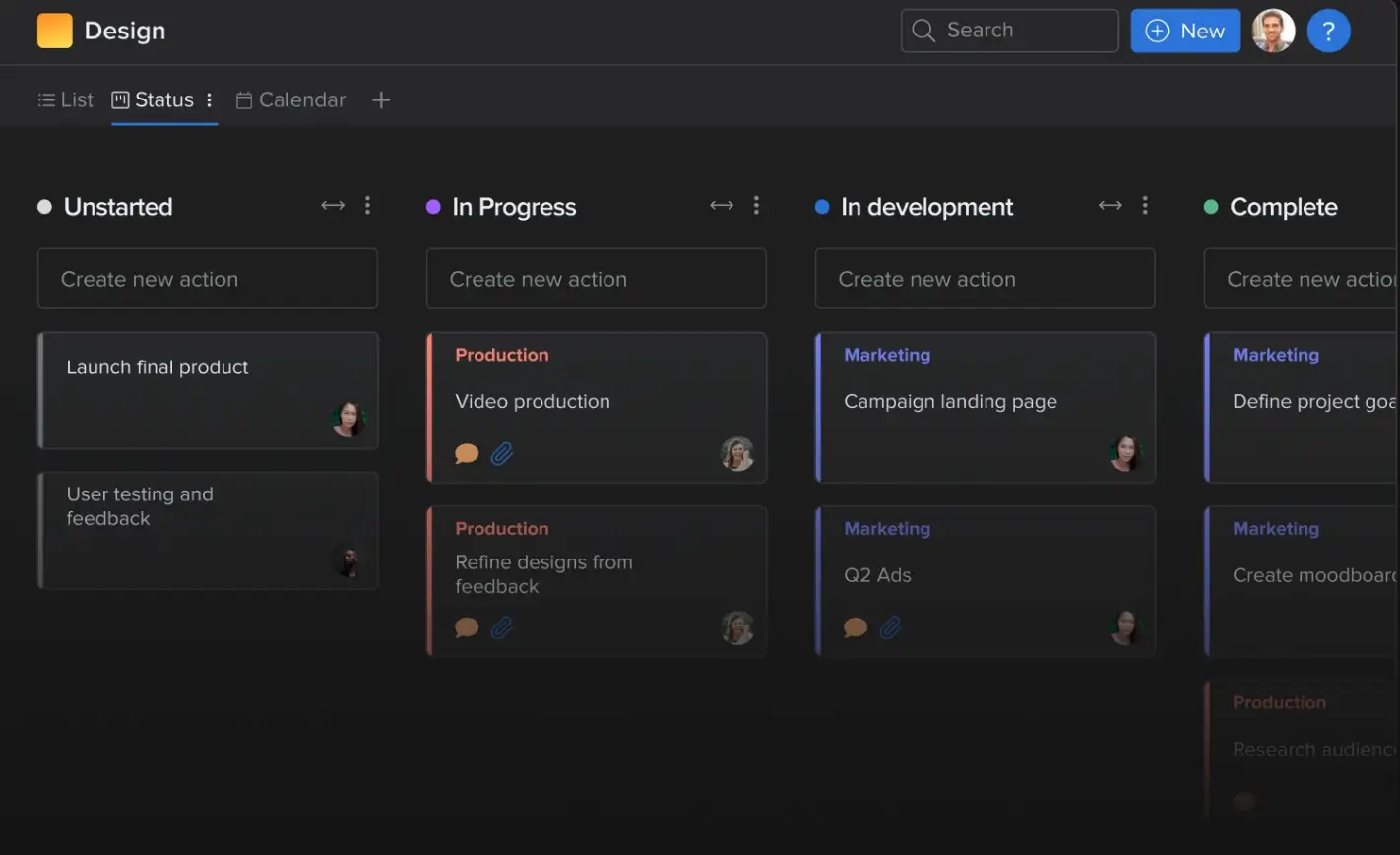
Hive is a project management and team collaboration platform designed to help teams plan, track, and complete work in one place. It combines task management, messaging, reporting, and workflow automation so teams can coordinate projects without jumping between multiple tools. Teams can organize work using different views like Kanban boards, Gantt charts, calendars, or tables, which makes it easier to track progress in the format that fits their workflow. Hive is commonly used by marketing teams, agencies, and operations teams that need flexible project planning with built-in collaboration features.
Hive pros and cons
Pros:
- Multiple project views: Teams can manage the same project through Kanban boards, Gantt charts, calendars, and tables depending on how they prefer to track work.
- Built-in collaboration tools: Messaging, comments, and file sharing are integrated into tasks so teams can discuss work without switching apps.
- Customizable workflows: Teams can create custom statuses, fields, and automations to match their internal processes.
- Reporting and analytics: Built-in dashboards help teams track project progress, workload distribution, and team productivity.
- Time tracking included: Teams can track time spent on tasks directly inside projects.
- Wide integrations ecosystem: Hive connects with tools like Slack, Zoom, and cloud storage platforms to keep work centralized.
Cons:
- The range of views, features, and configuration options can make the platform tough to learn at first.
- Teams often need to configure workflows and project structures before the system fits their processes.
- Some users report slow loading or lag when managing complex projects.
Hive best features
- Flexible project views: Teams can switch between Kanban boards, Gantt charts, calendars, tables, and timelines to visualize work in different ways.
- Native messaging and collaboration: Built-in chat and task comments allow teams to communicate directly where the work happens.
- Workflow automation: Teams can automate routine actions and create repeatable project workflows.
- Custom fields and statuses: Project managers can tailor task structures with custom labels, fields, and status types.
- Time tracking: Teams can log and monitor time spent on tasks for better project planning and reporting.
- Portfolio and reporting dashboards: Managers can track multiple projects and team performance through centralized analytics.
Hive pricing
Pricing shown reflects annual billing.
- Free: $0 (up to 10 workspace members)
- Starter: $5/user/month
- Teams: $12/user/month
- Enterprise: Custom pricing
9. Wrike — best for managing complex projects across large teams
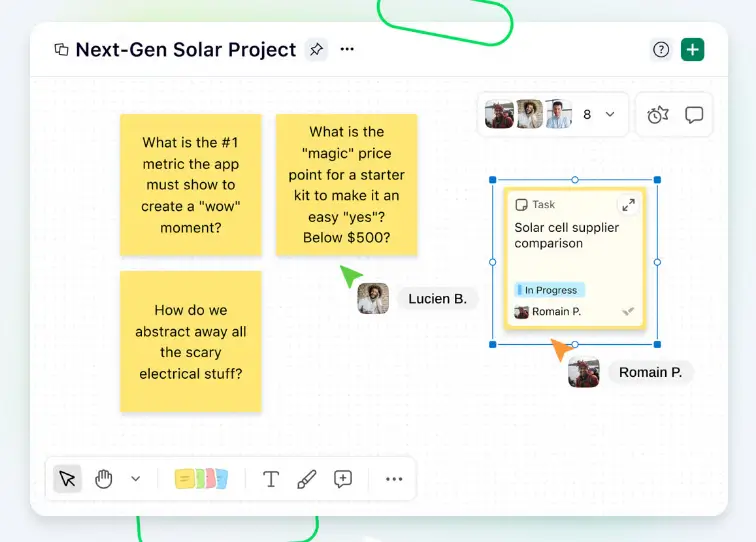
Wrike is a cloud-based work management platform built to help teams plan projects, assign work, and track progress in one place. It’s designed for organizations that need more structure than simple task trackers provide. Teams can break projects into tasks and subtasks, assign owners, set timelines, and track dependencies using views like Gantt charts, Kanban boards, and dashboards. Wrike is commonly used by marketing, operations, and IT teams managing multiple projects across departments, where visibility, resource planning, and structured workflows matter.
Wrike pros and cons
Pros:
- Flexible workflows: Teams can customize task statuses, workflows, fields, and dashboards to match their internal processes.
- Multiple project views: Gantt charts, Kanban boards, and calendars help teams visualize timelines and dependencies in different ways.
- Strong collaboration tools: Task comments, file attachments, and real-time updates help teams coordinate work without switching tools.
- Advanced reporting: Custom dashboards and reports give managers visibility into project progress, workloads, and team performance.
- Scales well for large teams: The platform is built to support complex projects and cross-department collaboration.
- Automation and integrations: Workflow automation and integrations with many business tools help reduce manual work.
Cons:
- The number of features and settings can make the platform feel overwhelming for new users.
- Many advanced features are only available on higher-tier plans or through add-ons.
- Teams often need time to configure workflows, dashboards, and notifications properly.
Wrike best features
- Custom workflows: Teams can design their own task statuses and approval flows so projects follow their real operational processes.
- Interactive Gantt charts: Project timelines and task dependencies can be visualized and adjusted directly in the Gantt chart view.
- Custom dashboards: Teams can build dashboards that track project progress, workloads, and performance metrics in real time.
- Resource planning tools: Managers can monitor team capacity and allocate work based on availability.
- Request forms: Structured intake forms allow teams to collect and route work requests automatically.
- Workflow automation: Automation rules reduce manual updates by automatically assigning tasks, changing statuses, or triggering actions.
Wrike pricing
- Free: Essential task management features
- Team: $10/user/month
- Business: $25/user/month
- Pinnacle: Custom pricing
- Apex: Custom pricing
Find the task management software that fits your needs
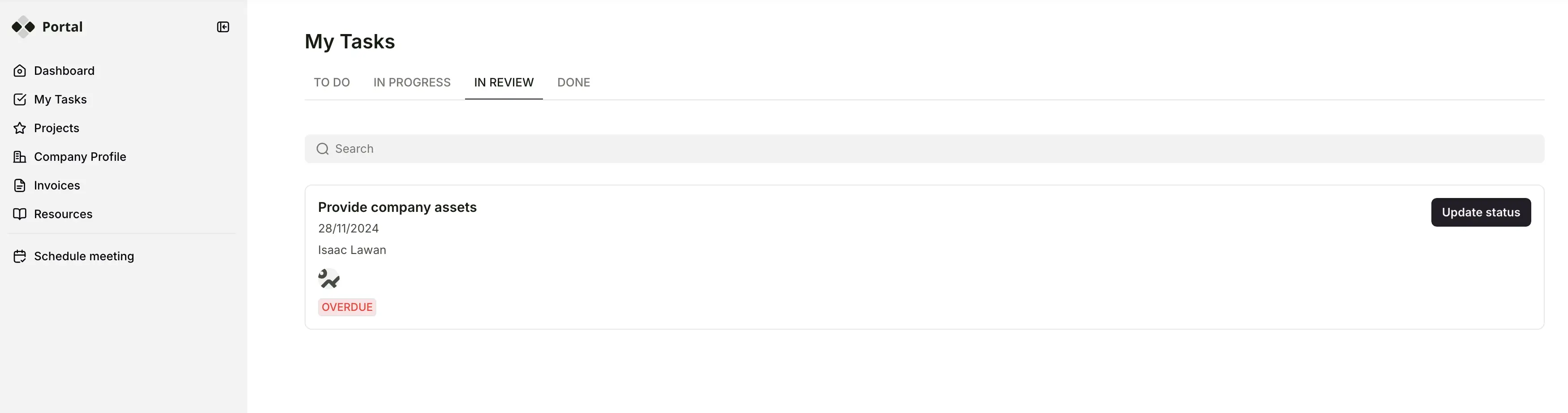
If you’ve made it this far, you’re likely trying to solve a real coordination problem. Some teams only need a simple task list. Others will benefit from an all-in-one workspace that combines projects, docs, and reporting. And when work involves complex timelines and multiple departments, highly structured project management tools can help keep plans on track.
But when tasks are tied to clients, requests, approvals, and internal processes, the biggest improvements come from connecting tasks to the systems your business already runs on.
Explore how Softr helps you build a task management dashboard that fits your team’s processes.
Frequently asked questions
What is the best task management software?
What is the 3-3-3 rule for tasks?
Does Office 365 have a task manager?