What is a workflow trigger? A beginner's guide to automation


Every automation starts with one question: what should make this run?
Maybe a client submits a form, or a lead gets added to your CRM, or a project status changes to Done. Maybe a Calendly meeting gets booked, a support email arrives, or a payment tool sends an update.
Whatever the starting event is, it’s called a workflow trigger. It’s the signal that tells an automation, "Start now." Once that trigger happens, the workflow can do things like update data, send emails, notify Slack, call AI, create records, branch into different paths, or connect to another tool.
This guide explains workflow triggers in plain language, using examples from business apps and Softr Workflows.
What is Softr?
Softr is an AI-native platform for building business software without code. You just describe the app you need to the AI Co-Builder, and it’ll generate the database, app pages, user roles, navigation, and business logic for you. You can also start from a template or build manually with visual controls.
Workflows are part of that same system. You can build them manually by choosing a trigger and adding actions, or you can ask the Workflow AI Co-Builder to generate the first version from a plain-language prompt.
For example, you might input: "When a new product feedback record is added, categorize it with AI, update the category field, and notify the right Slack channel." Softr can draft the workflow, and you can inspect or edit every step visually.
This combination matters because most business apps aren’t just screens and tables. They need logic: alerts, approvals, follow-ups, AI processing, data updates, and connections to the tools your team already uses.
What is a workflow trigger?
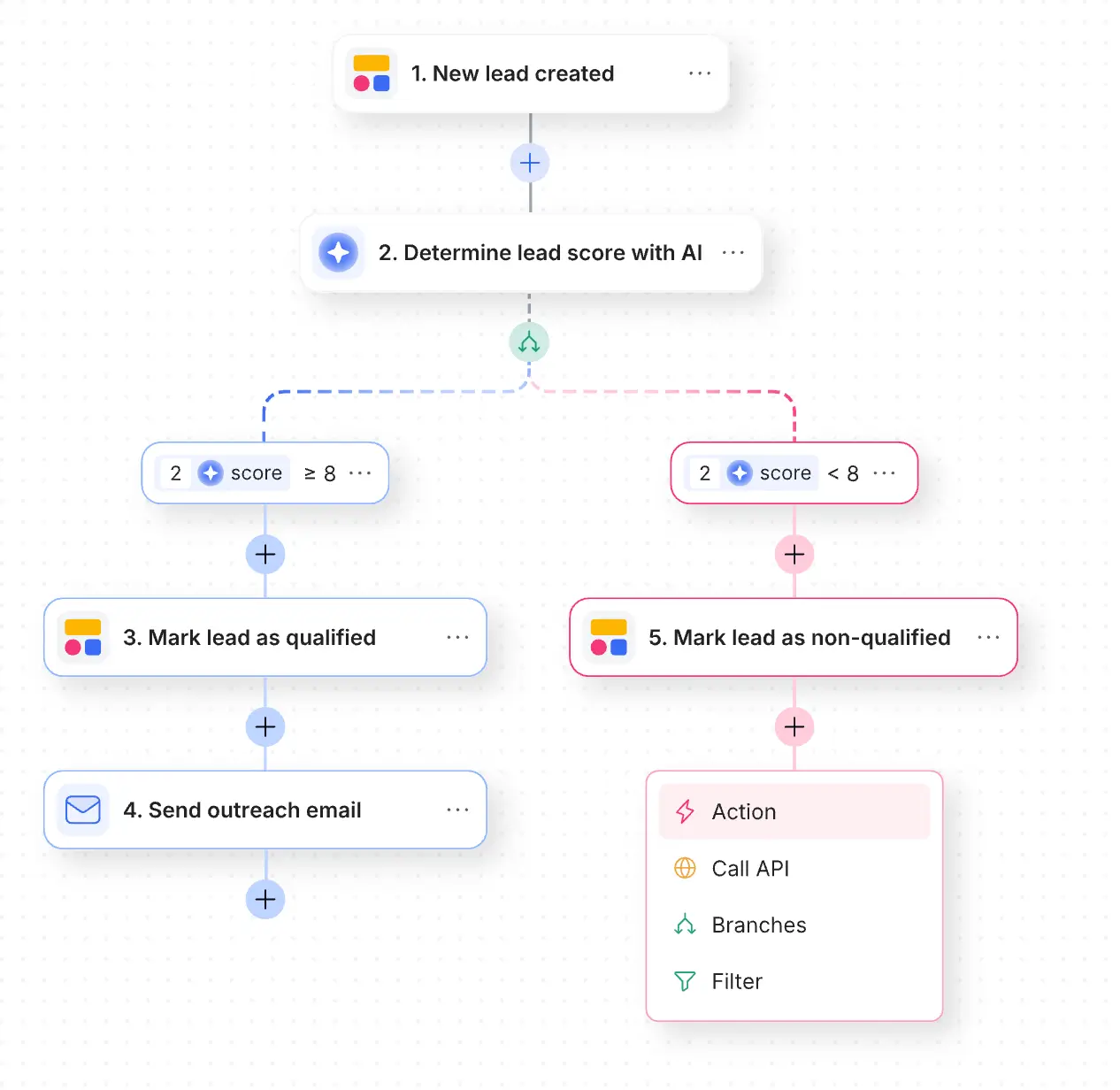
A workflow trigger is the event or condition that starts an automation. In Softr's live session on workflows, Romain Minaud, Product Manager at Softr, described the trigger as the core of a workflow. It can be an event, a condition, a schedule, or a manual action that launches a sequence of steps.
Here are a few simple examples:
| When this happens | The workflow starts |
|---|---|
| A new lead is added | Assign the lead and notify sales |
| A user submits a form | Process the form and show a success message |
| A project status becomes Done | Update all related tasks |
| A customer sends an email | Log it and summarize it with AI |
| Every Monday at 9 AM | Send a weekly report |
| Stripe sends a payment event | Update subscription status |
The trigger doesn’t do all the work; it only starts the workflow. The steps that happen as a result of the trigger are called actions.
Trigger vs. action
A trigger sparks the workflow. An action does something after the workflow has started. Here’s a table that breaks it down more clearly:
| Concept | Question it answers | Example |
|---|---|---|
| Trigger | When should the workflow run? | A feedback record is added |
| Action | What should happen after that? | AI categorizes the feedback |
Now let’s look at an example workflow in Softr, with the inciting trigger and all the actions that follow.
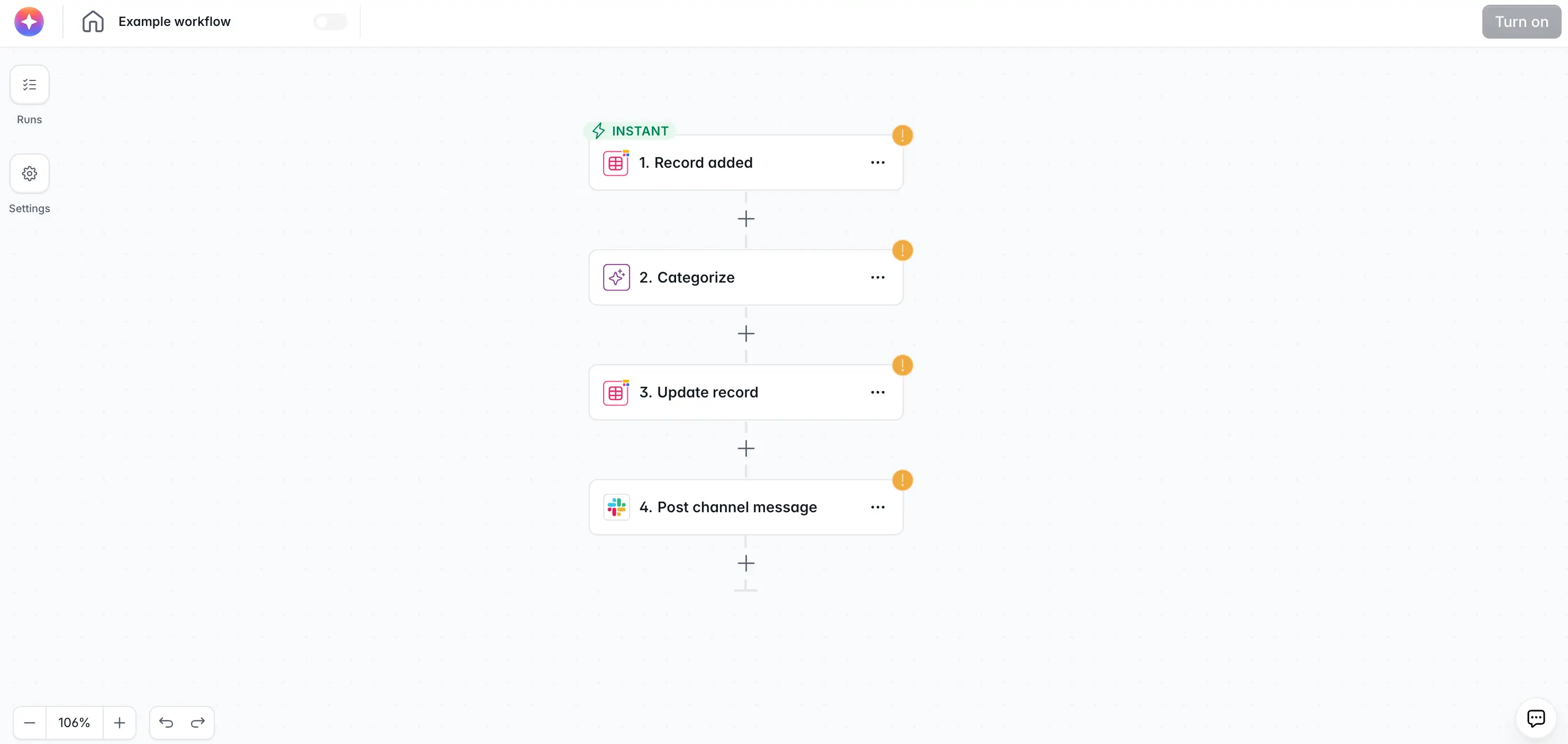
- Trigger: A new feedback record is added to a database.
- Action: AI categorizes it as a bug or feature request.
- Action: The workflow updates the record with the category.
- Action: The workflow sends a Slack message to the right team.
This is why choosing the right trigger matters. If the workflow starts too early, too late, or too often, the rest of the automation becomes significantly harder to manage.
Common types of workflow triggers
Most workflow triggers fall into one of the few practical categories below.
Data source triggers
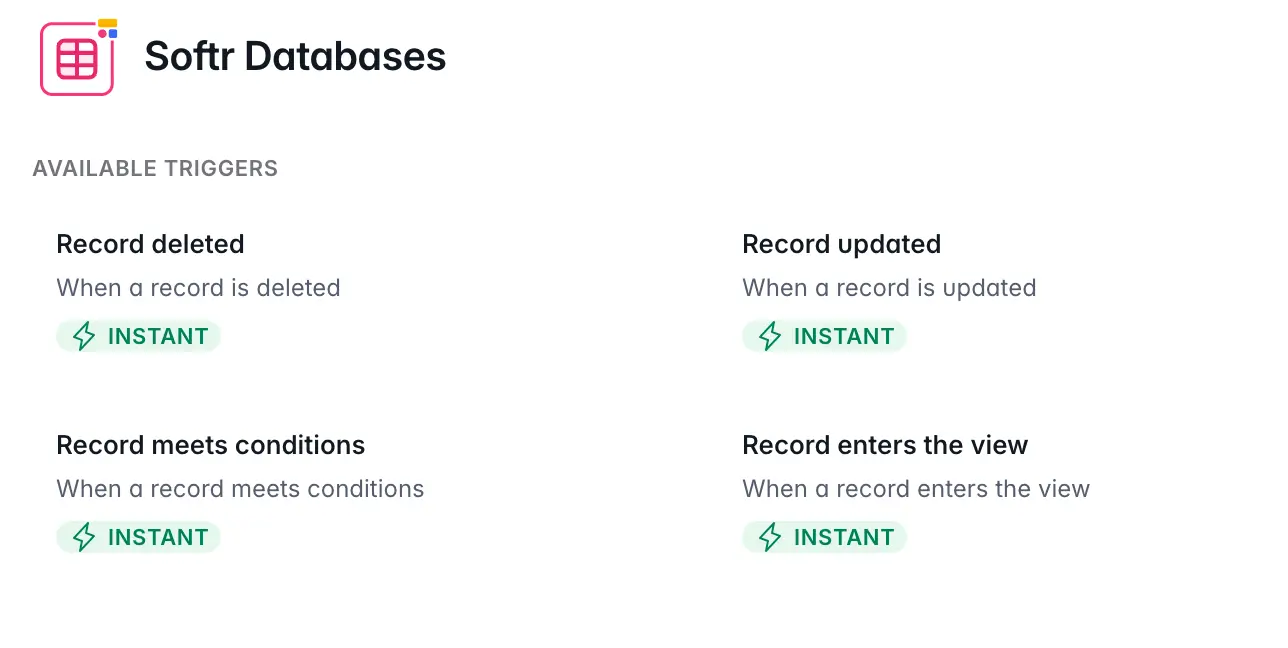
Data source triggers run whenever data changes. Example changes include:
- A record is added to a database
- A record is updated
- A record matches a condition
- A record is deleted
- A row is added to a spreadsheet
- A page is updated in Notion
Use data source triggers when the database is the source of truth for your process.
Let’s say that a customer submits feedback In a product feedback portal, causing a new record to appear in your database. That record creation can trigger a workflow that categorizes the feedback with AI, updates the category field, and notifies the product team about next steps.
In Softr, native Softr Database triggers are instant. That means the workflow starts as soon as a record changes, without waiting for an external tool to check for updates. External data sources like Airtable, Google Sheets, and Notion are useful too, but they often rely on polling, which means the workflow checks for changes at certain intervals.
App and UI triggers
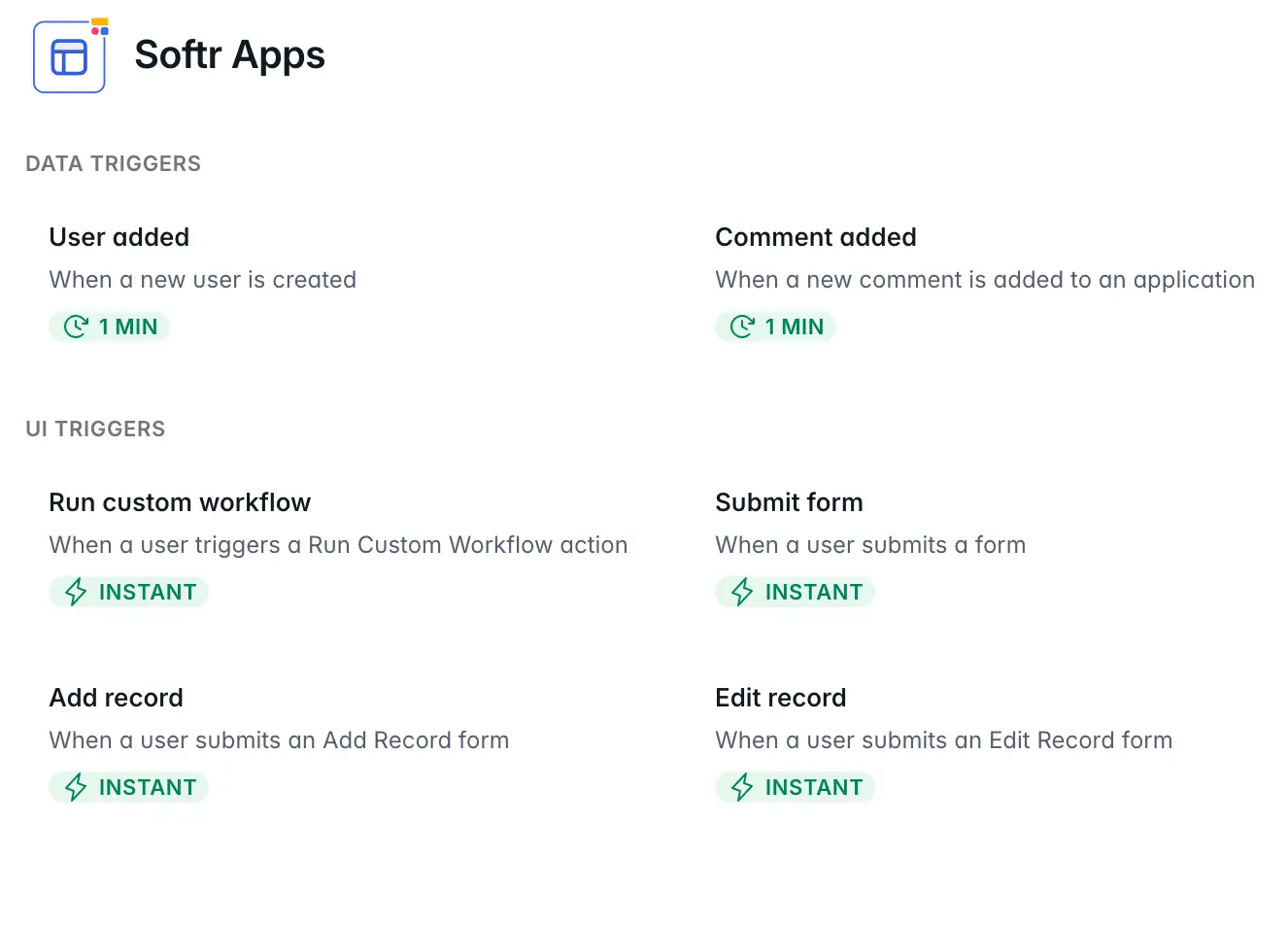
App and UI triggers run when an end user does something inside your app. For example:
- A user submits a form
- A user clicks a button
- A user creates a record from the app interface
- A user updates a record from the app interface
These triggers are especially useful because they can be connected to the user experience. In Softr, app-triggered workflows can show a wait screen while the workflow runs, then show a success message, redirect the user, or refresh the page.
This is key for business apps. If a user submits a meeting transcript and AI begins extracting tasks, they shouldn’t be left wondering whether anything happened. The app can show "Analyzing transcript..." while the workflow runs, then send them to the generated task list upon completion.
Schedule triggers
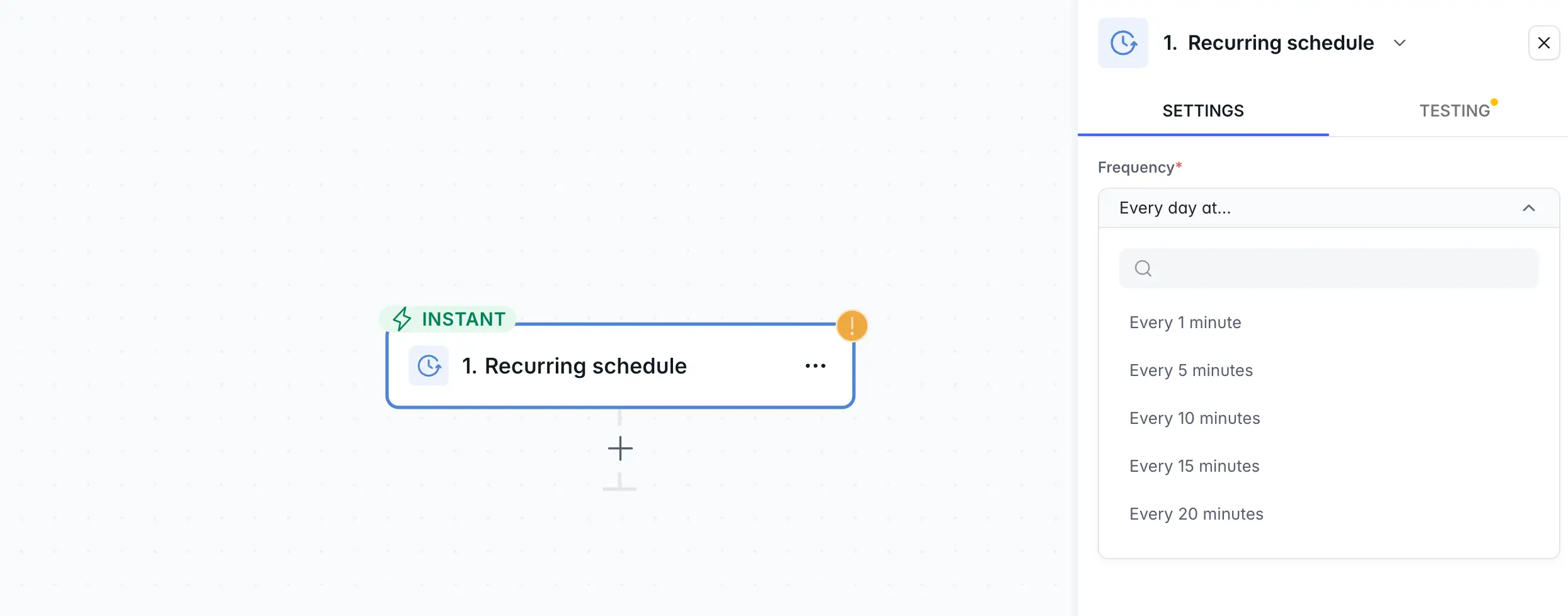
Schedule triggers run at a specific time or on a repeating schedule. Examples include:
- Every weekday at 9 AM
- Every Monday morning
- Once on a specific date
- Every month on the first day
Use schedule triggers for routines that do not depend on a user action, like sending a weekly digest of open client requests, generating a monthly report, or checking overdue tasks every morning. This removes the need for recurring manual checks.
Webhook triggers
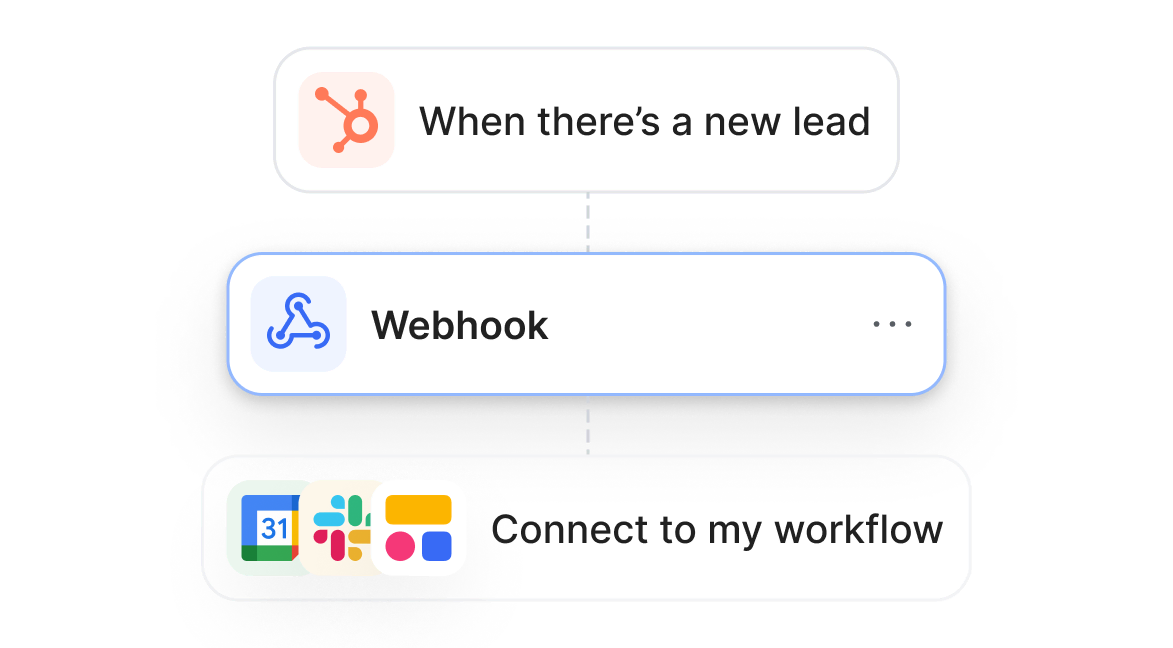
Webhook triggers run when another app sends data to your workflow through a unique URL. Here’s what that might look like in practice:
- Stripe sends a payment event
- Typeform sends a form submission
- A meeting recorder sends a transcript
- A custom internal tool sends data
- A Vibe Coding block sends user input to a Softr workflow
Webhooks are kind of like a phone number for software. You give another app the webhook URL, and that app calls it when something happens. Softr then receives the request and starts the workflow. These triggers are useful when no native integration exists between apps, or when you want another system to start a workflow instantly.
Email and calendar triggers
Some triggers start from communication or scheduling tools.
Examples:
- A Gmail email is received
- An email arrives at a Softr inbound email address
- A Calendly invitee schedules a meeting
- A Calendly invitee cancels or no-shows
Triggers like these become important when a business process begins at the inbox or calendar. Say a sales prospect books a demo in Calendly. The workflow creates a CRM activity, notifies the assigned sales rep, and sends a prep email with the prospect's details.
Why triggers matter in business apps
Workflow triggers determine how responsive your app feels, how reliable your automation is, and how much manual work your team avoids. Here are the main reasons they matter.
They connect the app to the process
Without triggers, a business app is really just a place where data sits. With triggers, the app can react to change.
A CRM can notify sales when a lead is created, a client portal can alert the team when a client comments, an HR app can send onboarding emails when a new employee is added, and an inventory app can create a purchase request when stock drops below a threshold. You get the idea.
They reduce disconnected work
Teams often use one tool for their interface, another for their database, another for automation, and another for AI. That creates workflow delays and can lead to debugging and troubleshooting.
Because Softr Workflows are native to Softr, triggers respond to app actions and database changes directly. They use the same records, user context, and permissions as the app. For UI-connected workflows, they can even respond to the user while the workflow runs.
They make AI useful inside operations
AI becomes more useful when it runs at the right moment. Here’s what that might look like:
- When a support ticket is created, AI categorizes it.
- When a meeting transcript is submitted, AI extracts tasks.
- When a lead arrives, AI enriches the company.
- When a content request is marked ready, AI selects the relevant internal guidelines.
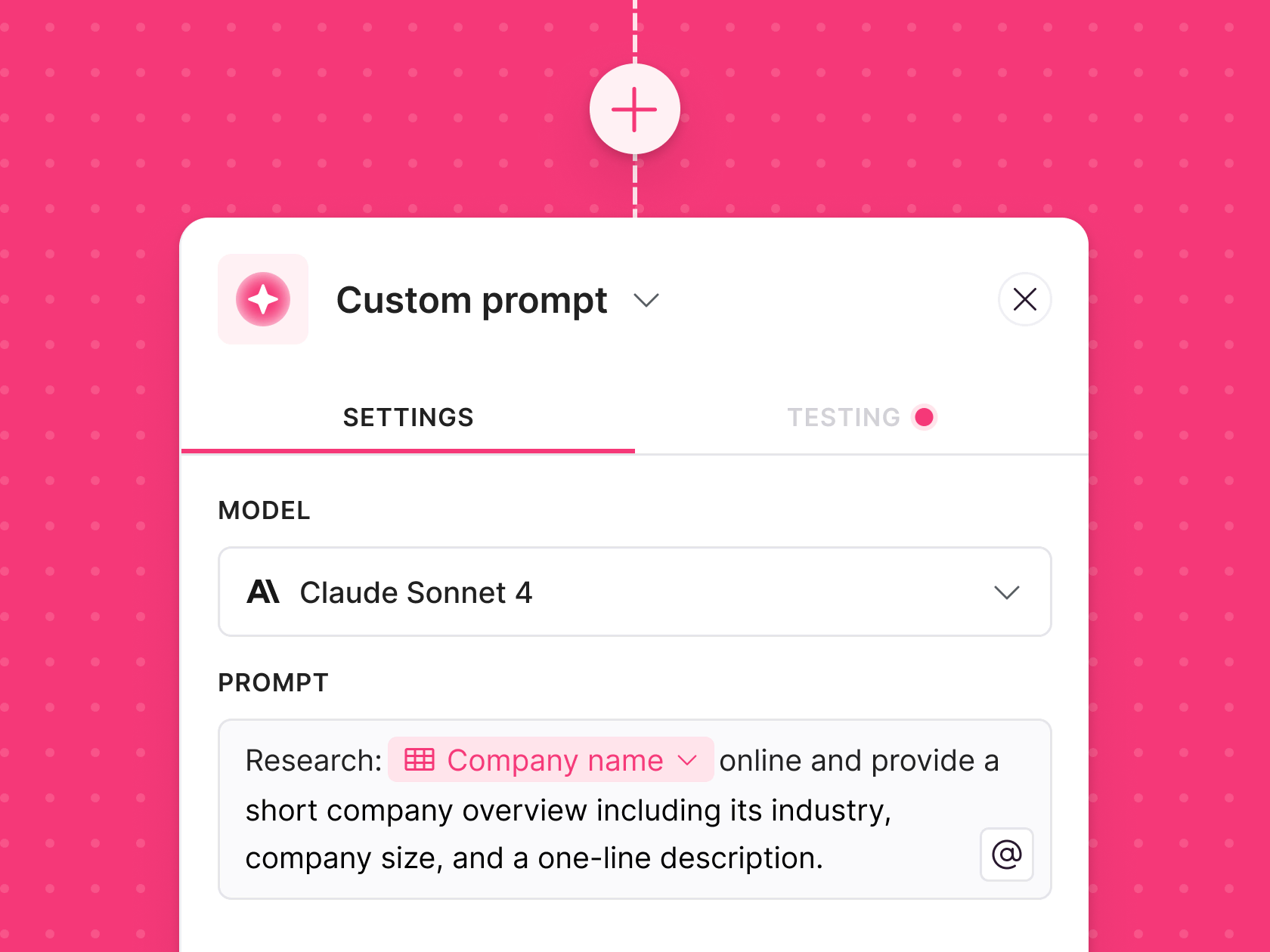
The trigger gives AI the right timing, and the workflow gives AI the right next steps.
How triggers function in Softr Workflows
Every Softr workflow starts with exactly one trigger. After choosing that trigger, you add actions. In the workflow builder, you can start in one of three ways:
- From scratch: Choose the trigger and actions manually.
- From a template: Start from a prebuilt automation and customize it.
- With AI: Ask the AI Co-Builder to create the workflow from a prompt.
With the trigger selected, you configure its settings. For a data source trigger, that usually means choosing the account, database, and table it connects to. For an app trigger, it means choosing the app and form or button. For a webhook trigger, Softr generates a URL. And for a schedule trigger, you choose the timing.
You can also test the trigger before it becomes active. For event-based triggers, create a real test event first, such as submitting a form, clicking a button, adding a record, or updating a field. Then use the Testing panel to pull in sample data and configure next steps.
What data does a trigger provide?
The trigger usually gives your workflow the first set of data it can use later.
- A form trigger gives the submitted fields
- A button trigger can pass the clicked record
- A database trigger gives the record that changed
- A webhook trigger gives the incoming body, headers, and query values
- A Calendly trigger gives meeting event data
This data becomes available as variables in later actions. For example, a Slack message can include the submitter's email, the feedback description, the record URL, or an AI-generated category.
This is one of the practical details that makes workflows useful. The trigger doesn’t just start the workflow, but also gives the workflow context.
How to choose the right workflow trigger
Start with the real-world event, not the tool. Ask yourself: "What is the first thing that signals this process should start?"
If the process starts when data changes
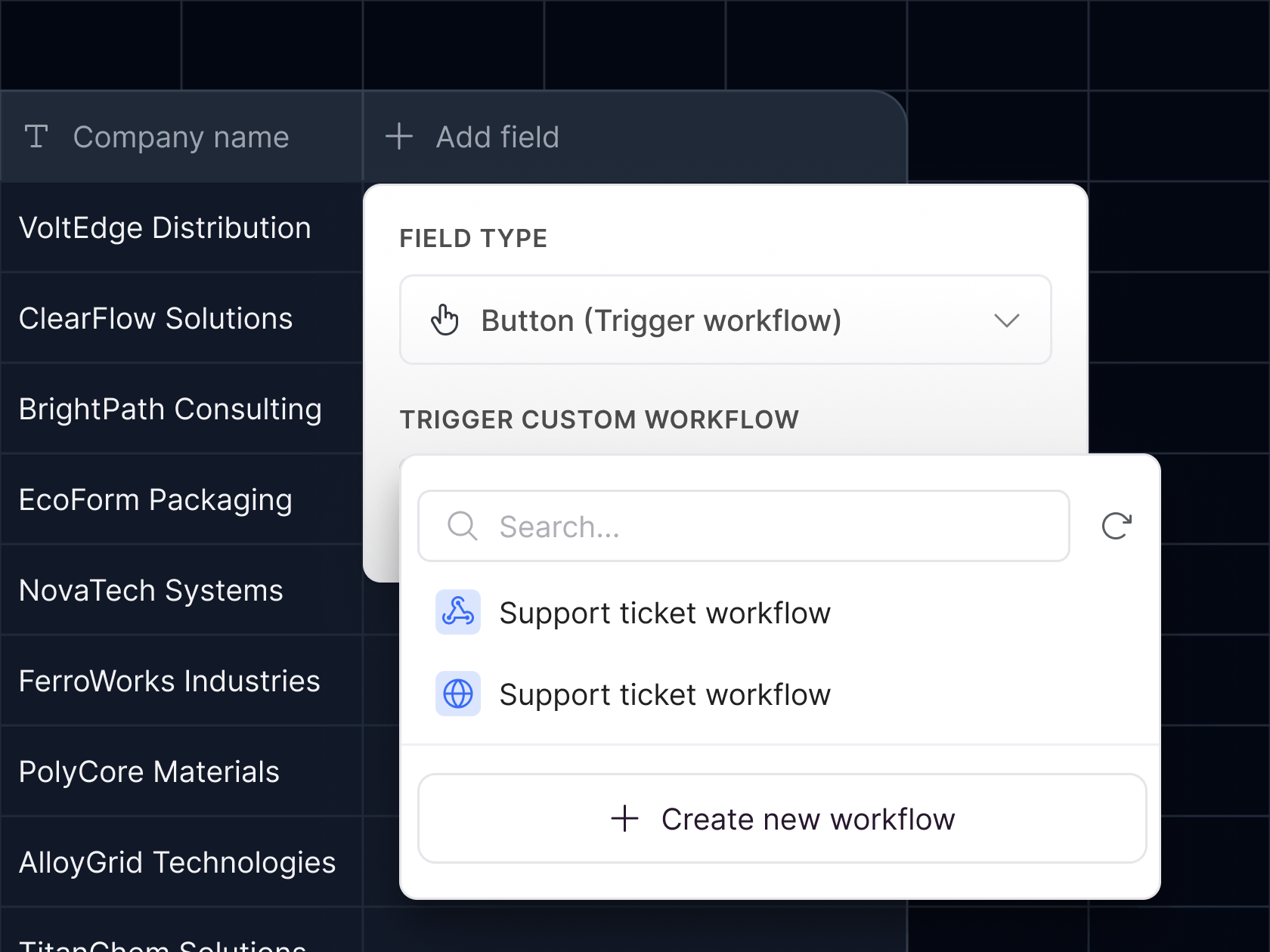
Use a data source trigger. Examples include:
- New lead added
- Request approved
- Project marked done
- Feedback submitted
- Inventory below threshold
If the app is built in Softr, use Softr Databases when possible. Native database triggers are instant and easier to maintain because your app, data, permissions, and workflow logic live together.
If the process starts when a user acts in the app
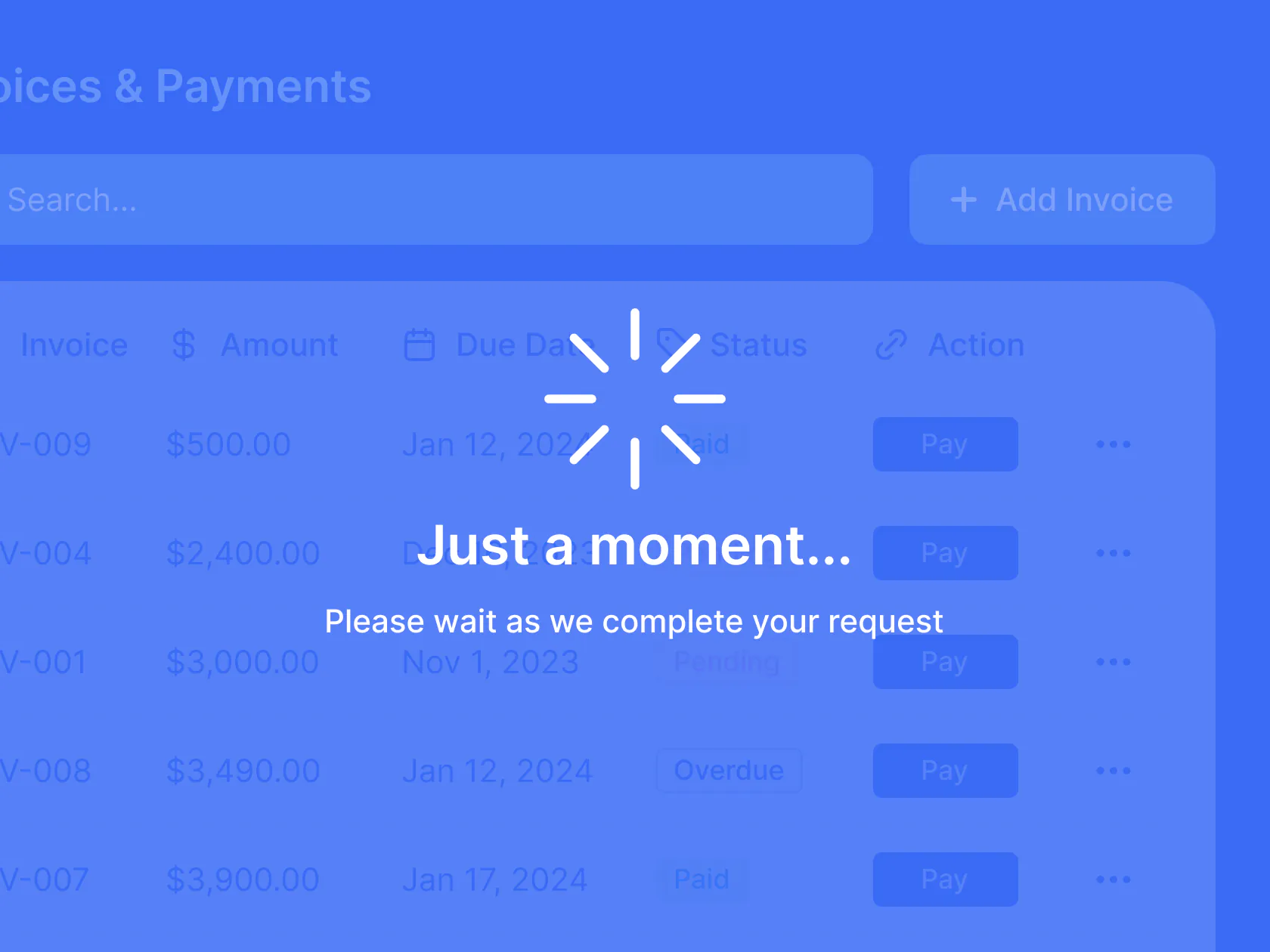
Use an app or UI trigger. Examples include:
- User submits a form
- User clicks Generate summary
- User clicks Upvote
- User edits a record from the app
This is the best choice when the user should see progress, a success message, a redirect, or refreshed data.
If the process starts in another app
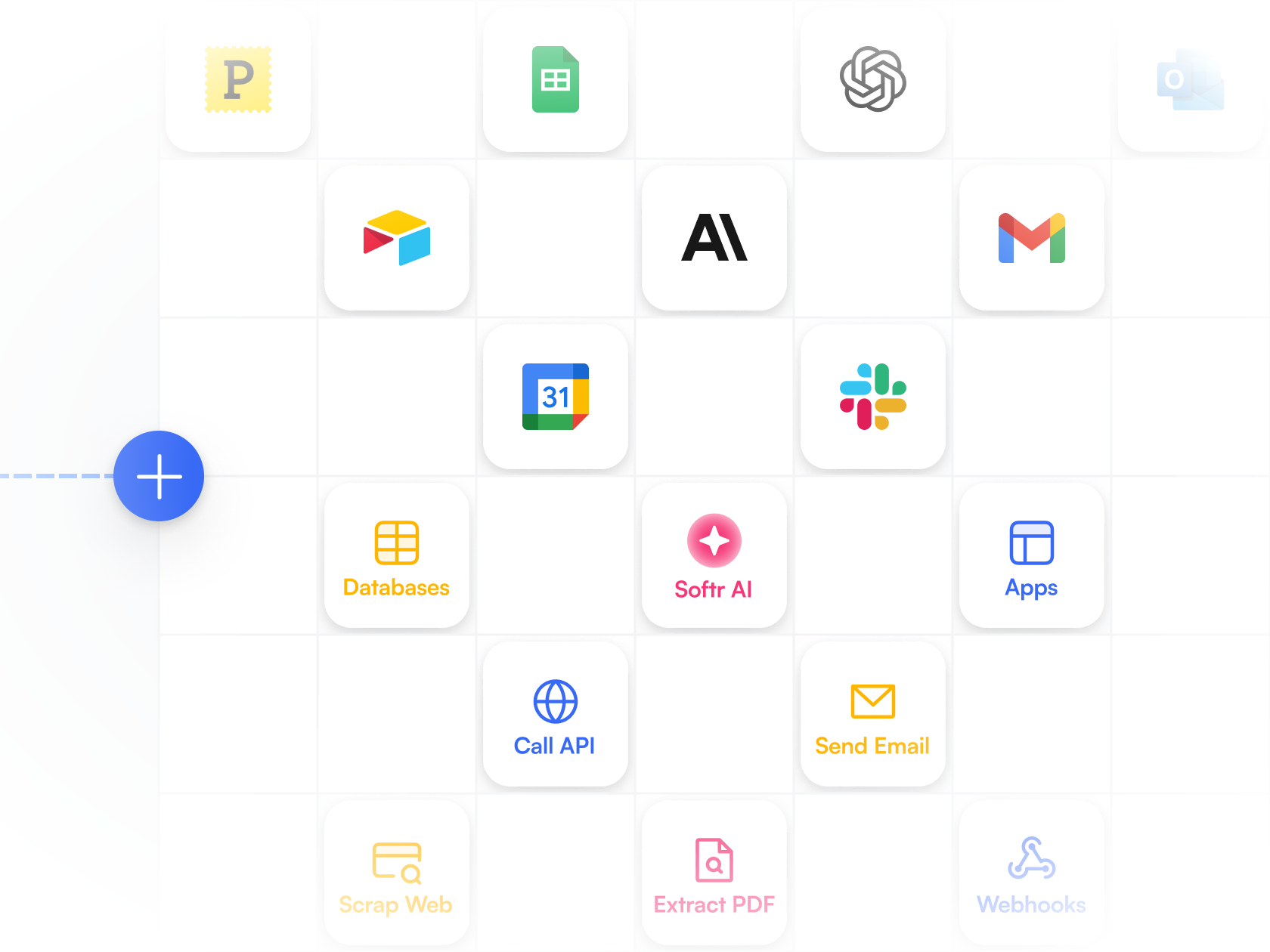
Use a webhook or integration trigger. Examples include:
- Stripe payment event
- Calendly booking
- Gmail email received
- External form submission
- Meeting recorder transcript
Use webhooks when the other tool can send data to a URL. Use native integration triggers when Softr already supports the tool.
If the process starts at a specific time
Use a schedule trigger. Examples include:
- Daily digest
- Weekly report
- Monthly cleanup
- One-time reminder
Schedules are ideal for recurring operations.
Common mistakes to avoid
Using a background trigger for an interactive flow:
If a user submits a form and expects a response, do not treat it like a silent background process. Use an app trigger so you can show feedback while the workflow runs.
Using a broad update trigger for a narrow condition:
If you only care when Status becomes Approved, don’t run a workflow on every update unless you add a filter. Use a condition-based trigger when available, or stop the workflow early with a Filter action.
Forgetting the trigger data:
A good trigger gives your workflow the context it needs. If your next steps require a record ID, user email, or submitted field, check that your trigger provides it or that you can look it up in the next action.
Ignoring timing:
Instant triggers are best for time-sensitive workflows. Polling triggers are fine for many background tasks, but they may not be the right fit when a user is waiting.
Start building workflows in Softr
A trigger is the starting line of your automation. It defines the moment when Softr should stop waiting and start doing.
Once you know what that precise moment is, the rest becomes simple: add the actions, map the variables, test the workflow, and turn it on. You can do that manually in the visual builder, or ask the AI Co-Builder to add steps from your plain-language description.
👉 Try Softr free and start building business workflows today.
Frequently asked questions
Can a workflow run without a trigger?
Can one workflow have multiple triggers?
What is the difference between a trigger and an action?
What is the best trigger for a form submission?