
[.blog-callout]
TL;DR
- A rollup field in Airtable aggregates data from linked records, using functions like
SUM,AVERAGE, orCOUNTto turn many related rows into a single number. - You first need to link your tables, then create a new field, set its type to Rollup, pick the source table and field, and choose an aggregation formula.
- Rollups are great for calculations like total sales per account or average interactions per rep, but they live inside the spreadsheet and are not built for sharing.
- To turn that aggregated data into a live dashboard your team or clients can actually use, connect your base to Softr and display it in charts, metric cards, and secure filtered tables. [.blog-callout]
Rollup fields in Airtable let you perform calculations across linked records, so you can aggregate data from different tables and use functions like SUM, AVERAGE, or COUNT to surface insights. Instead of manually tallying numbers across rows, the rollup keeps a running calculation that updates whenever the underlying records change.
Common examples include calculating the total sales from a set of invoices, finding the average rating across multiple customer reviews, or counting the number of attendees across different events. If you run operations for a lean team, this is how you keep a single source of truth without exporting data into yet another sheet.
In this guide, you'll learn how to create and use rollup fields through step-by-step instructions. We'll work with an Airtable base built around a few related tables (Opportunities, Interactions, Accounts, Contacts, and Sales Rep), and at the end we'll look at how to take those aggregated numbers and put them in front of your team in a real internal tool.
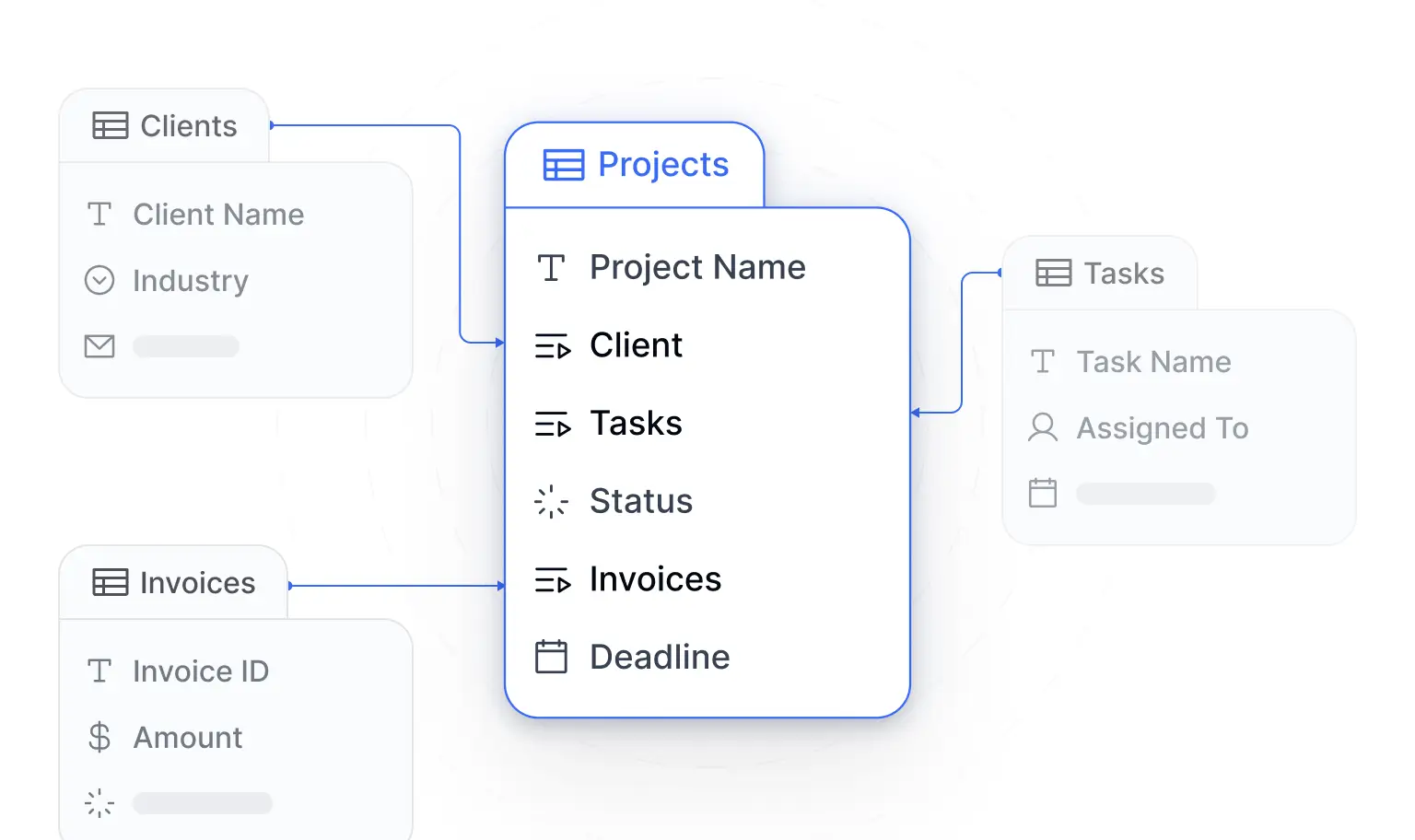
Where Softr fits in
Airtable is one of 21+ data sources you can build a real business app on with Softr, alongside Google Sheets, HubSpot, a REST API connector, and our own native Softr Databases. A rollup field is perfect for crunching aggregated numbers, but the spreadsheet grid is not where your team should be reading them. With Softr, you connect your base once and turn those rollups into a secure dashboard or portal, with charts, metric cards, and tables that each user sees according to their permissions.
"Using related fields is the way to make your data structure as robust and scalable as possible. It is way better, way more organized and structured than Excel." - Guillaume Duvernay, builder at Softr
Step 1: Make sure that your tables are linked
In order to create rollup fields, you first need to link tables. This enables you to connect related data across different tables, allowing for more complex and insightful analyses.
For our example, we will link the records in the Owner field in the Opportunities table with the records of the table Sales Rep.
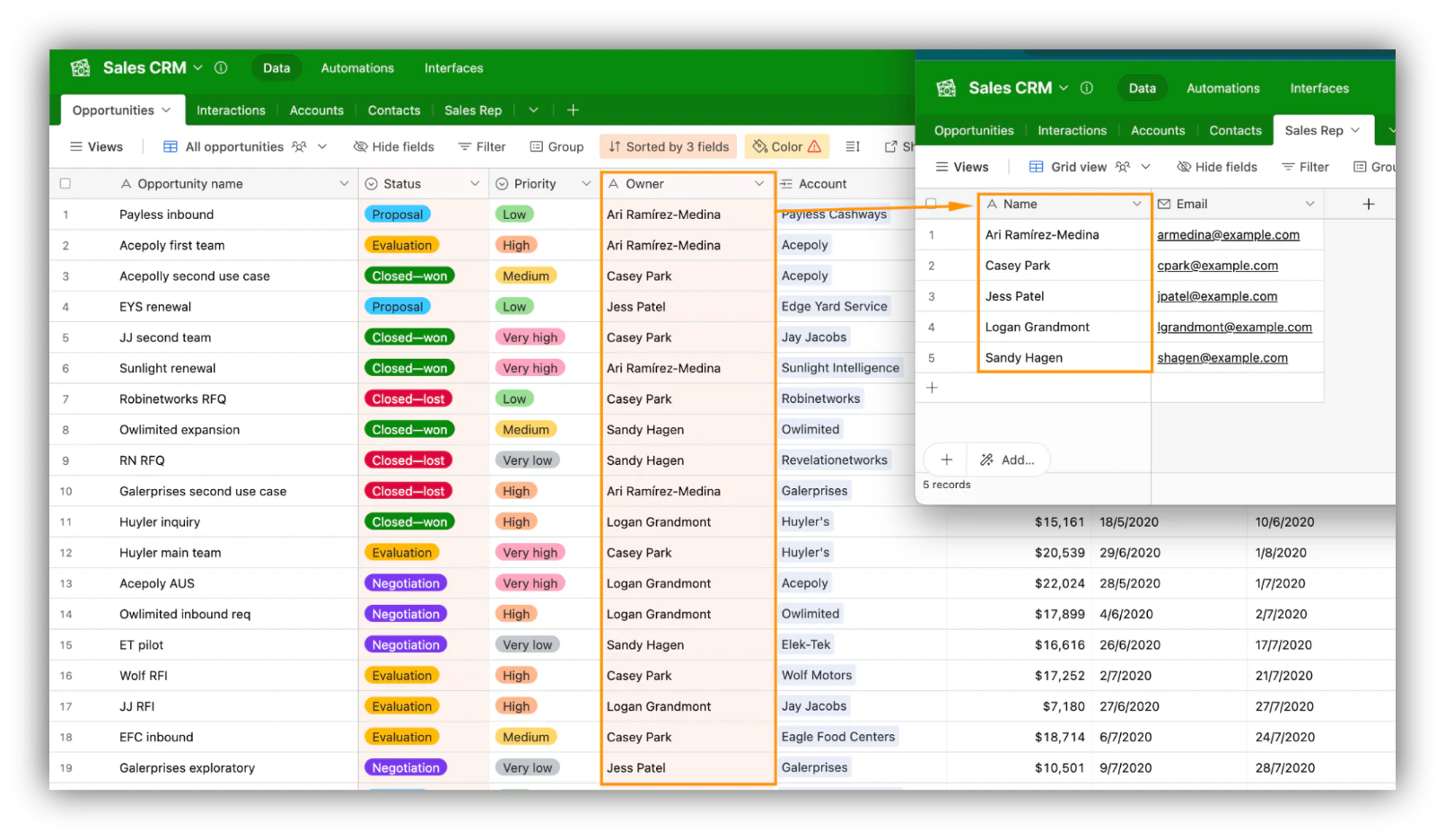
Step 1.1: Edit the chosen field
Navigate to the "Opportunities" table and find the "Owner" field. Click on the arrow next to the field name to access the field options. Select the "Edit field" option to modify the field settings.

Step 1.2: Edit the field type
In the field settings, choose the "Link to another record" option. This will allow you to connect the "Owner" field to another table.

Step 1.3: Select the "Sales Rep" Table
Choose the "Sales Rep" table from the list of available tables and hit "Save."

Once you've completed these steps, you'll notice that Airtable has automatically created a column called "Opportunities" in the "Sales Rep" table. This column lists each sales representative's opportunities, reflecting the link you've just created.

By linking the tables in this way, you've set the foundation for creating a rollup field that can aggregate data across these connected records. It's a vital step that ensures the integrity and functionality of the rollup field you're about to create.
Step 2: Create a new field
In order to set up a rollup field in Airtable, you now need to create a new field where the rolled-up data will be displayed. In our example, we will use a rollup field to calculate the average number of interactions per opportunity for each sales representative.
Navigate to the table where you want to roll up the data, click on the plus (+) button to add a new field and choose a name for this new column.
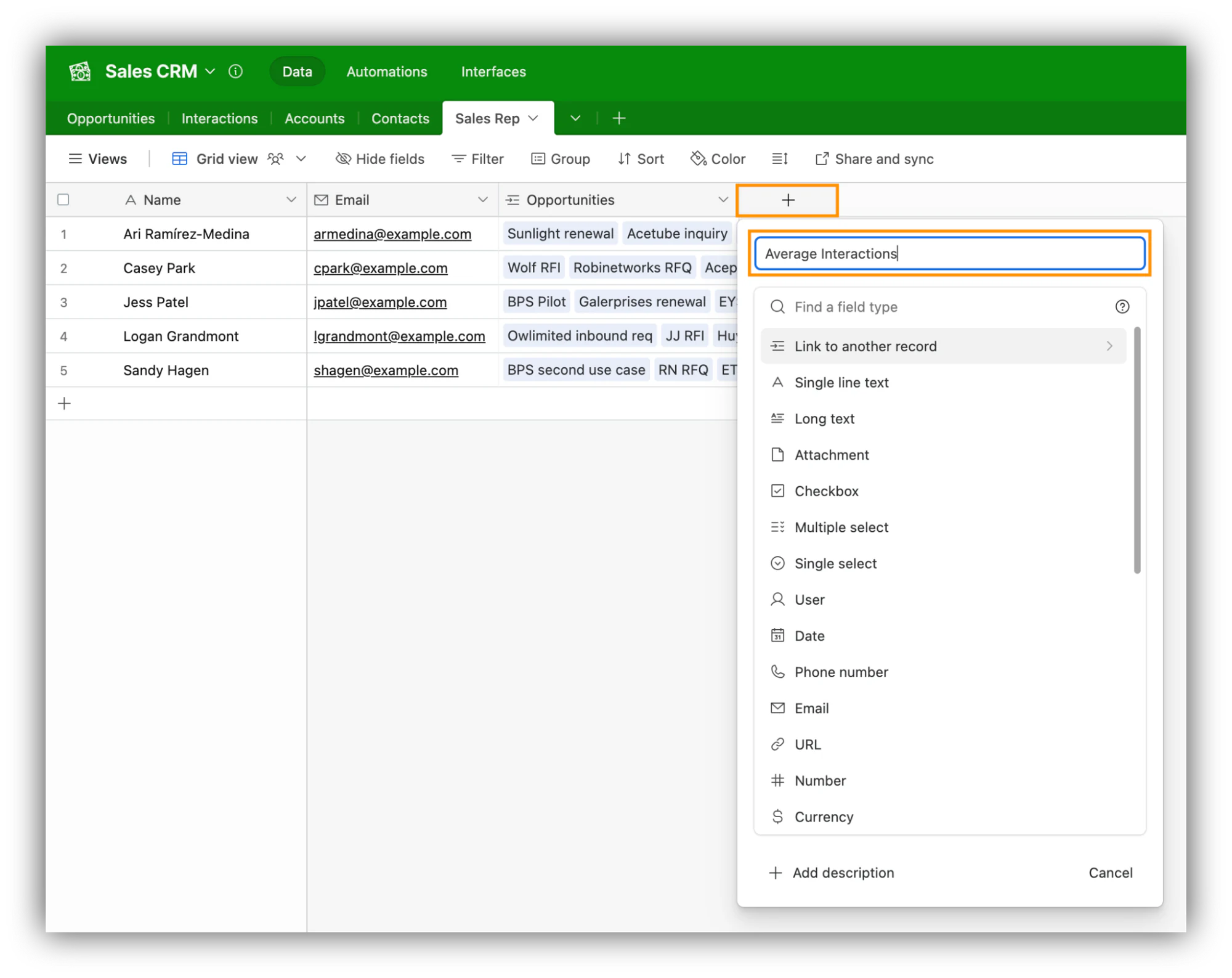
Step 3: Choose the “Rollup” field type
Now you'll need to define its type as a rollup field. This tells Airtable that you want to use this field to aggregate data from linked records.
In the list of field types, browse through the options and find the "Rollup" field type.
You can scroll through the list of field types or just click the search bar and type “rollup” to filter the list.

Step 4: Select the source and field to roll up
Now you need to select the source and the specific field to roll up so that you define exactly what data you want to aggregate. Follow the next steps to do so.
Step 4.1: Select the Rollup Source
After choosing the "Rollup" field type, you'll need to select the source by choosing the desired table from the list. In our example, the only table linked to "Sales Rep" is "Opportunities," so Airtable automatically chooses this option.
If Airtable didn’t automatically select the linked table, you’ll have to choose from the dropdown list.

Step 4.2: Choose the Field to Roll Up
Once the source table is selected, you'll need to specify which field from that table you want to roll up. Click on the option to choose a field and select the desired field name from the dropdown list.

By selecting both the source and the specific field to roll up, you've provided Airtable with the necessary information to aggregate the data correctly.
Pro tip: If you want to include only records that meet certain criteria, you'll need to activate that option and set the conditions. This allows you to filter the data that gets rolled up, providing more precise results.

Step 5: Choose a formula
Airtable will prompt you to write the aggregation formula. Once you start writing, a list of formulas will appear for you to select. Here's a breakdown of some commonly used formulas and what each does:
- AND: evaluates if all given conditions are true, returning a true or false result;
- ARRAYCOMPACT: cleans the array by removing any empty or null values, preserving only meaningful data;
- ARRAYJOIN: combines all elements of an array into a single string, separated by commas;
- ARRAYUNIQUE: filters the array to include only unique values, removing any duplicates;
- AVERAGE: calculates the arithmetic mean of a set of numbers, providing an average value;
- CONCATENATE: merges multiple text values into one continuous string;
- COUNT: tallies the number of non-empty numeric values within a set;
- COUNTA: counts all non-empty values, regardless of whether they are numeric or text;
- COUNTALL: provides a total count of linked records, including empty ones;
- MAX: identifies the largest numerical value within a given set;
- MIN: finds the smallest numerical value within a given set;
- OR: returns true if at least one of the given conditions is true;
- SUM: adds together numerical values to provide a total sum;
- XOR: returns true if an odd number of conditions are true, otherwise false.

Step 6: Click “Create field”
Once you've confirmed all the settings, look for the "Create Field" button located at the bottom of the dialog box or settings panel. Clicking this button will finalize the creation of the rollup field, adding it to your table.

Step 7: You’ve created the rollup field
With the rollup field now created, you can see it in action within your table, dynamically calculating the values based on the linked records and the formula you've chosen. In our example, it calculates the average number of interactions per opportunity for each sales representative, giving you a quick read on their activity.

Turn your rollup data into a dashboard your team can use
A rollup is a great calculation, but it lives inside a spreadsheet grid that was never designed for sharing. In Airtable, filters, sorting, and hidden columns are global, so the moment two people open the same base they start overwriting each other's views. That is fine for one person crunching numbers, but it breaks down the moment a spreadsheet becomes the weekly operational backbone for two or more people.
This is where Softr comes in. You connect your Airtable base (one of 21+ data sources Softr supports, alongside Google Sheets, HubSpot, a REST API connector, and native Softr Databases), and your rollup and linked fields come through automatically. From there you can build a no-code dashboard with charts and metric cards that read straight from your aggregated data, and every viewer gets their own independent, permission-aware view.
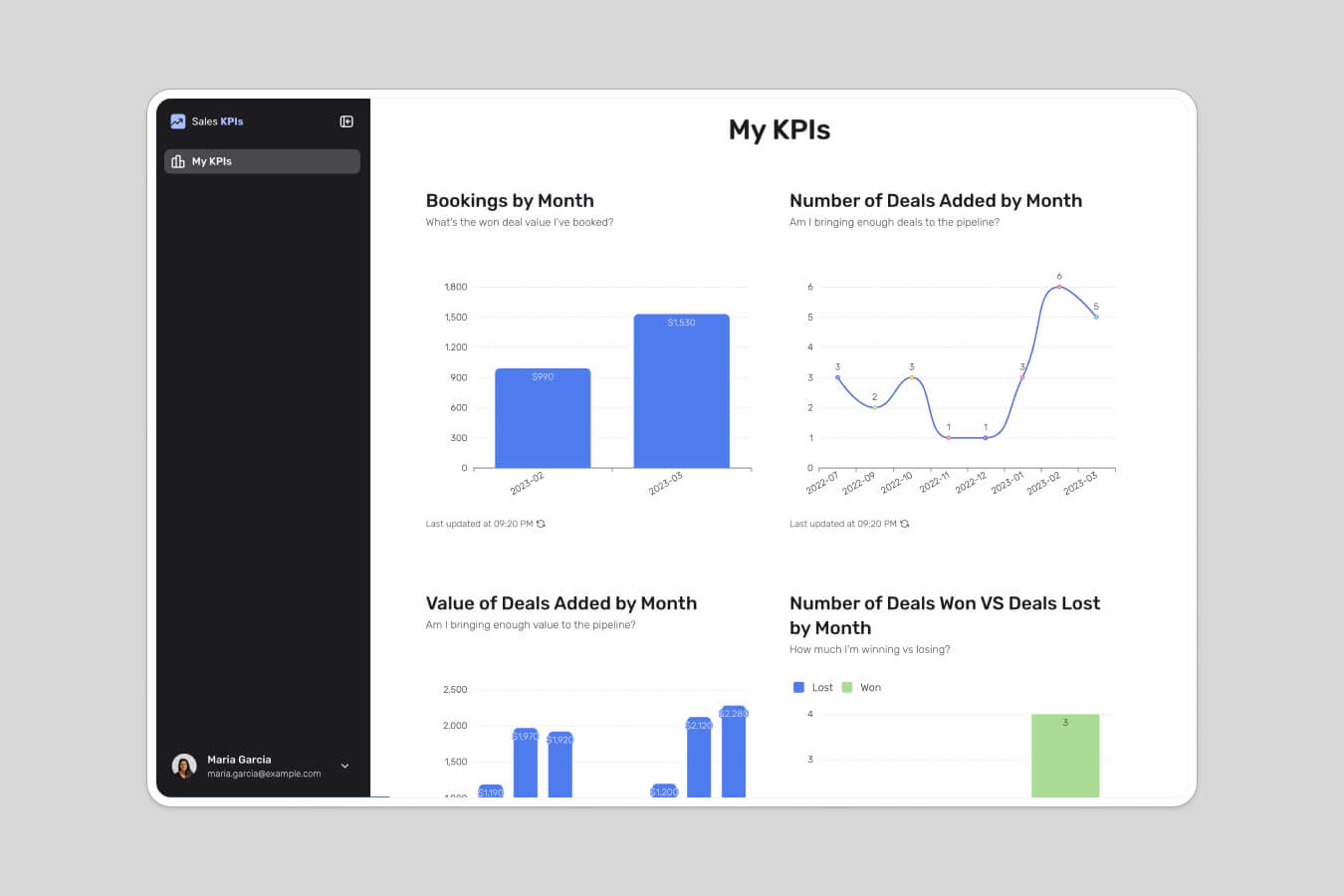
You don't have to build it block by block either. Describe the dashboard you need and the AI Co-Builder generates a working app for you, complete with pages, tables, and charts wired to your data. From there you can refine it visually or ask it for changes in plain language. Teams use this to give office staff, field technicians, and even clients a clean, secure interface over data that used to be locked in a spreadsheet.
"The ability to pull data from different Airtable bases into different blocks and display them on one page was one of the main reasons I chose Softr. It's also more user-friendly than other no-code tools." - Dan Smith, Director at DS Automotive
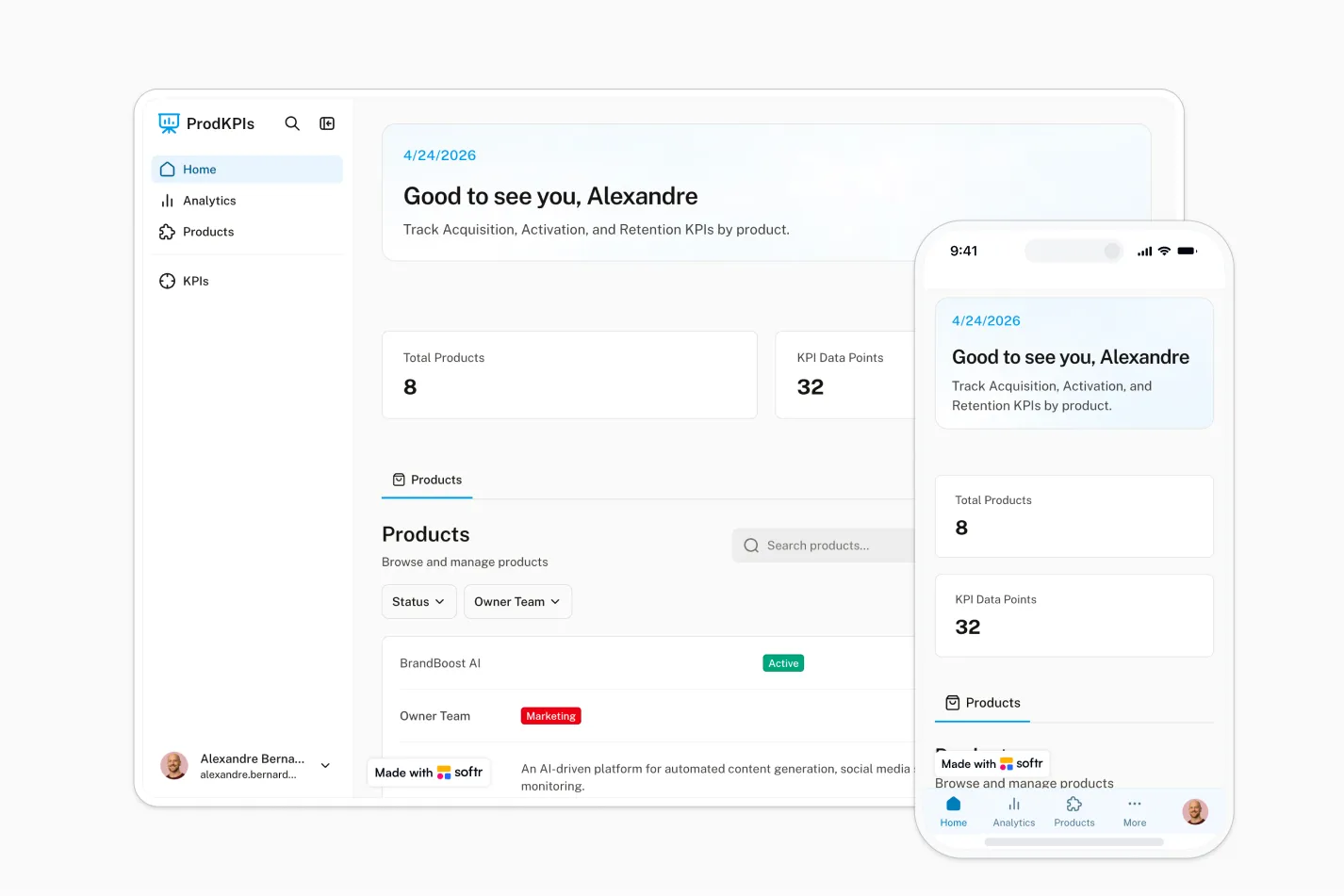
Put your aggregated data to work
Rollup fields are the right tool for turning many linked records into one meaningful number inside Airtable. The next step is making that number useful to the people who need it. Connect your base to Softr and build a dashboard or portal in an afternoon, so your team reads live, permission-aware insights instead of fighting over a shared spreadsheet. Start for free and turn your first rollup into a real internal tool.
Frequently asked questions
What is the difference between a rollup and a lookup field in Airtable?
Why is my Airtable rollup field showing an error or no value?
Can I filter which linked records a rollup field includes?
How do I turn Airtable rollup data into a live dashboard?
Do I need to know formulas to use Airtable rollup fields?