
[.blog-callout]
TL;DR
- A lookup field in Airtable displays values from a linked record in another table, so related data stays consistent without retyping.
- You first link two tables, then add a lookup field on top to pull in the values you want.
- This guide covers two ways to set up lookup fields: with conditions (to filter which linked records appear) and with views.
- Once your data is structured with linked records and lookups, you can turn it into a real business app with Softr. Airtable is one of 21+ data sources you can build on, alongside Softr's own native databases. [.blog-callout]
Lookup fields in Airtable let you view and display content from linked records without copying it by hand. Whenever you work with interconnected data, like products and their suppliers, lookup fields streamline your workflow by giving you a consolidated view of related information in one place.
In this article, we'll walk through two ways of creating and using lookup fields in Airtable:
- Creating lookup fields with conditions;
- Creating lookup fields with views.
Lookup fields are also where a flat spreadsheet starts becoming a real relational database. As Guillaume Duvernay, who has built more than 50 business apps on Softr, puts it:
"Using related fields is the way to make your data structure as robust and scalable as possible. It is way better, way more organized and structured than Excel." - Guillaume Duvernay, Builder at Softr
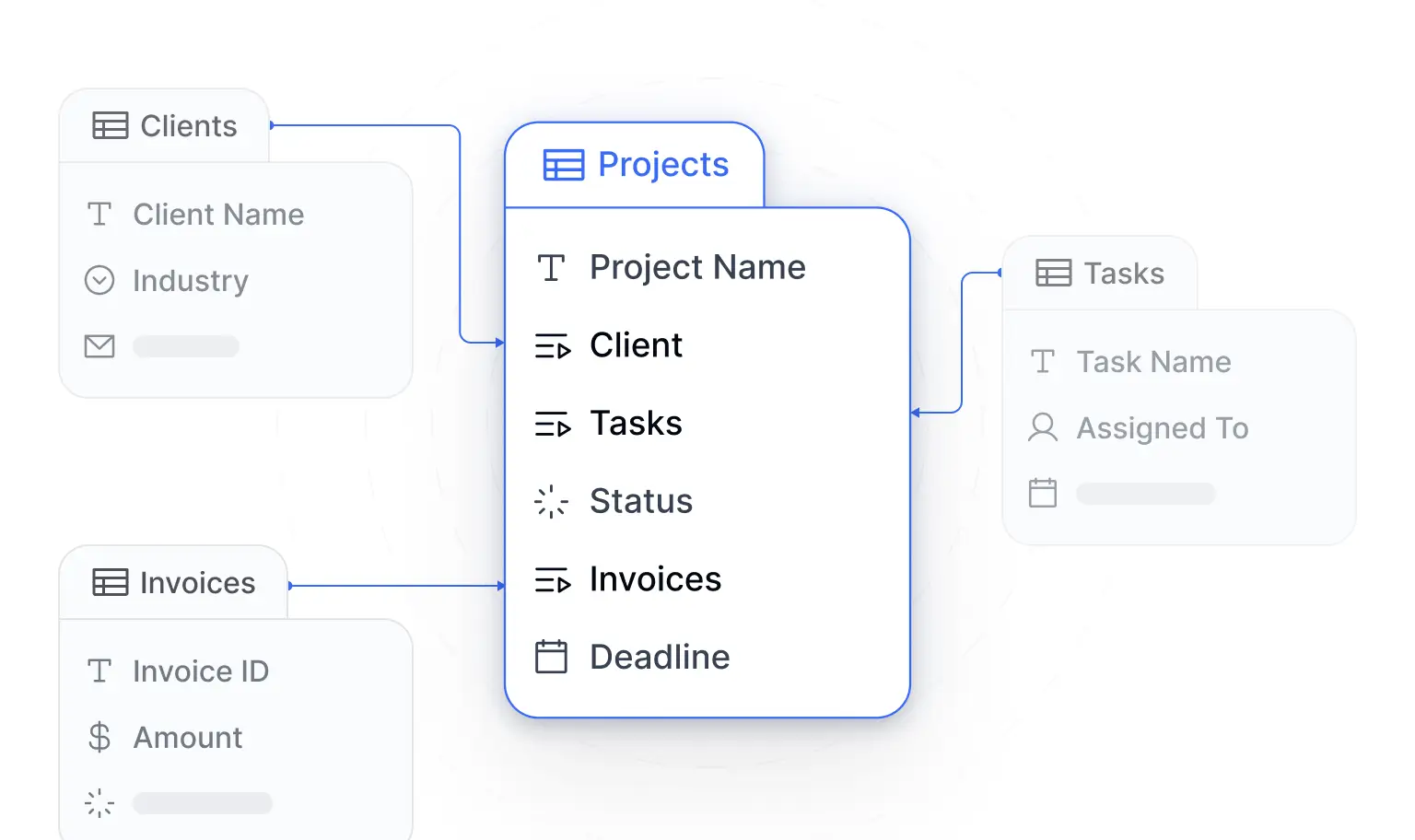
Creating lookup fields in Airtable with conditions
Before we dive into how to create lookup fields in Airtable with conditions, we've made it even easier for you to get started: you can use this ready-to-use Airtable base template to get started.
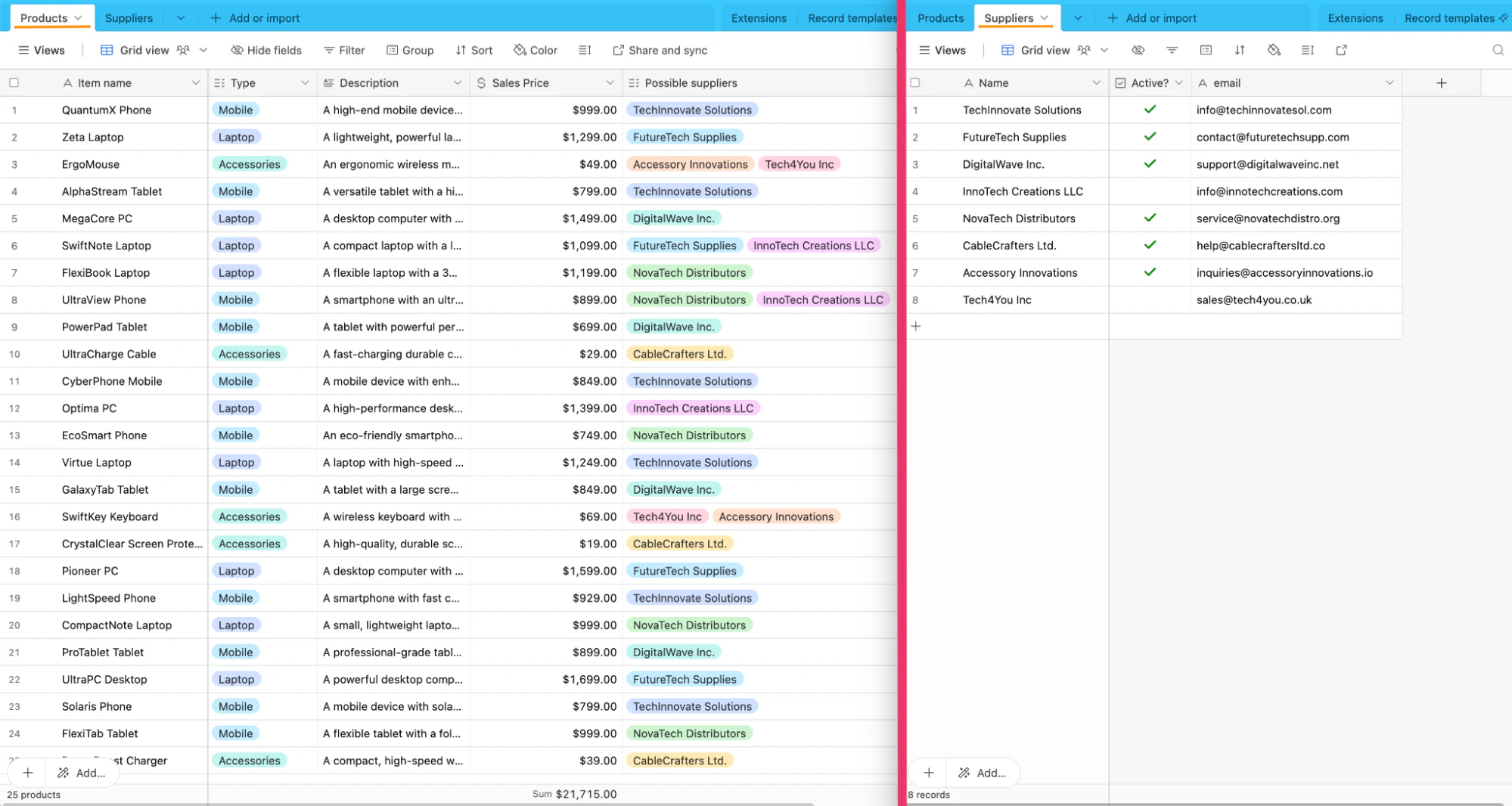
This template base includes pre-populated "Products" and "Suppliers" tables with sample data, mirroring the scenario we'll be discussing in this article.
Step 1: Set a field to be linked to another record
To begin linking records between tables, you need to change the field type of the “Possible suppliers” field to “Linked to another record.”
Step 1.1: Change field type
Navigate to the “Products” table and locate the “Possible Suppliers” field. Click on the arrow next to the field name to access the field options, and then click on “Edit field.”
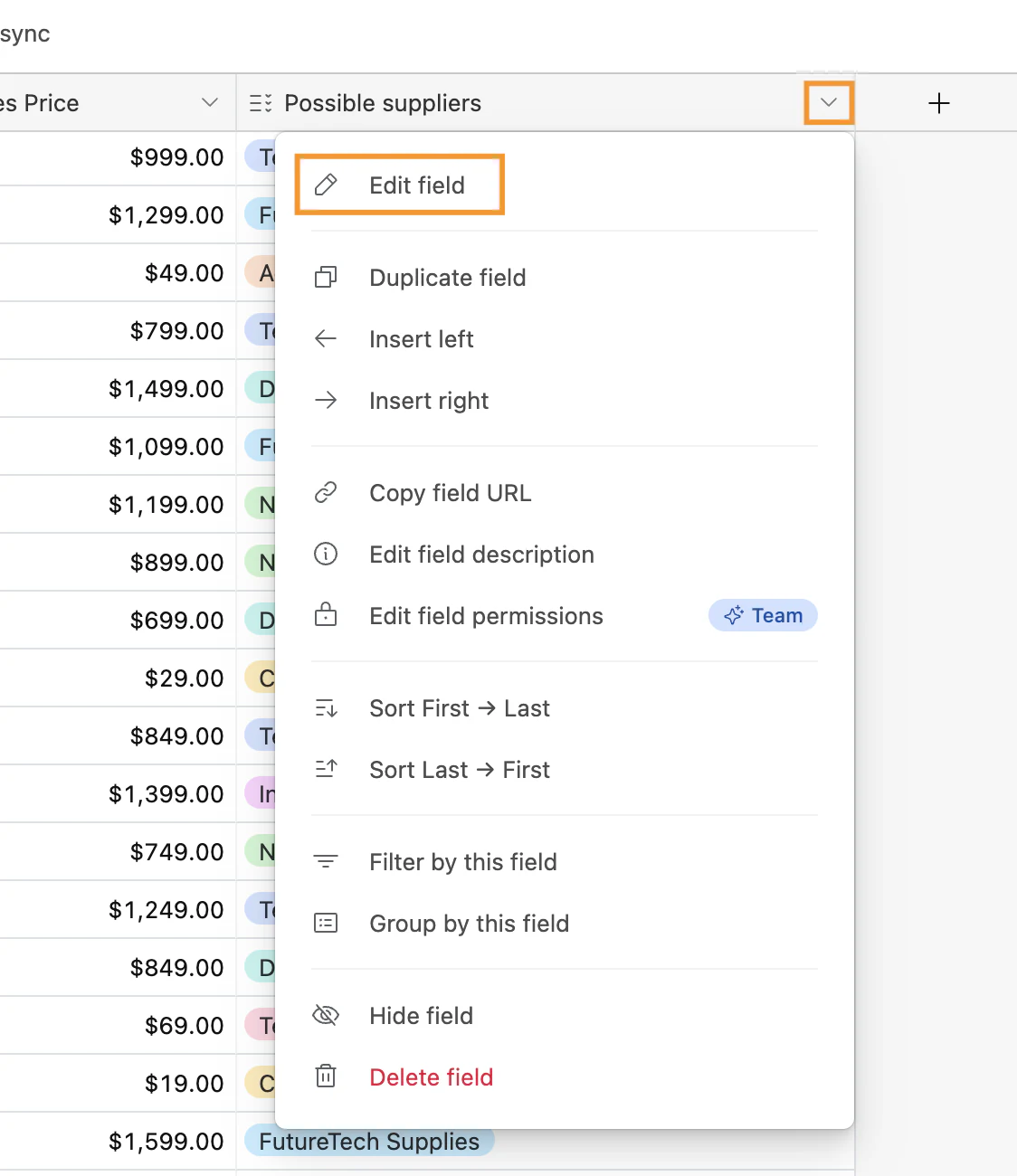
Step 1.2: Change field type
In the field editing screen, click on the dropdown menu and choose “Link to another record” from the list.
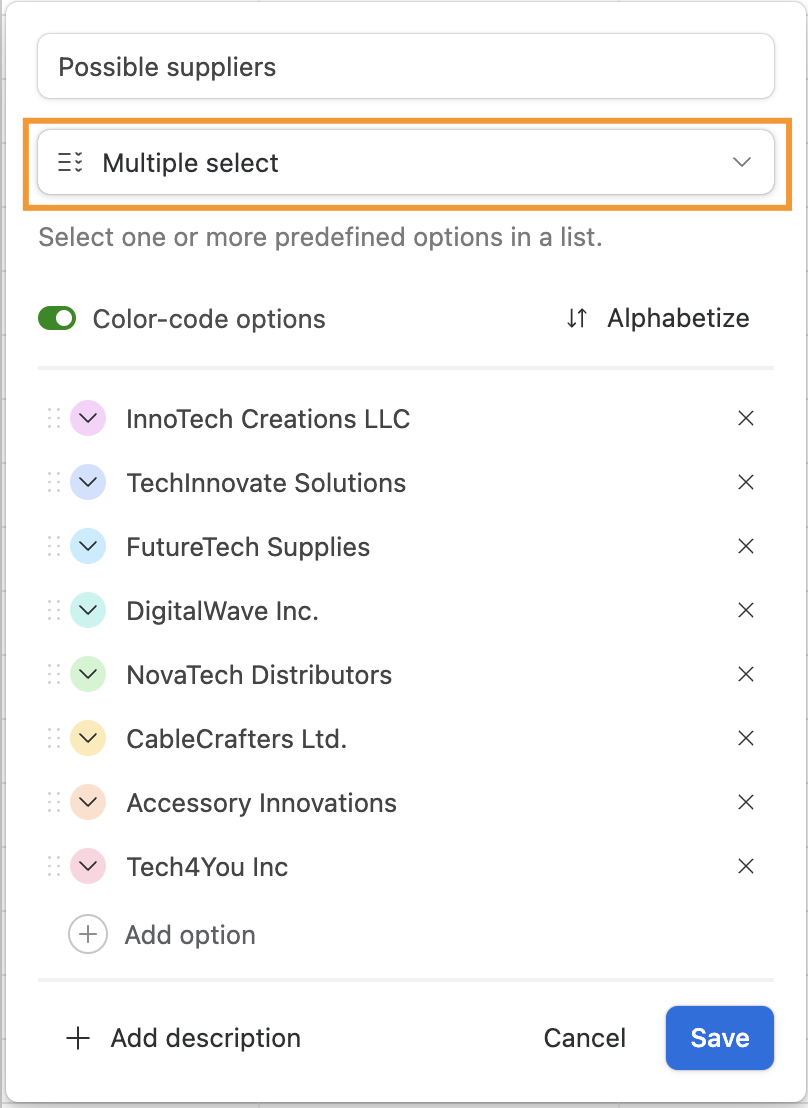
Step 1.3: Select the table to link
Choose the “Suppliers” table as the table you want to link to and confirm your selection by hitting “Save.”
You can add the fields directly by toggling the desired fields on the screen that is displayed next, as shown in the video above. But if you need to filter the information needed you can set conditions for data retrieval.
Step 2: Add a lookup field (using conditions)
Now, let’s add a lookup field to display the names of active suppliers.
Step 2.1: Create a new field
In the “Products” table, create a new field and name it “Active suppliers”.
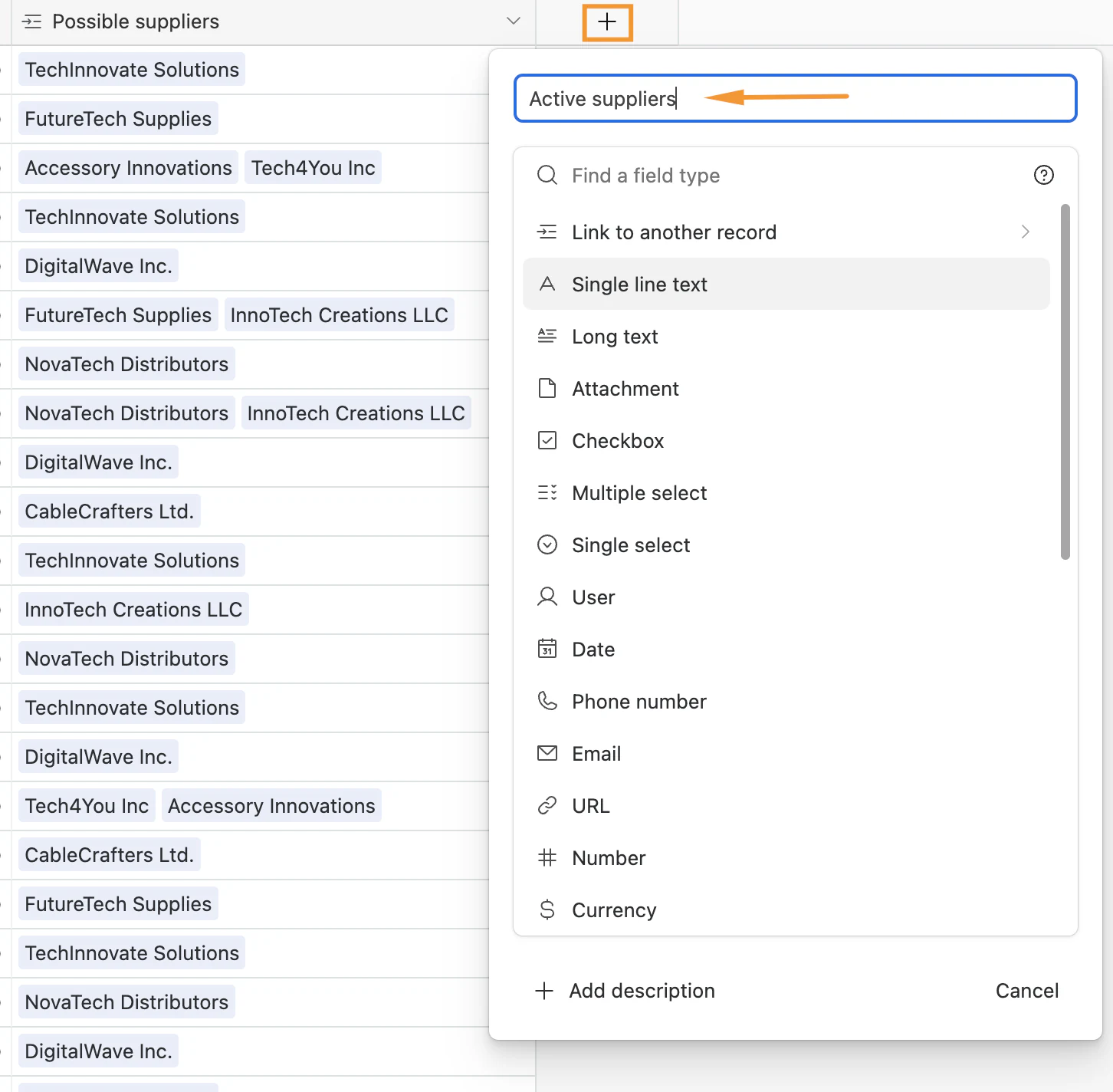
Step 2.2: Set field type to Lookup
Choose “Lookup” as the field type for the new field you’ve created, by scrolling through the dropdown list or by typing “lookup.”
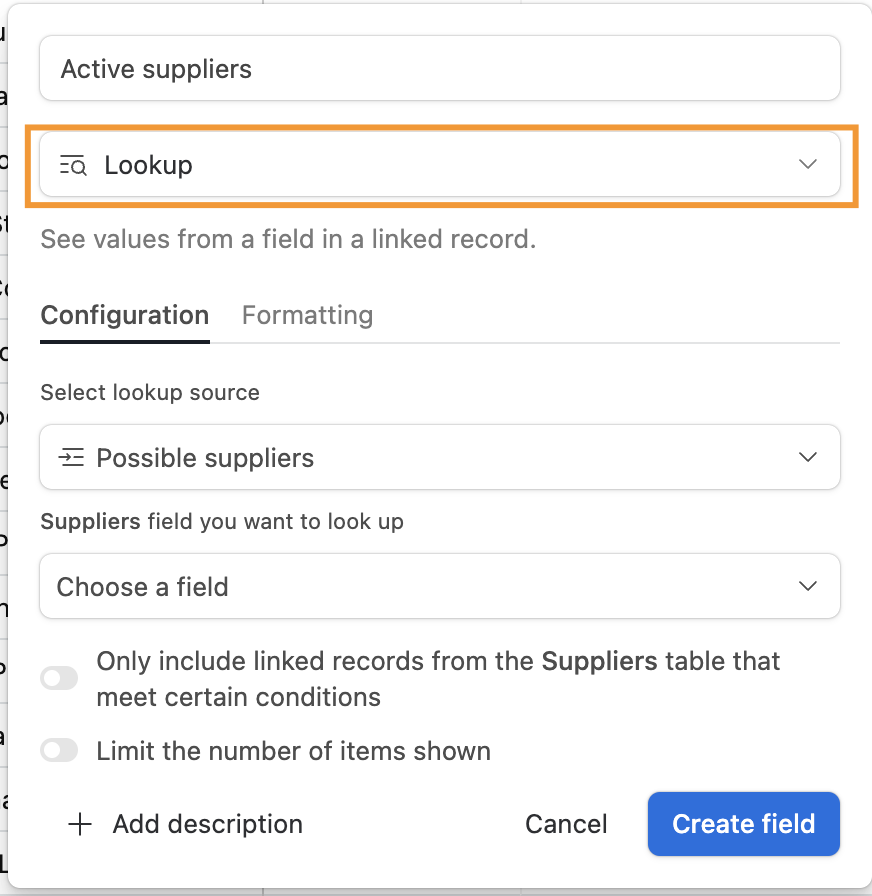
Step 2.3: Configure your lookup field
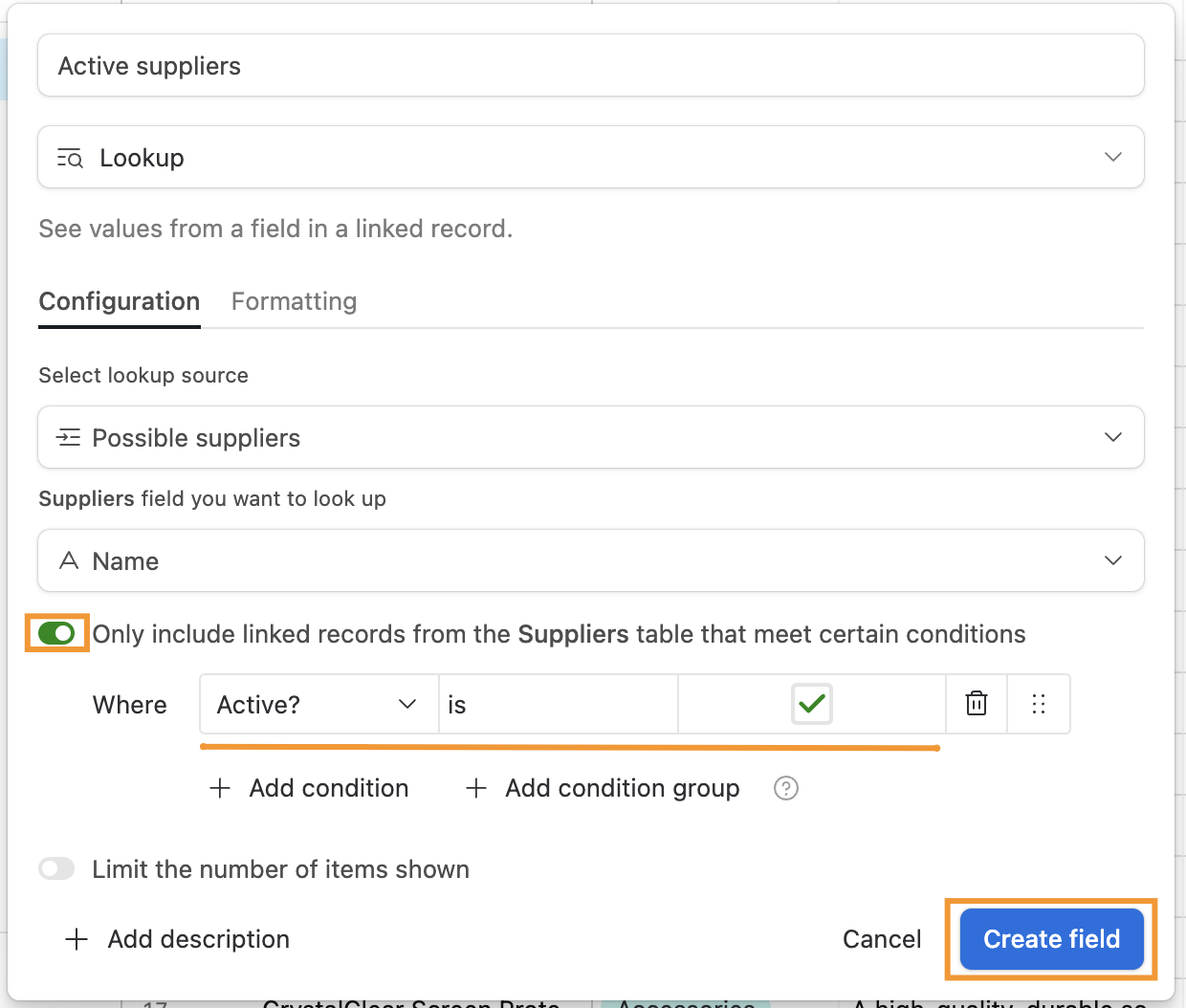
On the “Configuration” tab, make sure the lookup source is the field you edited in Step 1. Choose a field on the table to which your source is linked. We want to retrieve the “Name” field from the table “Possible suppliers.”

Step 2.4: Set conditions
By toggling the option “Only include linked records from the [Name of the table] table that meet certain conditions,” you will be able to filter certain records. In our case, we want to display only the active supplier. In the “Where” option, you have to specify the criteria for records that will be included in the lookup field. To show only active suppliers, configure it to retrieve the records where the “Active?” field is enabled.
When you’re done, click on “Create field”.
Creating lookup fields in Airtable using views
In this section, we'll explore how to create lookup fields in Airtable using views, leveraging a slightly different Airtable base template that showcases another facet of the power of lookup fields.
Before we begin, you can access our Airtable base template tailored for this section. Copy it to your Airtable account.
Step 1: Set a field to be linked to another record
To begin linking records between tables, you need to change the field type of the “Possible suppliers” field to “Linked to another record.”
Step 1.1: Create a new field
Navigate to the “Products” table and locate the “Sales Price” column. Click on the plus sign next to this column to add a new field.
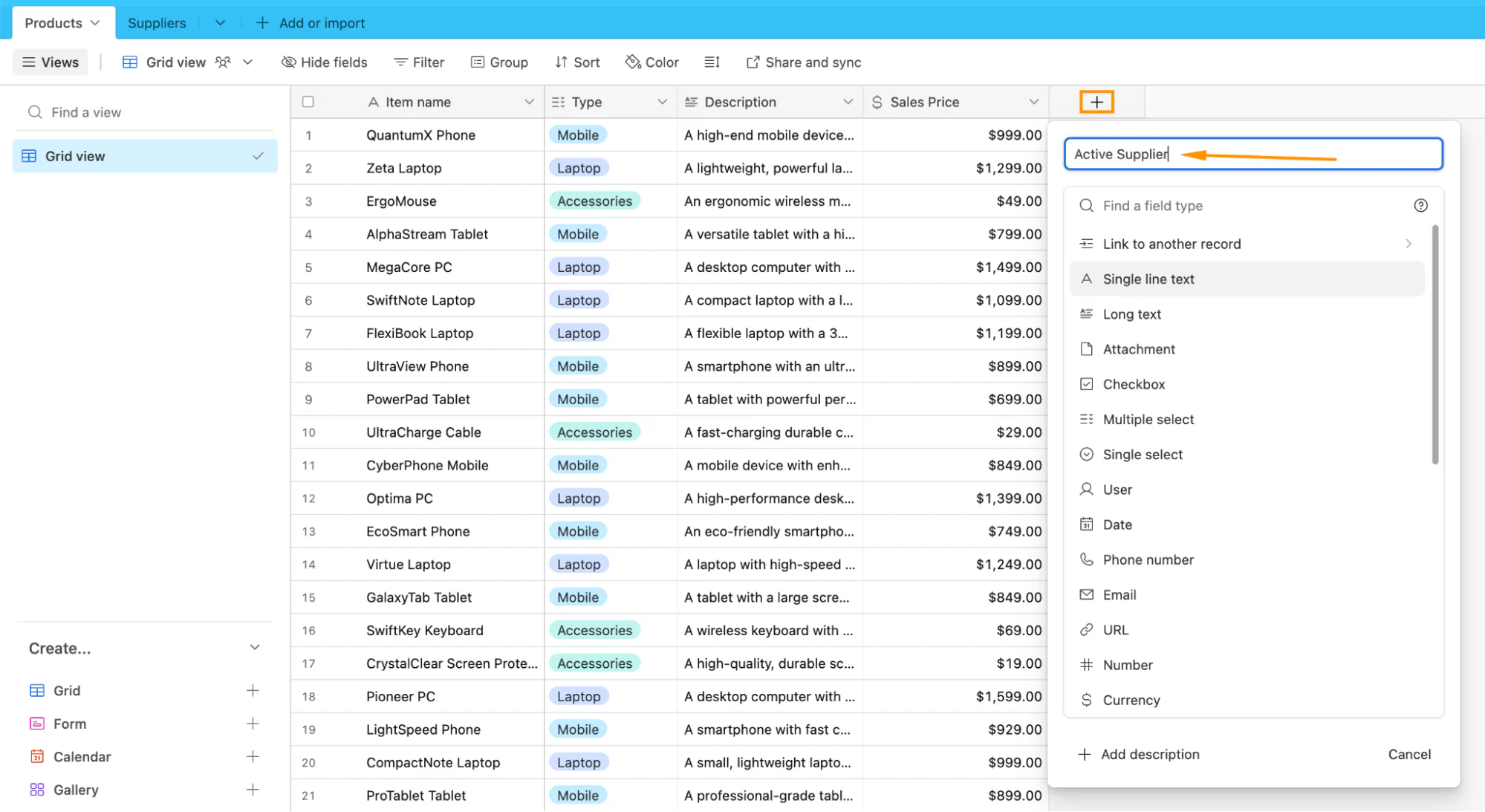
Step 1.2: Set the field type
Next, click on the dropdown menu and choose “Link to another record” from the list.
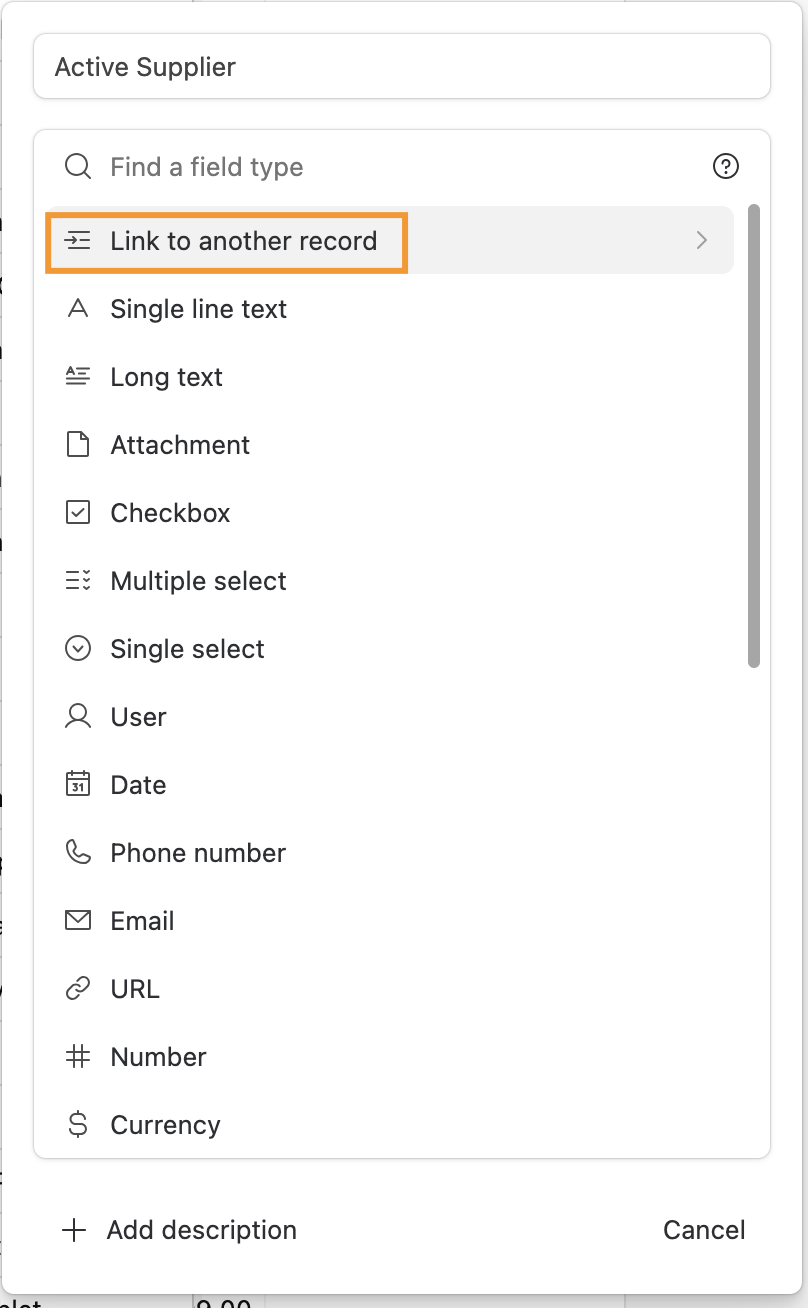
Step 1.3: Select the table to link
Choose the “Suppliers” table as the table you want to link to and confirm your selection by hitting “Save.”
Step 2: Add a lookup field
The data that is now retrieved for lookup fields is filtered based on the conditions you’ve just set.
Step 2.1: Create a new field
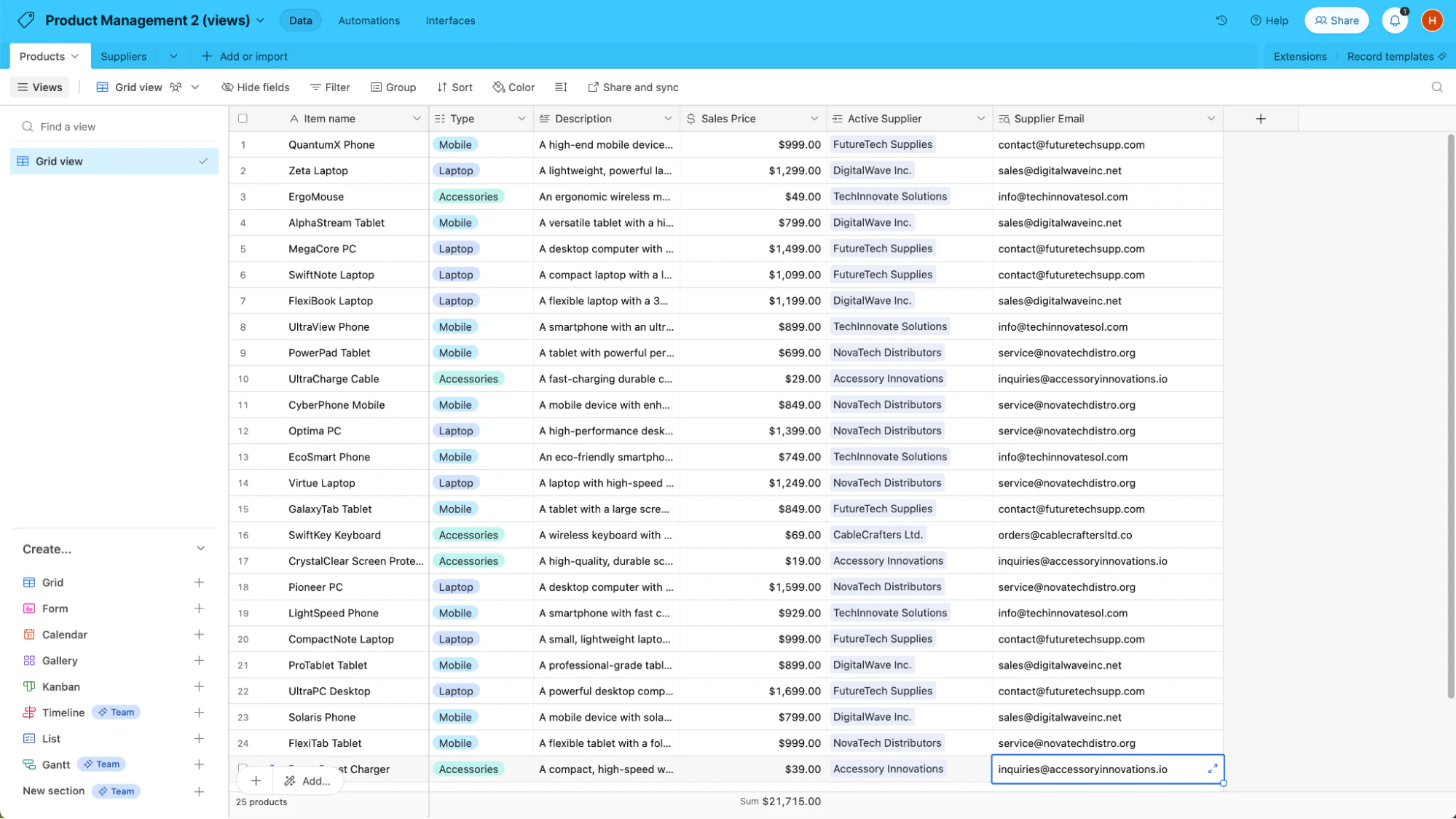
In the “Products” table, create a new field by clicking on the “+” sign and name it “Supplier Email.”
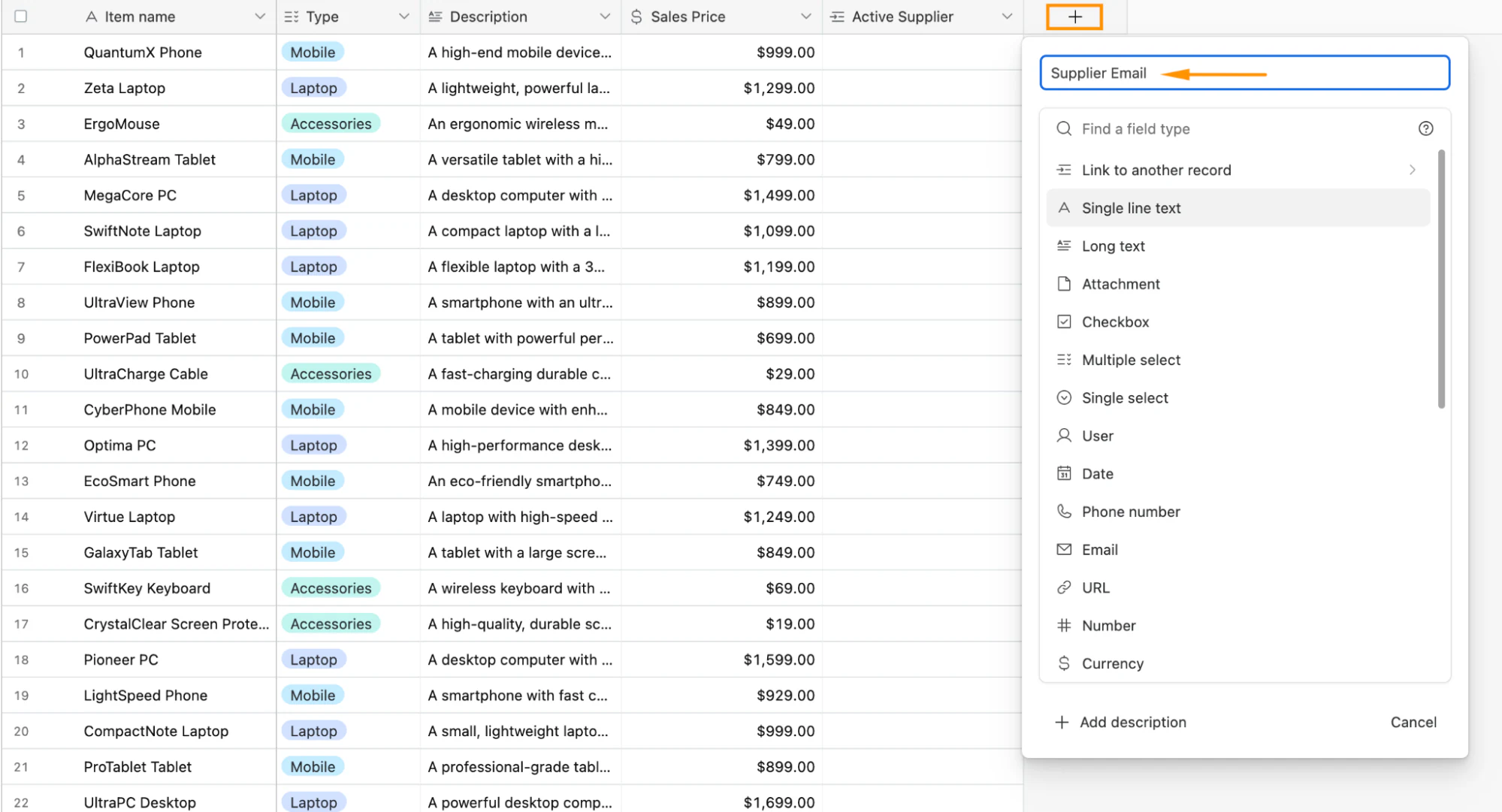
New field options
Step 2.2: Set field type to Lookup
Choose “Lookup” as the field type for the new field you’ve created, by scrolling through the dropdown list or by typing “lookup.”
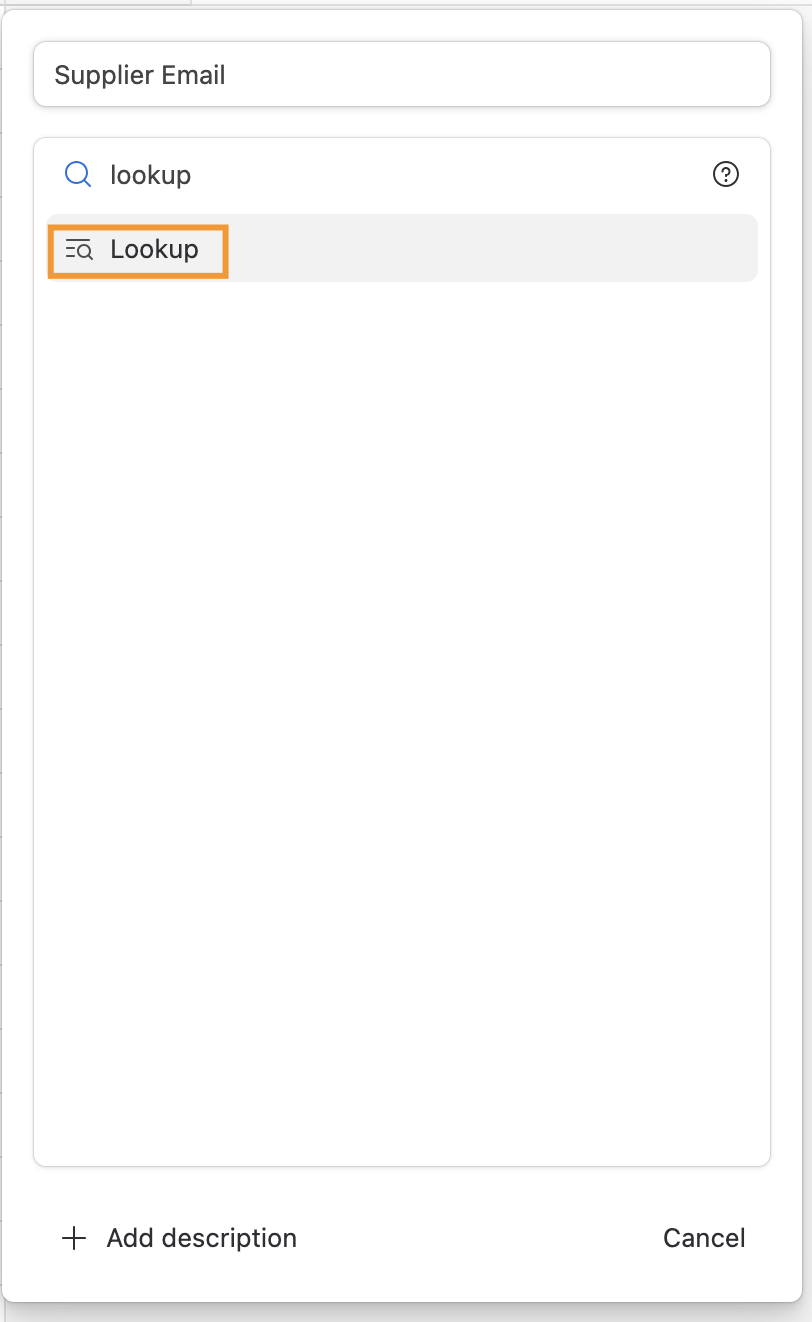
Field type options in Airtable.
Step 2.3: Select the field to lookup
Click on “Choose a field”, select “email”, and click on “Create field".
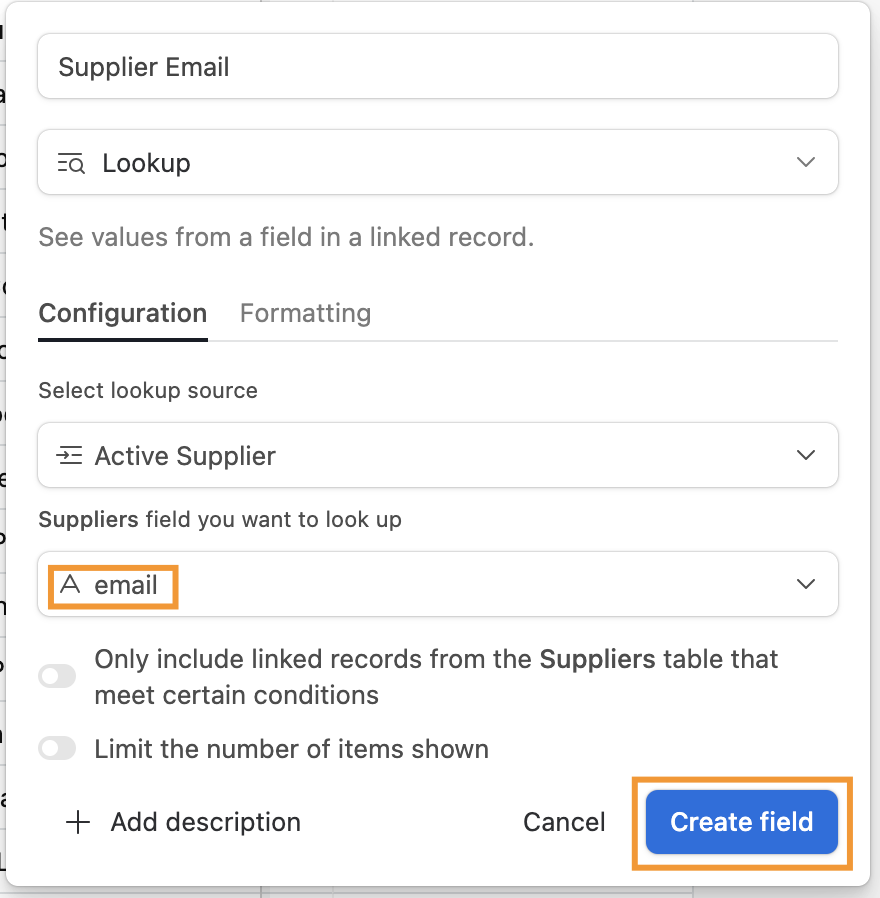
Lookup configuration in Airtable.
Step 3: Insert data
Now, when you insert data into the field “Active Supplier” you will notice that only Suppliers set as active appear. By inserting them into this field, their email will automatically appear on the correspondent field.
Step 4: Check the Lookup integration on the second table
After setting up the lookup fields, let’s check the integration on the Suppliers table. There, you can observe the new column that Airtable has automatically created. In this new column, you should see the products that are linked to each supplier, meaning the lookup fields were successfully integrated.
Turn your linked Airtable data into a real business app
Lookup fields and linked records give your data a clean, relational structure. The next step is putting that data to work for your team. Spreadsheets and the raw Airtable grid are great for setup, but once a base becomes the weekly operational backbone for two or more people, it's usually time to build a proper app on top of it.
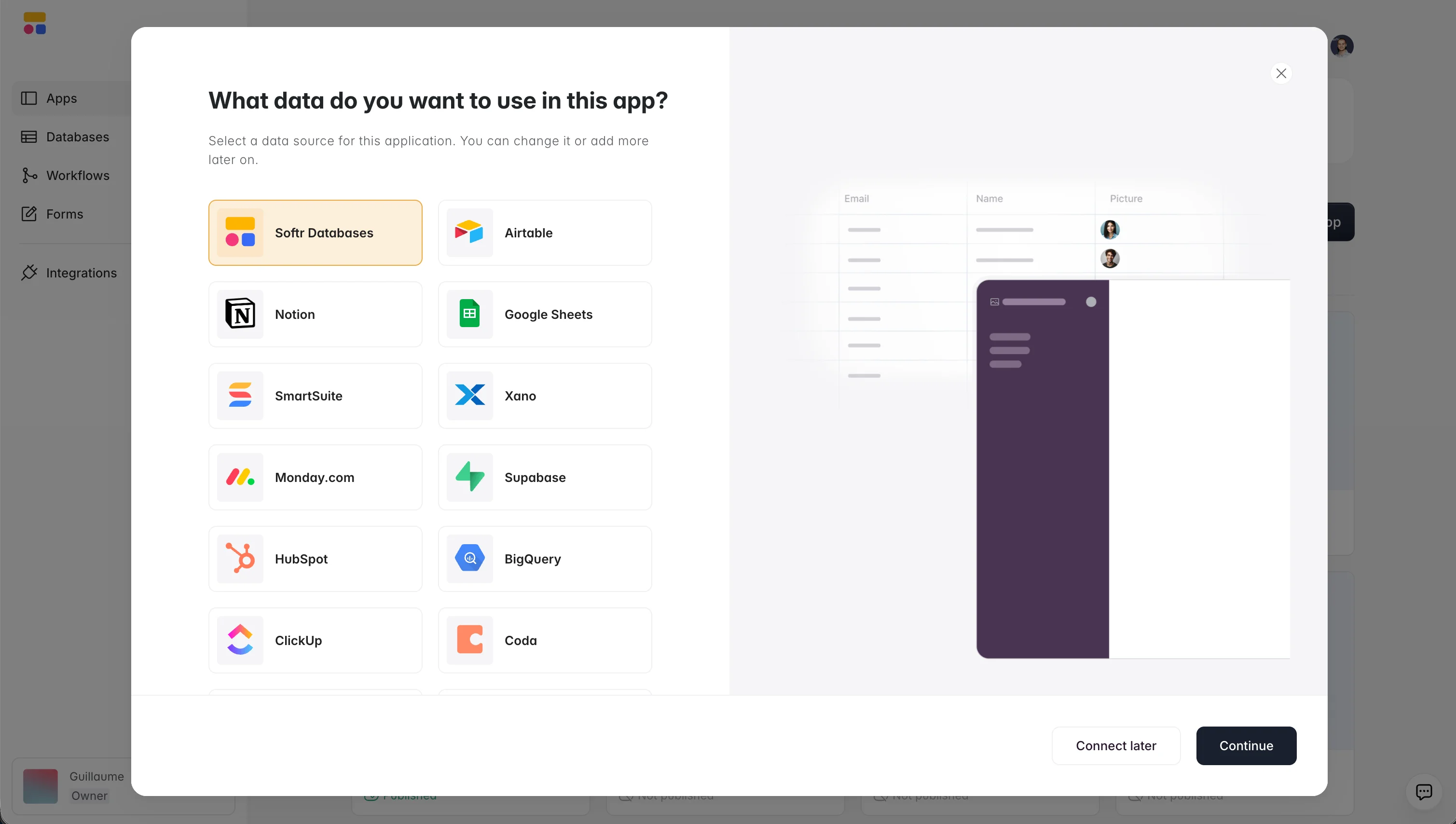
That's where Softr comes in. You can connect your Airtable base and build a portal, internal tool, or CRM with no code, and every linked record and lookup field carries over. Airtable is one of 21+ data sources Softr supports, alongside its own native databases, so you can start with the data you already have and add more later.
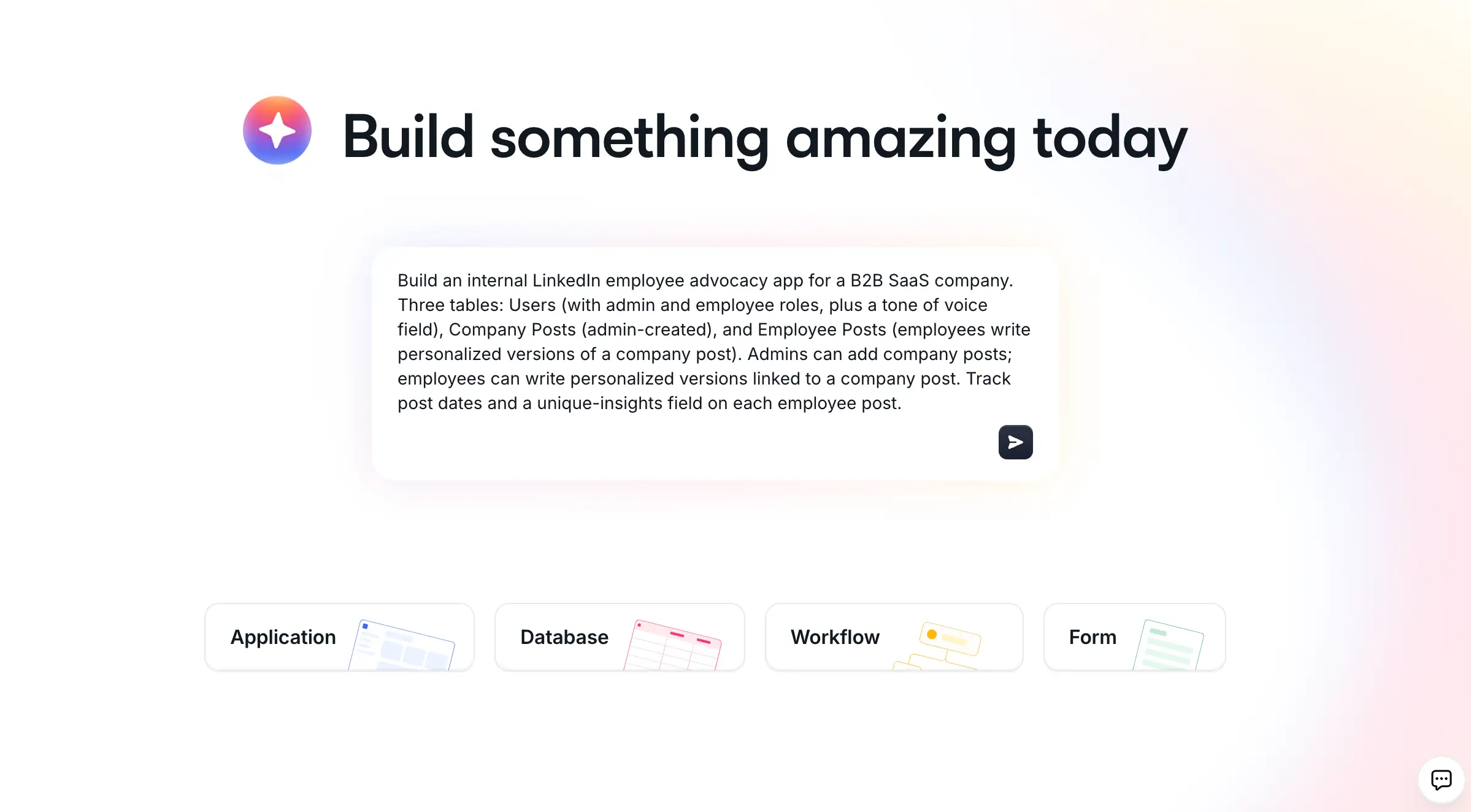
The fastest way to get started is the AI Co-Builder: describe the tool you need in plain language and it builds a complete app for you, or start from a template or a blank canvas if you prefer. From there, you can layer on users and permissions, automate busywork with Softr Workflows, and even let database AI agents fill or enrich fields for you.
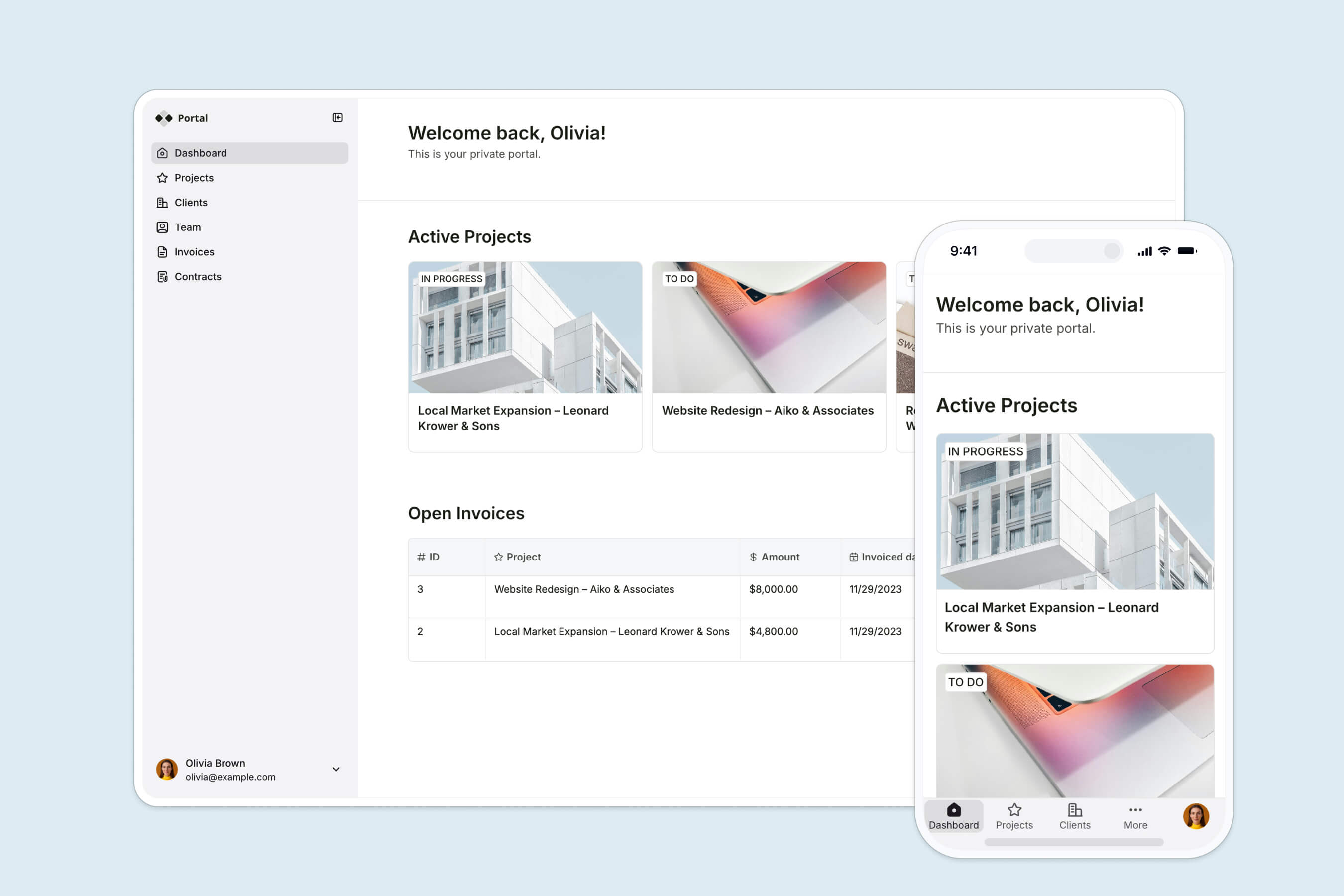
The result is a focused interface your team and clients actually want to use, instead of a shared grid with too many columns. As one Softr customer who runs an Airtable-powered customer portal puts it:
"I use Softr to build a customer portal, and it helps us streamline both customer-facing and internal record-keeping. The interface looks great, and the integration with Airtable makes it easier." - Ruby H., G2 review
Build on your data, not against it
Lookup fields are the small habit that keeps your Airtable data trustworthy as it grows: link your tables once, pull related values automatically, and never copy a supplier email again. When you're ready to give that data a real home, try Softr and turn your base into a portal or internal tool your team can use every day.
Frequently asked questions
What is a lookup field in Airtable?
What is the difference between a lookup field and a linked record in Airtable?
Can you filter which records a lookup field shows in Airtable?
Can I build an app on top of my Airtable lookup fields?
Do I need lookup fields if I use Softr Databases?