How to add a permission-aware AI assistant to your intranet: a guide to AI agent access control


How much data does a typical enterprise have? Hint: it’s a truly staggering number. 64% of orgs manage at least 1,000 terabytes of data. That’s equivalent to roughly 14 billion emails, a million hours of video call recordings, or—for all the movie buffs out there—10,000 Ultra HD Blu-ray copies of the final Lord of the Rings film (extended edition, of course).
Humans can only make use of a small fraction of those terabytes on their own. That’s one reason AI has so much potential for enterprises: it’s fantastic at sifting through enormous vaults of data and finding proverbial needles in haystacks. For many companies, the lowest-hanging fruit is an AI assistant that pulls from your employee handbook, IT policies, and project archives. Once that’s in place, your team can get quick answers instead of emailing HR or digging through shared drives.
There’s a big caveat, though. Unless your AI assistant respects the permissions you already have, the intern you just onboarded can use it to pull up the same sensitive documents as your CEO. Your assistant needs to know who’s making each request and what that person is allowed to see, or you’ll end up with an information free-for-all.
This guide covers how AI agent access control works, plus six steps to set up a permission-aware AI assistant on your intranet or internal portal. You’ll also learn whether it makes sense to buy a prebuilt AI assistant, build your own, or use a platform that already handles permissions for you.
The short answer
Everyone in your organization already has permissions that control what they can access. Once you bring AI assistants into the picture, they have to respect those permissions so your HR coordinator, marketing manager, and CFO can each see only what they’ve been approved to see. That’s the idea behind AI agent access control, and it means there’s a right way and a wrong way to add AI to your intranet.
To set up an AI assistant safely, connect it to your company login so it always knows who each request comes from, and only let it pull up information that matches each person’s permissions. Keep it read-only at the start, log every question and action, and test it with a few real users to make sure it’s working correctly before you roll it out to the whole company.
Why internal AI assistants leak data
The quickest way to add AI to your intranet is to connect a chatbot to your shared drive or knowledge management software and tell it what not to share. It's a fast way to launch, but it’s also easy to get wrong. Here are three questions worth asking to reduce the risk of leaked data.
- When someone asks a question, what access does your assistant use? If the chatbot connects through a single account that can open everything, anyone can ask it about salaries or deal terms and get an answer.
- Are permissions built in, or were they just added to the prompt? You can tell your AI assistant “don’t share HR data,” but you can’t guarantee it’ll follow that request 100% of the time. Instead, tie data access to the permissions of each user so the assistant never sees information it’s not supposed to see.
- How quickly does it notice when someone loses access? Many assistants search a stored copy of your documents, and it doesn’t always update right away. So when employees change roles or leave, there may be a temporary window where they’re still granted access to information they’re no longer authorized to see.
Even if you’ve got good answers to all three questions, your AI assistant can still leak data if your sharing settings are too lax. It’s worth auditing them before you roll out an internal AI assistant so you’re not inadvertently opening up years-old finance files, HR reports, or other sensitive information.
How AI agent access control works
There are two ways to give an AI agent the permissions it needs:
- Have it act as the signed-in user. This is the most common scenario for assistants that people chat with. The agent can see and do exactly what the logged-in user can, so there are no new permissions to set up and maintain.
- Give it a separate identity with narrow permissions. Some agents run in the background to do tasks like sending weekly reports or cleaning up data overnight. Since nobody’s signed in, these agents need their own account (often called a service account) with access to that one job and nothing else.
Background agents are a common place for access control issues. Since an admin usually sets them up, it’s possible to accidentally deploy them with the admin’s permissions, which gives them more access than they should have. Instead, give them their own account so your reporting agent can read sales data but can’t, say, change payroll. You can also do what Microsoft does and restrict agent identities from high-privilege roles entirely.
This follows the principle of least privilege: giving an AI agent only the access it needs to do its job, and nothing more. As a rule of thumb, an assistant answering employees' questions should act with the signed-in user's permissions, while a background agent should have its own tightly restricted identity.
How to set up a permission-aware AI assistant in 6 steps
Here’s the order you’ll want to work in as you get started.
Step 1: Choose a job for your assistant and define the sources it can use
Start with one clear job for your assistant and give it an approved set of source documents. For example, you might have it answer HR policy questions using the employee handbook and the HR portal (it may help to build a knowledge base first so it’s all consolidated in one place). You can go broader than a single-purpose assistant, of course, but keep in mind that as you add more connected apps and sources, you’ll also have more permissions to check, and more chances for old, overshared files to make their way into your assistant’s answers.
Starting small makes it easier to see what’s working, and you can always add more once everything’s running smoothly. If you’re not sure where to start, our roundup of AI agent use cases has plenty of ideas.
Step 2: Connect it to your company login
Next, connect the assistant to your company login via SSO (single sign-on) so it knows who’s making each request. Then match the user groups you already have, like HR, managers, and contractors, to roles in your portal. That way, when someone asks a question, the assistant knows which user group they belong to and what they’re allowed to see. Our guide to user groups and permissions walks through how to set up those roles.
Step 3: Check permissions before your AI looks anything up
Set up your AI assistant with permission-aware RAG (retrieval-augmented generation) so it only looks up files that the person asking has permission to see. By filtering information before the AI can access it, you reduce the risk of the assistant revealing data that person isn't authorized to see. Each user’s permissions change over time, so it’s important to check permissions every time someone asks a question rather than just when documents are first uploaded.
Step 4: Limit what it can change
Start your assistant off with read-only permissions so it can look things up but can’t change anything. That keeps things safer during your initial rollout, since an AI assistant that’s just answering questions doesn’t need as much babysitting as one that’s sending emails. When you’re ready to add actions, turn them on one at a time.
You’ll also want to set up human-in-the-loop permissions for each tool (“always allowed,” “ask first,” or “never”). These settings determine whether the agent can use a tool automatically, needs human approval, or can't use it at all. At first, have a human confirm anything that sends, changes, or deletes data. Over time, small changes can run on their own, but anything that’s hard to reverse, like deleting records or emailing customers, should always get a human’s sign-off.
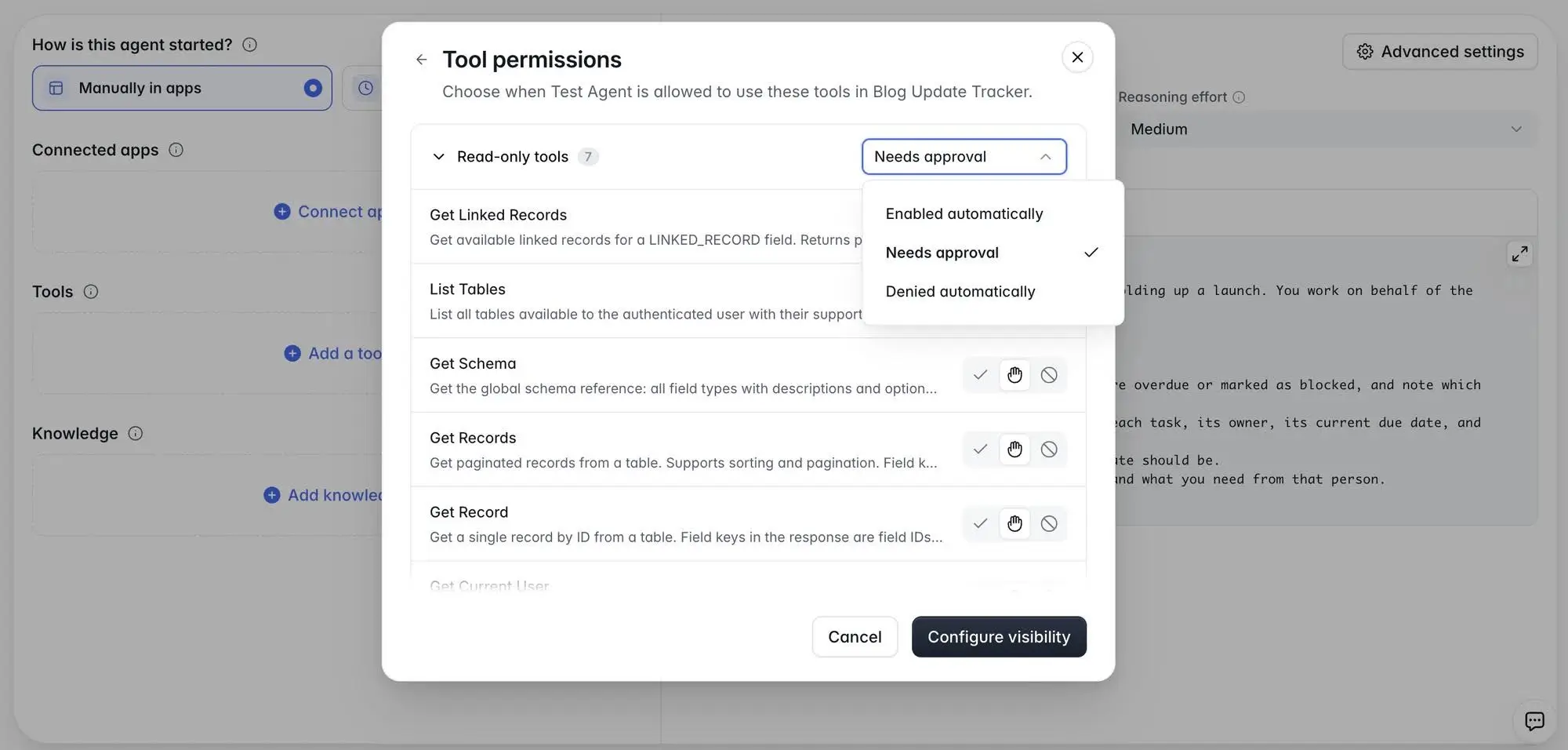
Be specific about what people are approving, too. If someone has to click “approve” dozens of times without seeing exactly what the agent plans to send, change, or delete, those approvals can quickly become a formality.
Step 5: Keep a record of everything it does
Keep a record of every interaction, including the questions each user asks, the documents your AI reads, its answers, and any actions it takes. That way, when you get a message from someone saying your AI assistant told them something it shouldn’t have, you’ll be able to figure out exactly what happened. You can also analyze the logged data to spot patterns and improve your assistant over time. Since these logs include your employees’ questions, make sure to tell them what you’re recording and set limits on who can read the data.
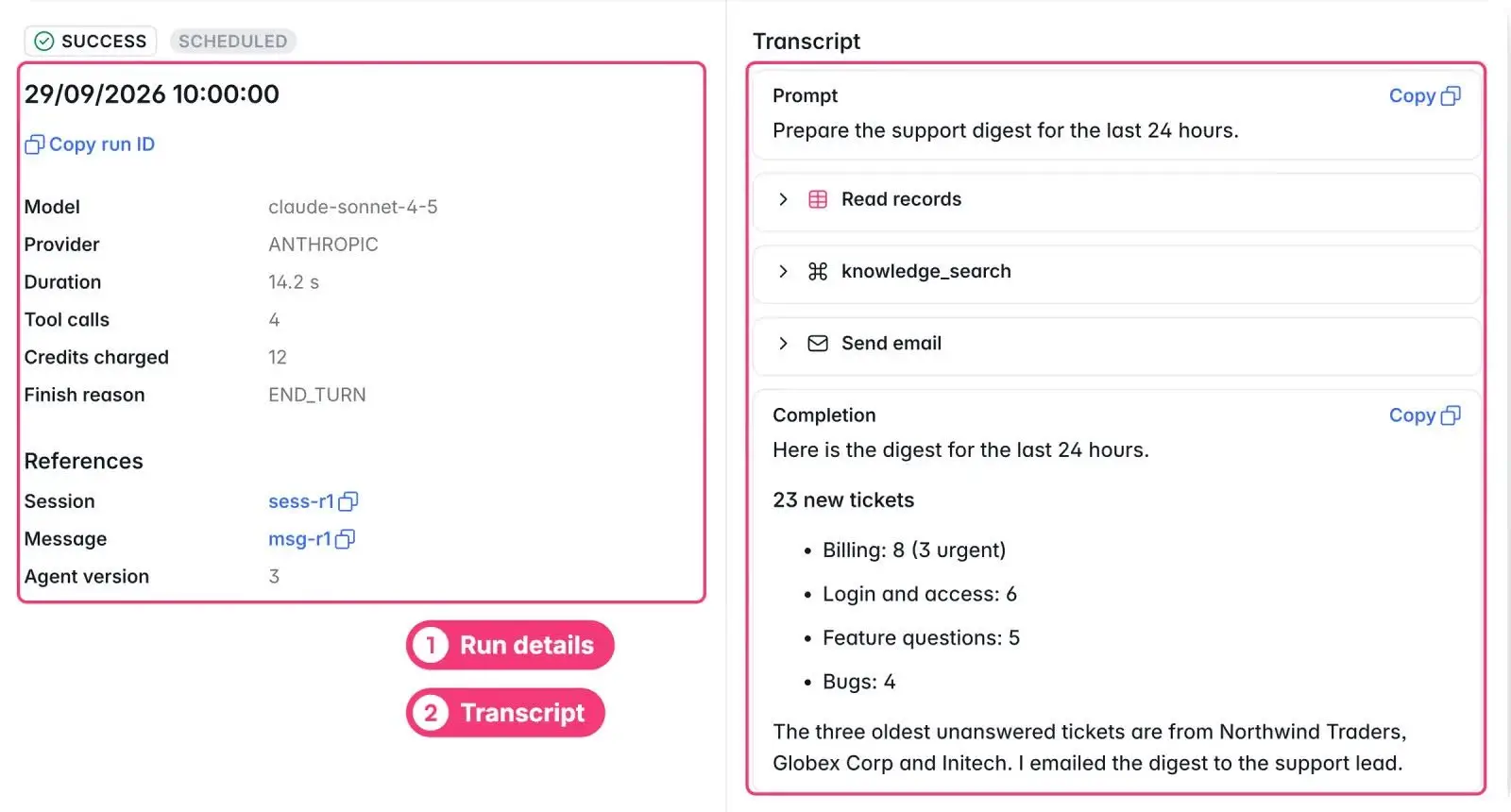
Step 6: Run tests from different user roles before going live
Before you roll out your new AI assistant, do some real-world testing. Sign in as a few different people, like an intern, a manager, and a contractor, and ask the same sensitive questions from each role. Each person should only get answers based on what they’re allowed to see.
Pay attention to what your assistant says when it doesn’t provide access to a file. A reply like “You don’t have access to the budget forecast” still gives something away, because it confirms the file exists. Instead, it should just point the person to the right team, like HR.
If someone gets an answer containing information outside their permissions, fix the access rules and repeat the test before going live.
Should you build, buy, or use a platform?
You’ve got three main options for setting up a permission-aware assistant: you can build one yourself, buy an enterprise search assistant, or use an app platform with built-in AI agents.
If you want an AI assistant that can search across Google Drive, Slack, SharePoint, and email, go with an enterprise assistant like Glean or Microsoft 365 Copilot. And if you’re dealing with older internal systems or compliance considerations, building your own AI assistant in-house is a good option, assuming you have engineers who can build and maintain it.
If your assistant needs to work with the data and workflows in a specific internal portal, a business app platform may be a better fit. Softr, for example, has built-in agents that work with the data in your Softr apps (including connected data sources) and can use outside tools through MCP. Softr Agents automatically act as the signed-in user, so there’s no need to set up a second layer of access control, and you never have to worry about agents taking action as an admin. You can upload knowledge files, pick the AI model for each agent, and review a log of every run. There's also a test panel for checking how agents behave before rollout, and you can set external tools to Allow, Ask, or Deny.
And if all you need is a Q&A tool, you can add Ask AI to any page so people can ask questions about the data shown there.
For example, Celonis built a go-to-market knowledge base on Softr for more than 1,500 employees.
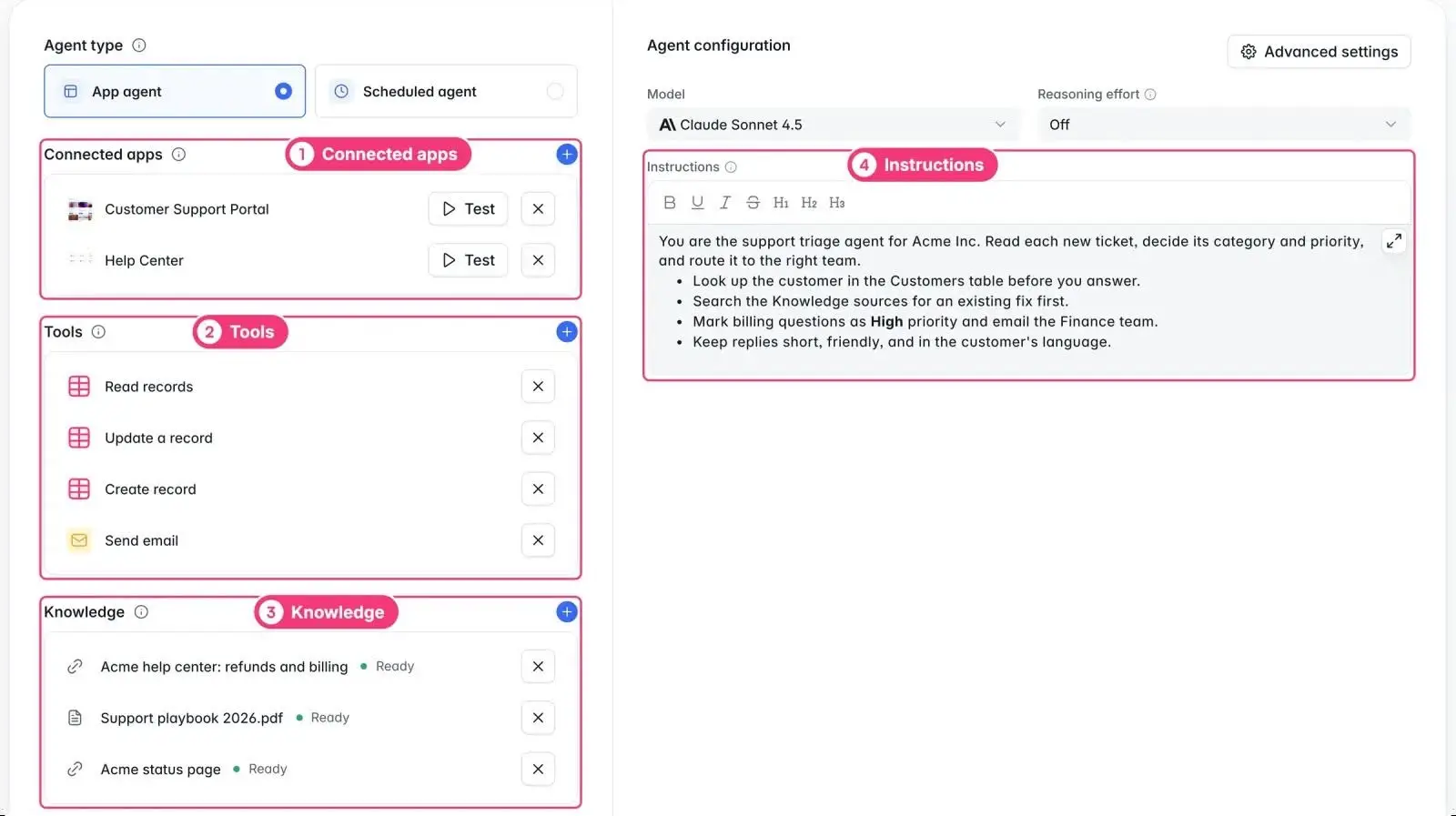
Basic permissions are included with every Softr plan. Record-level restrictions start on the Business plan, while SSO, SCIM (automatic user provisioning), and audit logs come with Enterprise. Agent usage draws on your plan’s monthly AI credits. At the rates specified in the brief, Pro includes 50 AI credits per month and Business includes 100; confirm these allowances against current pricing before publication. Softr also hosts data in Germany (EU) and is SOC 2 Type II attested.
Where Softr doesn't fit: If you need one assistant that searches across every company system while respecting each system's permissions, an enterprise search tool is a better fit. Softr's agents are designed to work with the data and knowledge available in your Softr apps.
How a permission-aware AI assistant answers the same question from an employee and a manager
Let’s say your company has an HR portal on its team intranet, alongside an IT helpdesk that tracks employee requests. The portal contains an employee handbook, open IT requests, and records of upcoming salary changes. Everyone can read the handbook; managers can also see salary changes, but only those they’ve approved for their own team.
Now imagine an employee and their manager both ask the AI assistant the same question: “What's the status of the team's open requests and any salary changes this quarter?”
The question is identical, but the answers are different because the assistant checks each person's permissions before retrieving information. The employee only sees their own requests, while the manager gets a broader view of the team without accessing records they aren't authorized to see.
A checklist for deploying AI agents on internal data
- Assign an owner to each agent
- Keep a list of every agent and what it can access
- Require sign-in through your company login (SSO, or Google sign-in limited to your company’s email domain)
- Give each agent access to only the data and tools its job needs
- Start each agent as read-only, then add actions one at a time
- Have a person sign off on anything that’s sensitive or hard to undo, like deleting data, exporting files, or emailing customers
- Log every question and action, limit who can read the logs, and tell your team what you’re logging
- Remove access automatically when people leave, using SCIM (System for Cross-domain Identity Management, which automates user provisioning and deprovisioning) or a synced staff list
- Check your AI provider’s terms on training and data retention
- Make sure you can switch off an agent quickly
Build an AI assistant that respects your team's permissions
Adding an AI assistant to your intranet doesn't have to mean giving it access to everything. The key is to start with a clear job, connect it to your existing permissions, and test what different employees can see before rolling it out.
Whether you build your own assistant, use an enterprise search tool, or choose an app platform, the same rule applies: your AI assistant should never have more access than the person using it.
If you're building an internal portal with Softr, you can add AI agents that work with your app's existing user groups and data restrictions, without building a separate permissions system from scratch. Explore Softr Agents to see how they work.
Frequently asked questions
How do I add an AI assistant to our intranet that only answers from our own data?
Does an AI assistant automatically respect our existing permissions?
Should an AI agent use the user’s permissions or its own?
Is SSO enough to keep an internal AI assistant secure?
What is permission-aware RAG?
How do I secure access for AI agents and what authorization capabilities do AI agents need?