Juggling multiple projects at once is something we're all too familiar with.
Even with project management tools like monday.com to keep track of everything, managing all the moving parts can be time-consuming and quite limiting.
For instance, monday.com lacks advanced automation options, meaning you spend more time on repetitive tasks like manually updating task statuses and assigning new tasks as projects progress. This slows down your workflow and creates inefficiencies that ultimately hinder your team's productivity.
While monday.com’s app marketplace offers various solutions to extend the platform's functionality, you’ll find that these pre-built monday.com apps don't fully meet your team's unique needs or the specific complexities of your projects.
To truly optimize your workflow, you’ll need to build custom apps yourself using one of two options: the monday.com apps framework (ideal for developers), or a no-code platform like Softr (perfect for business teams who want production-ready software without writing code).
If you already use monday.com and want to build custom web apps without writing a single line of code, keep reading.
This guide will walk you through exactly how to create a monday.com app using Softr, so you can fully streamline and optimize your project management processes and boost productivity.
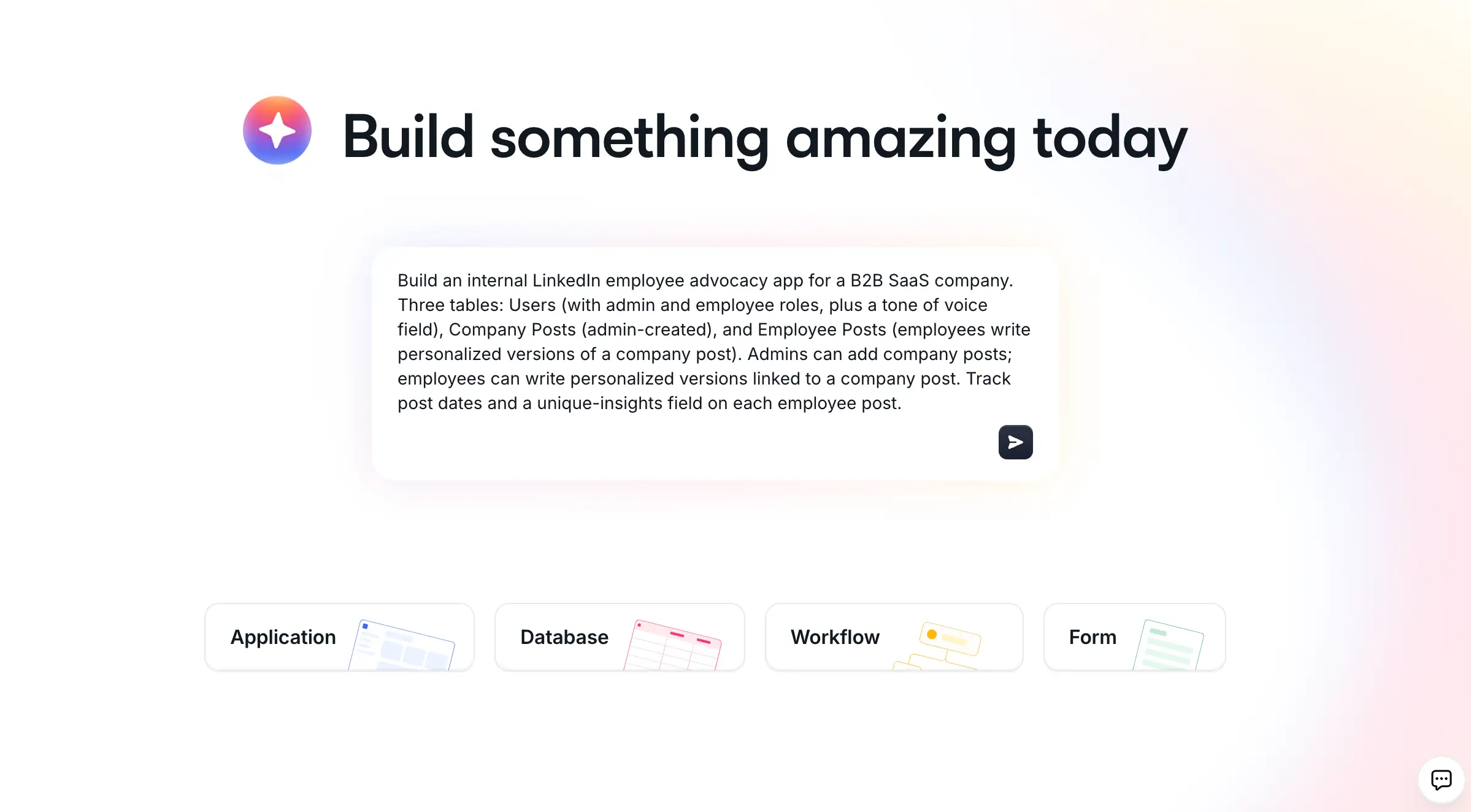
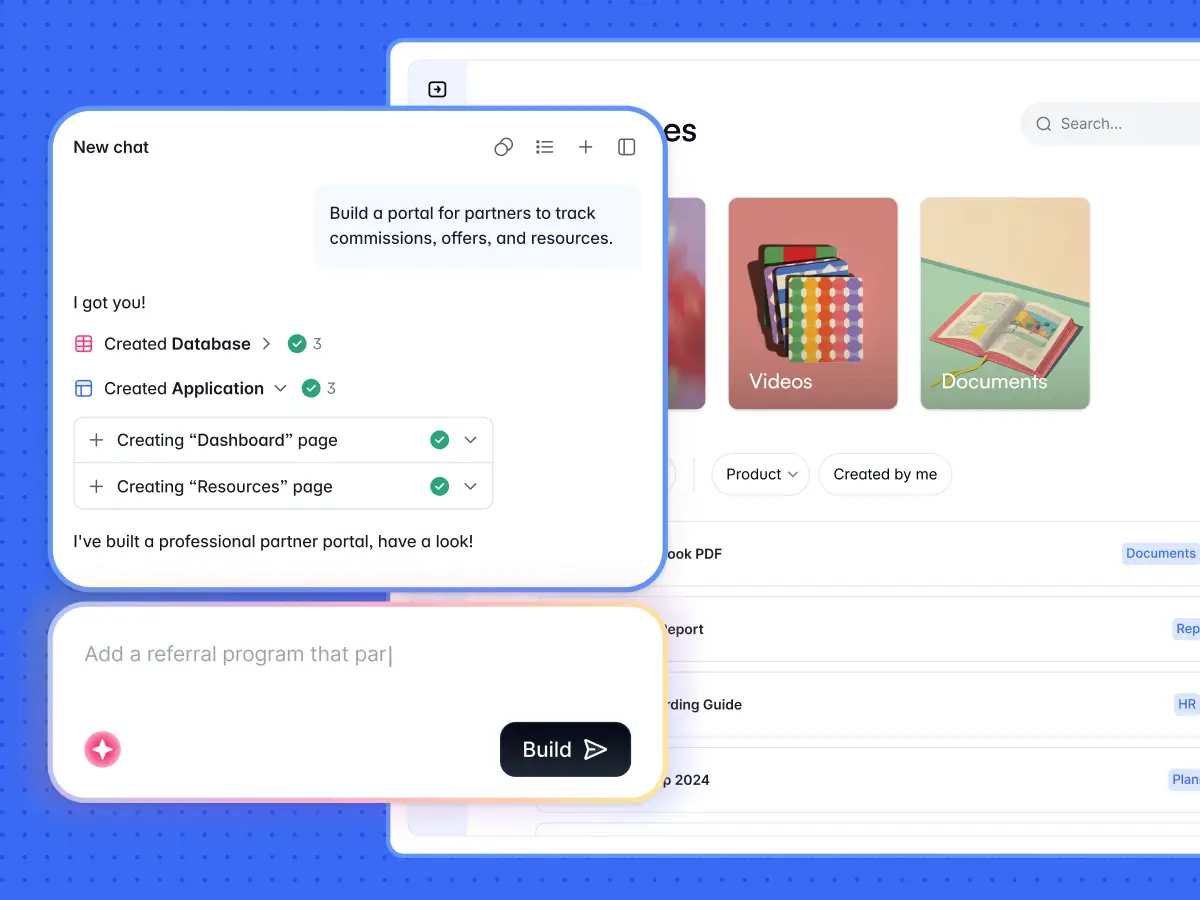
Softr is the first AI-native no-code platform for building business apps. Its AI Co-Builder turns a plain-language prompt into a complete app, including the database, pages, and user permissions, and you can refine everything visually afterward. It is AI-first, not AI-only: you can also start from a template or build from scratch. Either way, the apps you ship are production-ready and secure from day one, unlike the fragile apps that come out of pure vibe-coding tools.
What are monday.com apps?
monday.com apps are extensions and integrations that you can add to your monday.com workspace to enhance its functionality and customize the platform to better fit your needs.
Available in the monday.com App Marketplace, these apps help users extend the capabilities of the project management tool. They range from tools that automate tasks, integrate with other software, and provide advanced reporting and analytics, to those that enable custom workflows.

Some examples of popular monday.com apps include DocuGen, Slack integration, VLOOKUP, AutoID Column, and Zapier. These apps allow you to fully optimize your project management processes and ensure that the platform works exactly as you need it to.
Whether you're looking to save time, improve productivity, or integrate monday.com with other tools, these apps provide the flexibility and power to make it happen. However, it's important to be aware of some limitations that default monday.com apps have.
What are the limitations of default monday.com apps?
Default apps on monday.com come with pre-set features that may not fully align with your team’s unique workflows or project requirements.
For example, if you’re managing a marketing campaign that involves coordinating tasks across multiple departments (design, content creation, and social media), you’ll likely need to rely on multiple monday.com apps for advanced task management, timeline tracking, and reporting.
However, coordinating between these apps can be challenging and limiting, as each app is designed with general use cases in mind and may not fully meet your specific needs.
As a result, you’ll have to manually bridge the gaps between these apps, copying data from one to another, manually adjusting timelines, or compiling data for reports using external tools.
Default monday.com apps also have other limitations, including:
- Automation features that are limited to basic triggers and actions, making them less ideal for complex workflows requiring conditional logic and intricate task dependencies.
- A lack of deep customization options, such as creating highly specific automation rules, custom data fields, or tailored user interfaces that match your exact needs.
- Scalability issues for large enterprises with complex, multi-layered operations.
- Restricted integration with external tools your team already uses.
- Limited UI customization to better fit your workflow.
This is where building your own custom monday.com app becomes incredibly valuable.
Who can build and use a custom monday.com app?
Both developers and non-technical users can build and use custom monday.com apps, depending on the builder you choose.
One option is the monday.com Apps Framework, which allows you to create a custom app with all the features needed to streamline your workflow. However, using this framework requires coding skills, as it is designed specifically for developers.
For non-technical users, no-code tools like Softr offer a great alternative.
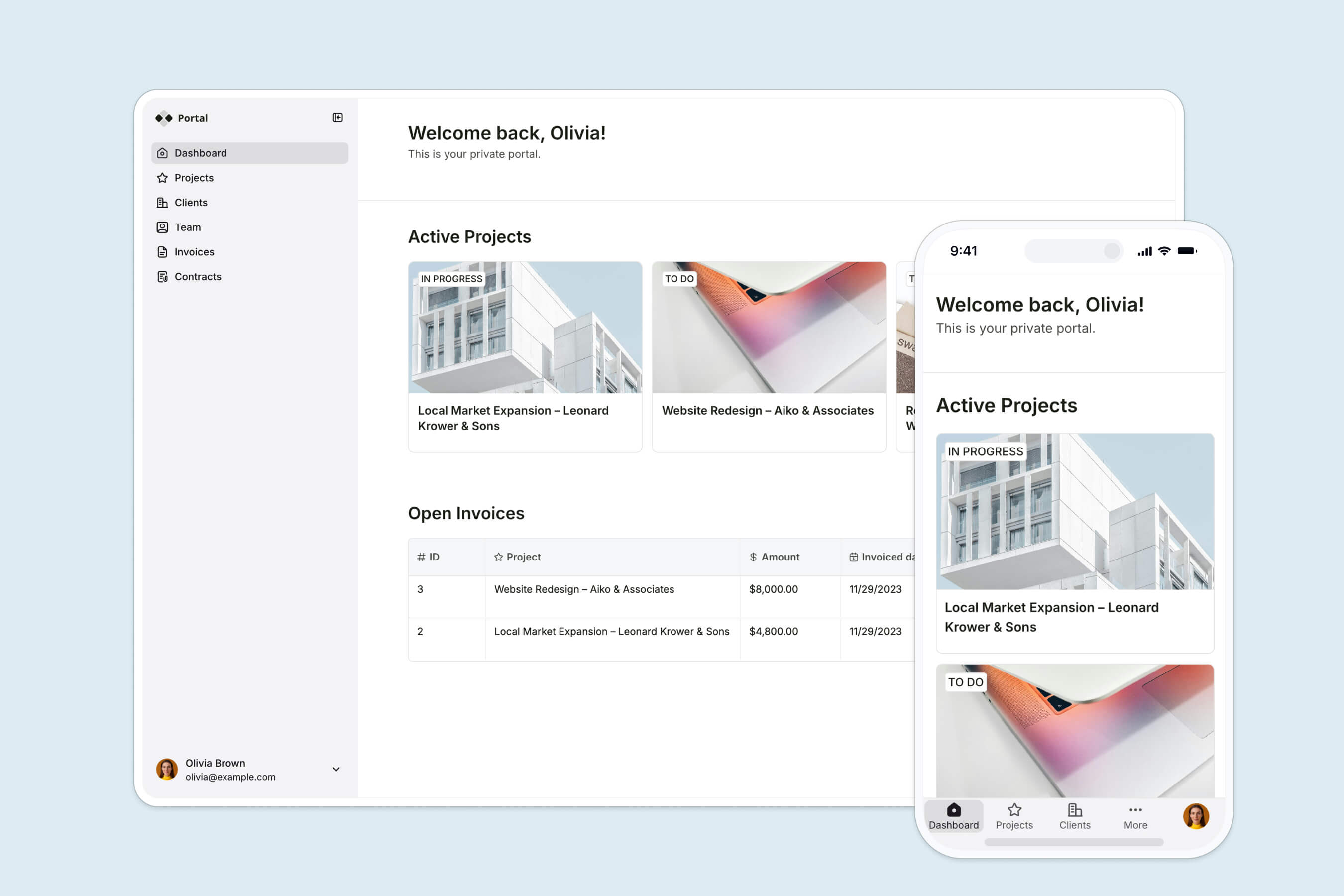
Softr is a no-code web app builder that makes it easy to create custom client portals, client dashboards, and internal tools. It is a full-stack platform: you get the interface, native Softr Databases, and Softr Workflows in one place. You can keep your data in Softr Databases, or connect to monday.com, Airtable, Google Sheets, HubSpot, and 21+ other external sources, then share the app with your clients or team on any device.
Softr empowers anyone on your team, regardless of their technical background, to create custom apps tailored to your specific needs. Here’s how different roles can benefit:
- Project Managers: Design apps for task management, project tracking, and reporting without needing IT support.
- Team Leads: Create workflows that align with their team’s specific processes for better efficiency.
- Business Owners: Build apps that integrate with other tools, manage customer data, or track business metrics, all without needing to hire a developer.
- HR Managers: Develop apps for managing employee onboarding, tracking time off, and handling performance reviews.
- Teams Needing Tailored Solutions: Build apps that integrate with all the essential platforms your team already uses, creating a seamless workflow.
- Large Enterprises: Create highly customized project management apps that scale with the business.
- Freelancers and Solopreneurs: Build apps that simplify project management, client tracking, and invoicing, streamlining your operations.
Building apps with Softr allows you to quickly create and deploy solutions, reducing time to market and enabling your team to respond faster to business needs.
Plus, you don’t need to hire developers or rely on IT support. The intuitive drag-and-drop interface makes it easy to add features, customize layouts, and configure settings on your own, without coding expertise.
Why build a custom monday.com app using a no-code web app builder?
For small to medium businesses, building no-code monday.com apps is a cost-effective solution, as there’s no need to hire developers, since anyone can build. These apps are also scalable, allowing these businesses to easily evolve their tools to meet new challenges as they grow.
"Softr allows me to deliver business apps in a few days where a custom stack would take weeks. The visual editor is straightforward, and the native components cover most of my needs without CSS. Softr solves three very concrete problems for my clients: the dispersion of data across tools, the prohibitive cost of custom development for internal tools, and the dependency on a developer for every change."
Verified User, Computer Software (Small-Business), G2 review
Large enterprises, on the other hand, can benefit from the high level of customization Softr provides, enabling them to build apps that meet complex, enterprise-level needs.
Additionally, these apps can seamlessly integrate with existing enterprise tools and platforms, ensuring that operations remain smooth and interconnected as the business scales.
For individual freelancers and solopreneurs, Softr enables quick deployment of custom apps that help manage projects, clients, and invoices, so they are agile and efficient in their operations.
The flexibility Softr provides means that these users can customize their apps to meet their specific business needs without relying on external help, giving them the tools they need to succeed in a competitive market.
No matter the size of your business or the complexity of your operations, Softr provides the tools you need to create custom solutions that fit your unique requirements, making it a versatile and powerful option for building and using custom monday.com apps.
What type of monday.com app features can I build using Softr?
Using Softr, you can build a wide range of custom features for your monday.com app that cater to your specific workflow and business needs.
Here are 10 types of features you can create:
| Feature | Use case |
|---|---|
| Custom dashboards that pull information directly from your monday.com boards, display key metrics, project progress, team performance and more using interactive charts and graphs. | Perfect for project managers and business owners who need a quick overview of multiple projects, or for executives who require high-level insights into business performance. |
| Advanced task automation to automate complex workflows with multistep processes based on specific conditions. | Ideal for teams of all sizes that handle repetitive tasks across projects and want to reduce manual work and ensure consistent workflow progression. |
| Custom forms that feed directly into your monday.com boards, making it easier to collect and manage data. | Useful for teams that regularly collect information from clients or stakeholders and want to streamline data entry into their monday.com workflows. |
| Client portals for customers to view project progress, submit requests, or communicate directly with your team. | Ideal for small to medium businesses and large enterprises who want to offer clients real-time visibility into their projects without granting them full access to internal boards. |
| Advanced analytics for generating detailed reports based on your monday.com boards data and custom metrics and KPIs, with options for visualizing data through charts, graphs etc. | Ideal for teams that require in-depth analysis of their project data, such as tracking productivity trends, project timelines, or financial performance. |
| Time tracking integrated into your monday.com app that allow users to log hours directly on tasks, automate billing, and generate invoices based on the time tracked and pre-set billing rates. | Perfect for freelancers, consultants, and agencies that need to track billable hours and generate accurate invoices directly from their project management tool. |
| Interactive Gantt charts that pull task data from your monday.com boards, allowing you to visualize project timelines, task dependencies, and milestones. | Essential for project managers who need to manage complex project timelines and ensure that all tasks are aligned with the overall project goals. |
| Role-based access controls to ensure that only authorized (internal and external) users can view or edit certain data within your monday.com app. | Suitable for large enterprises where data security and access control are critical. |
| Interactive Kanban boards that allow users to manage tasks visually, moving items between columns as they progress through different stages of a workflow. | Useful for teams that prefer a visual approach to task management, especially in agile environments where task priorities and statuses frequently change. |
| Integrations that allow you to connect monday.com with enterprise systems (ERP, CRM, HR, and other tools you already use) to ensure unified data flow and operations. | Best for small and enterprise teams that require a fully integrated system to avoid data silos and maintain consistent information across all tools used. |
Softr makes it easy to quickly iterate on and modify your apps as your needs evolve.
You can seamlessly tweak workflows, add new features, or adjust user interfaces in response to feedback or changes in business objectives, ensuring your tools remain relevant and effective.
As your business grows, whether you’re adding new users, expanding service offerings, or managing more projects, the apps you build with Softr can effortlessly scale without compromising performance.
Moreover, Softr enables you to build apps that are accessible across multiple devices, including desktops, tablets, and smartphones.
This ensures that as your business operations expand, your team remains connected and productive, whether they’re in the office, working remotely, or on the go.
For businesses expanding internationally or managing distributed teams, Softr supports the creation of apps that can be accessed and used by team members across various locations.
Softr’s integration capabilities further enhance its versatility, allowing you to build custom applications that seamlessly fit into your existing tech stack.
You can automate your app with native Softr Workflows, which are triggered directly by UI interactions like action buttons and form submissions, making them faster and more reliable than external polling. When you need outside tools, Softr connects natively to monday.com, Airtable, and Google Sheets for data, and to Zapier, Make, and n8n for automation, so your app can communicate effectively with and leverage the power of other tools and platforms.
This flexibility allows businesses to create a truly unified and efficient workflow, where all software solutions work together to drive productivity, even as your business scales.
How to build your app with Softr (at a glance)
Before the detailed walkthrough, here is the high-level path most teams follow to build a production-ready app on Softr:
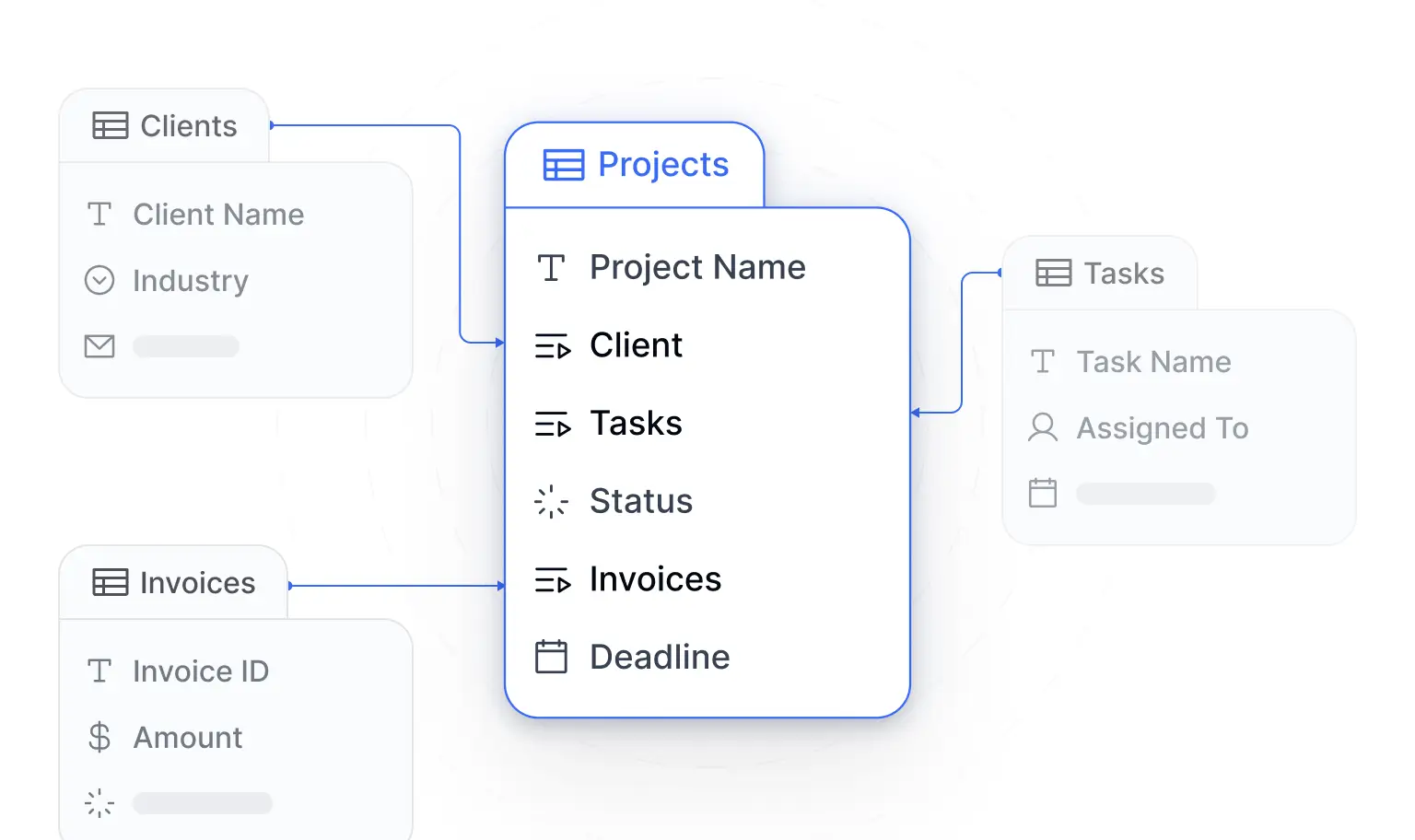
- Structure your data first. Map your app around relational tables (for example, clients, projects, tasks, and invoices) connected through linked records, rather than one flat spreadsheet.
- Generate the app with the AI Co-Builder, a template, or from scratch. Describe what you need and the AI Co-Builder scaffolds the database, pages, and user groups for you. You can also start from a template or a blank canvas.
- Set up user groups and data restrictions. Define groups with conditional logic (such as "Role is Client") and enforce global data restrictions so each user only sees their own records.
- Build your pages. Assemble homepages, entity lists, and record detail pages from native blocks, or ask the AI Co-Builder to add and configure them for you.
- Automate with Softr Workflows. Trigger automations from action buttons, form submissions, or database changes to handle notifications, approvals, and enrichment.
- Publish and invite your team. Push the app live on a Softr subdomain or custom domain, then invite users with the right permissions.
How to create a monday.com app with Softr
Creating a monday.com app with Softr is a straightforward process that empowers business teams to build custom solutions tailored to their specific needs.
Here’s a step-by-step guide on how to create a monday.com app using Softr in 10 minutes:
Step 1: Define your monday.com app’s purpose and features
Before you start the creation process, first identify the main goal your team wants to achieve or a major pain point they need the app to solve.
This will ensure that the final product is tailored to your specific needs.
For instance, if your team struggles with tracking progress across multiple projects, the app could focus on creating a unified dashboard that provides real-time updates, displays key milestones, and highlights upcoming deadlines.
If managing client relationships is a challenge, the app could feature a client portal where clients can view project updates, submit requests, and communicate directly with your team, improving transparency and reducing the need for back-and-forth emails.
For teams that require deep insights into their operations, the app might focus on advanced analytics, pulling data from multiple monday.com boards to create detailed reports and visualizations that track performance against key metrics.
Perhaps your team spends too much time on manual data entry or repetitive processes.
In this case, your app could automate these tasks, such as updating statuses, sending reminders, or generating reports, allowing your team to focus on more strategic work.
Step 2: Sign up on Softr if you haven’t already or log in
If you don’t have an existing Softr account, sign up for free. But if you do, log into your Softr account to start building your monday.com app.

Step 2.1: Choose how you want to start your monday.com app
You have three ways to start. The fastest is to describe your app to the AI Co-Builder and let it generate the database, pages, and permissions for you. You can also start from a pre-built template, or build from scratch if you prefer full manual control. You can also build the app directly from Claude or ChatGPT using the Softr MCP.
Softr has a library of responsive pre-built templates you can choose from, so you don’t have to build your monday.com app from scratch (unless you want to).
After logging in or completing the sign-up process, click on “all templates” to choose the best one for your project.

If you prefer to build from scratch, click on “start from scratch.”
Step 2.2 Search for the right template
There are three ways to find the template you need.
- You can click on any of the categories and scroll until you find one that matches the monday.com app you want to build.

- Scroll down the already highlighted “ALL” until you find one that matches the monday.com app you want to build.

- Use the search bar to type a keyword for the template you want to use and hit “Enter.”
For this example, we will use the client portal template.

Step 2.3: Click on the template you want to use
After selecting a template, click “Preview” for an overview, and then click on the “Use Template” button to start building.

Step 3: Connect Softr to monday.com
To continue creating the app on Softr using data from monday.com, you have to connect both apps. You can do it right away by clicking the “Select data source” dropdown and select “Add another data source.”

Or click “Connect later.”
We recommend this option since the monday.com integration is currently unavailable for this template using the first option. But you can access it once you’re in the Softr Studio.

Step 3.1 Choose the page and block to edit
Every Softr template includes various pages that make up the client portal you’re creating, and you can customize each one. To do so, click on Pages on the left side of your screen, then choose the pages you want to edit. We chose the dashboard page of the client portal template.

To start edit and choose the data source you want to use, click on one of the blocks you want to use to display your monday.com data, so that the editor panel slides in.

Step 3.2: Select the data source
The default data source for the client portal template is Airtable but you can change it by clicking on the “Source” dropdown and selecting “add another data source.”

Next, select monday.com as your data source and click continue.

Follow the instructions that comes after to set monday.com as your data source.

After generating and copying your API token, paste it in the tab below “personal API token,” then click “continue.”

Once successful, you’ll see a successful message pop up on the screen below and the “source” dropdown change from Airtable to monday.com.

Step 3.3: Select the workspace you want to show
You can now choose the data from which table you want it to be shown on this block. For this example, click on the ideal workspace options to select you which you want to display.

Step 3.4: Select the board you want to show
Click on the dropdown under “Board”and choose which Monday board you want to get the data from.

You can also create conditional filters and use the dropdown under “Sort by” to select how you want to organize your data.

Step 4: Customize the app interface
With your data integrated, it’s time to design the app’s interface using Softr’s no-code builder.
Softr’s drag-and-drop builder lets you easily create or rearrange the layout of your app. You can add sections, buttons, forms, and more to create an intuitive and functional interface, or simply describe the changes you want to the AI Co-Builder and let it add and configure the blocks for you.
Let’s go over a few ways you can make your app user-friendly
Step 4.1: Customize what data is displayed
You can choose the data you want displayed about each client at a quick glance.
To do this, hover over the block and click on the eye symbol to hide or reveal blocks of information. If the eye is closed, it’s hidden. But if open, it means users can see the info on the card before clicking it.

Also, you can delete blocks that don’t have the option to hide them, meaning the ones that don’t have the eye symbol beside their name. Doing so will result in users only seeing the information when they click on the card.
To delete, click on the three dots (...) and then click on “Delete.”

Step 4.2: Add a search bar and filter
Adding a search bar and filter allows users to easily find and filter specific information, improving navigation and usability within your app. To add these features, toggle the button beside the search bar and add filter options using the “+ add filter” button.

Step 4.3: Create action buttons
With action buttons, you can perform CRUD (create, read, update, delete) operations with the underlying data, plus navigation actions like opening a URL.
Click on the Actions tab and scroll to the Items on click section, then click on the dropdown and select what a user should see when they click on a card.

In our example, we selected the option “open details page,” so that users can see everything they need to know about the client.
Step 4.4 Adjust the style to match your branding
From the “styles” tab, customize the app’s style to align with your brand’s colors, fonts, and overall aesthetic. This makes the app visually appealing and ensures consistency across the app.

If you want to change the text, colors, and size of the layout and overal theme, click on “theme” at the left side of the screen and make changes as you see fit.

Step 5: Set up visibility
To control who can access your monday.com app, navigate to the Visibility tab. You have three options to choose from:
- All users: This includes both logged-in users and visitors who aren’t logged in.
- Logged-In users: Only those with login credentials can access the app.
- Non-Logged-In users: Only those without login credentials can access the app.
Decide who should have access to your app and on which devices they can use it.
If you want to restrict access, choose “Logged-In Users” to ensure only authorized users can view the app. If you want the app to be publicly accessible, select “All Users.”

Softr also allows you to assign specific user groups to different access levels.
These groups enable you to organize users into categories, ensuring that each group has access to the appropriate sections of your data. To limit access to a particular group, use the “Which User Group” dropdown and select the desired group.

You can also customize device visibility by clicking on the device icons next to “Device Visibility.” A red icon indicates that users can access the app on that device, while a black icon means access is restricted.

For further control, you can toggle the “Hide If” button and set conditions to determine when certain information should be hidden from specific users or groups.

Step 6: Preview your monday.com app
After customizing your app, it’s important to preview it to ensure everything looks and functions as intended before sharing it with your team.
To do this, click on the play icon at the top right corner of your screen. This will open a preview mode where you can see exactly how your app will appear to users.

In the preview mode, you can test your visibility settings by using the dropdown menu at the top left corner. This allows you to view your app from the perspective of different user groups, such as non-logged-in users, logged-in users, and specific user groups you’ve set up.
This is what your app will look like to users who haven’t logged in.

This is how your app appears to your clients, with the appropriate level of access.

This is the view for freelancers, tailored to their specific access permissions.

Notice how each user group has different levels of access and sees only the information relevant to them.
This ensures that your app’s data is secure and only visible to the appropriate users.
Step 7: Publish and share your monday.com app
Once you’re satisfied with how your app looks and functions, you’re ready to publish it. Click on the “Publish” button in the top right corner of your screen.

You can choose to publish your app on a custom domain by following the “Click here” link, or you can publish it using Softr’s subdomain. After making your choice, click “Publish” to make your app live and share it with your team.

How to optimize monday.com apps
Optimizing your monday.com apps is essential to ensure they perform efficiently and provide a seamless user experience. Below are nine tips to help you get the most out of your app:
- Review your app's layout and remove unnecessary elements to make it user-friendlier.
- Reorganize elements by prioritizing key features with size, color, and placement.
- Test your app on different devices to maintain a consistent design and user experience.
- Introduce filtering, sorting, and search options to help users quickly find what they need.
- Review user roles and ensure you have role-based access controls set up to protect sensitive data and improve security.
- Audit your current automation and remove redundant ones to speed up performance.
- Regularly test your app on different devices (desktop, tablet, smartphone) to ensure consistent design and user experience across all platforms.
- Include tooltips or brief instructions to help users navigate the app.
- Set up a feedback mechanism today, like a survey or feedback button, and plan to review responses weekly.
Set up your first (or next) monday.com app in minutes
Building custom apps that extend monday.com’s functionality doesn’t have to be time-consuming or require technical expertise.
With an AI-native no-code platform like Softr, you can create and launch your app quickly (often in just minutes) without writing a single line of code, and the result is production-ready software your team can rely on rather than a fragile prototype.
"It only took a couple of days to build the entire portal, including permission leveling and custom workflows. Softr lets us create a customer-specific portal with permission control, track tasks, view launch trackers, and share documents in one place."
Casey H., Advisor (Small-Business), G2 review
Softr’s intuitive drag-and-drop builder, AI Co-Builder, native databases, and workflows let you tailor your monday.com app’s features, automation, and user interface to fit your exact needs, whether you’re managing client relationships, tracking project progress, or integrating with other tools.
You can also set granular permissions to secure data sharing and ensure that sensitive information remains protected. Plus, Softr offers a free plan and trial period, so you can start building your monday.com app immediately without any financial commitment.