[.blog-callout]
TL;DR
- Google Sheets shares access at the file level, so there's no native way to share a single tab. You can work around it, but each method has trade-offs.
- The IMPORTRANGE function pulls one tab into a separate file, hiding tabs removes them from view, exporting to PDF creates a static copy, and publishing to the web makes a tab public.
- These workarounds solve a symptom. The real need is controlling exactly who sees which data, and spreadsheets aren't built for that.
- To share data securely, build a portal on top of your sheet with a no-code tool like Softr. Use users and permissions and user groups so each person only sees the records they should. [.blog-callout]
Ever wanted to share just one tab in your Google Sheets without giving access to everything else? Sharing only one tab is helpful when you only need to surface specific data, like sending a client their numbers while keeping the rest of the workbook private for your team.
The catch is that Google Sheets controls access at the file level, not the tab level. There's no single button that says "share this sheet only." So you'll need a workaround, and the right one depends on whether the data needs to stay editable, stay live, or stay private.
Here are the strategies you can use to share a single tab without copying and pasting your data into a new file or workbook:
- IMPORTRANGE function
- Hiding tabs in Google Sheets
- Exporting the tab as a PDF
- Publishing the tab on the web
- Sharing Google Sheets data securely with Softr
Share only one tab with the IMPORTRANGE function
One method to share only one tab of your Google Sheets spreadsheet is the IMPORTRANGE function, which allows you to import data from one spreadsheet to another.
To use the IMPORTRANGE function, you need the URL of the source spreadsheet and the specific tab from which you want to import data.
Step 1: Select the tab to share
Choose the tab you want to share on your Google Sheets with others.

Step 2: Create a new workbook
Create a new file in Google Sheets by clicking “File.”
Click “New” in the drop down menu, then “Spreadsheet” to create a new workbook.

Step 3: Input the formula in the new workbook
In cell A1 of the new workbook, enter this formula:
=IMPORTRANGE("URL", "SheetName!Range")
Copy the URL address for the individual tab you want to share.

Replace “URL” with the URL address you copied and “SheetName!Range” with the range of cells you want to share.

If you see the #REF! error message, click in the cell to open the popup. Click Allow access to connect the original worksheet to the new workbook.

Step 4: Select a share option and access permissions
Rename your new workbook by clicking on “Untitled spreadsheet” at the top.
Click the “Share” button on the top right to share it.

When you share a Google Sheet, you can set specific access permissions for the people you're sharing it with.
- Add people or groups: Enter the email addresses or groups you want to share the document with.
- Set share permissions: Next to the person’s email, click the drop-down menu and choose the access rights:
- Viewer.
- Commenter.
- Editor.
Click the blue “Send” button.

Google Sheets also offers link-sharing options, where users with the link can access the sheet based on the access permissions you set.
Restricted (Default): Only people you explicitly share the document with can access it.

Anyone with the link: Any link recipient can access the sheet. You can choose if they can view, comment, or edit.

Once you select your general access share permission, click the Copy link button to copy the shareable link.

Note: This method keeps the new sheet connected to the original worksheet. If the original worksheet is updated, the shared data will automatically update.
Related resource: How to share Google Sheets: 6 methods you need to know
Hide tabs in Google Sheets
You can hide individual tabs you don’t want to share and only share a single tab.
Note: All spreadsheet Editors can unhide and view these sheets.
Spreadsheet viewers can’t see hidden sheets. If someone creates a new file by copying the original worksheet, the sheets will stay hidden, but they’ll be able to unhide them.
Step 1: Open your spreadsheet
Open your Google Sheet containing the specific tab you want to share.

Step 2: Hide the other sheets
Right click on the tabs you do not want to share and click “Hide sheet.”

Step 3: Share and set access permission
After hiding the tabs, click the “Share” button on the top right.

Use the share option to set specific access permissions for link recipients to view the data.

You can also enable the general access by using the copy link button to send a sharable link, allowing others to view only based on the permissions you set.

When Viewers access the shared document, they will only see the visible tab and the hidden tabs will stay out of view. Keep in mind this is a convenience feature, not a security control: anyone with Editor access can unhide the tabs, and viewers who copy the file can reveal them too. If the data is genuinely sensitive, you'll want access enforced at the data level rather than hidden in the UI.
Related resource: How to password protect a Google Sheets spreadsheet
Export the Google Sheets tab as a PDF
If you want to share a static version of the tab (i.e., no need for editing), you can export the specific tab as a PDF.
Note: The shared data will not be editable. The PDF will be outdated once any edits are made to your original worksheet.
Step 1: Select the tab you want to share
Go to the tab you want to share. Click the File menu, then click Download and choose PDF.

Step 2: Choose your export option
Under the Export heading, you can choose which tab you want to share. Once you’ve done so, click on the “EXPORT” button.

Step 3: Share your PDF
Now you have a PDF of your Google Sheets, which you can share.

Publishing the Google Sheets tab on the web
Publishing to the web is another method for sharing only one tab of your Google Sheets file.
Note: This share option makes your data publicly accessible, including any private or sensitive information. Users will not be able to edit the data if you publish as a web page or PDF.
Step 1: Publish a single tab to the web
Click the File menu, click “Share,” and select “Publish to web.”

Step 2: Select the single tab you want to share
Next, use the drop down menu to select the individual tab you want to publish.

Step 3: Choose the file format
Choose the file format by clicking on the file menu on the right side:
- Web page.
- CSV.
- TSV.
- PDF.
If you share as a CSV or a TSV, the data download as a file and it will be editable with Microsoft Excel or Google Sheets.

Step 4: Click “Publish”
Click “Publish” to publish your Google Sheets tab. After you do so, a prompt will appear to confirm you want to publish it. Click “OK.”
Depending on your method, you will receive the file or a shareable link.

Softr: control exactly who sees which data
Here's the honest takeaway: Google Sheets doesn't have a reliable way to share a single tab, because every workaround above fights against how the file is designed. The deeper problem isn't tabs at all. It's that you want precise control over who can see and edit which data, and a spreadsheet hands out access to the whole file or nothing.
That's the gap a no-code platform like Softr closes. Instead of carving up your spreadsheet, you build a simple app on top of your data and let permissions decide what each person sees.

Softr is a full-stack platform: you get the interface builder for the front end, native Softr Databases for your data, and Softr Workflows for automation. You can keep your data in Softr Databases, or connect Airtable, Google Sheets, and 17+ other data sources. The fastest way to start is the AI Co-Builder: describe the portal you need in plain English and it generates a working app for you, or you can start from a template or a blank canvas.
"I appreciate its functionality in sending notifications, inviting users, and using magic links and other secure features. I also love the ability to control access globally, which is really important for data security and privacy." - Natalie S., Director of Operations, G2 review
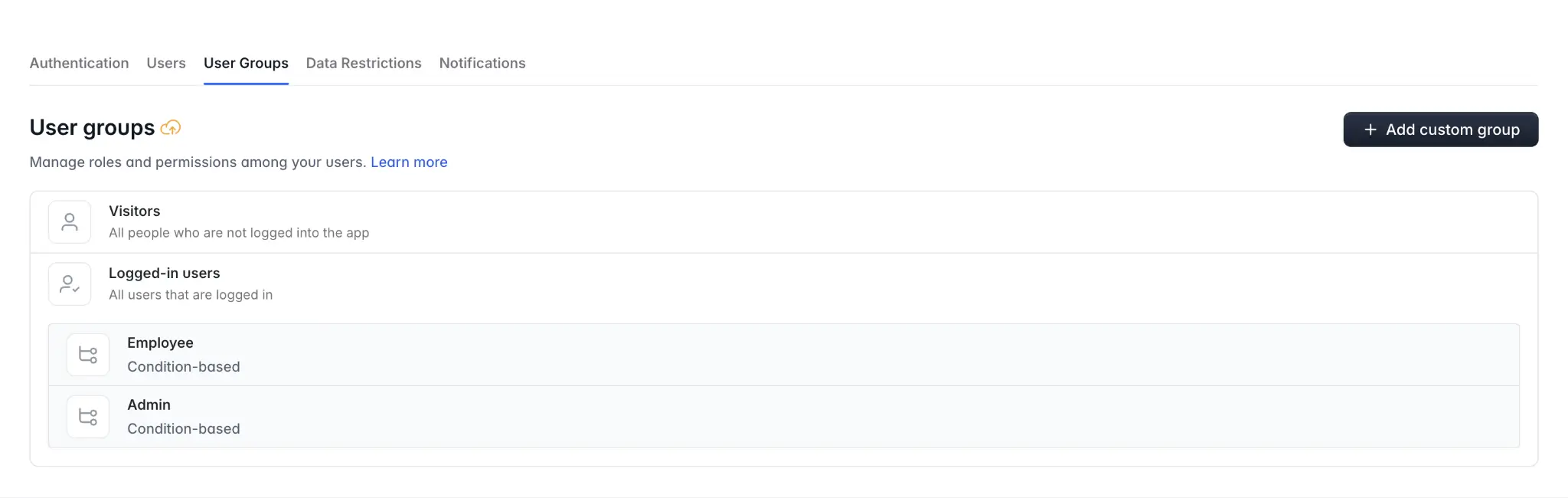
Granular access with users, permissions, and user groups
The reason this works is Softr's permission model. Rather than the file-level roles you get in Google Sheets, you set users and permissions at the page, block, and even record level. User groups then let you define who belongs to which audience, so admins, employees, and external clients each get their own view of the same underlying data.
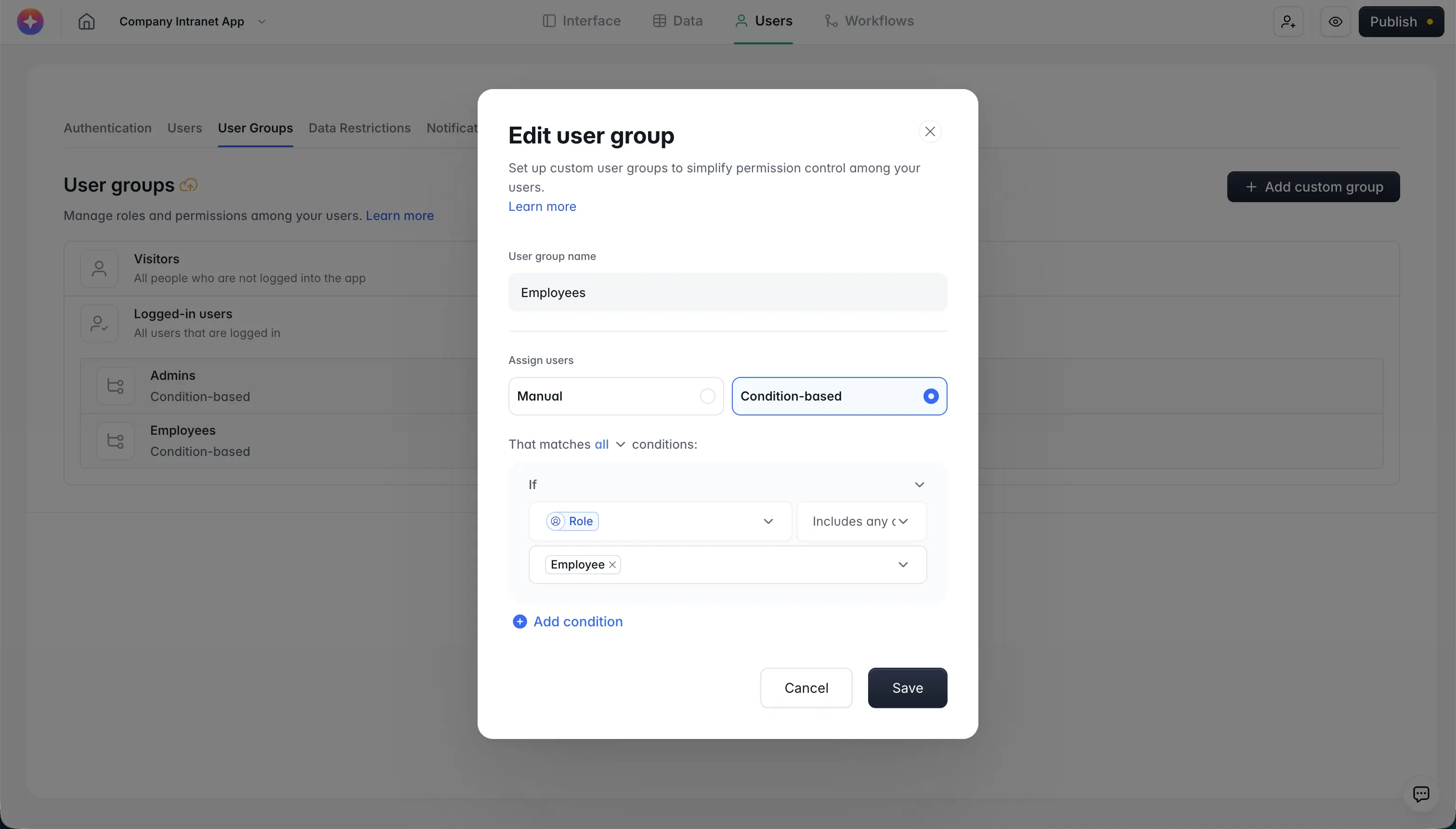
This is exactly the kind of control spreadsheets can't offer. As Softr CTO Artur Mkrtchyan puts it:
"The Softr difference is that permissions live in a visible panel, not in generated code. Visual schemas make it simple to verify block-level visibility configurations in a visual editor rather than auditing a black box of generated code."
For a client portal serving many companies, you can link your Users table to a parent Companies table and apply a global data restriction. Each logged-in user only ever loads records tied to their own company, so you isolate dozens of clients without building dozens of separate apps. One missed step won't expose another client's data, because the restriction is enforced at the data level.

With Softr, you can build polished client portals and internal tools powered by your Google Sheets data, and present exactly the right slice of it to each person.
Move past sharing files, start sharing access
Sharing a single tab is a workaround for a need spreadsheets were never built to handle: showing each person only the data that belongs to them. The four Google Sheets methods above will get you through a one-off share, but if you keep running into the limits of file-level access, that's the signal to put a real app on top of your data. Connect your sheet to Softr, set up your user groups, and let everyone log in to see exactly what they should, nothing more.
Frequently asked questions
Can you share a single tab in Google Sheets without sharing the whole file?
Is hiding a tab in Google Sheets actually secure?
What's the safest way to share Google Sheets data with clients?
Does IMPORTRANGE keep the shared tab updated automatically?
Can I control who edits which rows when sharing Google Sheets?