How to build an AI employee advocacy app for your company


In 2026, asking your team to copy-paste the same company post on LinkedIn doesn't work anymore. The platform actively penalizes duplicate content, and your employees know it: they want to share the news, but they also want to sound like themselves, not like the marketing team's official voice.
The fix isn't to write twenty unique posts on launch day, but to give every employee an internal app where they can turn one company announcement into a personalized LinkedIn draft in under a minute, with AI that respects their tone, language, and unique angle on the news.
This guide walks through that exact build, end to end. We'll use LinkedIn employee advocacy as the running example because it's a vivid, recognizable use case — but the architecture underneath is general. The same pattern (one source, many personalized outputs, AI that respects per-user context) covers a long list of business needs: localized customer comms, sales outreach grounded in a single case study, role-specific summaries of internal docs, multi-channel content distribution, and many more.
If your team is currently adapting one piece of content by hand for multiple audiences, this is the kind of app that replaces that work.
What is Softr?
Softr is the first AI-native platform for building business software without code. Describe the app you need and the AI Co-Builder generates the database, the interface, the user roles, and the permissions in minutes. From there you can keep editing with AI or visually, and add custom AI logic where it matters.
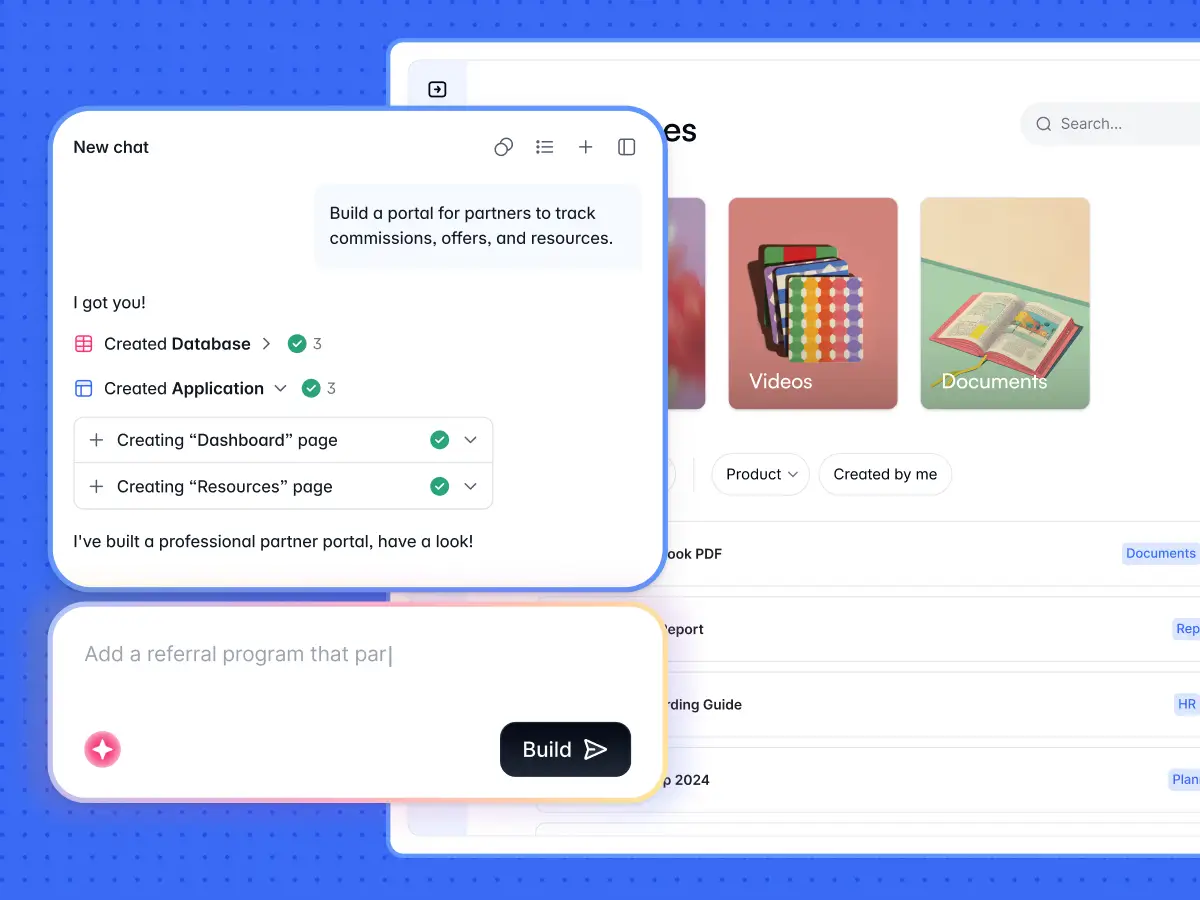
For an employee advocacy app, Softr is the right choice for three reasons. First, it ships with users and permissions built in, so an admin and an employee see two different versions of the same app from day one. Second, it gives you a native Softr Database so company posts, employee drafts, and user profiles all live in one secure place. Third, it lets you combine native blocks with a Vibe Coding block and Softr Workflows to build the AI personalization step that no off-the-shelf tool provides.
Who is this app for?
The walkthrough is written for a B2B team that wants their employees to amplify launches and announcements on LinkedIn with content that actually performs. But every choice you'll see (the data model, the user-level context, the human-in-the-loop AI step) is also the right shape for any "one source, many personalized outputs" workflow your business runs. Think of it as a tutorial for one use case — and also a blueprint for many.
This app has two user groups, each with a clear job to be done:
- Admins (typically the marketing or communications team) need to publish official company posts and manage the content calendar without worrying about employees overwriting their work.
- Employees need a frictionless way to spot a new announcement, add their own perspective, get an AI draft in their voice, and share it on LinkedIn in under a minute.
App blueprint
Before opening the builder, let’s map out the structure we'll create:
Database (3 tables)
- Users: Name, email, avatar, role, tone of voice (long text), preferred language (single select).
- Company Posts: Title, content, post date, remix count (rollup).
- Employee Posts: Company post (link), employee (link), unique insights, final post content, post date.
Pages
- Home with two lists (posts to remix, posts already remixed).
- Company Post Detail with a tabbed interface (Remix, All Posts, My Posts).
- Account Settings (with editable tone of voice).
- Add Company Post (modal form, admin-only).
Workflows
- AI personalization workflow triggered by webhook from the Vibe Coding block.
- Slack notification on new company post.
Part 1: Database and data structure
Success in Softr is 80% data structure. Get this right and the rest of the build is just execution.
1.1 Generate the schema with the AI Co-Builder
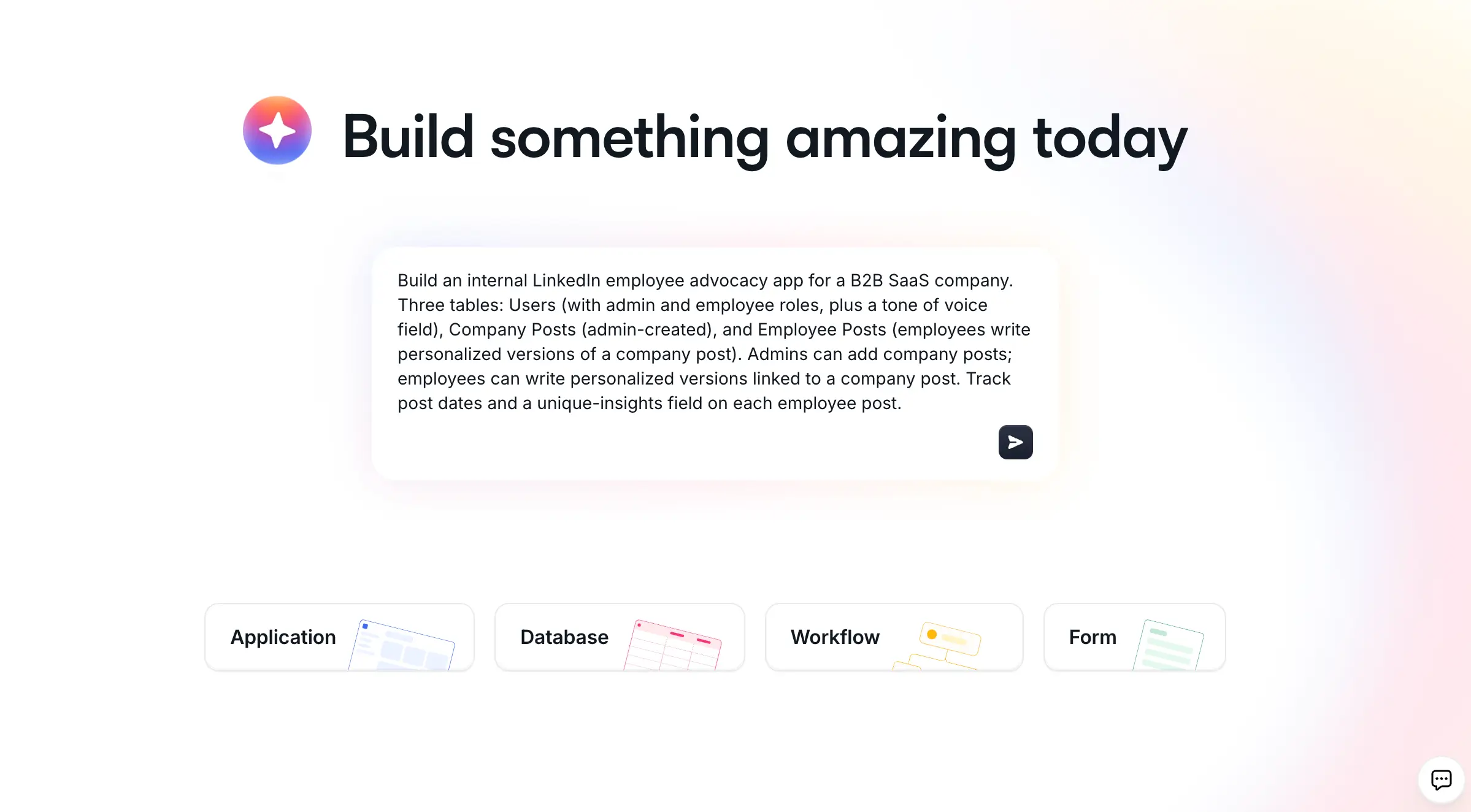
In your Softr dashboard, paste a prompt like this into the Co-Builder’s chatbox:
Build an internal LinkedIn employee advocacy app for a B2B SaaS company. Three tables: Users (with admin and employee roles, plus a tone of voice field), Company Posts (admin-created), and Employee Posts (employees write personalized versions of a company post). Admins can add company posts; employees can write personalized versions linked to a company post. Track post dates and a unique-insights field on each employee post.
The AI Co-Builder will generate the database, relationships, sample data, and a working interface in less than five minutes. Don't worry about getting every detail right in your prompt. The Co-Builder will ask one or two clarifying questions (sign-up flow, navigation layout, theme), and you can always edit everything afterward.
1.2 Refine the database manually
Once the V1 is generated, open the database editor and clean up a few areas:
- In the Users table, make the Tone of Voice field a long text field. This is where each user describes how they write, so the AI has room to learn their voice.
- Add a Language field on the Users table as a single select with the options your team uses (English, French, Spanish, etc.).
- In the Employee Posts table, add a formula field that combines the employee's name and the related company post title, then make it the primary field. This gives every record a unique, readable label.
- In the Company Posts table, add a rollup field called
Remix Countthat counts the related employee posts. You'll display this on the homepage so admins can see how each announcement is performing internally.
You can do all of this manually, or you can prompt the Co-Builder again ("for the existing user records, write a sample tone of voice for each one in the context of LinkedIn posts"). Use whichever mode feels faster.
Part 2: Interface and permissions
The Co-Builder already created a homepage, a Company Posts page, and a Company Post Detail page. We're going to extend this with a tabbed interface and then tighten the permissions.
2.1 Split the homepage into two lists
On the homepage, add two List blocks connected to the Company Posts table:
- All posts you haven't remixed yet with a filter where the Employee Posts collection does not include the logged-in user's email.
- Posts you've already remixed with the inverse filter.
This gives every employee a clear "what's left to do" view the moment they open the app.
2.2 Lock down the edit and delete actions
By default, the Co-Builder sets edit and delete actions on the Company Posts list to be visible to admins only. Confirm this by clicking the action button and checking the Visibility panel. If it isn't already restricted, set the visibility to admins.
You can also set up global data restrictions so that even if an employee somehow lands on a hidden block, the underlying data layer prevents the action.
2.3 Add a tabbed interface to the Company Post Detail page
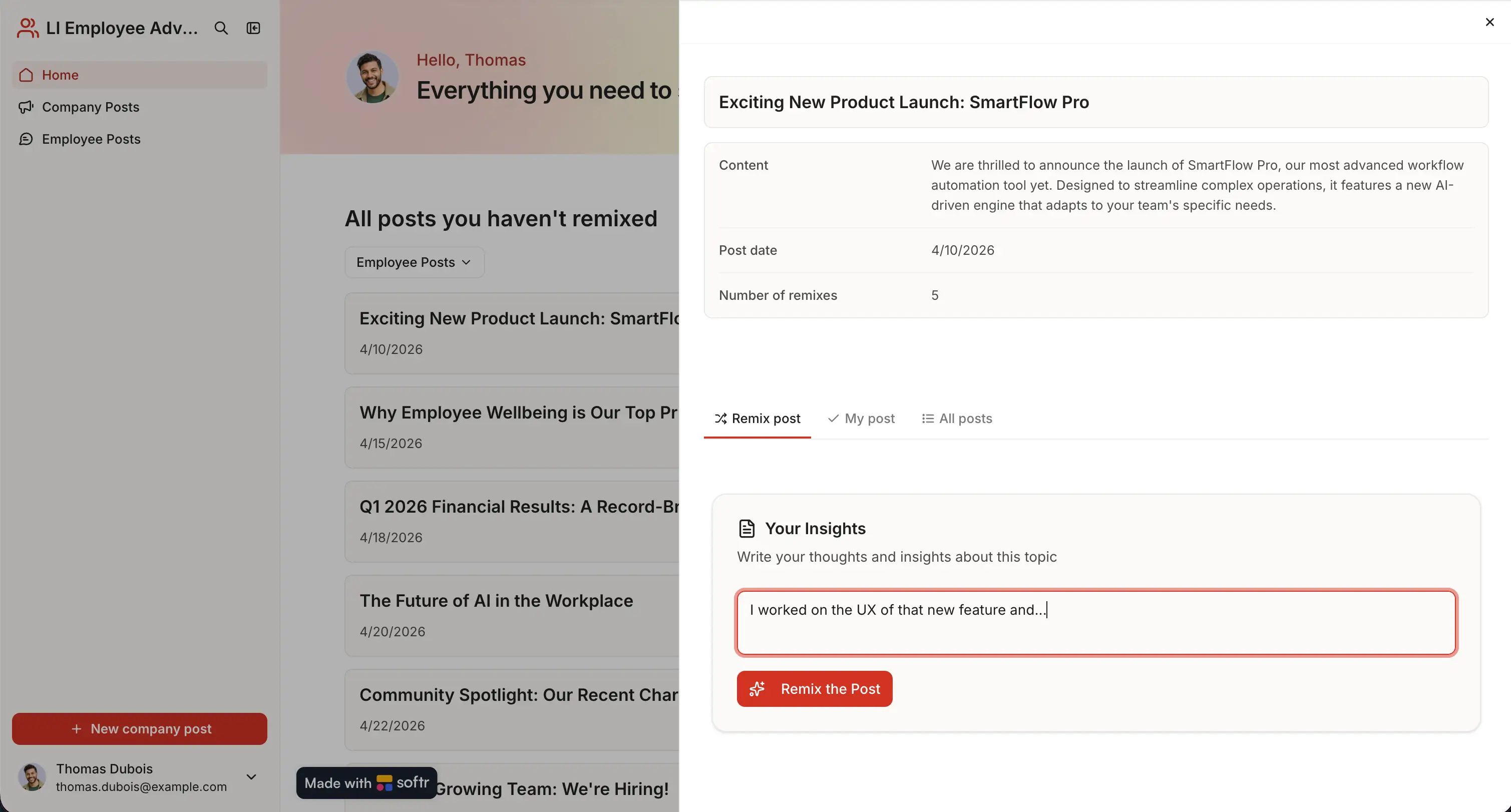
Open the Company Post Detail page and add a Tab Container with three tabs:
- Remix this post (where the AI personalization will live).
- All employee posts (the list of posts other employees have written for this same announcement, useful for inspiration).
- My post (the current employee's draft, if they've already written one).
The "All employee posts" tab is a list block filtered to the current company post. The "My post" tab is the same list, additionally filtered by Employee = logged-in user.
2.4 Expose tone of voice in the Account Settings page
Softr's account settings page is generated automatically. Open it and add the Tone of Voice field as an editable long text field. This turns each user's profile into their own personal system prompt for every AI feature in the app.
A user's tone of voice might read: "I am an engineer at Softr. I write in a friendly but technical way, I love sharing the behind-the-scenes of how things were built, and I keep my posts under 200 words. I sometimes use light humor."
That single paragraph is what makes the AI sound like the actual employee instead of generic LinkedIn boilerplate.
Part 3: The AI personalization feature with the Vibe Coding block
This is the part no native block can produce, so we'll build it with the Vibe Coding block.
3.1 Add a Vibe Coding block to the "Remix this post" tab
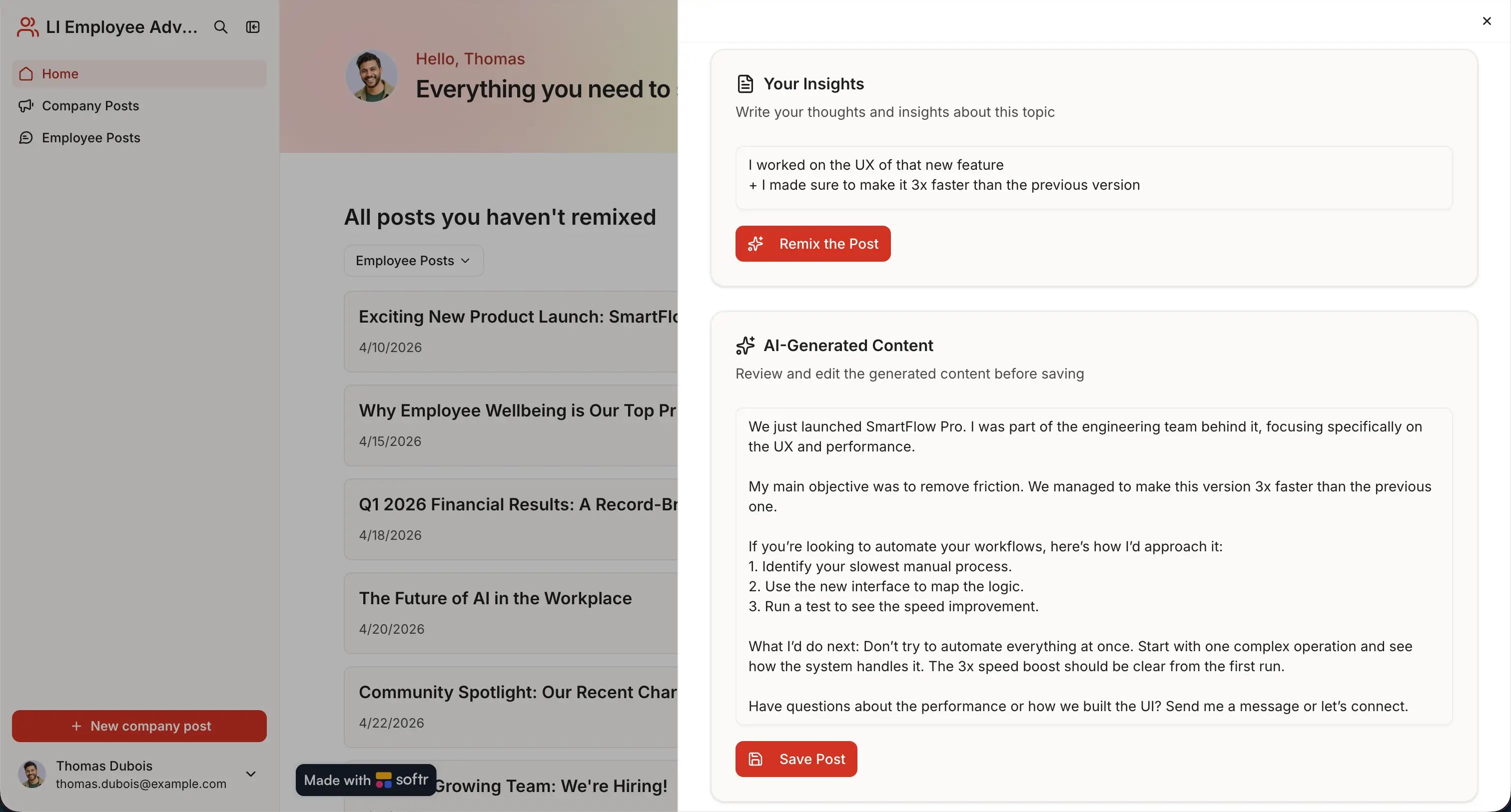
Inside the Remix this post tab, add a Vibe Coding block. Connect it to the Company Posts table and add a filter so the block only loads the current record (Record ID = current detail page record ID). This way the block always knows exactly which company post the employee is remixing.
3.2 Prompt the block
Use a prompt like this:
This block is connected to one company post (the current record). Build a small interactive component with: a read-only display of the company post content, a long-text input where the user writes their unique insights about this post, a button labeled "Remix the post" that sends the company post's record ID and the user's insights to a webhook, a loading state while the webhook responds, a long-text field that pre-fills with the AI-generated post content from the webhook response, and a "Save post" button that creates a new record in the Employee Posts table with the company post link, the employee (logged-in user), the insights, and the final post content.
You can refine this prompt iteratively. Start with the core structure and add visual polish in follow-up prompts. The Vibe Coding block keeps a full version history so you can roll back any changes you don’t like.
Why use a Vibe Coding block here?
This UI doesn't fit any native block. It needs a custom flow, a webhook round-trip, and a two-stage save action. The Vibe Coding block is exactly the right tool for the custom 20% of your app, while the rest of the build leans on native blocks for the predictable 80%.
Part 4: The AI workflow
The Vibe Coding block sends data to a Softr Workflow via a webhook and waits for the response. Here's how to set up that workflow.
4.1 Create a webhook-triggered workflow
In the Workflows section, create a new workflow with a Webhook trigger. Copy the webhook URL and paste it into the prompt of your Vibe Coding block so the block knows where to send the request. The block will pass two values: the company post's record ID and the user's unique insights.
4.2 Find the company post
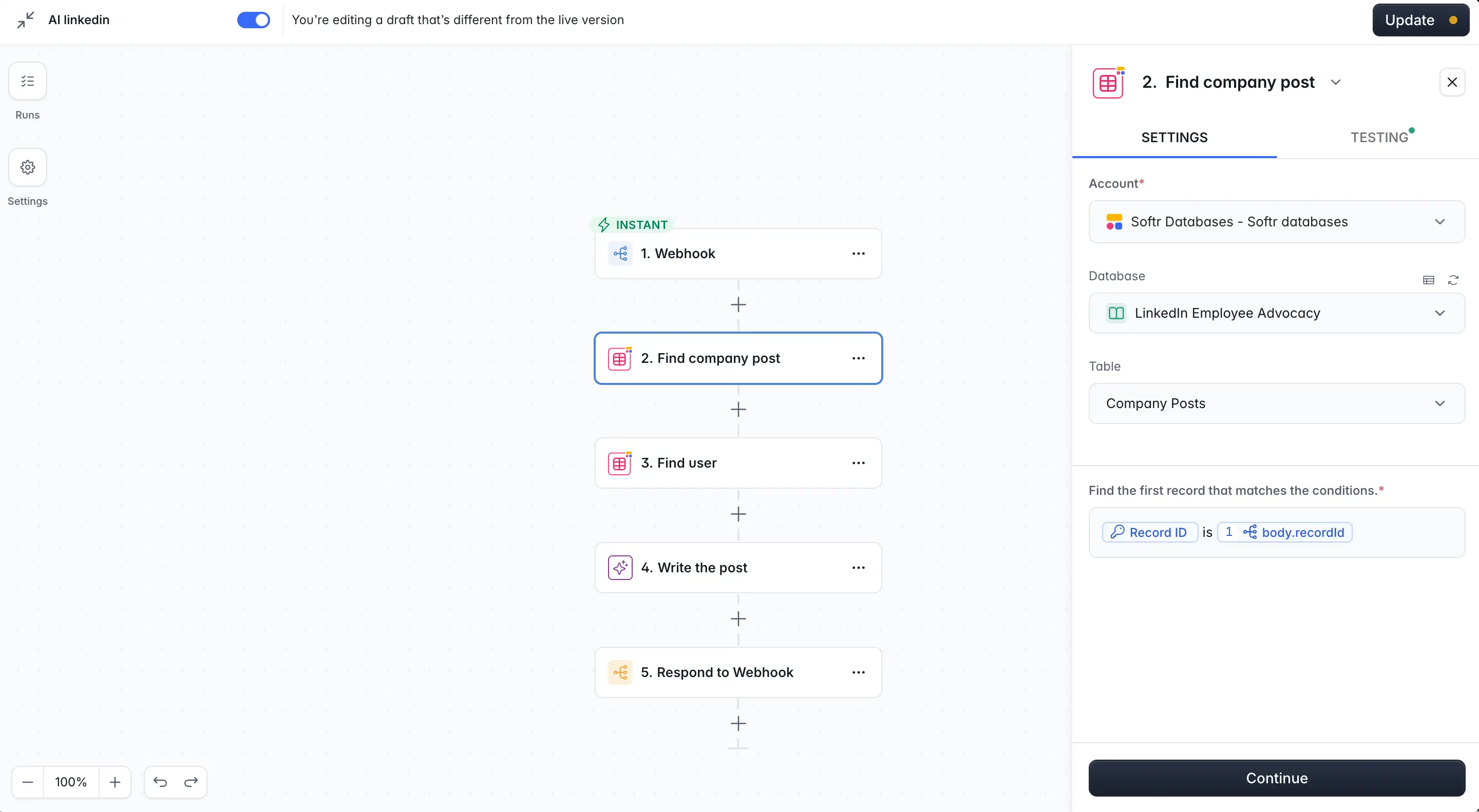
Add a Find Record step on the Company Posts table. Filter where Record ID equals the record ID received in the webhook. This pulls back the full content of the post the employee is remixing.
4.3 Find the user's profile
Add a second Find Record step on the Users table. Filter where Record ID equals the logged-in user ID (you'll pass this from the Vibe Coding block alongside the post record ID).
This is where the magic happens: the workflow now has access to the user's tone of voice and preferred language, which become the personal system prompt for the AI step.
4.4 Add the AI custom prompt step
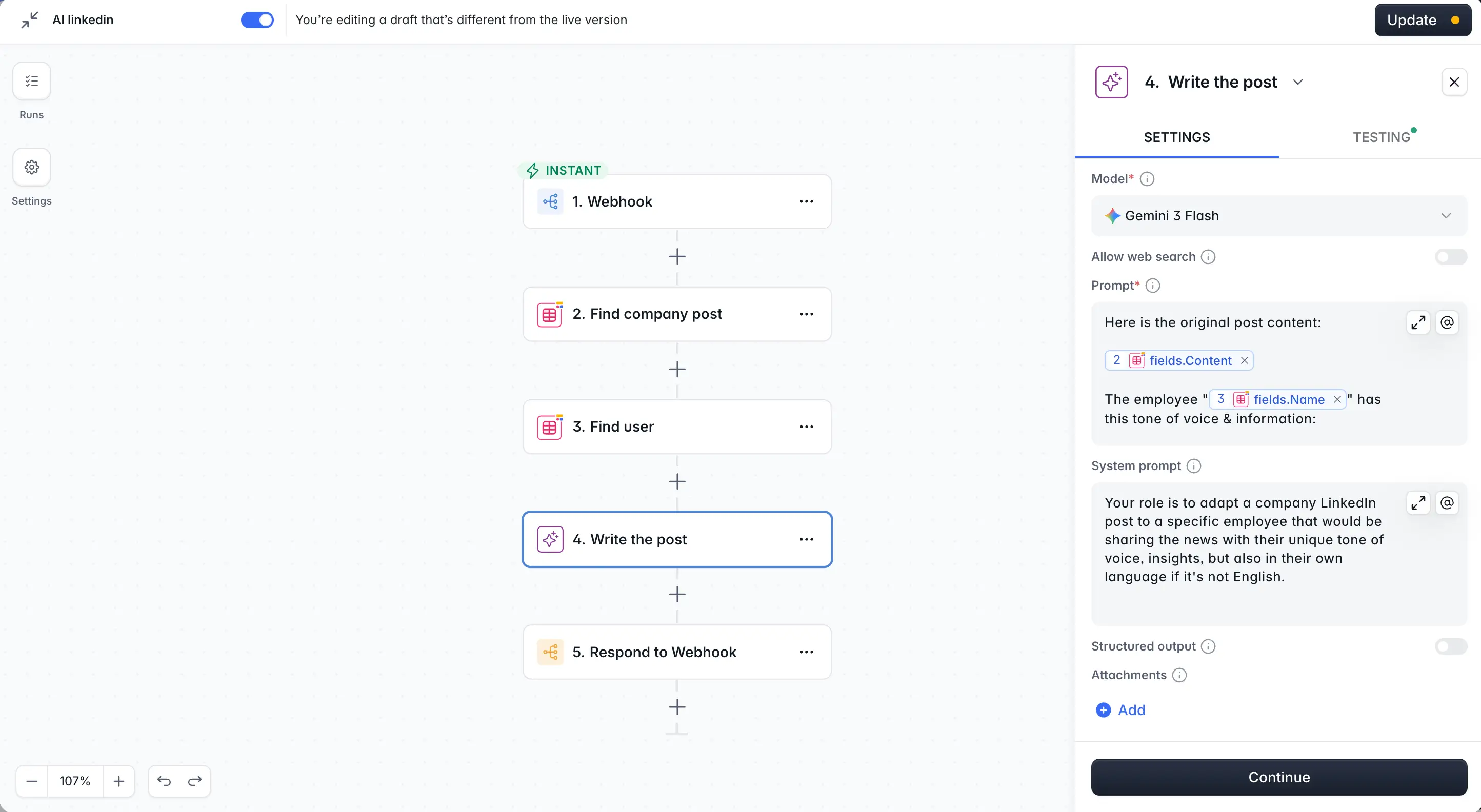
Add an AI Custom Prompt step. Pick the model you prefer (Gemini 3 Flash is fast and inexpensive for this use case, but you can swap in OpenAI or Anthropic models for higher-stakes posts).
Use a prompt like this, tagging fields with the @ symbol:
[.blog-callout]
Your role is to adapt a company LinkedIn post to a specific employee who will share the news in their own voice, with their own insights, and in their preferred language if it's not English.
Original company post:@CompanyPost.Content
Employee tone of voice:@User.ToneOfVoice
Employee's unique insights about this post:@Webhook.Insights
Output language:@User.Language
Output strictly the LinkedIn post content, with no introduction, no commentary, no formatting markers. The post must read like the employee wrote it themselves.
[.blog-callout]
You're using four context layers in one prompt: the source content, a user-level system prompt (tone), a record-level just-in-time input (insights), and a user-level localization signal (language). This is what makes the output feel personal rather than templated.
4.5 Respond to the webhook with structured output
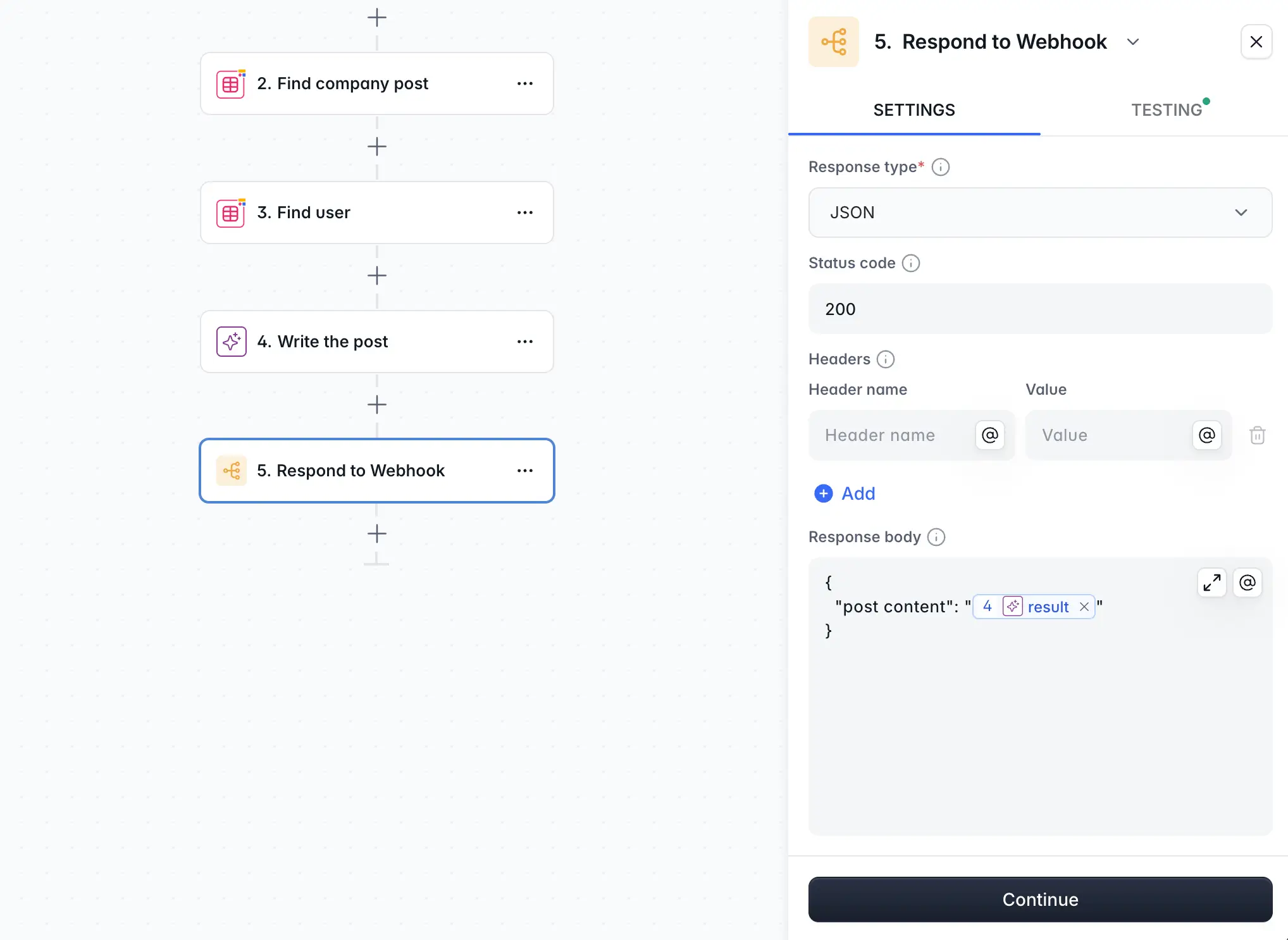
Add a Respond to Webhook step. Set the body to JSON with a single key:
{
  "post_content": "@AICustomPromptOutput"
}
Make sure your Vibe Coding block is listening for a response with the same key (post_content). If the keys don't match, the block won't know where to read the AI's output. This is the most common bug in this kind of build, and it's a one-line fix when you spot it.
4.6 Test the end-to-end workflow
Turn on the workflow, go back to your app, open a company post, write a quick insight ("I worked on the UX of this launch"), and click Remix the post. Within a few seconds, the AI-generated post should appear in the editable field.
If the post is too long, change your insights to "I want a very short post." The AI will respect the instruction because the insights are part of the prompt. If you want this kind of control to be permanent, expose a few global guidelines (post length, tone constraints) as additional fields in your AI prompt step.
Part 5: Slack notification when a new company post is added
Once admins start publishing, employees need to know when posts go live. Add a second workflow:
- Trigger: Record added on the Company Posts table.
- Action: Send a Slack message to your team channel: "New company post ready to remix: [post title]. [Link to app]."
This nudges employees back into the app the moment something new lands, which is when adoption is highest.
How to build on this app
Once your V1 is live, the app can grow in many directions. Here are a few ideas to inspire you:
- Add a gamification layer, like a leaderboard of who has remixed the most posts this quarter, with badges for first-week remixers and a streak counter.
- Add company-wide guidelines as a global system prompt the admin can edit once and apply to every employee draft (for example, "Always include the product name and avoid superlatives").
- Add a scheduling step — instead of saving a draft, employees pick a date and the post goes out automatically through a LinkedIn API integration in the workflow.
- Track performance by pulling likes and comments back into the Employee Posts table using a workflow connector and a scrape step.
The pattern is the same for any social channel, internal newsletter program, partner enablement portal, or any other "one source, many personalized outputs" content flow. LinkedIn is just the example use case.
You don't need to copy-paste the same post anymore
Employee advocacy works when employees sound like themselves, not like a press release. The hard part isn't writing the personalized version: it's giving every employee a tool that does the heavy lifting in under a minute, in their own voice, with their own angle.
This is the kind of internal tool that used to require a development team; now it takes an afternoon to build with a relational database, native blocks, the Vibe Coding block, and an AI workflow.
If you want to test this exact build, try Softr free and follow the walkthrough above. Once you have the app working, the same architecture is sitting there waiting for the next "one source, many personalized outputs" problem on your list, with no rebuild required.
Frequently asked questions
Can this work for channels other than LinkedIn?
Do employees need to write detailed insights every time?
What if an employee writes in a language that isn't English?
Can the AI sometimes get the tone wrong?
How do I make sure the workflow only runs for users in this app?