Most business content goes live once and just… stops. A team ships a launch announcement. Marketing writes one version and it lands in one channel, reaches one audience, in one language. Then the team moves on.
This leaves a huge amount of leverage on the table, and it's a problem AI is well-positioned to solve. Instead of asking a person to manually adapt the launch for twelve employees, six personas, three languages, and four channels, you build the pattern once and let an AI workflow fan out the variants. Each output is tuned to its audience, its channel, and the person sending it. The source content was one row in your database, but the outputs can be dozens.
This article walks through the one-to-many pattern in Softr, how it fits inside a business app, and four concrete use cases where it pays off within a week of building.
What is Softr?
Softr is an AI-native platform for building business software without code. You describe your app, the AI Co-Builder generates the database, pages, and user roles, and you keep editing visually or with AI. For AI content generation, Softr pairs Softr Databases with Softr Workflows, which means the one-to-many pattern runs natively: one trigger, a loop over target records, an AI step per record, and the results written back to the database.

No Zapier, no Supabase, no separate frontend needed. The app that stores the source content is the same app that generates the variants and the same app your team uses every day.
What you'll learn
In this guide, you will:
- Recognize when "one input, many outputs" is the right pattern (and when it isn't).
- Design a two-table database that supports the pattern cleanly.
- Build a workflow that loops over targets and generates a personalized output per target.
- Apply the pattern to four real scenarios: employee advocacy, sales outreach, localized content, and onboarding emails.
- Keep humans in the loop so outputs stay on-brand and approved before they ship.
Who is this for?
- Marketing teams sitting on archives of content they wish they'd repackaged.
- Sales teams personalizing outreach at volume without burning a week per campaign.
- Ops teams localizing internal comms across a distributed workforce.
- Any team where one person writes something that a dozen other people need to adapt.
The shape of the pattern
The pattern has three moving parts. Once you see them in an app, you see them everywhere.
1. A source
One record, somewhere in your database. A company post. A case study. A policy update. A feature announcement. Whatever content you want to amplify.
2. A set of targets
A list of people, segments, or channels that should receive a personalized version of the source. In Softr, this is usually another table: employees, leads, customers, locales. Each target has its own context: a name, a role, a tone of voice, a language, a persona, a timezone.
3. A workflow that fans out
A Softr Workflow that loops over the targets, generates a variant per target with an AI step, and writes the result back to a table. The loop is where the leverage lives: one source record, one workflow run, N generated outputs.
Here’s the flow drawn as a diagram:
Source record
      │
     ▼
Workflow trigger
      │
      ├─► Load source content
      ├─► Load list of targets (with per-target context)
      │
     ▼
   Loop over targets
      │
      ├─ Target 1 ─► AI step ─► Save variant 1
      ├─ Target 2 ─► AI step ─► Save variant 2
      └─ Target N ─► AI step ─► Save variant N
      │
     ▼
Notify owners / mark as ready for review
│
▼
Workflow trigger
│
├─► Load source content
├─► Load list of targets (with per-target context)
│
▼
Loop over targets
│
├─ Target 1 ─► AI step ─► Save variant 1
├─ Target 2 ─► AI step ─► Save variant 2
└─ Target N ─► AI step ─► Save variant N
│
▼
Notify owners / mark as ready for review
That's the entire pattern. Everything else is per-use-case detail.
Why this pattern works so well in business apps
- The targets already exist in your app. Your Users table, your Leads table, your Customers table. You don't need to sync data anywhere.
- Each target has personalization fields waiting to be used. Tone of voice, language, segment, persona. This is exactly the context we covered in AI context engineering for business apps.
- Humans stay in the loop. Variants land as draft records. A reviewer can approve, edit, or reject them before they ship. No third-party drafts to copy-paste.
- You can rerun the pattern anytime. New source? Click a button. New target? The next run picks them up.
Minimum viable database
Two tables are enough to start with:
The targets (employees, leads, customers) live in whichever table makes sense for your app. The Variants table links them to the source. That's the whole data model; everything else is UI and workflow.
The workflow step by step
Step 1: Trigger
Start the workflow from the interface: an admin opens a source record and clicks a button like Generate variants. The UI passes the source's record ID into a webhook or workflow trigger.
Step 2: Load source and targets
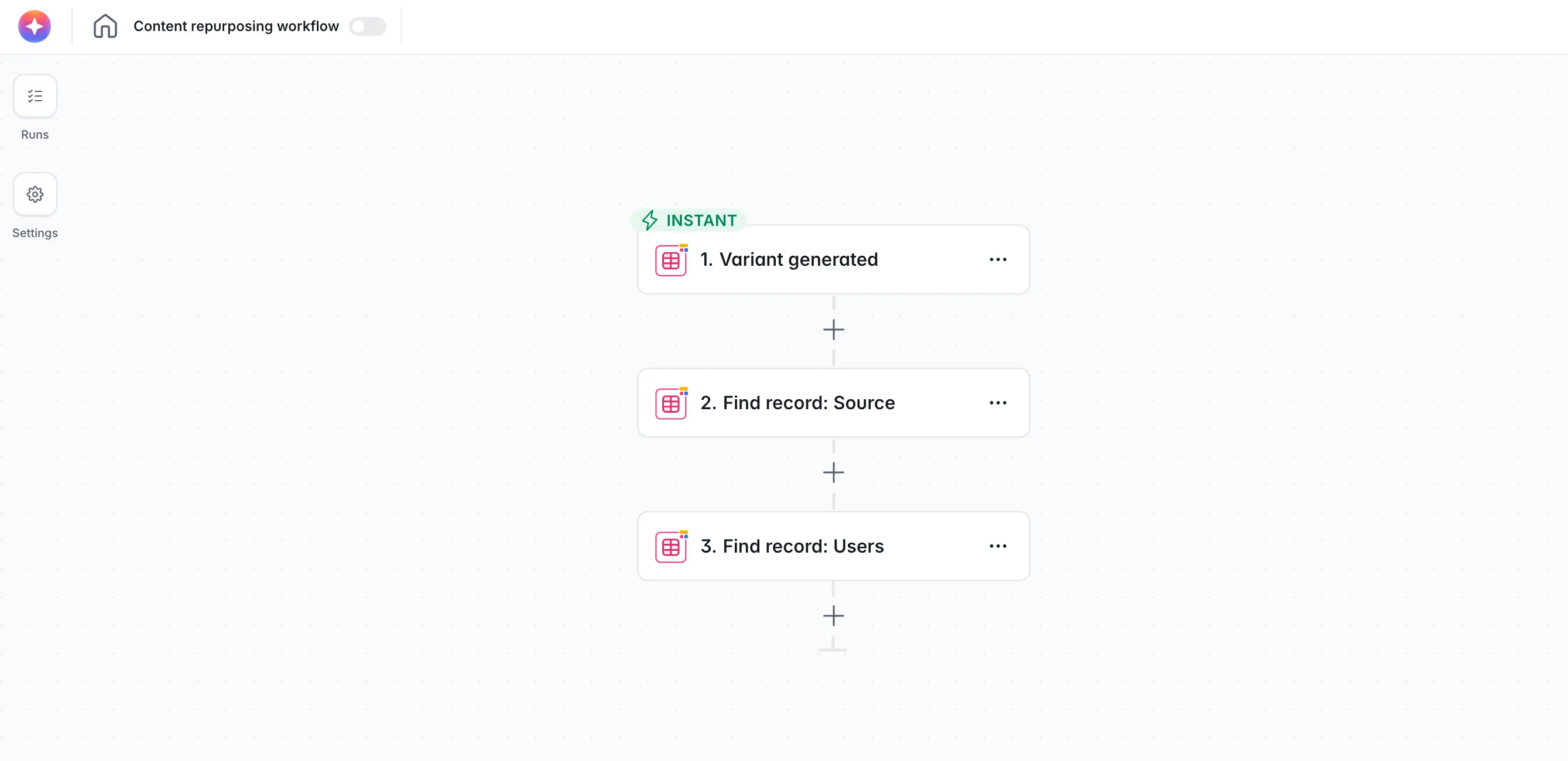
Add two Find record(s) steps:
- One on the Sources table to get the full source content.
- One on the target table (for example, Users) with a filter that defines the audience. Common filters: role is Sales, language is French, department is Engineering.
Use record IDs, not titles, to identify the source. Titles can collide or change; record IDs don't.
Step 3: Loop
Use a Loop step over the list of targets. Softr Workflows don't have artificial limits on loops, so this scales whether you have 5 targets or 500.
Step 4: AI step, one per iteration
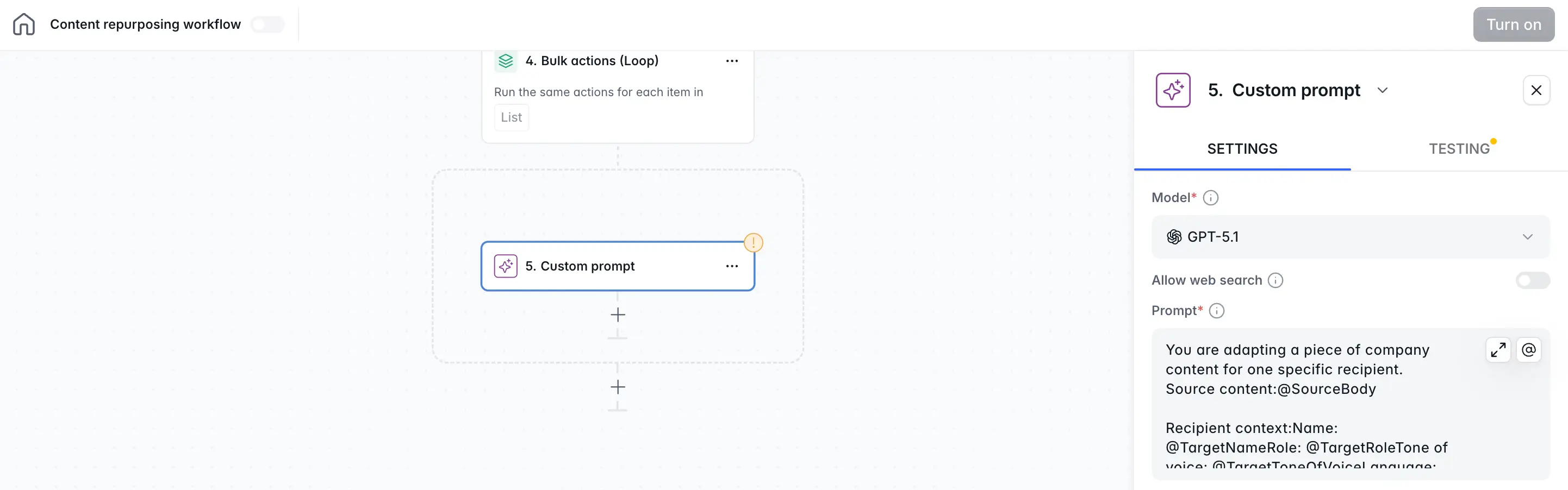
Inside the loop, add a Custom Prompt AI step. Pass the source content and the current target's context into the prompt using the @ symbol. A minimal prompt looks like this:
You are adapting a piece of company content for one specific recipient.

Source content:
@SourceBody

Recipient context:
Name: @TargetName
Role: @TargetRole
Tone of voice: @TargetToneOfVoice
Language: @TargetLanguage
Channel: @SourceChannel

Produce the final content only. No intro, no explanation.
If you need structured output (for example, a separate subject line and body), ask for JSON and parse it downstream. See our guide on structured AI outputs in workflows.
Step 5: Write the variant back
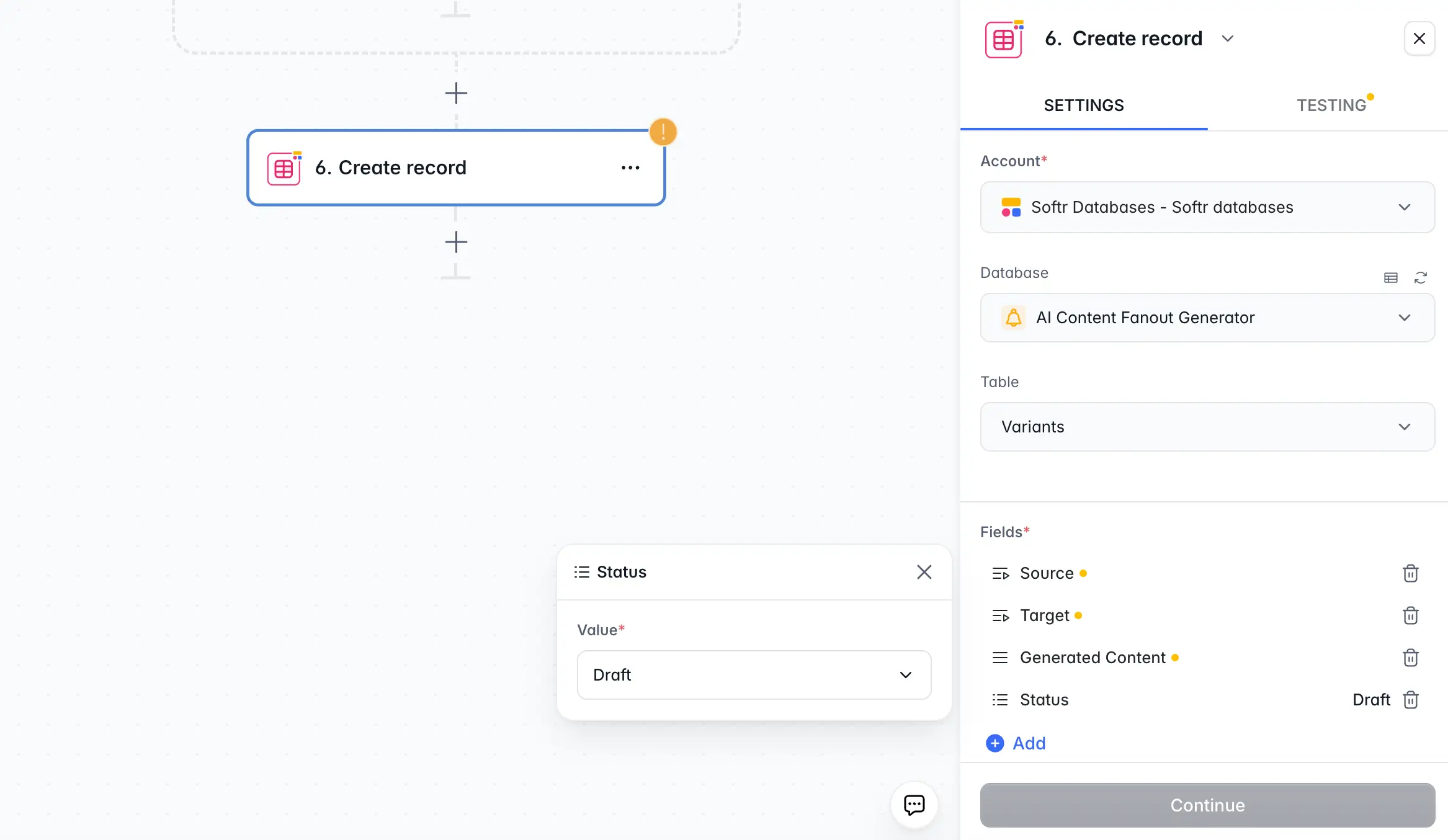
Add a Create record step on the Variants table with:
- Source: the current source record ID
- Target: the current target record ID
- Output: the AI's response
- Status:
Draft
Step 6: Notify
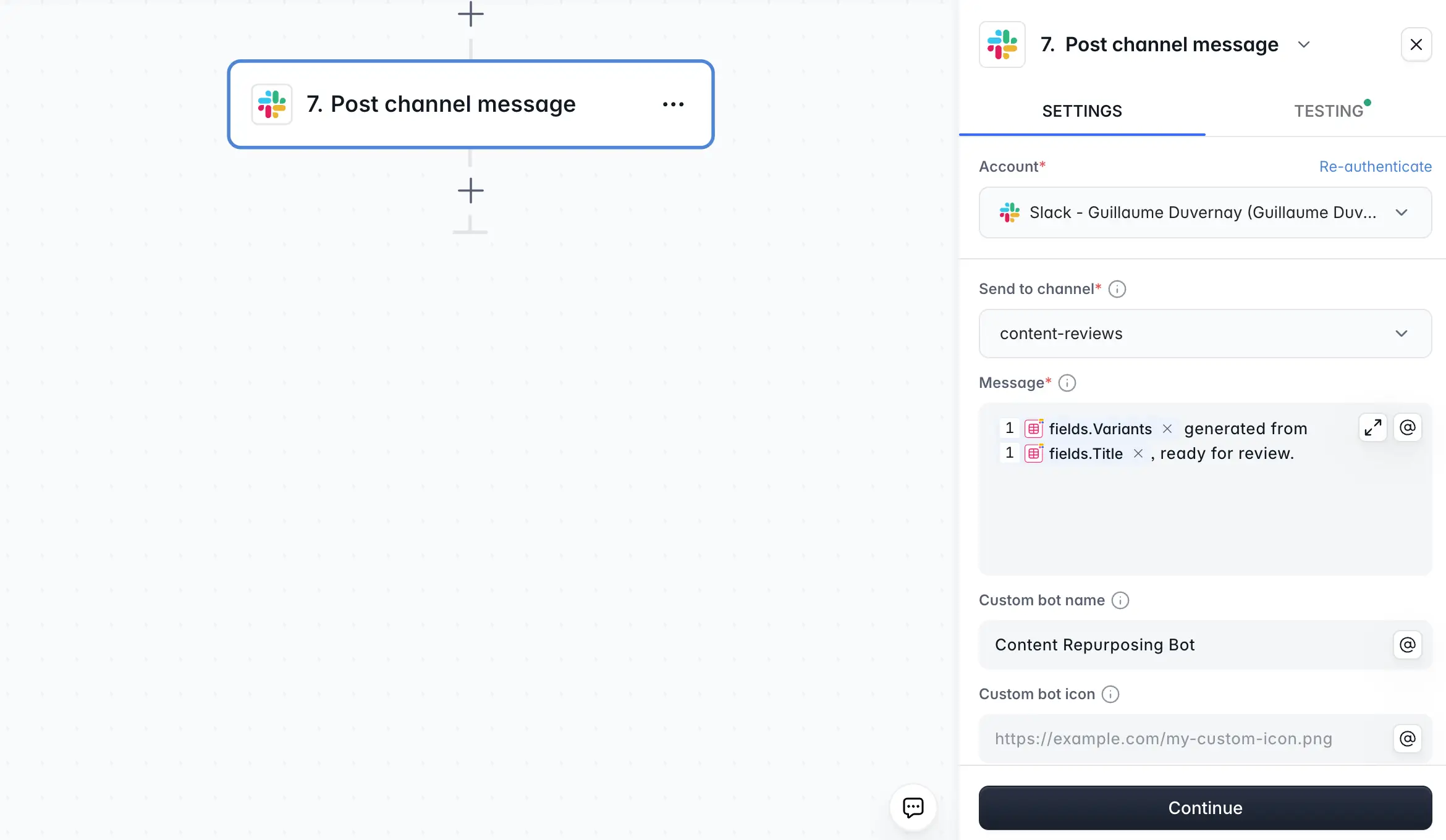
After the loop, send a Slack or email notification: "12 variants generated from [source title], ready for review." Link directly to the filtered list of variants.
Step 7: Human review
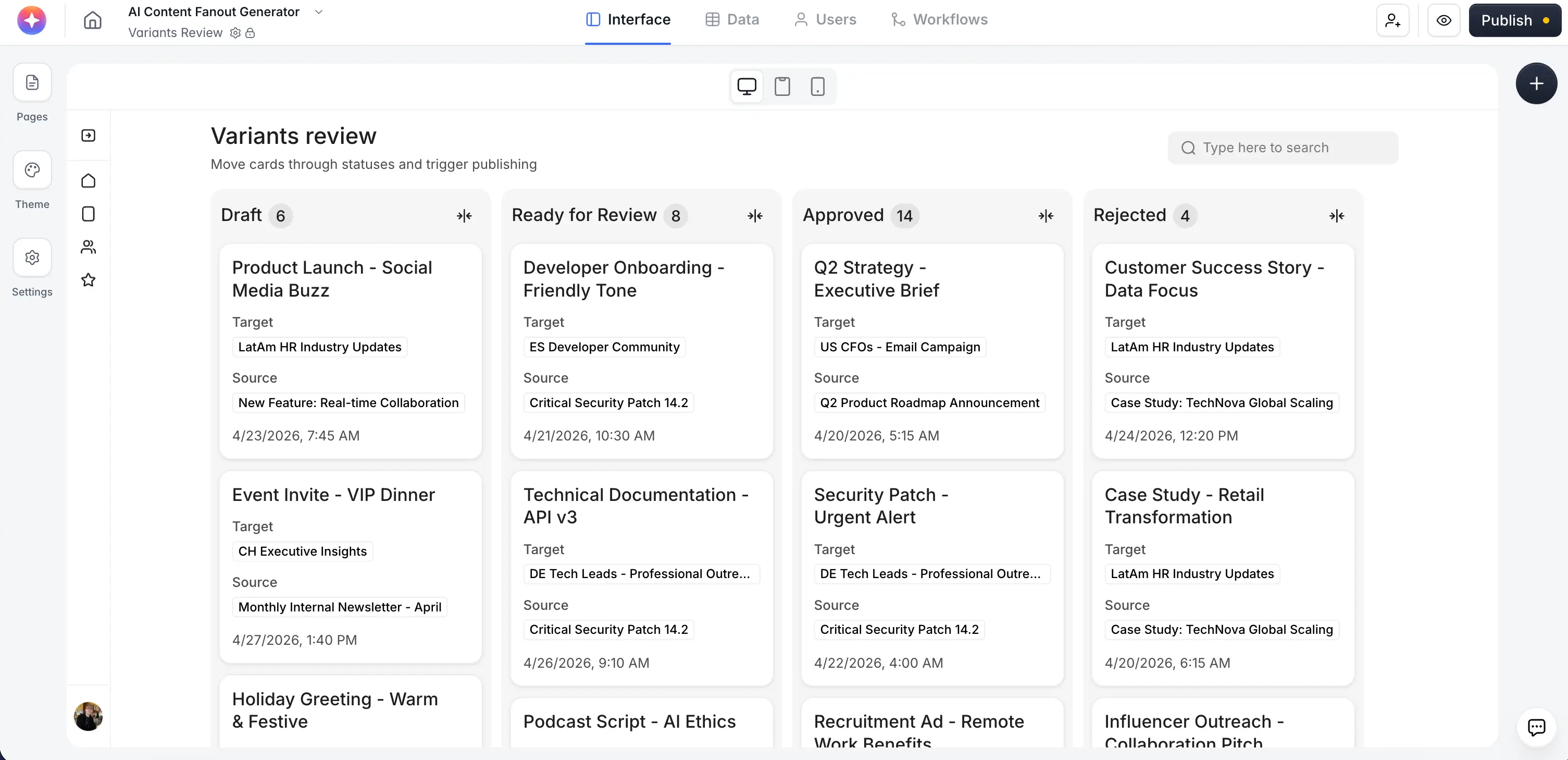
Back in the app, add a Kanban block on the Variants table grouped by Status. Reviewers drag cards from Draft to Approved to Sent. Approved variants can trigger a second workflow that actually sends, posts, or publishes them through the relevant integration.
Four use cases that pay off fast
1. Employee advocacy on LinkedIn
- Source: A company post announcing a launch.
- Targets: Employees, each with a tone of voice, role, and language.
- Variant output: A LinkedIn-ready draft, in their voice, mentioning their contribution.
- Human in the loop: Each employee edits their draft in the app before publishing.
We walk through this build end to end in the LinkedIn employee advocacy tutorial. It's the canonical version of the pattern.
2. Sales outreach at scale
- Source: A case study, a new product announcement, or a tailored pitch.
- Targets: Leads in your CRM, each with company, industry, persona, and enrichment from database AI agents.
- Variant output: A personalized cold email referencing the lead's context.
- Human in the loop: The sales rep reviews a queue of draft emails, edits, sends the ones they like, and sends the workflow back for a retry on the weaker ones.
This lets a two-person sales team run campaigns that would otherwise need an outreach tool subscription and three days of manual copy-paste.
3. Localized content for a distributed team
- Source: An internal policy update, a handbook section, or a weekly all-hands recap.
- Targets: Offices or locales, each with a language, cultural notes, and a local manager.
- Variant output: A locale-specific version of the content, in language, with culturally relevant examples.
- Human in the loop: Local managers approve the translation in the app before it goes to their team.
This replaces the "ping the French office lead to translate this by Friday" pattern with a reliable pipeline that lands every update in every language within minutes.
4. Personalized onboarding emails
- Source: A generic onboarding playbook for a role.
- Targets: New hires, each with a start date, team, manager, timezone, and role.
- Variant output: A sequence of welcome emails timed to their first week, referencing their specific manager and team.
- Human in the loop: The People team spot-checks the first few drafts, then lets the pattern run on autopilot for subsequent hires.
New hires get onboarding content that feels hand-written for them, without anyone on People having to write it each time.
When not to use this pattern
The one-to-many pattern is a poor fit for certain use cases. Knowing them saves you from over-engineering.
- When the same variant fits everyone: If the only difference across recipients is the salutation, a mail merge is fine. Use AI repurposing only when the substance of the output should change per target.
- When trust matters more than scale: Legal disclosures, financial advice, clinical content. Drafting with AI is fine; publishing without tight human review is not.
- When the source isn't mature: If the source content is still being debated, generate variants after it's finalized, not before. Otherwise you rerun the loop for every source edit.
- When there are only a handful of targets: Five targets and a copywriter on staff is cheaper and better than five targets and an AI workflow.
Keep humans in the loop, cheaply
The temptation with this pattern is to automate end-to-end. Resist it, at least initially. Generated variants should land as drafts that humans approve. A Kanban view with three columns (Draft, Approved, Sent), combined with a simple "Approve" button that writes a status change, gives you all the governance you need without adding weeks of build time.
Over time, if you see that a particular channel's drafts are consistently approved as-is, you can let them ship automatically for that channel while keeping human review on the rest. You earn the trust to automate; you don't start there.
One workflow, reusable architecture
The best part of building this pattern once is that the architecture is reusable. Swap the source table, swap the target table, tweak the prompt, and you have a new use case with no new infrastructure. Teams we've worked with usually build version one for LinkedIn posts or sales outreach, and version two appears within a month, driven by whoever sees what version one did for their team.
Ready to try it out? Start building with Softr and pick one source-target pair from the list above as your first one-to-many workflow.
Frequently asked questions
How many variants can a single workflow generate?
What AI model should I use inside the loop?
How do I keep costs under control?
Can I re-run the workflow for just one target?
Should the variants live in the same database as the source?