How to use structured AI outputs (JSON) in no-code workflows


AI can write emails, summarize documents, and answer questions. But when you need AI to feed data into other systems via automated workflows, plain text falls apart. You cannot reliably create 10 database records from a paragraph that starts with "Here are some tasks I found."
That is the gap that structured AI outputs fill. Instead of getting free-form text, you tell the AI exactly what shape the data should take. The result is clean, predictable, and ready for your workflow to act on—no parsing, no guesswork.
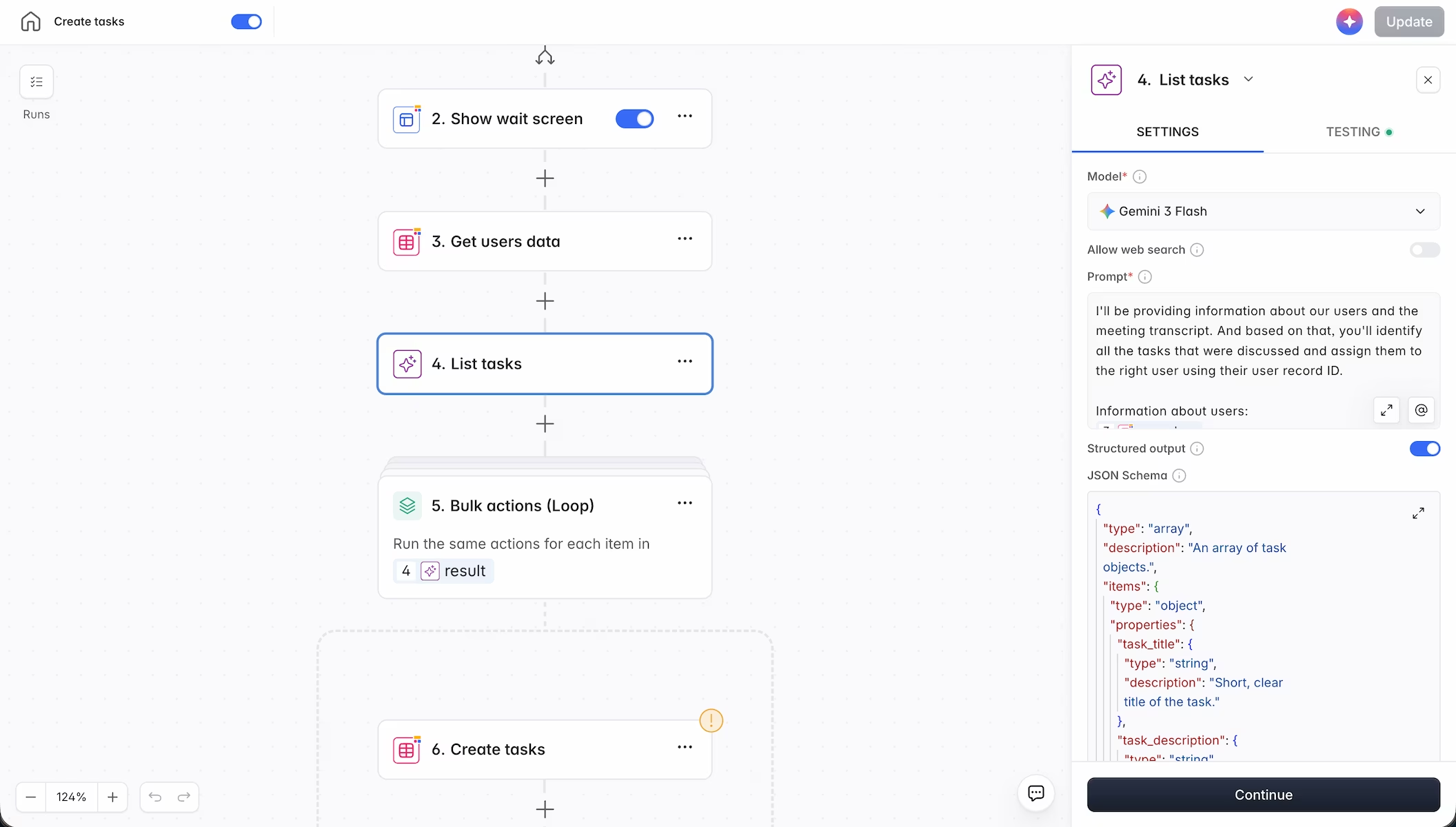
In this guide, we’ll focus on a specific, high-impact automation: using structured AI outputs to bridge the gap between AI-generated intelligence and reliable business data. We’ll explain what structured outputs are, why they matter for automation, and how to use them in Softr Workflows step by step.
What is Softr?
Softr is a full-stack business app builder that combines a native database, an interface builder, and built-in workflows in one platform. Its workflow engine includes AI Custom Prompt steps that let you call large language models (GPT 5.2, Claude Sonnet 4.6, Gemini 3 Flash, and others) directly inside your automations, with a built-in option to enforce structured JSON output.
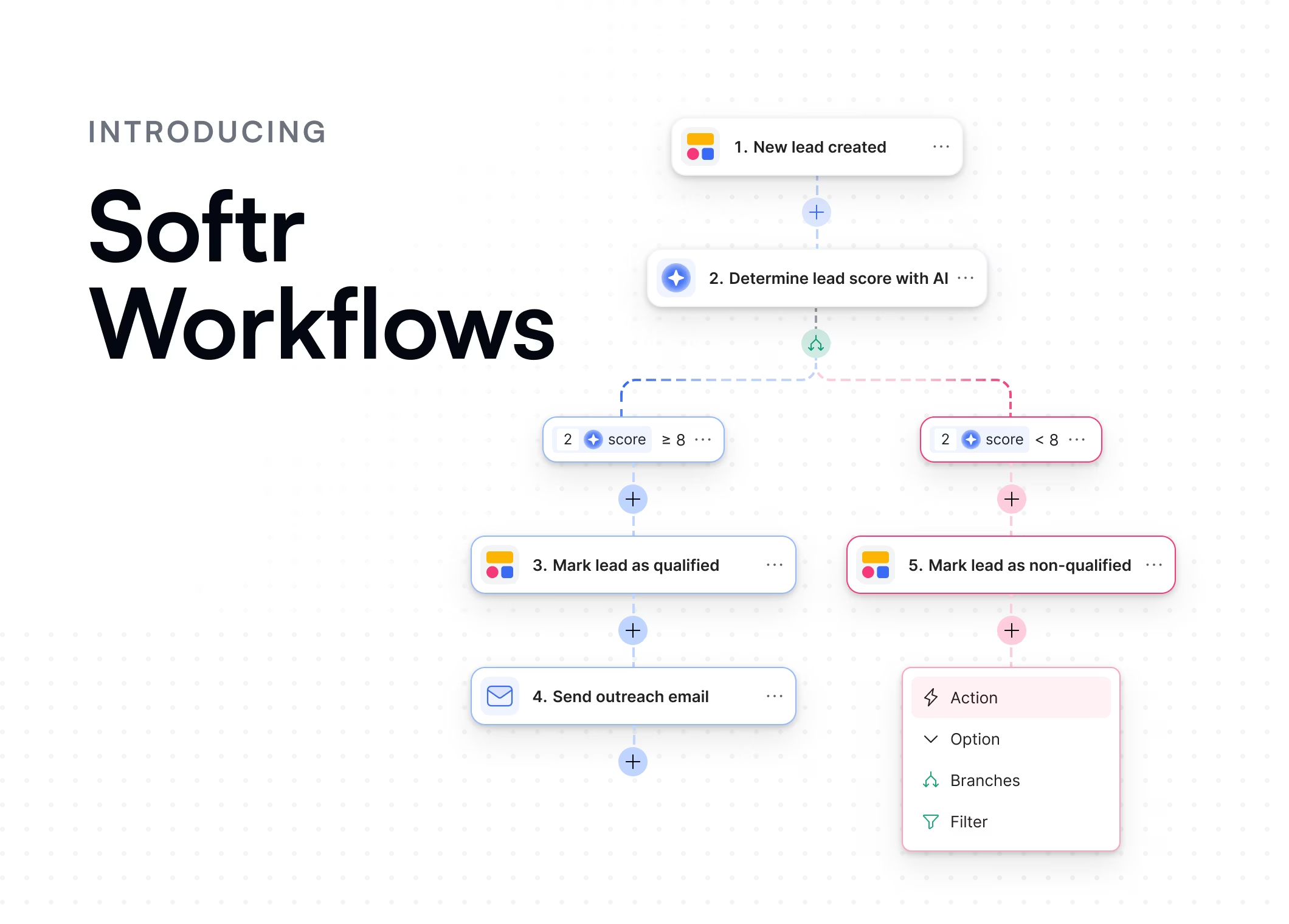
This means you can go from "AI analyzed something" to "records were created in my database" in a single workflow, without writing code or connecting third-party tools.
What you'll learn
- What structured output is and how it differs from plain text AI responses.
- Why it matters when you need to create records, update fields, or branch logic in a workflow.
- How to create a JSON schema using three practical approaches.
- How to use structured output in Softr Workflows step by step.
- How to process the output using bulk actions and loops.
- Real-world use cases beyond the primary example.
Who is this for?
This guide is for operations managers, team leads, and workflow designers who are already building (or planning to build) automations that involve AI. If you have ever asked an AI to extract data from text and then struggled to do something useful with the response, structured outputs solve that problem.
You do not need programming experience. JSON may look technical at first glance, but the concepts are simple. By the end of this article, you will be comfortable creating schemas and using them in your workflows.
What is a structured AI output?
When you ask an AI model a question, it typically responds with natural language. That is great for conversations but problematic for automation.
Imagine you ask an AI to extract tasks from a meeting transcript. A plain text response might look like this:
Sure - here are the tasks from the meeting:
1. Sarah should update the Q3 report by Friday.
2. Marcus needs to review the vendor contract.
3. Sarah will schedule a follow-up call with the client.

Would you like me to do anything else?
Here are the tasks from the meeting:
1. Sarah should update the Q3 report by Friday.
2. Marcus needs to review the vendor contract.
3. Sarah will schedule a follow-up call with the client.
This is readable for a human, but useless for a workflow. How does your automation know where one task ends and another begins? How does it separate the title from the assignee? How does it handle a transcript that produces 15 tasks instead of 3?
A structured output solves this by telling the AI to return data in JSON format. The same information looks like this:
{
  "tasks": [
    {
      "task_title": "Update the Q3 report",
      "task_description": "Finalize and share the updated Q3 report by end of week.",
      "user_record_id": "usr_sarah_001"
    },
    {
      "task_title": "Review vendor contract",
      "task_description": "Review terms and flag any changes needed before renewal.",
      "user_record_id": "usr_marcus_002"
    },
    {
      "task_title": "Schedule follow-up call",
      "task_description": "Reach out to the client to schedule a follow-up call regarding project status.",
      "user_record_id": "usr_sarah_001"
    }
  ]
}Every task has the same fields. Every field has a clear name. The list can contain 3 items or 30, and your workflow processes them identically.
Core principle: Structured output turns AI from a conversational tool into a reliable data pipeline. You define the shape of the data you want, and the AI fills it in.
Why structured outputs matter for workflows
If your workflow only needs a yes/no answer or a short text summary, plain text is fine. But the moment you need to act on the AI's response, structure becomes essential.
Here are the scenarios where structured output is necessary:
Creating multiple records
This is the most common case. You want the AI to analyze something (a transcript, an email, a document) and produce a list of items. Each item becomes a record in your database. Without structure, you have no reliable way to loop through the results.
Mapping fields to your database
Your database has specific fields: Name, Description, Status, Priority. Structured output ensures the AI returns data with keys that match those fields exactly. No manual cleanup, no misaligned columns.
Branching logic
If you need your workflow to take a different path based on the AI's analysis (for example, routing a support ticket to a different team based on its category), you need a predictable field you can check. A structured output with a category field gives you that.
Processing items individually
When the AI returns an array (a list), your workflow can loop through it using a bulk action. Each item gets processed with the same logic. This is only possible when the structure is predictable.
How to create a JSON schema
A JSON schema is a blueprint that tells the AI exactly what shape your data should take. Think of it as a form template for the AI: you define the fields, and the AI fills them in based on the content it analyzes.
There are three practical approaches to creating one.
Approach 1: Give an example
This is the fastest way. You provide an example of what the output should look like, and the AI infers the schema.
For example, if you want to extract tasks, you can provide this in the structured output field:
[
  {
    "task_title": "Example task",
    "task_description": "What needs to be done",
    "user_record_id": "user_123"
  }
]
The AI will understand the pattern and return data in the same format. As Softr's CTO Artur explains: "You can provide an example, and it doesn't need to be a precise schema. An example works as well."
This approach works for straightforward use cases. For more control, use a formal schema.
Approach 2: Write a formal schema
A formal JSON schema gives you full control over field types, descriptions, and required fields. Here is an example for task extraction:
{
  "type": "object",
  "properties": {
    "tasks": {
      "type": "array",
      "description": "A list of tasks extracted from the meeting transcript",
      "items": {
        "type": "object",
        "properties": {
          "task_title": {
            "type": "string",
            "description": "A concise title for the task"
          },
          "task_description": {
            "type": "string",
            "description": "A brief description of what needs to be done"
          },
          "user_record_id": {
            "type": "string",
            "description": "The Record ID of the team member this task is assigned to"
          }
        },
        "required": ["task_title", "task_description", "user_record_id"]
      }
    }
  },
  "required": ["tasks"]
}
Each field has a type (string, number, array, etc.) and a description that helps guide the AI. The required array specifies which fields must always be present.
Pro Tip: The description field inside your schema is not just documentation. Many AI models read these descriptions as additional instructions. A description like "The Record ID of the team member this task is assigned to" helps the model understand what value to put there.
Approach 3: Use an AI tool to generate the schema
If you do not want to write JSON by hand, simply describe what you need in plain language and ask any AI assistant to generate the schema for you.
For example: "I need a JSON schema that represents an array of tasks. Each task should have a title (string, required), a description (string, required), and a user ID (string, required)."
You can also do this directly inside Softr. The AI co-builder within the workflow editor can generate a schema and place it in the right field. Just describe what you need, and it handles the formatting.
How to use structured output in Softr Workflows
Let's walk through the setup step by step using the meeting task extraction as our example.
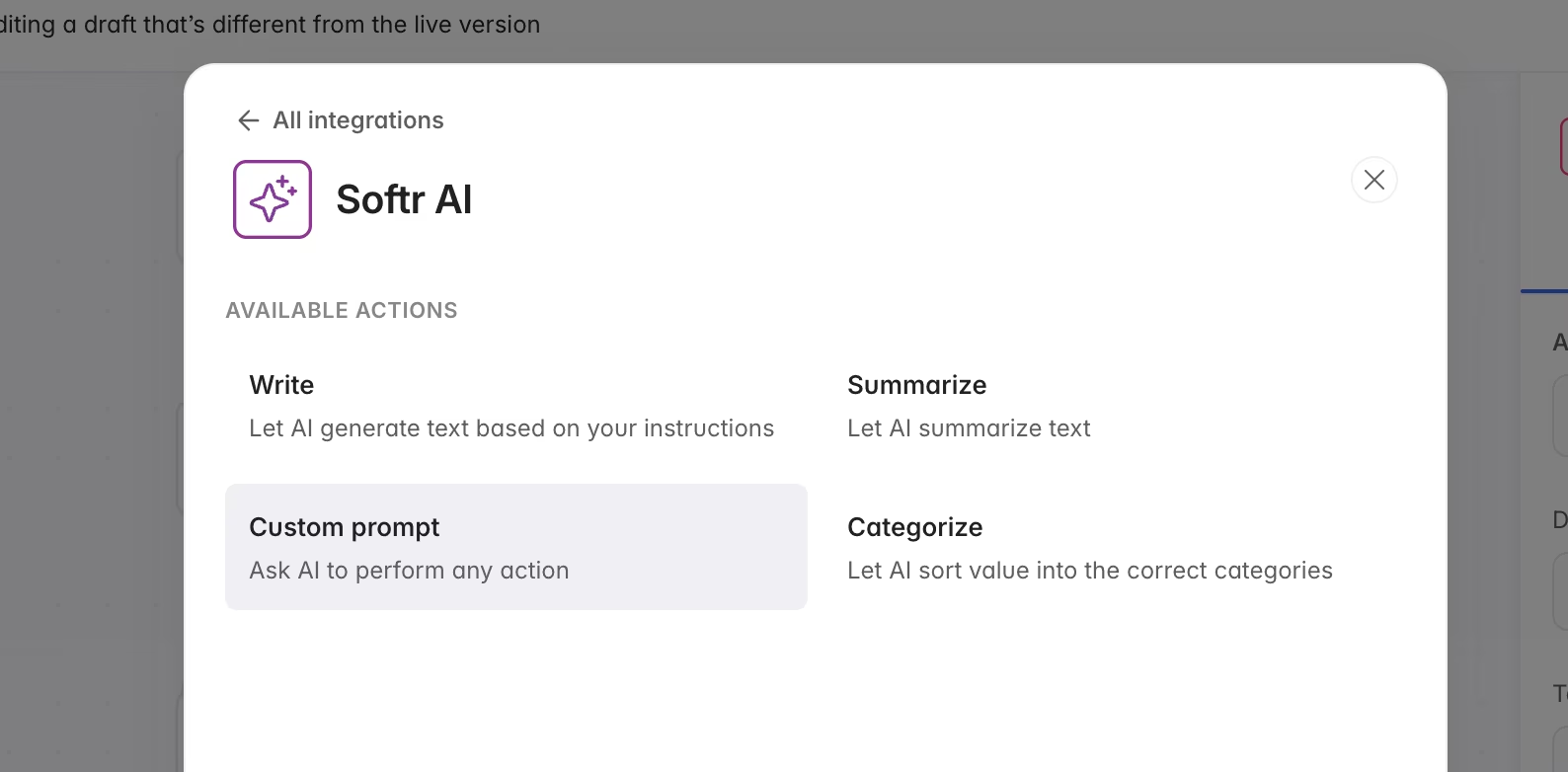
Step 1: Add an AI Custom Prompt action
In your Softr Workflow, add a new action and select AI Custom Prompt from the AI category.
Step 2: Choose the right model
Model selection matters. For complex analysis tasks (extracting multiple items from long text, matching names to IDs, classifying into categories), choose a capable model like GPT 5.2 or Claude Sonnet 4.6.
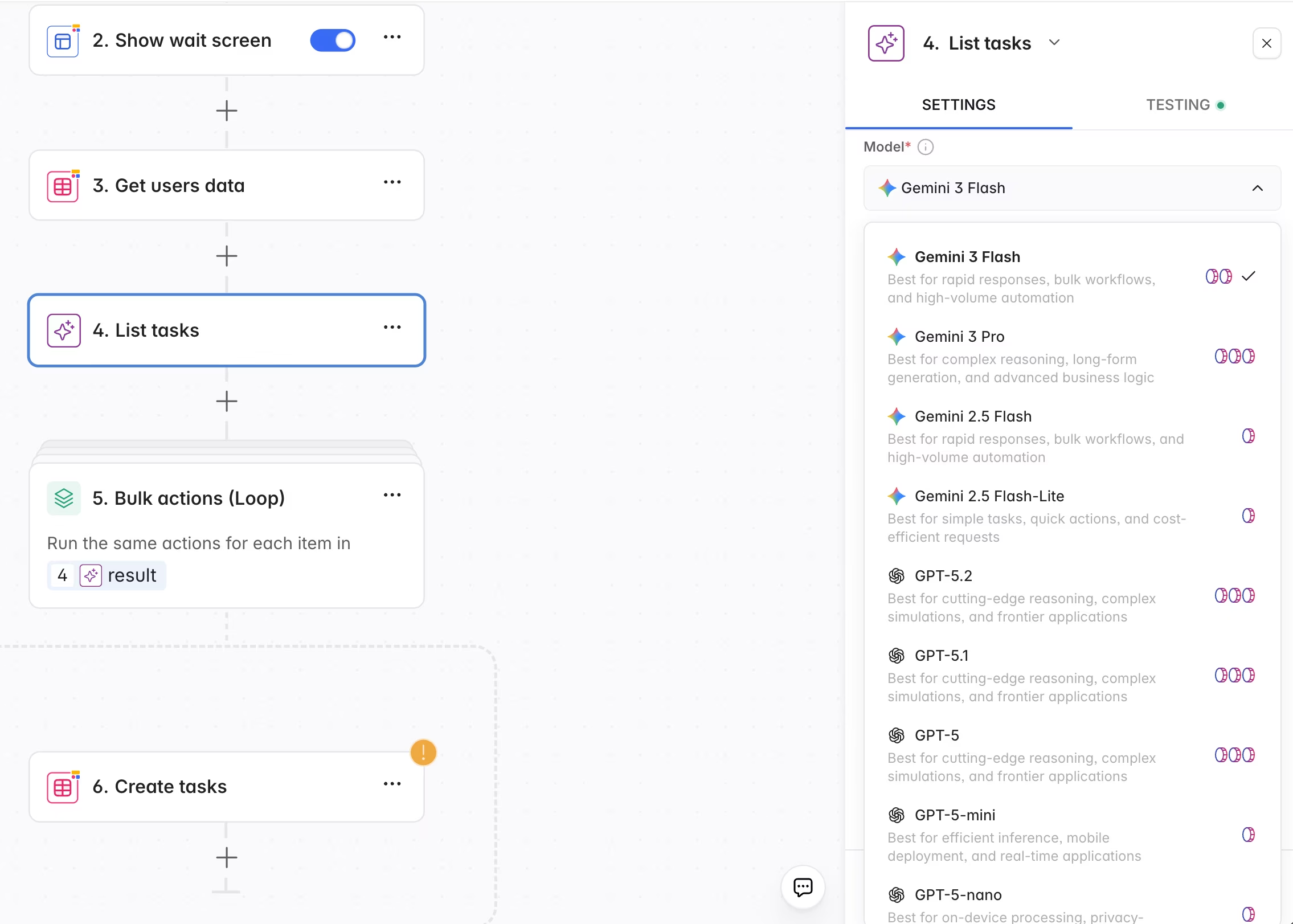
For simpler tasks (generating a title, summarizing a paragraph), a lighter model like Gemini 3 Flash is faster and more cost-effective.
Softr lets you choose a different model for each AI step, so you can optimize across your workflow.
Step 3: Write your prompt
The prompt tells the AI what to do with the input. Be specific about the task, provide all the context the AI needs, and reference the schema indirectly by describing what each field should contain.
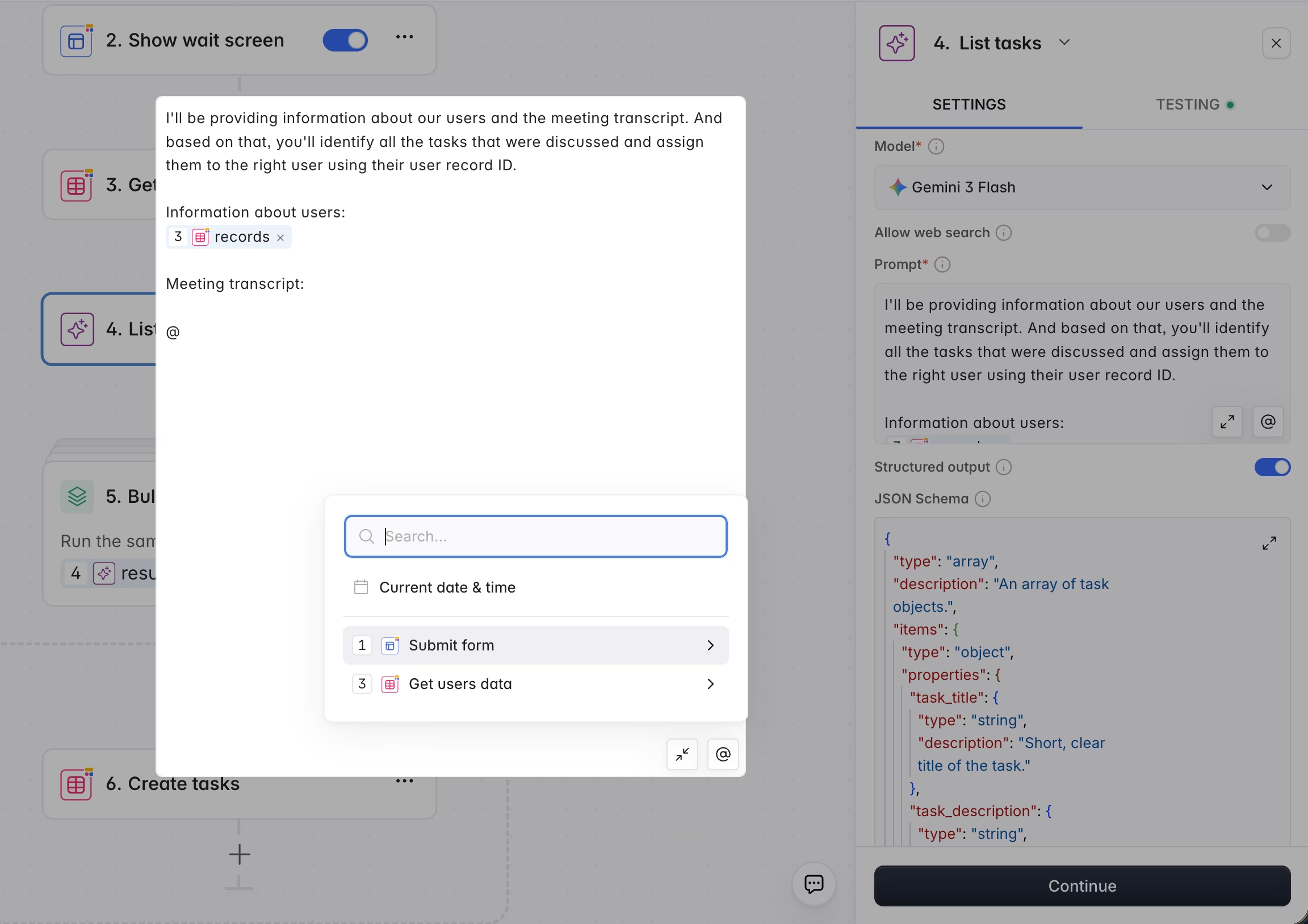
To reference data from earlier steps in your workflow, you can simply tag the data with the @ symbol. This will bring up a list of all available data points from previous steps, allowing you to select exactly what you need (like the meeting transcript or your user list) without any manual typing or complex syntax.
Here is an example prompt for task extraction:
I'll provide a meeting transcript and information about our team members.

Based on the transcript, identify all actionable tasks that were discussed.
For each task, assign it to the most relevant team member using their User Record ID.

Information about users:
@Get Users (Data)

Meeting transcript:
@Meeting Form (Transcript)
By using the @ symbol, you ensure your workflow is connected correctly and your data is flowing exactly where it needs to go.
Step 4: Enable structured output and paste your schema
Toggle the Structured Output option, then paste your JSON schema into the schema field.
When the AI processes the prompt, it will follow the schema exactly. The output will be valid JSON that your workflow can parse without any additional processing.
Step 5: Test and verify
Use the Test button in the workflow builder to run the AI step with sample data. Verify that:
- The output is valid JSON.
- All required fields are present.
- The values make sense (correct user IDs, meaningful task titles).
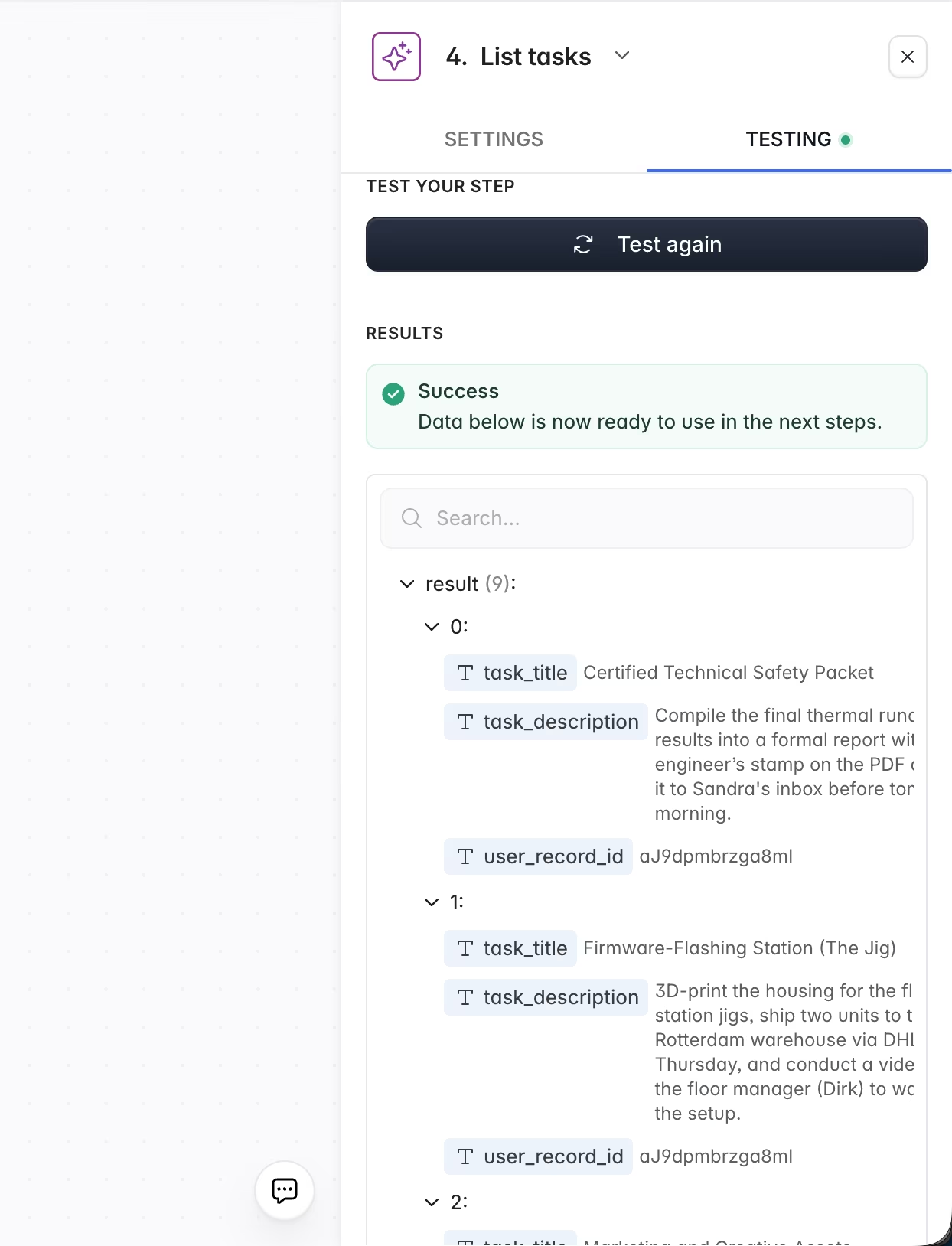
If the output is inconsistent, refine your prompt. Adding more context or adjusting the field descriptions in your schema usually improves accuracy.
Processing the output: bulk actions and loops
Getting structured data from the AI is only half the job. The other half is acting on it.
Using bulk actions
In Softr Workflows, a Bulk Actions block lets you loop through an array. Here is how to connect it to your structured output:
- Add a Bulk Actions block after the AI step.
- Set the source to the AI step's output (the
tasksarray). - Inside the loop, add the action you want to perform for each item.
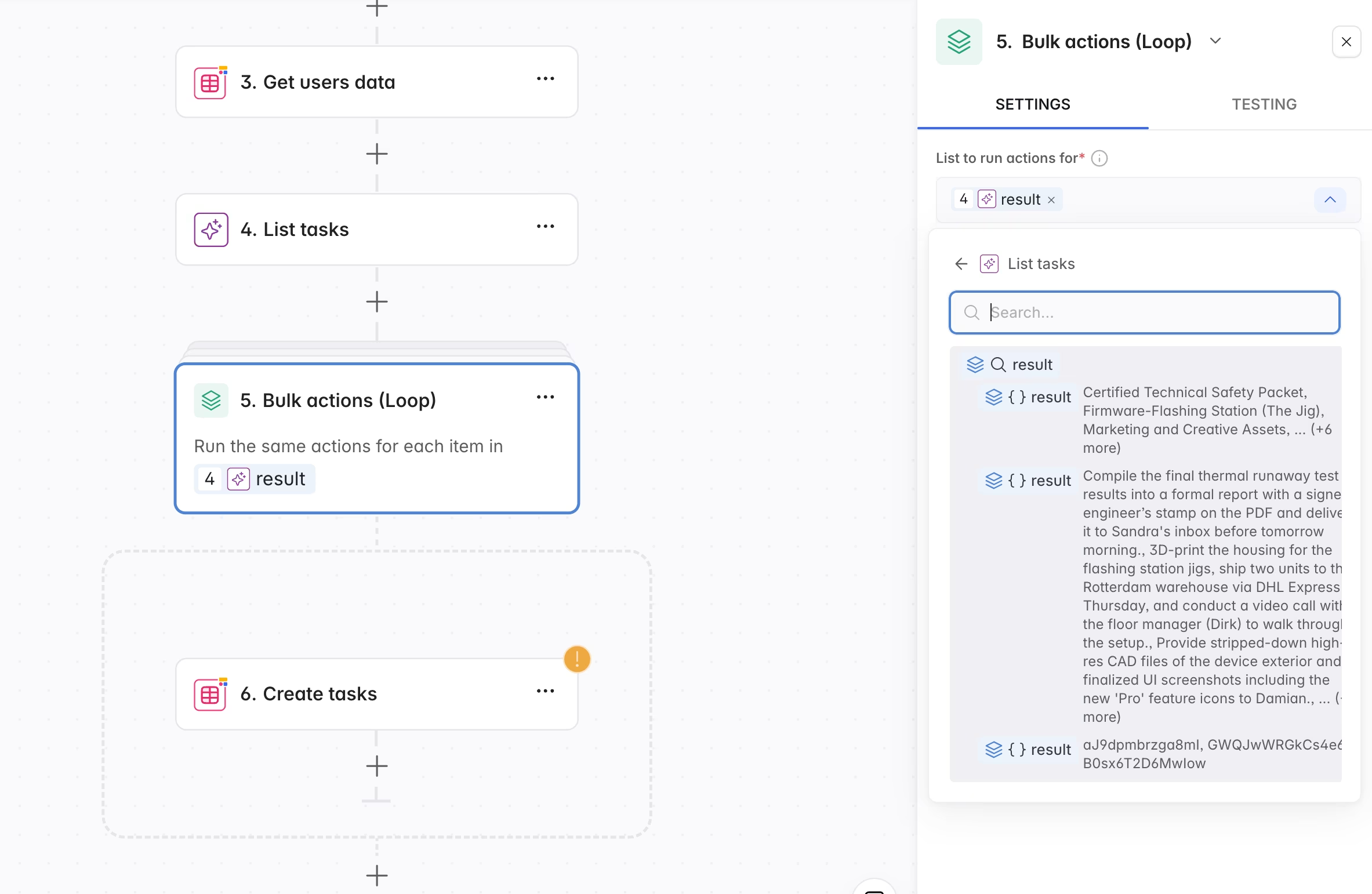
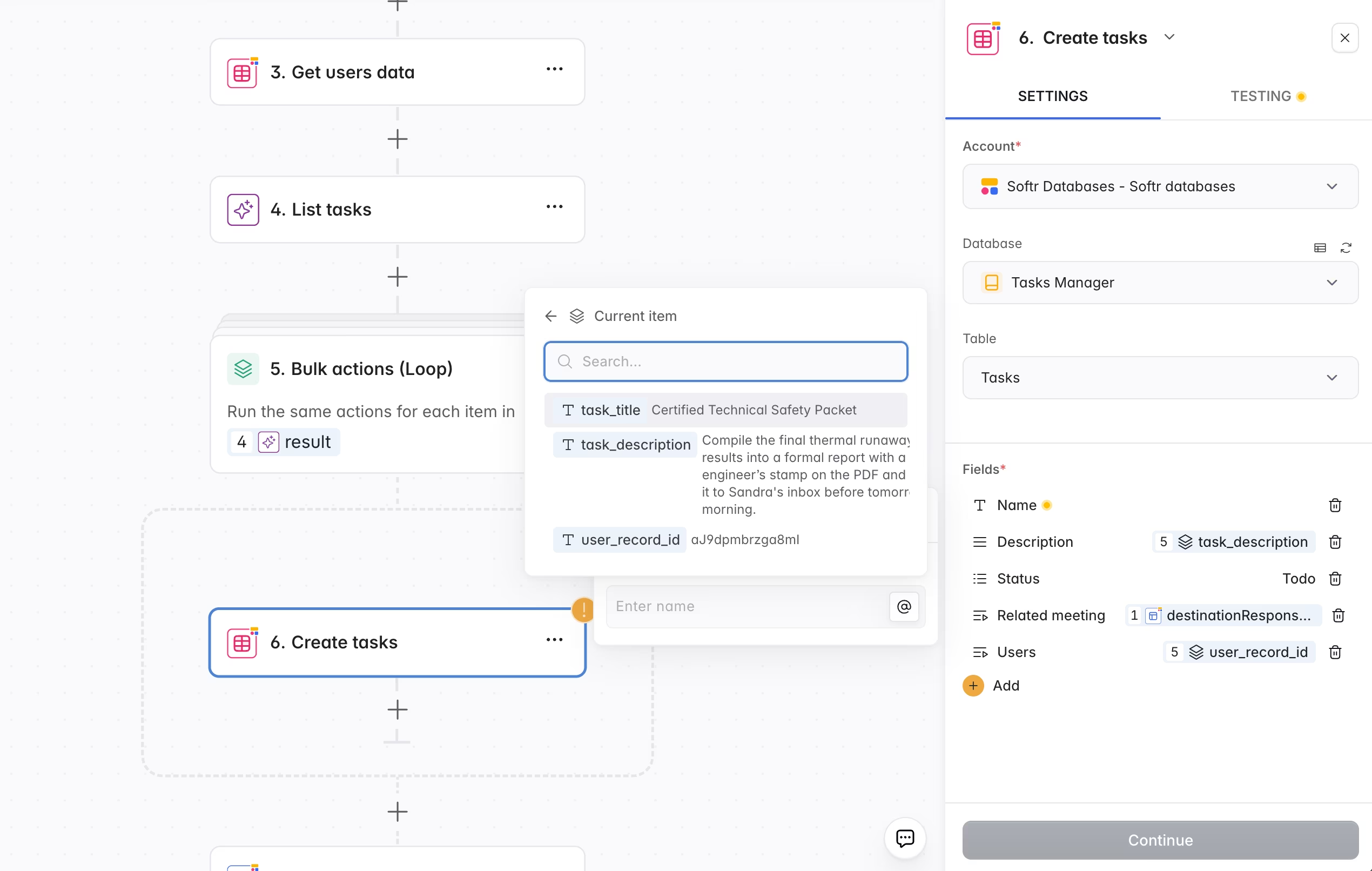
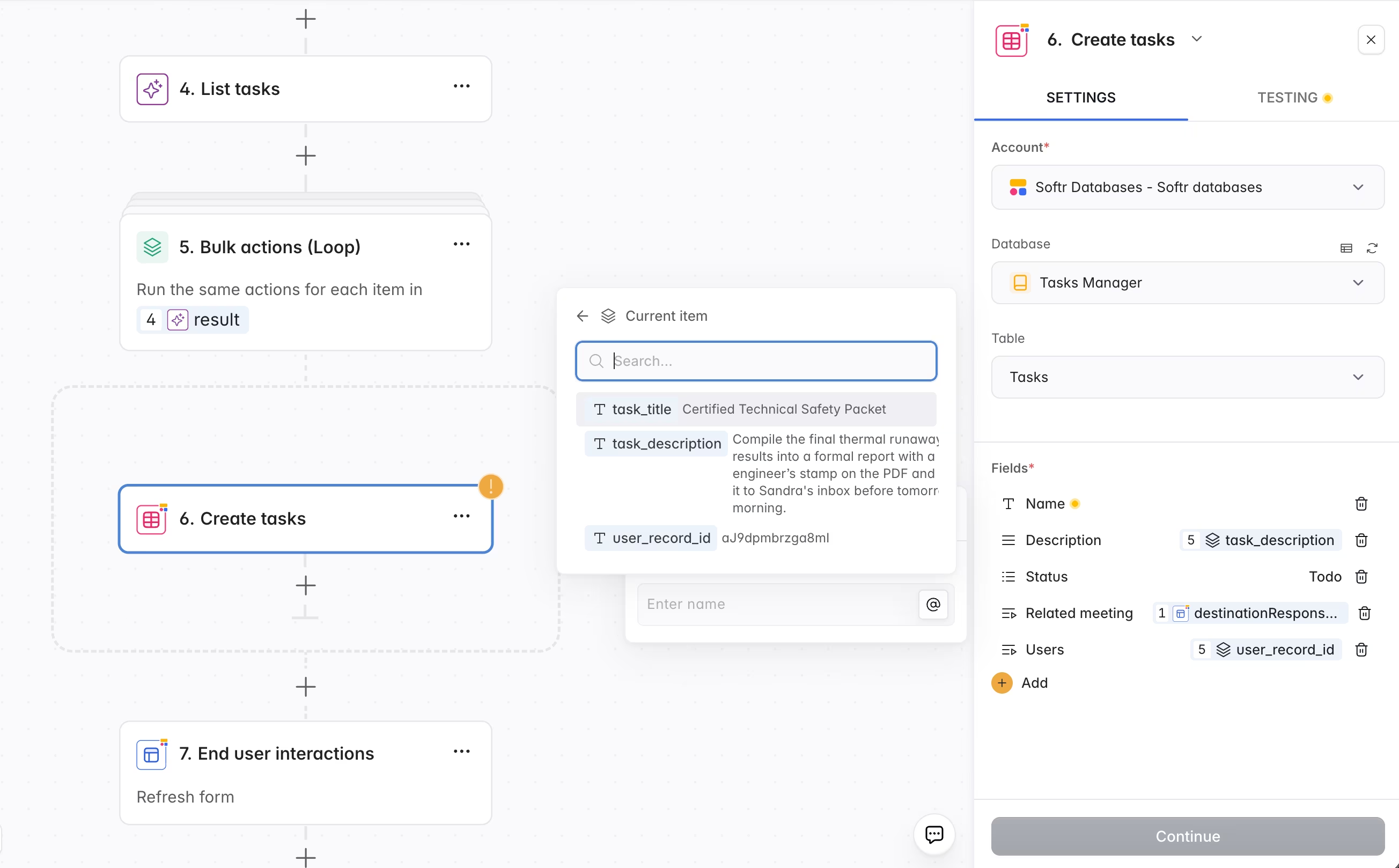
For task extraction, the action inside the loop is Add Record in Softr Databases, targeting the Tasks table:
Name→ current item'stask_titleDescription→ current item'stask_descriptionAssignee→ current item'suser_record_idStatus→ hardcode to To Do
For a transcript that produces 8 tasks, this loop runs 8 times, creating 8 fully populated records. Each record is linked to the correct meeting and assigned to the right person.
Linking records
Structured output is especially useful when you need to create related records. In the task extraction example, each task is linked back to the meeting it came from (using the meeting's Record ID) and to the assigned user (using the user Record ID from the AI output).
This relational linking is what transforms raw AI analysis into a connected, queryable data structure.
Real-world use cases
Meeting task extraction is just one application. The same pattern (AI + structured output + bulk action) works for any scenario where you need to extract structured information from unstructured text.
Email triage and routing
Parse incoming emails to extract the sender, subject, urgency level, and category. Create a record in your Inbox table with all fields populated. Use the category field to trigger different follow-up workflows.
Example schema fields: sender_email, subject, urgency (high/medium/low), category (billing/support/partnership), summary.
Invoice and document processing
Extract line items from pasted invoice text or PDF content. Each line item becomes a record with amount, description, quantity, and tax rate. Total and subtotal calculations can be handled by formula fields in your database.
Example schema fields: item_description, quantity, unit_price, tax_rate.
Support ticket classification
Analyze incoming support messages to determine the product area, issue type, and suggested resolution. Use the structured output to auto-tag tickets and route them to the appropriate team without manual triage.
Example schema fields: product_area, issue_type, priority, suggested_resolution, customer_sentiment.
Content analysis and tagging
Process blog posts, articles, or social media mentions to extract topics, sentiment, and key quotes. Build a content database that is automatically categorized and searchable.
Example schema fields: topic_tags (array), sentiment (positive/neutral/negative), key_quote, relevance_score.
Tips for reliable results
Structured outputs work well out of the box, but a few practices make them even more reliable.
Be specific in your prompt
Vague prompts lead to vague outputs. Instead of "find the tasks," write "identify all actionable tasks that were discussed, including deadlines if mentioned." The more context you give, the better the AI fills in your schema.
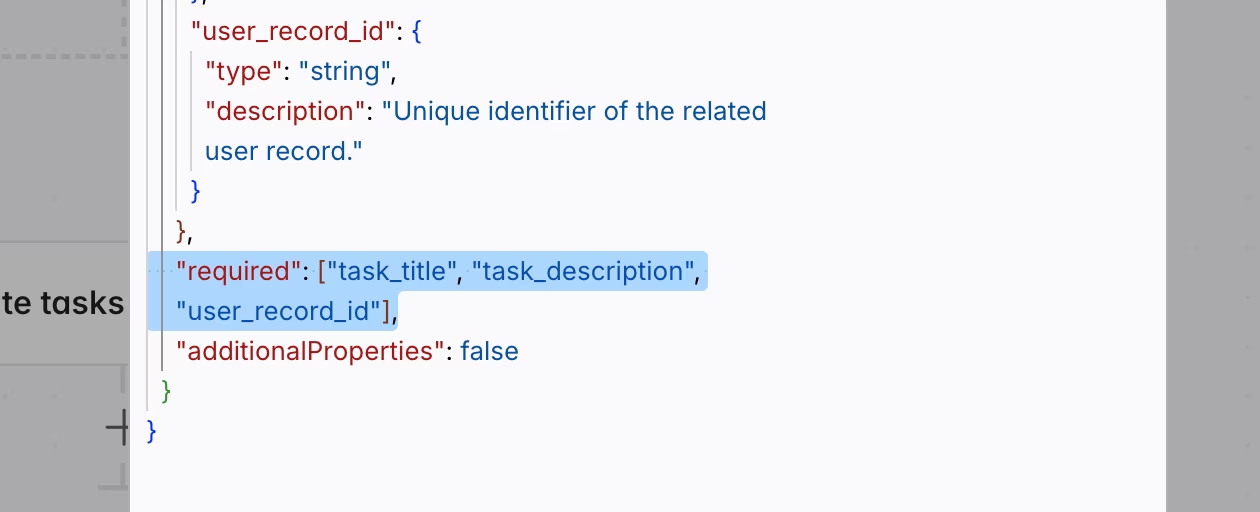
Use the required field
Mark all fields that your workflow depends on as required in the schema. This prevents the AI from skipping fields when information is ambiguous in the source text.
Add descriptions to schema fields
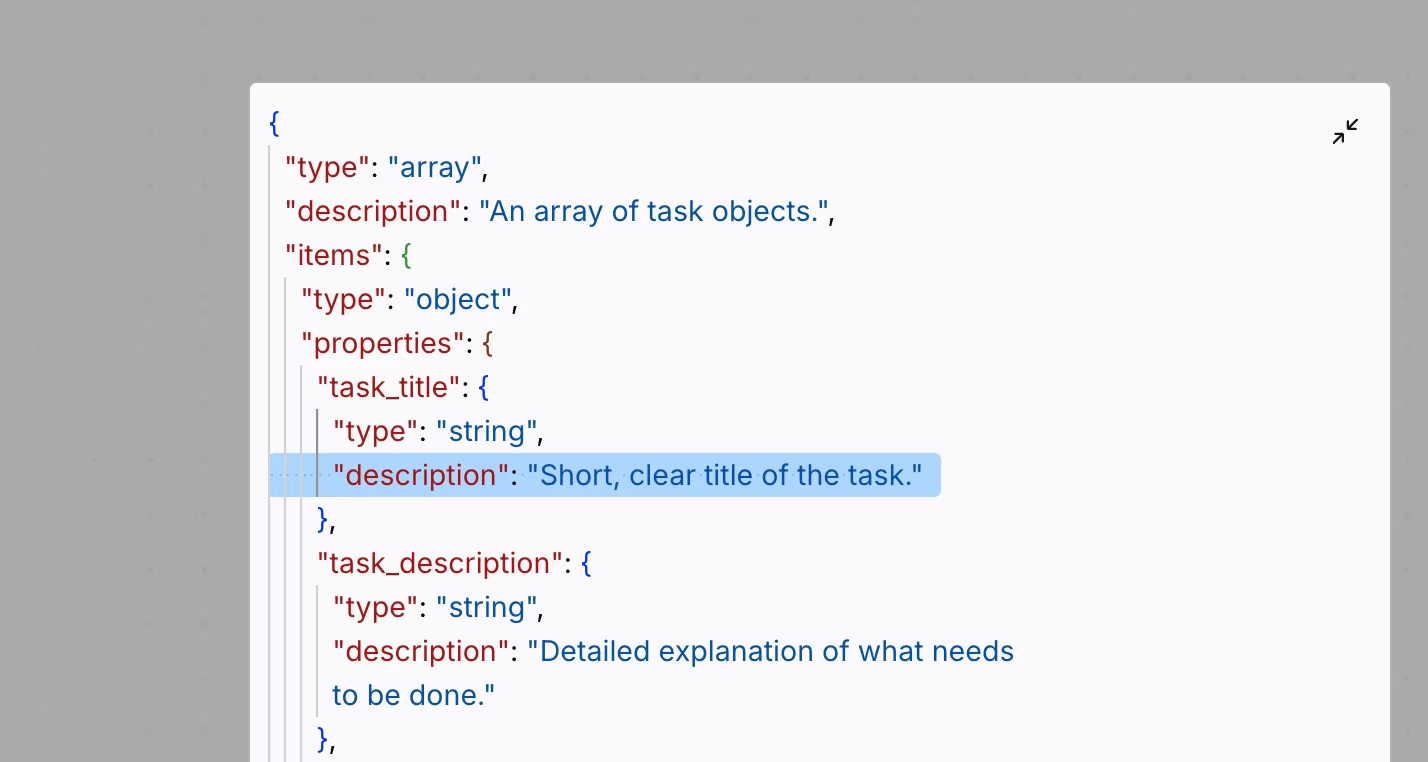
The description property inside your schema acts as an instruction for the AI. A field described as "The Record ID of the assigned user, matching one of the provided user records" gives the AI much more guidance than a field named user_id with no description.
Choose the right model for the job
Complex extraction and classification tasks benefit from powerful models (GPT 5.2, Claude Sonnet 4.5). Simple categorization or title generation can use faster, cheaper models (Gemini 3 Flash). In Softr, you can mix models across different steps in the same workflow to balance quality and cost.
Test with edge cases
Check what happens when the source text contains no relevant items (the AI should return an empty array), conflicting information, or unusual formatting. Well-written prompts and schemas handle these cases gracefully.
Bridge the gap between AI and automation
Structured AI outputs are the bridge between AI-generated intelligence and real-world automation. They let you treat AI not as a chatbot but as a data processing step in your workflow, one that produces clean, predictable records you can loop through, map to fields, and act on immediately.
If you want to see structured outputs in action, check out our complete tutorials:
- Full app build: How to build an AI meeting task manager with Softr
- The full tutorial about extracting tasks from meeting transcripts with AI will be released soon.
- Another workflow example: How to enrich inbound demo requests with AI workflows
Happy building!
Frequently asked questions
What is JSON and why is it used for structured AI outputs?
How do I create a JSON schema if I don't know how to code?
Which AI model should I use for structured output?
What happens if the AI cannot find any matching data in the source text?
Can I use structured outputs for tasks beyond text extraction?