How to build an SVG generator app with Softr


[.blog-callout]
✨TL;DR:
- Free online SVG generators are handy until you hit a paywall, an ad, or an export option you actually need.
- With Softr's Vibe Coding block, you can build your own generator by describing it in plain language, including the exact controls and export buttons you want.
- We build two working examples: an SVG shape generator and an SVG wave generator, each with copy and download actions.
[.blog-callout]
If you've ever needed a quick shape, icon, or wave divider for a landing page, you probably ended up on one of those free online SVG generator sites. They work, until you hit a paywall, an ad wall, or a tool that doesn't export the format you actually need. The better option is to build your own, shaped around exactly what your team uses every day.
In this guide, we'll build an SVG generator app in Softr using the Vibe Coding block. You describe the tool you want in plain language, and Softr builds the interface for you. We'll walk through two real examples, a shape generator and a wave generator, then connect them to a database so every asset you create is saved and reusable.
What is Softr, and why use it for this?
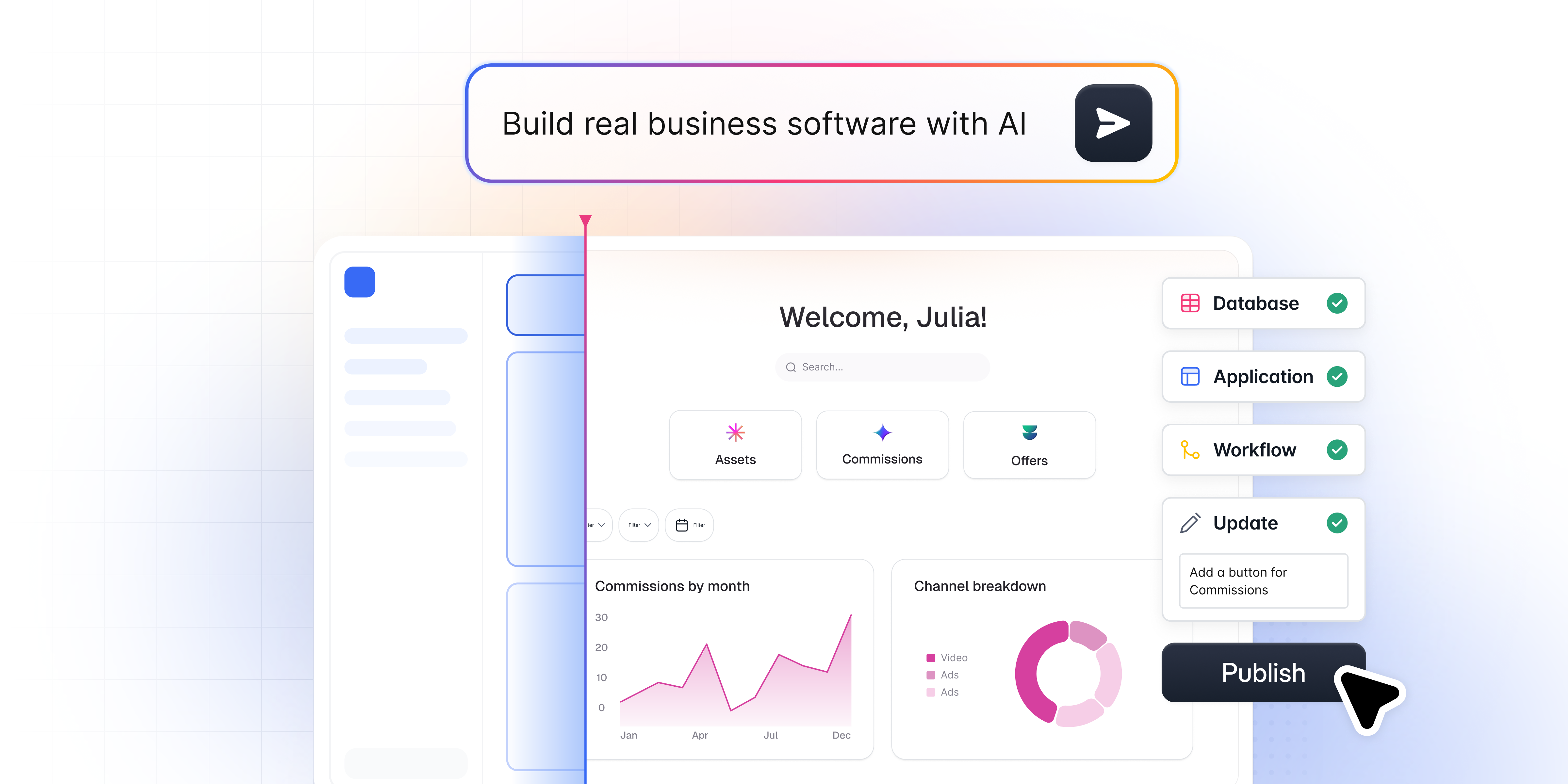
Softr is an AI app builder for creating real business software without code. You describe what you need, and the AI Co-Builder assembles the pieces: a Softr Database for your data, an interface your team uses, and the logic that connects them. Unlike pure vibe-coding tools, AI here is the fast path, not the only one. Anything the AI builds, you can also adjust by hand, so a small fix never means re-prompting from scratch.
For this project, the piece that matters is the Vibe Coding block. You describe the component you want, and Softr generates it. But unlike a raw code generator, the block inherits your app's theme, connects to your data, and respects your permissions, so you get exactly the tool you want without the fragility of a pasted-in script.
Who is this app for?
This build is a good fit for design teams, marketers, and agencies who create visual assets often and want them in one predictable place. It also suits operations and product teams who would rather give their people a purpose-built internal tool than a random link found online.
Step 1: Describe the generator to the Vibe Coding block
Every build starts with a prompt. Add a Vibe Coding block to your Softr app, then describe the tool you want in plain language. The key is to be specific about two things: the controls users get, and the actions they can take with the result.
Here's the example prompt that produced our shape generator:
"Build an advanced SVG shape generator tool. Support shape types like circle, rectangle, triangle, star, polygon, line, ellipse, and heart. Add controls for size, rotation, stroke width, fill and stroke color, and opacity. Show a live preview and the generated SVG code. Add buttons to copy the SVG code, download it as an SVG file, and randomize all properties."
That last sentence is where a lot of the value sits. You decide precisely what users are allowed to do. You can let them copy the raw SVG code for developers, download an SVG file for designers, or download a PNG version for anyone who just needs a ready-to-use image. Because you're describing the behavior, you're not limited to whatever a generic online tool happened to offer.
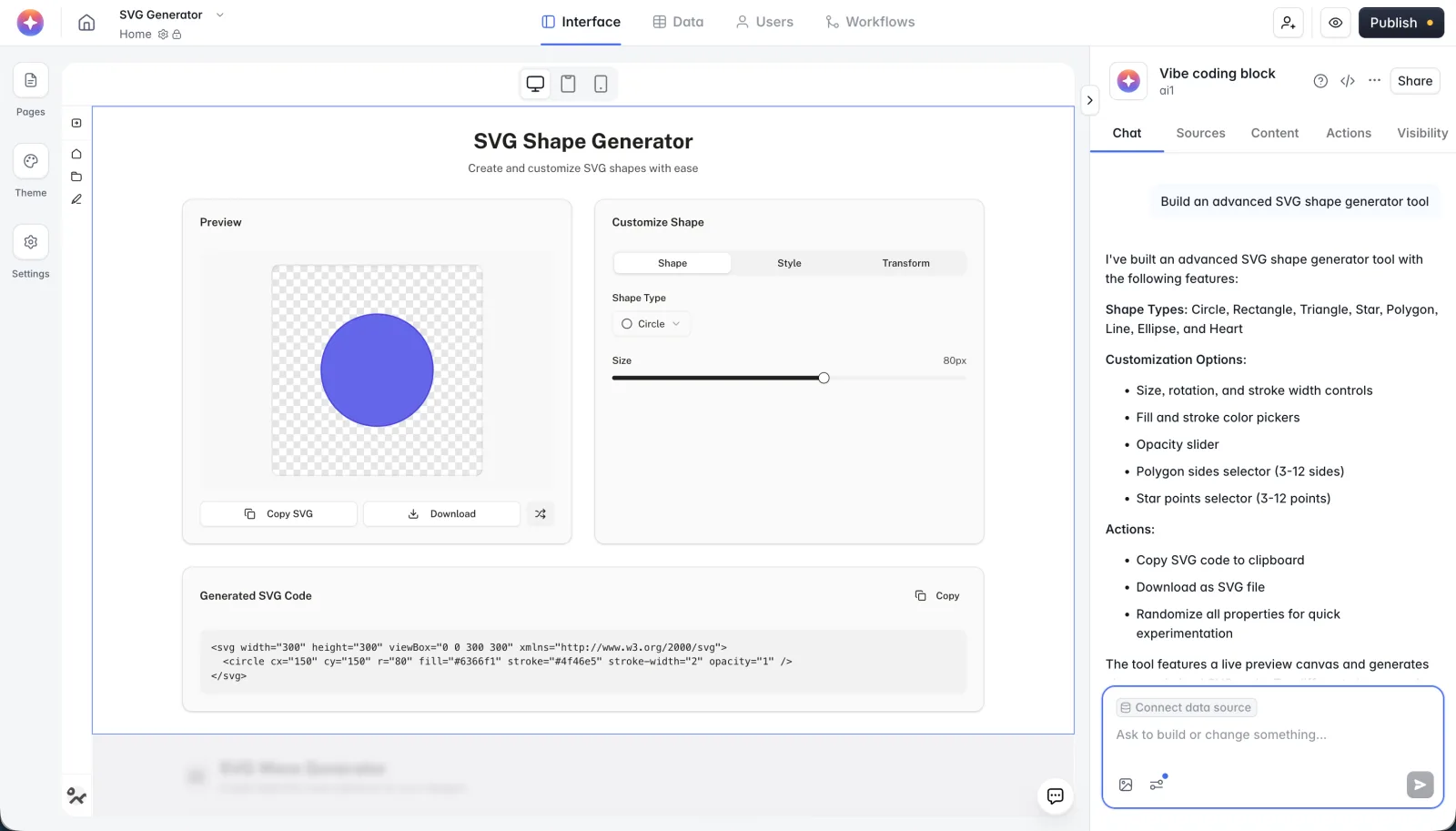
If the first result isn't quite right, you refine it the same way you started: in plain language. Ask for an extra shape type, a different layout, or a new export button, and the block rebuilds. For more tips on getting good results, see our guide on how to use the Vibe Coding block.
Step 2: Two example generators you can build
To show how flexible the Vibe Coding block is, here are two different generators built with the same approach. They look and behave nothing alike, yet both came from a simple, short description.
Example 1: An SVG shape generator
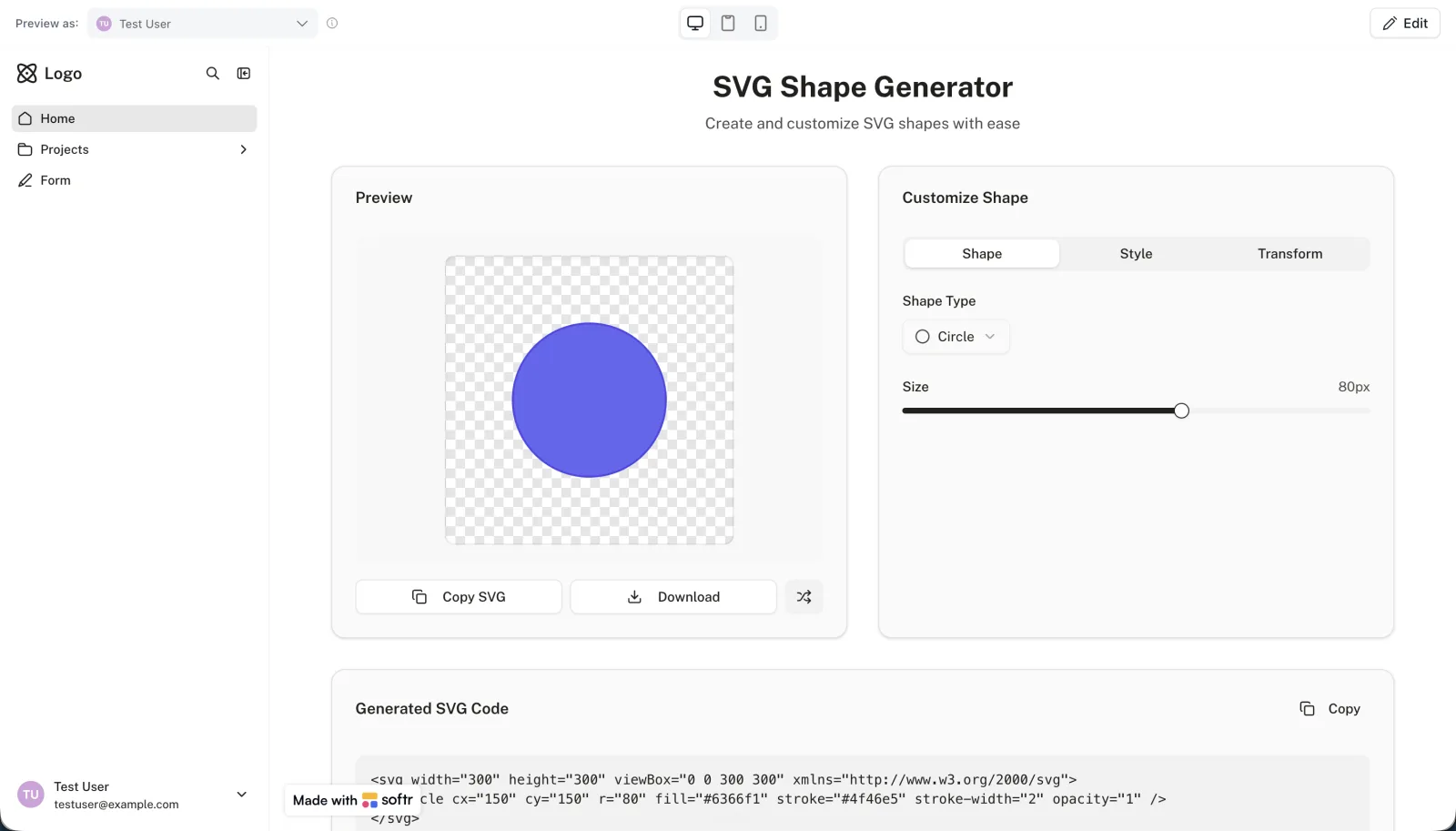
The shape generator gives users a live preview canvas, a set of shape types, and controls for size, color, stroke, and opacity. Every change updates the preview and the SVG code underneath it in real time. When you're done, simply copy the code or download the file.
Example 2: An SVG wave generator
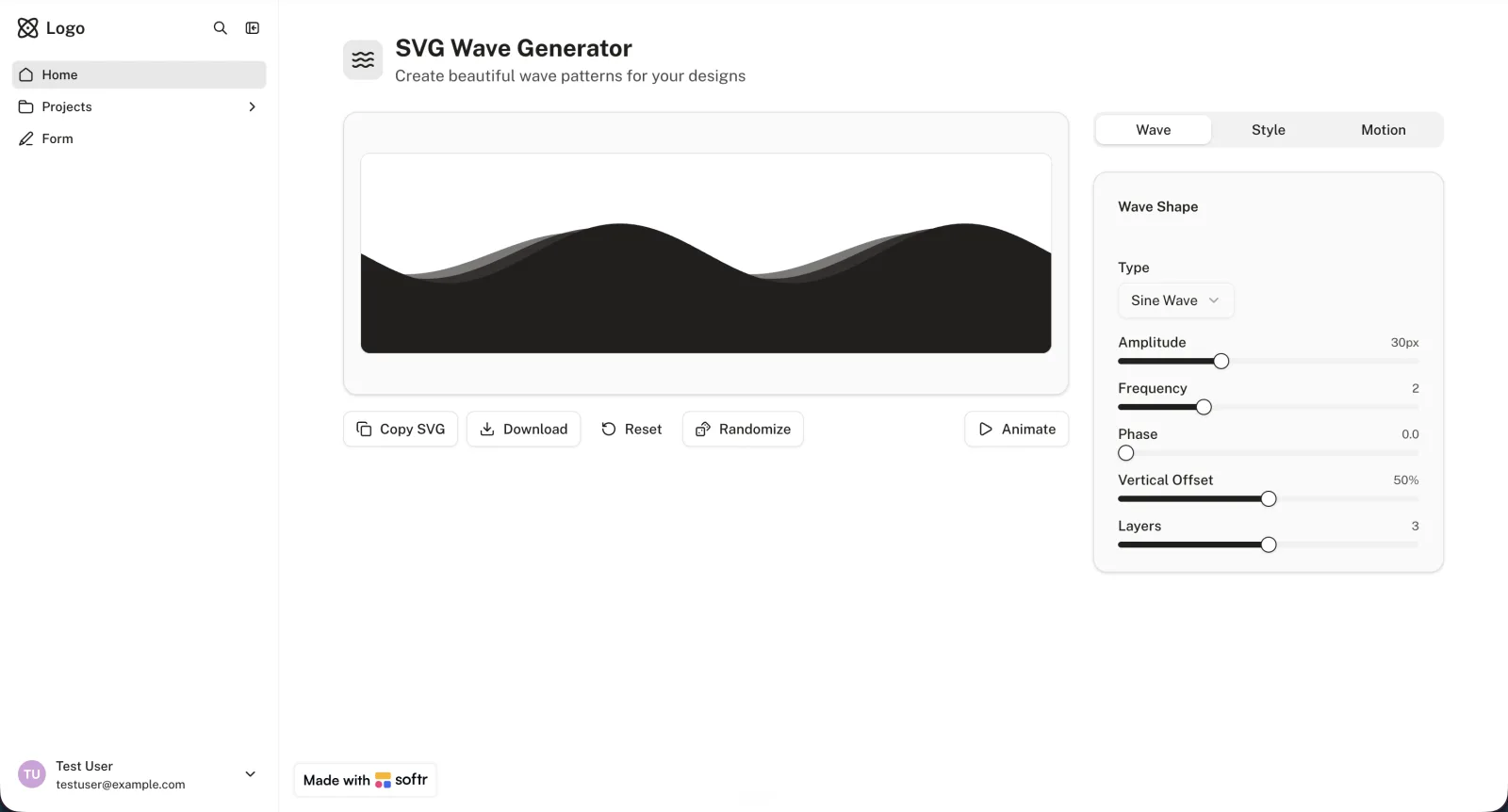
The wave generator solves a different problem. It creates layered wave patterns for section dividers and backgrounds, with sliders for amplitude, frequency, phase, and layers, plus an animate option to preview motion. It's the same Vibe Coding block but a completely different tool, defined entirely by the prompt.
You don't have to choose between them. Add both blocks to the same app, and your team has one internal tool that generates shapes and waves side by side.
Step 3: Save every asset by connecting a database
A generator on its own creates assets and forgets them. Connect the Vibe Coding block to a Softr Database, and users can save any version they like directly to a table, then pull it back up whenever they need it.
Here's how: Add a "Save" action that writes the SVG code, a name, and a few tags to your database. Then add a List block that displays every saved asset, filtered and searchable, so nobody rebuilds the same divider twice. Your generator and your asset library now live in the same app.

This is the foundation of a proper digital asset management system. Instead of design files scattered across email threads and shared drives, your team gets one place to create, store, and find brand assets. Softr even has a free Digital Asset Management template you can start from if you want the library ready-made.
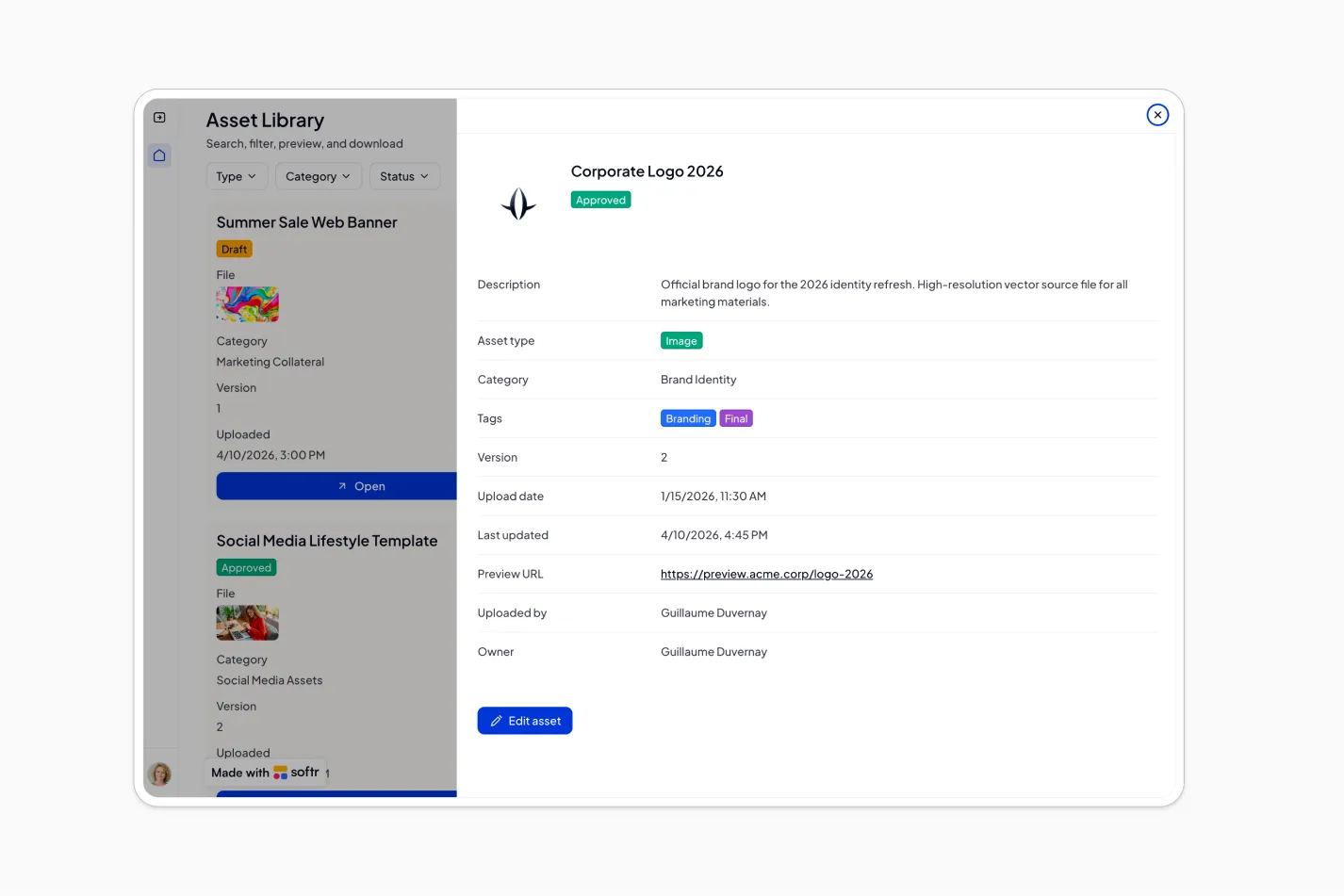
From there, the app can grow with your needs. You can set users and permissions so clients see only their own assets, or use Softr Workflows to notify a channel whenever a new asset is added. The SVG generator is really just a starting point.
Build a tool that fits your workflow
The lesson here is bigger than SVGs. When a generic online tool doesn't quite work, you no longer have to settle for it. Describe what you actually need, let Softr's Vibe Coding block build it, and connect it to a database so the output sticks around. Start with a single generator, then grow it into a full-fledged asset library.
Browse more vibe coding examples to see what else you can put together, or try your first prompt free.
Frequently asked questions
Can I build an SVG generator without writing any code?
Can users download the result as a PNG and not just an SVG?
Where are the generated SVGs stored?
Do I need a separate app for each type of generator?
What else can I build with the Vibe Coding block besides an SVG generator?