
[.blog-callout]
TL;DR
- Softr lets you build a free investor relations CRM three ways: generate one with the AI Co-Builder, start from a template, or build it from scratch.
- Whichever path you pick, start with your data. Use Softr Databases natively, or connect Airtable, Google Sheets, or another existing data source.
- User groups and Global Data Restrictions keep investor data locked down, so each LP only ever sees their own records.
- Softr Workflows handles notifications and other logic natively, so you don't need a separate automation tool. [.blog-callout]
When creating an investor relations CRM, it's crucial to pick a platform that simplifies your investor management process without requiring a developer.
Traditional CRMs aren't built for investor relations specifically, and dedicated investor relations tools can be expensive, hard to customize, or missing reporting features you actually need.
That's why in this guide we're building an investor relations CRM with Softr. You can do it for free, using one of three methods:
- Describe your CRM to the AI Co-Builder and let it generate the database, pages, and user groups for you;
- Start from a premade template and customize it to fit your process; or
- Build it from scratch and create custom components with the exact features you need.
We'll cover all three, so you can pick whichever fits your team best.
"Technology is core to our fund, and Softr will play a key role in the near future as we differentiate ourselves with a custom CRM that allows us to operate extremely efficiently. I had already tried other no-code tools, so when I started using Softr, it was immediately clear that the capabilities were beyond what I found elsewhere." - Yohei Nakajima, General Partner at Untapped Capital
We are building an investor relations CRM with the following features:
- User sign up and login: Allow investors to register using a form or one-click Google login
- Contacts management: Admin tool to check investor profiles and send messages
- Content restriction: Create documents, downloads, and pages that are visible only to logged-in investors
- Charts and reports: Show company performance to investors, or surface admin-only metrics like number of contacts or amount committed
- User communication: Reach investors individually via email
Let's get started.
The roadmap
Before getting started, let's understand what you're doing and why.
Whichever path you pick, generating with AI, using a template, or building from scratch, you need somewhere to store your data. Use Softr Databases, Softr's native, relational database, or connect an existing source like Airtable, Google Sheets, or one of Softr's 21+ other data sources.
If you pick a template, choose the one closest to your end result, then add or remove elements to match what you actually need.
In our example, we create a new user group for admin access, swap the demo data source for our own, and update the internal links across pages and components.
If you're building from scratch, you'll create each CRM element yourself: the app and its data source, common elements like the header and menus, and the overall theme. It's worth looking at existing CRMs for inspiration so you don't miss any must-have features. For instance, if you're mainly targeting investors in the property market, checking out CRMs for real estate agents is a good starting point.
You'll use user groups to define access levels, restrict some pages to admins, and create separate welcome pages for admins and investors.
Forms let you collect content submissions, whether that's comments, new messages, sign-ups, or anything else that needs user input.
For automations, Softr Workflows is the native option and the fastest to set up, since it's triggered directly by actions inside your app, like a button click or a new record being created. If you'd rather use an external tool, Softr also has native integrations with Airtable automations, Zapier, Make, and n8n, so you can, for example, send an email whenever a new record is created in your "Messages" table.
Finally, use Softr's interface builder components (lists, tables, maps, payment collection, calendars, and more) to build out your pages.
How to set up your database for an investor relations CRM
Cost: 0
Time: 1h
Whenever you're creating an app, start with the database. You can always add more data points later, but good planning saves you a lot of rework.
Softr Databases is the recommended native option for a new build like this one: it's fast, keeps everything in one place, and is AI-ready. If you already manage your investor data elsewhere, Softr also connects to Airtable and Google Sheets, among 21+ other data sources. In this tutorial, we'll use Airtable to show the process, but the same logic applies if you use Softr Databases instead.
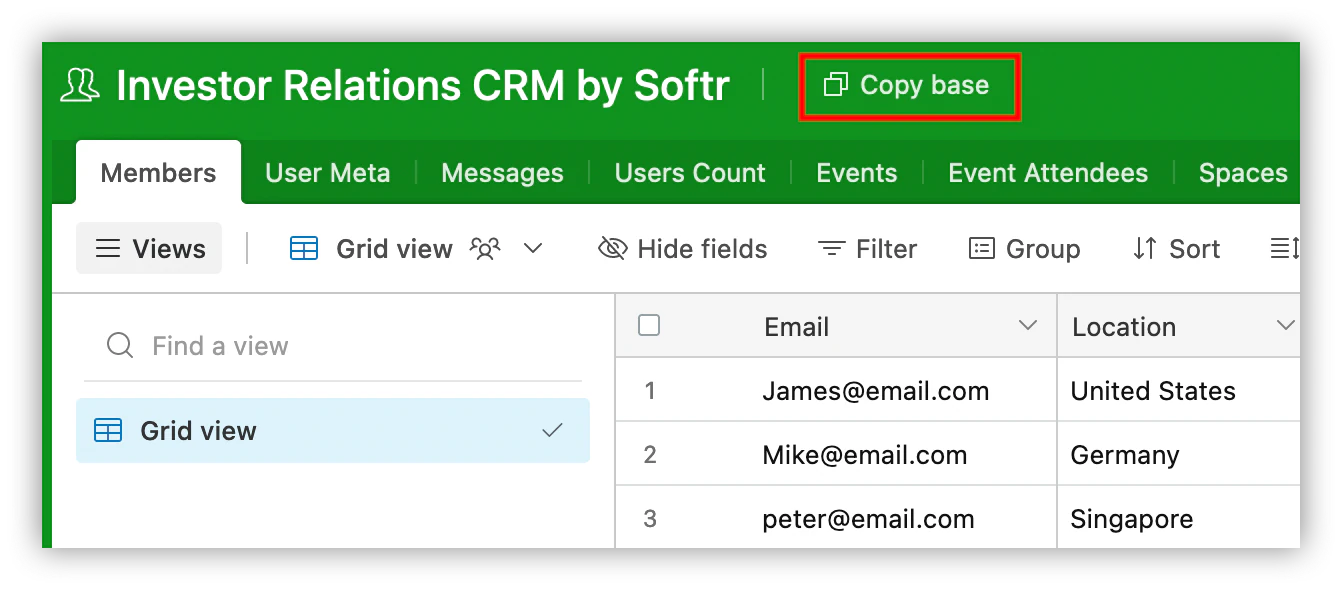
You can use our template or create one from scratch. To use the template, click "copy base" next to the template title:
Prefer to see this built natively instead? Here's a similar structure inside Softr Databases, based on the Investor Portal template, tracking company details, valuation, and funding rounds:
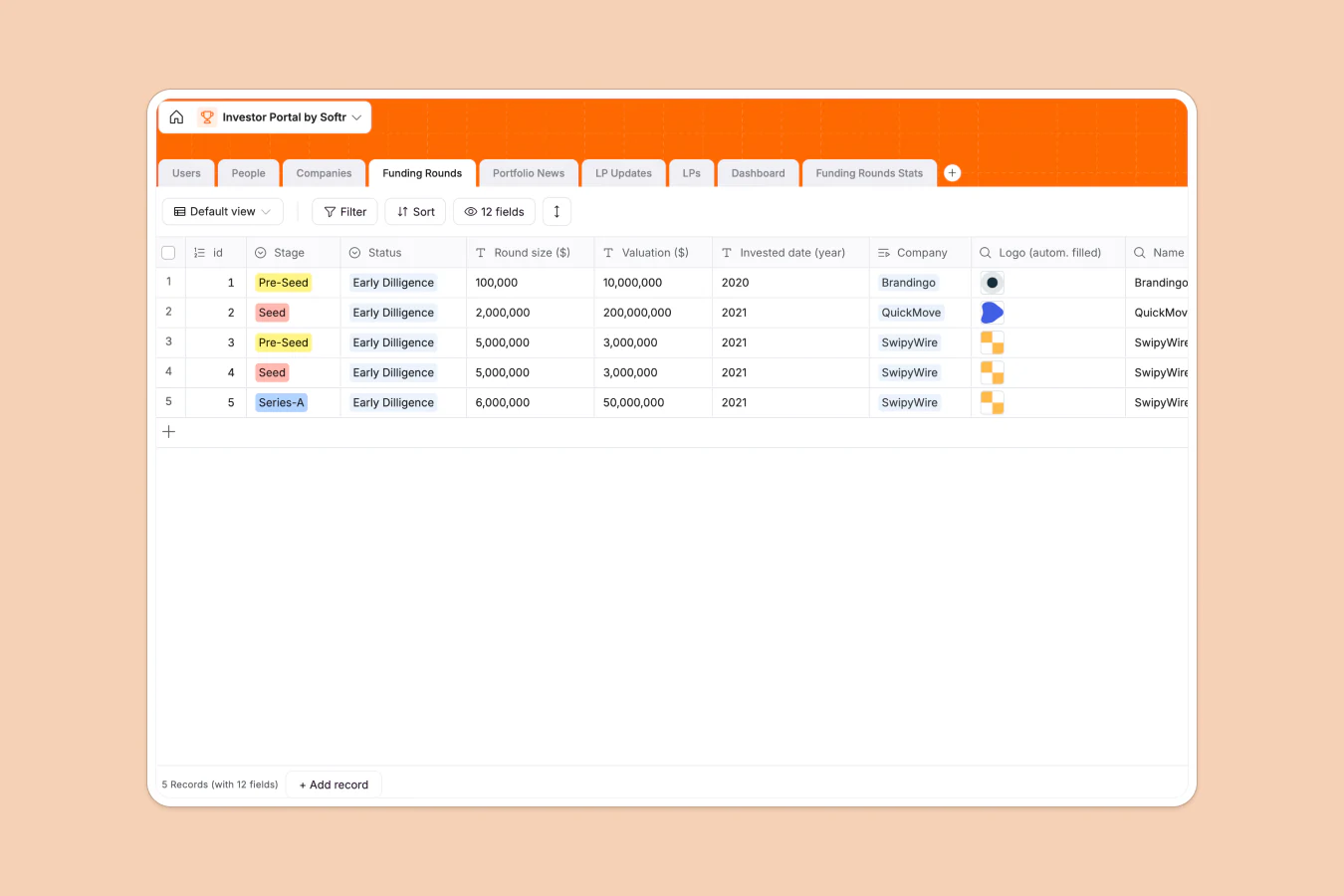
If you want to build your own, follow these steps, or describe your desired structure to the Database AI Co-Builder and let it generate the tables, fields, and relationships for you, then adjust manually from there.
Step 1: Write a sitemap
Create a list of pages along with the main data points for each of them. You can create wireframes as well if you want to.
A list helps you identify what data points you'll need in your CRM and test if you can perform all the actions you want to.
This is the list of pages for our demo app:
- Home: A public page to direct visitors to the sign up or login pages
- Login / Signup: Pages used for account creation and user authentication
- Welcome page for admins: This page contains a user count progression chart, along with a list of all current users.
- A users list page: A page that lists all users to allow the message form to work
- Messages list page: A page that admins can use to search messages, along with users on these threads
- New message form: This page allows admins to send a new message to investors
- Welcome page for investors: Investors can see this page after they log in.
Step 2: Organize your data points into tables and columns
Group the data points for each page into tables and columns. Notice that a single table might be used across many pages, and a page can contain multiple components coming from multiple tables.
These are the required tables for our demo:
- Members: A list of all users, their roles, and their emails
- User Meta: A list of custom fields for each user, which allows you to store and retrieve data points about any user
- Messages: A table to store all interactions from a staff member to a user
- Users Count: This is a table used for the users count bar chart
There are some additional tables in our template, but they exist just to make the transition from the Softr template to your custom components easier. You can ignore or even remove them if you want.
Step 3: Add foreign keys
A foreign key is a column that matches values in another table. They're used to connect records in different tables.
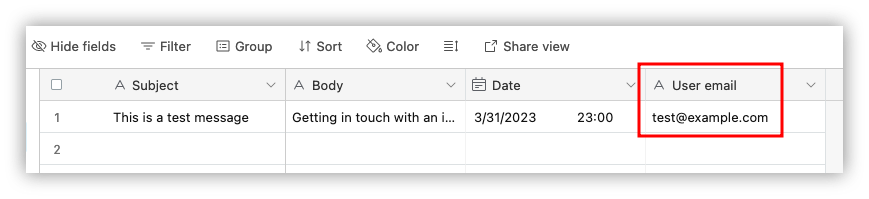
For example, the messages table is always related to a member. It makes sense to add the user email there, so you can use this information in your queries.
Step 4: Preprocess data
Whenever you connect your data source with Softr, you're bound to use the columns as they are.
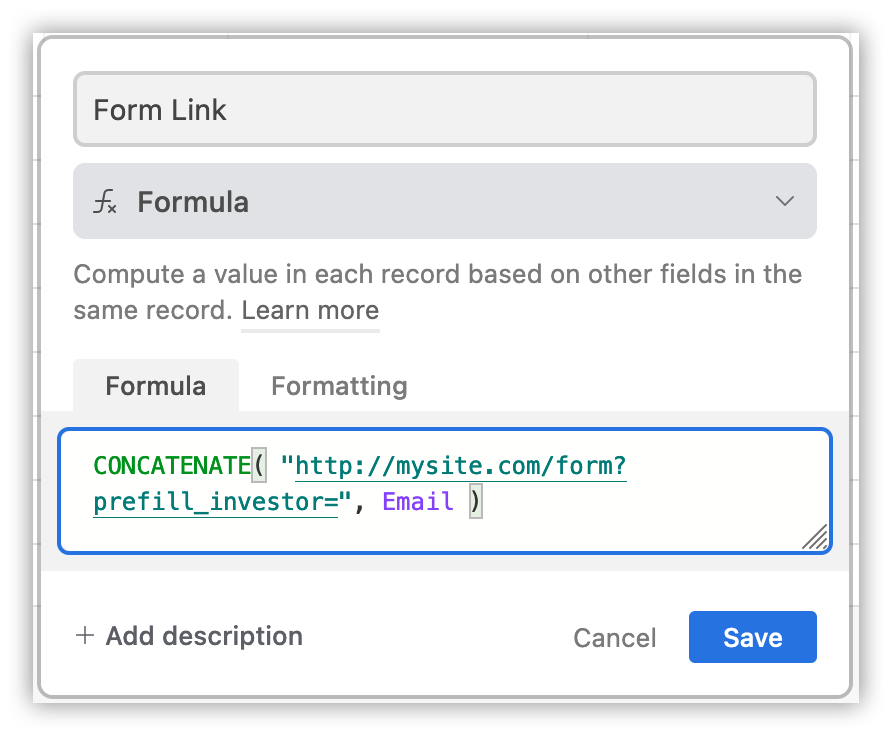
In our example, we need to create a special column to generate links with prepopulated data to the message form. This lets us create buttons that link to the form page with the user's email in the URL, so it's used in the form itself.
You can do it with a new Airtable column as a formula. Use a concatenate function to combine the page URL with the prefill_investor field, set as the investor's email:
If you're using Softr Databases instead, describe the formula you need in plain language to the local AI Helper, and it will write it for you.
How to create an investor relations CRM with a Softr template
Cost: 0
Time: 2h
Want the fastest path? From your dashboard, you can also click "Generate with AI" and describe your investor relations CRM to have the AI Co-Builder create the database, pages, and user groups automatically. This section covers the template route instead, which gives you more control over your starting point.
You can use this method to get started quickly and change just the pages you want to.
In this case, use one of our templates for the front end and connect it with a copy of the demo data source for faster deployment.
Step 1: Pick the template that is the closest to your desired result
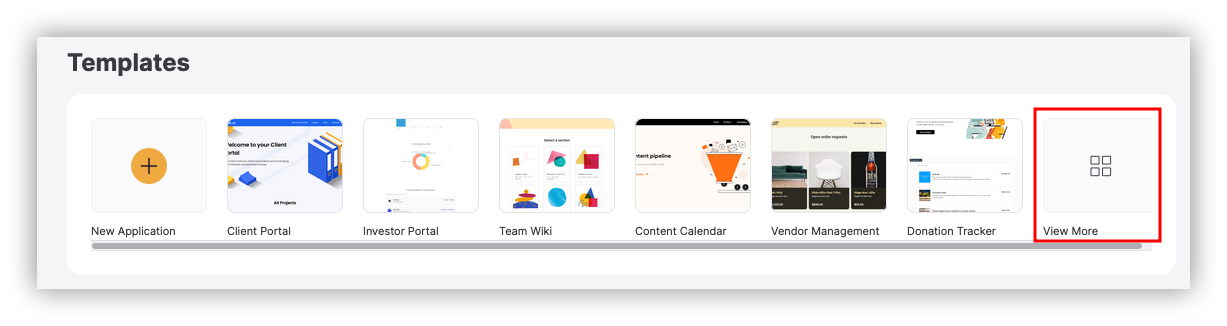
There are many templates to pick from. You could pick the Investor Portal template or the CRM template. In this example, we'll go with the Community Website Template.
Select it under the templates section on Softr, using the "view more" button, and search for community:
Step 2: Use the template
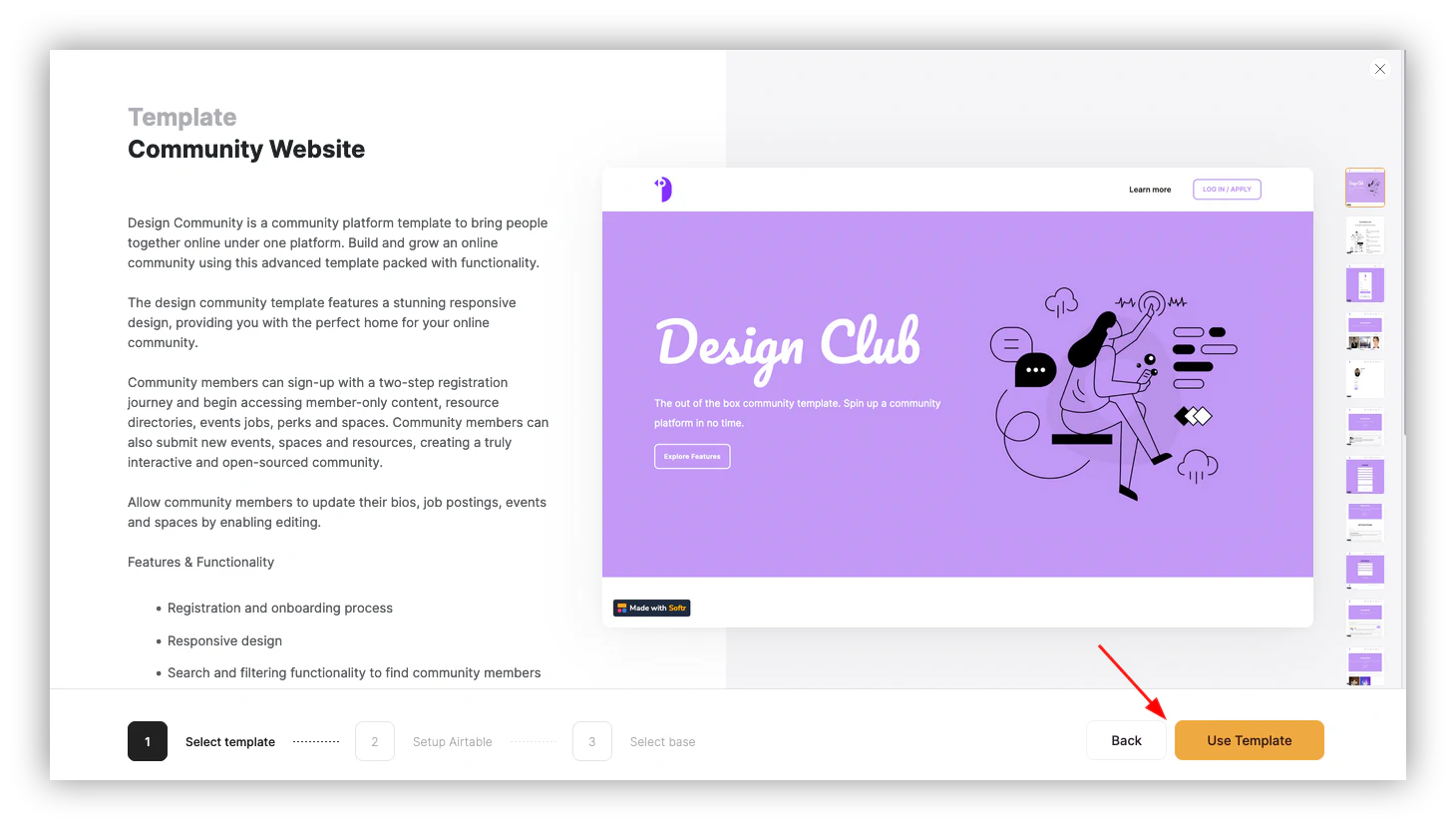
Click "Use Template" once you find one that you like.
Step 3: Add your Airtable API key
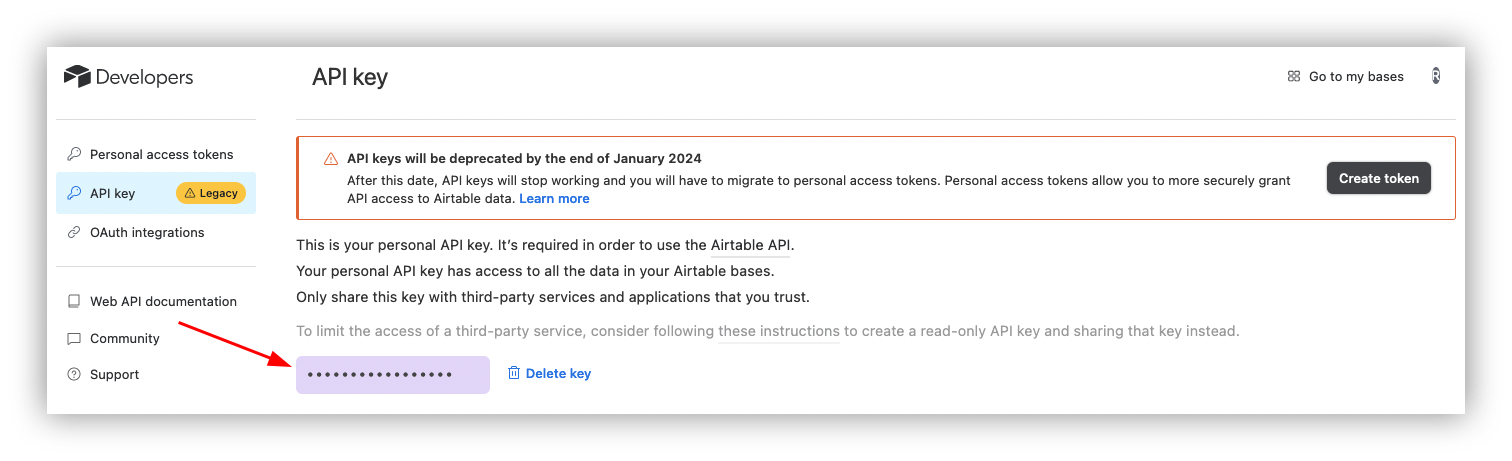
Now you need to give Softr access to your Airtable database. You can do it with an API key.
Go to Airtable > Click on your user icon > Settings > Account > Developer Hub > Click on the text field to get the API key. Copy and paste it into Softr.
Step 4: Copy the demo database
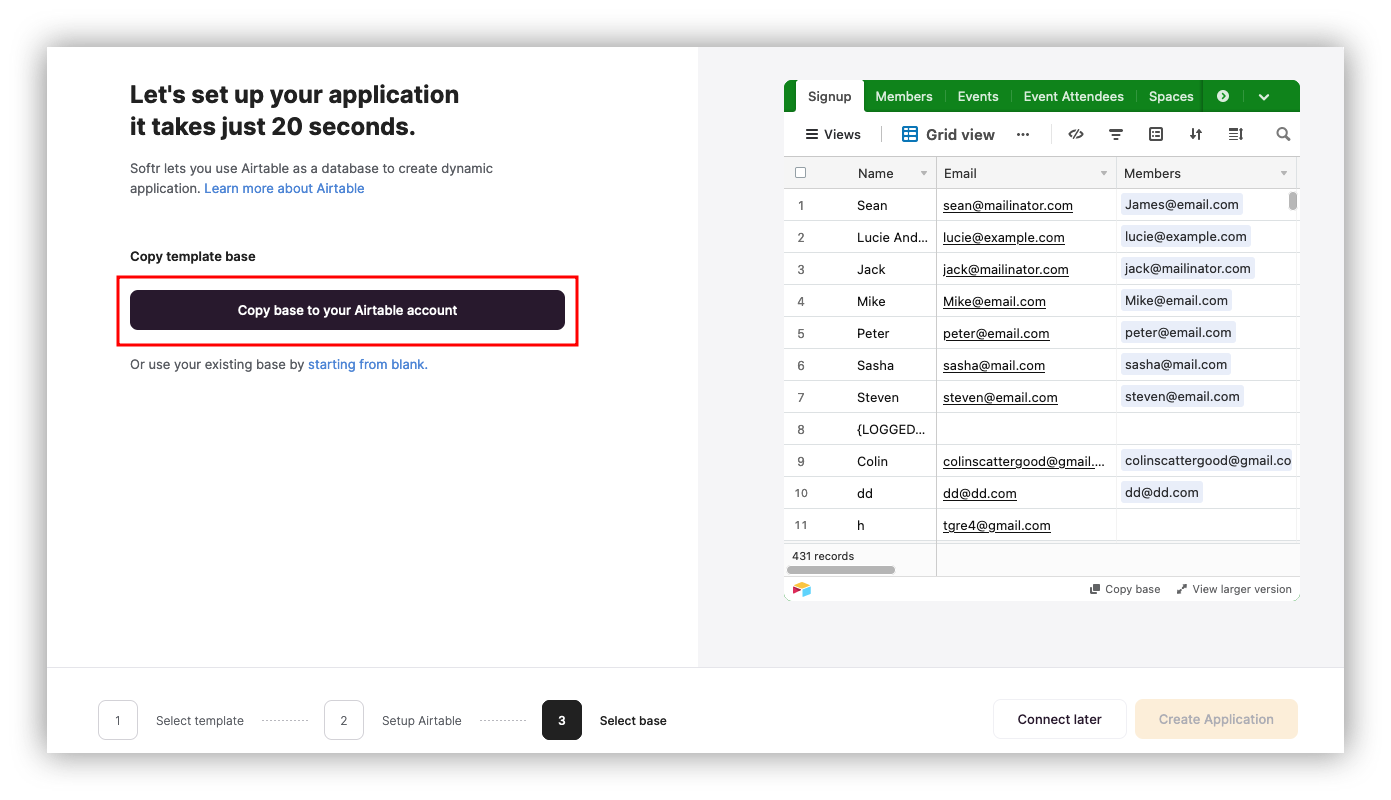
You need to copy the demo database to get the demo working. You can replace it with your own database later.
Click "copy base to your Airtable account" and copy it.
Step 5: Create user groups
Your base setup is ready. Now you can add a few additional controls to your CRM using users and permissions.
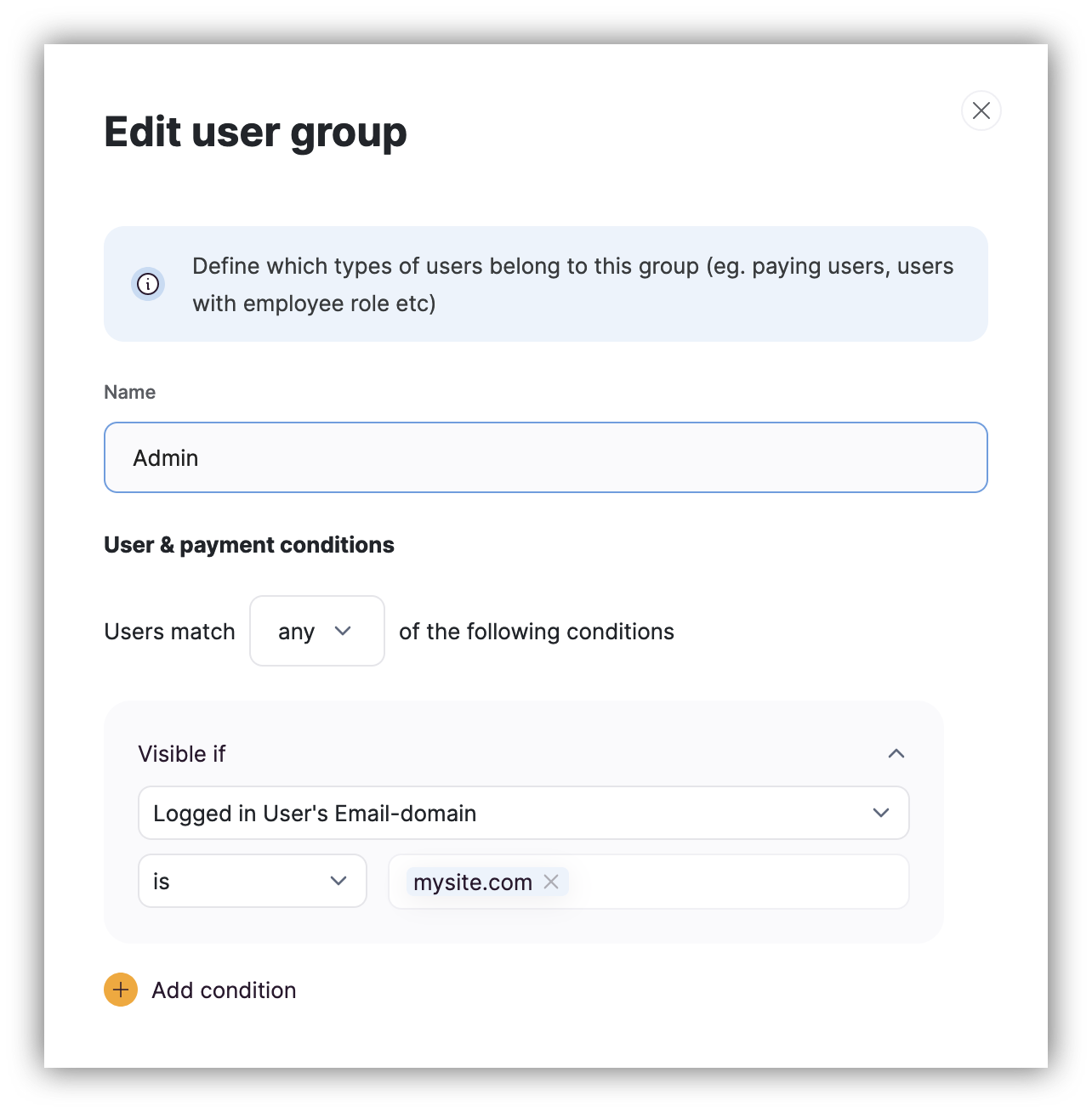
Softr creates two user groups by default: logged-in and non-logged-in. In this demo, you also need an admin account.
You can define admin users based on conditions. They can be broad, such as all users from your company's email domain, or strict, such as testing for a specific email.
Go to Settings > User Groups & Permissions > User Groups > Add new.
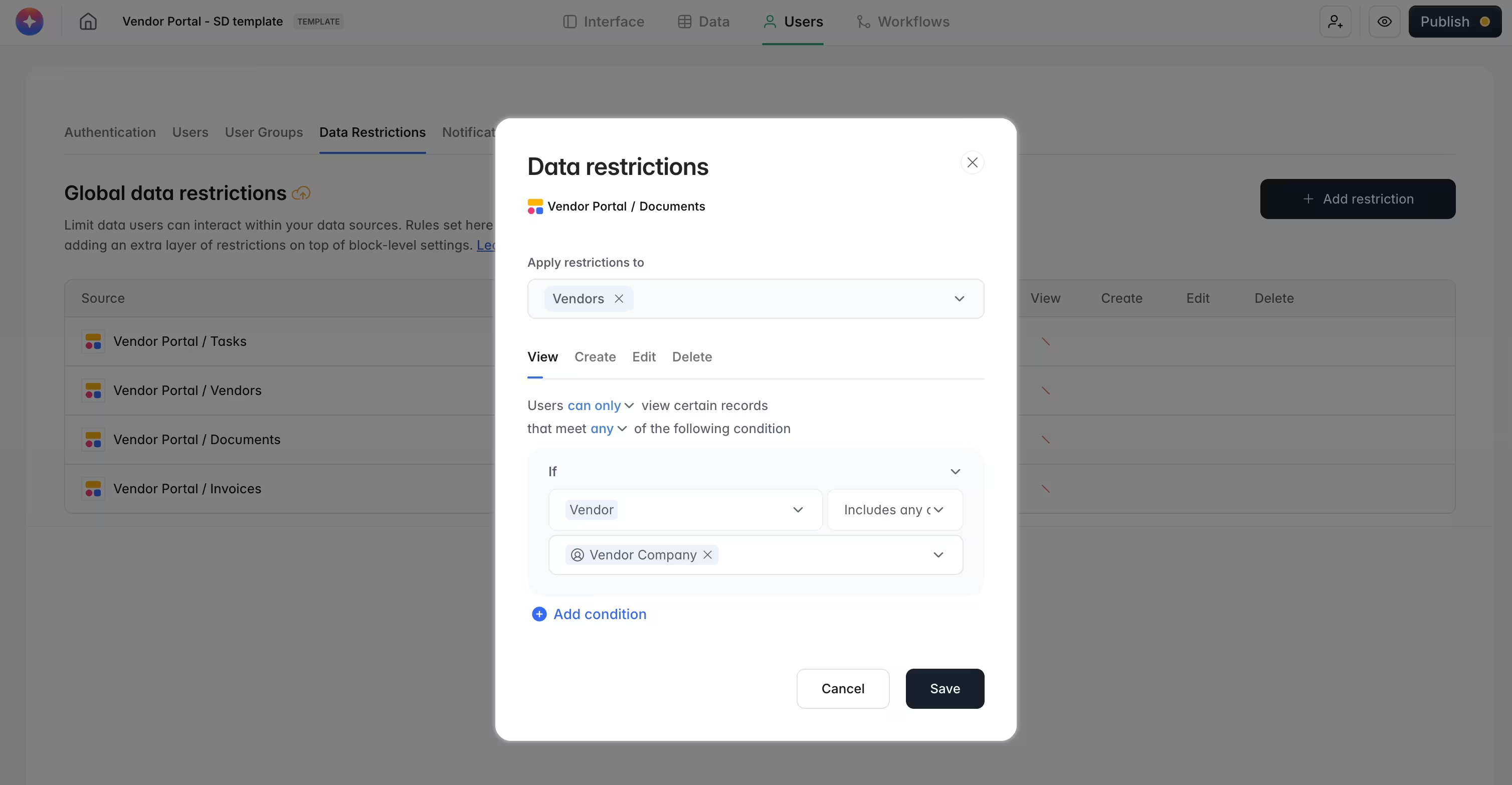
Pair user groups with Global Data Restrictions so each investor can only see their own records. This is enforced on the backend, not just hidden in the interface, so it can't be bypassed by inspecting the page.
Step 6: Review the demo pages
Feel free to delete the demo pages you don't want to use. In our app, we're using just these demo pages:
- Home
- Account settings
- Members
- Member details
- Sign In
- Sign Up
- Welcome
Step 7: Update the components
Now you can switch from the current database (a new demo DB) to the actual DB you created in step one of this guide.
Click on any of your dynamic components and update both the Airtable base and Airtable fields, or ask the AI Co-Builder to point the component at your new data source and remap the fields for you.

Step 8: Fix internal links and default behaviors
Some actions, like user registration, have redirection rules built in. Make sure none of them point to old, deleted pages.
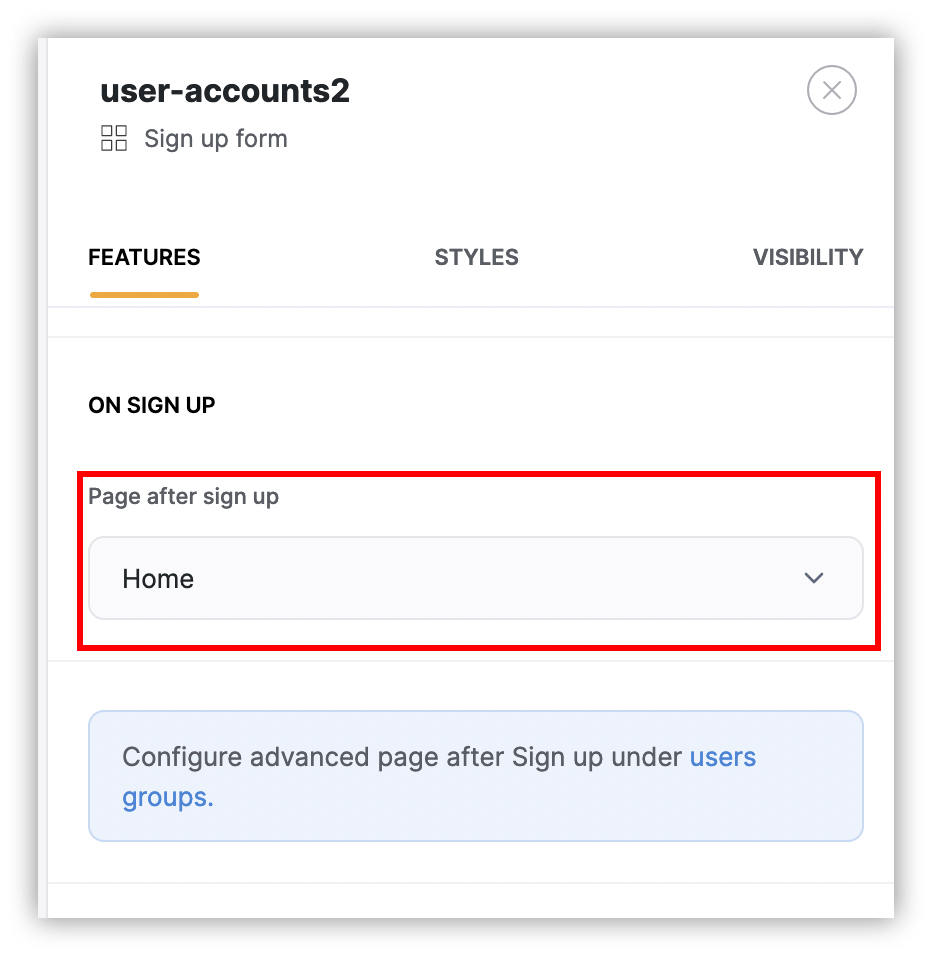
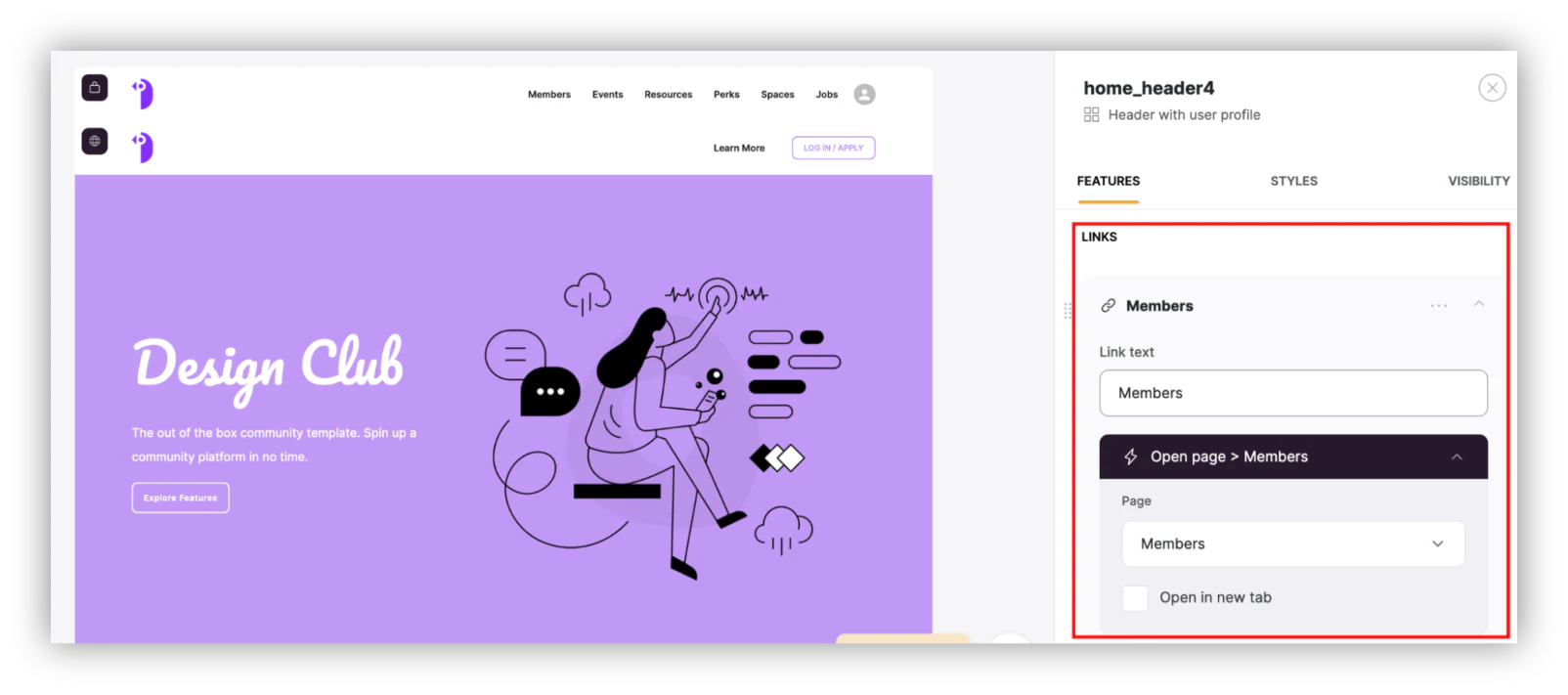
Step 9: Adjust the header
From the homepage, click the header. This lets you edit settings like menu items and the logo.
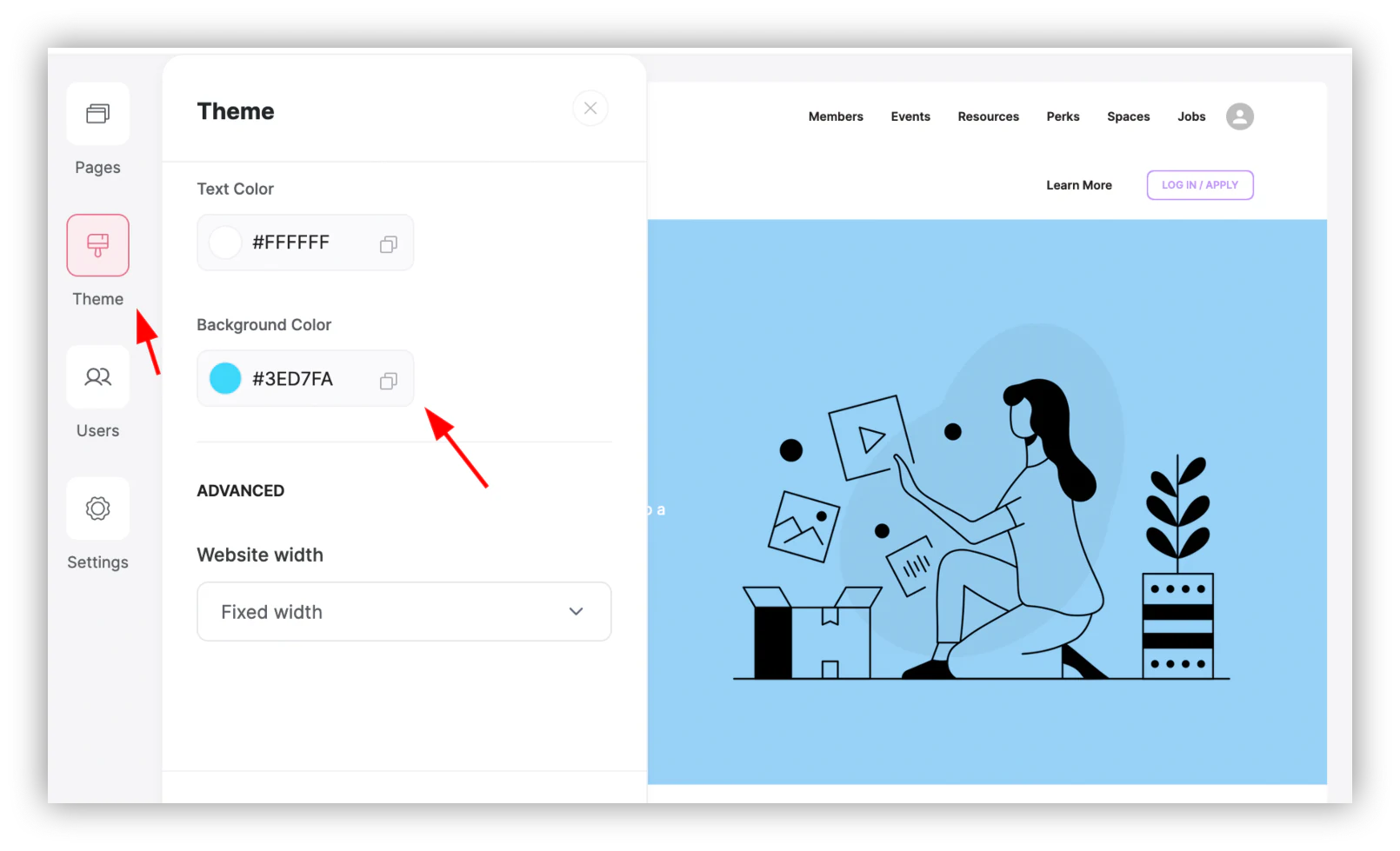
Step 10: Pick a color scheme
Use the "theme" option to apply global styles to your investor relations CRM.
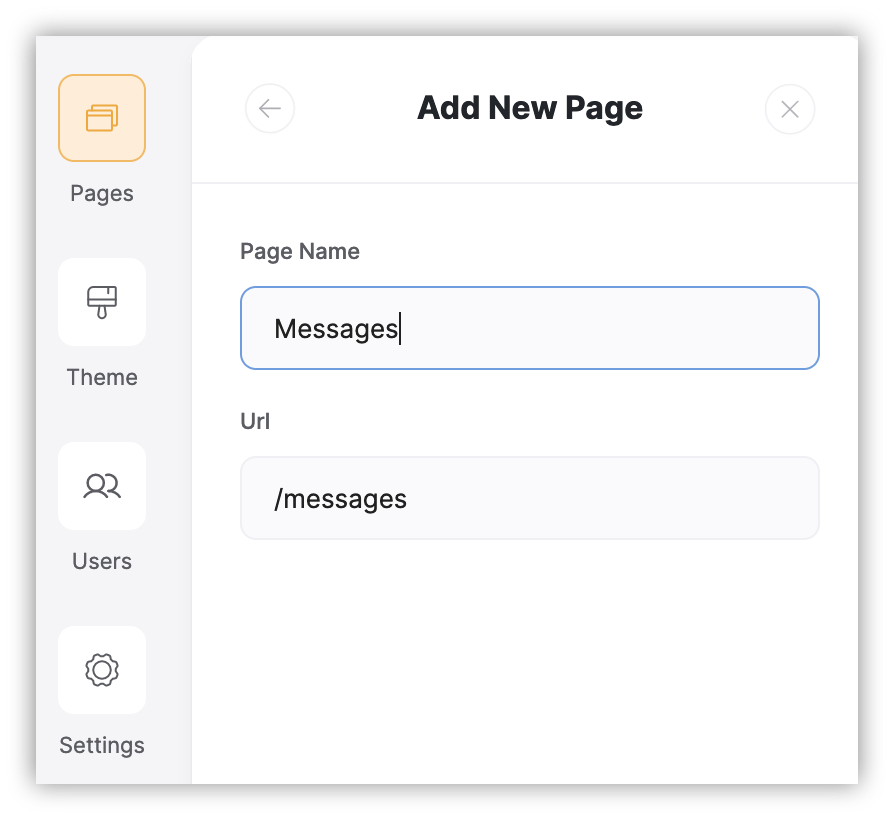
Step 11: Add new pages
You can add more pages with content for new features. Copy the steps from the next section to do it.
How to create an investor relations CRM with Softr from scratch
Cost: 0
Time: 3h
Templates are a great starting point, but building from scratch can be simpler, especially if you have a lean setup with just a few pages. You can also click "Generate with AI" from your dashboard and describe your CRM to have the AI Co-Builder build the initial version for you; this section shows the fully manual path instead.
Now let's explore how to create an investor relations CRM from zero.
Step 1: Create a new app
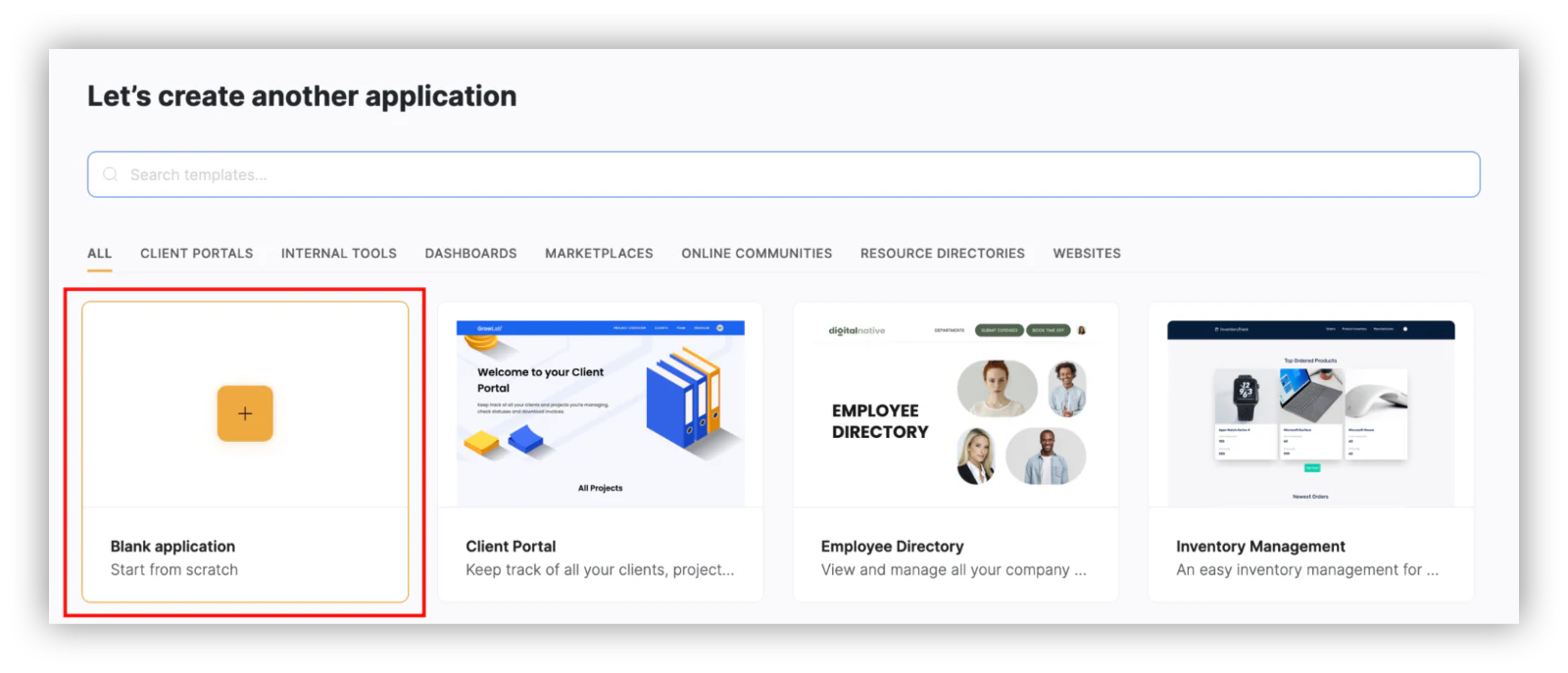
From your main dashboard, click "blank application" to generate a new app with no premade content.
Step 2: Data storage
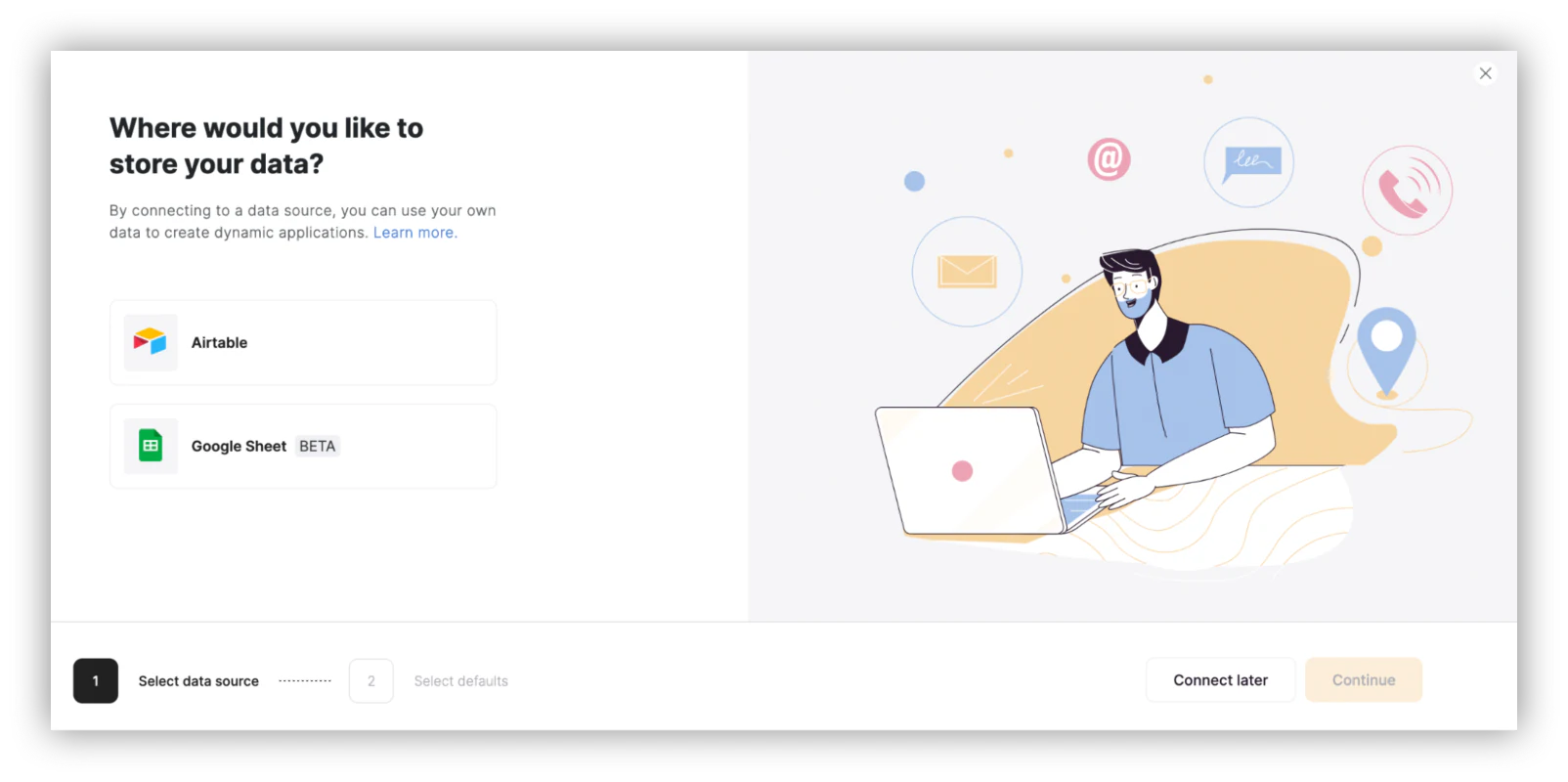
Connect Softr with Softr Databases, or with an external source like Airtable, to power your CRM app.
Step 3: Create the base pages
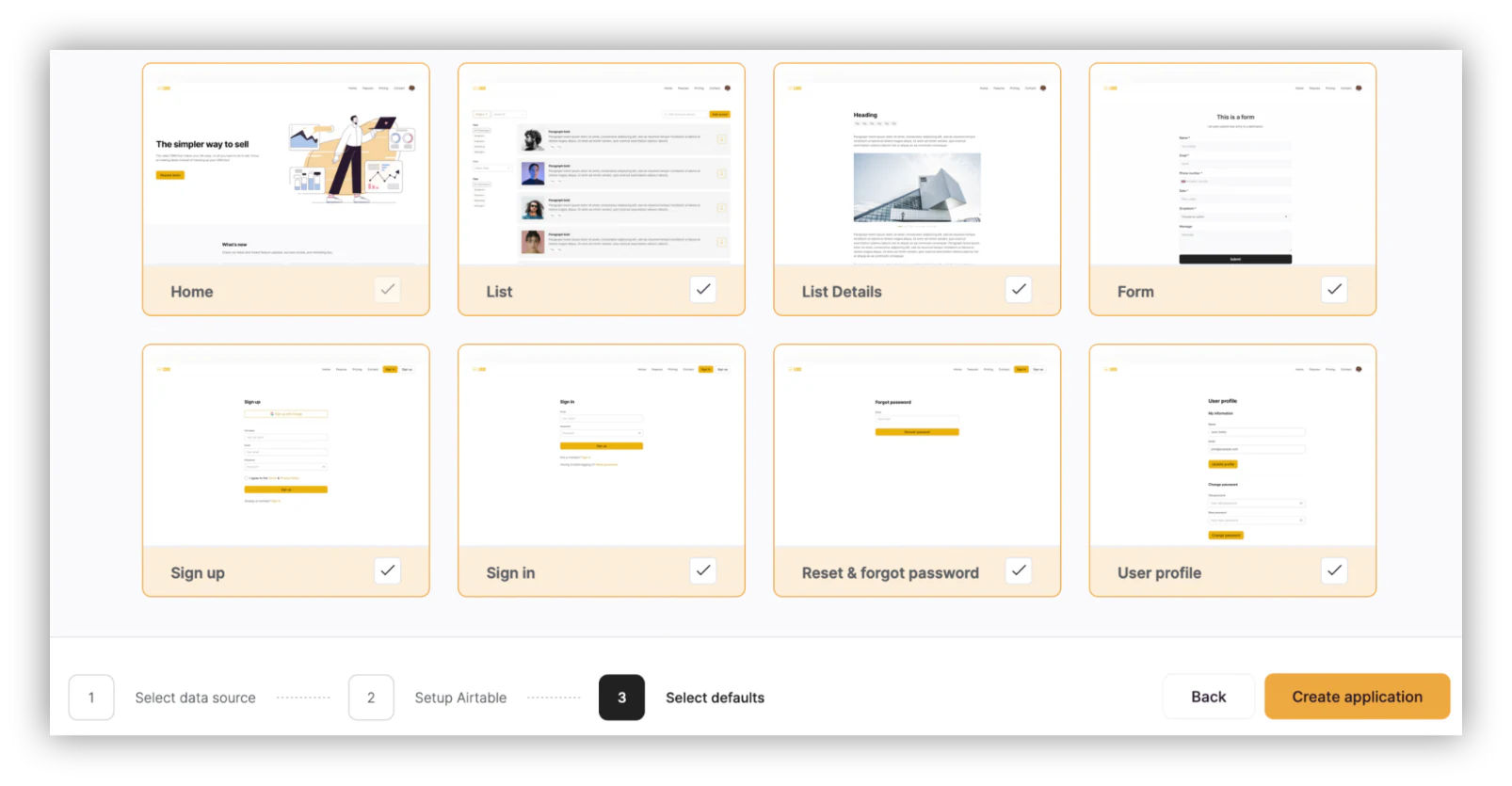
You can use prebuilt page templates or build them from scratch. The prebuilt templates are bare bones, so they're quick to edit either way.
Step 4: Define the header for your CRM
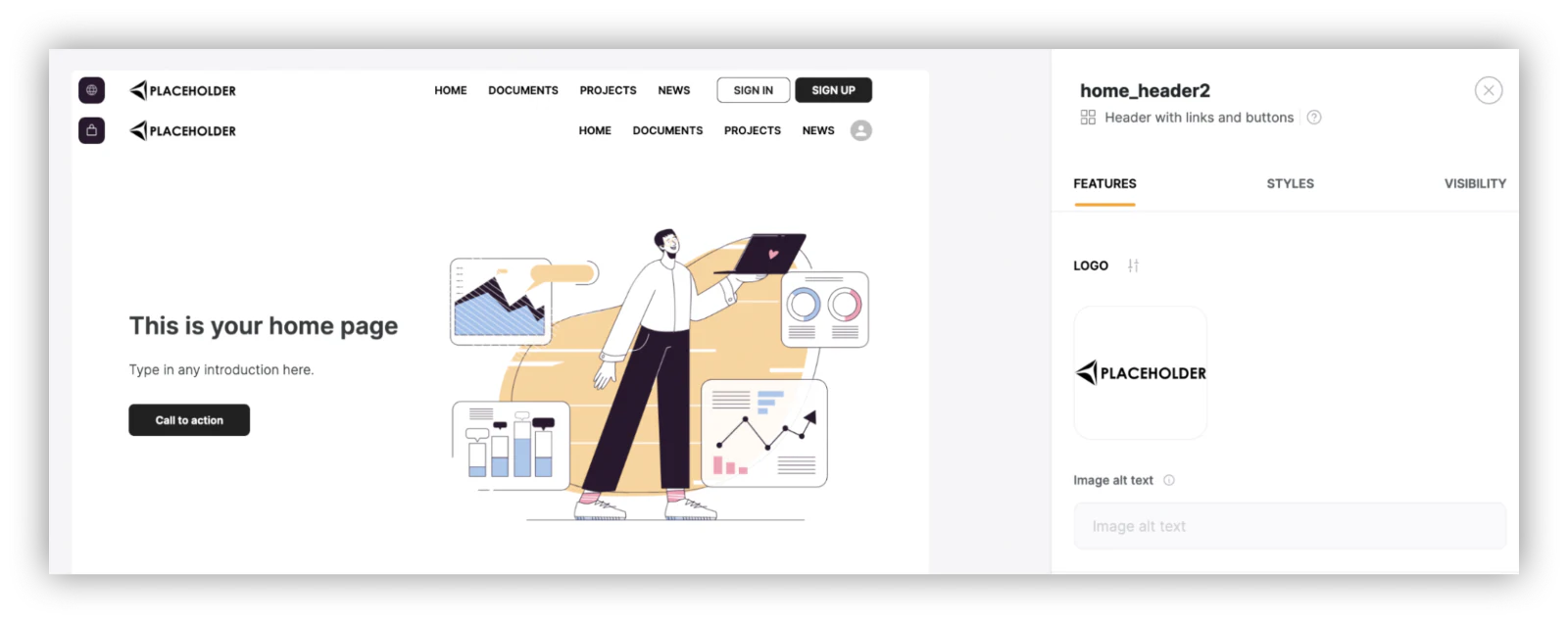
Pick your preferred header and menu layout. Don't forget to adjust the menu and remove any traces of the old demo pages.
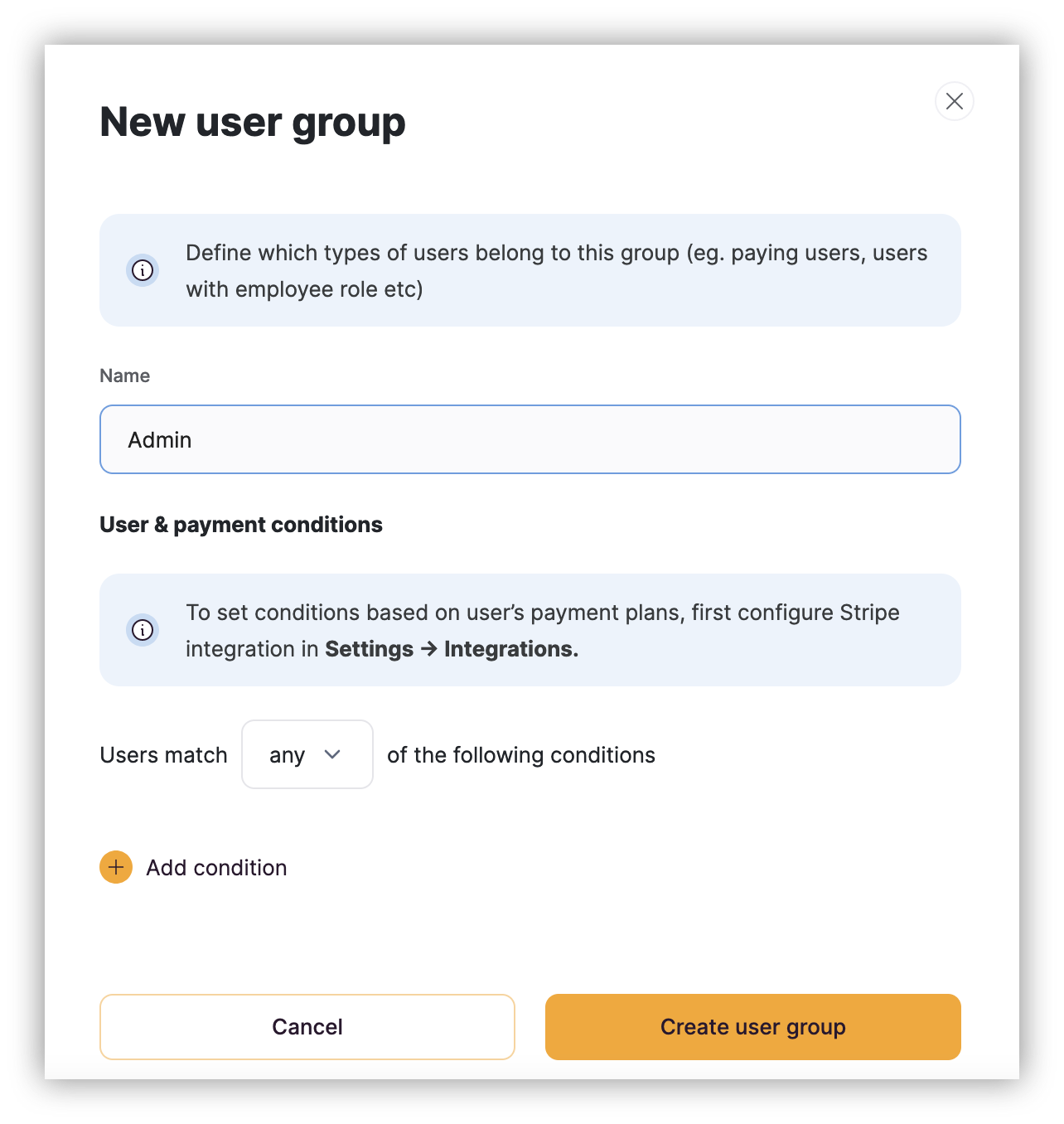
Step 5: Create user groups
Create user groups to separate admins from regular users.
Go to Softr > Settings > User groups & Permissions and add an admin role:
Step 6: Create the "new message" page
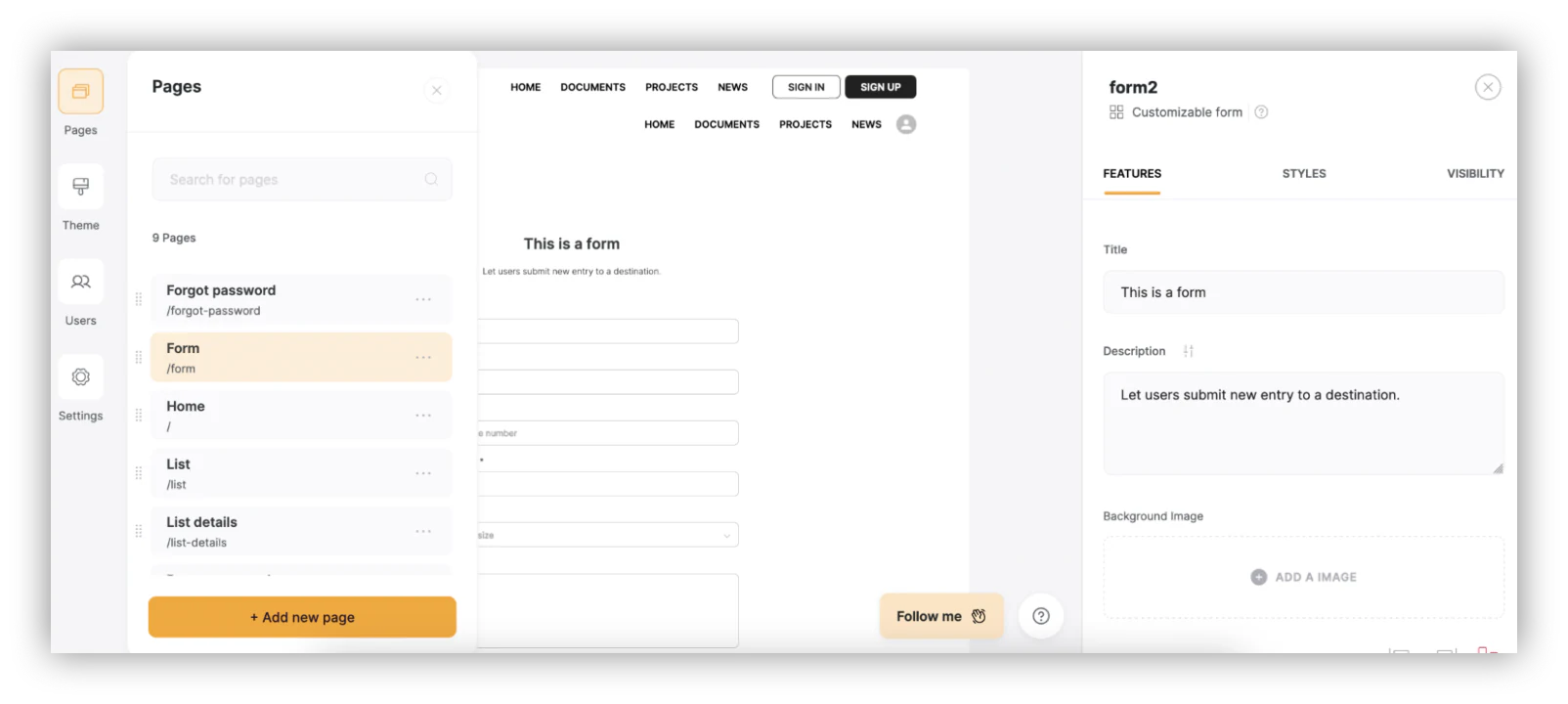
This page is a form that lets admins send emails to investors.
Go to the Form page, one of the presets (or create a new page), and edit it.
Step 7: Restrict content to admin users only
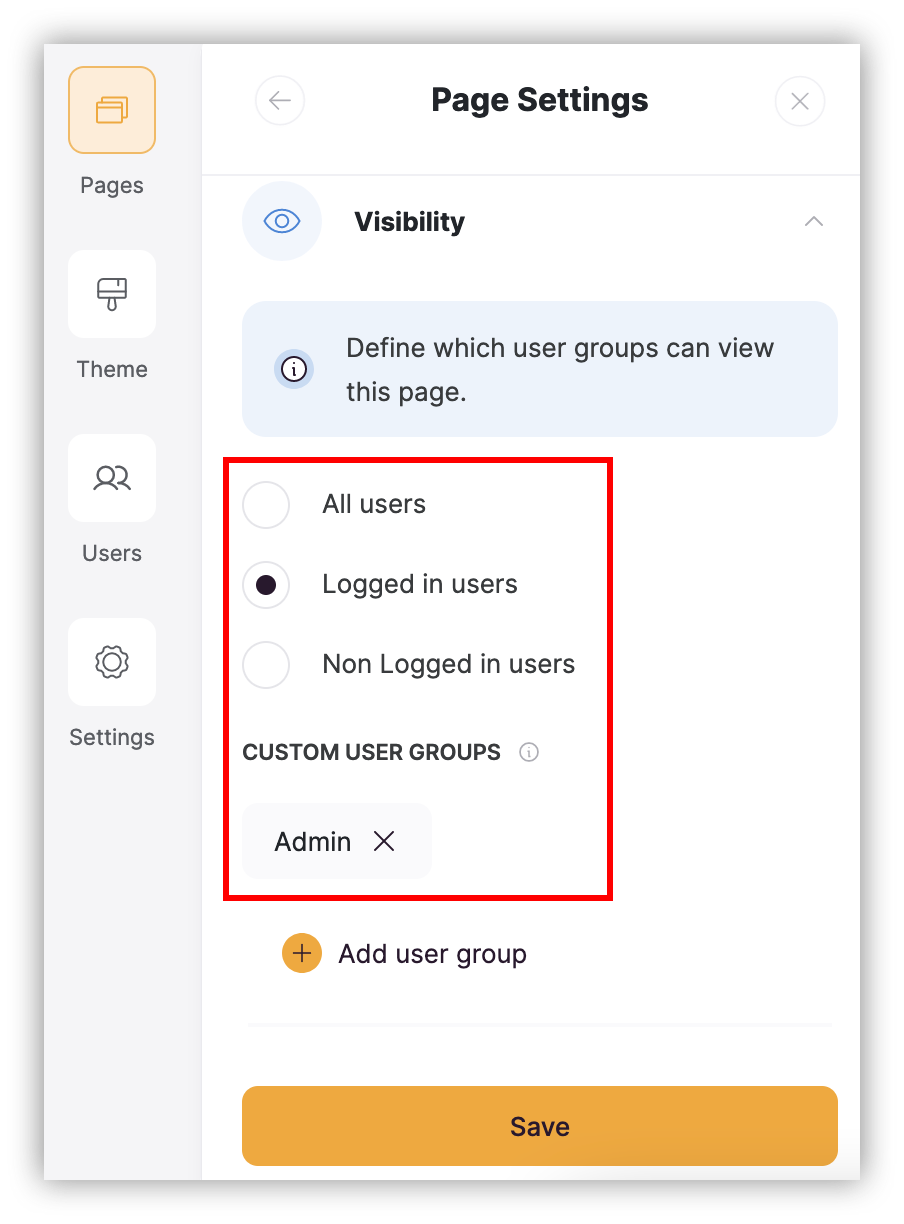
Edit the "new message" page visibility in the page settings.
This lets you select pages that are visible to any logged-in user, or just to admins. Set this one to admin-only.
Step 8: Edit the form to create new messages
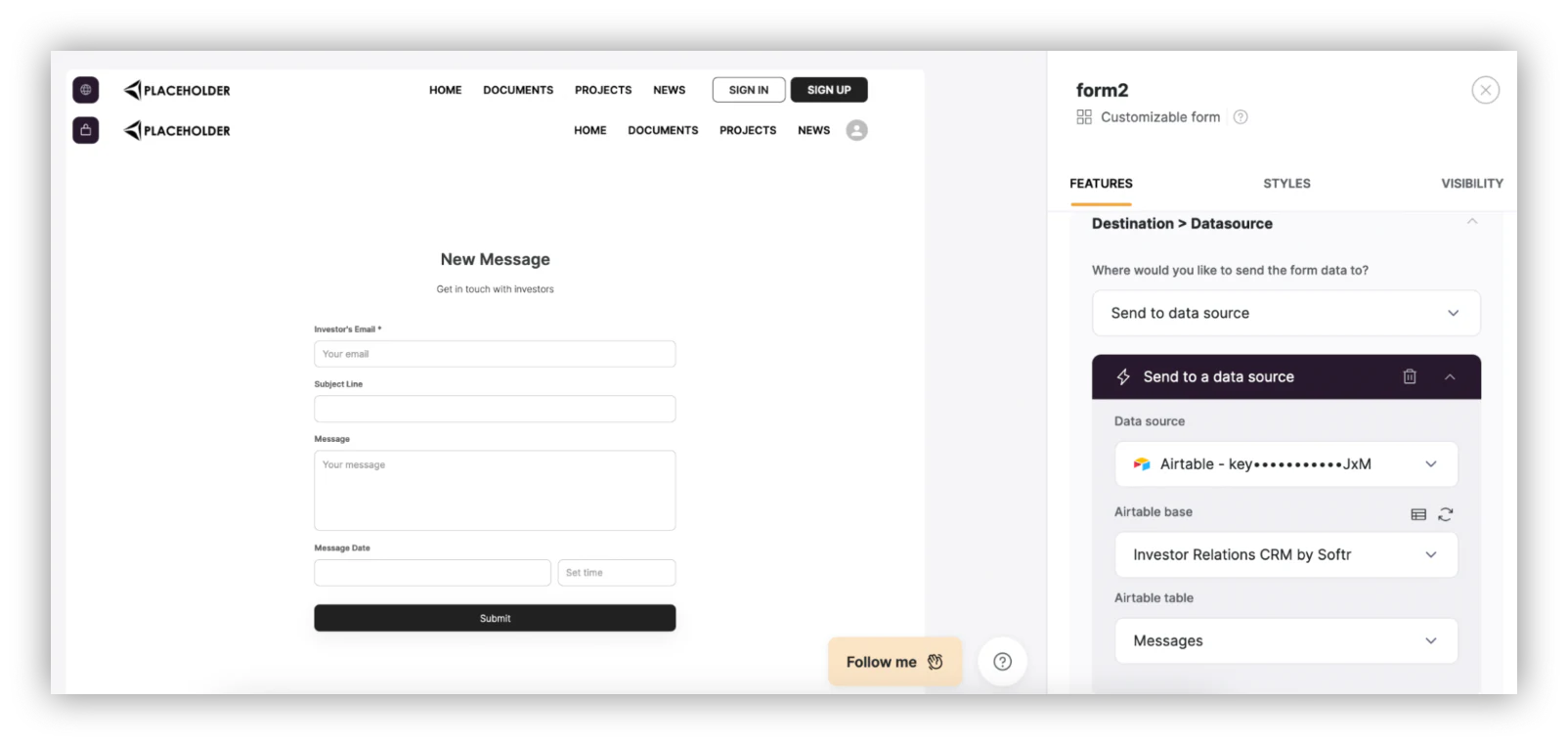
This form generates new message entries in your Airtable base. Make sure it's connected to that table in your database.
Step 9: Send new message notifications
You have two options here. The native option is a Softr Workflow triggered instantly whenever a new record is created in your Messages table, with no polling delay, since it fires directly off the database event.
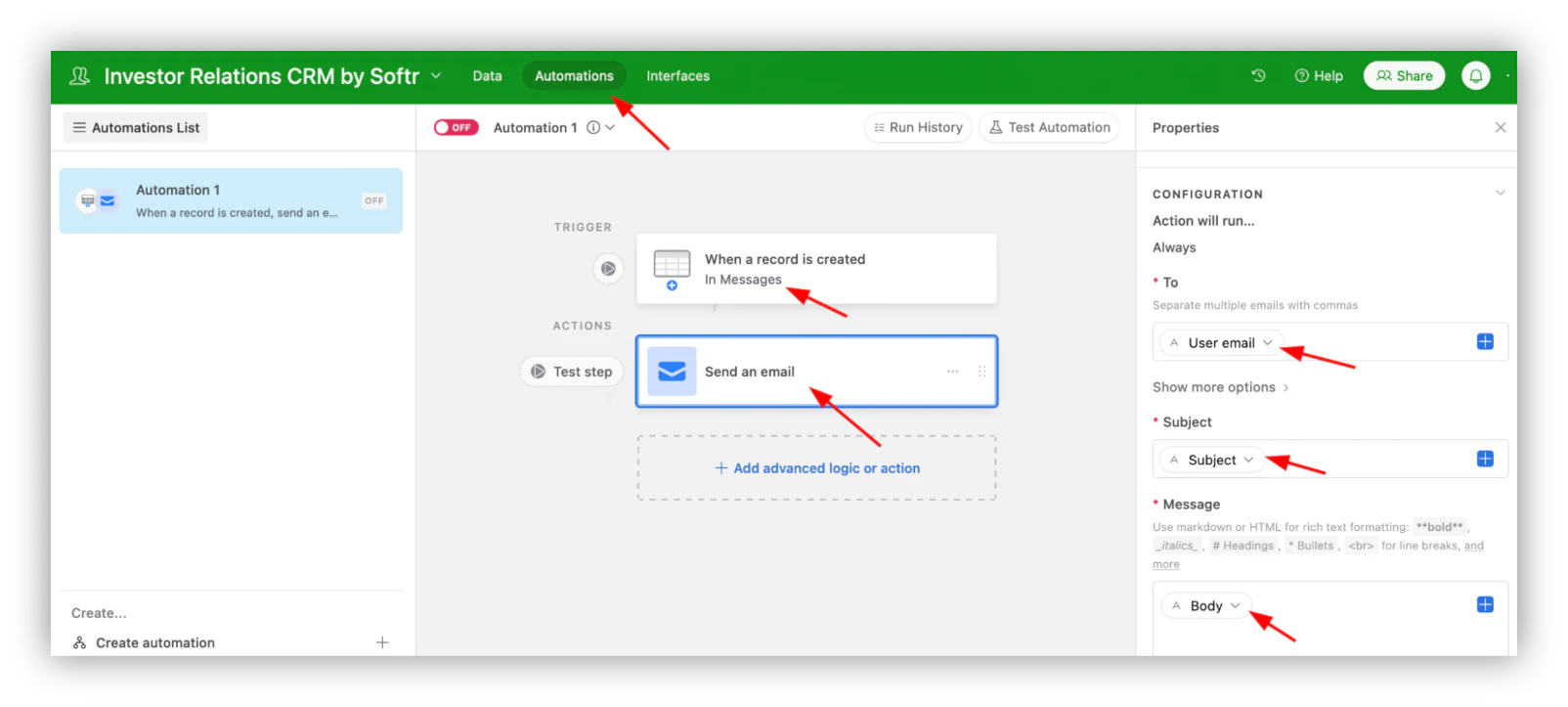
If you're using Airtable and prefer to keep the logic there, you can also set Airtable to send automatic emails when a new entry is created. Enable it under Automations, set it to "when a record is created in Messages," then "send an email," and use the message fields to populate your investor data:
Step 10: Create an investors list page
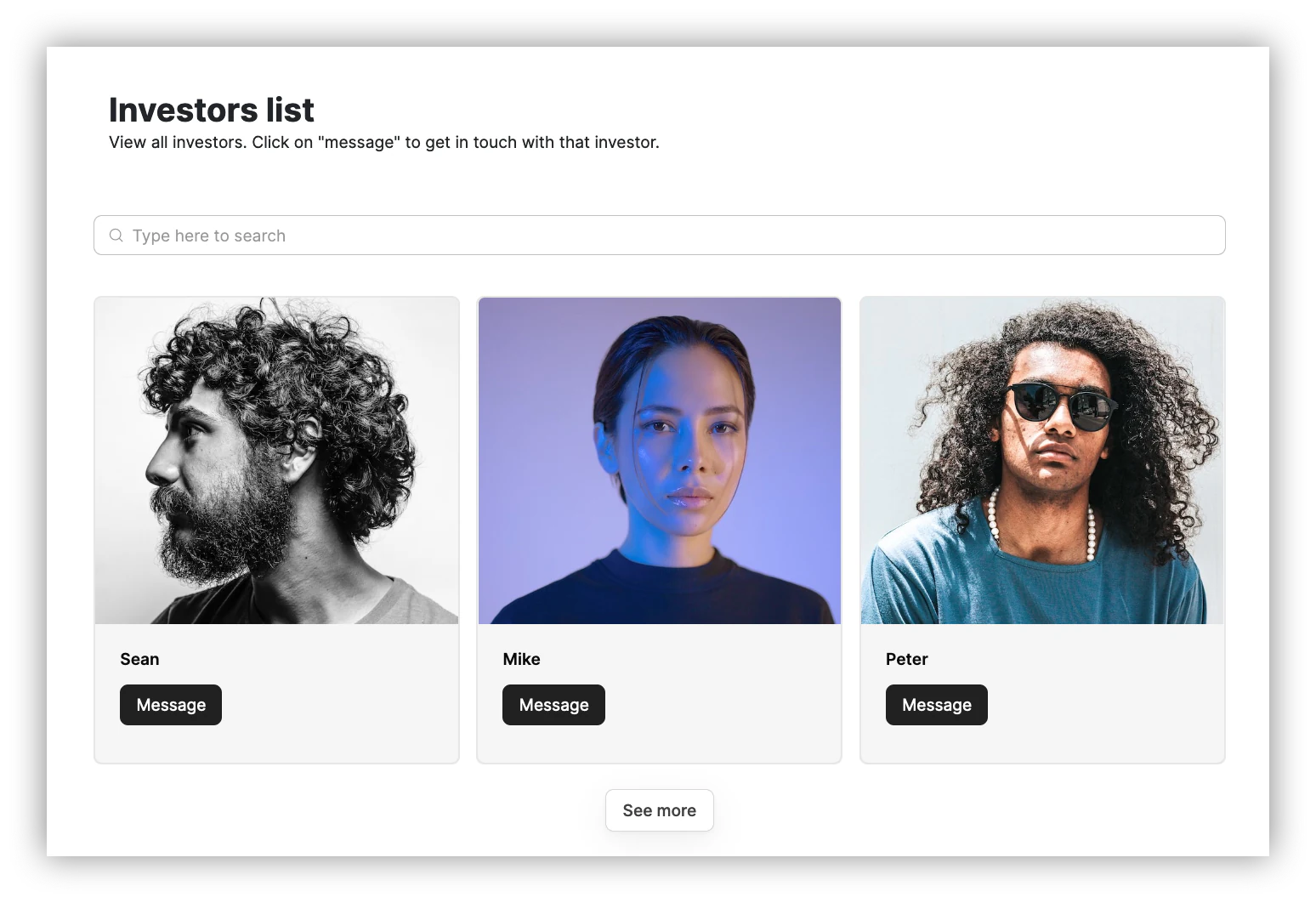
Create a new page or edit the "list" page. Add a title component to explain what this page does.
Step 11: Map the list component fields
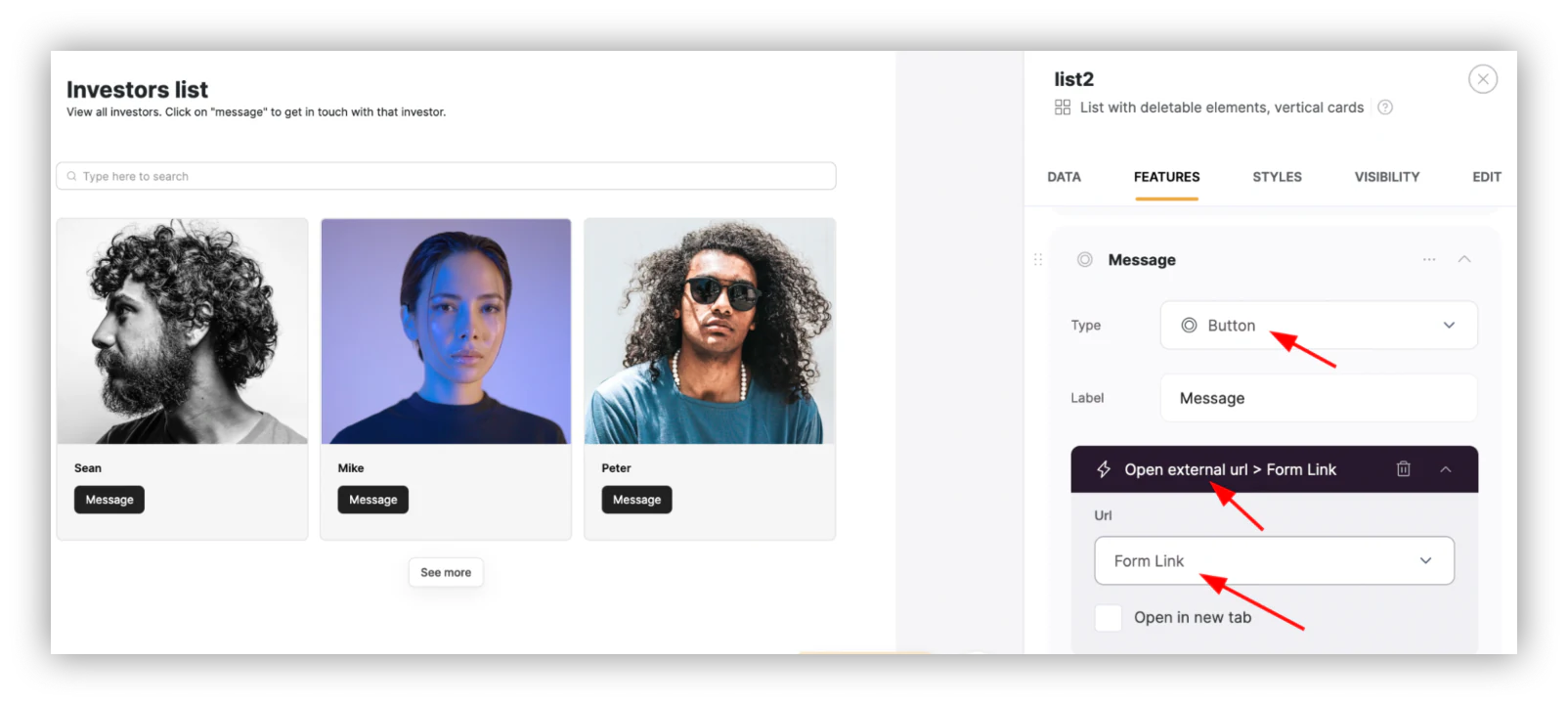
Map the list component to the members table, and map the button to the "open external URL" action, loading the form link column.
Step 12: Create the admin homepage
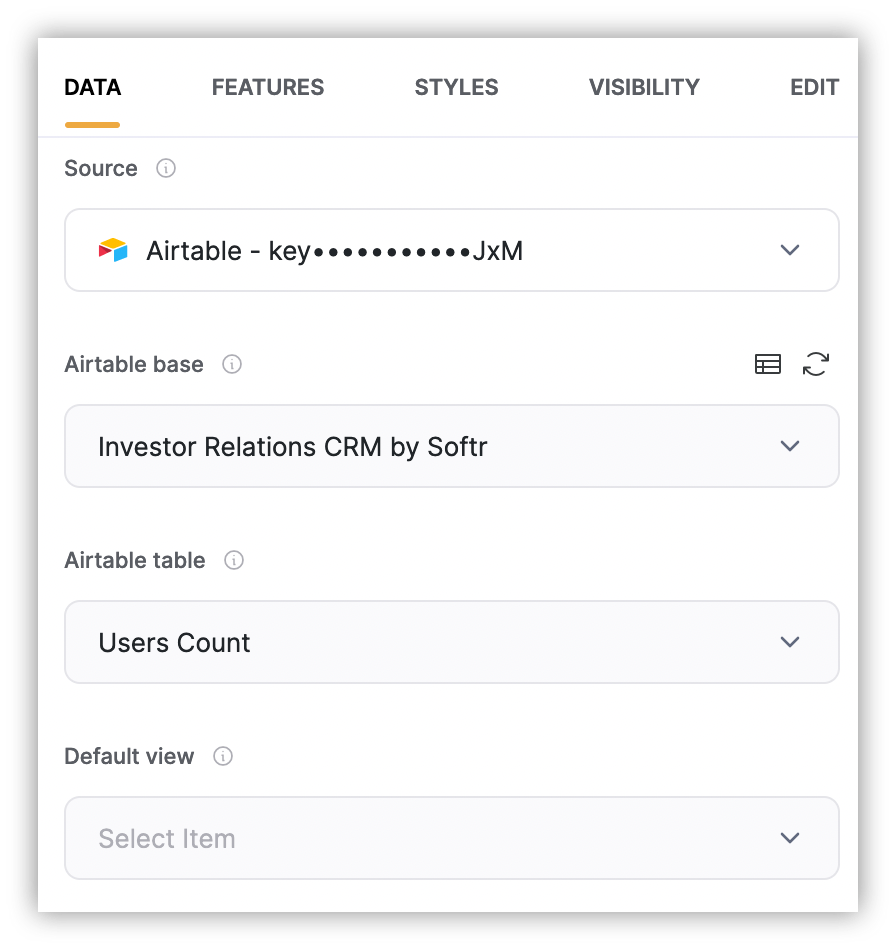
Create a new page as the admin landing page. Add the investors list, just like on the investors list page, plus a chart loading the Users Count table.
The Chart block is available from the Professional plan and up. It's the only paid component in this tutorial, and you can still build the rest of your CRM without it.
Step 13: Create the investors' welcome page
Create the pages you want visible just to investors, and use visibility settings to restrict them to logged-in users only.
Then pick one of these pages as your investors' welcome page, the first page they see after logging in.
Under Users > User Groups > Page after sign in/up:
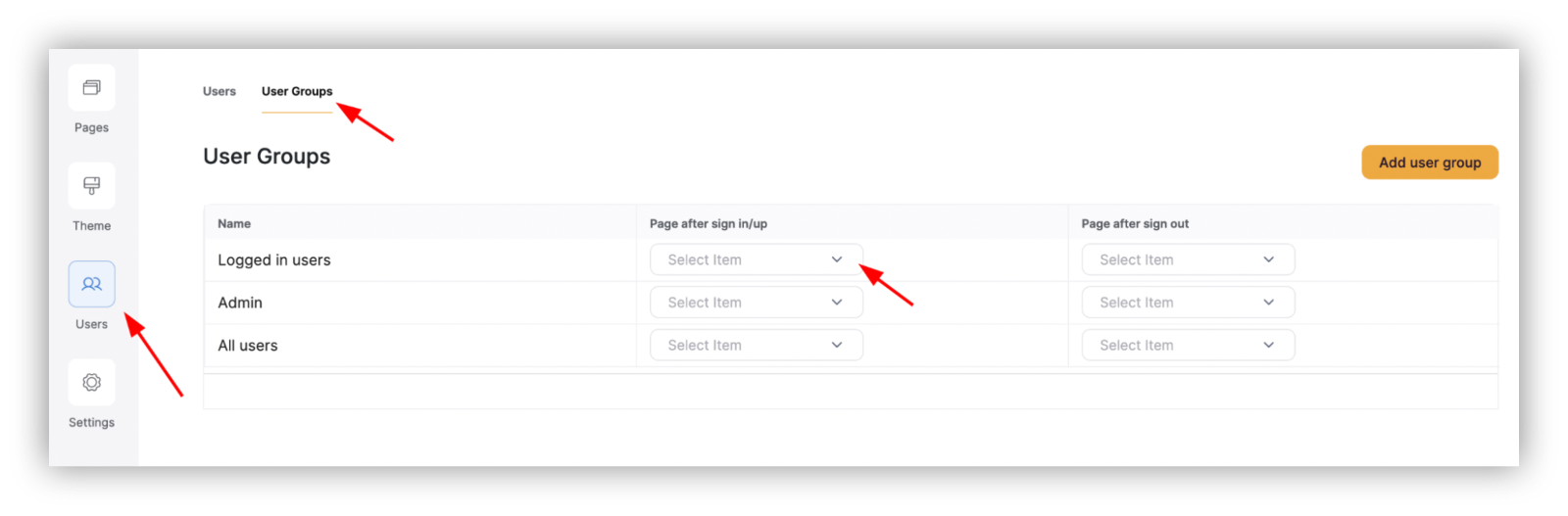
You'll need to configure your database user mappings the first time you load the "Users" page.
Step 14: Create the sign-up, sign-in, and forgot password pages
These pages are created automatically with your app, as long as you selected them at setup.
You can also create them manually by adding a page and a sign-up/sign-in component.
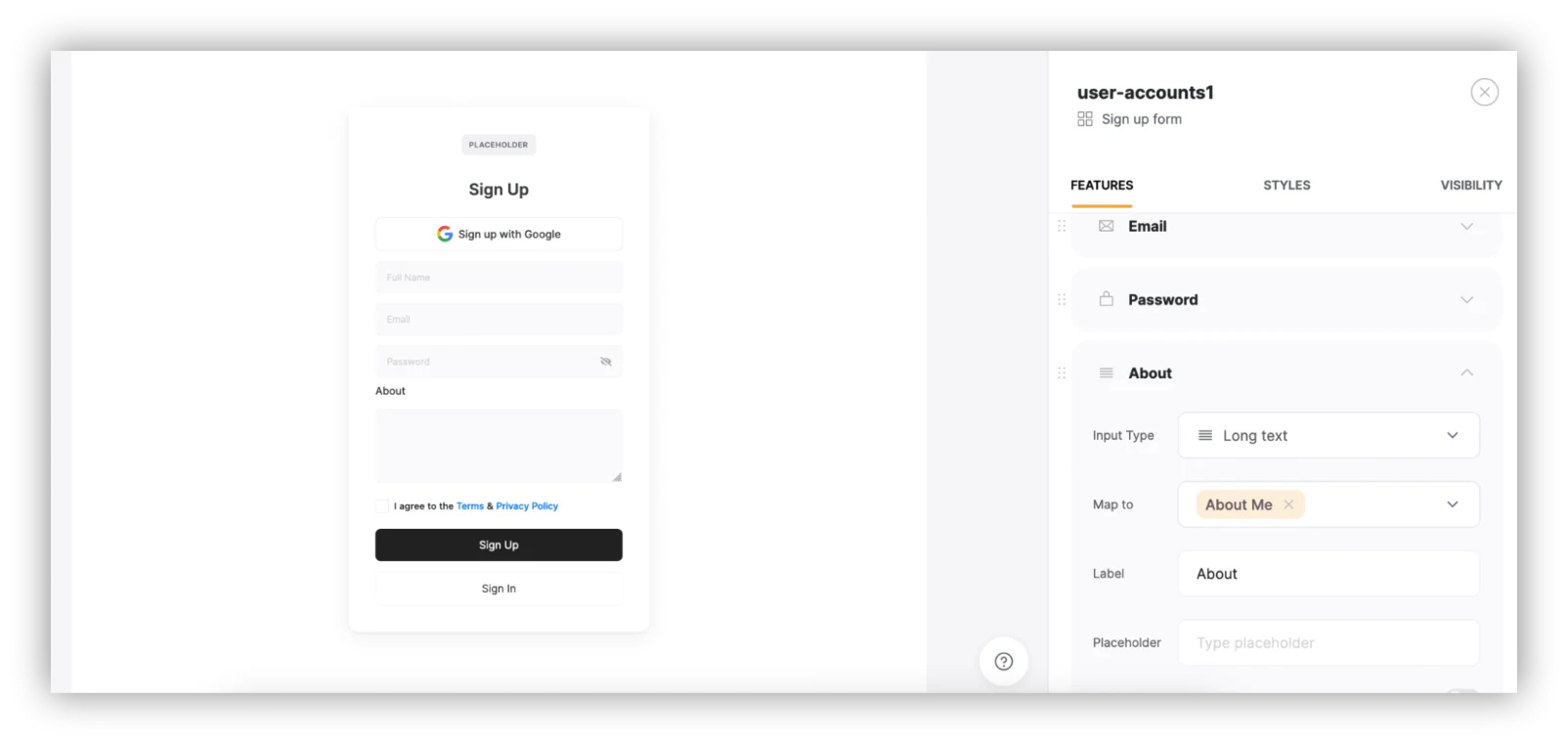
You can edit these forms to add your own text or extra fields. For example, you could add an "about me" field on sign-up:
Build your database first, then keep iterating
You now have a working investor relations CRM built on Softr, whether you generated it with AI, started from a template, or built it from scratch.
This is just a starting point. As your process matures, you can extend it further:
- Copy Airtable members to a newsletter service
- Use connectors or webhooks to send newsletter issues from your investor relations CRM
- Add metadata about investors, such as deal size, company size, or interest level
- Collect inbound emails and route them into an inbox
Start with your data structure, get permissions right, and the rest of the build gets a lot easier. If you want a head start, grab the Investor Portal template and adapt it to your fund.
Frequently asked questions
Can I integrate third-party tools with my investor relations CRM?
How do I send emails to investors from my CRM?
What does it cost to build an investor relations CRM with Softr?
Can I restrict what different investors see in my CRM?
Do I need to know how to code to build an investor relations CRM?