Airtable glossary: Guide to key terms and features



Airtable is an extensive platform with a lot of features and its own unique vocabulary. We've compiled this glossary to help you quickly find the meaning of a term or a definition of a feature, and (where relevant) we link to deeper resources so you can learn more about a specific topic.
If you work with Airtable every day or you're just getting started, bookmark this page for future reference.
Workspace, Bases, and Tables
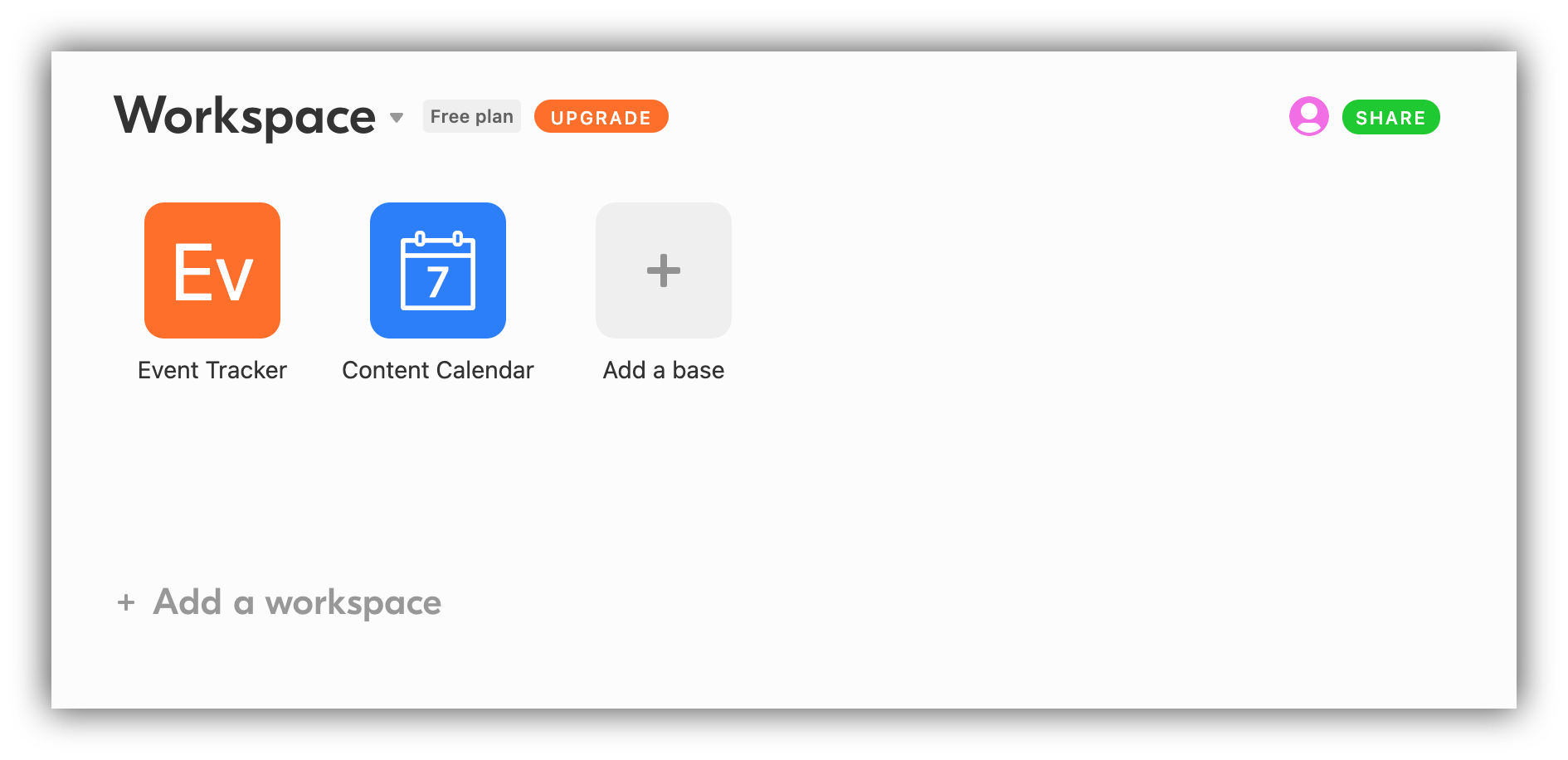
Workspace. In Airtable, your projects are organized into workspaces. A workspace is a collection of projects (bases) that can be shared among a group of collaborators.
Base. A base is a collection of tables and is where you store all the information for a specific project, group of projects, a workflow, and so on. You can create a base from scratch or use an Airtable template (such as Social Media Calendar, Employee Directory, or Event Planning). You can also start a base by importing a .csv file.
Table. A table is where you store your data in Airtable (similar to a spreadsheet). It is basically a list of items of the same type (e.g. users, tasks, events).
{{cta-1}}
Records and Fields
Records. The rows in the table are called records. Therefore, if your table is a list of users, each record will represent an individual user.
Field. The columns within the table are called fields. The fields provide the necessary attributes for a given record (for a user list, those could be Name, Email, Subscription Plan, etc.). In Airtable, there is a number of different field types to choose from (Single Line Text, Attachment, Date, and so on).
Record ID. Each record has a unique identifier called Record ID. When the record is expanded, the Record ID can be found within the URL (the last piece starting with ‘rec’). Record IDs can be used in a variety of ways including API integration, formulas, automations, and so on.
Attachment Field. Allows attaching one or several files (e.g. images) to the records.
Autonumber Field. Used to automatically generate a unique number for each of the records, thus creating a unique identifier for each.
Barcode Field. The mobile Airtable client allows scanning barcodes or QR codes with your camera that can be stored under this field.
Button Field. Can be used to create a clickable button for performing a variety of actions such as “Open URL.”
Checkbox Field. Can be used for storing Yes/No type values for the records.
Collaborator Field. This field provides a list of all the workspace/base collaborators (with whom the given bases is shared) to select from.
Count Field. Counts the number of linked records in a record link column.
Created Time Field. Shows the date/time when the record was created.
Currency Field. Is similar to the number field but used for indicating an amount in the selected currency (the value entered for the record is automatically assigned the specified currency).
Date Field. For specifying a date and time (optional) using a date picker.
Duration Field. Used to indicate duration in hours, minutes, seconds, or milliseconds.
Email Field. For storing an email address
Formula Field. Formula fields are used for different types of calculations using values from other cells within the record.
Last modified by field. Indicates the date and time that the record was modified by a user (doesn’t include computed modifications performed automatically).
Long Text Field. Allows adding multiple lines of text. It’s also possible to mention a collaborator (@CollaboratorName) within the text. For more styling and formatting possibilities, the Rich Text option can be enabled for the field.
Linked records. Linked records let you create relationships between different tables (for example, linking a Tasks table to a Projects table). By choosing the "Link to another record" field type, you create a field that links to specific records from another table. Relationships like these are the foundation of a clean data structure, and they're available in Softr Databases too, where you can build the same relational model natively.
Lookup field. After linking two or more tables using Linked records, you can also add a Lookup field to look up a specific field from the linked table. This way, the selected Lookup field will be added as a separate column in your table.
Multiple Select Field. Allows selecting one or more options from the provided list of possible choices.
Number Field. Stores integer or decimal numbers. You can choose whether to allow negative numbers or not.
Percent Field. For storing numeric values with a percent sign.
Phone Number Field. For storing 10-digit string of numbers as a US/Canada phone number: (XXX) XXX-XXXX
Rating Field. Allows providing a rating for the product/service represented by the record. The default style is a “style” but additional style options are available in Pro plan.
Rollup Field. A Rollup field allows you to summarize data from linked records. Therefore, you need to have a linked record field on your table to be able to apply a Rollup. You can select which records you want to include based on the specified criteria and which field from those records you want to roll up. Further on, you need to apply a formula that will perform an operation on the values from the selected field (e.g. identify the biggest value in the Duration field to find out the record with the longest duration).
Single Line Text Field. For short one-line texts.
Single Select Field. Allows selecting one option from the provided list of possible choices.
URL Field. For storing URLs. Clicking on the URL will open it in the browser tab.
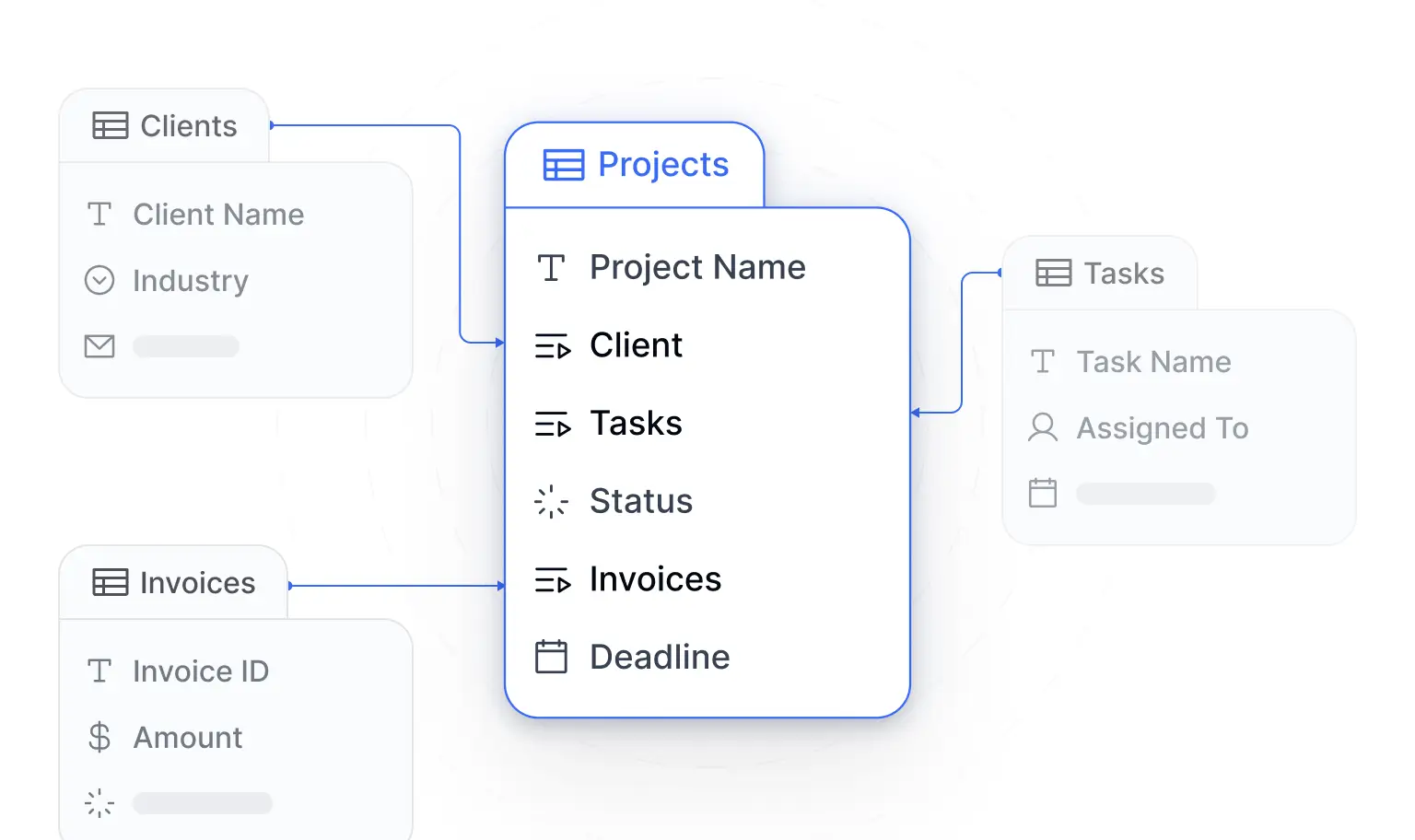
[.blog-callout] As Guillaume Duvernay, a builder at Softr, puts it: "Using related fields is the way to make your data structure as robust and scalable as possible. It is way better, way more organized and structured than Excel."
Formulas
With formulas you can perform different operations on the values within the given record to produce a new value. For instance, if you have a number of columns and each one represents the number of event participants from a specific country, you can add a new column and apply a formula to calculate the total number of participants from all over the world. If you don't wont to go through all the types and specific formulas, check out our guide to the most used Airtable formulas. Otherwise, let's review the formula types Airtable offers and what each one lets you accomplish.
Text operators and functions. These formulas allow performing operations on text such as concatenating two text values into a single text value, joining the array items into a string, and so on. A more detailed overview of this type can be found in Airtable's reference.
Logical operators and functions. This type allows performing logical operations such as having a function that reverses the logical value of its argument, adding a function that returns TRUE if any of its arguments is TRUE, and so on. Here's the list of all the operators and functions from this group.
Numeric operators and functions. Calculate the average of multiple numeric values, count the number of given items, and so on. Full list here.
Date and time functions. Perform all sorts of operations related to date and time. See our guide to the must-know Airtable date formulas for the ones you'll use most often.
Array functions. Functions for operating on arrays (such as removing empty strings from an array or removing array nesting). Keep in mind that these functions can only be used in a Rollup field, or when the input field is a Lookup. The full list of array functions can be found in Airtable's official docs.
Record functions. Return different record parameters such as the date of creation or record ID. Full reference here.
REGEX functions. There are a few REGEX functions available on Airtable for matching character combinations in text values.
Views
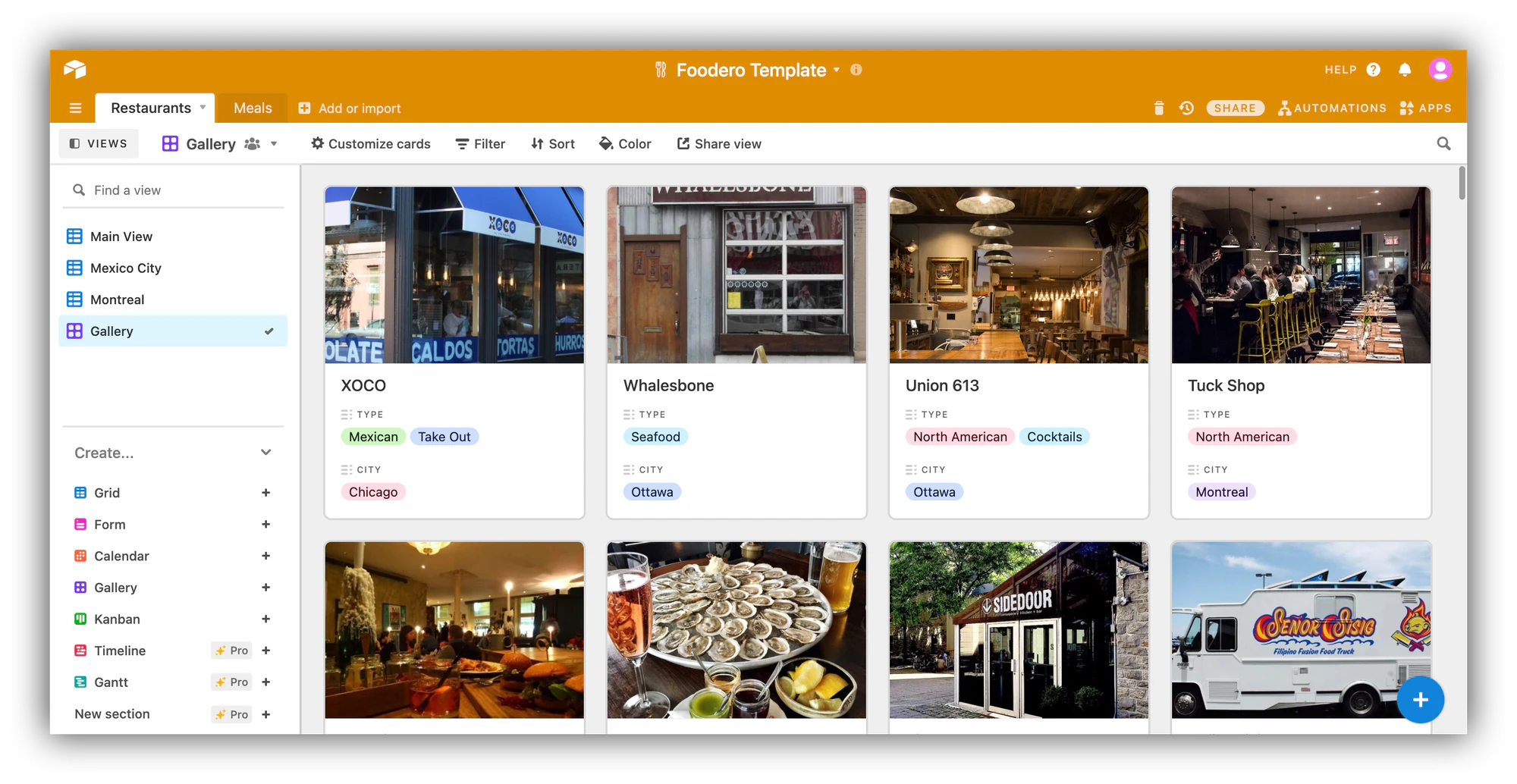
Views. Views allow you to display the same data in different ways. There are different view types (Grid View, Form View, etc.), and each table can have several views of the same or different types. Each view can have its own sorting, filtering, and other custom properties. For instance, each collaborator within a particular workspace can have his/her own view with entries relevant to him/her.
Grid View. This is the default view type in Airtable where rows represent records and columns represent fields.
Calendar View. Here each record is an event on the calendar. Having at least one date field is necessary for applying this view type.
Form View. Form view lets you create a form based on the fields in your table. You can use the form to collect information which will be automatically saved to the table after submission.
Gallery View. If you have an Attachment field in your table, you can add a Gallery view that will use the image from the Attachment field (the first one if there are several) as a cover image for each item in the gallery.
Gantt View. This view type allows you to represent your records through a Gantt Chart. For instance, if you have a list of tasks, you can use it to visualize their order, durations, dependencies, and so on. To apply this view, you’d need to have Start and End date fields.
Kanban View. Using this view, you can represent your table as a collection of cards within a Kanban board. When creating the view, you can choose one of your fields to be used as a grouping field. For instance, if you select a “Status” field with such values as To Do, In Progress, and Done, the board will have a separate column for each of these values and all the records will be grouped among the columns based on their status.
Check out our complete guide to Airtable views for a more detailed overview and examples.
Ownership and Collaboration
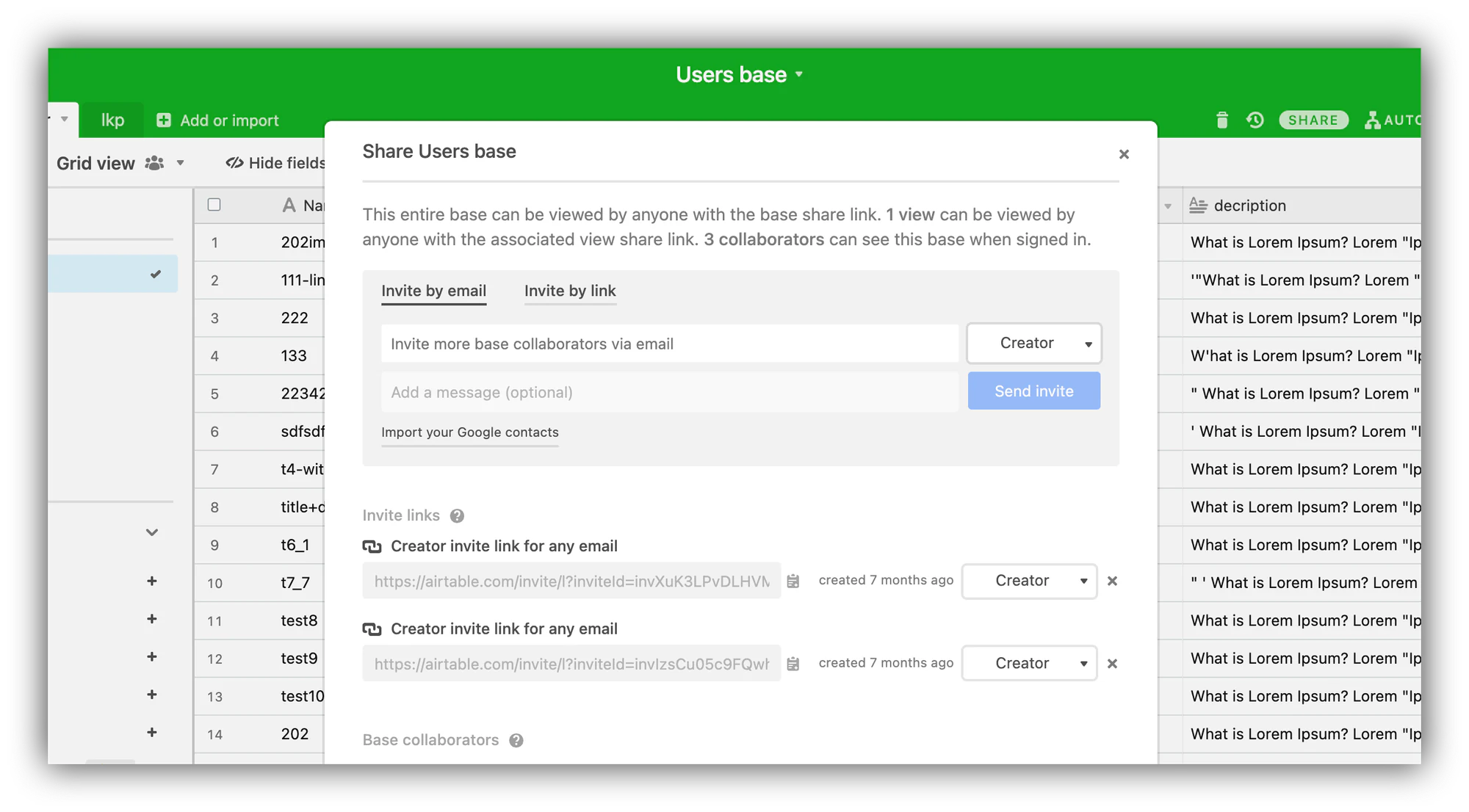
Collaboration. You can collaborate with others within a workspace or a base. It is possible to set permissions for each collaborator.
Collaborator Permissions. The following permission levels are available for collaborators on Airtable:
- Read-only: can only view;
- Commenter: can only view and comment;
- Editor: can add, delete, modify records/views and comment on records but can’t add/customize fields;
- Creator: can make any modifications;
- Owner: Creator permissions plus ability to modify billing settings).
Ownership Transfer. If you are an owner of a workspace you can change the ownership to someone else on the workspace. Afterwards, you can downgrade your own permissions. Similarly, it’s possible to transfer base ownership by adding it to a workspace with another owner and removing yourself from the workspace.
Sharing. You can share a read-only link of a base or a specific base view with others as an alternative of adding them as collaborators. It’s possible to configure whether the viewers will be able to copy data from the shared base or not.
Embed. Any Airtable base (or base view) can be embedded into a web page as an iframe.
Commenting. Base collaborators (creator, editor, or commenter permission level) can comment on records. The comments are visible in the record’s activity feed when the latter is expanded.
Automation
Automation. With Airtable automations, you can set up trigger-based action workflows within the base. This lets you automate repetitive tasks that would otherwise need to be done manually. Only the Owner or Creator of the base can create or edit automations.
Trigger. The Trigger is a certain event that is supposed to get the workflow started. Such events as record creation, records update, event triggers from Google Calendar, and others can serve as a trigger.
Action. The Action (e.g. create a records, find records, send a Slack message, etc.) is the task that the Automation is supposed to complete after the trigger event happens.
Test Record. Airtable automatically chooses a record in the base to test a specific step in the automation workflow. The chosen record will need to match all the automation condition and can differ based on the selected trigger and action.
API
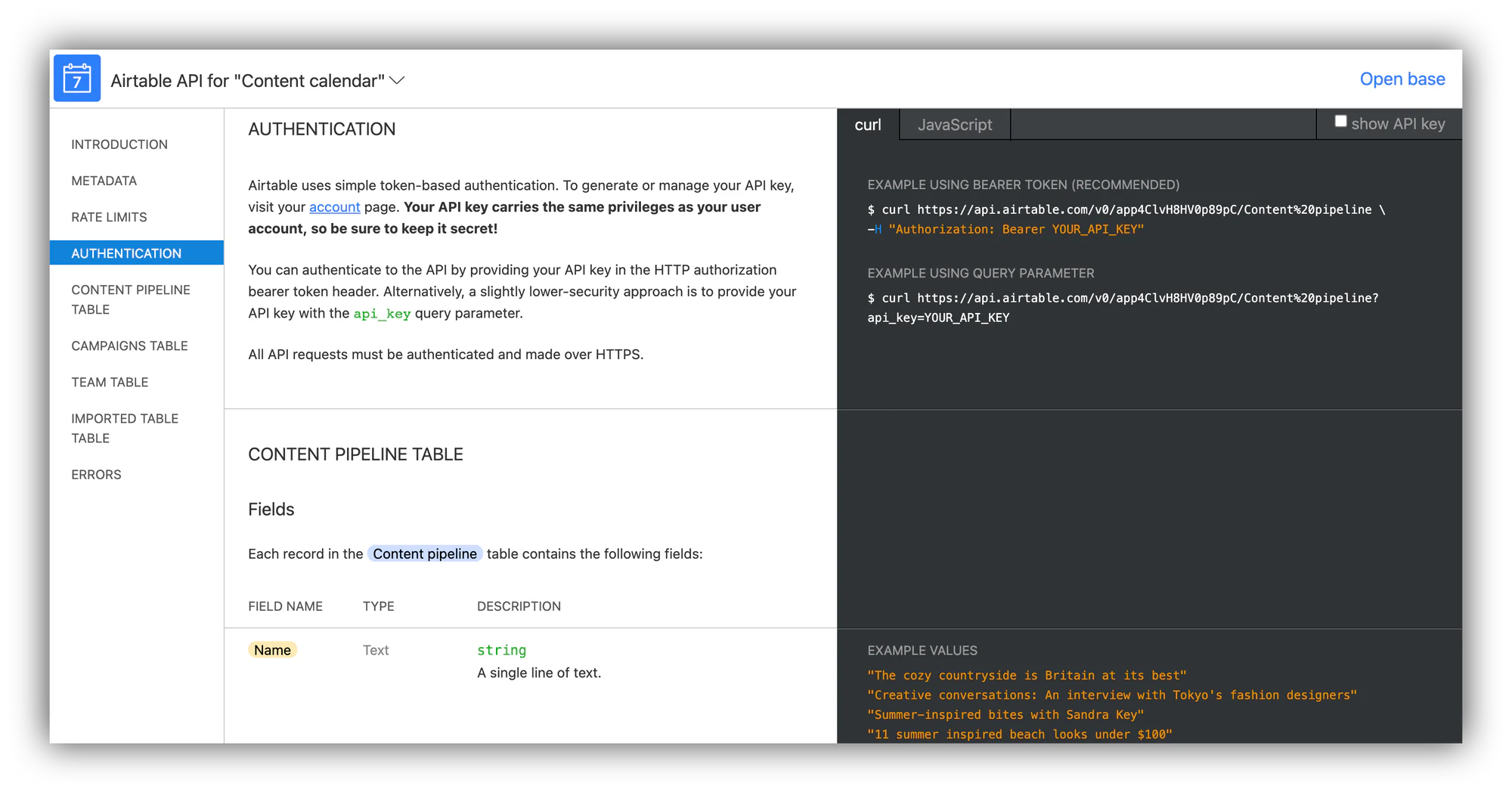
REST API. Airtable's regular API is RESTful. You can use it to create, read, update, and delete records from your Airtable bases.
Metadata API. Using the Metadata API, you can retrieve information about the structure of your bases and tables, such as which tables and fields exist. Access requires a personal access token or OAuth integration with the appropriate scopes.
Softr: The best AI-native alternative to Airtable
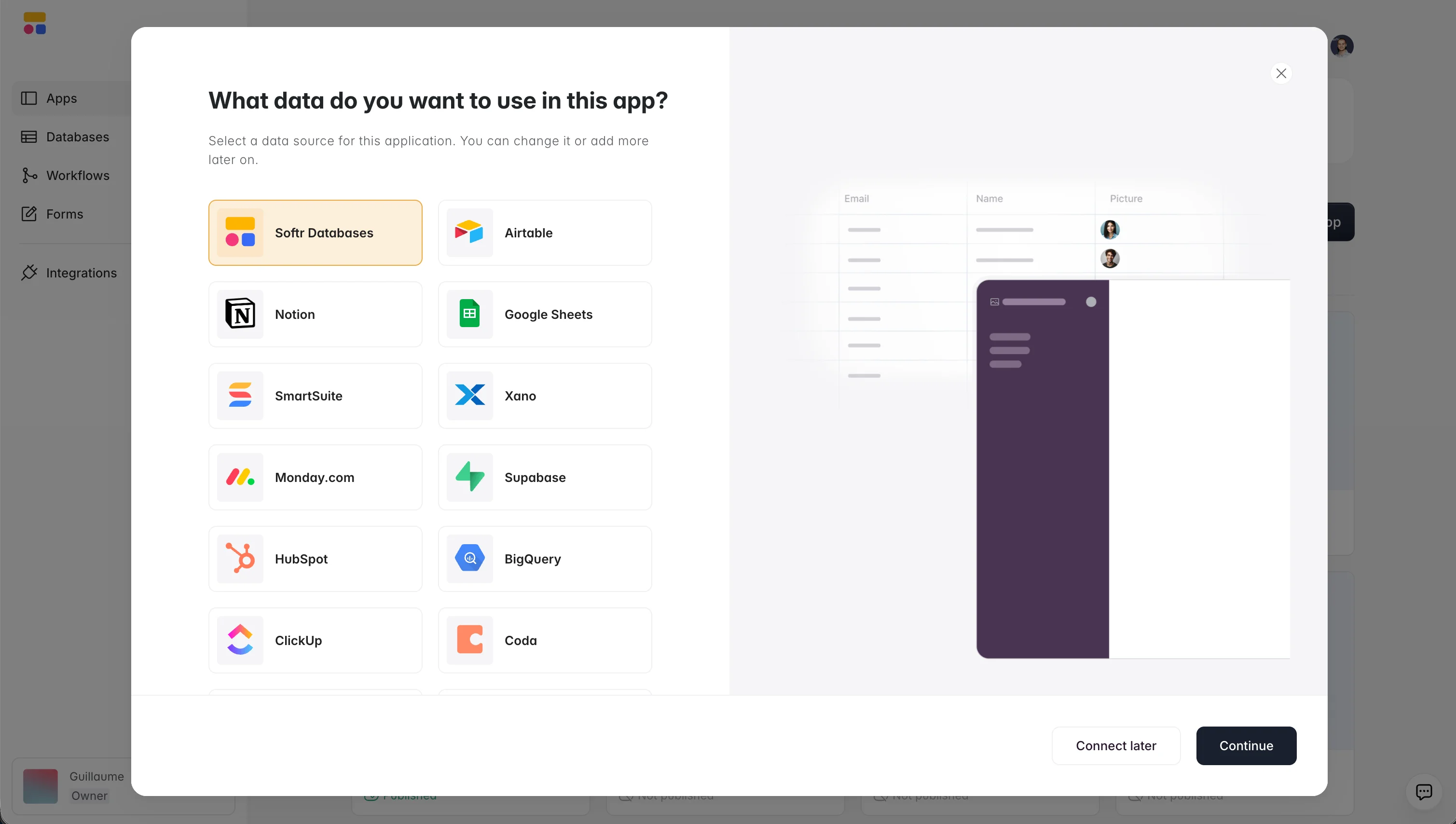
Softr is an AI-native platform for building business software without code. We're a full-stack ecosystem: a visual interface builder, native Softr Databases, and Softr Workflows, with an AI Co-Builder layered on top of all of them. You can store your data in our own native database, or connect Airtable, Google Sheets, and 21+ other data sources.
If you already use Airtable, Softr is a natural next step. Connect your base and build a client portal, CRM, or internal tool on top of it, complete with authentication and granular users and permissions so different people see entirely different parts of the app. You can describe what you need to the AI Co-Builder and it assembles a working app for you, or you can start from a template or build manually, whichever fits the moment.
One customer, a .NET developer, put it simply: "I found it useful to switch from Airtable's backend to Softr's internal database to avoid API limits. I was able to replace a WordPress site and a management system made in Excel." If you're weighing your options, our guide to the best Airtable alternatives breaks down where each tool fits.
Try Softr free and build your first business app—complete with a database, logic, and utility pages—in minutes.
Frequently asked questions
What is a base in Airtable?
What is the difference between a record and a field in Airtable?
What is a linked record in Airtable?
What are views in Airtable?
Can I turn an Airtable base into an app?