[.blog-callout]
TL;DR
- Airtable features an official, native dark mode available directly in the application settings.
- Enable it in a few clicks by selecting Appearance from your profile avatar menu and choosing either the Dark theme or Use system setting.
- Toggling your personal Airtable theme only changes your local browser view. To share a polished, secure dark-themed portal or dashboard with clients, build a custom app on top of Airtable with Softr. [.blog-callout]
Spending hours looking at spreadsheets and relational databases can strain your eyes, especially during late-night sessions. Fortunately, Airtable offers an official native dark mode to make your workspace much more comfortable. Enabling this feature takes just a few clicks, instantly transforming your workspace without requiring third-party tools.
If you only need a darker workspace for your own viewing comfort, the native appearance toggle is the best choice. However, if your team uses Airtable to interact with external clients, vendors, or business partners, a simple browser preference is not enough. Near the end of this guide, we will also show how to build a unified dark-themed portal that remains consistent for everyone.
How to enable Airtable's native dark mode
Airtable includes a built-in dark mode that works on all modern web browsers. Follow these steps to activate it:
Step 1: Open your Account menu
Navigate to your Airtable home screen or open any base. Click on your profile avatar in the top-right corner of the window to open your account settings.
Step 2: Open the Appearance settings
From the dropdown menu, locate and click on the Appearance option. This opens the display themes configuration.
Step 3: Choose your preferred theme
Select Dark to enable dark mode permanently. Alternatively, you can choose Use system setting if you want Airtable to automatically match your computer's general appearance theme (switching automatically at sunset, for example).
When a personal theme is not enough
A personal dark mode preference is a great help for individual viewing comfort, but it only changes Airtable on your own screen. If you use Airtable to collaborate with external clients, partners, or vendors, a local browser configuration will not solve your design challenges.
When you share an Airtable base directly, you cannot control how the interface looks to others. Your external clients will see the standard grid layout, which might not match your company's branding. They might also see internal fields or columns that you would prefer to hide.
To solve this problem, you can separate your data from your user interface. Airtable serves as a secure database, while a front-end builder lets you present that data in a custom interface.
"I find Softr very intuitive and easy to navigate, which is great for someone who is not a programmer by nature. It integrates very nicely with Airtable and other databases we are already using, making it nice that it just sits on top of the systems we have." - Natalie S., Director of Operations, G2 review
With Softr, you keep your data secure in Airtable and build a branded business app on top of it. You can build a client portal, a team intranet, or a dashboard. You control the theme, accent colors, and branding app-wide, ensuring that every client sees a dark theme or light theme exactly as you designed it.
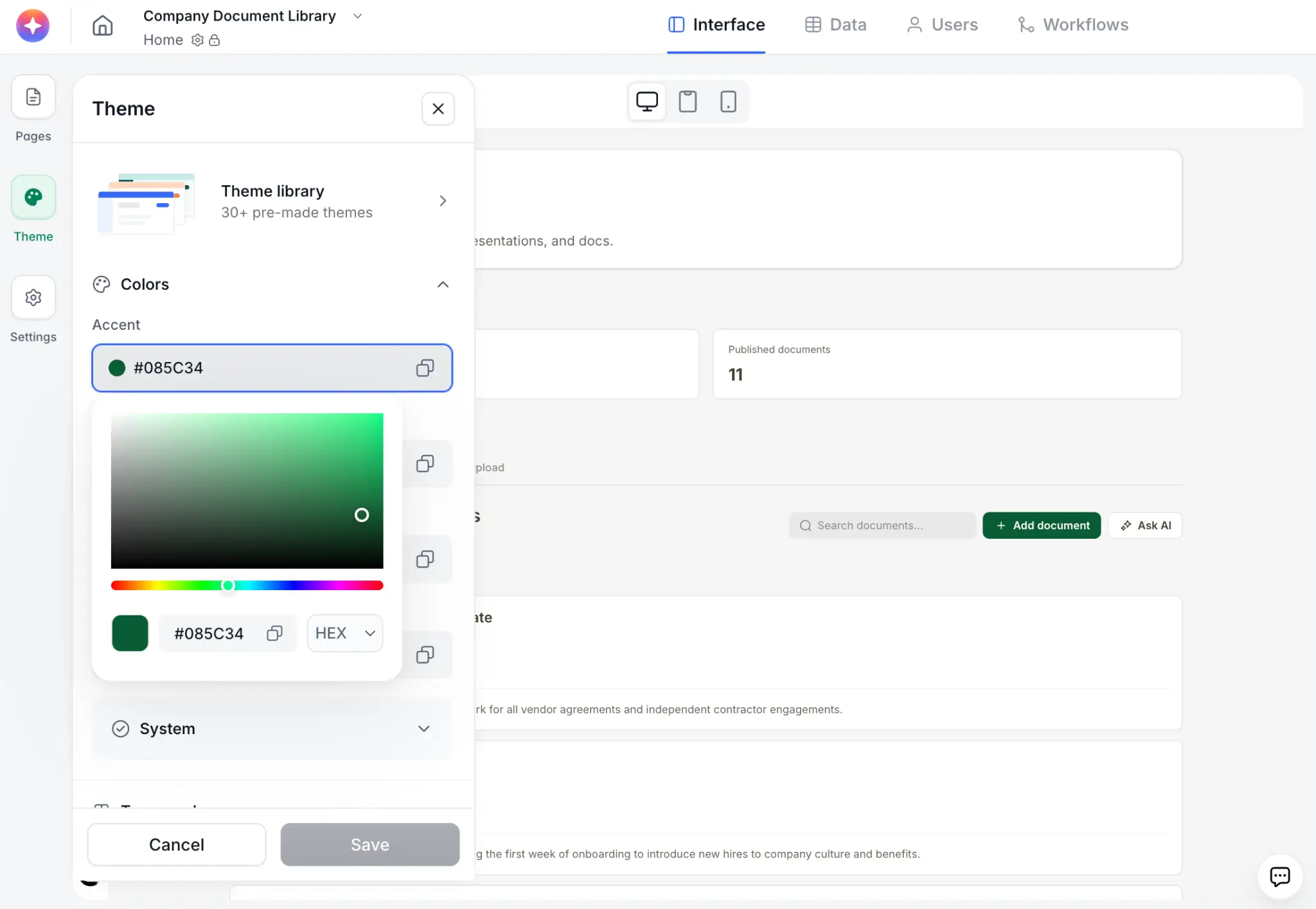
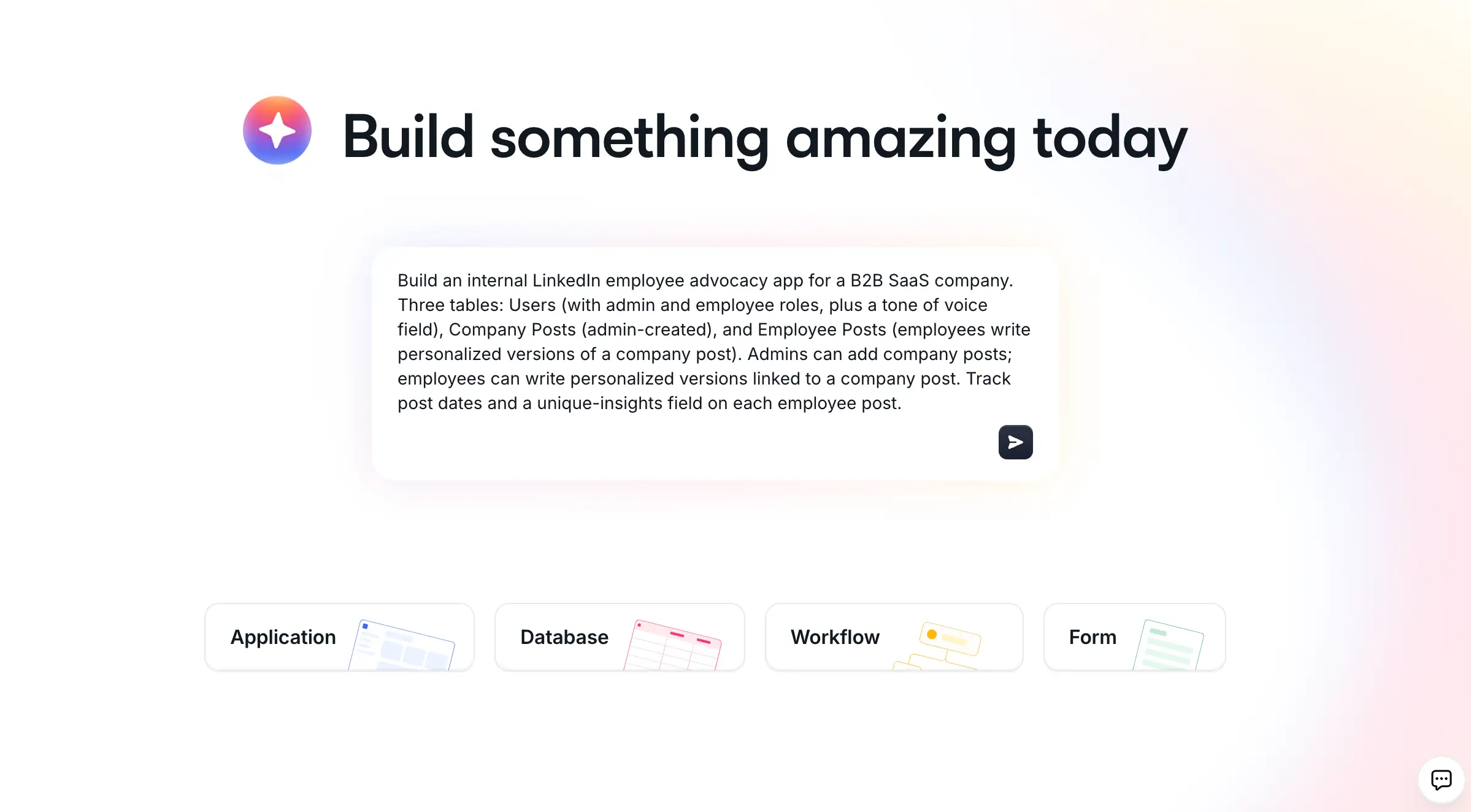
Softr connects to 21+ data sources, including Softr Databases, Google Sheets, and HubSpot. If you want to build quickly, you can use the AI Co-Builder to generate a complete business app by describing your requirements in plain English, then adjust the design details to fit your needs.
A darker Airtable today, a real app when you're ready
Toggling Airtable's built-in dark mode takes only a moment and makes long database sessions much more comfortable. When you are ready to share a branded, secure interface with your team or clients, try Softr for free to build a dedicated business app. To help you plan your data structure, our Airtable review and comparison of Airtable alternatives are helpful next reads.
Frequently asked questions
Does Airtable have a built-in dark mode?
Is Airtable dark mode available on mobile?
Can I set a default dark mode for my entire team in Airtable?
Can I share a dark-themed portal with clients who do not have Airtable accounts?
Does Airtable dark mode apply to interfaces built in Interface Designer?