
Airtable makes it easy to organize business data. But as your operations grow, API rate limits, record limits, and per-seat pricing can make your setup harder to scale. And following Bending Spoons’ acquisition of Airtable, you may be taking a closer look at your options.
If you want to move from Airtable to Softr, you don’t need to start from scratch. You can import an Airtable base into Softr Databases, including its automations, or migrate an existing classic Softr app that uses Airtable.
Both options copy your data without changing or deleting your original Airtable base. This guide explains which option to choose, how to complete each migration, and what to check afterward.
Why move from Airtable to Softr Databases?
With Softr Databases, your data lives alongside the apps and workflows that use it. You can manage records and relationships, build internal tools and client portals, control what different users can access, and automate work in one place.
- Fewer moving parts: No separate Airtable connection to maintain for your Softr app.
- No external Airtable API limits for app data: Your migrated app reads from Softr Databases instead of making Airtable API requests.
- Built-in app permissions: Control access to records and app features for different user groups.
- Native workflows and AI: Automate processes using Softr Workflows and AI Agents.
Choose the right Airtable migration option
Before you start
- Check your Airtable access. Make sure Softr has permission to read the base you want to migrate.
- Check your API allowance. Softr uses the Airtable API during import, so an exhausted allowance can interrupt the process.
- Tidy up your data. Remove unused fields and check for duplicate records or confusing table names.
- Consider a test import. For large or critical bases, test with a smaller copy first.
Most common field types can be imported, but some settings and calculations need reviewing. See the official migration documentation for the detailed compatibility information.
Option 1: Import your Airtable data and automations
Choose Import base when you want your Airtable data in Softr Databases but don’t need to migrate an existing Softr app. This imports the selected base’s tables, fields, and records. Airtable automations are brought over as draft Softr workflows.
Step 1: Open Import base
In Softr Studio, select Migrate from Airtable from the sidebar. Open the Import base tab and click Import base.
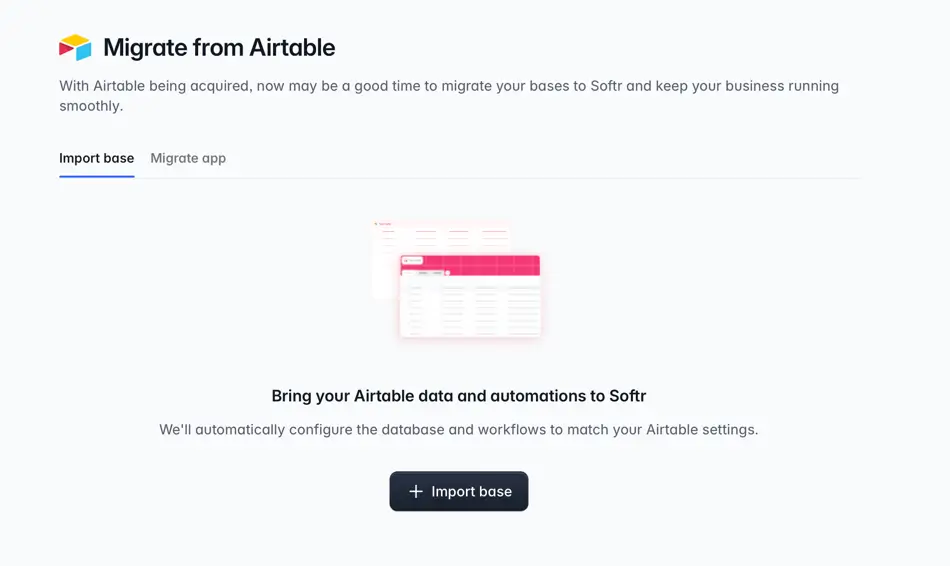
Alternatively, go to All projects → Databases → Create → Database → Import → Airtable.
Step 2: Select your Airtable account and base
Choose a connected Airtable account, or click Connect new account. Then select the base you want to import.
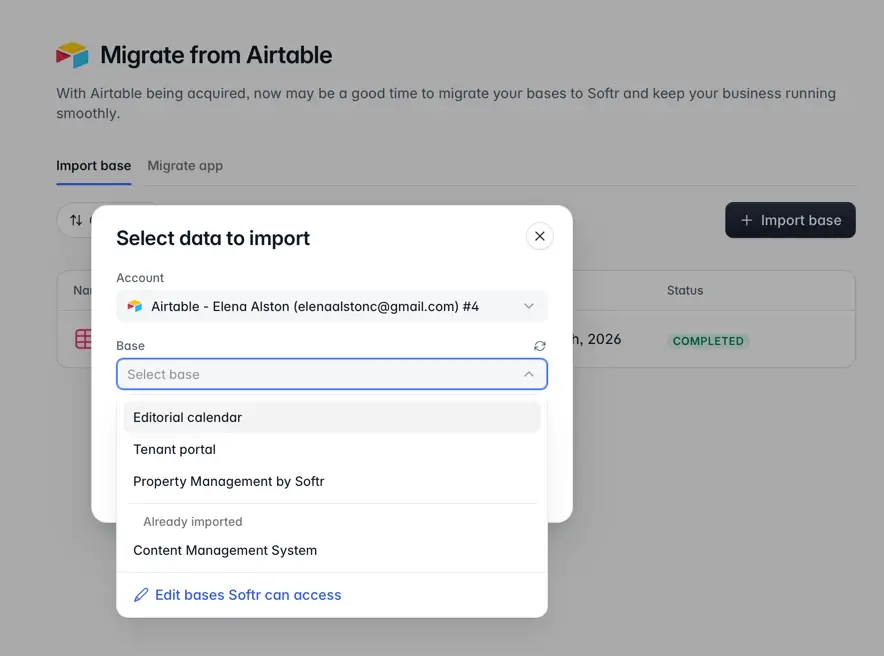
If the base isn’t listed, use Edit bases Softr can access to update the permissions in Airtable.
Step 3: Start the import
Click Start import. Softr begins copying the selected base into a new Softr database. You can follow its status from the import list; it will show Importing while the import runs.
The time required depends on the size of the base. Your original Airtable data stays unchanged.
Step 4: Review your new database
When the import finishes, open the Softr database and review the imported tables and records. Use the migration review checklist to identify fields or settings that need attention.

- Compare record counts with Airtable.
- Open sample records to check attachments and linked records.
- Verify formulas, lookups, and rollups that matter to your reporting or workflows.
- Check any settings highlighted by the review checklist.
Some Airtable-specific behavior may not transfer exactly. For example, lookup filters, rich-text mentions, and certain field configurations may need to be recreated. Softr also assigns new record IDs, so check any external process that relies on Airtable IDs.
Step 5: Review imported automations
Airtable automations are imported as draft Softr workflows. They do not run until you review and enable them.
- Open each draft workflow and check its trigger and actions.
- Fix any steps labeled Step incomplete.
- Confirm the workflow uses the correct Softr database tables and fields.
- Test it, then enable it when it works as expected.
- Disable the corresponding Airtable automation to avoid duplicate actions.
Airtable Run script steps need to be rewritten because Softr does not use Airtable’s scripting API. Actions without a direct Softr equivalent may need another integration or an API call. Check scheduled workflow time zones, too.
Once your data and workflows are ready, you can use the imported database to build a new Softr app.
Option 2: Migrate an existing Softr app from Airtable
If you have an eligible classic Softr app connected to Airtable, use Migrate app. Softr imports the tables used by the app (and their linked tables), duplicates the app, and connects the copy to Softr Databases.
The original app and Airtable base remain unchanged, so you can test the new version before publishing it.
Before migrating: Check app compatibility
Your app must use Softr’s updated app version. Apps created before February 12, 2025 may need to complete the Convert to new app version process first. Make sure any in-progress conversion is finished.
You may also need to update or replace older blocks that read from Airtable, including hidden blocks and some user sign-up, profile, or onboarding blocks.
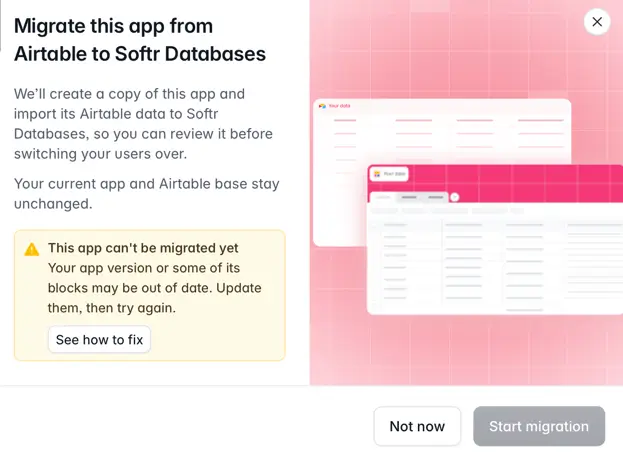
If Softr displays This app can’t be migrated yet, the Start migration button will be disabled. The warning does not necessarily identify the exact failed check; use See how to fix and the migration guide to work through the requirements.
Step 1: Open Migrate app
In Softr Studio, go to Migrate from Airtable → Migrate app and click Convert app.
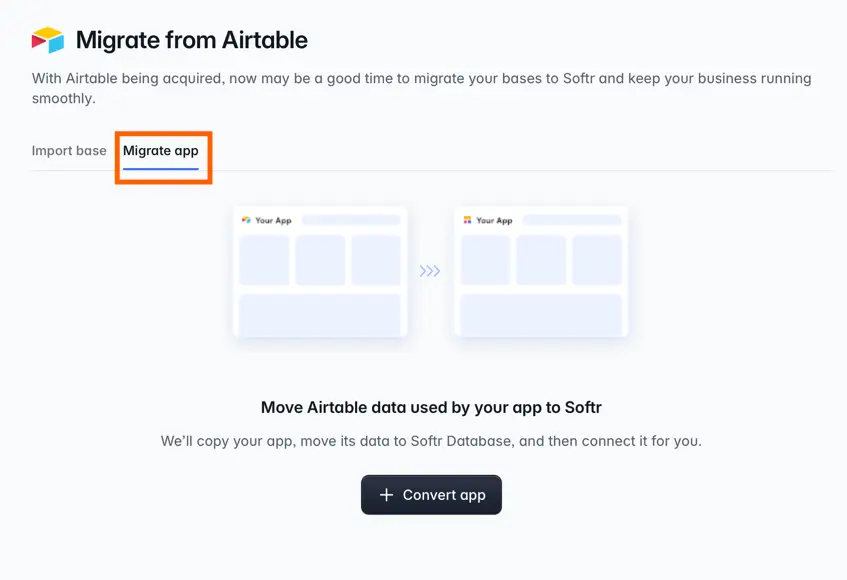
You can also begin from the app editor using Migrate in the sidebar or Migrate to Softr Database in the Data tab.
Step 2: Choose the app
In the Select app to convert dialog, choose the Airtable-connected Softr app you want to migrate. Then click Convert app.
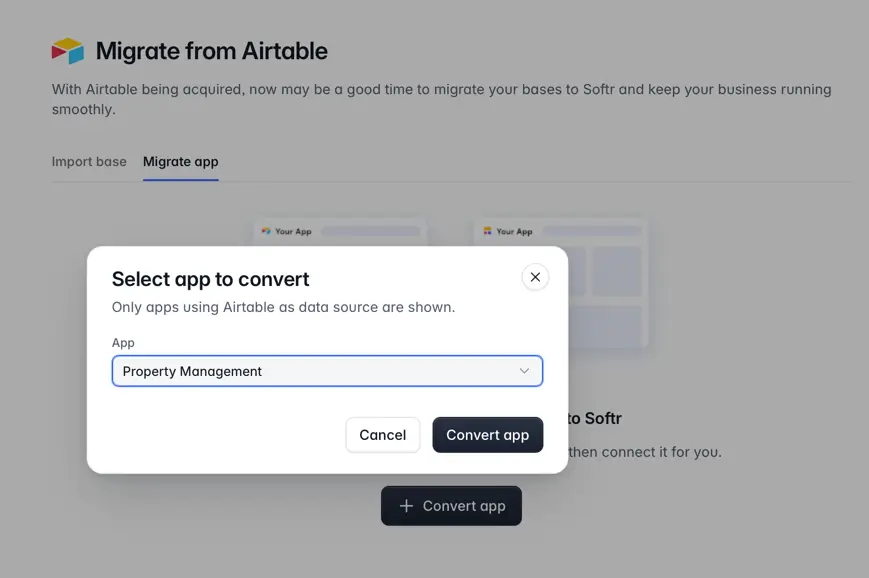
Step 3: Start migration
Review the confirmation and click Start migration. Softr completes three stages: Import Airtable data → Duplicate app → Connect data to app.
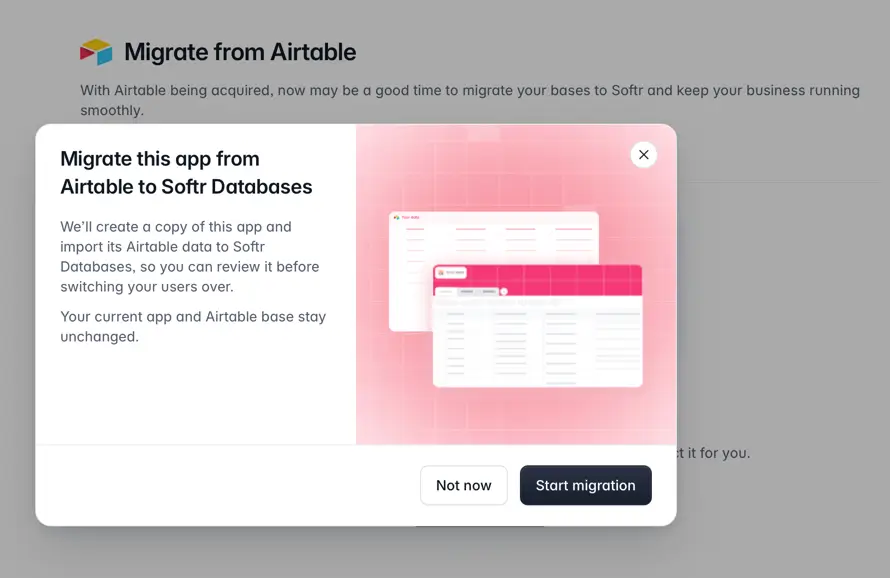
The process may take a few minutes. If the data import fails, Softr does not create an app copy.
Step 4: Review the migrated app
When migration finishes, click Review data import to open the new database. Check your tables, fields, records, and relationships before using the copied app.
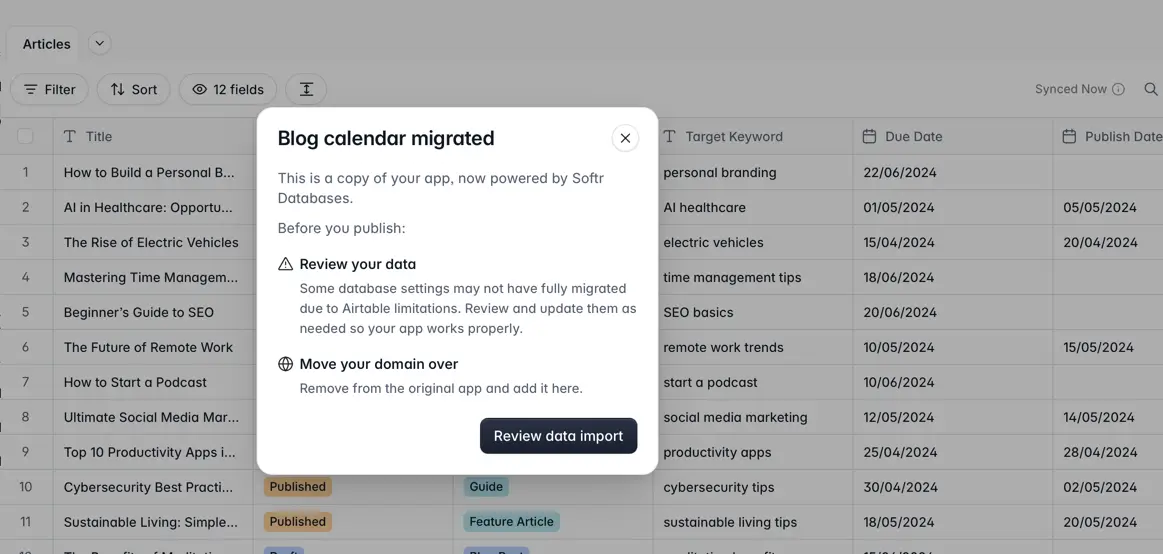
Then open the copied app and test its pages, forms, actions, and permissions.
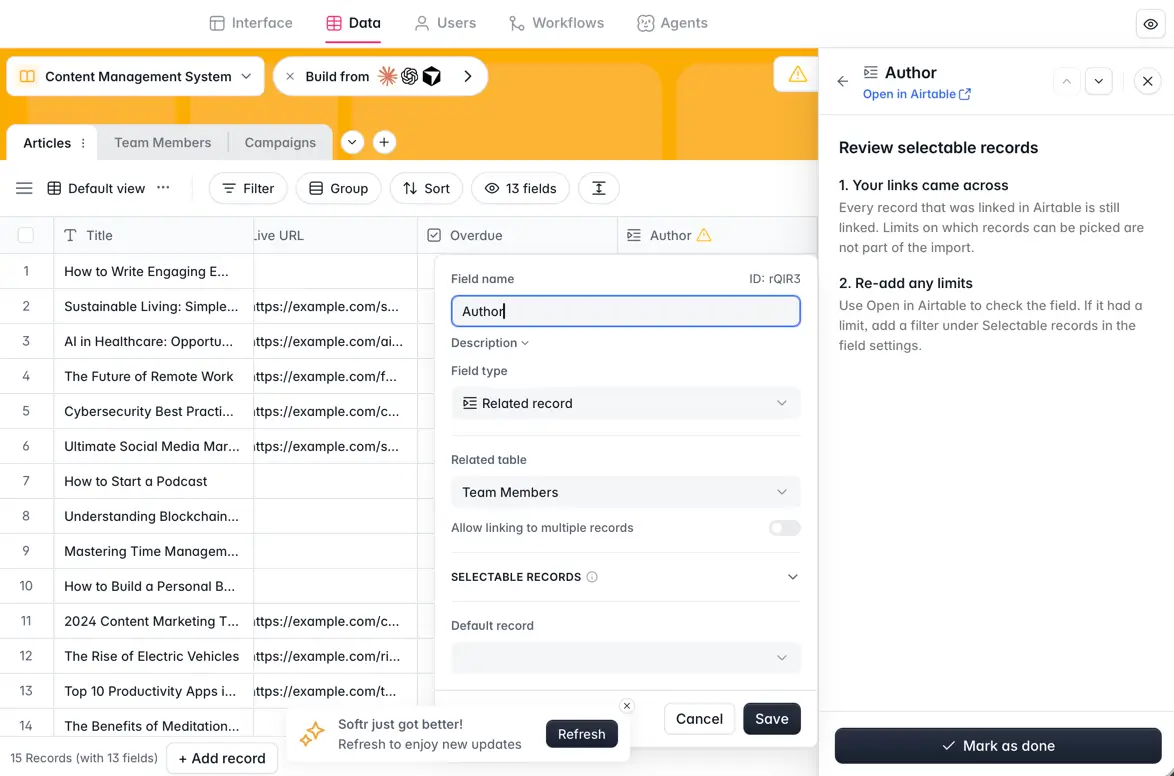
What to check before publishing the migrated app
- Data: Spot-check record counts, linked records, attachments, formulas, and flagged settings.
- Pages and permissions: Preview the copied app as each user group and test forms and actions.
- App workflows: Review workflows in the copied app. Their steps may still reference Airtable and need to be updated to Softr Databases.
- Custom domain: When ready, remove the domain from the original app and add it to the copied app.
- Publish: Publish only after the new app behaves as expected.
Important distinction: Importing Airtable automations creates draft Softr workflows. Migrating an existing app copies its app workflows, which may still point to Airtable. Review the appropriate workflows for your migration path.
Ready to migrate from Airtable to Softr?
Whether you're importing a base to build something new or moving an existing classic Softr app, Softr gives you a way to bring your data into Softr Databases without starting from scratch.
Open Migrate from Airtable in Softr Studio to choose the option that fits your setup. For the complete technical reference, see the Airtable migration help docs.
{{cta-1}}
Frequently asked questions
Can I migrate my existing Softr app from Airtable to Softr Databases?
Will migrating my Softr app affect my original Airtable base?
How long does it take to migrate a Softr app from Airtable?
What should I check after migrating my Softr app to Softr Databases?