Every team has the same problem: action items are discussed, but rarely tracked. Even if your meeting recorder suggests tasks, they often sit in an inbox instead of your project tool. If tasks aren't where you manage your work, they don't get done.
In this guide, we'll connect the dots by building an AI Meeting Task Manager. This full-stack application uses AI to extract tasks from transcripts, assign them to team members, and display them on a custom drag-and-drop calendar.
We'll build it on Softr, which lets you create real business software with AI, using no code. For this AI task manager, we’ll combine native databases and workflows with the Vibe Coding block.
This approach lets you generate specialized features (like our custom scheduler) without losing the reliability of a secure business platform.
What is Softr and how does it help building a Meeting Task Manager?
Softr is a visual full-stack platform that combines an AI app builder, native relational database, and workflow automation all in one platform, each powerful on its own, but working together from day one.
For this project, Softr is uniquely suitable because we need three things to work together seamlessly:
- A relational database to store meetings, tasks, and users, all linked together.
- AI workflows that can analyze unstructured text (a meeting transcript), return structured data (a list of tasks with assignees), and create records in bulk.
- A custom interface that goes beyond standard components: a drag-and-drop calendar where users can schedule their tasks visually.
Instead of stitching together a database tool, a workflow engine, and a frontend builder, you build all three in one place.
What you'll learn in this Meeting Task Manager tutorial
In this guide, we will cover:
- Database architecture: How to design a clean, relational schema for users, meetings, and tasks with the right field types and relationships.
- AI-powered workflows: How to use a form submission to trigger a workflow that sends the transcript to an AI, gets back structured tasks in JSON format, and creates them in bulk.
- Structured AI outputs: How to write a JSON schema so the AI returns predictable, machine-readable data you can act on in your workflow.
- The Vibe Coding block: How to use Softr's AI-powered code generation to build a custom drag-and-drop calendar that connects to your database.
- Choosing the right block for the job: When to rely on Softr's native components (forms, lists, tables) and when to use the Vibe Coding block for custom behaviors.
If you're interested in watching the complete live-build session for this app:
Who's this app for?
This application is designed for team leads, operations managers, or project managers who run frequent meetings and want a reliable way to capture, assign, and schedule the tasks that come out of them. It's especially useful for teams that deal with long meeting transcripts (calls with clients, sprint reviews, weekly syncs) and need a structured process to turn discussions into action.
User groups and jobs to be done
Our Meeting Task Manager serves one primary group:
- Team members (logged-in users): These are the people who attend meetings and receive tasks.
- Submit a meeting transcript via a simple form.
- Let AI extract and assign tasks automatically.
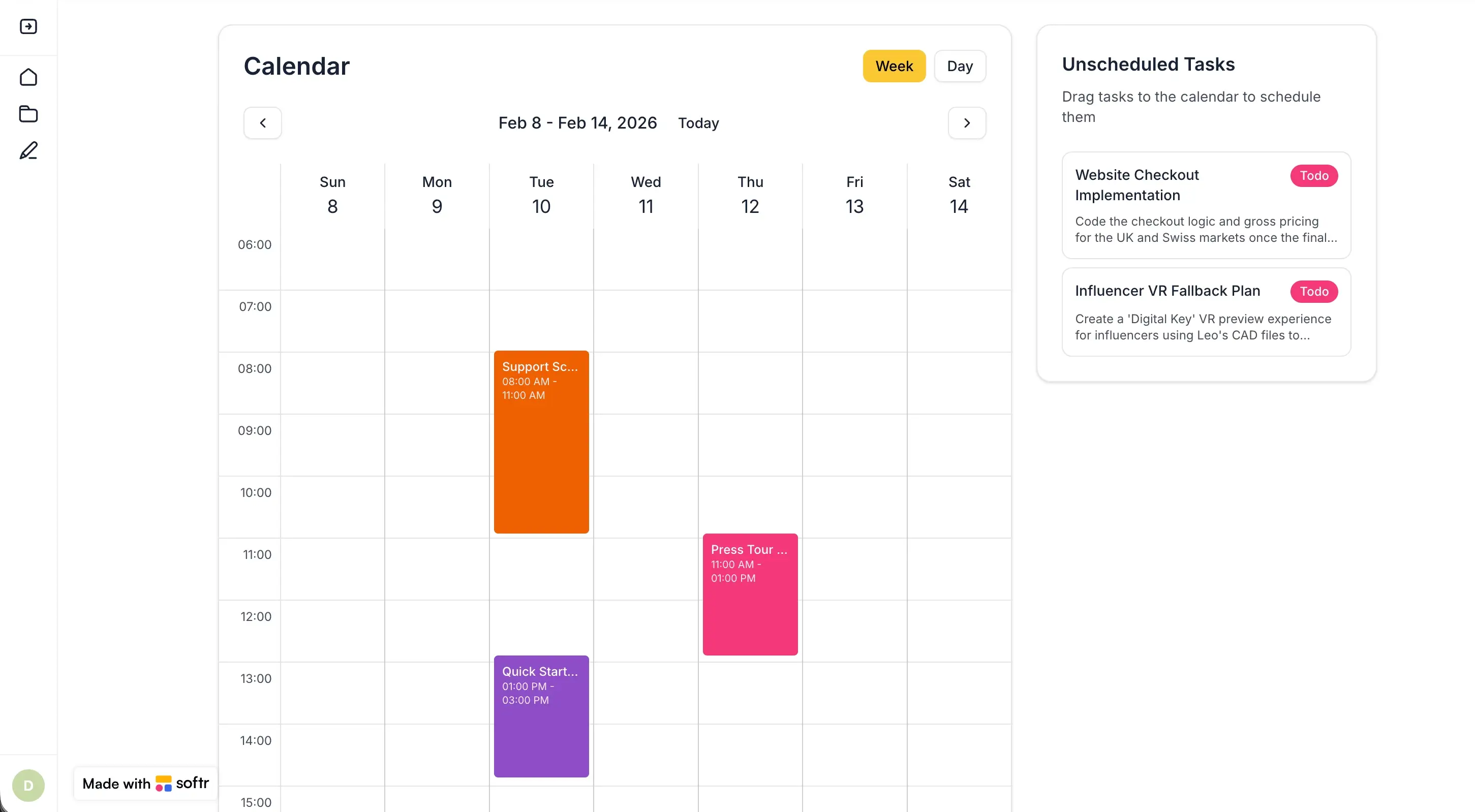
- View their personal tasks on a drag-and-drop calendar.
- Edit task details and reschedule by dragging events.
But this could be, of course, enriched when building a more complete project management app, with roles like Admins, Managers, etc.
The app's core structure
Before we build, we need to plan. Success in Softr starts with a solid data structure.
Pages to be built
- Homepage: A list of all meetings with a button to add a new one.
- Add Meeting: A form to paste the transcript and select the date.
- Tasks / Calendar: A custom Vibe Coding block showing unscheduled tasks and a weekly/daily calendar with drag-and-drop.
Database structure
We will use Softr Databases to create three interconnected tables:
- Users: The people on your team. Each has a name and email.
- Meetings: Each meeting has a title (AI-generated), a transcript, and a date.
- Tasks: Each task has a name, description, status, start/end dates, and is linked to both a Meeting and a User.
Pro Tip: Keep each table focused on one object. A task is not a meeting, but it is the outcome of a meeting. This one-table-per-object approach keeps your schema clean and makes your AI workflows easier to build.
Part 1: Structuring your database in Softr
We will start by building the data foundation. A strong relational structure ensures our app is scalable and ready for AI.
1.1. Configure the Users table
The Users table is your source of truth for everyone on the team.
- Open your Softr Database and locate the default
Userstable. - Set
Emailas the primary field. Always use Email as the unique identifier, as names are not unique. - Add a
Full Namefield (type: Text).
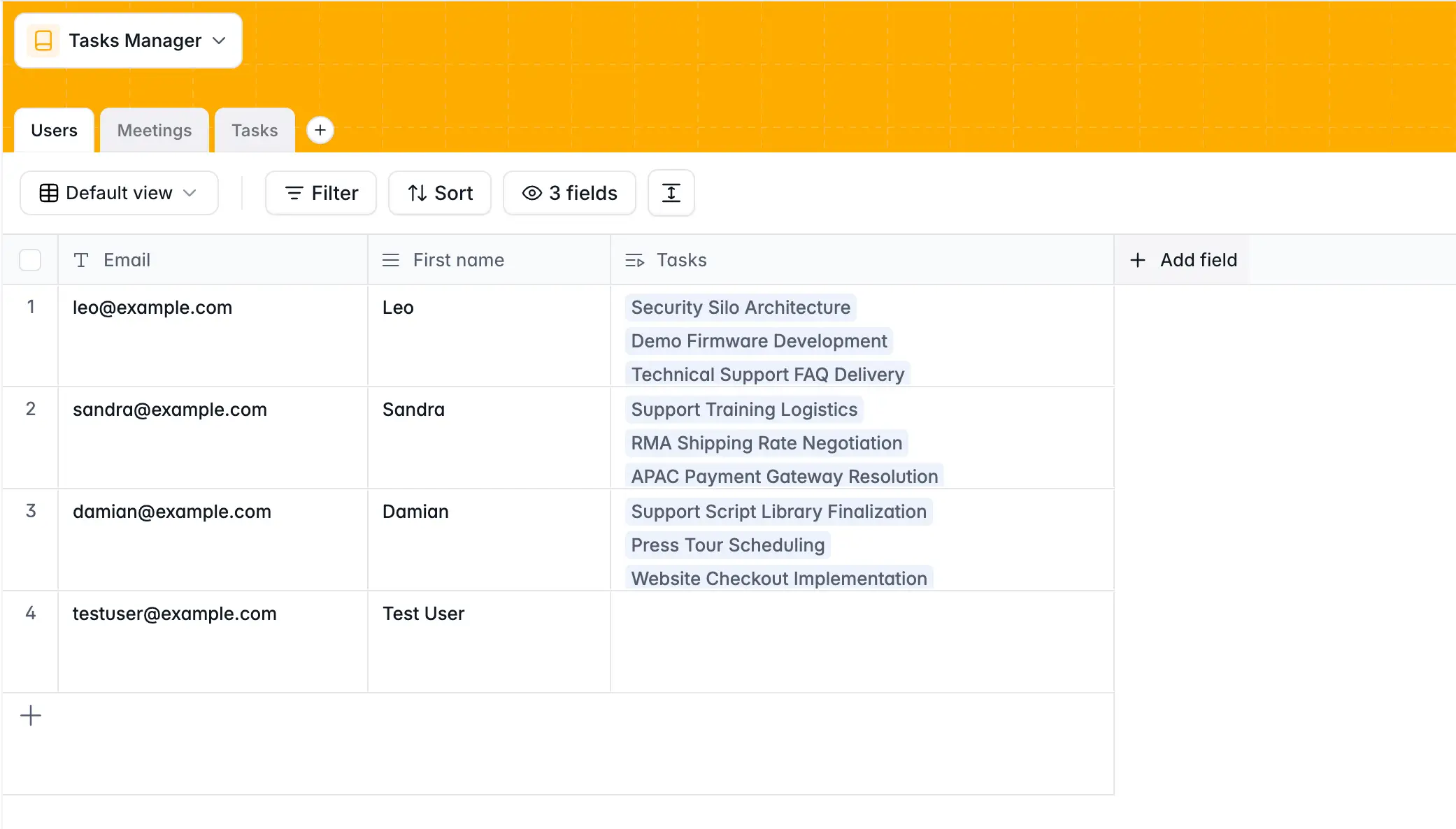
Pro tip: As a general rule, your first column in your database should be as unique as possible. For user tables, we recommend using Email since it’s naturally unique for each user. For other cases, you can also use a Record ID, which is a native field available in Softr, as your primary key.
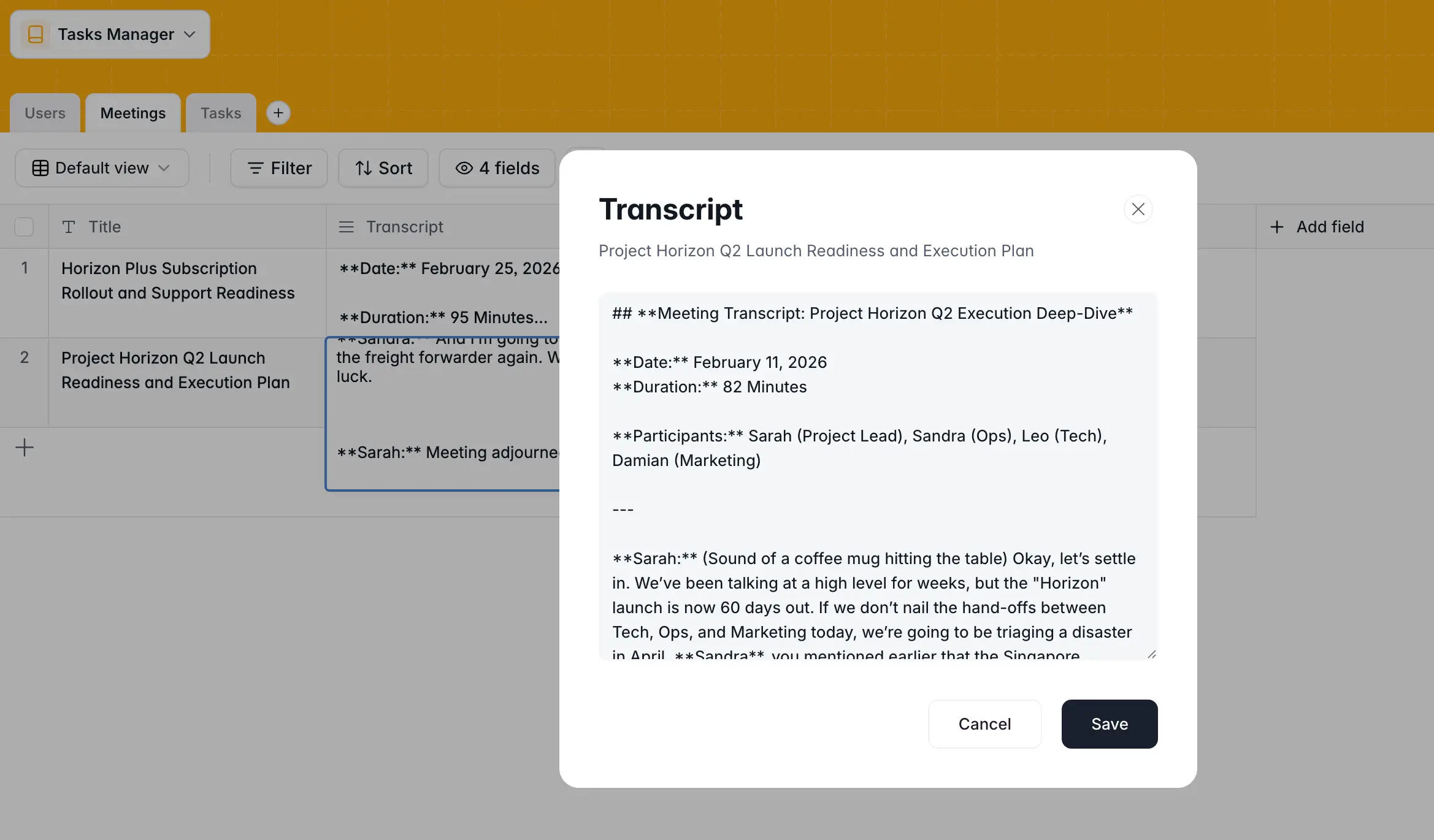
1.2. Configure the Meetings table
This table captures the raw input: the meeting transcript.
- Create a
Meetingstable. - Add a
Titlefield (type: Text). We will leave this blank initially. The AI workflow will generate a title for us automatically. - Add a
Transcriptfield (type: Long Text). This is where the meeting content lives. - Add a
Datefield (type: Date). We will capture this manually on the form so the user can specify when the meeting happened.
1.3. Configure the Tasks table
Tasks are the core output of our application. Every meeting will generate multiple tasks.
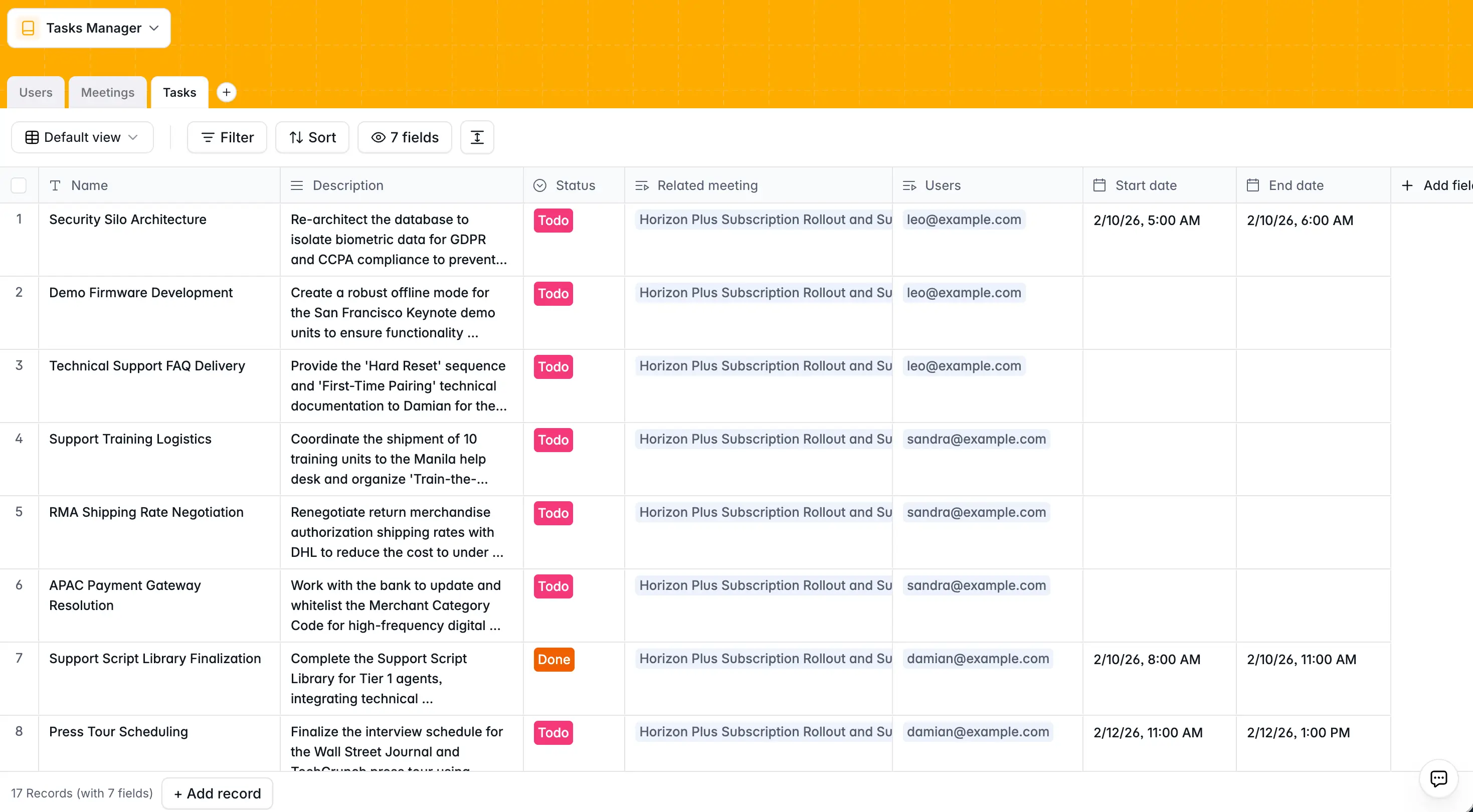
- Create a
Taskstable. - Add a
Namefield (type: Text) as the primary field. - Add a
Descriptionfield (type: Long Text). - Add a
Statusfield (type: Select) with options: To Do, In Progress, Done. - Add a
Start Datefield (type: Date) and anEnd Datefield (type: Date). These will be used by the calendar for scheduling. - Add a Linked Record field named
Meetingconnected to theMeetingstable. Disable "Allow linking to multiple records" because a task should belong to only one meeting. - Add a Linked Record field named
Assigneeconnected to theUserstable. Disable "Allow linking to multiple records."
Why separate Start Date and End Date? A calendar block needs both to display events properly. When a user drags a task onto the calendar, the system will set the start time and automatically add a default duration (two hours) for the end time. This is something we will handle in the Vibe Coding block later.
Part 2: Building the form and the AI workflow
Now for the most exciting part. We'll create a form to capture meeting transcripts and connect it to an AI workflow that automatically extracts tasks, assigns them to the right people, and generates a meeting title.
2.1. Create the meeting submission form
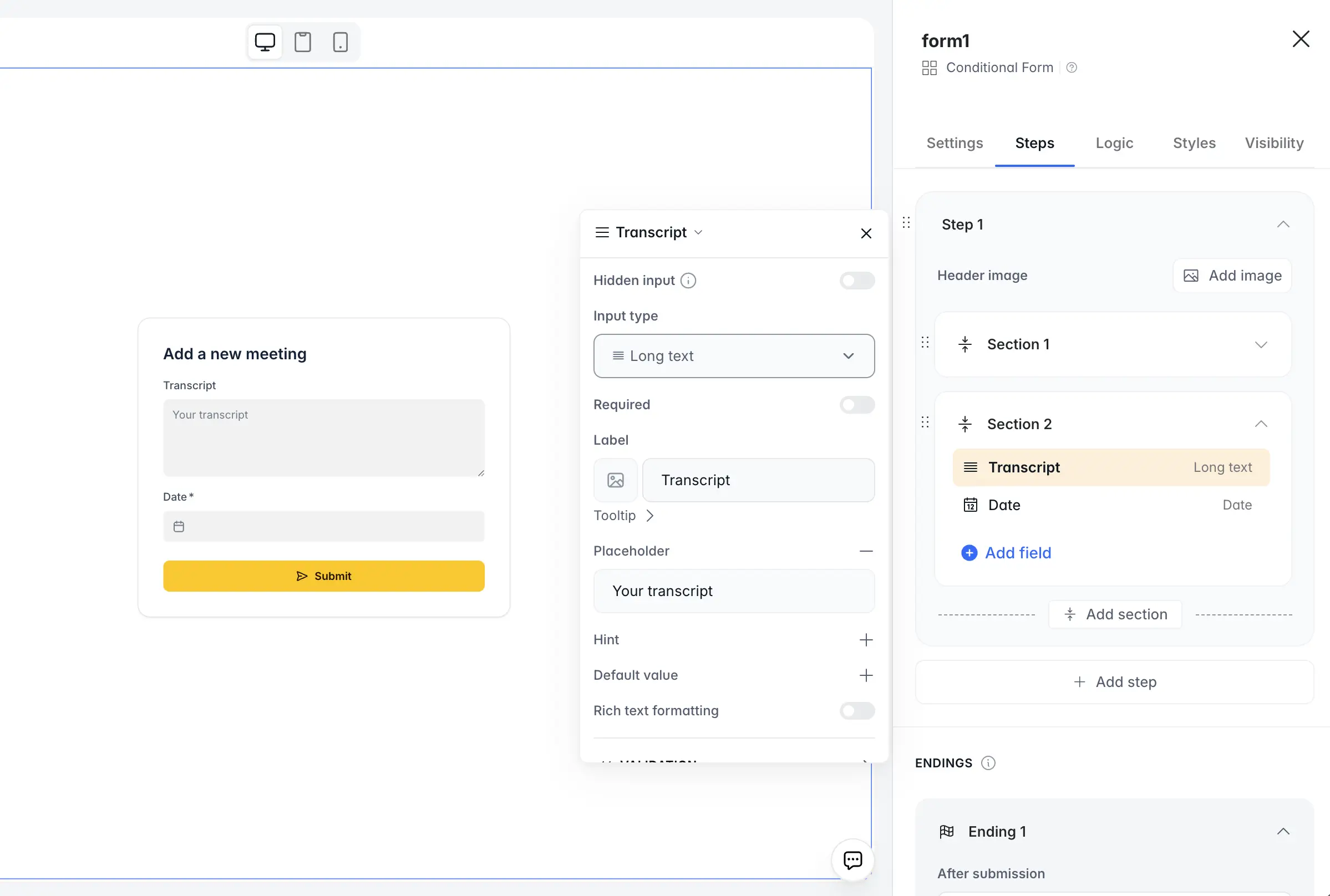
- In the Softr Studio, go to the Pages tab and create a page called Add Meeting.
- Add a Form block.
- In the block's Data tab, connect it to your Softr Database and the
Meetingstable. This form will create a new Meeting record on every submission. - Configure the form fields:
- Add a
Transcriptfield (type: Long Text). This is where users will paste their meeting notes. - Add a
Datefield (type: Date) for the meeting date.
- Add a
- Remove any fields you do not need. The
Titlefield should not appear on the form because the AI will generate it.
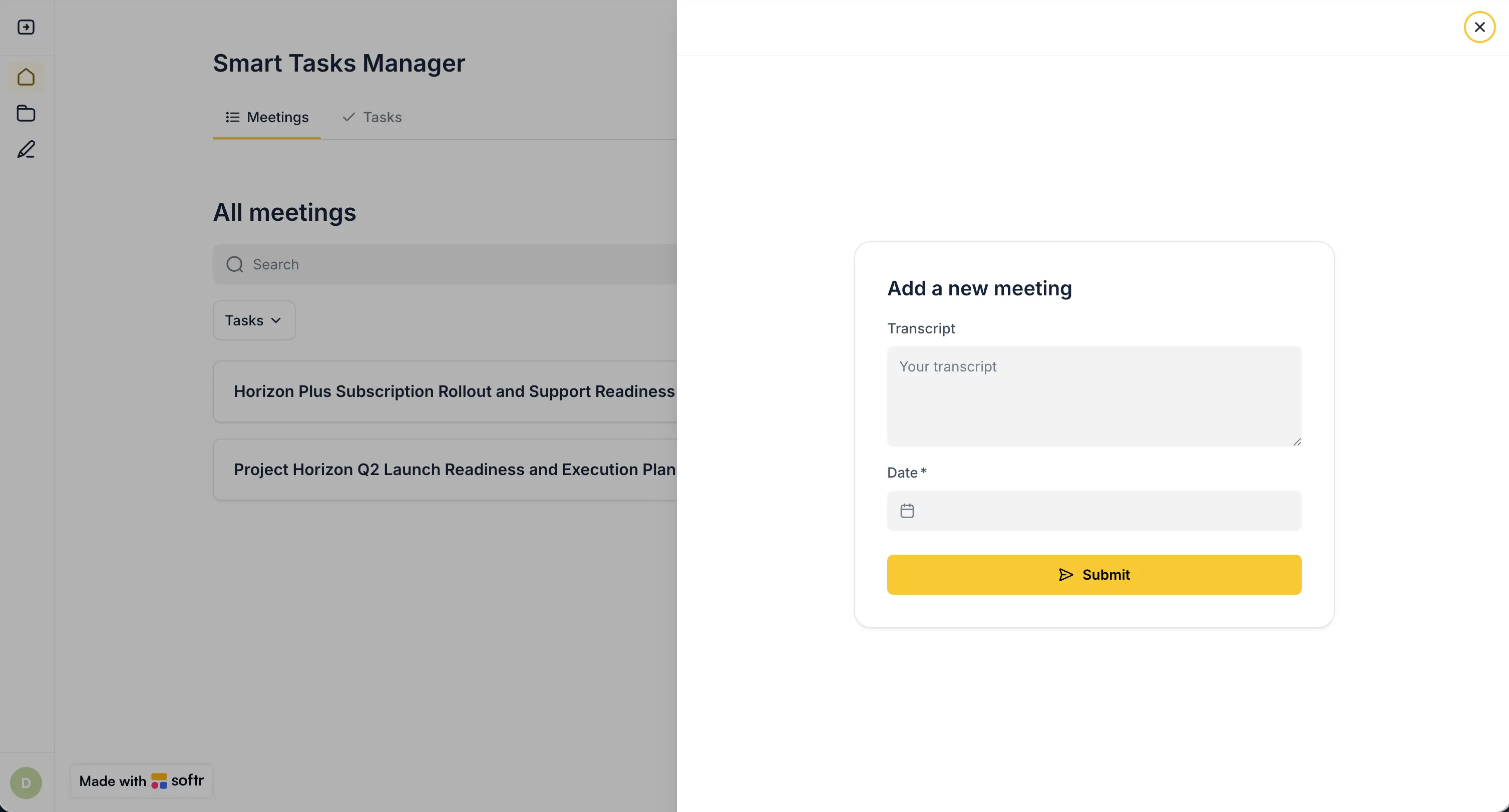
The form is intentionally simple. We keep the manual input to the bare minimum: the transcript and the date. Everything else (task extraction, assignment, title generation) will be handled by AI in the next step.
2.2. Connect a UI workflow to the form
This is where Softr's full-stack advantage becomes clear. Instead of sending data to an external tool and hoping it works, we will create a workflow that is directly connected to the form's UI.
- In the form block's settings, go to the Steps section.
- Under the form ending, select Run Custom Workflow as the destination.
- Click Create to be taken directly to the workflow builder.
.webp)
This creates a special type of workflow: a UI-connected workflow. It has a few important advantages over traditional automations:
- Wait screen: When the user clicks Submit, they see a loading screen while the AI processes the transcript. No guessing whether it worked.
- Proceed action: You control what happens after the workflow finishes (redirect the user, show a success message, reload the page).
- Form + database context: The workflow receives both the raw form data and the record that was created in the database, including the Record ID. This is extremely useful for linking tasks back to their meeting.
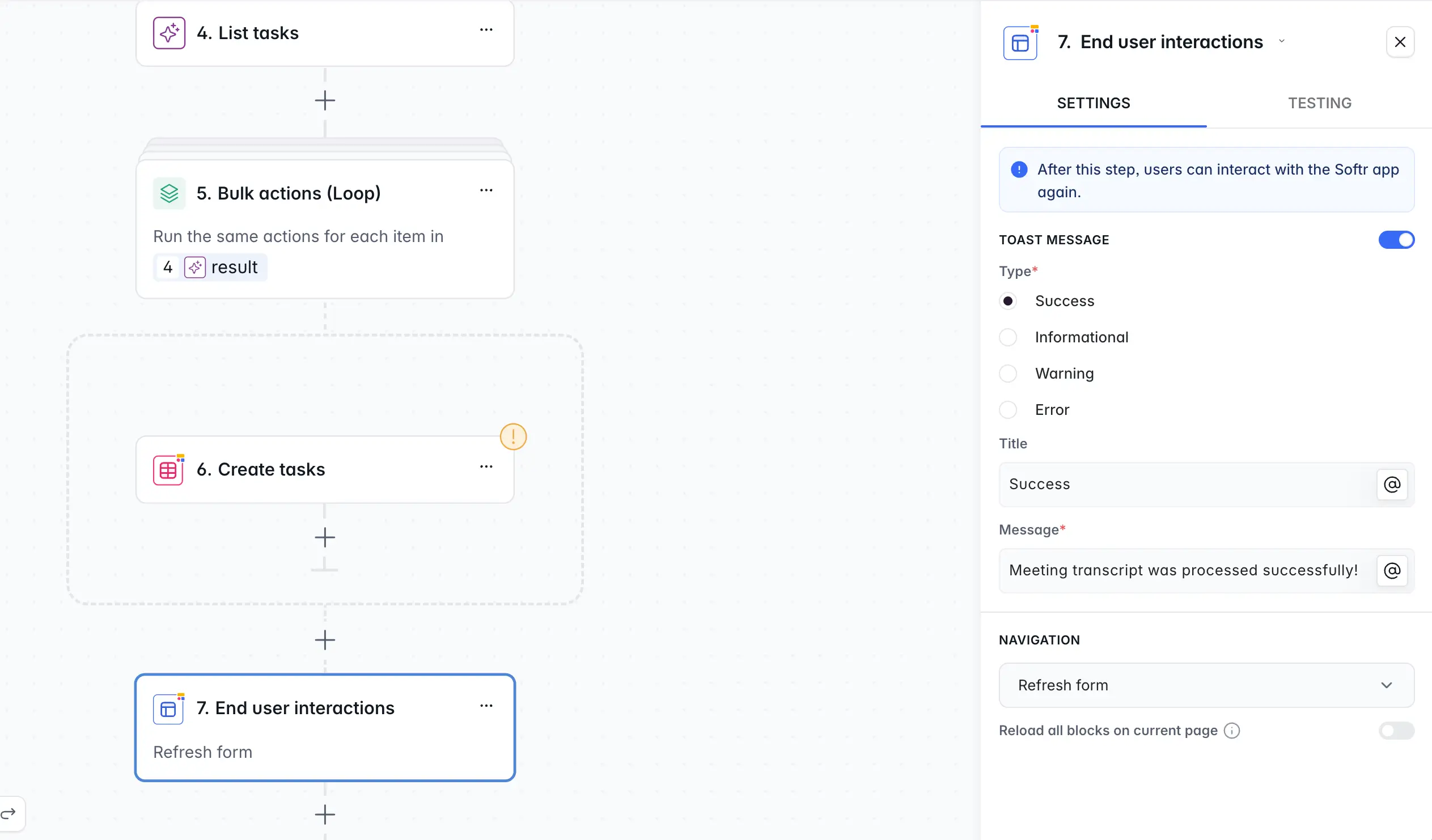
This kind of tight UI integration is what you typically miss when connecting to a third-party workflow engine. Because this is a Softr workflow, the automation and the app are one system.
2.3. Fetch users data
Before the AI can assign tasks to people, it needs to know who those people are.
- In the workflow builder, add a new action: Find multiple records (from the Softr Database actions).
- Select the
Userstable. - Do not add any conditions. We want all users so the AI can match names from the transcript to real user IDs.
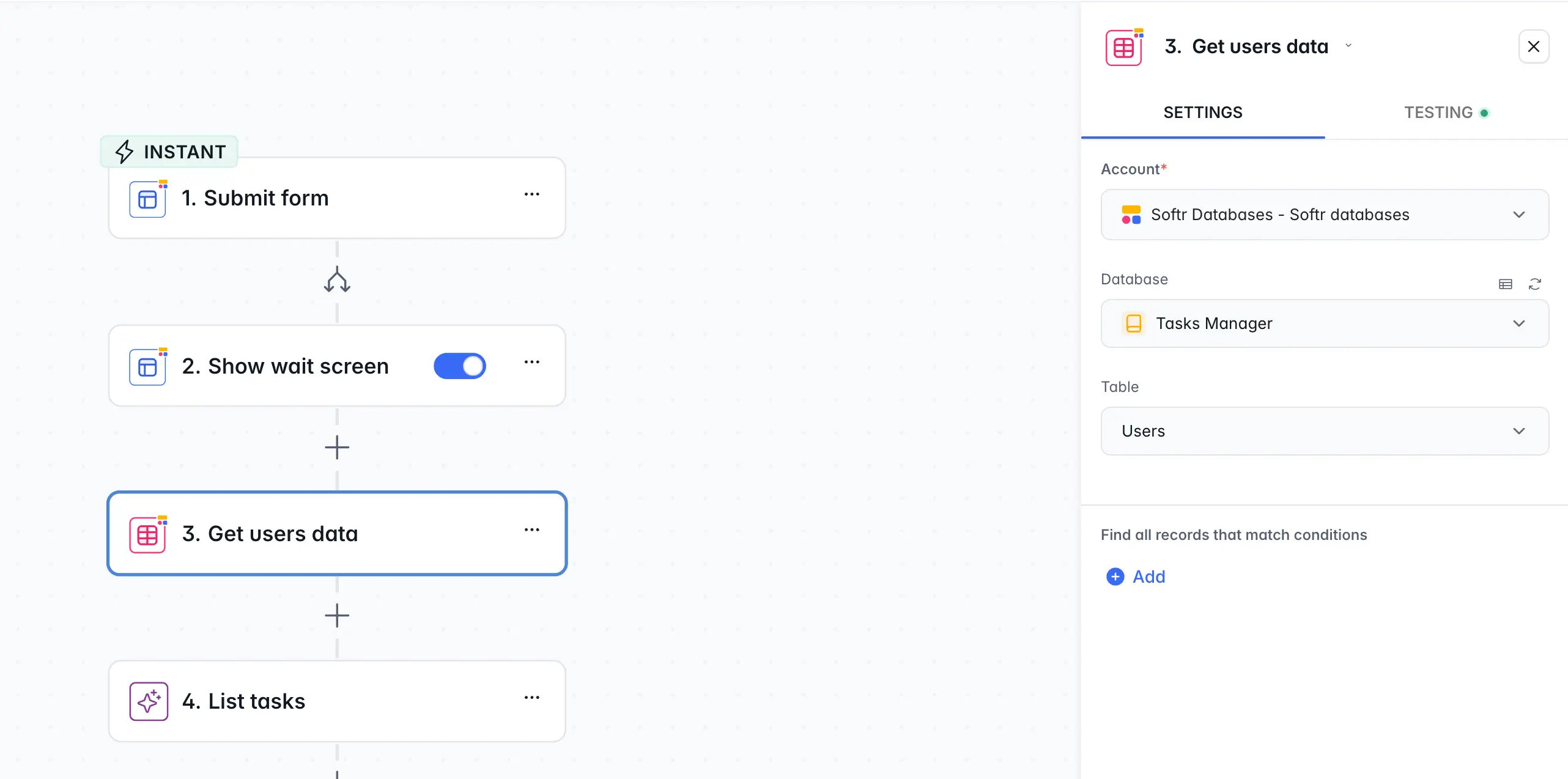
The AI will receive a list of users (with their names and Record IDs) alongside the transcript. This is how it knows that "Sarah" in the transcript maps to a specific user record.
Scaling tip: If your application has hundreds of users, passing the entire list to the AI is wasteful. A better approach for large teams is to let the AI extract names from the transcript first (using a simpler structured output), then use a "Find" step to fetch only the relevant users. For small teams (under 20 people), the approach shown here works perfectly.
2.4. AI structured output for task extraction
This is the core intelligence of the application. We will use an AI Custom Prompt step to analyze the transcript, identify all tasks, and return them in a structured JSON format.
- Add a new action: AI Custom Prompt (under the AI category).
- Choose a capable model. We recommend GPT-5.2, Claude Sonnet, or Gemini 3 Flash for this type of complex text analysis.
- Write the prompt:
4. Enable Structured Output and provide a JSON schema.
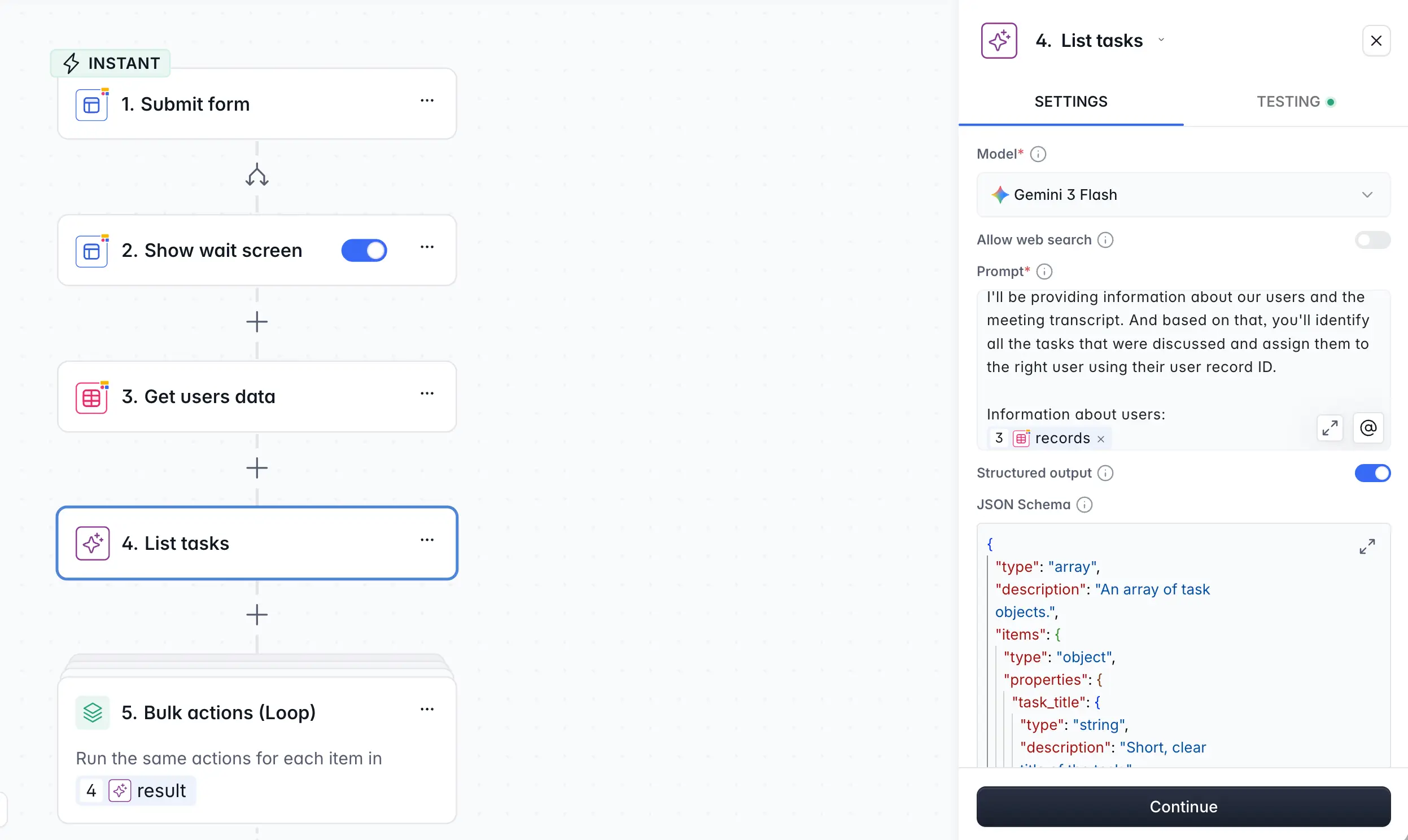
Understanding the JSON schema
Why not just ask the AI to return plain text? Well, because plain text is unpredictable. You cannot reliably loop through "Here are 3 tasks: 1. Do X, 2. Do Y" in a workflow. Structured output guarantees the AI returns data in a format you can process programmatically.
Here is the schema we'll use:
You don't need to write this from scratch. You can ask any AI tool to generate a JSON schema based on an example, or use Softr's built-in AI co-builder in the workflow editor to create one. You can also provide a simple example (like [{"task_title": "...", "user_record_id": "..."}]), and the AI will figure out the structure.
The result is an array (a list) of task objects. Each object contains a title, a description, and a user ID. This is exactly the structured data we need to create records in the next step.
2.5. Bulk create tasks
Now that the AI has returned a clean list of tasks, we will loop through them and create a record in the Tasks table for each one.
- Add a Bulk Actions block. This creates a loop that runs once for each item in a list.
- Select the output from the AI step (the
tasksarray) as the source. - Inside the loop, add an action: Add record in the Softr Database, targeting the
Taskstable. - Map the fields:
Name→ current item'stask_titleDescription→ current item'stask_descriptionStatus→ hardcode to To Do (you could also let the AI decide this based on what was discussed)Meeting→ the Record ID from the form's destination response (this links each task back to the meeting it came from)Assignee→ current item'suser_record_id
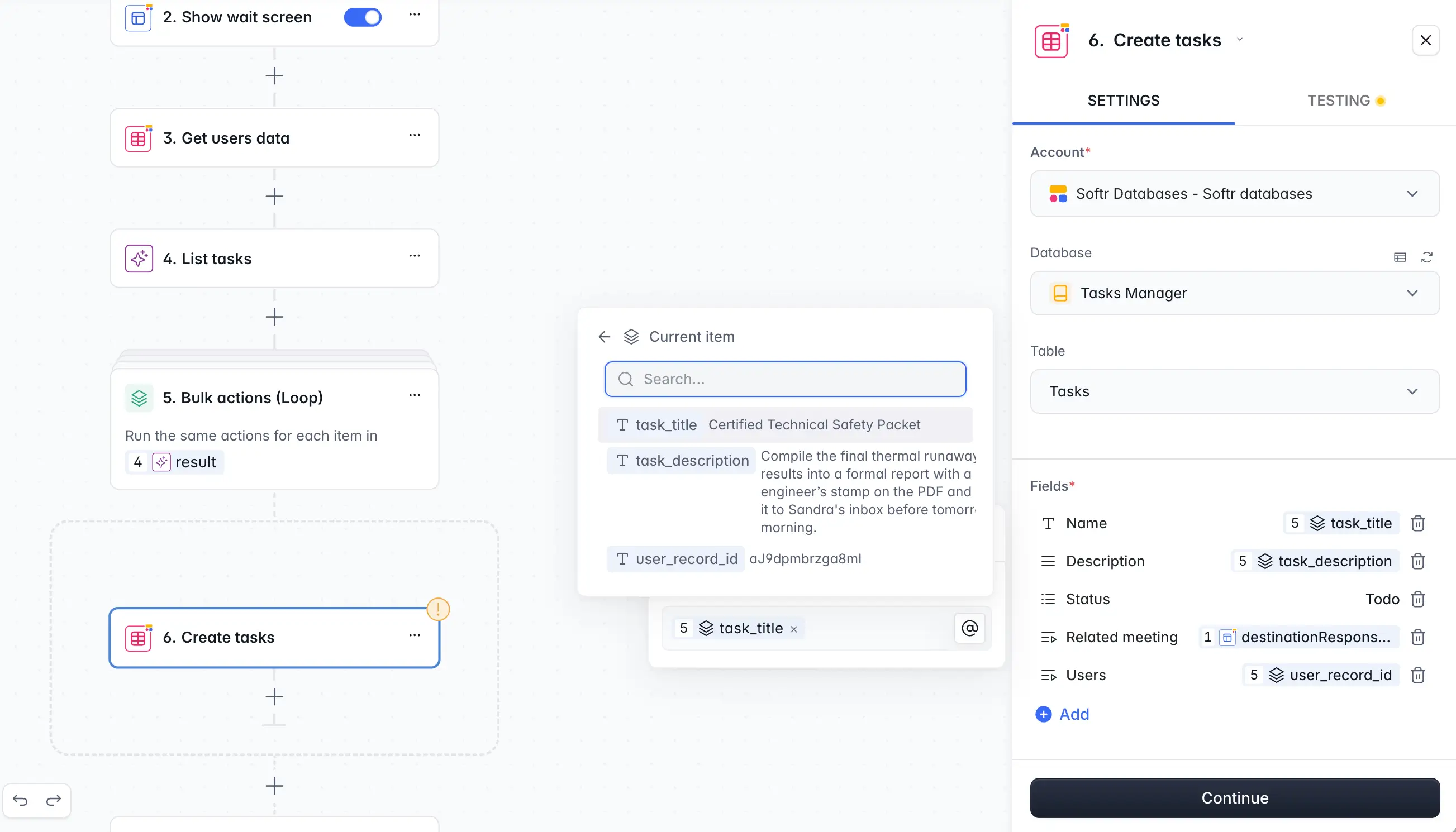
This is where the workflow turns the AI's analysis into real database records. For a transcript that mentions five tasks, this loop runs five times, creating five fully linked task records.
2.6. AI-generated meeting title
We kept the meeting form simple on purpose: no title field. Instead, we'll let the AI generate one based on the transcript.
- Add another AI Custom Prompt step.
- Use a simpler, faster model. Gemini Flash is a great choice for lightweight tasks like this.
- Write the prompt:
Generate a title of less than 10 words for this meeting. No formatting. Transcript: @transcript - Do not enable Structured Output. We just need plain text this time.
- Add an Update record action targeting the
Meetingstable. - Use the Record ID from the form's destination response to find the correct meeting.
- Map the
Titlefield to the AI's output.
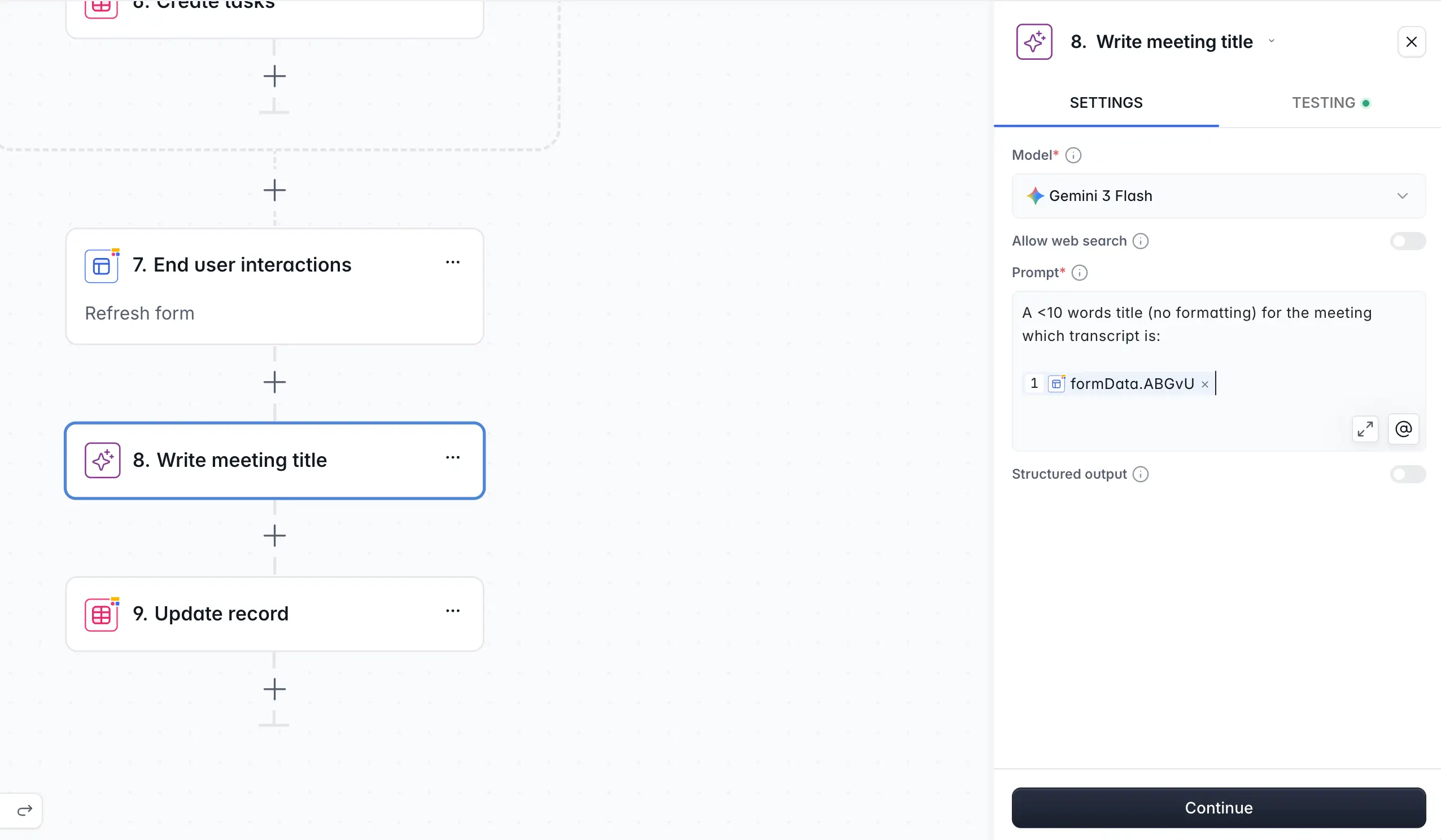
Tip: Choosing the right model for each step matters. A complex task like extracting and assigning multiple tasks from a long transcript benefits from a powerful model (GPT-4o, Claude Sonnet). But generating a short title is trivial. Use a faster, cheaper model and save your AI credits for the steps that need them.
2.7. The complete workflow
Here's what the full workflow looks like end to end:
- Trigger: Form submission (UI-connected, with wait screen).
- Get Users: Find all records from the Users table.
- List Tasks: AI Custom Prompt with structured JSON output. Extracts tasks and assigns them.
- Create Tasks: Bulk loop that creates one task record per item in the AI's output.
- Meeting Title: AI Custom Prompt (lighter model) that generates a short title.
- Update Meeting: Updates the meeting record with the AI-generated title.
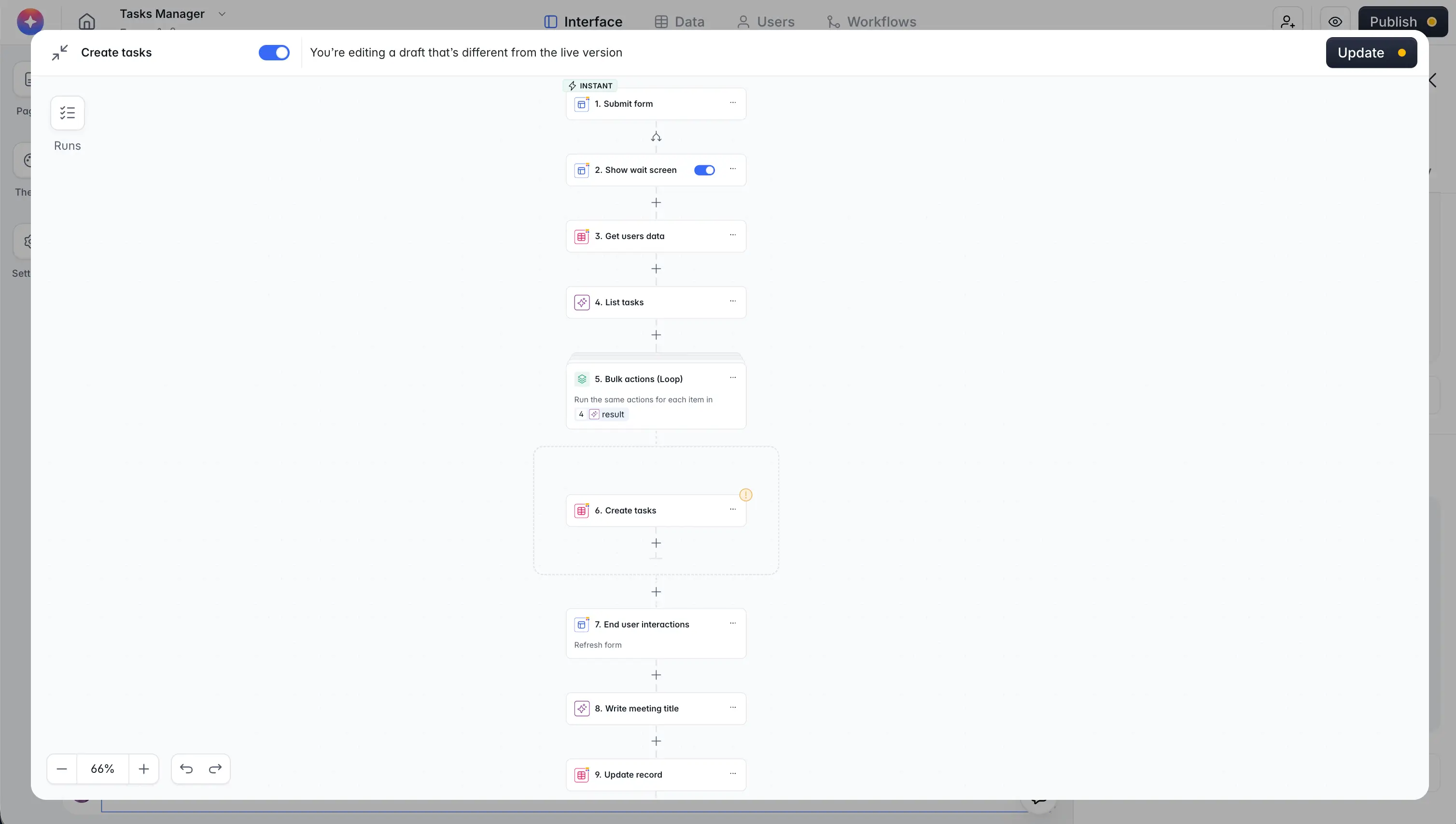
When the user submits the form, they see a loading screen. Behind the scenes, the workflow fetches context, analyzes the transcript with AI, creates tasks, generates a title, and updates the meeting record. When it finishes, the user is redirected to see their results.
Part 3: Building the app interface
With the database and workflow ready, we'll build the pages where users interact with the application.
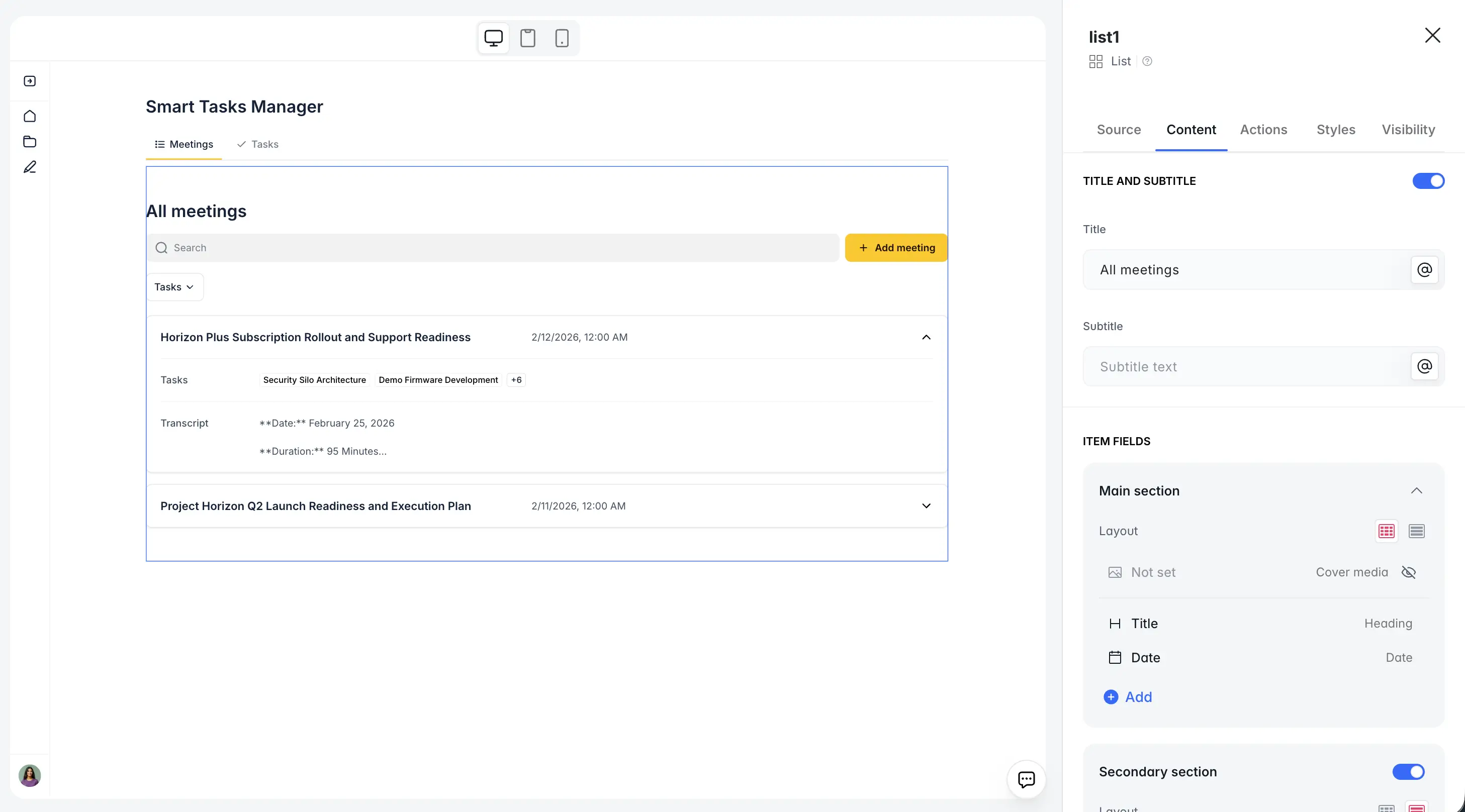
3.1. The homepage: list of meetings
- Go to the Homepage or create a new page.
- Add a List block connected to the
Meetingstable. - Display the
Title,Date, and the linkedTaskscount for each meeting. - Add a Button or link that opens the Add Meeting page (the form we built in Part 2) as a modal. This keeps the user's context: they can add a meeting and slide back to the list.
3.2. Meeting details
- Configure the list so that clicking a meeting opens a Details Page.
- On the details page, add a List Details block showing the meeting's title, date, and transcript.
- Below it, add a Table or List block connected to the
Taskstable with a Conditional Filter:MeetingisCurrent Record. This shows only the tasks that belong to this specific meeting.
Part 4: Building a drag-and-drop calendar with the Vibe Coding block
This is the part of the app that standard building blocks cannot handle. We need a weekly calendar with a sidebar of unscheduled tasks, drag-and-drop scheduling, and the ability to click on events to edit them. That's a custom behavior, and it's exactly what the Vibe Coding block is designed for.
.webp)
Understanding when to use the Vibe Coding block
Before we build, it is worth stepping back and understanding the decision we are making.
Softr gives you two ways to build your UI: native blocks (tables, Kanban boards, forms, calendars, charts) and the Vibe Coding block (an AI-generated, fully custom component).
The philosophy, as Softr's CTO Artur puts it, is the 80/20 rule:
"80% of a business app doesn't need to reinvent new layouts. You need forms, tables, charts, a Kanban, maybe a calendar. If you need something extra custom, like drag-and-drop events, audio capture, or a specialized visualization, then you go for the Vibe Coding block."
For this tutorial, that is exactly the right trade-off:
- Parts 1–3 (database, form, workflow, meeting list, details page) all use native blocks. They are battle-tested, responsive on mobile, and style themselves automatically based on your app's theme.
- Part 4 (the drag-and-drop task calendar) uses the Vibe Coding block because the behavior we want (dragging unscheduled tasks onto a weekly grid and resizing them) does not exist as a standard component.
The key insight: you do not need to choose one or the other. The best business apps combine both. Native blocks handle the predictable 80%. The Vibe Coding block handles the custom 20%. And because both share the same data layer, the same permissions, and the same theme, they feel like one cohesive application.
This is what separates Softr from tools that are purely "vibe coding." You're not building the entire app from scratch with AI. You're using proven infrastructure for the parts that are already solved and AI-generated code only for the parts that truly need it.
4.1. Connect the Vibe Coding block to your data
- Create a new page called My Tasks or add a section to an existing page.
- Add a Vibe Coding block.
- In the block's Data tab, connect it to the
Taskstable in your Softr Database. - Add a Conditional Filter so that each user only sees their own tasks:
AssigneeisLogged-in user's Email. This uses the same permission system as any other Softr block.
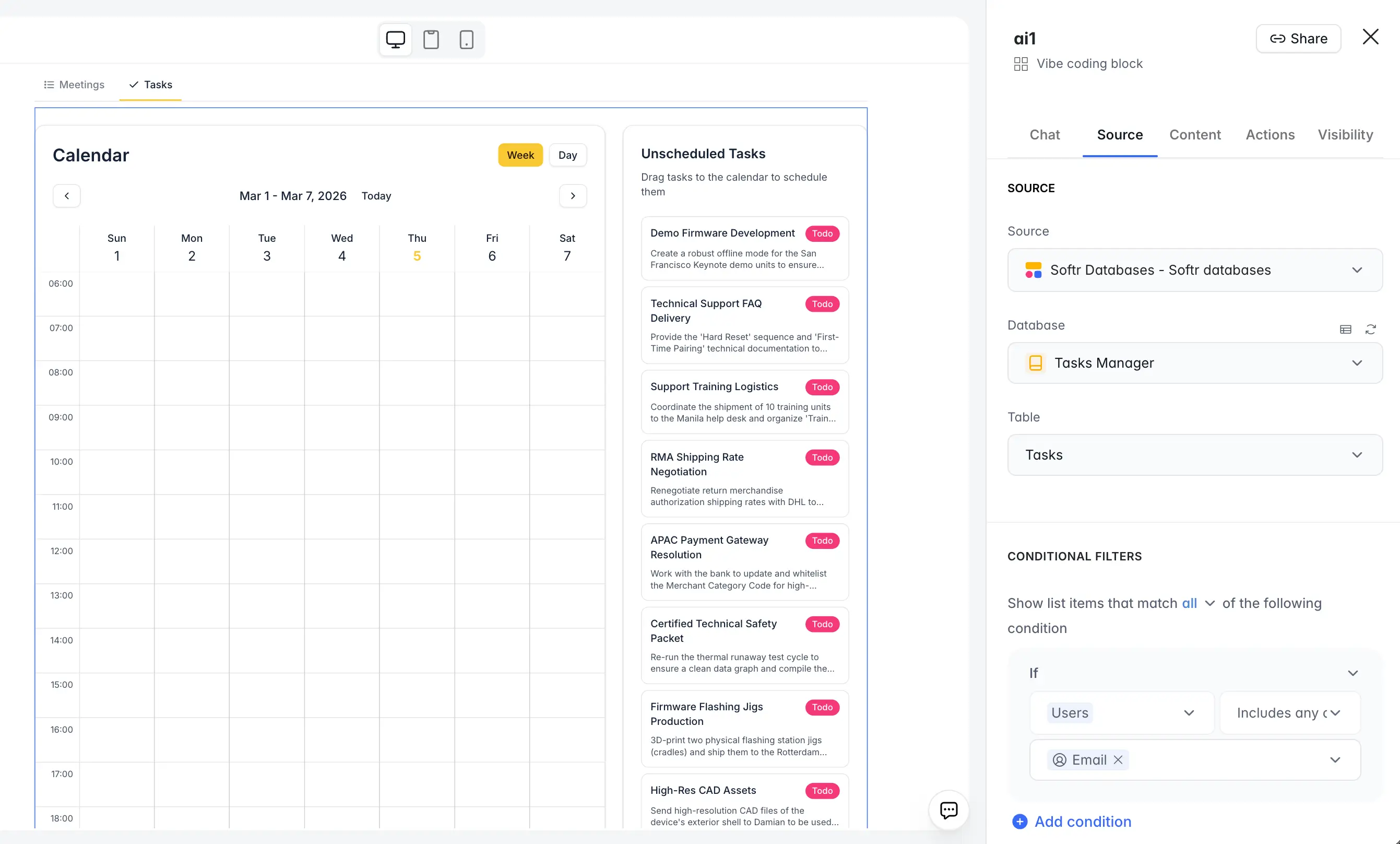
This is an important detail: the Vibe Coding block connects to your data the same way a native Table or List block does. The same data source, the same filters, the same user group visibility rules. The security model is shared across all block types.
4.2. Write the prompt
Now we describe what we want the AI to build. The key is to be specific about behavior but not overly prescriptive about implementation details.
Here is the prompt we used:
Click Generate and let the AI build the first version.
4.3. Iterate
The first version will not be perfect. That's expected. The Vibe Coding block is designed for iteration., so here are some tips:
Solve one problem at a time. If the grid layout is broken and the click behavior is missing, fix the grid first. Send a focused prompt: "The calendar grid gets wider when there are events on a day. Fix it so the grid width stays consistent." Don't try to fix everything in one shot.
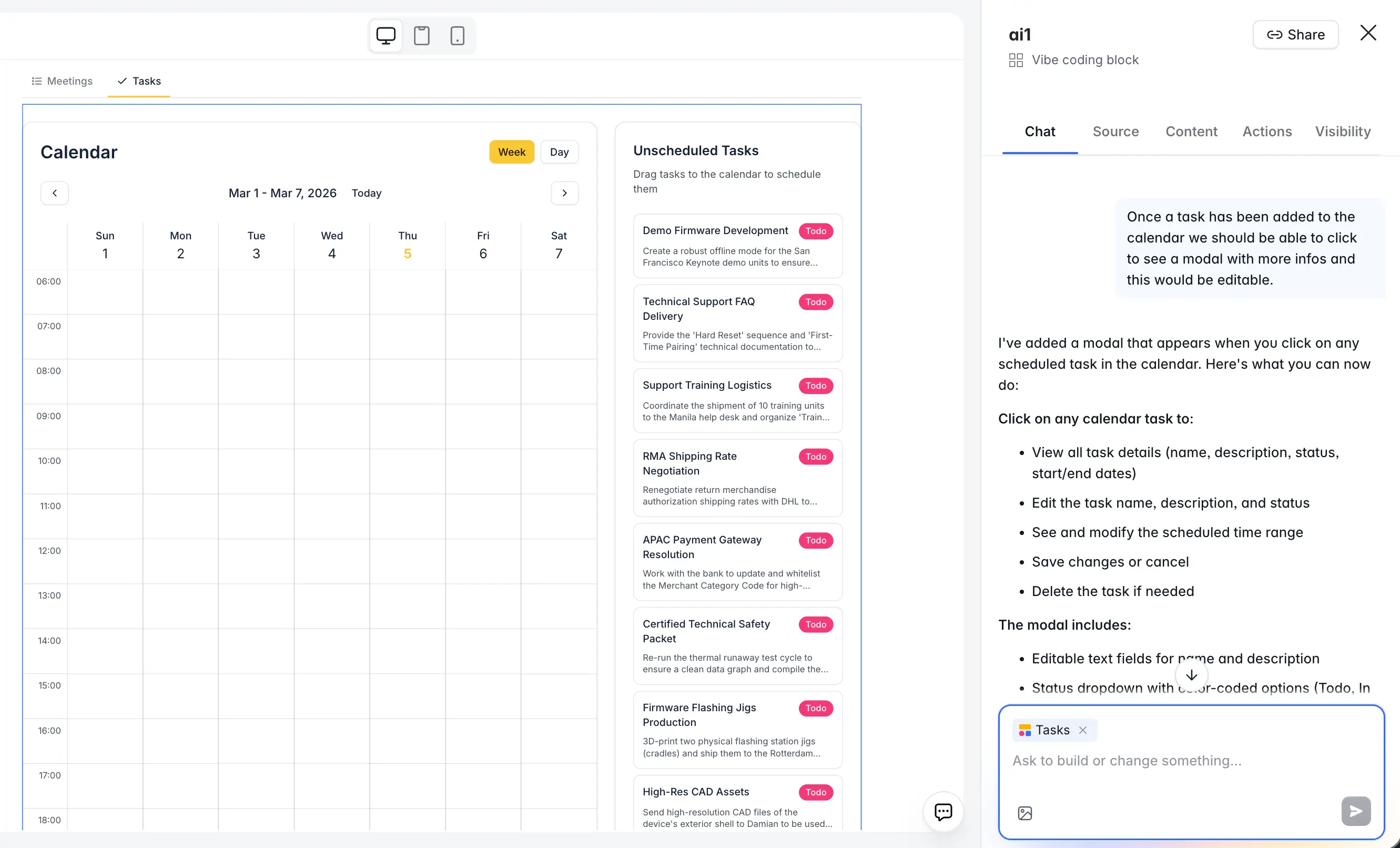
Add features incrementally. After the layout works, add interactivity: "When I click on a calendar event, show a popup with the task title, description, and status. Let me edit the description and status inline."
Use version control. Every change you make creates a new version. If a prompt produces a result you don't like, you can go back to a previous version and try a different approach. You can also duplicate your block before making a major change.
Tip: You can also upload a screenshot of a calendar you admire and ask the AI to replicate it. This works well for the initial layout. For refinements, text prompts are more precise.
4.4. How native and Vibe Coding blocks work together
Once your calendar is working, notice how it fits into the rest of your application:
- Theme inheritance: The calendar uses your app's accent color, fonts, and border styles. Change your theme to blue, and the calendar updates automatically.
- Same data layer: The calendar reads from and writes to the same Tasks table as the meeting details page. Drag a task onto Wednesday at 2 PM, and the Start Date field updates in the database. Open the meeting details page, and that task now shows its schedule.
- Same permissions: The Conditional Filter you set on the block means each user only sees their own tasks. You do not need to implement authentication logic in the Vibe Coding block's code.
- Action visibility: In the block's Actions tab, you can control which CRUD operations are allowed and which user groups can perform them. This is the same system used by native blocks.
This is the pattern to follow whenever you're building an app with complex interface requirements. Ask yourself: "Can a native block handle this?" If yes, use it. It is faster, more reliable, and maintained by Softr's team. If no, use the Vibe Coding block for that specific part, knowing that it plugs into the same infrastructure.
Your app is live
Congratulations! You just built a full-stack AI Meeting Task Manager using Softr. Here's what your application does:
- A user pastes a meeting transcript into a simple form.
- An AI workflow analyzes the transcript, extracts tasks, and assigns them to the right team members using structured JSON output.
- The workflow creates task records in bulk and generates a meeting title automatically.
- Each user sees their personal tasks on a custom drag-and-drop calendar, built with the Vibe Coding block, that connects to the same database and respects the same permissions as the rest of the app.
You combined native blocks (forms, lists, and details pages) with a Vibe Coding block (the calendar) and connected them through a shared database and AI workflow. That's the full-stack approach: each tool used where it is strongest.
Next steps
- Automate transcript capture: Connect your meeting recorder (Fireflies, Otter.ai, or similar) via a webhook trigger in your workflow. The webhook URL acts as a "phone number" for your app. Your meeting tool sends the transcript, and the workflow handles everything from there.
- Add notifications: Add a Slack or email notification step in your workflow to alert team members when they receive new tasks.
- AI-estimated durations: Add an extra field in your JSON schema (like
estimated_hours) and let the AI estimate how long each task should take. Use that value instead of the default two-hour duration when placing tasks on the calendar.
Happy building!
Frequently asked questions
What is a Structured AI Output and why does it matter for workflows?
How does the Vibe Coding block differ from other Softr blocks?
Can I connect a meeting recorder tool instead of pasting transcripts manually?
Which AI model should I use for task extraction?
Can I customize the calendar's look and behavior after it is generated?