An admin panel, also known as an administrative dashboard or backend interface, is a web-based tool that lets business operators manage content, user data, and functionality without writing code.
For developers, an admin panel streamlines operations and strengthens security. For business owners and operations teams running internal processes, it enables more efficient data management, user administration, and performance monitoring. By centralizing control and automating routine tasks, an admin panel reduces build time and operational costs while improving reliability.
In this article, we'll guide you through building an admin panel with Softr. Whether you're running a small business or overseeing operations at a large enterprise, you'll learn how to build an admin panel tailored to your needs, without writing code.
What is an admin panel in a website?
An admin panel is a web-based interface that allows administrators to manage and control various aspects of a website or web application. It is a central hub for managing content, user data, and overall functionality. Using an admin panel, you can add, edit, and delete content. You can also handle user registrations, permissions, roles, and profiles while monitoring analytics and performance metrics. It's a tool that allows you to manage a website efficiently.
As a centralized hub for website management, an admin panel is more than just a tool. It's a way to oversee content operations, handle user accounts, analyze performance, and other business-related tasks. It supports scalability for managing large amounts of data, and simplifies security implementation. Most importantly, with an admin panel, you can make better informed decisions about your website, giving you a sense of confidence and knowledge in your management role.
What is the difference between an admin panel and a dashboard?
Admin panels and dashboards are tools for managing a website, but they serve distinct purposes and functionalities.
An admin panel mainly focuses on system administration and configuration, offering comprehensive control over settings, user management, permissions, and security features. It typically has a more technical interface geared towards administrators and often includes tools for content management and data manipulation.
In contrast, a dashboard is primarily designed for data visualization and providing quick insights. It displays key performance indicators and metrics at a glance, often using charts, graphs, and other visual data representations. Dashboards generally have a more user-friendly interface suitable for various stakeholders, not just technical administrators.
Key features to look for in an admin panel
An admin panel includes features that ensure an efficient website management, such as:
- User authentication and role management, so you can control access, create user accounts, assign roles, and manage permissions;
- Content management system (CMS) allows for the creation, editing, and organization of various kinds of web pages, such as company pages, blog posts, and product pages;
- Data analytics, so that you can visualize data, customize reports, and export data, helping you monitor a website’s performance and make data-driven decisions;
- Configuration management, allowing administrators to customize various aspects of the website, such as appearance and functionality, without needing to code;
- Notification system, so you are informed of errors and milestones, either through email, SMS, or in-app notifications.
- Integration with third-party services, enabling the connection with external tools and safe and secure APIs to add functionality like payment gateways and email opt-ins;
- Security features that allow you to track user actions and system events for troubleshooting;
- Backup and restore functionality, so at any point you can backup your data and restore the website if something goes wrong;
- File management, allowing you to upload, organize, and manage a website’s files.
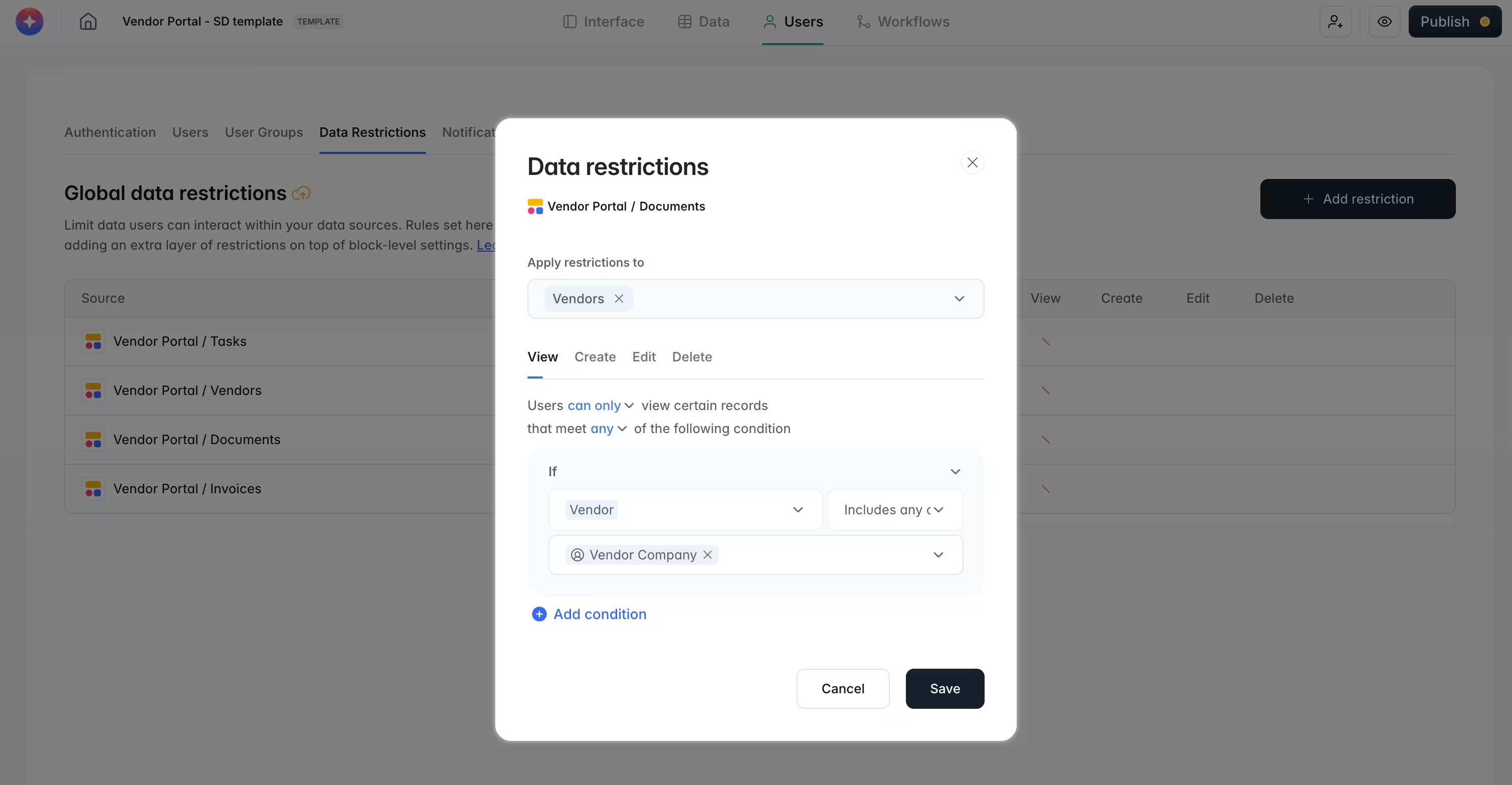
If you include these features when creating an admin panel, you will build one that is comprehensive enough to improve the effectiveness of your operations. With Softr, granular permissions are not an afterthought bolted on at the end. They are enforced globally through user groups and data restrictions, so each user only ever sees the records they are allowed to.
Admin panel design best practices
Adherence to best practices is required to design an efficient and user-friendly admin panel. These practices ensure that the panel not only meets your functional needs but also provides you with an intuitive interface to use on a daily basis.
User-friendly interface design
A user-friendly interface is critical for an effective admin panel. Clarity and simplicity are paramount; this involves using clear labels, icons, and instructions to avoid clutter by prioritizing essential features and information. Keeping the design minimalistic helps prevent overwhelming the user with too much visual information.
Responsive design for different devices
Ensuring that the admin panel is accessible and functional across various devices and screen sizes is essential. To accomplish that, an admin panel should use flexible grid systems to remain user-friendly across various mobile devices, tablets, and desktops.
Intuitive navigation and layout
Efficient navigation and a logical layout are crucial for efficiency. An admin panel should include a logical grouping of related information and functionalities, using a sidebar or a top navigation bar to separate different sections. Additionally, Breadcrumbs can be helpful, so you can keep track of your location within the admin panel.
Accessibility and usability
Accessibility is another critical aspect of admin panel design. You need to ensure that all interactive elements can be navigated using a keyboard, so those who cannot use a mouse can still use the admin panel. Another aspect of accessibility is using explanations and instructions in tooltips or icons next to elements of admin pages, so that users can better understand what they are supposed to do. This comes as a bonus in the form of a reduction of the time users spend seeking explanations and searching for documentation.
Consistent design patterns
Standardizing the appearance of elements like buttons, forms, and menus can help admin panel users predict the outcome of their actions. Utilizing micro-animations like hover effects and loading indicators provides visual feedback to users and creates a cohesive user experience.
By following these best practices, you can create an admin panel that is functional, easy to use, and accessible, ensuring a positive experience for all users.
How to build an admin panel with Softr
Here is the high-level path to building a secure, production-ready admin panel with Softr. The detailed walkthrough follows below.
- Structure your data, ideally in Softr Databases for native speed, or by connecting one of 21+ external sources like Airtable, Google Sheets, or HubSpot.
- Generate the app with the AI Co-Builder by describing the admin panel you need, or start from a template or a blank canvas. Softr is AI-first, not AI-only.
- Set up user groups and data restrictions so each role (admins, employees, vendors) sees only the data it should.
- Build your pages with CRUD actions, dashboards, and KPI cards on top of your records.
- Automate routine work with Softr Workflows, triggered directly from buttons and forms in your interface.
- Publish and invite your users, then keep iterating safely with version snapshots.
Step 1: Sign up and get started
First, you’ll need to log in to Softr. If you don’t have an account yet, you can sign up to Softr for free.

Step 2: Structure your data and plan the panel
To create an admin panel, start by structuring your data and outlining the panel's main sections and functionalities. Build your data in Softr Databases (the recommended native source) or connect an existing one. You can describe your data structure to the Database AI Co-Builder and it will generate the tables and fields for you. Then follow these steps to plan the rest:
- Identify the different users of your admin panel and their access levels;
- List its functionalities, such as user management, content management, data analytics, and system settings;
- Define your integration needs, like email marketing tools, payment gateways, and analytics platforms;
- Outline the sections you need, such as a dashboard that serves as a central overview, a place to track your performance metrics, and a location to define the settings of your admin panel, all while keeping the interface and navigation clean and intuitive;
As you follow these steps, it's important to ensure the admin panel can handle future growth and needs as your company expands. This ensures the scalability of your admin panel.
Step 3: Generate your app with AI, a template, or from scratch
With your data planned, it’s time to create the application. Softr gives you three build paths. The fastest is to describe the admin panel you need to the AI Co-Builder, which asks a few clarifying questions and then scaffolds the database, user groups, and pages for you. You can also start from one of the pre-built templates, or start from a blank canvas if you prefer to build manually.
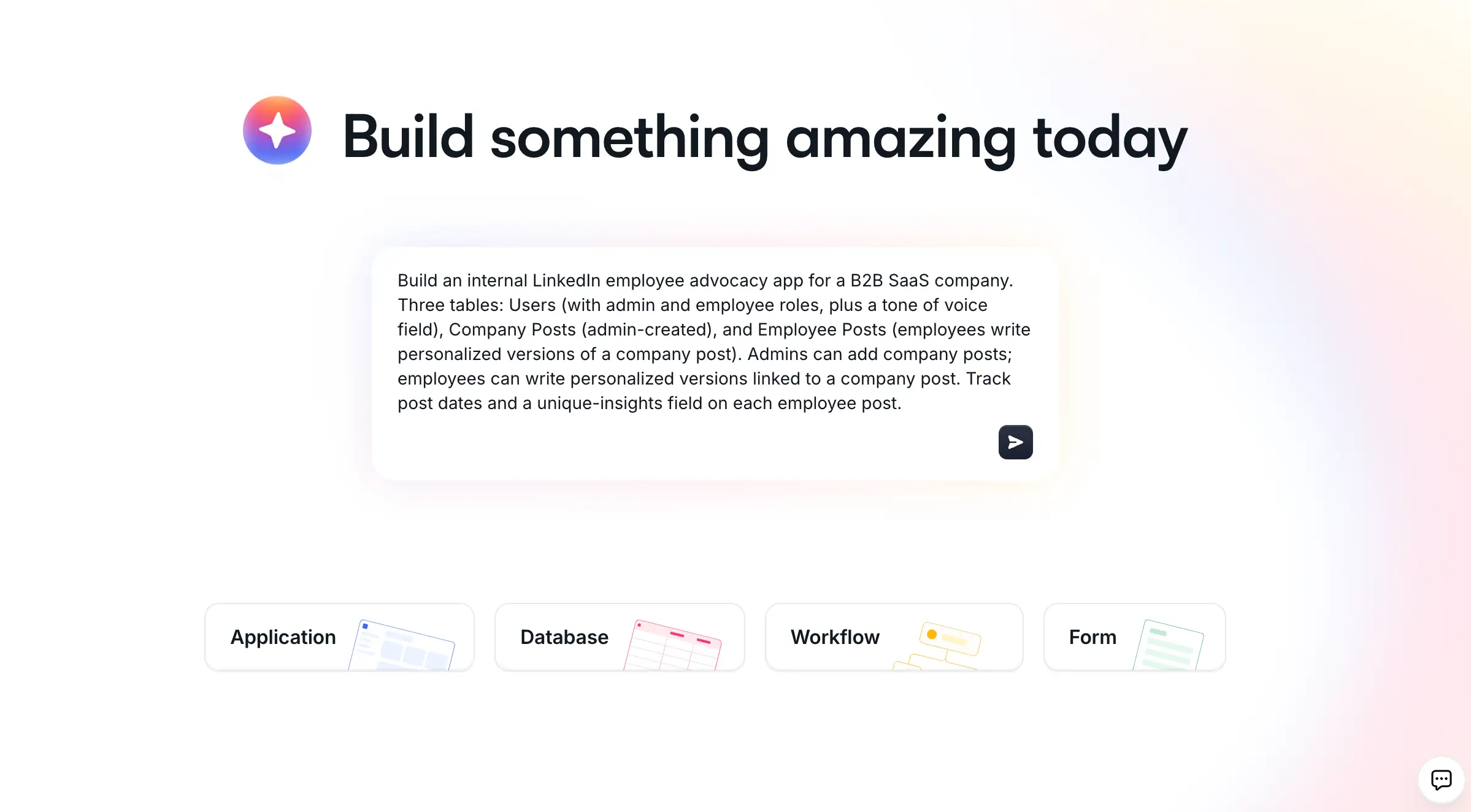
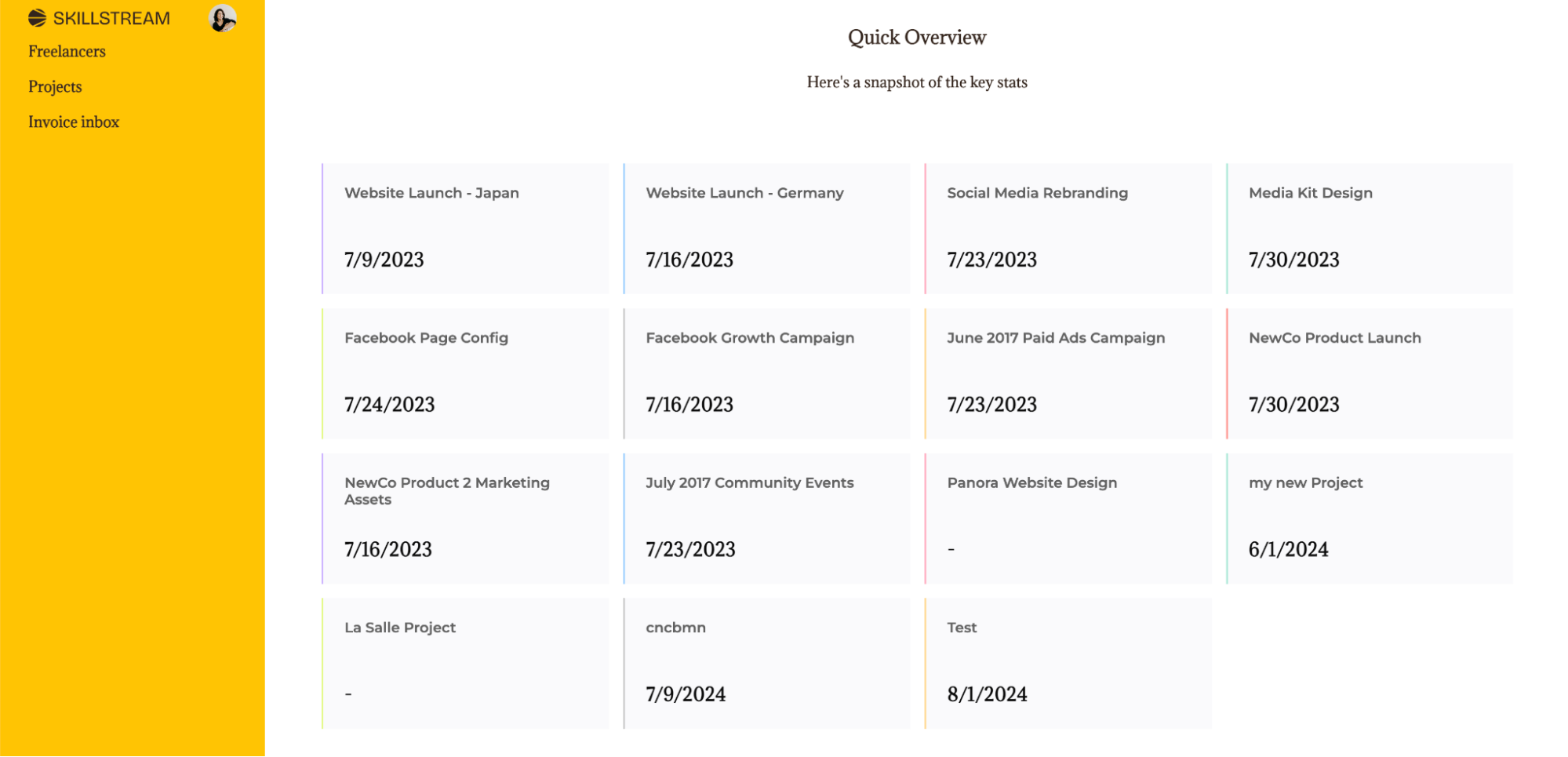
In this guide, I will be using the Freelancer Management System Template as a starting point.
Step 4: Design the user interface
When designing the interface for your admin panel, start from the structure you planned in step 2. With Softr, you add pre-built blocks (tables, lists, charts, forms, KPI cards) to your pages and adjust their positions without coding. You can also ask the AI Co-Builder to add blocks or build a full page for you by describing what you need.
For the few cases where a native block does not cover your need (a custom calendar, an inline org-chart explorer with add-user actions), reach for the Vibe Coding block, which generates a secure, custom React component from a plain-language description while still respecting your app's permissions.
Step 5: Add permissions, CRUD actions, and automations
This is where an admin panel earns its keep. Set up user groups (for example admins and employees) using conditional logic tied to your database, then enforce data restrictions globally so each user only sees the records they are allowed to. Add CRUD actions to your tables and lists so administrators can create, edit, and delete records directly from the interface with one-click action buttons. Finally, automate routine work with Softr Workflows triggered directly from those buttons and forms, or describe the automation you need to the Workflow AI Co-Builder and it will build the logic for you. If you need external tools, Softr has native integrations for Zapier, Make, and n8n.
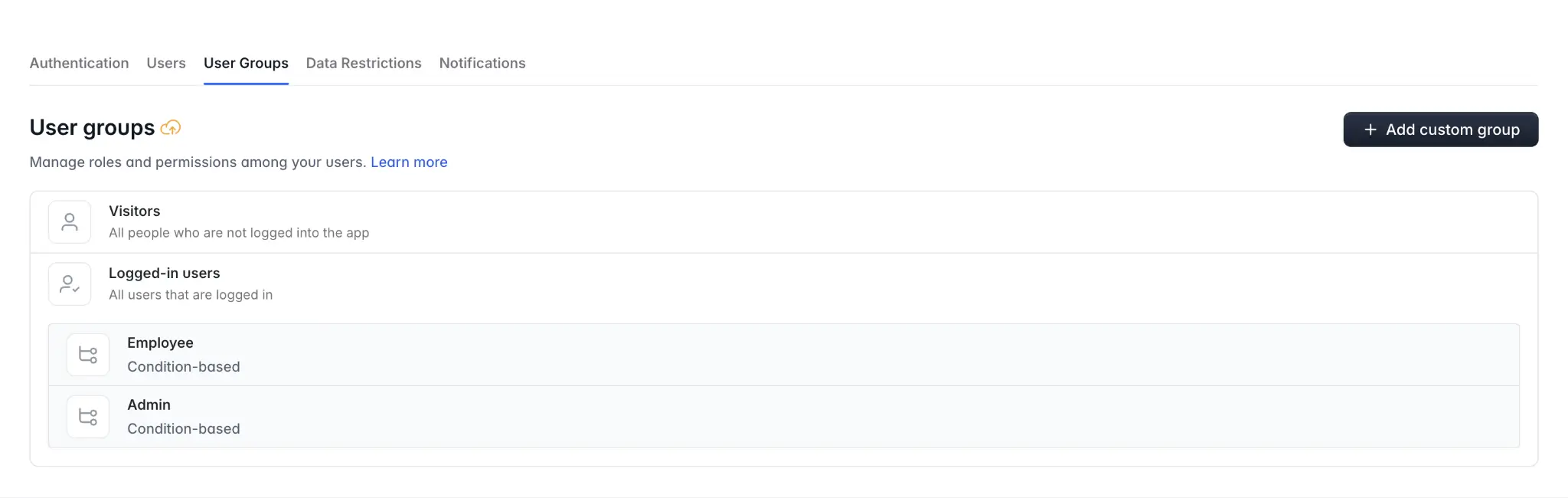
"The Softr difference is that permissions live in a visible panel, not in generated code. Visual schemas make it simple to verify block-level visibility configurations in a visual editor rather than auditing a black box of generated code." — Artur Mkrtchyan, CTO and Co-founder of Softr
Step 6: Customize and optimize
You now need to tailor your admin panel to match your brand’s look and feel and optimize for user experience.
First, customize the visual elements, using your brand colors, fonts, and logo design, ensuring consistency with your overall branding. Use Softr’s design tools to adjust the layout, spacing, and styling of elements. You can also ensure intuitive navigation with clear labels and logical grouping of features.
Step 7: Test and launch
Before launching your admin panel, thoroughly test its functionality to ensure everything works as expected. Use Preview mode and User Impersonation to log in as a specific user group and verify exactly what admins, employees, or vendors can see and do, confirming your permissions are airtight. Conduct user testing to gather feedback, identify bugs, and address any usability issues.
Once testing is complete, launch your admin panel by clicking on the “Publish” button at the top-right corner of the screen. After editing the subdomain or adding your own domain, click on “Publish.”
Step 8: Monitor and improve
After launching your admin panel, keep conducting user testing to gather feedback, identify bugs, and address any usability issues.
Should you invest in designing an admin panel?
Investing in a well-designed admin panel provides significant benefits for businesses of all sizes, enhancing website management, data security, and operational efficiency. A custom admin panel, created using no-code platforms like Softr, simplifies the management of content, user data, and site functionality, reducing the time and effort required to perform administrative tasks. These improvements in processes lead to increased productivity and better resource allocation, giving you a sense of security and confidence in your operations.
While designing a custom admin panel requires an initial investment, mostly of time, the long-term advantages far outweigh the costs. A tailored admin panel can meet the specific needs of your business, offering greater flexibility and scalability as its operations grow. Using Softr's no-code platform significantly reduces the time and expense involved in this process, making it accessible to users without extensive technical expertise.
The benefits of a well-designed admin panel are also well-pronounced for large organizations. A custom panel can efficiently handle extensive data and complex workflows, providing powerful tools to manage your large-scale operations. Centralizing management functions also streamlines internal processes, reduces administrative overhead, and enhances team collaboration.
The ROI can be substantial. When legal-tech company EvenUp needed a performance tracker for its 340+ employees and contractors, its Annotation Operations Lead built a no-code internal tool on Softr (connected to BigQuery) in 24 hours. With SSO authentication and role-based access through conditional visibility, it replaced an expensive Airtable setup and now saves the company over $6,000 per month while giving every team member a clear, self-serve view of their progress.
Common mistakes to avoid when designing an admin panel
Several common mistakes can undermine an admin panel’s functionality and user experience. The following are some key ones you should avoid.
Ignoring user experience
One of the most common mistakes is neglecting the user experience. Admin panels should be intuitive and user-friendly to ensure administrators can navigate and perform tasks efficiently. Overcomplicating the interface with too many features or poor design can overwhelm users and hinder productivity. Focus on simplicity and clarity by using clean layouts, clear labels, and intuitive navigation.
Lack of responsive design
Admin panels must be accessible across various devices, including desktops, tablets, and smartphones. Failing to implement a responsive design can limit accessibility and usability, particularly for administrators who need to manage the site on the go. Ensure your admin panel adapts to different screen sizes and resolutions.
Insufficient security measures
Security is paramount in admin panel design. Weak authentication processes, lack of role-based access control, and inadequate data protection measures can expose your website to significant risks. Implement robust security protocols automatically provided by Softr, such as SSL encryption, two-factor authentication, and regular security audits to safeguard sensitive information.
Overloading the interface with features
Cramming every possible action and view onto a single screen overwhelms users and slows them down. Prioritize the two or three most critical actions per page, group related functions together, and use tabs or separate pages to organize the rest. In Softr, you can also set role-based homepages and block-level visibility so each user group sees only the tools relevant to its job, keeping the interface clean without sacrificing functionality.
Poor performance optimization
Admin panels that are slow or unresponsive can significantly impact website management efficiency. Optimize load times by minimizing HTTP requests, compressing images, and using efficient coding practices. Implement caching strategies and ensure the database is well-optimized for quick data retrieval.
With Softr, you can confidently build an admin panel that is not only functional and secure but also automatically avoids all these mistakes.
Tips for optimizing admin panel performance
Optimizing the performance of your admin panel is crucial to ensure smooth operation and user satisfaction. I’ve compiled a list of 5 essential tips to enhance the performance of your admin panel:
1. Efficient load times
Minimizing load times for admin panels is essential for maintaining a responsive user experience. To achieve this, reduce the number of HTTP requests by combining files such as CSS and JavaScript. Additionally, using content delivery networks (CDNs) helps distribute content closer to the user by storing copies of your website’s static content on multiple servers around the world.
2. Database optimization
A well-optimized database is critical to the performance of your admin panel. To enhance database performance, write efficient SQL queries, avoid complex joins, and use pagination for large data sets. Regular maintenance tasks also help keep the database running efficiently.
3. Code efficiency
Writing efficient code is fundamental to improving admin panel performance. Remove unnecessary or redundant code and functions to streamline the application. Minify CSS, JavaScript, and HTML files to reduce their size and improve load times. You can also implement asynchronous loading to allow scripts to load in parallel without blocking page rendering.
4. Caching strategies
Effective caching strategies can significantly improve admin panel performance by reducing the need to fetch data from the server repeatedly. Client-side caching stores static assets locally in the user's browser, which speeds up subsequent page loads. Server-side caching mechanisms store frequently accessed data in memory, reducing the load on the database.
5. Responsive design
Ensuring your admin panel performs well across different devices and screen sizes is crucial. Implement a responsive design using flexible grid layouts, media queries, and scalable vector graphics (SVGs) or WebP.
By following these five tips, you can optimize your admin panel's performance, ensuring a fast, efficient, and user-friendly experience for all administrators.
Build an admin panel today with Softr
In conclusion, creating a robust and efficient admin panel for your website is essential for streamlined content management, secure user data handling, and overall improved site functionality. With Softr’s AI platform, you can easily build a customized admin panel that caters to your specific needs without coding. Softr simplifies the process, ensuring that it's accessible and manageable for web developers, small business owners, and large enterprises alike.
Try Softr free and build a custom admin panel with AI today.
Frequently asked questions
What is the best way to secure an admin panel?
Can I create an admin panel without coding skills?
How often should I update my admin panel?