Claude connectors for business: What they access, how to control them, and what to watch for



When IT turns on Claude connectors for tools like Google Drive, Slack, HubSpot, or Jira, the big question is what level of access Claude gets. In most cases, it's the signed-in user's own access, but a few connector types and settings can change that. This guide covers popular connector examples, admin controls on Claude's Team and Enterprise plans, and some potential risks to watch out for.
What are Claude connectors?
Claude connectors are integrations that give Claude access to other apps and data. Each connector is an MCP (Model Context Protocol) server, which is what allows an AI to communicate with outside tools. Connectors work in the browser version of Claude, Claude Desktop, Claude Code, and also through the API.
There are four main types of Claude connectors:
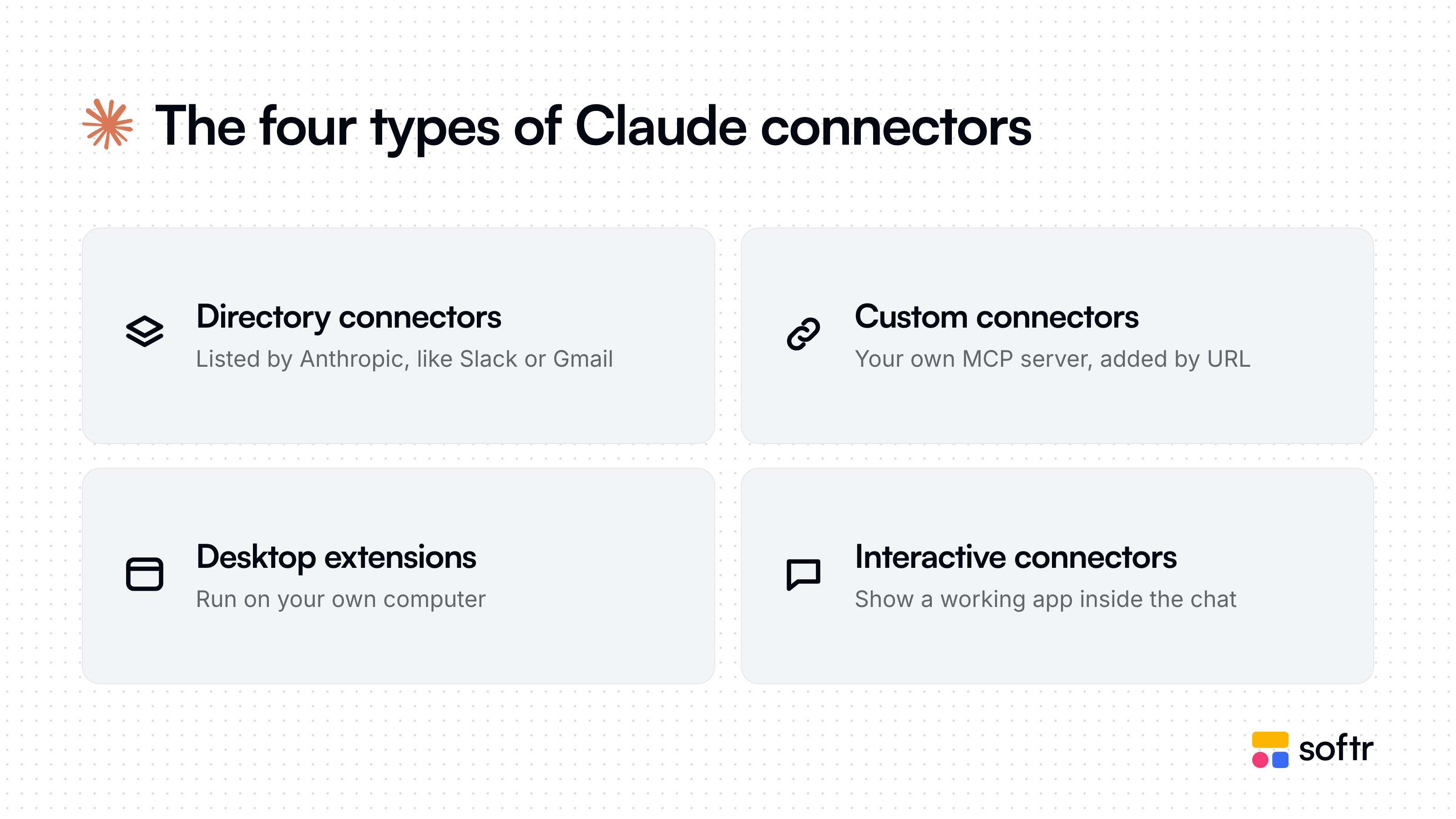
- Directory connectors: These are listed in Claude's official connector directory, which has close to 1,000 entries. Each one carries a Verified, Community, or Custom label, but Anthropic notes that verification isn't the same thing as a security audit.
- Custom connectors: A custom connector is a remote MCP server that you can add to Claude using a URL. You'll need to set up a custom connection for any vendor without a directory listing.
- Desktop extensions: These are local MCP servers packaged as
.mcpbfiles. They run on the user's computer and work exclusively in Claude Desktop and Claude Code. - Interactive connectors: These show a working interface inside the chat, such as an Asana board or a Figma file. The interface runs in a sandbox, and admins can switch these tools off separately.
Popular Claude connectors for business
Many business apps are already featured in the official connector directory. Here are some popular examples and what you can do with them through Claude:
Some apps require a bit more setup, though. Microsoft 365 needs a Global Admin to approve the connection in Microsoft Entra, and Salesforce’s connector (still in beta) only works after a Salesforce admin turns on its MCP server.
What data can Claude access through connectors?
Typically, Claude gets the same access through a connector as the person using it. Each user signs in to the connected tool with their personal account, so Claude inherits that account's permissions. If a sales rep can only open their assigned deals in HubSpot, Claude can only open those deals too.
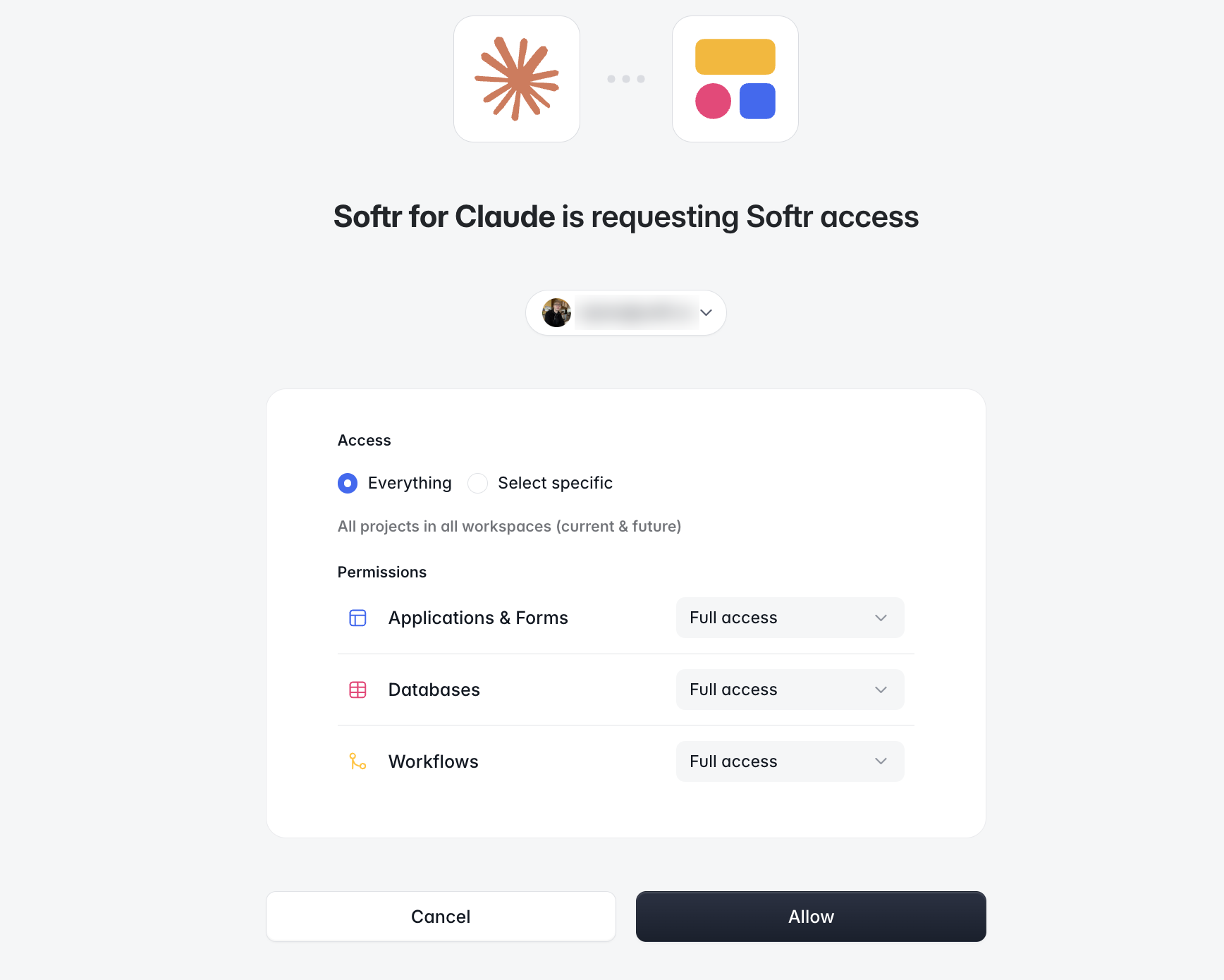
In the image below, you can see I've opted to give Claude full access to my Softr workspaces through Softr MCP, but I could just as easily limit it to read-only or close off specific apps and databases.
However, things work a little differently if you use a shared login. A custom connector can use one fixed credential, like an API key, for multiple people. This means that every user gets the key's full access, and the source tool can't tell those users apart.
[.blog-callout]
Is connector data used to train Claude?
Connected services manage data on their own servers and under their own terms. Anthropic doesn't train its models on Gmail, Google Drive, or Google Calendar connector data. Commercial plans also don't use chat inputs for training by default.
[.blog-callout]
Admin controls for Claude connectors on Team and Enterprise
Owners on Claude Team and Enterprise plans determine which connectors can be used and what those connectors do. Note that these admin controls can only narrow access, since a user's permissions are set by the source tool.
Team and Enterprise:
- Turning connectors on: An Owner enables each connector for the organization. Enabling it doesn't grant access, because each person still has to sign in with their own account.
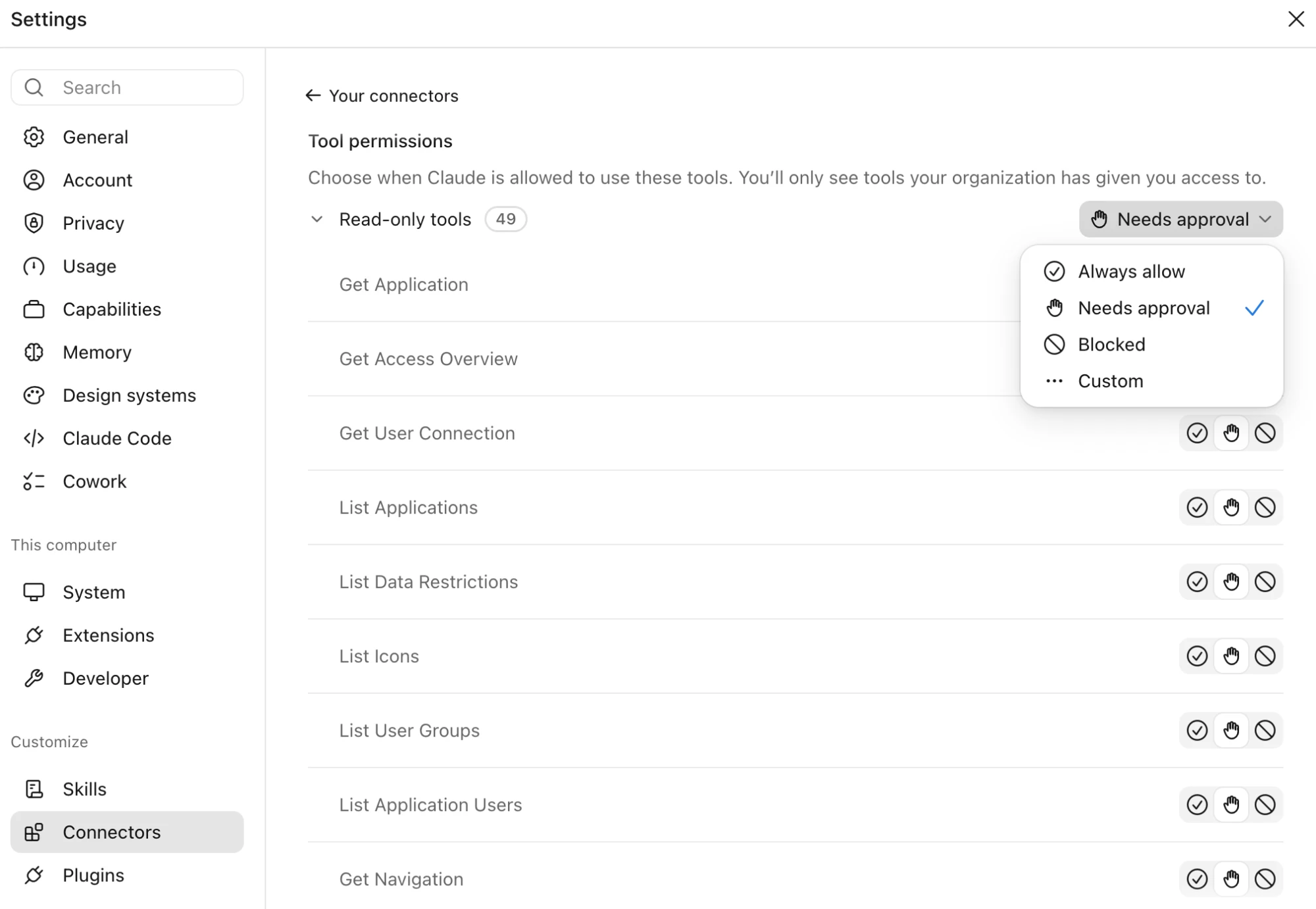
- Tool permissions: Owners can set each tool to Always allow, Needs approval, or Blocked. The setting applies to everyone who uses the connector.
- Enterprise-managed authentication: Admins authorize a connector once through Okta, and access follows the rules in the identity provider. Despite the name, this feature is available on Team too.
- Private projects only: On Team and Enterprise, connectors only work in private projects. Chats with synced content from a connected app can't be shared.
- Connector requests: Members of your organization can ask for a new connector, which an Owner then approves or declines. Requests are switched on by default for Team and off by default for Enterprise.
- Desktop extension allowlists: Owners choose which desktop extensions members can install. Note that the allowlist is off by default, meaning members can install any extension until an Owner turns it on.
Enterprise only:
- Role-based connector permissions: Custom user roles get their own permission settings for each connector or tool. A new role starts with tools set to Needs approval. Roles can be assigned to groups that sync from your identity provider through SCIM.
- Verified-domain restrictions: Owners can prevent accounts from outside your company from connecting work logins on your verified domains. Anthropic notes that this restriction doesn’t disconnect logins that are already connected.
Custom connectors: Network access and data location
Claude calls custom connectors from Anthropic's cloud, not a user's computer. This is true in the browser, Claude Desktop, and Cowork. As a result, Claude can't reach a server that only exists inside your company network. You have two options:
- IP allowlist: Make the server reachable from the internet, then allow only Anthropic's outbound range,
160.79.104.0/21, through your firewall. Anthropic no longer uses its older34.162.x.xaddresses, so remove them from any earlier rules. - MCP tunnel: For servers that can't be exposed at all, Enterprise customers can request an outbound-only tunnel. The server then needs no public endpoint and no inbound firewall rules. Tunnels are still a research preview.
Data location is a separate question. Claude doesn’t decide where a connected app stores its data. If that's important, be sure to check each vendor’s data processing terms and hosting region before you enable its connector.
Which Claude connector type fits which team?
Connecting Claude to internal data without a ready-made connector
Bespoke internal databases and tools won't usually have a directory connector. If you choose to build a custom one, require per-user sign-in instead of a shared login. Per-user sign-in maintains the rule that Claude sees only what the user sees (and it ensures every action traces back to a person).
Softr's App as MCP is one way to do this. Any Softr app can act as its own MCP server, with each user signing in as themselves. The app's user groups, page visibility, and data restrictions determine what Claude can (or can't) read and change. App as MCP is available on every Softr plan: simply turn it on in the app’s settings, then add the app in Claude as a custom connector.
Limits of Claude connectors
Each connector you turn on comes with the possibility of added costs and risks. At a minimum, be prepared to plan around these three limits:
- Context and token cost: Each connected tool's description takes up space in Claude's context. In one example from Anthropic, five MCP servers with 58 tools used about 55,000 tokens before the conversation even started. If you have 10 or more connectors active, Anthropic suggests switching tool access to On demand.
- Prompt injection: External servers and content that a connector reads can carry hidden instructions. Use Always allow only for tools you trust to run unsupervised. Turn off write tools before you use Research, which can call tools without asking again.
- Changing tools: A connector’s developer can change what its tools do without notice, so review permission settings from time to time and keep an eye out for unexpected behavior.
Connect Claude to your apps and data with Softr
Softr works with Claude in two ways. The official Softr connector in Anthropic's directory lets your team build and manage apps, databases, and workflows by chatting with Claude. Once an app is live, App as MCP lets each person use it through Claude, with the same user groups and data restrictions they have in the app.
Softr MCP is free on any plan, and using it doesn't consume AI credits. Sign up now, add the connector in Claude, and get started.
Frequently asked questions
What are connectors in Claude?
Are Claude connectors secure?
Does Claude Pro allow connectors?
What's the difference between connectors and MCP in Claude?
Does Claude have a SharePoint connector?