
[.blog-callout]
TL;DR
- You cannot delete the primary field in Airtable, but you can change its content and switch its field type.
- The trick is to copy your primary field data into a new column first, then edit the primary field's type and name so nothing gets lost.
- Always double-check your data after the change, since some field types reformat or drop values that no longer fit.
- Once your data is clean, you can connect Airtable (one of 21+ data sources) to Softr and turn it into a real business app, or start fresh with Softr Databases. [.blog-callout]
Airtable’s user-friendly interface and adaptable features have made it a popular tool for many businesses and teams to manage their tasks and data. One common task you might run into is adjusting the primary field, which sits at the center of every Airtable base. Getting it right matters most when that data feeds into something downstream, like a client portal or an internal tool.
While you cannot delete the primary field in Airtable, the steps below let you change its content and customize its type without losing anything. Always double-check your data after making these changes to keep it accurate and consistent.
A clean primary field pays off the moment your base stops being a spreadsheet and becomes the backbone of an app, like the vendor portal below built on top of that same data.

Step 1: Create a new field
Start by navigating to Airtable and opening your desired base. The primary field will be the first column on the left.
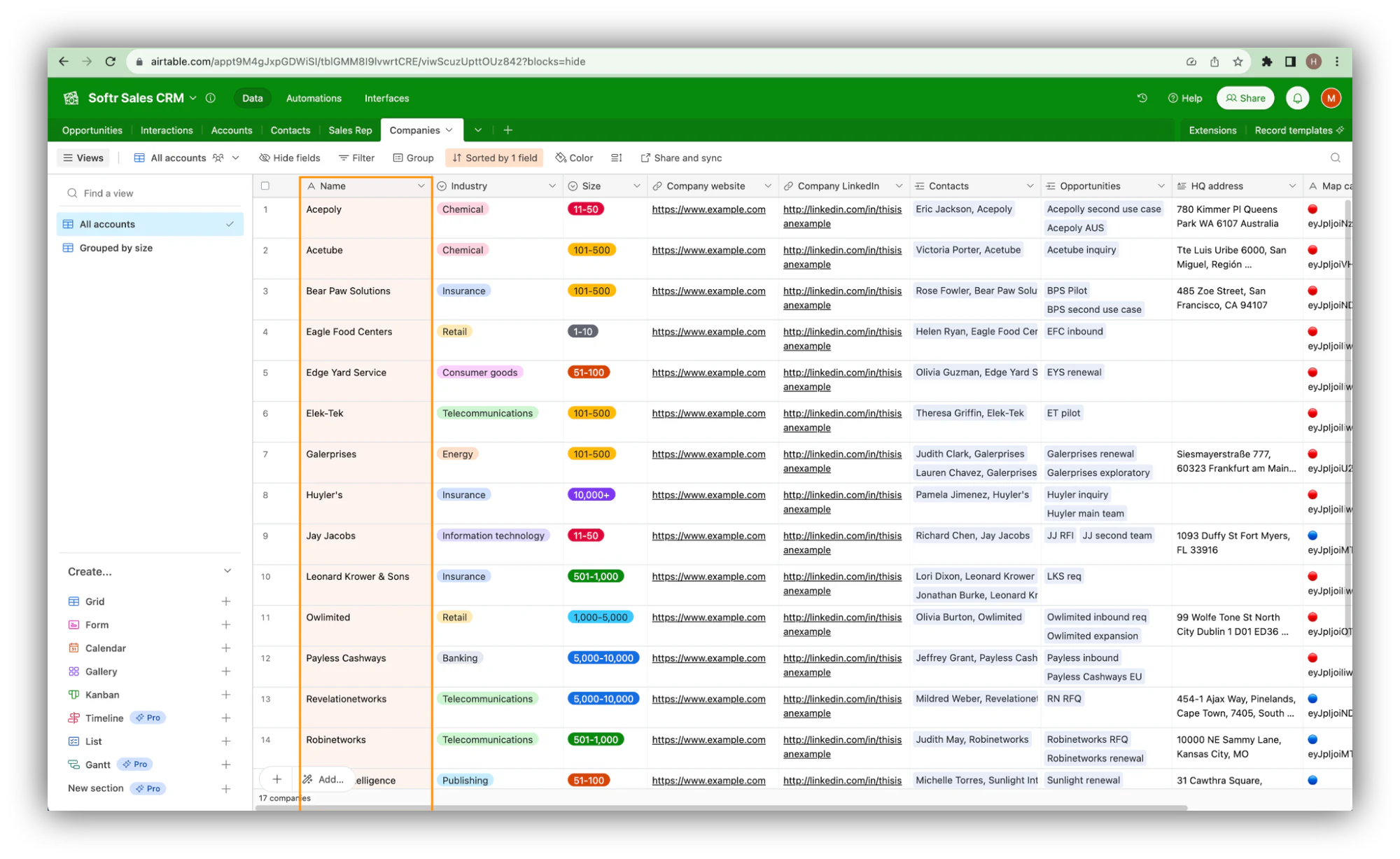
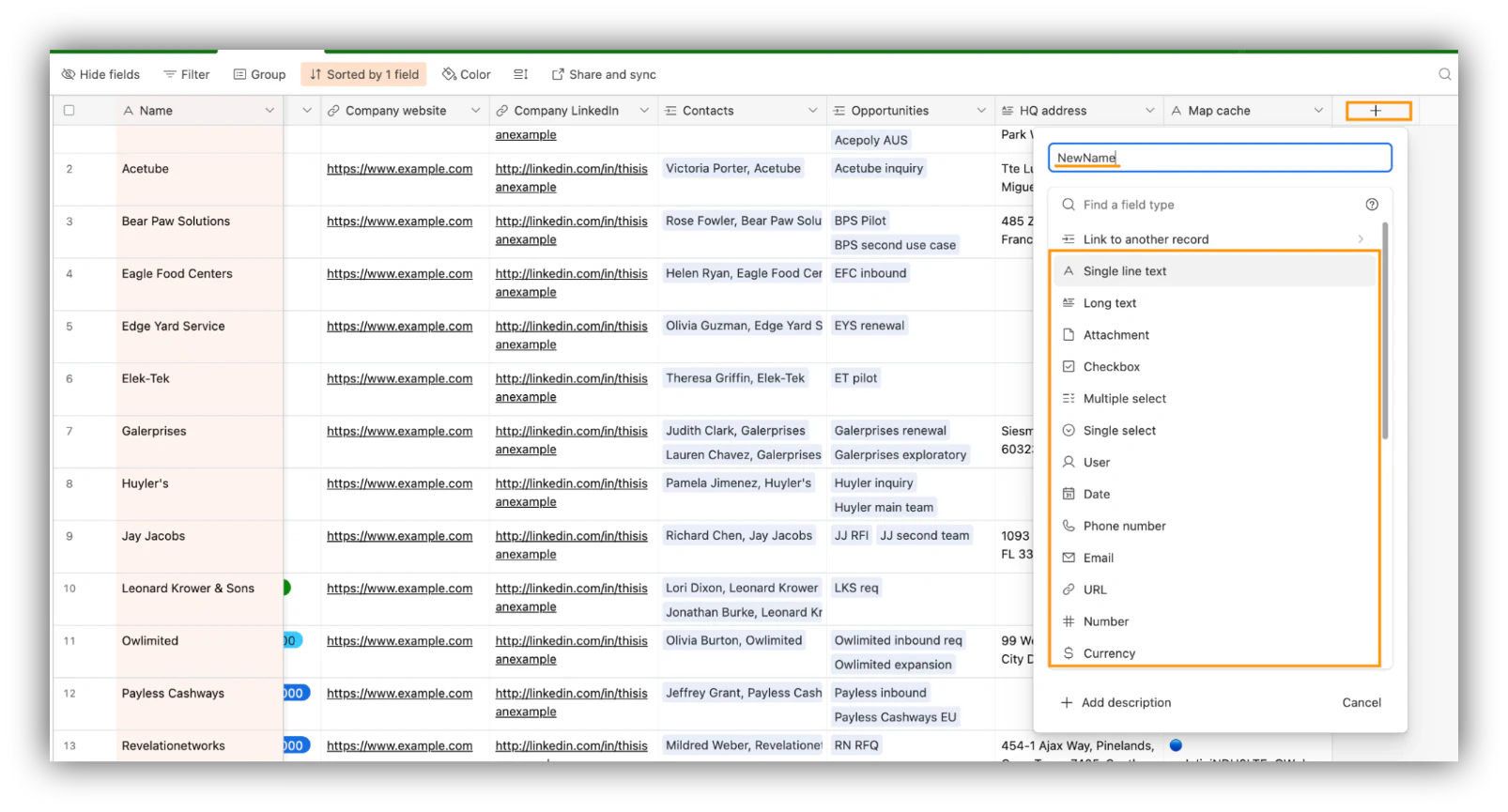
Beside the columns, you'll find a “+” button. Click on it.
Choose the desired field type, name this new field according to your preference, and hit the Create field button.

Step 2: Copy data from the primary field
In order to change the type of the primary field in Airtable, you need to delete the data in that column, because the requirements of the new field type will be different from the old one. So that you don’t lose any data, you need to copy it to the new field. To do so, select all the data present in the primary column and use Cmd+C or Ctrl+C (on MacOS or Windows, respectively) to copy the selected data.
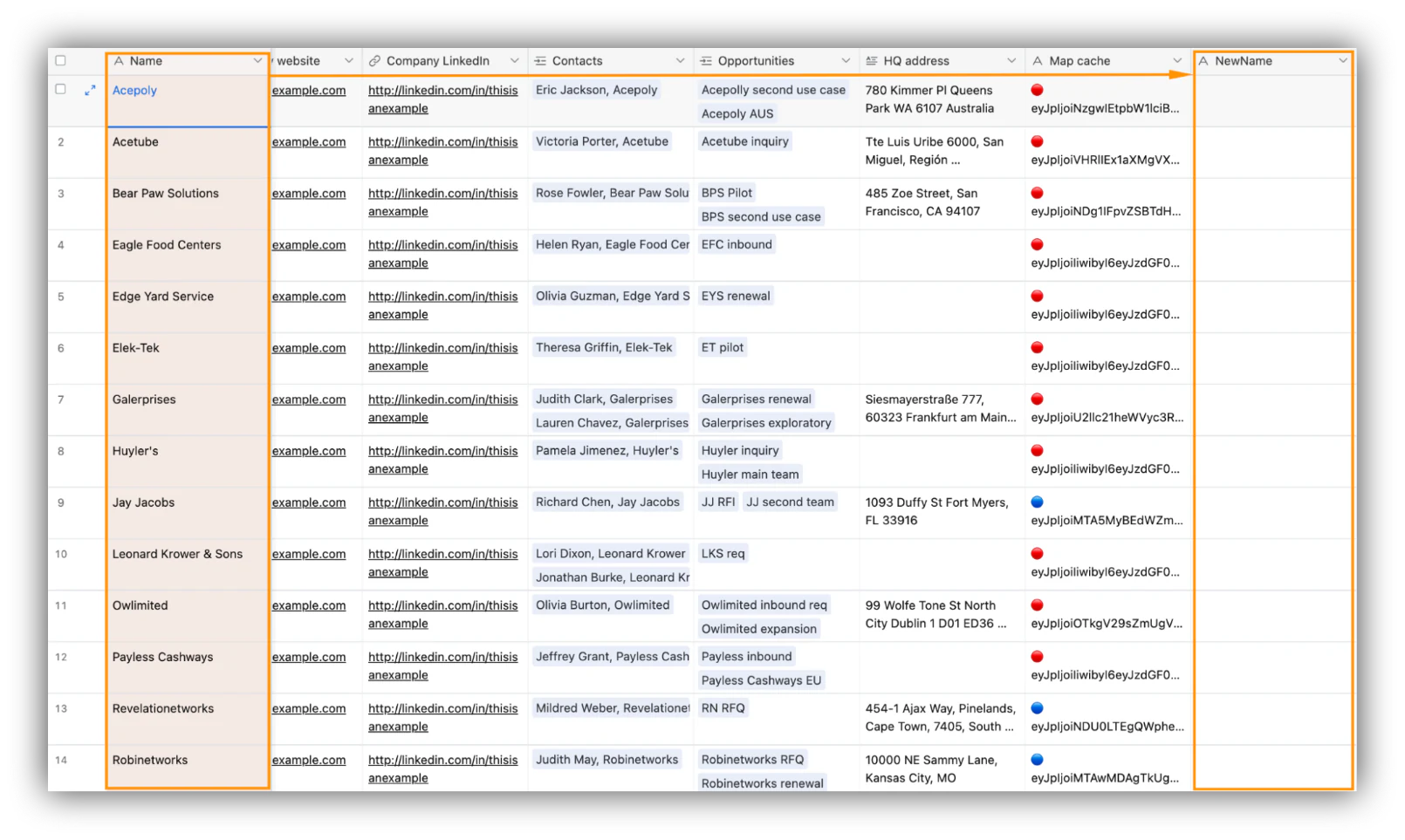
Navigate to the newly created column. Click on the first cell beneath the field name and paste the data through Cmd+V or Ctrl+V, depending on your operating system.

Step 3: Customize the primary field
Now you can customize your primary field, as if you’re creating a new one. This means you can change its name, change its type, and other configurations.
Step 3.1: Edit field
Click on the downward pointing arrow located on the right of the primary field name.
Click on the “Edit field” option, which is typically the first on the list.

Step 3.2: Change the field type
A tab will appear, displaying the current field type. Press the downward pointing arrow next to it. This will allow you to change the type of primary field into text, numbers, dates, durations, barcodes, and more.

Step 3.3: Change the field name
Rename your primary field according to your needs and confirm your changes by clicking on the “Save” button.

Step 3.4: Confirm your changes
If a popup appears, read it to make sure you are aware of the impact on other fields. If you agree, hit “Confirm the change.”

Moving forward, remember to input any new data into your adjusted primary field to keep your database consistent and accurate.
Turn your clean Airtable base into a real app
Once your primary field and data are in good shape, your Airtable base is ready to power more than a spreadsheet view. With Softr, you can build a client portal, internal tool, or custom CRM directly on top of it, with proper users and permissions, dashboards, and forms, all without code.
"I find Softr very intuitive and easy to navigate, which is great for someone who is not a programmer by nature. It integrates very nicely with Airtable and other databases we are already using, making it nice that it just sits on top of the systems we have." - Natalie S., Director of Operations, G2 review
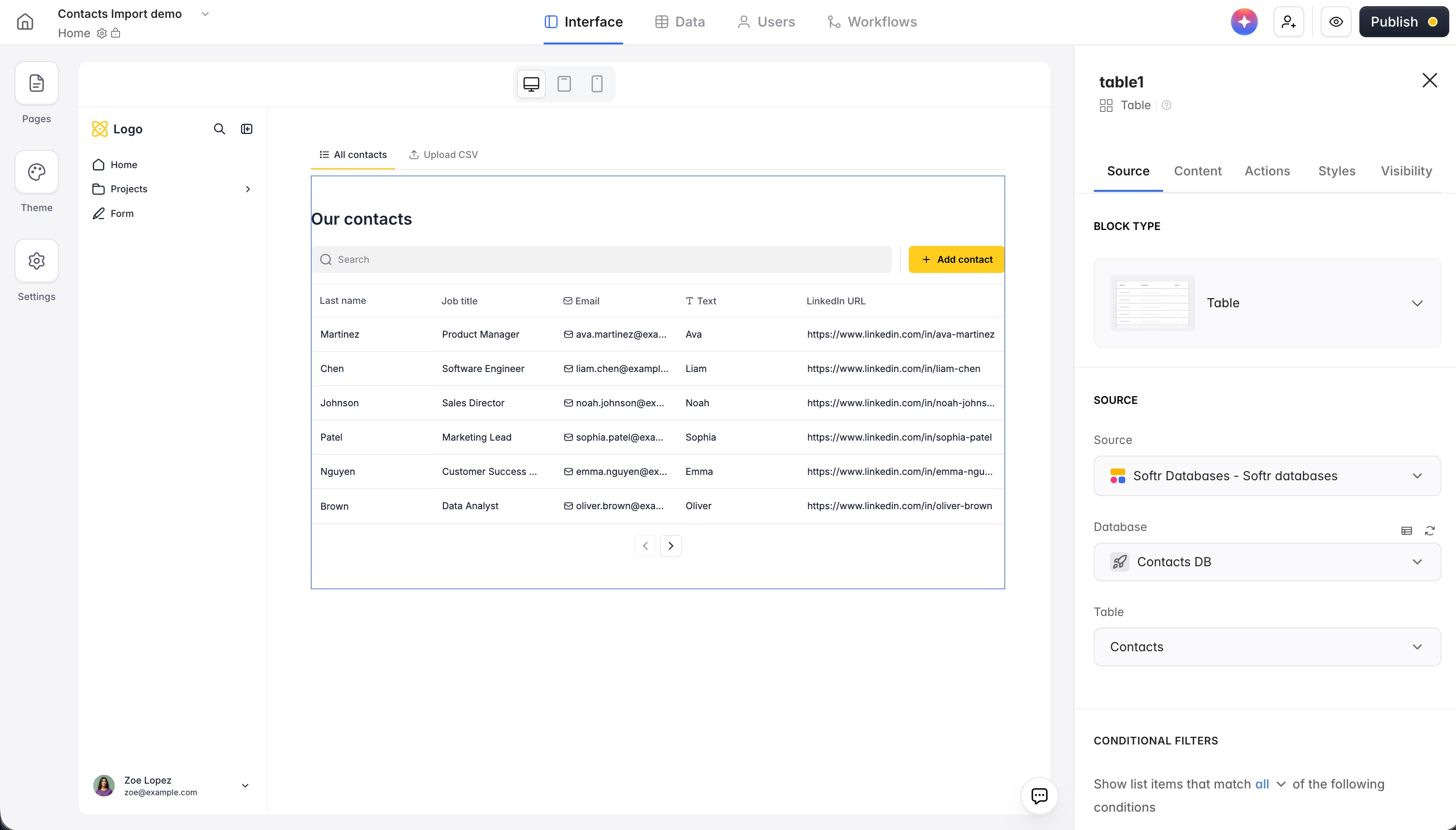
Airtable is just one of 21+ data sources you can connect, alongside Google Sheets, HubSpot, and Softr's own native databases. If you'd rather not wire everything up by hand, describe what you need and the AI Co-Builder generates a working app for you, then refine it from there. Start with clean data, and the app builds out fast.
Frequently asked questions
Can you delete the primary field in Airtable?
Why can't I just change the primary field type directly?
What field types can the primary field be in Airtable?
Will changing the primary field break my linked tables or formulas?
Can I use my Airtable base to build an app?