How to use AI workflows to extract tasks from meeting transcripts

Every team has the same gap: a meeting ends, action items were discussed, but nobody tracks them in the right place. And even though most meeting recorders will suggest tasks, they wind up sitting in an inbox instead of your project management tool.
The fix is a workflow that listens, analyzes, and acts. In this guide, we'll build an AI workflow in Softr that takes a meeting transcript, extracts every actionable task, assigns each one to the right person, and creates database records automatically.

Forget manual entry or copy-pasting from your meeting notes. Just submit the transcript and let the workflow do the rest.
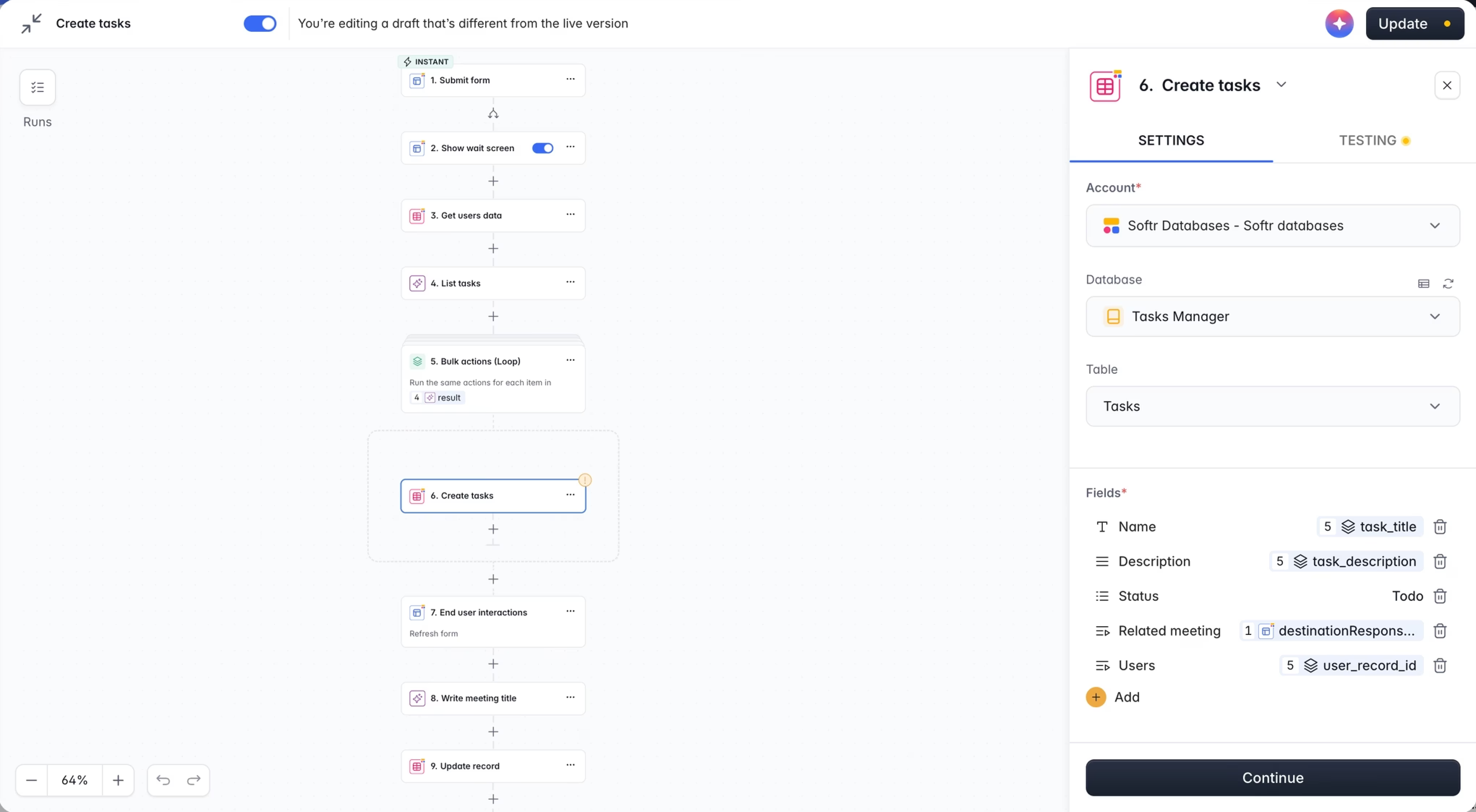
The workflow at a glance
Before diving into the details, here’s the full sequence we’ll be building:
- Trigger: A user submits a meeting transcript through a form. The form is connected to a UI workflow, so the user sees a loading screen while the AI processes.
- Fetch context: The workflow pulls all users from the database so the AI knows who can be assigned tasks.
- AI task extraction: An AI Custom Prompt analyzes the transcript and returns a structured list of tasks in JSON format, each matched to a specific user.
- Bulk create: A loop runs through the AI's output and creates one task record per item in the database.
- AI meeting title: A lightweight AI step generates a short, descriptive title for the meeting.
- Update meeting: The generated title is saved back to the meeting record.
Once the user clicks Submit, they wait a few seconds. When it finishes, their meeting has a title and their tasks are ready to go.
What you'll learn
- How to connect a form to a workflow that gives the user real-time feedback (a loading screen and a completion action)
- How to fetch contextual data before an AI step so it can make accurate decisions
- How to use structured AI outputs (JSON schemas) so the AI returns predictable, machine-readable data
- How to loop through AI results and create database records in bulk
- How to chain multiple AI steps with different models to balance quality and cost
Prerequisites
This guide assumes you have a Softr app with a basic database already set up. If you’re starting from scratch, follow our full meeting task manager tutorial covering the database design, form setup, and front-end interface in addition to the workflow.
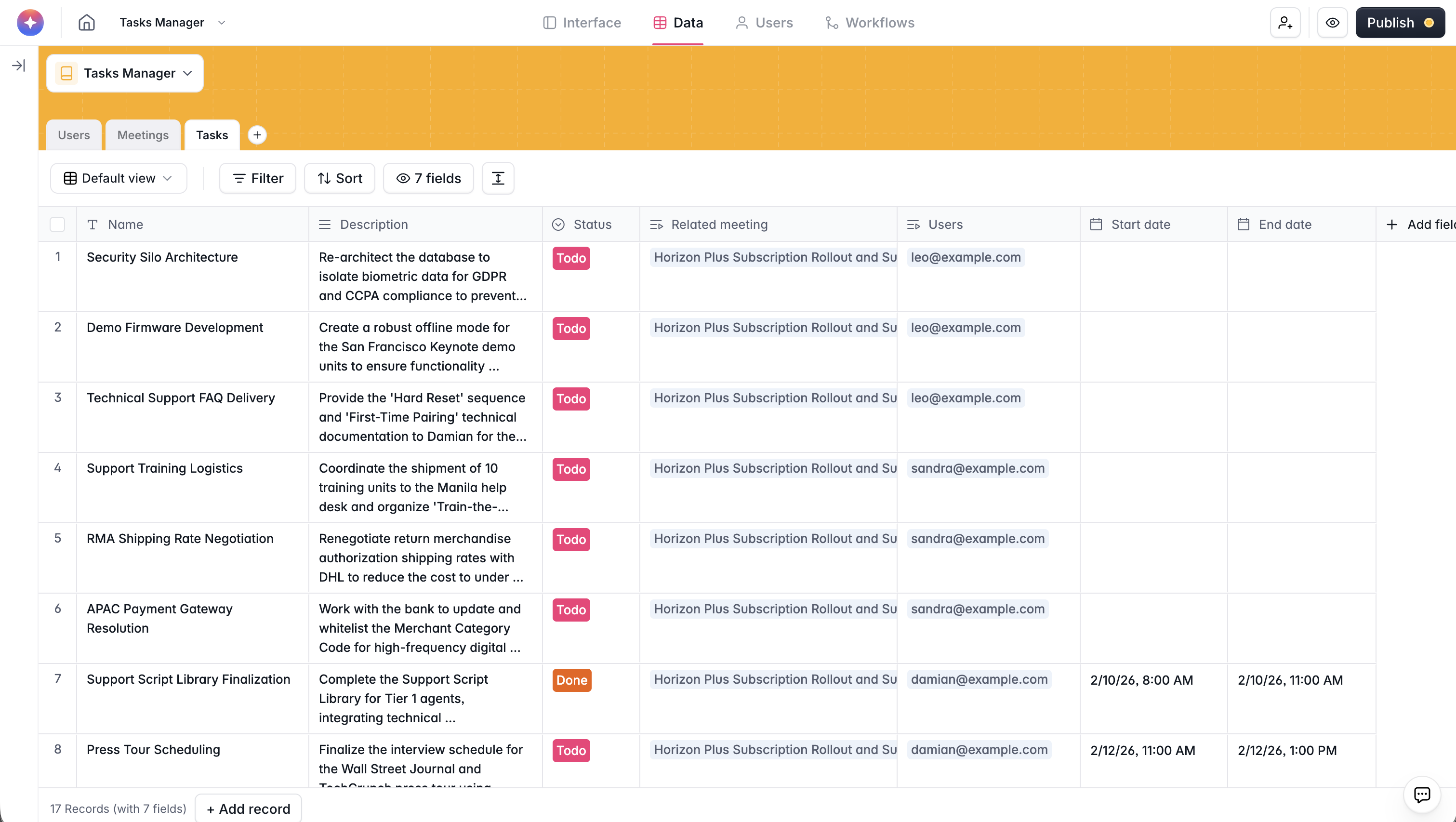
You’ll need three tables in your Softr Database:
- Users: Each person on your team, with Email as the primary field and a Full Name field.
- Meetings: Each meeting record, with a Title (Text), Transcript (Long Text), and Date (Date) field.
- Tasks: Each task, with a Name (Text), Description (Long Text), Status (Select: To Do, In Progress, Done), Start Date, End Date, and Linked Record fields connecting to both Meetings and Users.
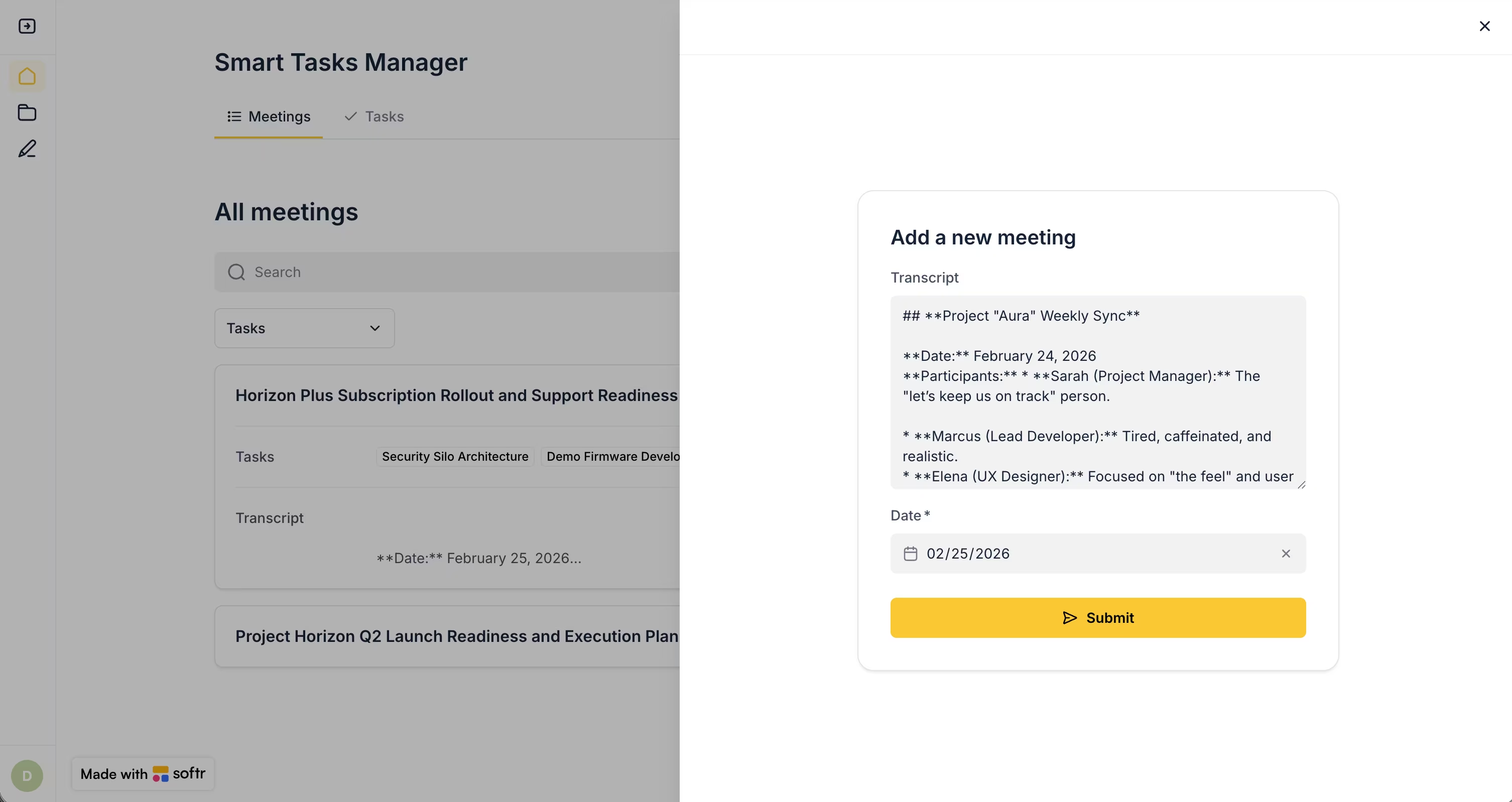
You’ll also need a Form block on a page in your app, connected to the Meetings table with Transcript and Date set as visible fields.
Step 1: Connect the form to a UI workflow
Most workflow tools run silently in the background. The user submits a form and hopes something happened. With Softr, you can create a workflow that is directly connected to the form's UI. This gives you two things other tools can't: a wait screen and a proceed action.

Setting up the trigger
- Open the form block you created for meeting submissions.
- In the block's Steps section, find the form ending configuration.
- Select Run Custom Workflow as the destination.
- Click Create to open the workflow builder.
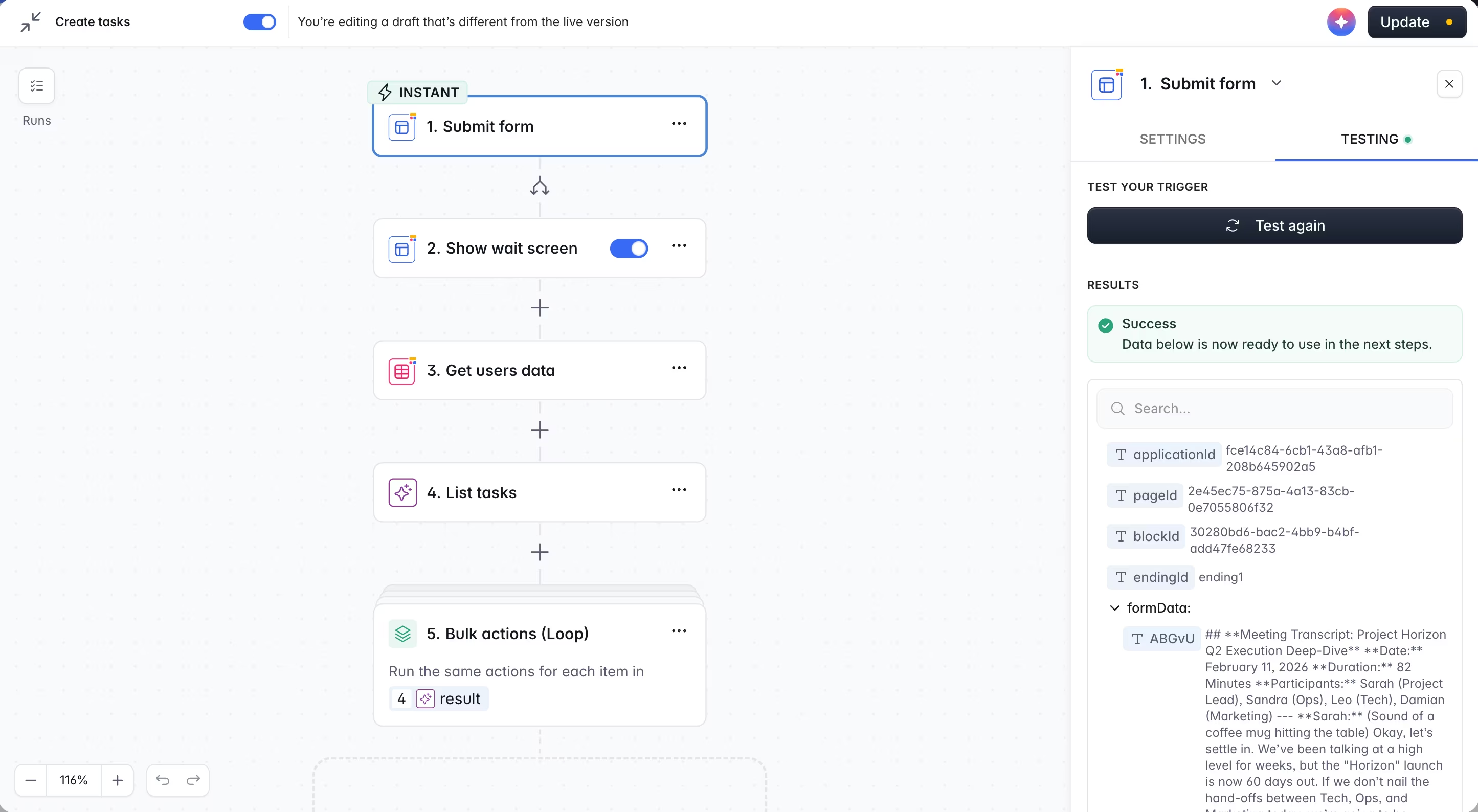
This creates a UI-connected workflow. When the user clicks Submit, they see a loading screen while the workflow runs. You control what happens when it finishes: redirect to another page, show a success message, or reload the current page.
Why this matters
This type of tight UI integration is something you typically lose when connecting to a third-party workflow engine like Zapier or Make. Those tools run in the background with no way to show the user what’s happening or what the result was. But because this is a Softr workflow, the automation and the app live in one system.
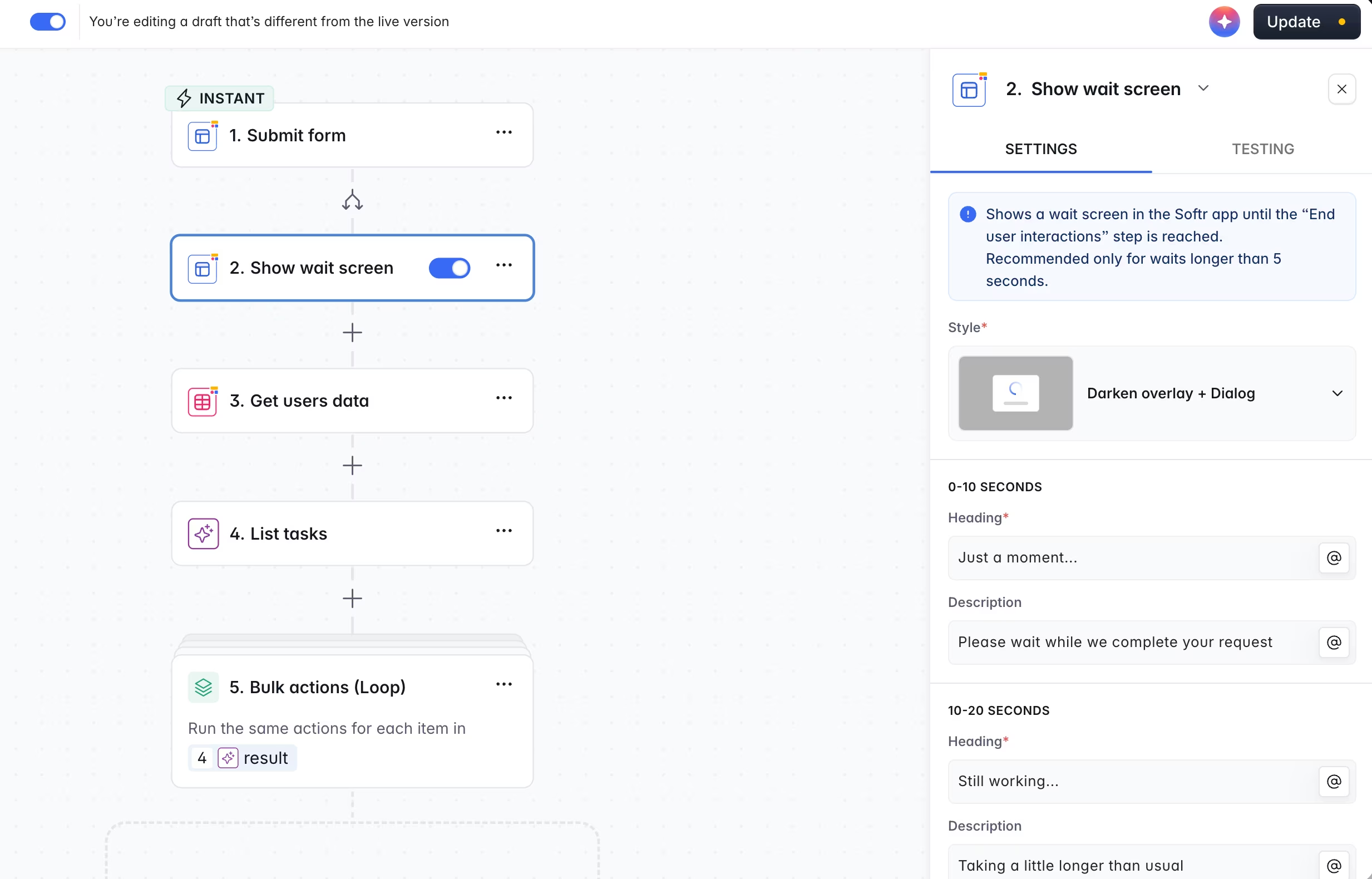
The trigger also gives you access to two valuable data sources:
- Form data: The raw values the user entered (the transcript text, the date).
- Destination response: The database record that was created, including its Record ID. We will use this Record ID later to link tasks back to their meeting.
Step 2: Fetch user data
Before the AI can assign tasks to the right people, it needs to know who those people are. So, let’s give it a list of all our team members with their names and Record IDs.
- In the workflow builder, add a new action: Find multiple records (from the Softr Database actions).
- Select the Users table.
- Do not add any conditions. We want to include all users so the AI can match names from the transcript to real user records.
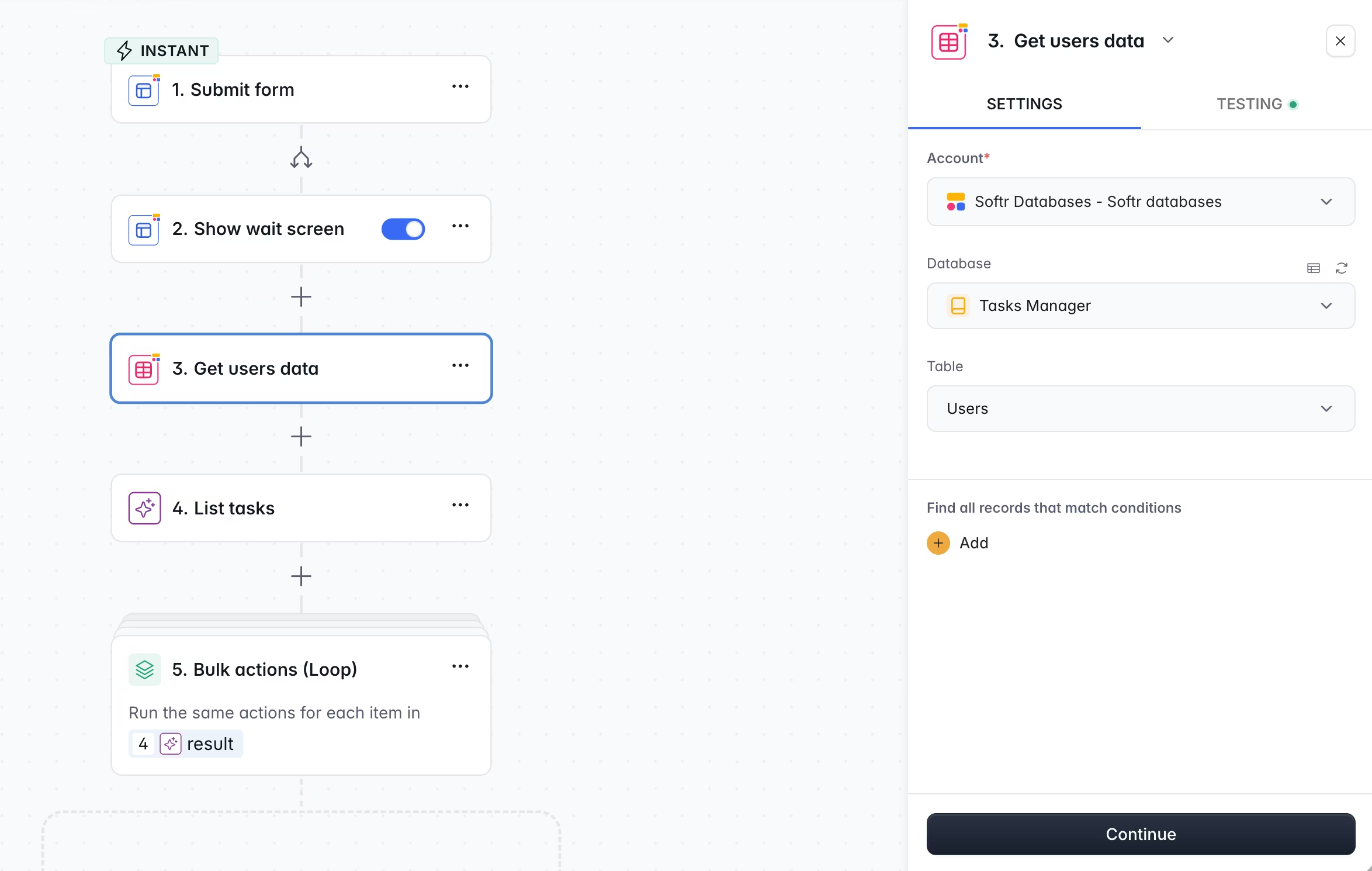
The result of this step is a list of user objects, each containing a name, email, and Record ID. The AI will use this to map "Sarah" in the transcript to a specific user record in your database.
Scaling tip for large teams
If your app has hundreds of users, passing the entire list to the AI is wasteful and can degrade response quality. A better approach for large teams is to split this stage into two phases:
- First AI step: Extract only the names mentioned in the transcript (using a simple structured output like
["Sarah", "James", "Priya"]). - Find step: Use those names to query the Users table and fetch only the relevant records.
- Second AI step: Match the extracted tasks to the filtered user list.
For small teams (under 100 people), the single-step approach shown in this guide works perfectly. The AI gets the full context in one pass, and the token cost is negligible (but we'd recommend adding a data transformation step to only keep the user names and emails and avoid sending any other non relevant data which would create noise for the AI).
Step 3: AI task extraction with structured output
This is the core intelligence of the workflow. We will use an AI Custom Prompt step to read the transcript, identify every actionable task, and return a structured list that we can process in the next step.
Adding the AI step
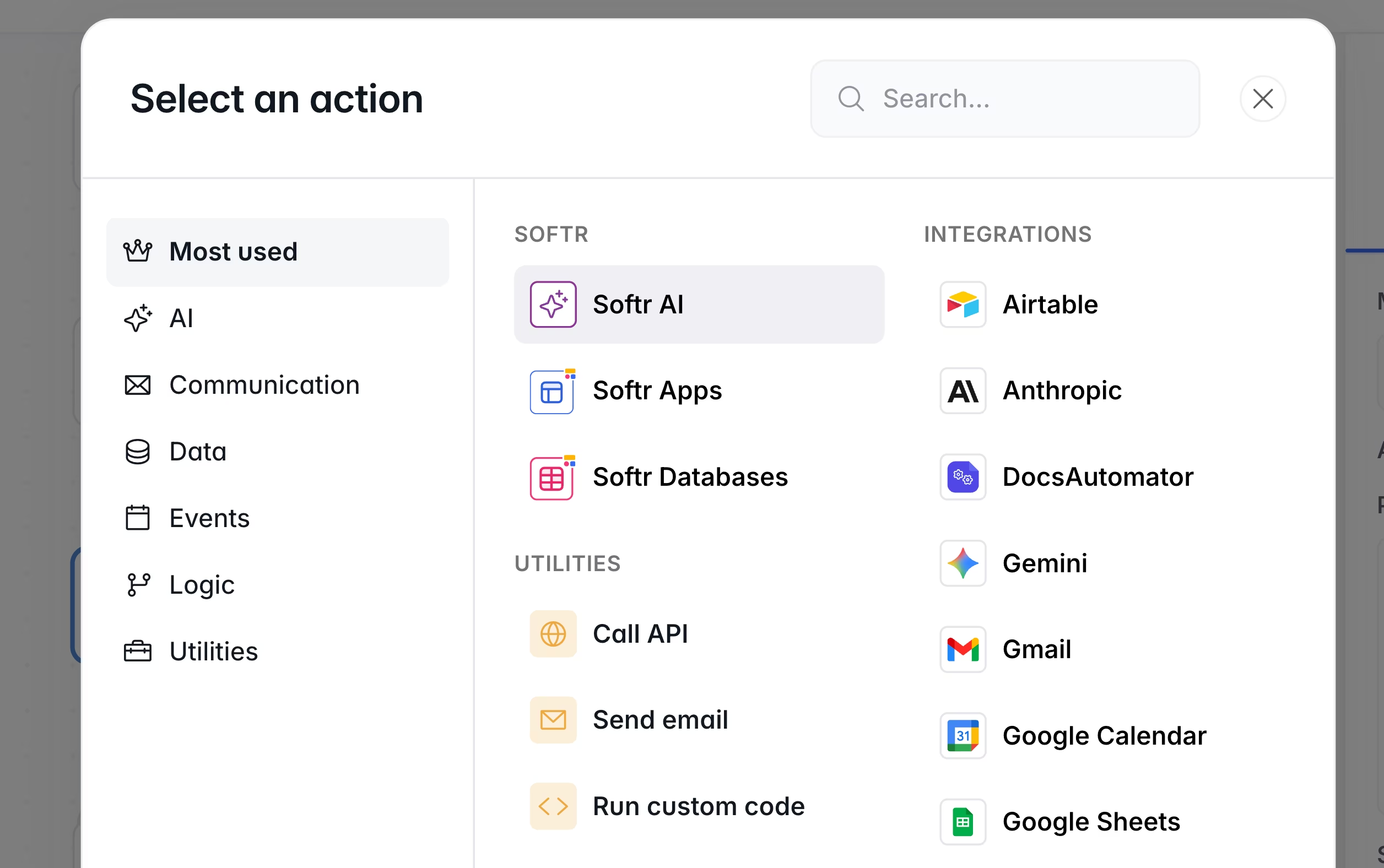
- Add a new action: AI Custom Prompt (under the AI category).
- Choose a capable model. For complex text analysis involving multiple tasks and user matching, we recommend GPT-5.2 or Claude Sonnet 4.6.
Writing the prompt
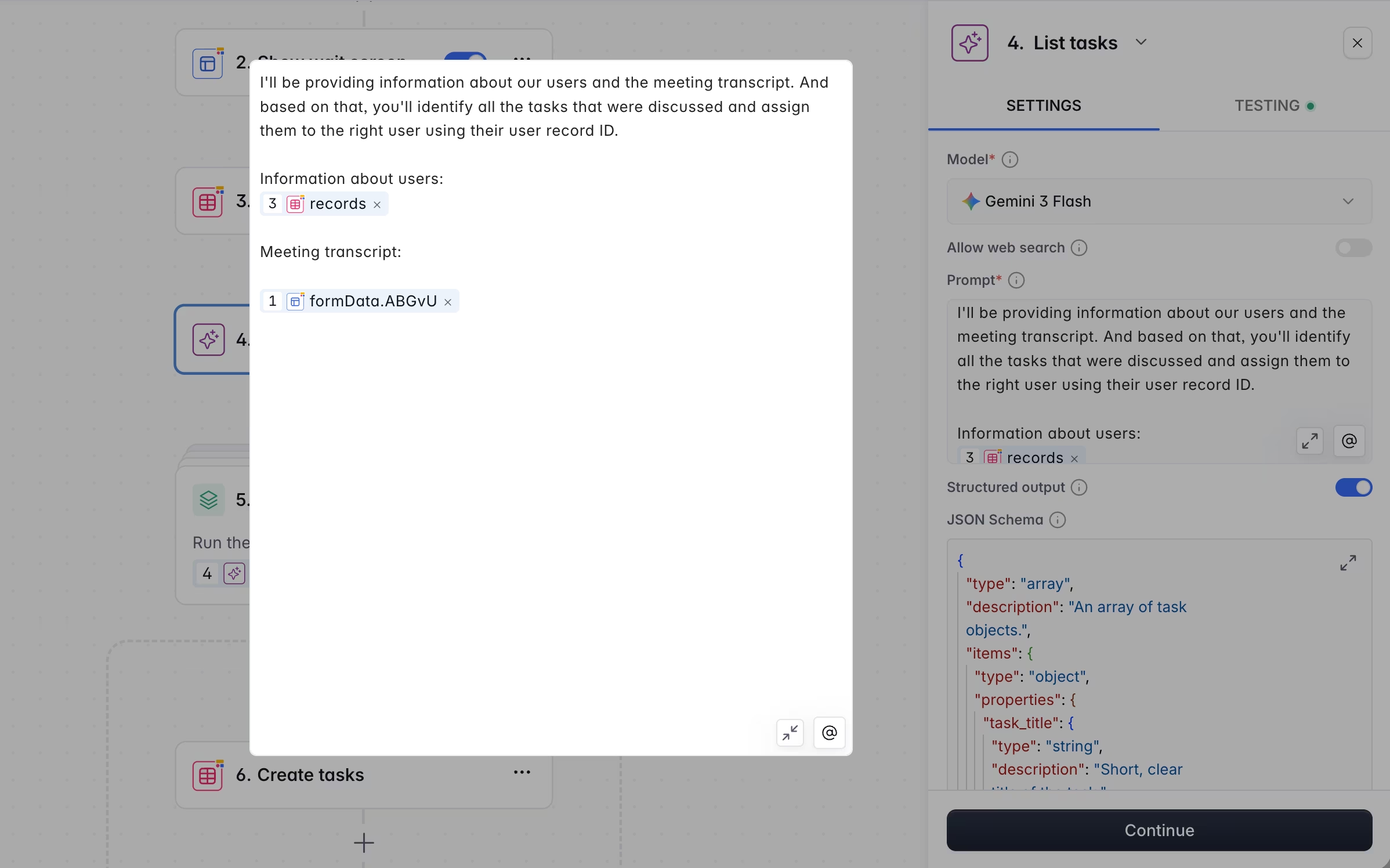
The prompt needs to provide two pieces of context: the list of users and the transcript itself. Here’s the one we used:
I'll provide a meeting transcript and information about our team members.

Based on the transcript, identify all actionable tasks that were discussed. For each task, assign it to the most relevant team member using their User Record ID.

Information about users:
@users

Meeting transcript:
@transcript

Based on this, identify all tasks and assign them to the right user using their User Record ID.
By using the @ symbol, you ensure your workflow is connected correctly and your data is flowing exactly where it needs to go.
The JSON schema for structured output
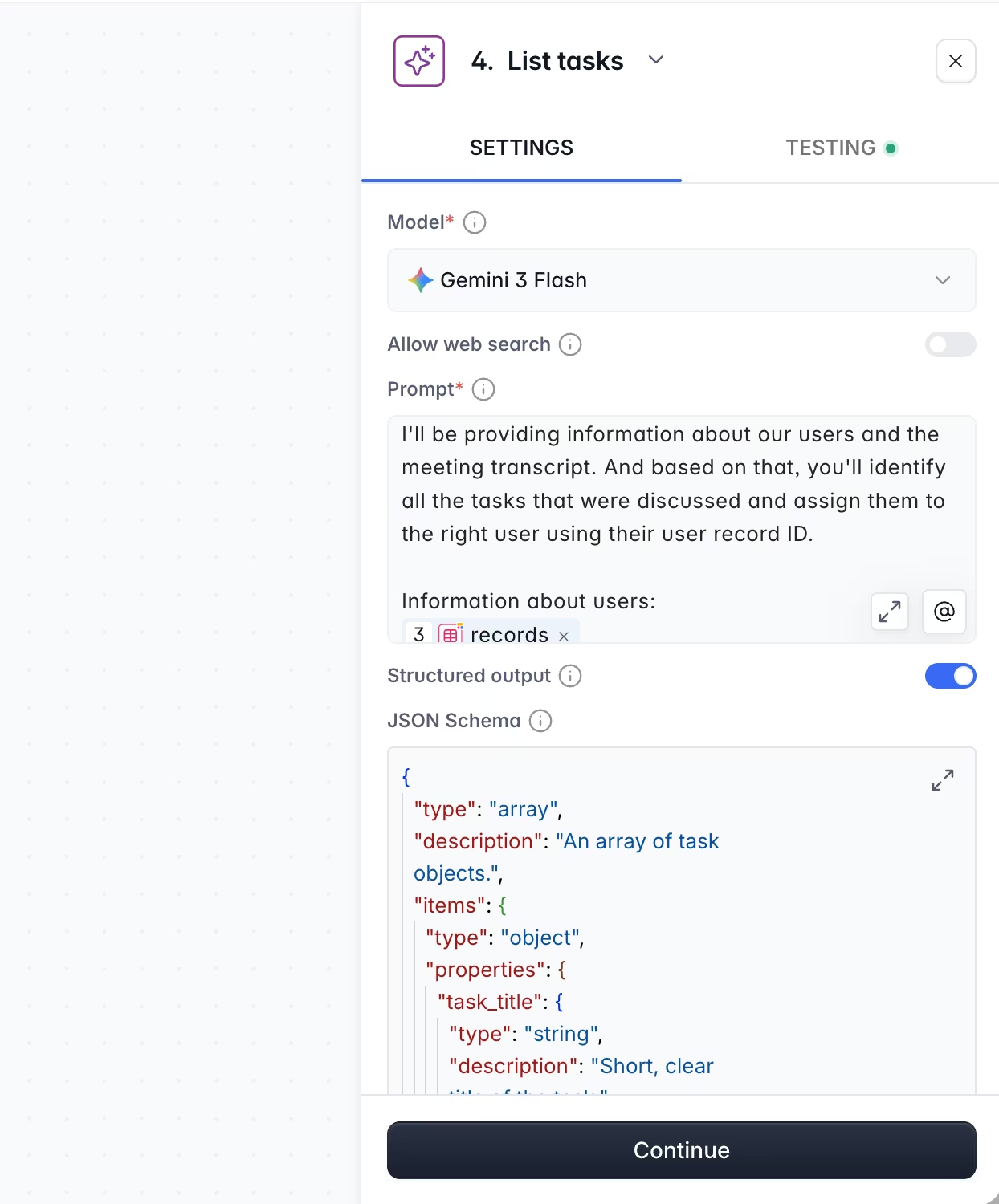
Plain text output is unpredictable. You can’t reliably loop through a response like "Here are 3 tasks: 1. Review the proposal, 2. Update the budget..." in an automation. Instead, we enable Structured Output and provide a JSON schema that tells the AI precisely what format to use.
Here’s the schema:
{
  "type": "object",
  "properties": {
    "tasks": {
      "type": "array",
      "items": {
        "type": "object",
        "properties": {
          "task_title": {
            "type": "string",
            "description": "A concise title for the task"
          },
          "task_description": {
            "type": "string",
            "description": "A brief description of what needs to be done"
          },
          "user_record_id": {
            "type": "string",
            "description": "The Record ID of the user this task should be assigned to"
          }
        },
        "required": [
          "task_title",
          "task_description",
          "user_record_id"
        ]
      }
    }
  },
  "required": [
    "tasks"
  ]
}Instead of writing this from scratch, you can ask any AI tool to generate a JSON schema based on an example, or use Softr's built-in AI co-builder in the workflow editor. You can even provide a simple example (like [{"task_title": "...", "user_record_id": "..."}]) and the structured output feature will figure out the structure.
What the output looks like
When you test this step, the AI returns something like:
{
  "tasks": [
    {
      "task_title": "Review Q1 budget proposal",
      "task_description": "Go through the updated budget numbers and flag any discrepancies before the board meeting.",
      "user_record_id": "xyzxyzxyz"
    },
    {
      "task_title": "Schedule client onboarding call",
      "task_description": "Reach out to Acme Corp to schedule their onboarding session for next week.",
      "user_record_id": "zyxzyxzyx"
    },
    {
      "task_title": "Update project timeline",
      "task_description": "Adjust the deliverable dates in the project tracker based on today's discussion.",
      "user_record_id": "yzxyzxyzx"
    }
  ]
}This is an array (a list of items). Each item is a task with three fields that map directly to your database columns. The structure is predictable, which means the next step can process it reliably every time.
For a deeper explanation of structured AI outputs and how to design schemas for different use cases, see our guide on using structured AI outputs in workflows.
Step 4: Bulk create task records
Now that the AI has returned a clean, structured list of tasks, we will loop through that list and create a database record for each one.
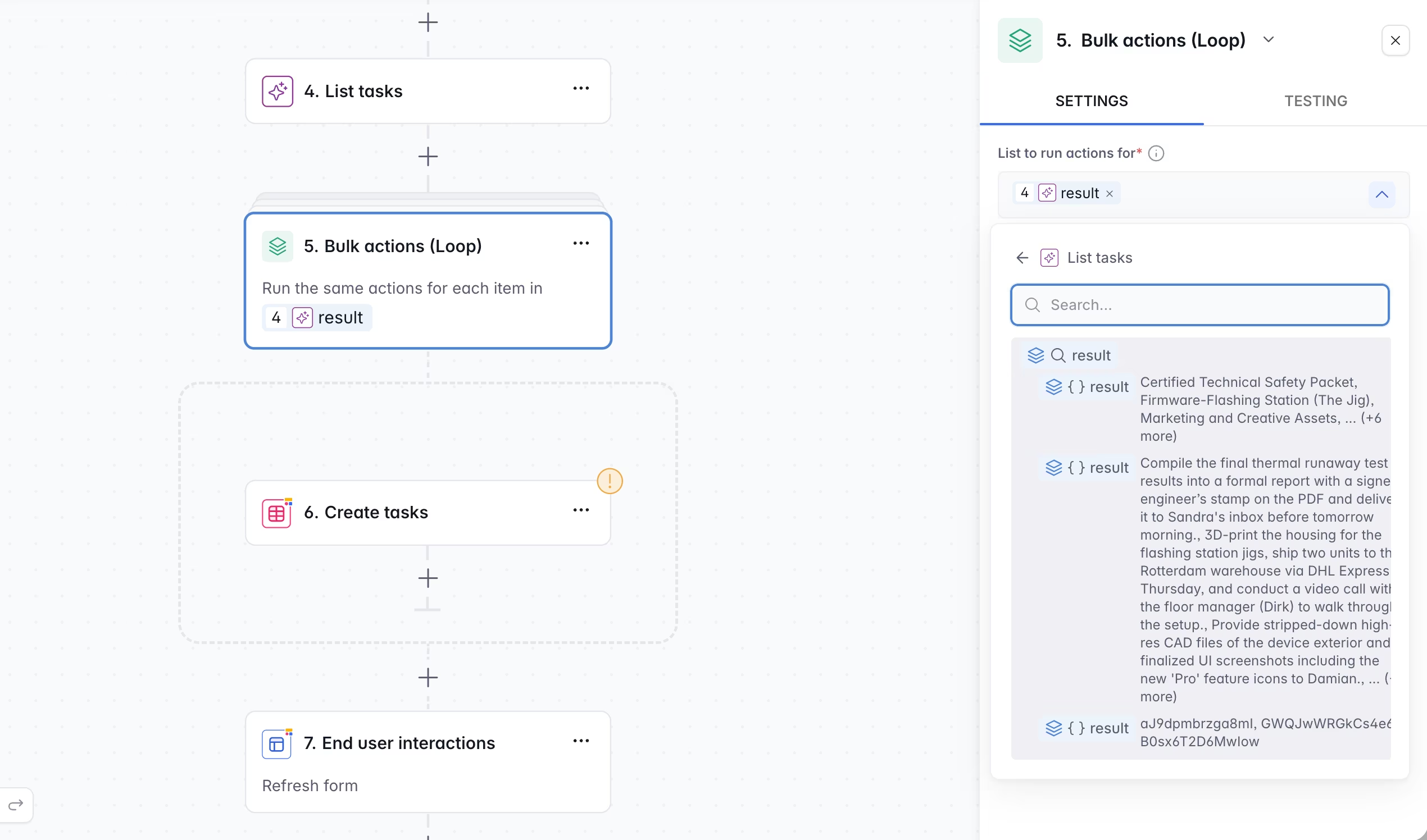
- Add a Bulk Actions block to the workflow. This creates a loop that runs once for each item in a list.
- Select the output from the AI step (the
tasksarray) as the source list. - Inside the loop, add an action: Add record in the Softr Database, targeting the Tasks table.
Mapping the fields
For each task in the loop, map the database fields as follows:
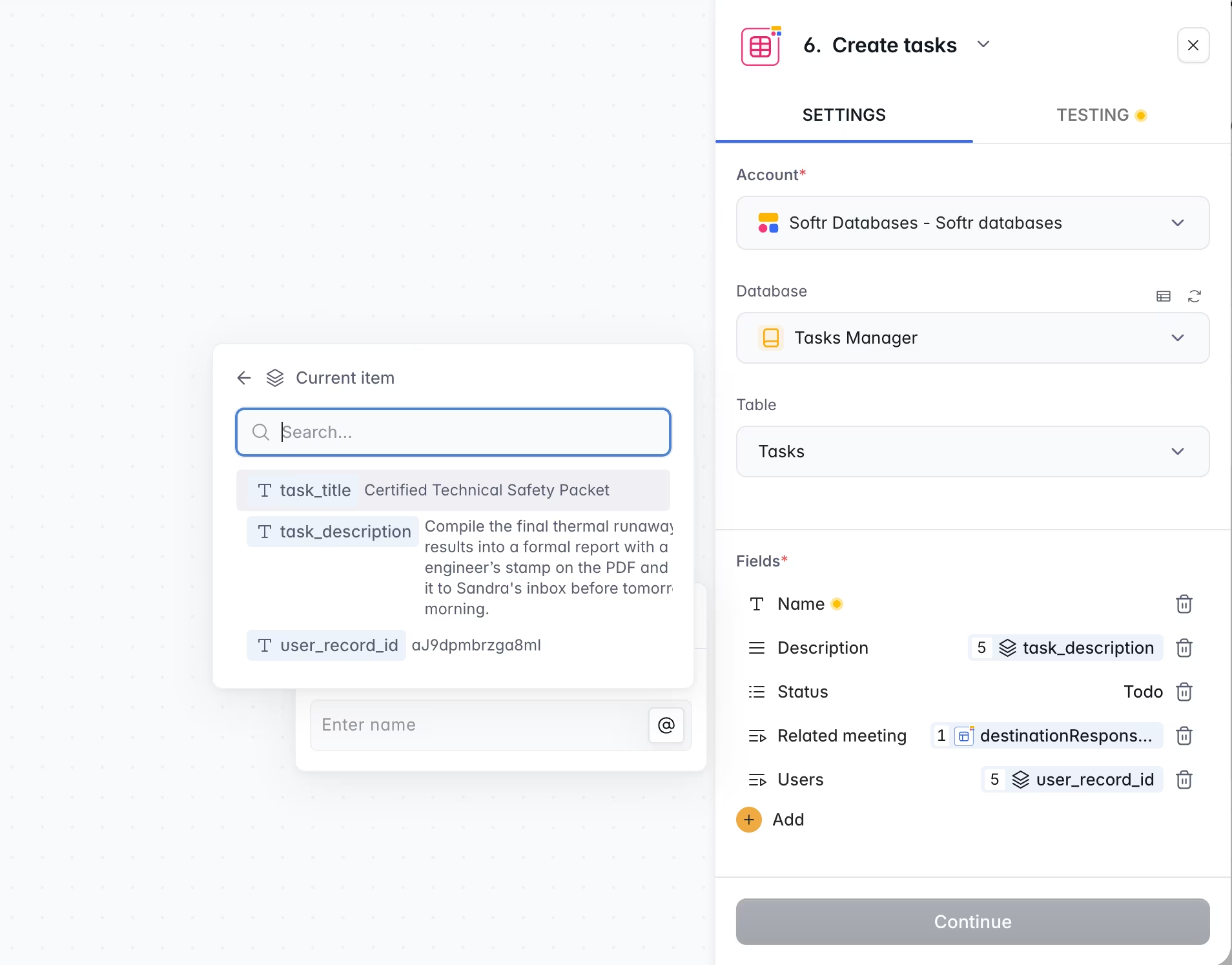
The Meeting field deserves attention. Because the form created a meeting record before the workflow started, we have access to that record's ID through the trigger's destination response. This is how each task gets linked back to the meeting it originated from.
The Status field is hardcoded to "To Do" for simplicity. You could also add a status field to the JSON schema and let the AI decide the initial status based on what was discussed (for example, marking a task as "In Progress" if someone said they had already started).
Tip on ID mapping: You can use either the Record ID or the primary field value when linking records. For example, if you set Email as the primary field in your Users table, passing the email address will match correctly. Record IDs are more reliable for linking because they’re guaranteed to be unique, but primary field values work just as well when they are unique (like email addresses).
For a transcript that mentions five tasks, this loop runs five times and creates five fully linked task records in your database.
Step 5: Generate a meeting title with AI
We kept the meeting form intentionally simple: just a transcript and a date. So, we let a second AI step generate a meeting title based on the content.
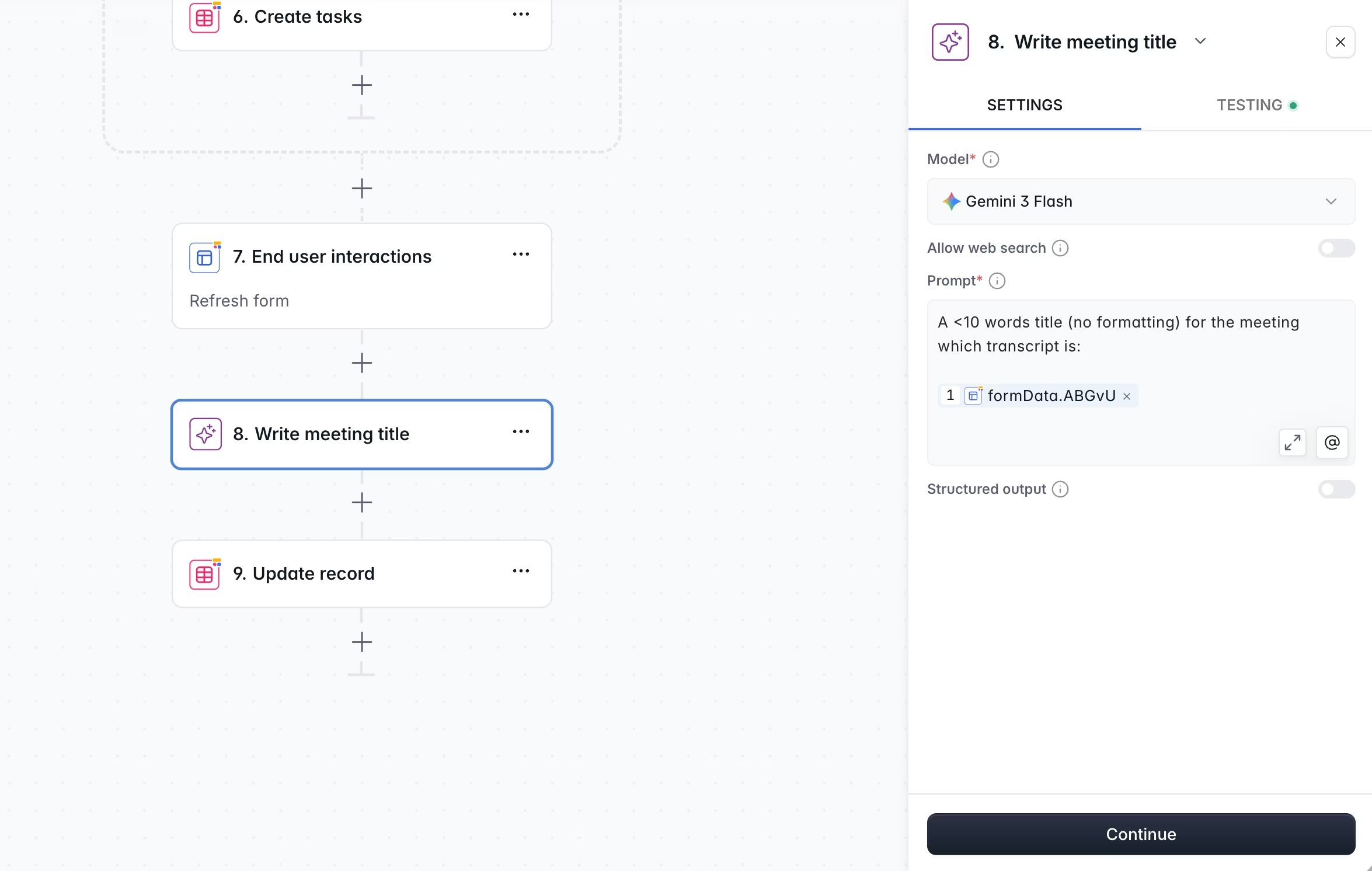
- Add another AI Custom Prompt step after the bulk create block.
- Write a short prompt:
Generate a title of less than 10 words for this meeting. No formatting. Transcript: @transcript - You do not need to enable Structured Output since we’re generating a simple text, but it would work to specify the exact key to generate.
- Choose a faster, cheaper model. For straightforward tasks like generating a short title, Gemini Flash works well and saves AI credits.
Update the meeting record
- Add an Update record action targeting the Meetings table.
- Use the Record ID from the form's destination response to find the correct meeting.
- Map the Title field to the AI's output.
💡 Choose the right model for each step. A complex task like extracting and assigning multiple tasks from a long transcript benefits from a powerful model (GPT-5.2, Claude Sonnet). But generating a 10-word title is trivial. Use a faster, cheaper model and conserve your AI credits for the steps that need them.
The complete workflow
Here’s the full workflow laid out from end to end:
When the user submits the form, they see a loading screen. Behind the scenes, the workflow fetches context, analyzes the transcript with AI, creates tasks in bulk, generates a title, and updates the meeting record. When it finishes, the user is redirected to see their results. The entire process typically takes 5 to 15 seconds depending on the transcript length and model speed.
Extending the workflow
Automate transcript capture with webhooks
You don't have to paste transcripts manually. In Softr Workflows, you can replace the form trigger with a Webhook trigger. This gives you a URL that acts like a "phone number" for your workflow. Any meeting recorder that supports sending data via webhook (like Granola, Fireflies, Otter.ai, or similar tools) can post the transcript directly to that URL, and the rest of the workflow runs identically.
Add notifications
Insert a Slack or Email action after the bulk create step to notify team members when they receive new tasks. You can use dynamic values from the loop to include the task title and assignee in the message.
Let AI estimate task duration
Add an extra field to your JSON schema (like estimated_hours) and let the AI estimate how long each task should take. You can use this value to set default start and end times when displaying tasks on a calendar.
Enrich tasks with priority or category
Extend the schema with fields like priority (High, Medium, Low) or category (Admin, Client, Internal). The more structure you define in the schema, the more useful the AI's output becomes for filtering and organizing tasks downstream.
Wrap-up
This workflow turns a meeting transcript into a set of fully assigned, database-linked task records in seconds. The pattern is reusable: any time you need to extract structured information from unstructured text and act on it, the same sequence applies. Fetch context, prompt the AI with a JSON schema, loop through the results, and create records.
To build a full business application around this workflow (including the database design, interface, and a custom drag-and-drop calendar), see our complete meeting task manager tutorial.
Happy building!
Frequently asked questions
What is a structured AI output and why do I need one for this workflow?
Which AI model should I use for task extraction?
How do I handle large teams with hundreds of users?
Can I trigger this workflow automatically instead of using a form?
How is this different from the demo request enrichment workflow?