Transcript
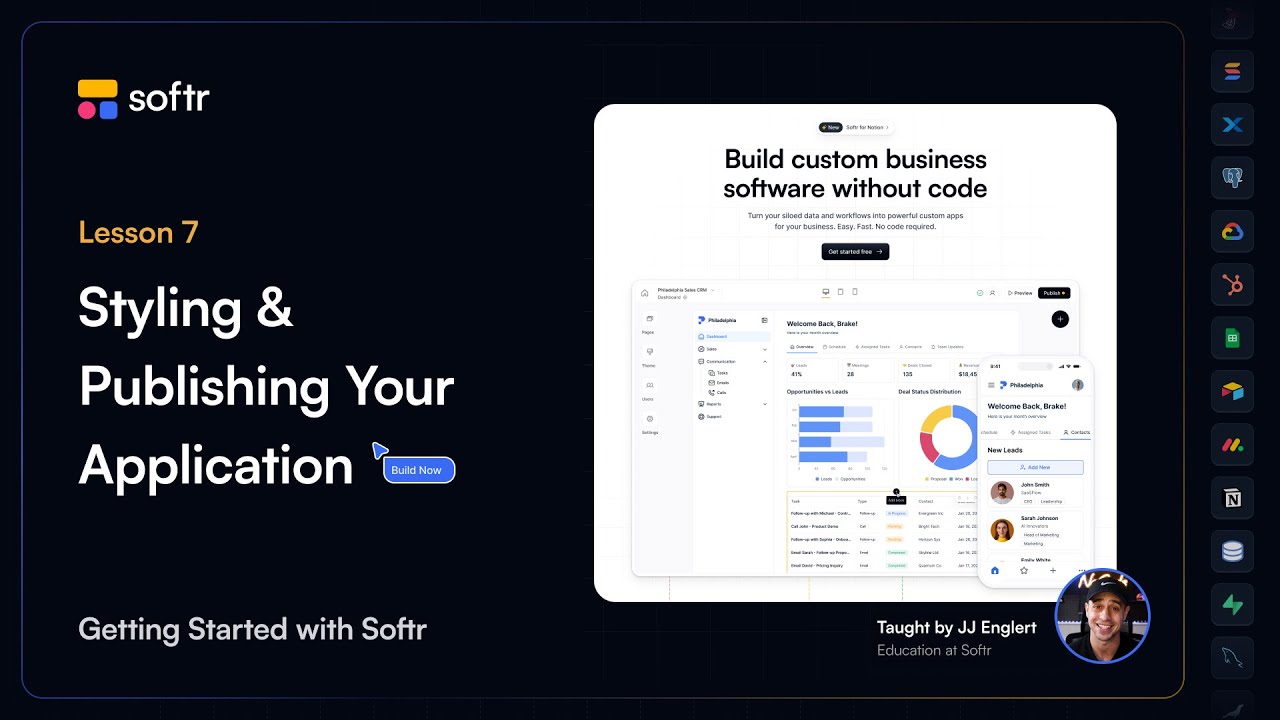
Hi, I'm JJ and welcome to the final lesson of this series. By the end of this lesson, you'll know how to design your app using global and block styles, connect your application to your company's custom domain, and optimize your application for search engine visibility.
We will also cover how to test your application on various device settings to ensure it works well on desktop, tablet, and mobile devices. Finally, you will learn how to publish your app to the world or to your business and team so everyone can see your accomplishments.
Let's start by fine-tuning your app's design. A well-designed app isn't just about function; it should be visually appealing and easy to navigate.
One of the key components of building a great app is styling it to reflect your brand and meet your user expectations. Softr provides a comprehensive suite of styling features that cater to both beginners and advanced users.
[.blog-callout]
If you want to speed up your design process, try the AI co-builder. It can generate a polished layout and theme for your app instantly based on a simple prompt.
[.blog-callout]
The theme settings in Softr provide a centralized way to maintain a consistent look and feel across your entire app. Instead of styling individual blocks or pages one by one, these settings ensure that key design elements are applied universally.
To adjust your global theme settings, click on the theme area in the left panel. Here you can modify fonts by choosing the font families and weights to match your brand, and set global text, accent, and background colors.
You can also adjust the desired dimension of your application. I normally recommend going with the medium option to help maintain a cohesive and professional appearance throughout your application.
While global theme settings ensure overall design consistency, block-specific styling allows you to fine-tune the appearance of individual blocks. This is useful when you need to highlight a specific section or override global settings.
Each block has its own styles tab where you can adjust background colors to make blocks stand out or blend in seamlessly. You can also modify padding and spacing for better visual balance.
Further customization includes borders for emphasis and updating element styles like fonts, colors, and sizes for individual elements like cards, the top bar section, and item fields.
[.blog-callout]
For those who need to build highly specific components that aren't available in the standard library, the vibe-coding block allows you to prompt for custom code and designs that integrate perfectly with your data.
[.blog-callout]
Small design tweaks can make a big difference. Aim for consistent styles whenever possible, as a cohesive design ensures your app's overall look and usability.
If you need customization beyond the built-in settings, Softr allows you to insert custom HTML, CSS, or JavaScript for full design control in many areas of your application.
Once your app looks just right, let's set up your domain. Publishing your app makes it accessible to users, whether it's a client portal, an internal tool, or a public-facing website.
[.blog-callout]
Whether you are building client portals or a team intranet, having a professional domain is key for user trust.
[.blog-callout]
By default, Softr assigns your app a subdomain, which is great for testing and early development. However, for a more professional experience, you can connect a custom domain.
A custom domain strengthens your brand and builds trust with users. It also improves your search engine optimization for better discovery on the web.
To configure your custom domain, click into the settings area and click on custom domain. Softr will provide you with instructions to update your DNS settings with your provider, such as GoDaddy or Namecheap.
If your app is public-facing, SEO is essential for discoverability. Meta titles and descriptions provide search engines with a summary of your page's content.
Go to the SEO settings in each of the pages settings area and write compelling meta titles and descriptions. You should also update the social preview image to define how your app appears when shared on social media.
Advanced settings like structured data, analytics, and indexing tools can further help improve search engine visibility. You can integrate tools like Google Analytics or Google Search Console to track performance.
Softr also allows you to turn your web app into a progressive web app with one click. This makes it easily accessible on mobile devices like a native app.
To configure your app as a PWA, go to settings, click on mobile app, and enable the PWA feature. You can add your app's name and icon for a branded mobile experience.
In Softr Studio, click on the device preview icon to see how your application looks on desktop, tablet, and mobile devices. You can adjust block visibility based on device type for a seamless experience.
Ready to go live? In the top right corner of Softr Studio, click publish. Your app will be live on your assigned Softr subdomain or your connected custom domain.
[.blog-callout]
Don't forget that Softr now offers unlimited published apps on all plans, including the Free plan, so you can launch as many projects as you need.
[.blog-callout]
If you make changes after publishing, you need to republish for them to appear on the live site. I recommend previewing your updates before publishing to ensure everything functions correctly.
Congratulations, your app is live. Whether you built a CRM or an ERP, you've turned your idea into a real solution.
If you're looking for more resources, you can enroll in our client portal course, join the Softr community forum, or connect with our live support. Happy building and welcome to the Softr community.