Transcript
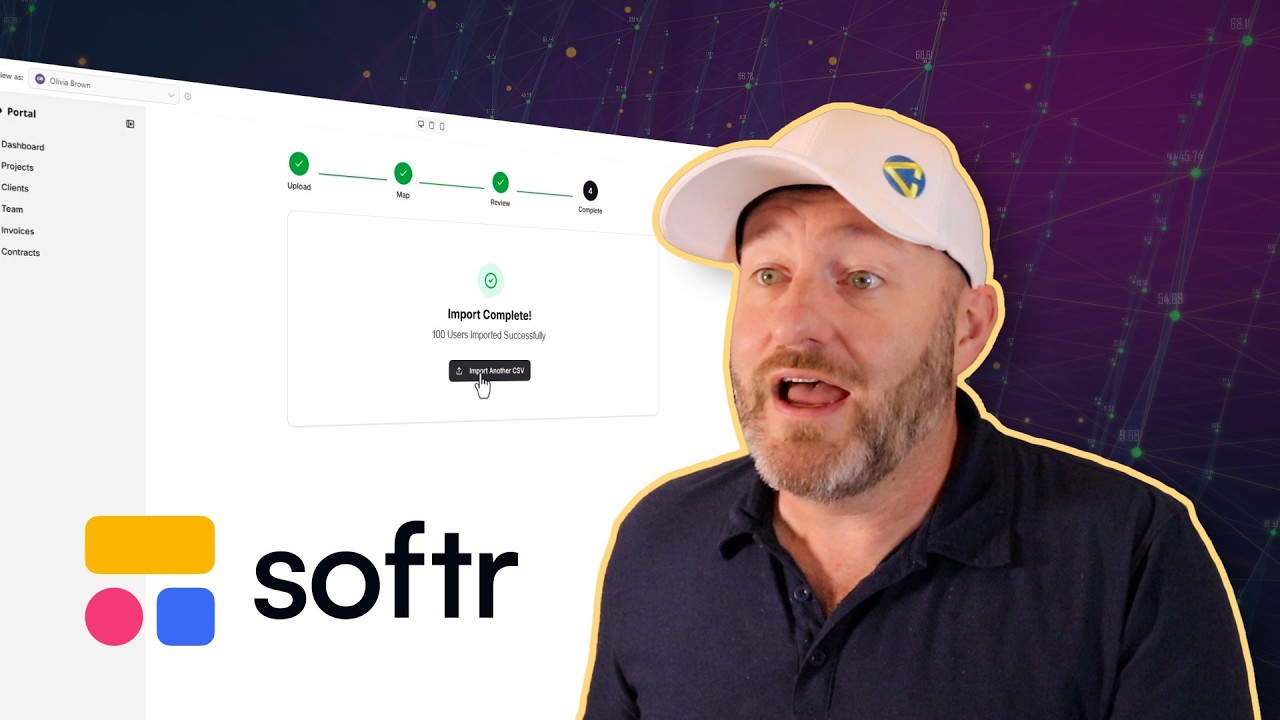
Stop manually adding new users to your apps. Today I'm going to show you how to build a white-labeled client portal using Softr. We're going to dive into a Vibe-Coding block that allows us to upload a CSV, map it to the different fields, and with a few clicks, add new users to our app.
We're going to build a smart importer, and we're not going to write a single line of code ourselves. So if you're ready to unlock new potential for your organization, stick around and let's get into it.
In this video, we're going to be building our own Vibe-Coding block, and we're starting the whole thing with a template that Softr makes freely available for all users. We're going to swing on over to the client portal template. This template, just with a few clicks, we can install in our own Softr experience.
[.blog-callout]
Note from Softr: While creating pages manually from App templates or setting up client portals is simple, another great option is to simply open the AI co-builder and prompt for what you want. It builds complete apps, pages, or database schemas instantly, while still letting you tweak things manually later.
[.blog-callout]
This is the client portal template, and we are going to just install it or duplicate it into our own Softr accounts. So just click on use template and it's going to do all the work in the background.
Now for years, we used Softr specifically as the front end for our applications, but now it even includes the database layer along with the workflow layer. So the three core components for building any app, you've got where the data lives, you've got how information moves around, that's workflows or automation. And then you have the actual interface itself.
[.blog-callout]
Note from Softr: Softr has native Softr Workflows that allow you to keep your logic as close to the design as possible, helping to consolidate tools and reduce reliance on third-party automation platforms.
[.blog-callout]
Softr now provides solutions for all three of these. So you don't have to add a bunch of different software tools, although you can keep your data in other places. It's totally fine for your data to be in Airtable or Notion, you can still build your app using Softr.
[.blog-callout]
Note from Softr: While Softr integrates with numerous external data sources like Airtable and Google Sheets, Softr Databases is the powerful, native way to manage data directly within Softr for maximum performance.
[.blog-callout]
For our example though, because we just copied the template, the data layer is going to be here in Softr. So data layer right here, we just created this new database with users, companies, projects, all the way down. And this powers our front end application.
That is at the interface level here. And we've got a number of different pages. They're already set up for different users and different roles.
This is the magic of Softr and of a properly built application, because having different user roles is critical. So over here, you'll see that this all came from the template as well. We have different user groups, and each group has their own experience in the app.
You can see at a glance that we have clients, and of course, they're going to see certain information that pertains to them and their projects. But then we have people who work on our team. We've got freelancers, we've got employees, and we have admin.
So different user groups are going to have different permissions and different data visibility within the application. Admin, of course, kind of have God mode. They can do most everything, whereas freelancers and employees might have limited permissions within the app.
So now that we understand the core components of building in Softr, let's poke around and add the new Vibe-Coding block that I mentioned building for our application. We're going to go back to the interface layer and I'm going to go to pages. What I'm envisioning for our app is that we have a CSV import.
We don't want to have to add our clients manually to our app. Maybe we are importing a CSV regularly once a week, once a month. And so we can build an element to our application that allows our admin users to just drag and drop the CSV and automatically create new client records in our application.
We're going to want them, of course, to be able to map the different fields in the CSV and make sure that they're creating the records that they actually want to create. So let's get into how to build this. The first step for us is going to be to create a new page in our application.
So from the pages tab here, I will click the plus and let's name this the contact importer. And we will save this new page. Now, because this is an admin only page, I'll go back over here to the page.
I'll go to the settings within the contact importer and I will click into the visibility. Within here, I want only logged in users, but I want to limit it to admin and we'll save that permissioning. This way, we've already locked this page down so that only the highest level of permissions within our application, our admin user group, has access to see this.
Now it's time to add that Vibe-Coding block. Now, note, of course, that within Softr, we click here to add a block. We've got a lot of different options out of the box.
Inbox, calendar, kanban, table, item details block, lists, payments, you name it. But sometimes we need to do something a little more advanced like our example here. So that's exactly where the Vibe-Coding block comes into play because we can set up our own prompt and ask AI to build the code for us for a unique custom block for our experience.
Now, I highly recommend if you've never used AI tools before, work with another AI in a separate window and come up with your plan before you paste in your prompt. Because the better you can write your prompts, the better outputs you're going to get when you put together your Vibe-Coding block elements. I've done exactly that in Gemini.
So I've gone back and forth a couple of times. I've shared some screenshots of what I envision for this Vibe-Coding block element. I've told it, you know, hey, this is how we're going to be working and this is what I want the thing to do.
And I'm asking Gemini in this case, please give me the prompt that I can share with the Vibe-Coding block in Softr so that we can get this right the first time. I prefer to do my heavy lifting in a separate application so that I don't have to go back and forth within the Softr Vibe-Coding block because I'd rather work on my prompts first and then share a better prompt with the Vibe-Coding block from the rig.
So now I've copied this and I'm going to swing back into my Softr application. I'm going to click the place I'm going to add the block and I'm going to look for the Vibe-Coding block. Now that we've added the block, we can start working on our output, the thing we want.
The first thing we want to do is connect it to our data source. This is technically optional, but I find that the results I'm going to get here are significantly better if I show it exactly what table, what data source it's going to be working with. So here I want this working from our users table.
We're uploading, we're importing information from a CSV. We're creating new users. So I'm going to select that table here.
And of course, if your database is somewhere else like Airtable or Notion or SmartSuite, no problem. Simply map to wherever that is and make sure to point the AI component to the table. That's going to help you.
You can also set up conditional filters here as well. Now that my source is established, I'm going to go back to this and you'll see that the source has been selected here. And I'm going to paste in that information that I took from Gemini.
Now this is going to take a few moments because it's going to do a lot of lifting. It's building code in the background for us that relates to our application. So let's pause here and we'll come back once this has had a chance to run.
About a minute and a half later, here's the result that we got. Now, something a little unique about the Vibe-Coding block is every time it produces an element, that element is unique to that exact AI prompt. So I've actually done this three different times while testing for this video.
And each time it looks a little bit different. It might be a little wider. The color, the font might be a little different, but overall it has the same functionality. Let's go ahead and now publish our results.
And I'm going to show you exactly what we just built. I've got a lovely little CSV set up here separately that we're going to test. I'm going to drag it in from my desktop and see how it works when I upload it to our new experience.
So let's go ahead and first start by previewing this application in preview mode. Remember that I can only see this if I'm an admin user. So if I were to be someone like Ethan, who's a freelancer, or Isaac, who's a client, they're not ever going to be able to take this action.
They'll never even have access to this page, but I'm impersonating Olivia right now. So I have access to the contact importer and I'm going to browse files by clicking here or I can drag and drop. I've got this file coming in from my desktop.
Let's bring it up here. Let it go. And just like that, you can see that in this case, it's actually already mapped.
So what I want to showcase is I have a...