Transcript
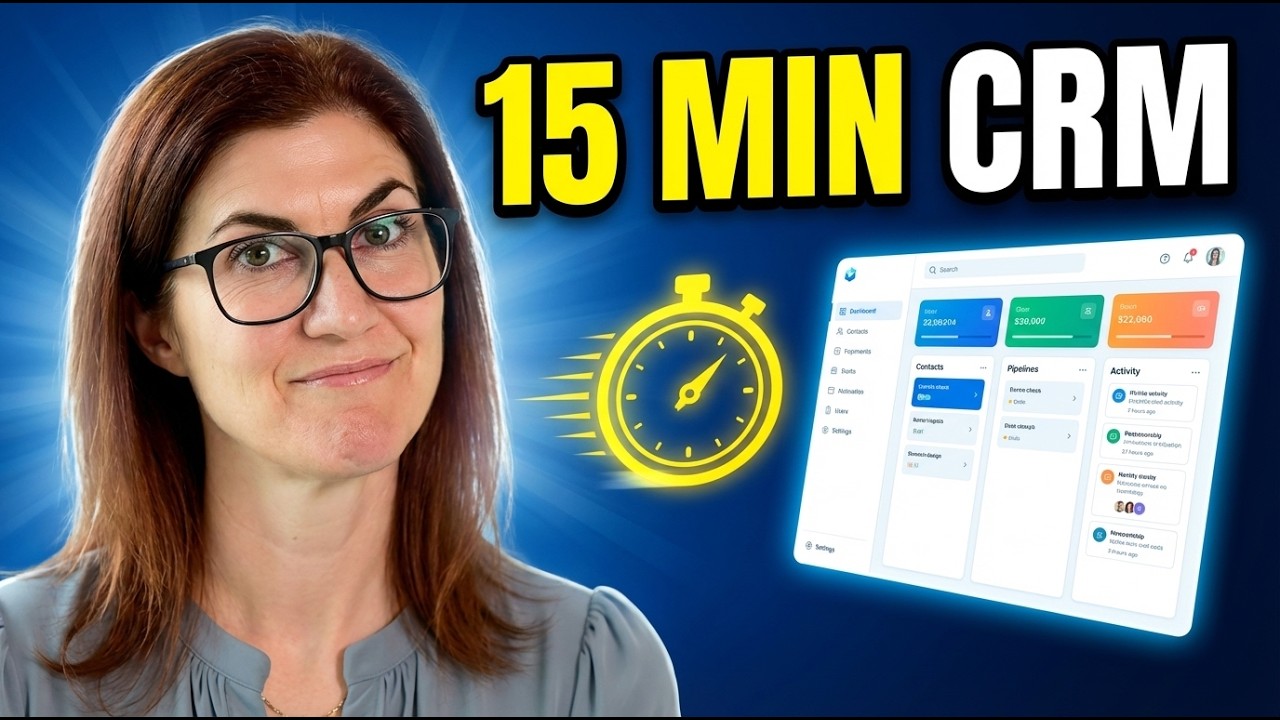
Today, I'm going to show you how I built a CRM in 15 minutes. That's user interface, database, everything. Fully functional and built with one tool and ready to hand off to the client.
No connecting Airtable, no setting up Supabase, and no external integrations to wire up. I'm going to walk you through exactly how I did it and how you can do the same to create a production-ready app that's ready to hand off to the client.
[.blog-callout]
Note from Softr: While this video focuses on building from scratch, another great option is to explore our pre-built AI CRM template or App templates to get a head start on your next project.
[.blog-callout]
For today's build, we're going to be using Softr. The cool thing about Softr is that you're able to build the user interface, all the pages, the login logic, and everything including the backend, the database, and automations all in one place.
This is going to be the quickest, easiest process you've ever seen. We are going to use the AI Co-Builder, which is exciting because it just uses natural language. I'm logged into my Softr account and I'm going to select generate with AI.
I want to build a CRM for a solopreneur. It should capture basic information like name, phone number, email address, company, notes, first contact, and last follow-up date.
[.blog-callout]
Note from Softr: The AI co-builder can build complete apps, pages, or database schemas instantly based on your prompt, while still letting you tweak everything manually later.
[.blog-callout]
This would have been the perfect thing for me when I was first starting out. I didn't need all the bells and whistles of complex systems, but it would have been fantastic to keep a list of leads organized to follow up with them.
I'm sending that prompt off to the AI Co-Builder. It's asking if I want to track deals in addition to contacts, and I'm going to say absolutely.
It asks how I want to manage follow-ups, and we'll store the last follow-up date for now. Any interactions like calls, emails, or meetings will just be included in the notes section.
Now it's asking to select authentication settings. I'm going to use email and password, but you can also do Google or SSO. This is how I will log into the app.
I'm going to say no to people signing up on their own since this is just for a solopreneur. You have options for domain-restricted signup as well if you hire someone down the line.
I'll select the Opal theme and create the app. The AI Co-Builder is narrating what it's doing, adding features like view and edit contacts with all the fields I requested.
It is creating all of the various tabs, tables, and pages that we need. We can watch in real time as all of the data and pages get populated.
[.blog-callout]
Note from Softr: While this builder can connect to 17+ data sources, it uses Softr Databases by default, which is the native way to manage data directly within Softr for maximum performance.
[.blog-callout]
We can see the pipeline starting to take shape. I can see all of the leads I have and what stage they are in the pipeline. It says the app is ready, so let's try it live.
We have our contacts all listed here. I'm able to sort by deals or check out the full pipeline to see if it's a new lead, a proposal sent, or if the deal was won or lost.
I want to add another tab here for a list of all leads. I'm going to tell the AI Co-Builder to add a tab called all contacts that allows me to filter by company or stage and sorted alphabetically.
I'm noticing I can't filter by company yet, and the AI Co-Builder suggests a custom vibe-coded logic to build this as a custom view.
[.blog-callout]
Note from Softr: If a native block doesn't quite fit your advanced needs, you can use the Vibe-Coding block to prompt for the exact custom component you want, and it will generate it and connect to your database.
[.blog-callout]
I want to see how this Vibe-Coding block works. The AI has replaced the all contacts tab content with a vibe-coding block that lets me filter contacts by deal stage and keeps the list sorted alphabetically.
I've updated the block to include the company filter as well. Now I can filter by all companies and by deals, which is exactly what I need.
Now you may be wondering how these leads actually get into the CRM. I have the functionality to add a contact manually with the name, phone, email, and company.
[.blog-callout]
Note from Softr: Beyond manual entry, you can use Softr Workflows to automate your logic and keep it close to your design, reducing your reliance on third-party automation platforms.
[.blog-callout]
I can also connect this to something like Calendly. This way, anyone who books a call with me is automatically added to my CRM without any manual work.