How to share Google Sheets: The 6 methods you need to know

In this article, you'll learn 6 methods to share Google Sheets. Each has a specific use case, so here's a quick breakdown before we walk through each one:
- Gmail: Share Google Sheets and set file permissions without leaving your inbox. The fastest method if you're already emailing the recipient.
- Google Drive: Best if you want to share multiple files at once and grant the same access level to all of them for a specific user.
- Google Sheets - Select users: Pick exactly which users to share with, email them directly, and choose whether they can edit, comment, or only view.
- Google Sheets - General access: Anyone with the link can view or edit the file. Useful for sharing with a large group at once.
- A website: Embed a Google Sheet on a page, or share it as a csv, tsv, pdf, xlsx, or ods file, for a wide audience.
- Custom UIs: Use a tool like Softr to turn Google Sheets data into a dashboard, internal tool, or client portal, with logins and permissions instead of a shared link.
Now let's go through each option in detail.
How to share Google Sheets using Gmail
Cost: $0
Time: 10m
If you use Gmail, adding a link to a Google Sheet in your email automatically checks whether the recipient can see or edit that file. If they can't, Gmail prompts you to fix it before sending.
So you don't need to set up file permissions in Google Sheets first if you're sharing via Gmail. It's faster to just compose your email and handle sharing from there.
The downside: all recipients get the same access level, and if you're sharing with someone who doesn't have a Google account, you can only grant them view access. For different permissions per person, set it up directly in Google Sheets instead.
Here's how to do it.
Step 1: Copy the Google Sheet link
Open your Google Sheet in your browser and copy the file URL.
There's no need to edit the URL. Google Sheets automatically switches from the edit URL to comment or view mode depending on the recipient's permissions.

Step 2: Compose your email
Write your email as usual, and make sure to include the link you just copied.
You can add whatever text you want. As long as the link is in there, the next steps will work.

Step 3: Click Send
Click "Send." Even though you haven't set permissions yet, Gmail will prompt you to fix them immediately.
Step 4: Set up the file permissions
After clicking send, you'll see a "People need access to '[Google Sheet name]'" prompt.
Set the recipients as editors, commenters, or viewers, or choose to let anyone with the link view the file.

How to share Google Sheets using Google Drive
Cost: $0
Time: 15m
Use Google Drive when you want to share multiple Google Sheets at once.
The upside: add new files to the shared folder and everyone with access automatically sees them, no need to re-share individually.
The downside: you lose granular control per file. If a user can edit files in a folder, they can edit every file in it, not just one.
Step 1: Create or find the folder you want to share
Using the app, desktop, or browser, find the folder you want to share, or create a new one, and click it once to select it.
You can select multiple folders at once by clicking each one.

Step 2: Click the "Share" button
Click "Share." If you're sharing a single folder, you can also click the three dots next to the folder name and select "Share."
Both paths open the same sharing menu.

Step 3: Find the person you want to share the folder with
Add people or groups to your selected folders.
You can set the access level for each user or group individually, so one person can be an editor while another is a viewer.
Once a user has access to a folder, though, they have that same access level for every file inside it.

Step 4: Select the access level
Once you've found the person, select their access level, choose whether to notify them, and add a message if you want.
Click "Send" and you're done sharing the folder.

How to share Google Sheets with specific Google Sheets users
Cost: $0
Time: 15m
If you want different access levels for different users on the same sheet, sharing directly from Google Sheets is the best approach.
It takes a bit more time than pasting a link into an email, but you control precisely what each user can do.
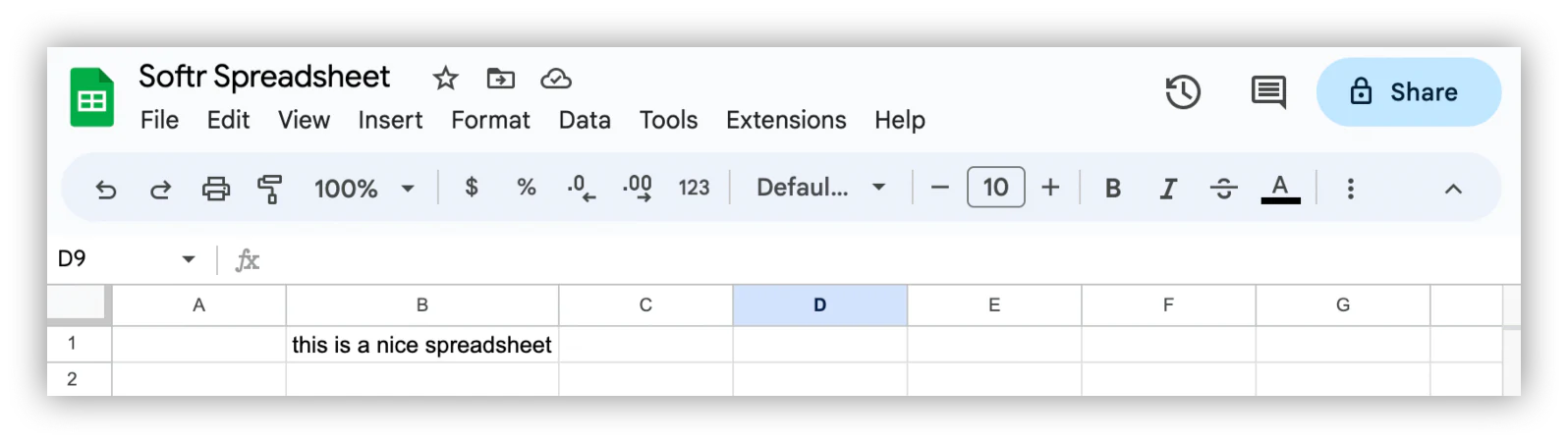
Step 1: Open the Google Sheet you want to share
Open the Google Sheet you want to edit, using your browser or the app.
Step 2: Click the share button
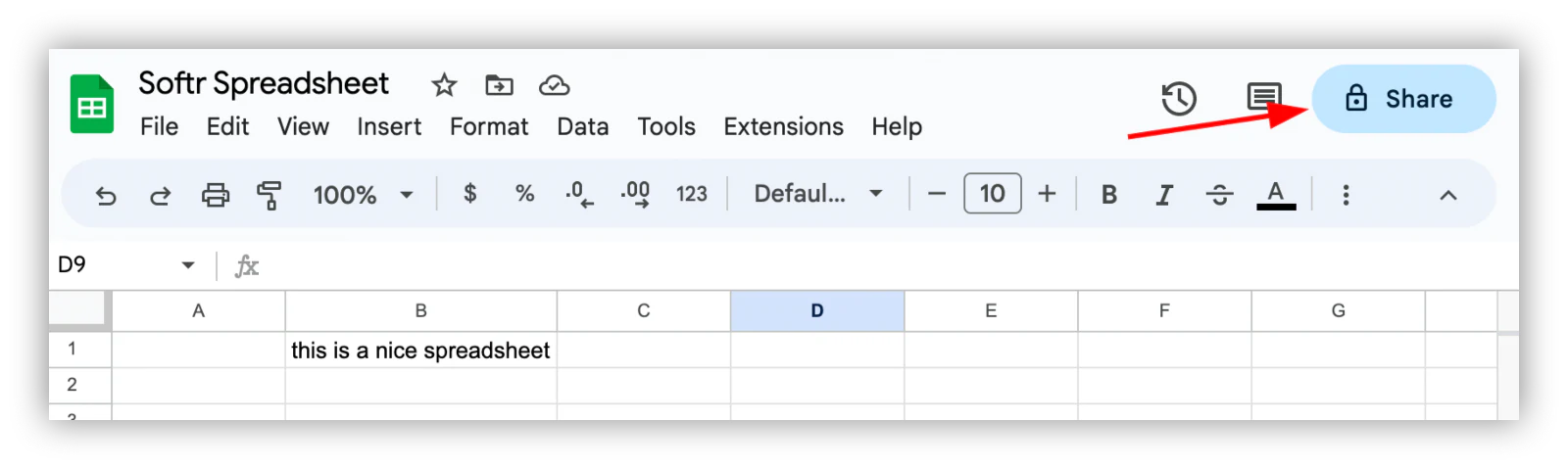
Click "Share" in the top right corner, or go to File > Share > Share with others.
Step 3: Find the person you want to share this file with
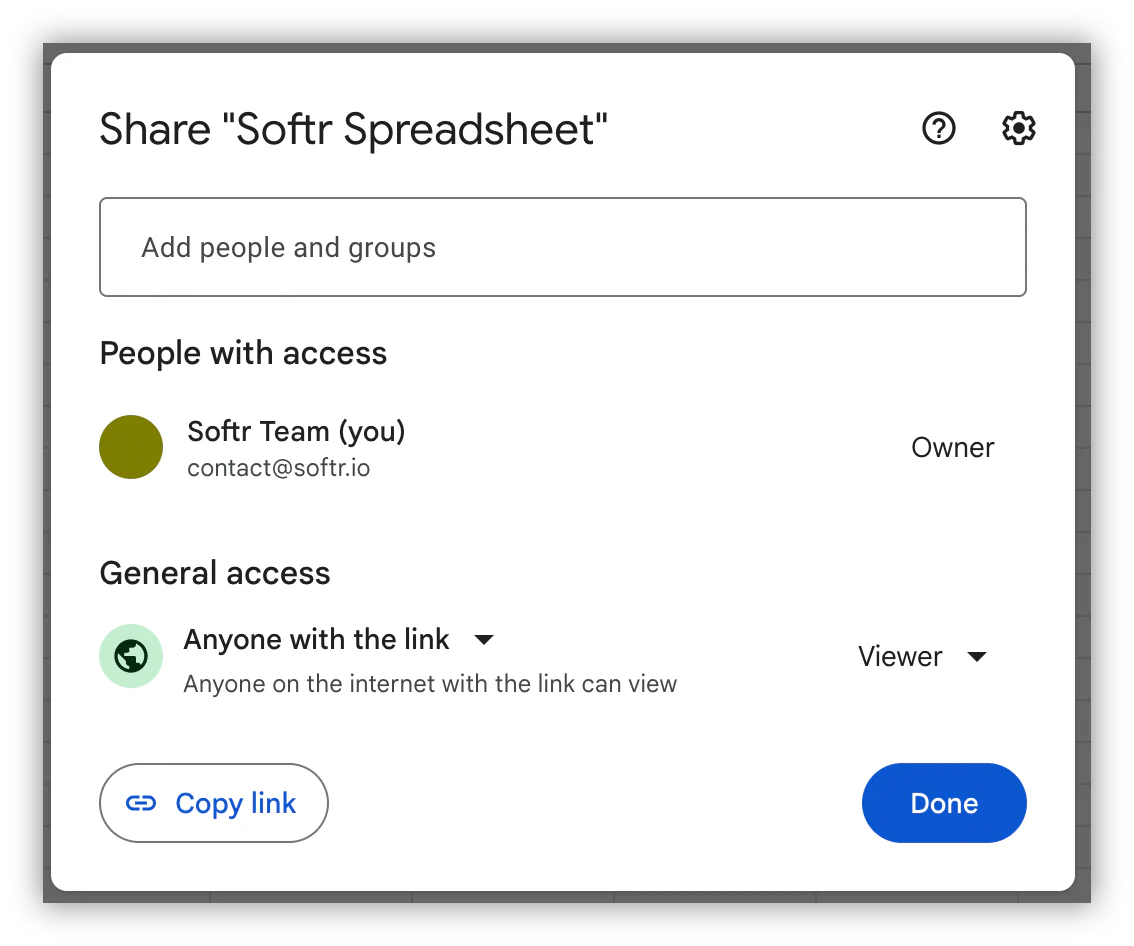
Search for the person or group you want to share the file with.
If you use a paid Google account, you can also set expiration dates for their access.
Step 4: Set up the user access level
Once you've found the user or group, choose whether they'll be an editor, commenter, or viewer.
(Optional) Step 5: Edit the sharing settings
Click the settings icon in the top right corner of the sharing box to control what editors, viewers, and commenters can do.
You can allow editors to change file permissions and share the file with other users.
You can also allow or block viewers and commenters from downloading, printing, or copying the file.

How to share Google Sheets with anyone using Google Sheets
Cost: $0
Time: 15m
If you want to share a file with a large group of people, switch it to public access.
This grants access to anyone with the link. You can still let specific users edit it, or allow anyone with the link to edit it.
Here's how.
Step 1: Open your Google Sheet
Find the file you want to share and open it.
Step 2: Click the share button
Click "Share" in the top right corner, or use File > Share > Share with others.
Step 3: Change the "General access"
Change the last option from "Restricted" to "Anyone with the link." This lets any visitor with the link view, comment, or edit the file, depending on the access level you set next.
Step 4: Select the access level
Choose whether all visitors can view, comment, or edit the file. Users can only comment or edit if they're logged into a Google account.
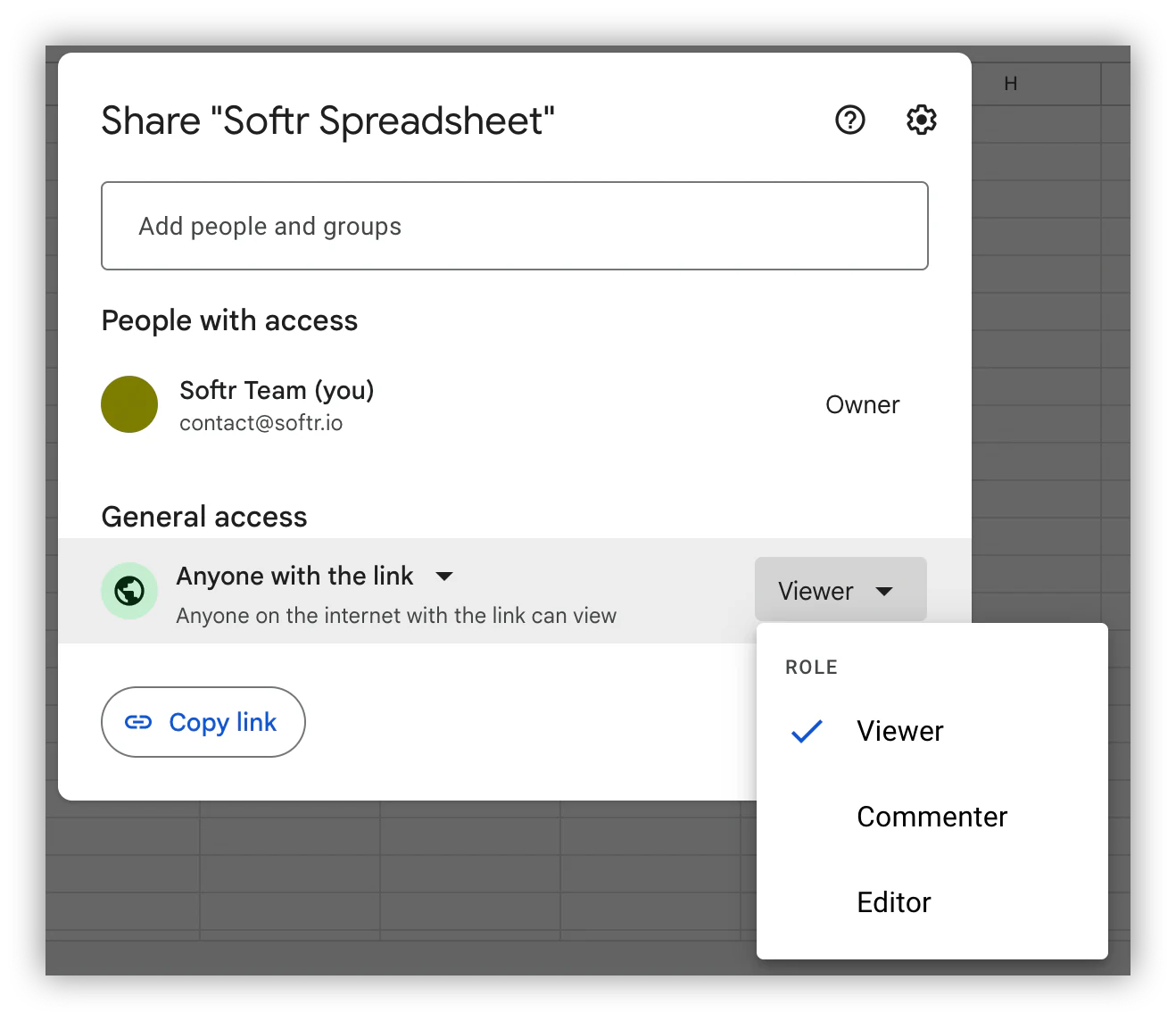
General access is convenient, but it's worth pausing here: once a link can be forwarded, you lose track of who actually has your data. If you're sharing anything sensitive with clients or external partners, that's a reason to look at the custom UI method further down.
How to share Google Sheets using a website
Cost: $0
Time: 30m
You can publish your Google Sheet and embed it on a site, or share it as a pdf, csv, tsv, xlsx, or ods file.
You can also publish just one sheet from the workbook instead of the entire document.
Step 1: Open your Google Sheet
Open the Google Sheet you want to publish.
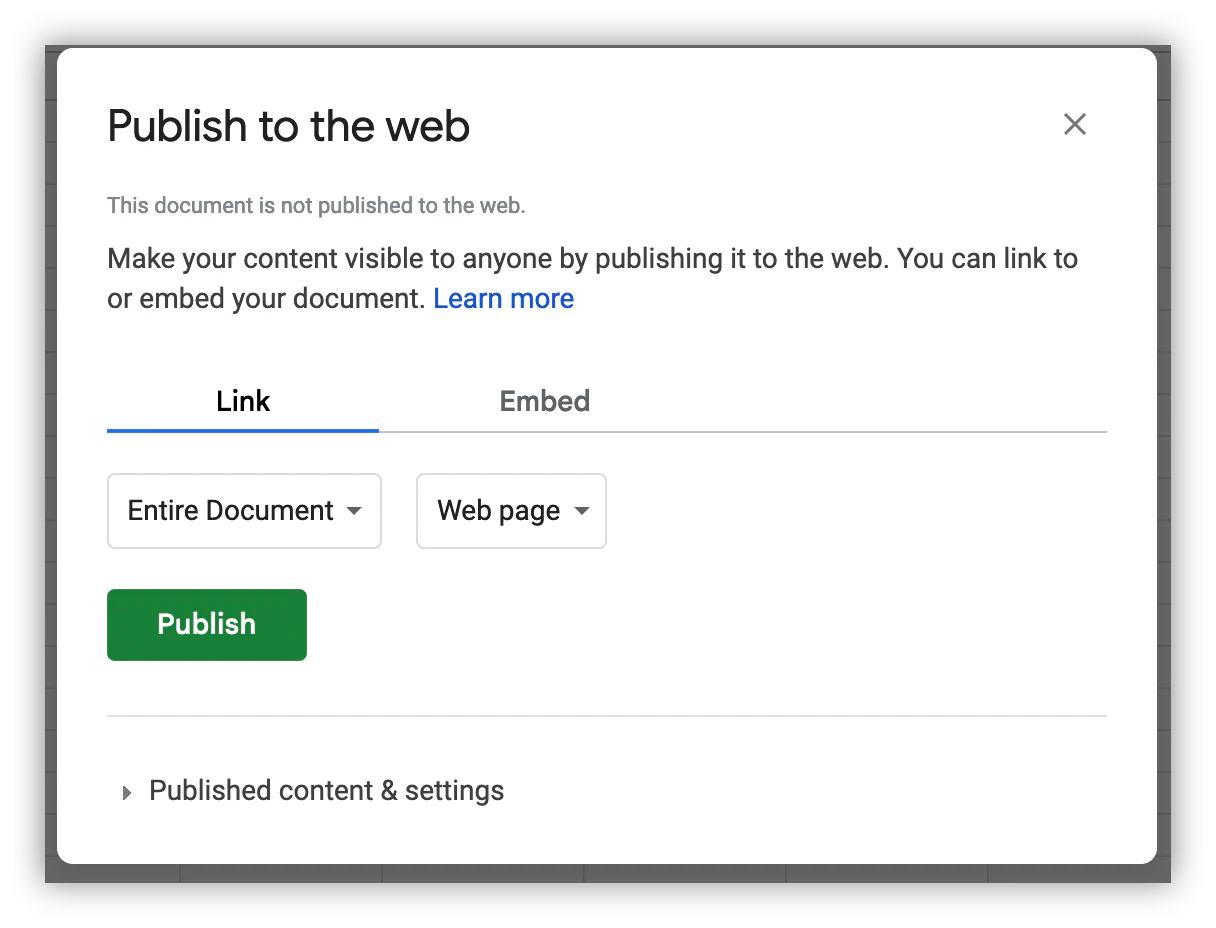
Step 2: Go to File > Share > Publish to web
Find the menu File > Share > Publish to web.
Next to the publishing options, you'll also see other sharing methods, like emailing the file directly or downloading it in a supported format to share manually later.
Step 3: Select the sharing formats and options
Choose whether to share it as a link or embed it on your site.
On the same screen, select the publishing format and which sheets to include, in case you want to keep some private.
Step 4: Add the embed code to your site
If you choose embed mode, copy the embed code and paste it into your site.

How to share Google Sheets using third party tools
Cost: $0
Time: 1h
Beyond the native Google options, you can use other tools to share data from your spreadsheet without sharing the file itself.
This is the method to reach for once a shared link stops being enough, when you need different users to see different slices of the data, or when the audience is external clients rather than internal teammates.
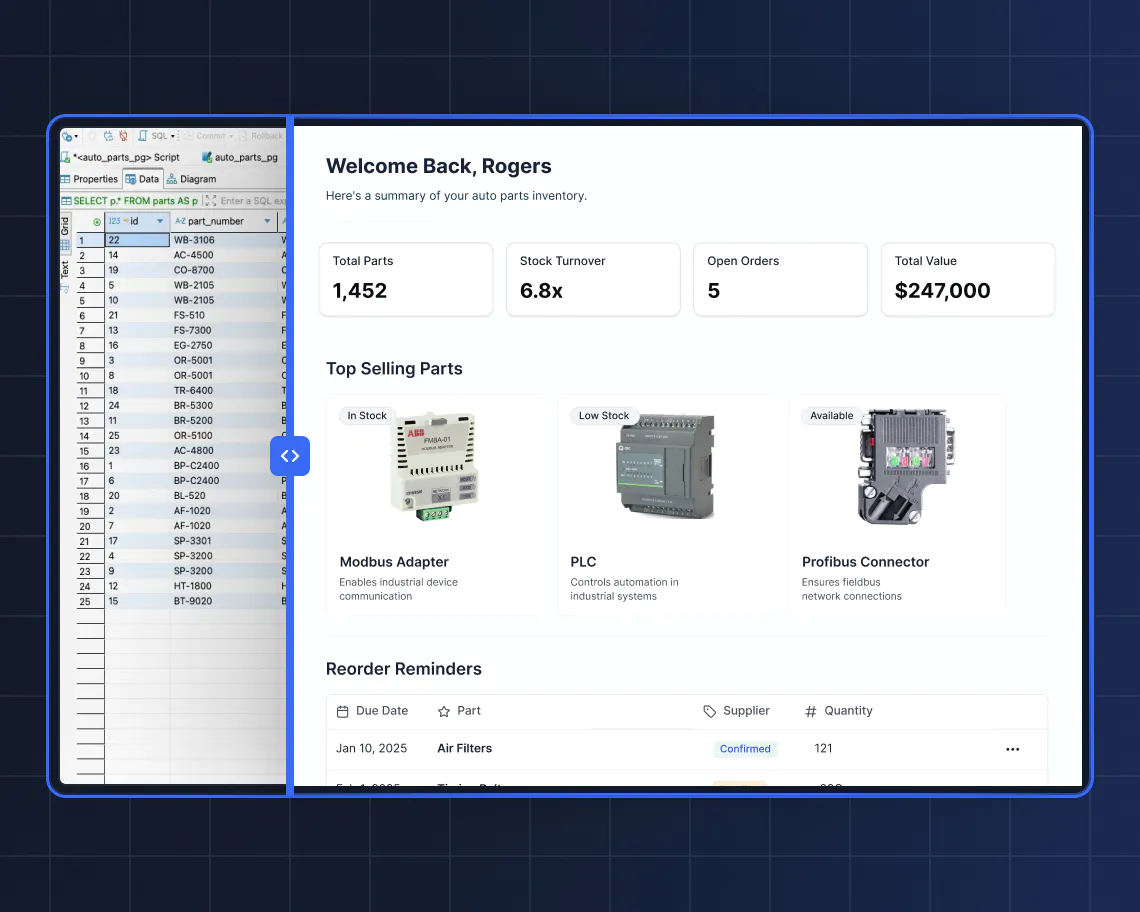
For example, Softr connects directly to Google Sheets (or to your own Softr Database if you'd rather move off spreadsheets entirely) and lets you build a real interface on top of it: a dashboard, an internal tool, or a client-facing portal. Instead of one flat file, every user gets a login and sees only the rows and fields relevant to them, enforced at the data level rather than by trusting people not to scroll further than they should.
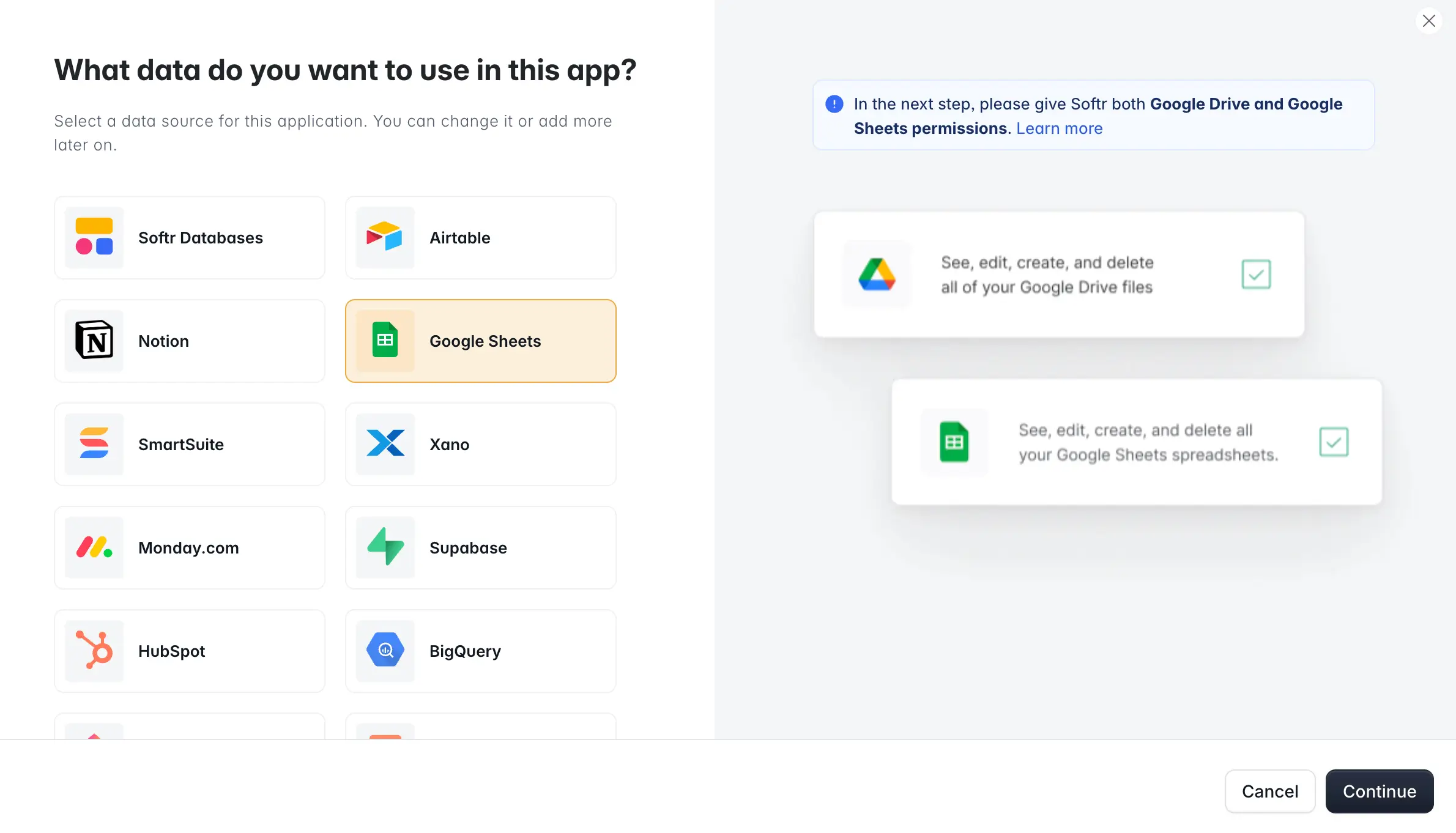
Once your app is connected, you get users and permissions instead of a single shared link, custom forms so people enter data correctly instead of overwriting formulas by accident, and action buttons to trigger create, read, update, and delete actions directly from Lists, List Details, Kanbans, Tables, or Calendars blocks. If you'd rather not configure every block by hand, you can describe the app you want and the AI Co-Builder sets up the database connection, pages, and permissions for you as a starting point.
The exact setup depends on the tool: some request API access, others authenticate through your Google account directly.
When a shared link isn't enough anymore
Every method above works well for the problem it's built for: getting a file, or a copy of the data, in front of the right person. Where it breaks down is scale and control. A link shared over email is fine for two or three collaborators; it becomes a liability once you're managing dozens of clients, vendors, or employees who should each see a different, restricted slice of the same underlying data.
That's usually the sign it's time to move from sharing files to building an app on top of them, without necessarily giving up your existing Google Sheet.
Frequently asked questions
Can any user edit a Google Sheet?
Can I restrict some data from public Google Sheets?
Can I check which users have viewed a Google Sheet?
What's the safest way to share Google Sheets with clients or external partners?
Can I turn a shared Google Sheet into a real app without moving my data?