5 best AI for business operations in 2026: Tested & reviewed


Running business operations shouldn’t feel like chasing work across a dozen tabs, but that’s where many teams are now: processes and data are scattered and simple updates require deep coordination. PwC research points to the same gap: 89% of operations leaders say tech investments haven’t fully delivered, with integration complexity, data issues, and user adoption as primary blockers.
I evaluated these 5 AI tools through one practical point of view: do they make the work easier to run or harder to manage? Let’s find out.
Best AI tools for business operations at a glance
| Tool | Best for | Key features | Pricing |
|---|---|---|---|
| Softr | Building business software for daily operations | • AI Co-Builder • Visual no-code editor • Native relational database • 21+ native data sources • Granular permissions and user groups • Built-in authentication • Native workflow automation | Free plan available Basic: $19/month, annual billing |
| Claude | Analysis, reporting, and document-heavy work | • Claude Cowork for longer file-based tasks • Projects for recurring work and shared context • Artifacts for drafts, tables, documents, and lightweight tools | Free plan available Pro: $17/month, annual billing |
| Granola | Turning meetings into operational memory | • Bot-free meeting capture • AI meeting notes • AI chat across meeting history | Basic: Free Business: $14/user/month |
| Lindy | AI-assisted admin and follow-up workflows | • AI workflow triggers • Email drafting and follow-up • Meeting scheduling, notes, and prep | Plus: $49.99/month Pro: $99.99/month |
| Salesforce | Enterprise teams running complex customer operations | • Agentforce AI agents • Customer 360 data model • Workflow automation | Free plan available Starter Suite: $25/user/month, annual billing |
What to look for in AI tools for business operations
Here’s what I check for first when considering the AI tools that made this list (and those that didn’t):
- Workflow fit: Look for AI that supports the actual work your team runs every day, like routing requests, summarizing updates, checking missing fields, or moving tasks to the next step.
- Strong integrations: AI is at its best when it connects to the tools you already use, like your CRM, database, spreadsheet, project management tool, email, or Slack.
- Reliable data access: The tool should work with structured, up-to-date data. If your records are messy or disconnected, AI will have a harder time giving useful answers or taking the right action.
- Permissions and controls: AI should follow the same access rules as the rest of your business tools. People should only see or change the data they’re meant to.
- Human approval where needed: For sensitive workflows, AI should suggest or prepare actions, not make every decision on its own. Ensure there are review steps before anything important gets changed or sent.
- Easy setup for operations teams: The tool shouldn’t require a developer for every small change. Operators and team leads should be able to adjust workflows, prompts, rules, or views as the process changes.
- Measurable impact: A good AI tool should make a clear difference: fewer manual updates, faster handoffs, cleaner data, quicker responses, or less time spent chasing context.
- Security and access controls: AI should only access the data and actions it needs. Look for permissions, audit trails, and approval steps that keep workflows safe without slowing the team down.
1. Softr — best AI for building business software for daily operations
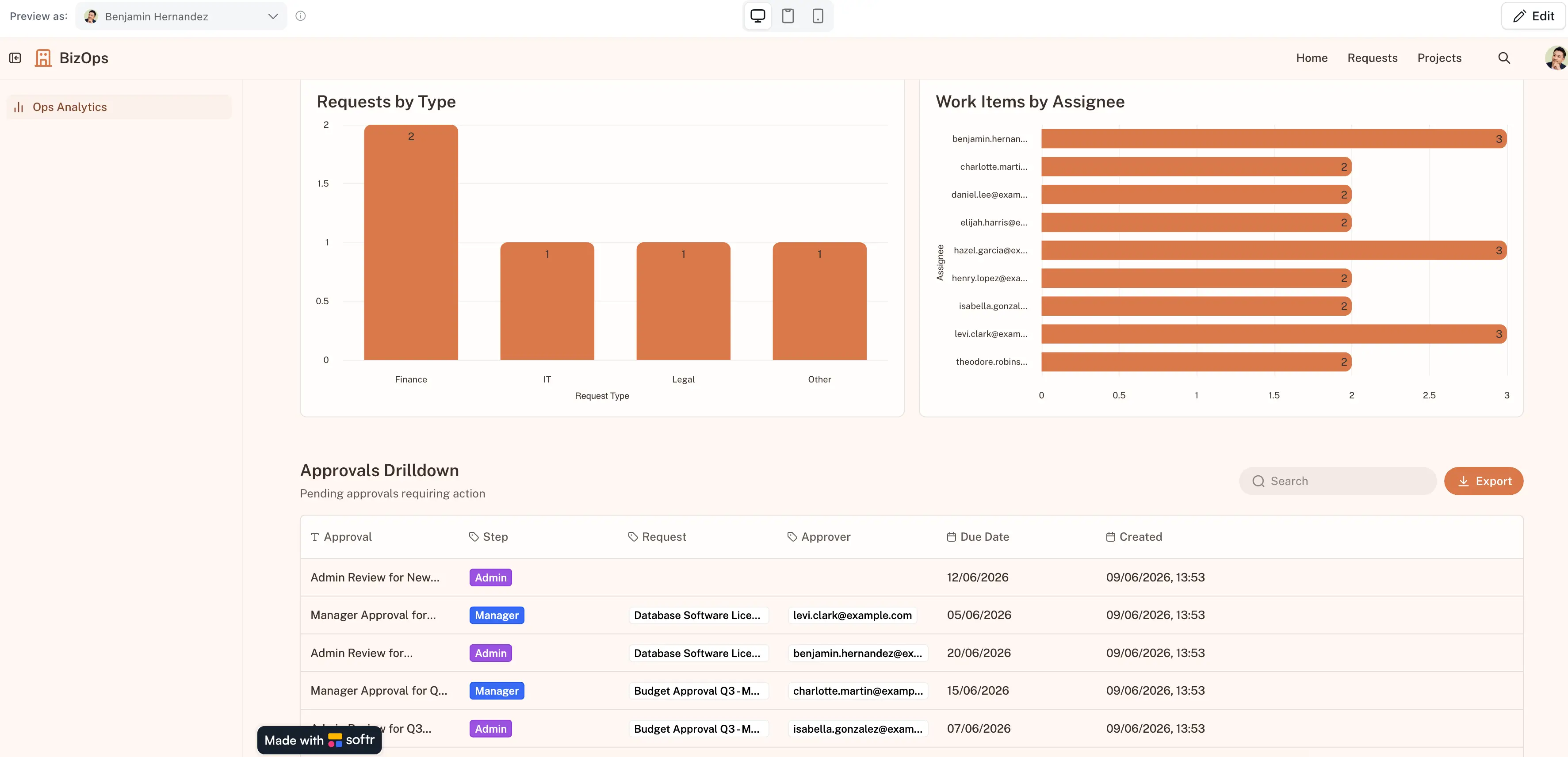
Softr is the best platform for building real business software and fully functional operational systems with AI and no-code. With it you can build your team an internal tracker, client and customer portals, inventory management systems, dashboards, CRMs, knowledge bases — you name it.
With the AI Co-Builder, I created a working app from a basic prompt, and it took just a few minutes to do so. Here’s the input I used: “Create a business operations app for a growing services team with request intake forms, approval workflows, project tracking, role-based views, notifications, and a live dashboard for open requests, overdue approvals, team workload, and key ops metrics.”
The AI started the build while clarifying key details, like whether I wanted different user roles for and how I would want my users to log in: email, Google, or SSO (handling auth from the very start).
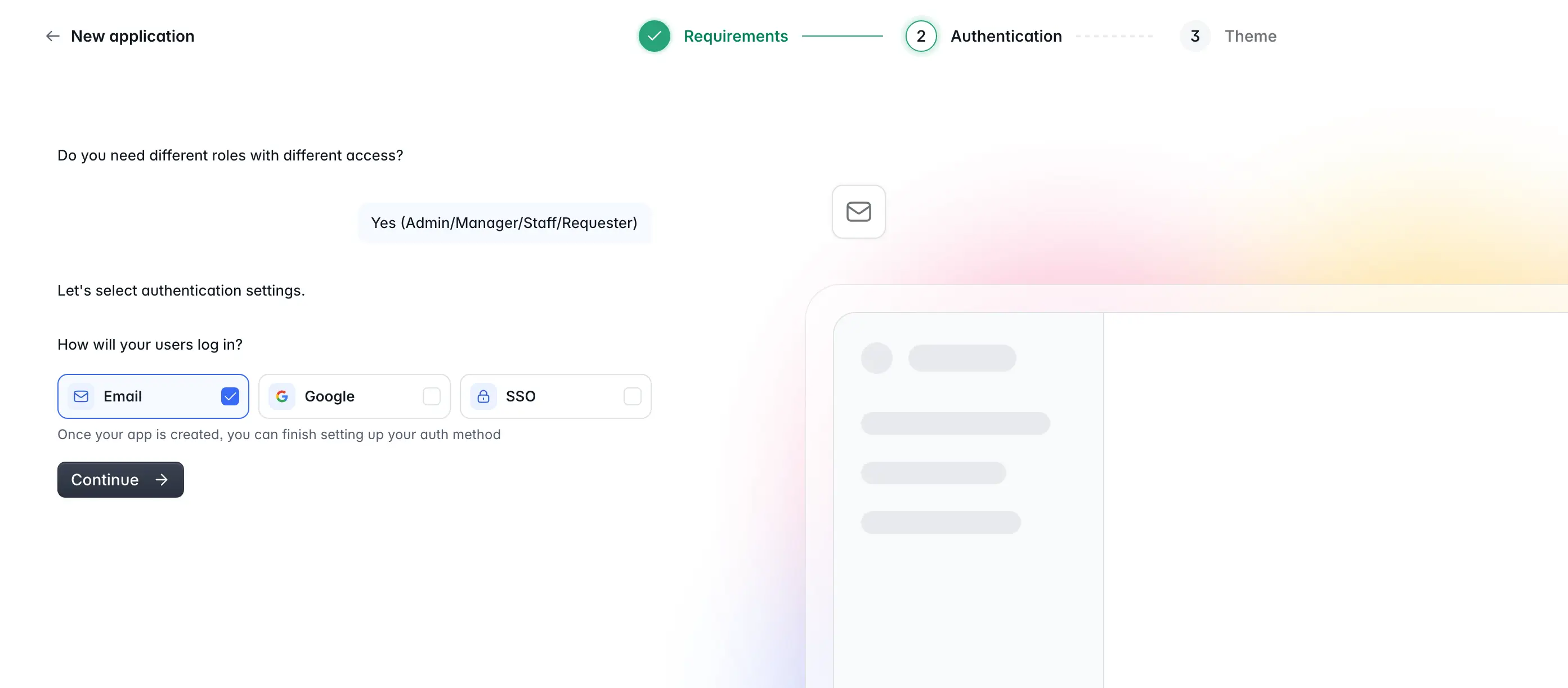
After answering a couple layout and theme questions, I leaned back to sip on my afternoon coffee while the AI created my business ops app then and there.
It created the relational database structure with sample data, a full interface, and the core user roles, all connected and ready to publish to real user.
In the analytics page, I wanted to change the pending approvals section and make it more clear by turning it into a calendar view. I was able to do that with the no-code blocks by just switching the block type over with a few clicks.
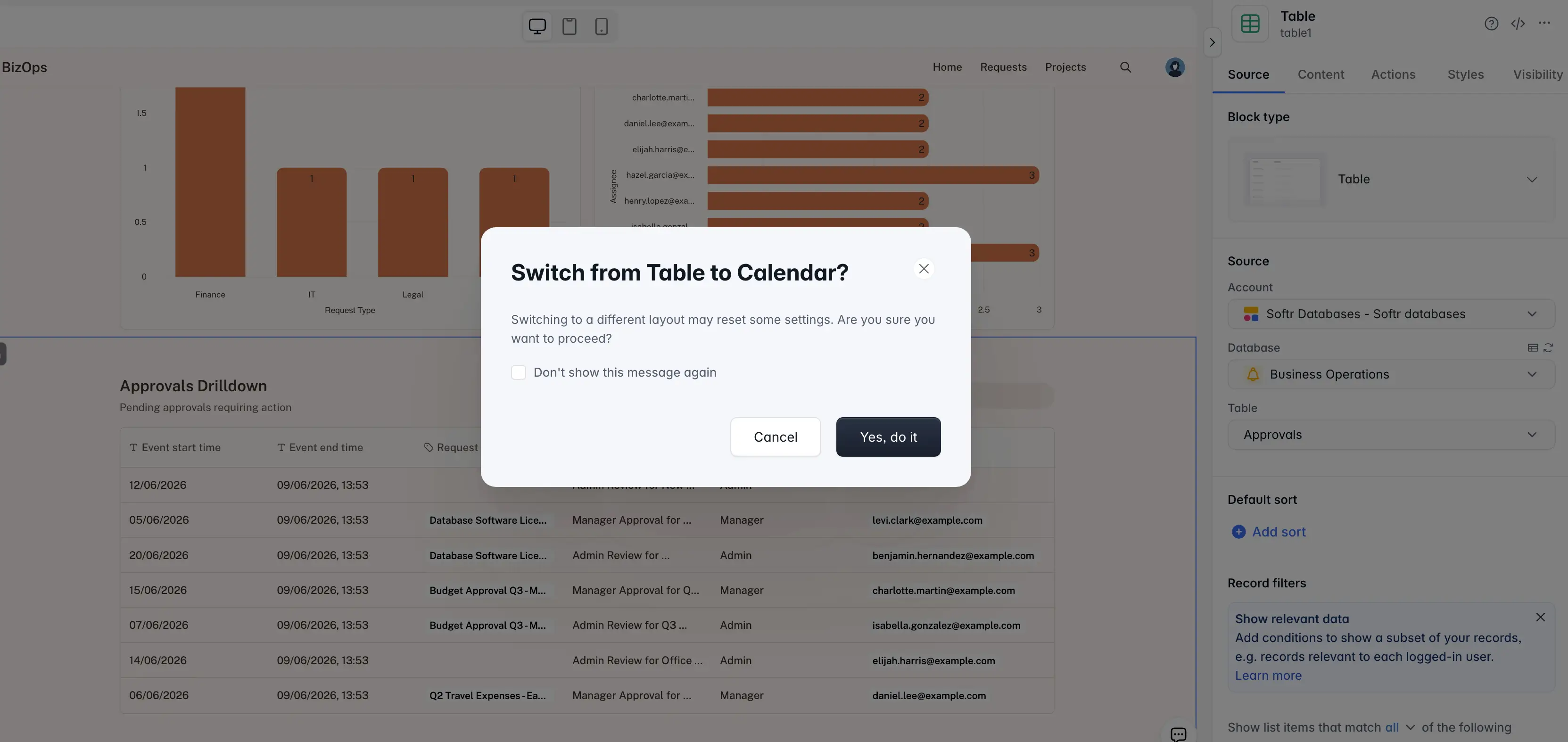
Getting a production-ready app took about 15 minutes. But what stood out to me wasn’t just how fast Softr’s Co-Builder was. It was how naturally it fit into the rest of the product experience. I wasn’t locked into re-prompting loops, since you can switch back and forth between AI and visual editing at any time.
My final verdict: For business operations, I’d choose Softr when AI needs to help build and run the actual system behind the work (not just summarize, draft, or coordinate disparate tools). It’s the strongest fit for teams that need an internal tool, portal, tracker, dashboard, or automation system with data, permissions, and user access handled in one place.
Pros and cons
Pros:
- Fast app generation with room to customize: Softr’s AI Co-Builder can generate a functional business app from a prompt, then lets teams refine the structure, logic, and layout through a visual editor.
- AI builds the full ops system, not just the interface: Softr’s AI Co-Builder generates the app, database, permissions, and business logic together, which matters for ops teams because requests, approvals, dashboards, and role-based views all need to work as one system.
- Built for real operations use cases: Teams can create tools for request tracking, approvals, onboarding, CRMs, inventory, project tracking, portals, and reporting without starting from scratch.
- Works with your business data: Softr has its own relational database, and it connects to 21+ data sources, including Airtable, Google Sheets, HubSpot, Notion, monday.com, SQL databases, and Supabase. Also, with the Softr MCP, builders can manage databases, apps, and workflows directly from assistants like Claude, ChatGPT, or Cursor.
- Granular permissions for different user roles: Teams can control who sees which data and what actions each user can take, which is important for internal tools, portals, and approval workflows.
- Dashboards and portals in the same platform: Combine intake forms, project views, client or vendor portals, KPI dashboards, and reports in one app instead of stitching together several tools.
- Enterprise-grade security from day one: SOC2 and GDPR compliance, SSO on Enterprise, and battle-tested infrastructure make Softr one of the most secure AI app builders.
Cons
- May not be the best fit for highly regulated teams with strict compliance requirements. If every workflow needs detailed audit trails, Softr may take more work to configure.
- It isn't the right fit for teams that want code ownership, GitHub sync, or developer-level control over their application stack.
Softr key features
- AI app builder: Softr’s AI Co-Builder can generate a working operations app from a prompt, including the pages, user roles, sample data, and core structure.
- Automation for manual handoffs: Softr Workflows can help route requests, send notifications, trigger reminders, and keep processes moving without relying on spreadsheets or email follow-ups.
- Ask AI: Softr’s Ask AI can let app users query live app data while following the permissions already set in the app. For business ops, that means a manager could ask which requests are overdue or which projects are blocked without exposing data they shouldn’t see.
- AI agents inside Softr’s native database: Softr lets teams add AI agents to their database fields for tasks like classifying records, summarizing notes, tagging documents, or enriching operational data. That’s useful for ops teams dealing with messy intake forms, project notes, support requests, vendor records, or internal documents.
- Flexible drag-and-drop blocks: Add customizable no-code components for the way teams track work, including lists, charts, calendars, forms, grids, dashboards, and tables.
- Vibe Coding block: Generate custom UI elements and tools inside Softr’s no-code builder, with app permissions, data sources, and theme carried over automatically.
- API and Webhook connectors: Connect apps to external data sources or tools with REST API, and use Webhooks to trigger actions or receive events in real time.
Softr pricing
Softr offers flat, predictable pricing plans. Listed prices reflect annual billing.
- Free: Unlimited apps, with access to Softr Workflows and Softr Databases, 5 app users, 5,000 database records, and 5 AI credits
- Basic: $19/month for unlimited apps with 42+ integrations, Team: 5 + Client: 5 app users, 50K records, and 10 AI credits
- Pro: $99/month for unlimited apps with 45+ integrations and custom code, Team: 10 + Client: 50 app users, 500K records, and 50 AI credits
- Business: $329/month for unlimited apps with 52+ integrations, Team: 30 + Client: 100 app users, 1M records, and 100 AI credits
- Enterprise: Custom pricing
Every plan includes a monthly AI credit allowance, so you can try the AI Co-Builder and Vibe Coding block at no cost.
2. Claude — best AI for analysis, reporting, and document-heavy work
I’d use Claude when operations work is messy, context-heavy, and hard to turn into a clear next step. In practice, it feels like having a super sharp ops assistant: good at drafting SOPs, summarizing blockers, preparing leadership updates, and turning rough inputs into something a team can act on.
Give it meeting notes, process docs, spreadsheets, customer feedback, or scattered project updates, and it can help pull out patterns, draft conclusions, create reports, or turn rough context into an SOP or decision memo. Claude Cowork makes this more practical for ops teams because it moves beyond chat: you can hand off longer file-heavy tasks, like reports or deck creation, then review the finished draft.
The tradeoff is that Claude still needs clear instructions, clean context, and human review for the majority of workflows.
My verdict: I’d use Claude as an AI support tool for analysis and deliverables, not as the place where operations run. It’s best when you need to turn raw context into a report, SOP, summary, or decision memo quickly. Claude Cowork works well for file-based tasks, but it still needs manual review and clear boundaries. For actual workflows, approvals, permissions, and live operational data, I’d keep a dedicated business system behind it.
Claude pros and cons
Pros:
- Strong at making sense of scattered work: Claude is useful when ops teams need to turn notes, files, feedback, or project context into a clear summary, report, SOP, or decision memo.
- Good fit for document-heavy operations: It works well for teams that spend a lot of time creating process docs, status updates, internal briefs, spreadsheets, and leadership-ready summaries.
- Claude Cowork supports longer handoffs: Cowork makes Claude more useful for operational tasks that involve files, folders, spreadsheets, presentations, and multi-step deliverables.
- Helpful for review-and-refine workflows: Claude is strong at creating a first version that a human can check, tighten, and move into the team’s actual system of record.
Cons:
- Usage limits can interrupt heavier work, especially when users work with large files or multi-step Cowork tasks.
- Cowork requires careful review; it can be slow, make mistakes, or act erratically if instructions and file access are not clear.
- Claude is not a workflow platform, so teams still need a proper system for automating approvals, updates, reports, and repeatable processes.
Claude key features
- Claude Cowork: Users can hand off longer tasks across files, folders, spreadsheets, presentations, and desktop apps, then review the finished output instead of building every report or document manually.
- Projects: Teams can keep recurring work, documents, chats, and instructions together, which makes Claude more useful for ongoing ops workflows.
- Artifacts: Claude can create standalone outputs like process drafts, tables, lightweight tools, visualizations, and documents that users can review and refine separately.
- Research: Claude can help investigate topics, synthesize sources, and prepare structured briefs for vendor research, internal decisions, and process planning.
- File and document support: Claude can work with business files like spreadsheets, documents, slides, and PDFs, which is useful for ops teams that still run a lot of work through shared files.
Claude pricing
Listed seat pricing reflects annual billing. API pricing is usage-based.
- Free plan available with limited access
- Pro: $17/month billed annually, or $20/month monthly
- Max: Starts at $100/month, with higher usage limits than Pro
- Team: Standard seat is $20/user/month annually, or $25 monthly; Premium seat is $100/user/month annually, or $125 monthly
- Enterprise: Custom seat pricing plus usage at API rates, with advanced admin, security, compliance, and data controls
- API: Haiku 4.5 starts at $1 input / $5 output per million tokens; Sonnet 4.6 starts at $3 input / $15 output; Opus 4.8 starts at $5 input / $25 output
3. Granola — best AI for turning meetings into operational memory
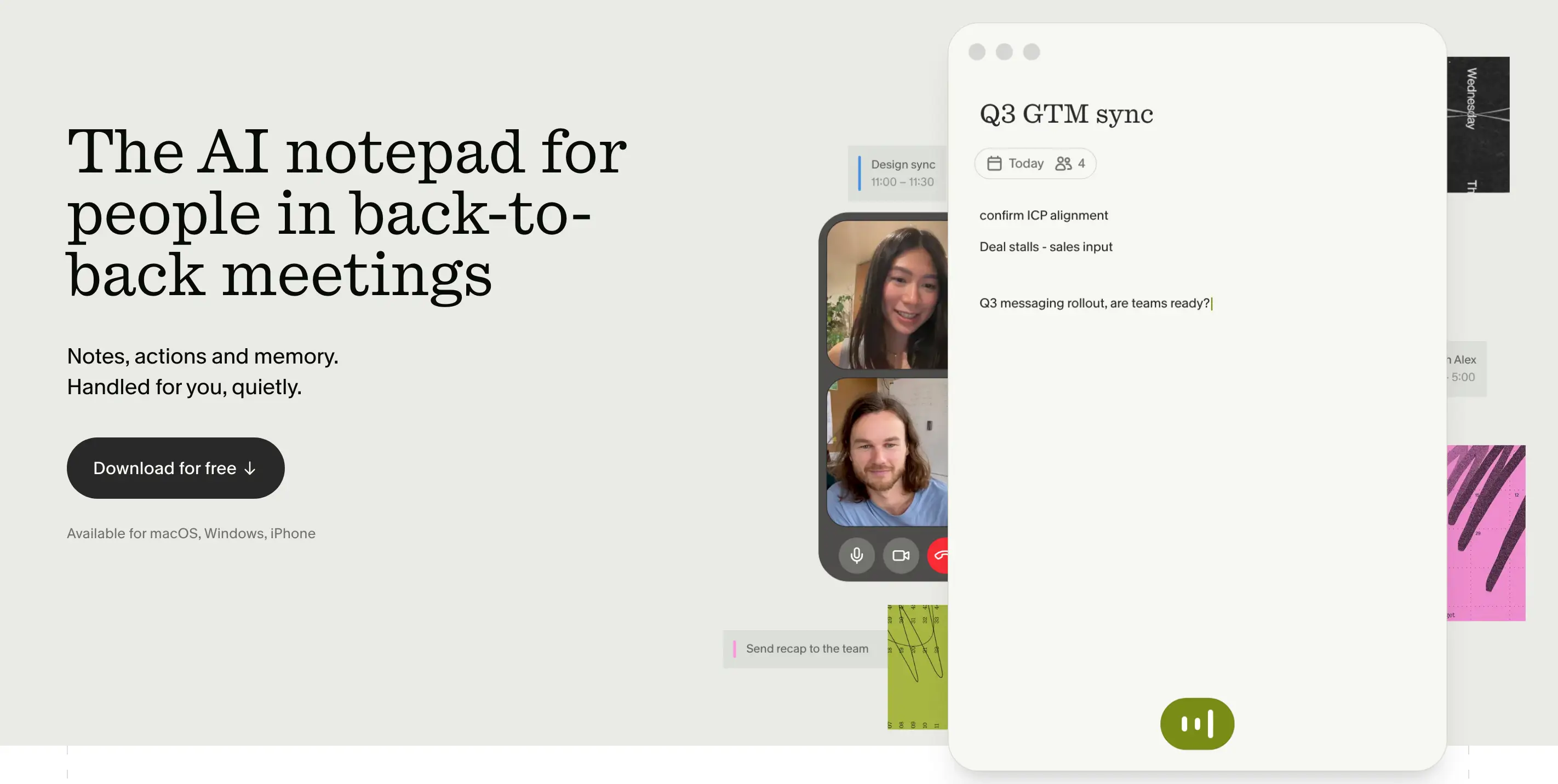
Granola makes the most sense when the operational problem starts in meetings. In a typical ops workflow, I’d use it during leadership syncs, customer calls, or vendor check-ins to stay focused while it captures the messy context in the background. After a vendor call, for example, I could pull out open issues, next steps, and task owners, then move only the reviewed action items into a tracker or CRM. After a leadership sync, I could turn the same notes into a short update on blockers, decisions, and what needs escalation.
Granola doesn’t join meetings as a visible bot, so the conversation feels more natural, and I can stay present instead of writing everything down. But I still need to review the output before treating it as a source of truth.
The other main tradeoff is that speaker attribution and transcript accuracy aren’t reliable enough to make Granola the execution layer. You also need to check sharing and privacy settings before rolling it out widely, especially for meetings with customer, hiring, vendor, or leadership context.
My verdict: For business operations, Granola is best as a meeting-context layer. Its AI features are quite strong for capturing decisions and patterns, but it’s not a solution for running processes from start to finish.
Granola AI pros and cons
Pros:
- Bot-free meeting capture: Granola records from the user’s device, so meetings feel less interrupted than with AI tools that visibly join the call.
- Strong fit for back-to-back operators: It helps people stay focused in meetings while still leaving with usable notes, summaries, and follow-ups.
- Good personal-to-team workflow: Users can start with their own notes, then turn them into shared meeting context for teams.
- Useful for messy operational conversations: It works well when the main output is a clearer decision, blocker, recap, or next step.
Cons:
- Speaker attribution can be unreliable, which is a real issue when ownership and accountability matter.
- Transcripts and AI notes still need human review before they’re used in project trackers, CRMs, or leadership updates.
- Privacy, sharing, and model-training settings need admin attention, especially for teams discussing sensitive internal or customer information.
Granola AI key features
- AI meeting notes: Granola turns live meeting context into structured notes that are easier to review after the call.
- Manual notes plus transcript context: Users can write rough notes during a meeting, and Granola fills in the missing detail from the transcript.
- AI chat across meetings: Teams can ask questions across meeting history to find past decisions, blockers, or recurring themes.
- Shared folders: Teams can organize meeting notes by function, project, customer, or workflow so context doesn’t stay trapped with one person.
- MCP and API access: On paid plans, Granola can connect meeting context into broader AI and operational workflows instead of keeping notes isolated.
Granola AI pricing
Pricing shown is listed per user/month.
- Basic: Free, with AI meeting notes, limited meeting history, AI chat, shared folders, templates, multilingual support, and model-training opt-out
- Business: $14/user/month for unlimited notes and history, advanced AI models, integrations, centralized billing, MCP, and API access
- Enterprise: $35/user/month for enterprise security and admin controls, SSO, priority support, usage analytics, org-wide deletion periods, sharing/API controls, and team-wide model-training opt-out
4. Lindy — best for AI-assisted admin and follow-up workflows
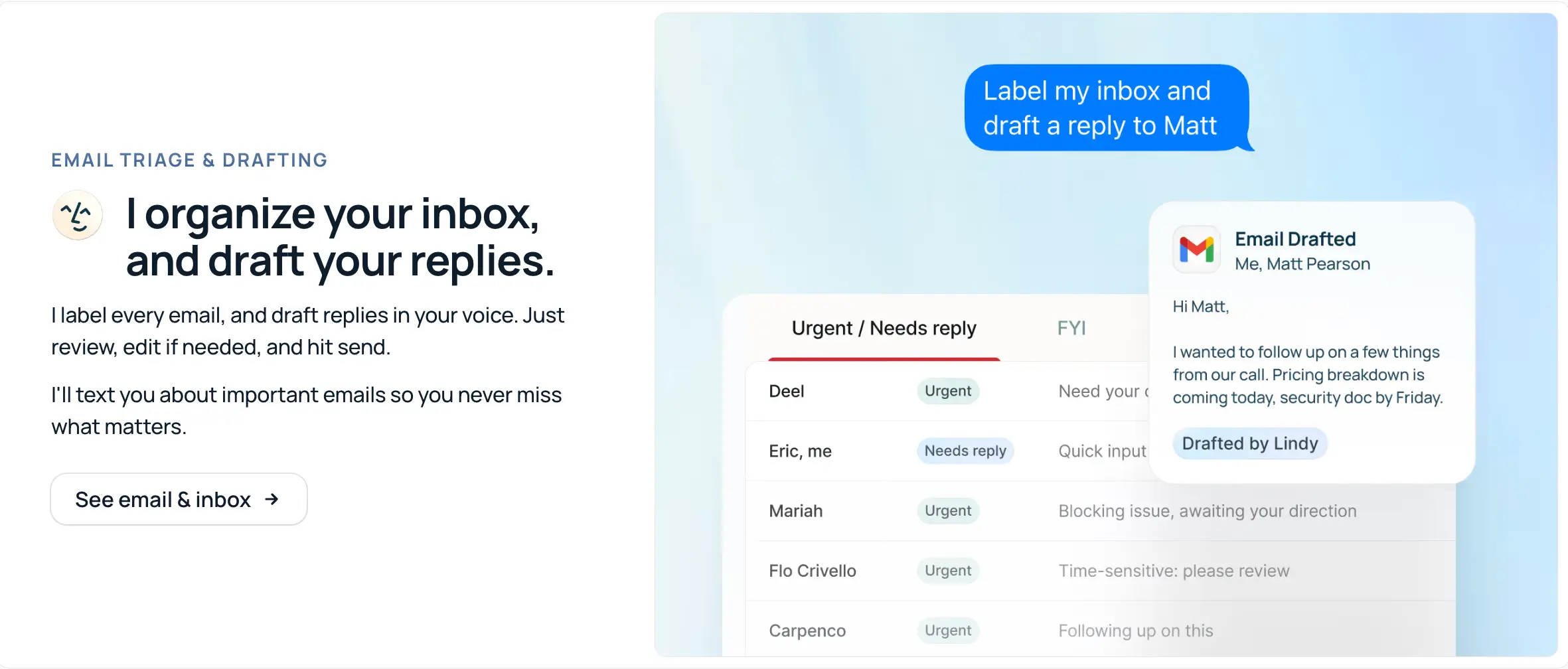
Lindy is built for the messy middle of ops work: the emails, meetings, reminders, and updates that keep work moving between systems. In a typical ops workflow, I’d use it to stay on top of email, meetings, scheduling, CRM updates, and follow-ups without manually moving every detail between tools. After a sales or vendor call, for example, Lindy could summarize the conversation, draft the follow-up, create a reminder, and help update the related CRM record. For inbound requests, it could classify the email, route it to the right person in Slack, and prepare a response for review.
Lindy works like an AI admin layer across the tools a team already uses. You don’t need to build a full workflow system from scratch to get value. You can start with one repeated handoff, like turning meeting notes into next steps or making sure important emails don’t sit unanswered.
Lindy’s main tradeoff is that it still needs clear instructions and (sometimes multiple) review points. It’s easy to get started, but reliable ops workflows require deep setup, testing, and guardrails. Pricing can also become a concern for heavy usage, especially when teams run complex agents or test workflows repeatedly.
My verdict: Lindy is best as an AI coordination layer on top of your existing tool stack. It excels at inbox triage, meeting follow-ups, scheduling, CRM hygiene, and light routing, but it’s less suited for core workflow execution, structured data management, or complex backend processes.
Lindy pros and cons
Pros:
- Strong fit for communication-heavy ops work: Lindy is especially useful when tasks start in email, meetings, or calendar and need to be turned into automated follow-ups, updates, or reminders.
- Easy to start without technical setup: Users can build useful workflows with prompts, templates, triggers, and connected apps instead of writing code.
- Good for reducing manual handoffs: It can help move information between tools like Gmail, Slack, CRMs, spreadsheets, and calendars without relying on someone to manually copy and paste every update.
- Human-in-the-loop workflows: Teams can keep approval steps before Lindy sends messages, updates records, or takes sensitive actions.
Cons:
- Pricing can become a concern as usage increases, especially when workflows have many steps or require repeated testing.
- Lindy has a learning curve if you want reliable workflows. Users need to define triggers, conditions, permissions, and fallback behavior clearly.
- It’s not ideal for complex backend automation, structured internal systems, or workflows that need developer-level control.
Lindy key features
- AI workflow triggers: Lindy can start workflows from events like new emails, calendar activity, Slack messages, spreadsheet updates, scheduled times, or webhooks.
- Email drafting and follow-up: It can draft replies, prepare follow-ups, and help ops teams stay on top of conversations that would otherwise get buried.
- Meeting scheduling, notes, and prep: Lindy can support the full meeting loop, from scheduling and prep to note-taking and post-meeting follow-up.
- Cross-tool actions: It can connect to 100+ integrations, making it useful for workflows that touch multiple tools instead of staying inside one app.
- Computer use on higher plans: The Pro plan adds computer use, which gives Lindy more flexibility for tasks that go beyond standard integrations.
Lindy pricing
Prices shown reflect monthly billing.
- Plus: $49.99/month, with standard usage, up to 2 inboxes, iMessage/SMS chat, email drafting, meeting scheduling, meeting note-taking, meeting prep and follow-up, and 100+ integrations
- Pro: $99.99/month, with everything in Plus, 3x more usage, up to 3 inboxes, computer use, model selection, and a live onboarding session
- Max: $199.99/month, with everything in Pro, 7x more usage than Plus, and up to 5 inboxes
- Enterprise: Custom pricing, with everything in Max plus shared usage and bonus credits, dedicated support, onboarding and enablement, HIPAA compliance and signed BAA, SSO, and more
5. Salesforce — best AI for enterprise teams running complex customer operations
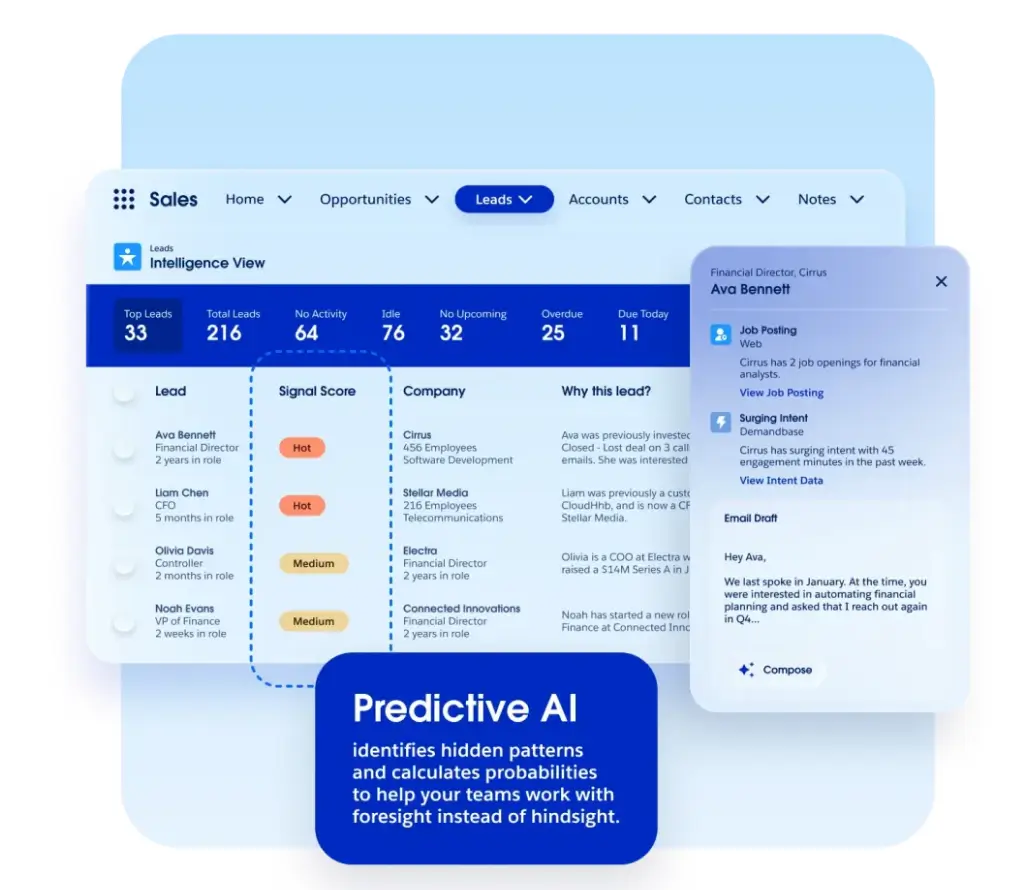
Salesforce is the heavyweight AI CRM for teams that need customer data, workflows, reporting, and AI agents to operate in the same system. In a typical ops workflow, I’d use it to standardize how work moves from a closed deal to onboarding, support, renewals, and leadership reporting.
For example, when a deal closes, Salesforce can trigger onboarding tasks, assign owners, update the account status, notify the right team, and give managers a dashboard view of what’s moving or stuck. In a service workflow, Agentforce can help route cases, summarize customer history, suggest next steps, and support agents with the right context before they respond.
With Agentforce, the AI layer can work against CRM records, workflows, permissions, and connected systems, which makes it more useful for teams that need agents to act inside an existing process.
The tradeoff is that Salesforce only becomes efficient after serious setup. You need clean data, thoughtful workflows, trained users, and usually admin or consultant support. It can also get expensive once AI, integrations, and ongoing maintenance enter the picture.
My verdict: For business operations, I’d use Salesforce when the AI needs to work inside a governed CRM process, not just summarize or draft around it. It’s a strong fit for enterprise sales, service, and customer operations, but too heavy for teams that just need a lightweight internal tool, portal, or tracker.
[.blog-callout]
💡 Softr’s Salesforce integration keeps CRM data in sync with the apps and portals your team actually uses. Learn more here →
[.blog-callout]
Salesforce pros and cons
Pros:
- Strong fit for complex customer operations: Salesforce works well when sales, support, account management, and leadership need one controlled system for customer data and workflows.
- Deep customization: Teams can shape fields, objects, permissions, dashboards, and automations around their actual operating model.
- Enterprise-grade reporting: Managers can track pipeline health, case backlog, SLA status, customer activity, and operational bottlenecks from one place.
- AI connected to business records: Agentforce works directly with Salesforce data, workflows, automations, and connected systems instead of sitting beside the business process.
Cons:
- Setup is heavy and usually requires support from Salesforce admins, consultants, or dedicated internal ownership.
- Pricing is hard to estimate upfront because the real cost depends on editions, AI usage, integrations, support, and implementation.
- AI value depends heavily on clean CRM data, clear workflows, and strong user adoption.
Salesforce key features
- Agentforce AI agents: Teams can build AI agents that summarize records, answer customer questions, route work, trigger actions, and support structured sales or service workflows.
- Customer 360 data model: Salesforce brings accounts, contacts, opportunities, cases, activities, and service history into one shared system.
- Workflow automation: Ops teams can automate routing, approvals, task creation, alerts, follow-ups, and handoffs across sales and service processes.
- Dashboards and analytics: Teams can monitor performance, pipeline, service quality, overdue work, and process gaps without relying on manual status updates.
- Slack and ecosystem integrations: Salesforce can bring CRM updates, alerts, collaboration, and AI-assisted actions into the tools teams already use.
Salesforce pricing
- Free Suite available for basic pipeline management and early CRM exploration
- Starter Suite: $25/user/month, for small teams that need an all-in-one CRM across sales, service, marketing, commerce, and Slack
- Pro Suite: $100/user/month, for growing teams that need more CRM flexibility, automation, and light integrations
- Enterprise: $175/user/month, for established teams that need advanced customization, automation, pipeline management, forecasting, APIs, and built-in AI
- Unlimited: $350/user/month, for larger teams that need more support, sandbox access, and higher-scale CRM operations
- Agentforce 1 Sales or Service: $550/user/month, for teams that want Salesforce’s full AI CRM package with Agentforce included
- Agentforce add-ons: from $125/user/month, with usage-based options at $500 per 100,000 Flex Credits or $2 per customer conversation
Choosing the best AI tool for your business operations
The best AI tool for business operations depends on where your work gets stuck.
Do you need help preparing reports, SOPs, or decision briefs from scattered files and project context? Claude is a good fit. Are meetings where most decisions get lost? Granola can help. Do follow-ups, scheduling, and inbox handoffs eat up too much time? Lindy makes sense. If you’re running complex customer operations at enterprise scale, Salesforce gives you the most control (although setup is a big investment).
But if your team needs a dedicated AI platform to generate apps and run workflows, Softr can handle your data, permissions, automations, dashboards, and user access without making you (or an LLM) code any of it.
Softr is built for teams that need AI inside the workflow, not beside it. Start with an AI prompt that describes the system you need, then refine the output through no-code tools built for real business processes.
Try the AI Co-Builder for free to create your first operations app, portal, tracker, or dashboard in minutes.