

[.blog-callout]
TL;DR
- Alphabetize a range of cells with Data > Sort range, or sort an entire column with the filter feature under Data > Create a filter.
- Freeze your header row first (View > Freeze) so column titles don't get pulled into the sort.
- Select full rows, not just one column, if you want to keep related data lined up correctly.
- If your spreadsheet has become the backbone of a daily workflow, sorting alone won't solve permissions, duplicate entry, or broken formulas. That's when it's worth building an interface on top of your Google Sheets data. [.blog-callout]
Alphabetizing data in Google Sheets is one of the fastest ways to bring order to a messy spreadsheet. Whether you're organizing a single column, several linked columns, or an entire sheet, Google Sheets gives you two straightforward ways to do it.
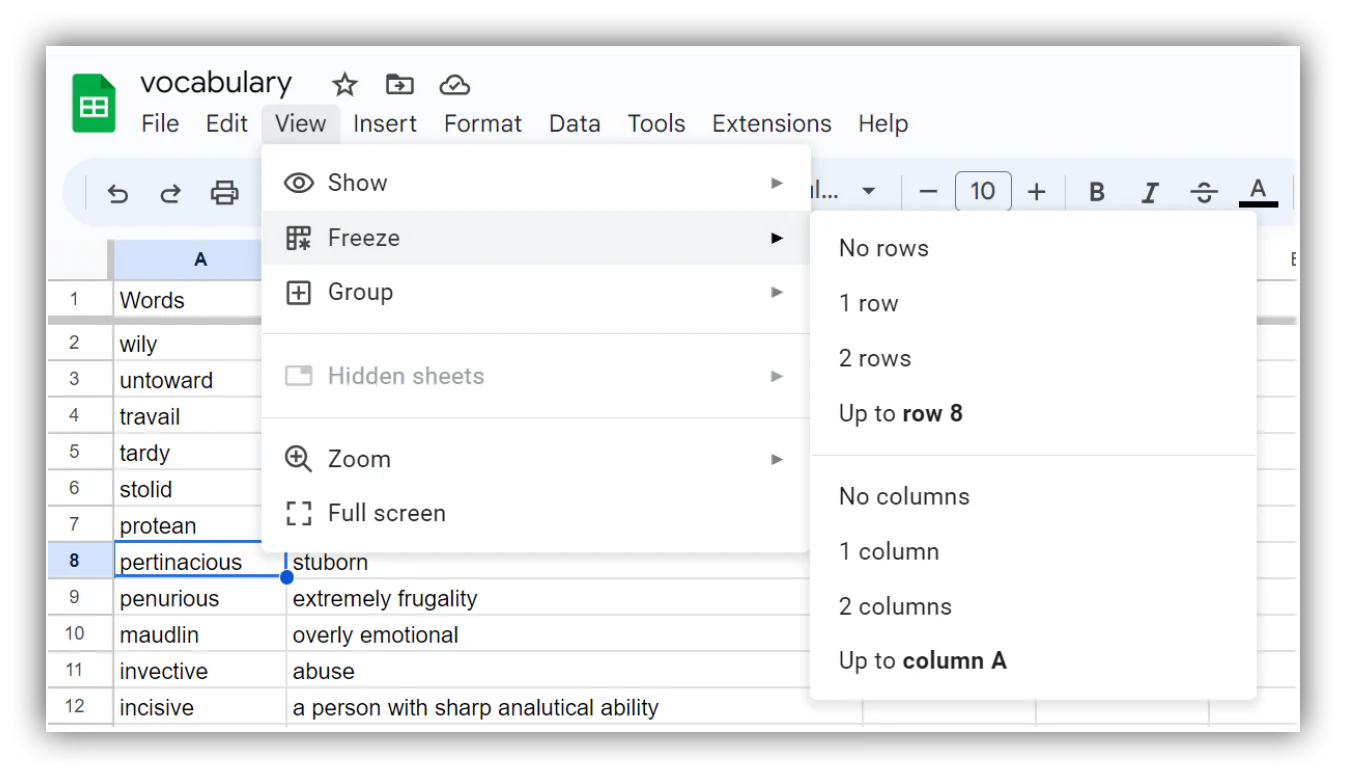
In this guide, we'll walk through both methods: sorting a range of cells and using the filter feature. If you don't want your headers caught up in the sort, freeze them first. Select the header row, open the View menu, and click Freeze.
How to alphabetize data in Google Sheets by sorting a range of cells
Sorting a range lets you rearrange a specific column, a set of columns, or your whole sheet in one action. This is the method to use when you want to permanently reorder the rows themselves rather than just change how they're displayed.
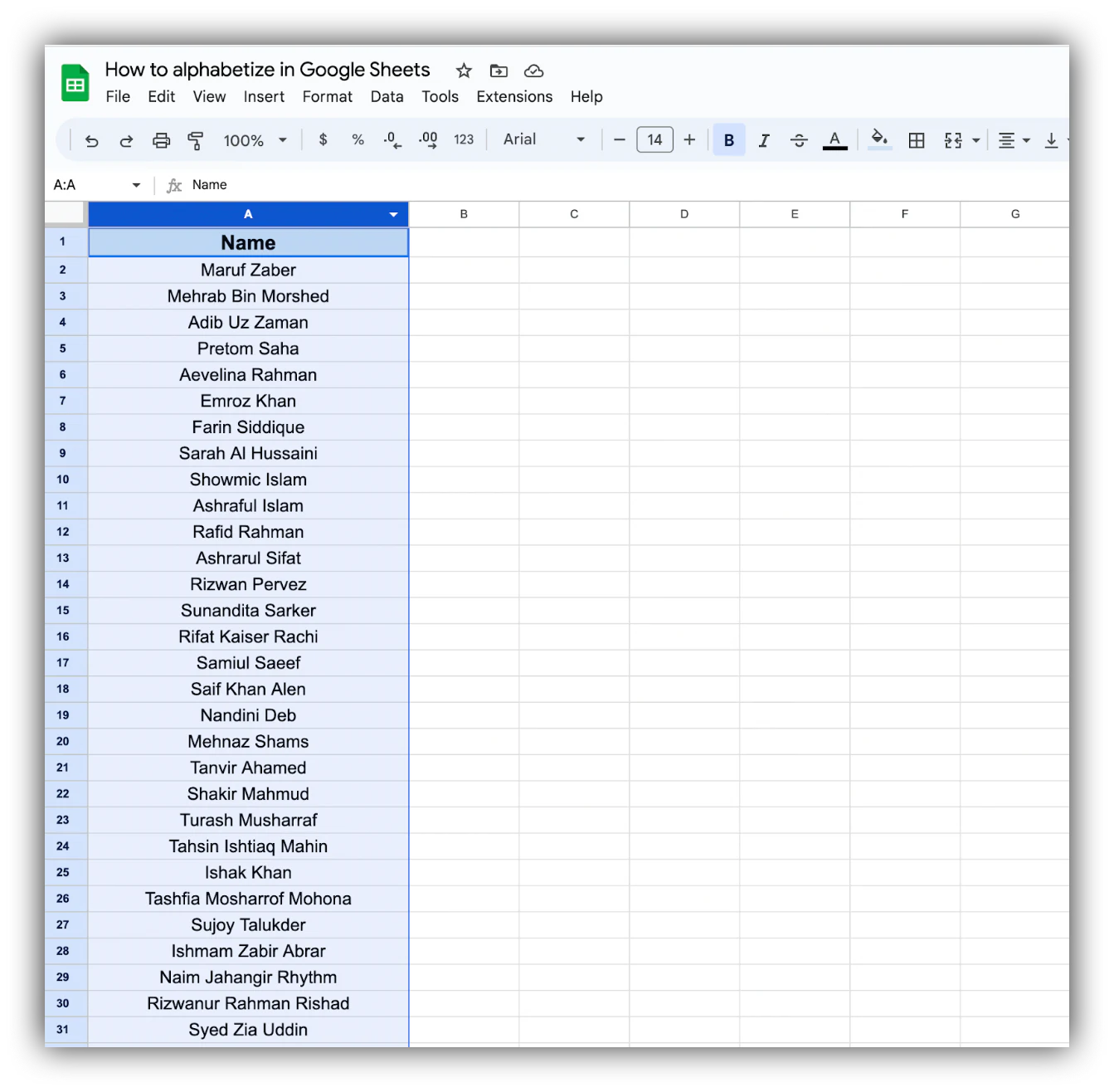
Select the data you want to alphabetize
Click on the first cell of your range, then drag to select the rest. In our example, we selected column A.
Choose the alphabetization method
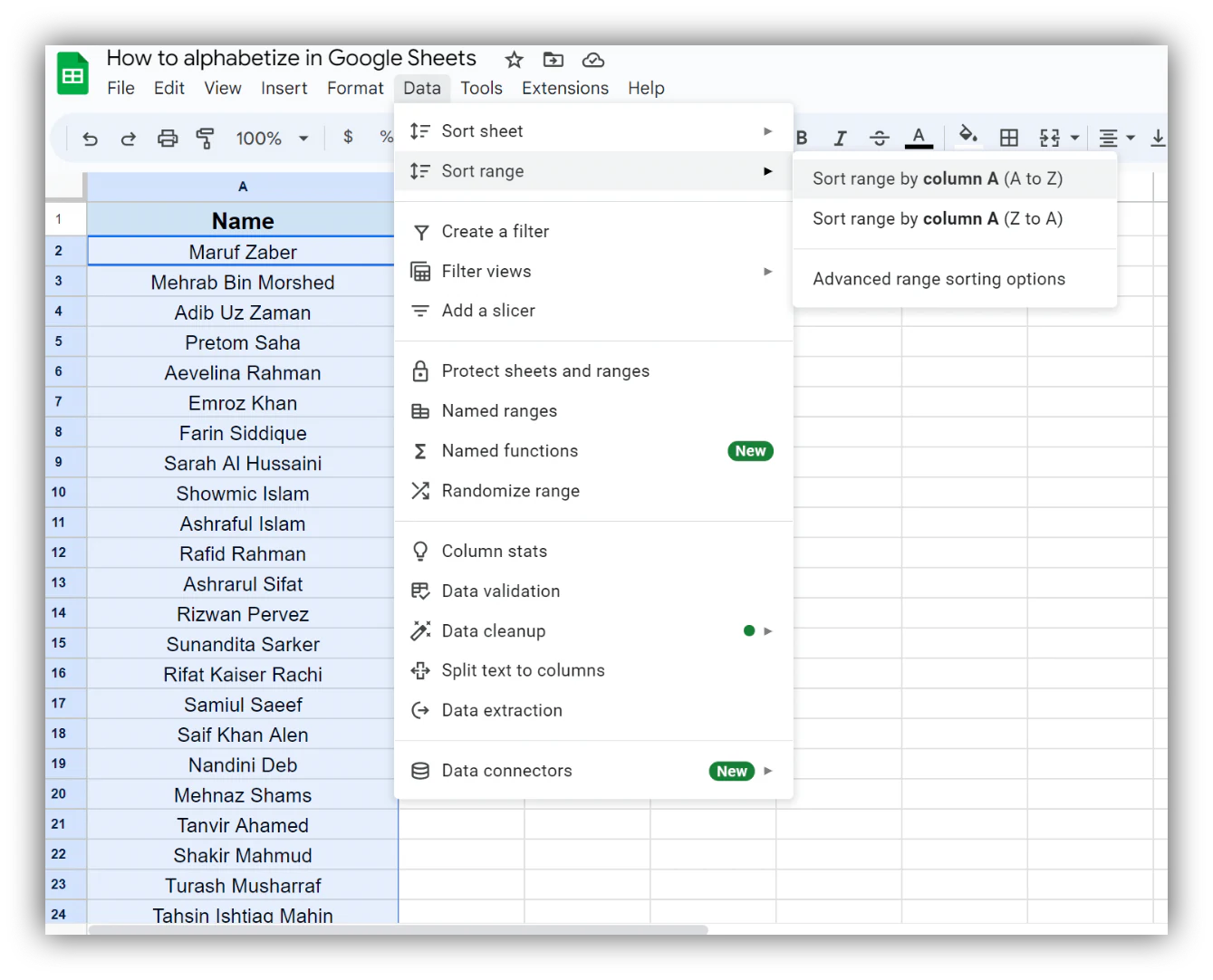
Open the Data menu, hover over Sort range, and choose A to Z to alphabetize or Z to A to reverse the order.
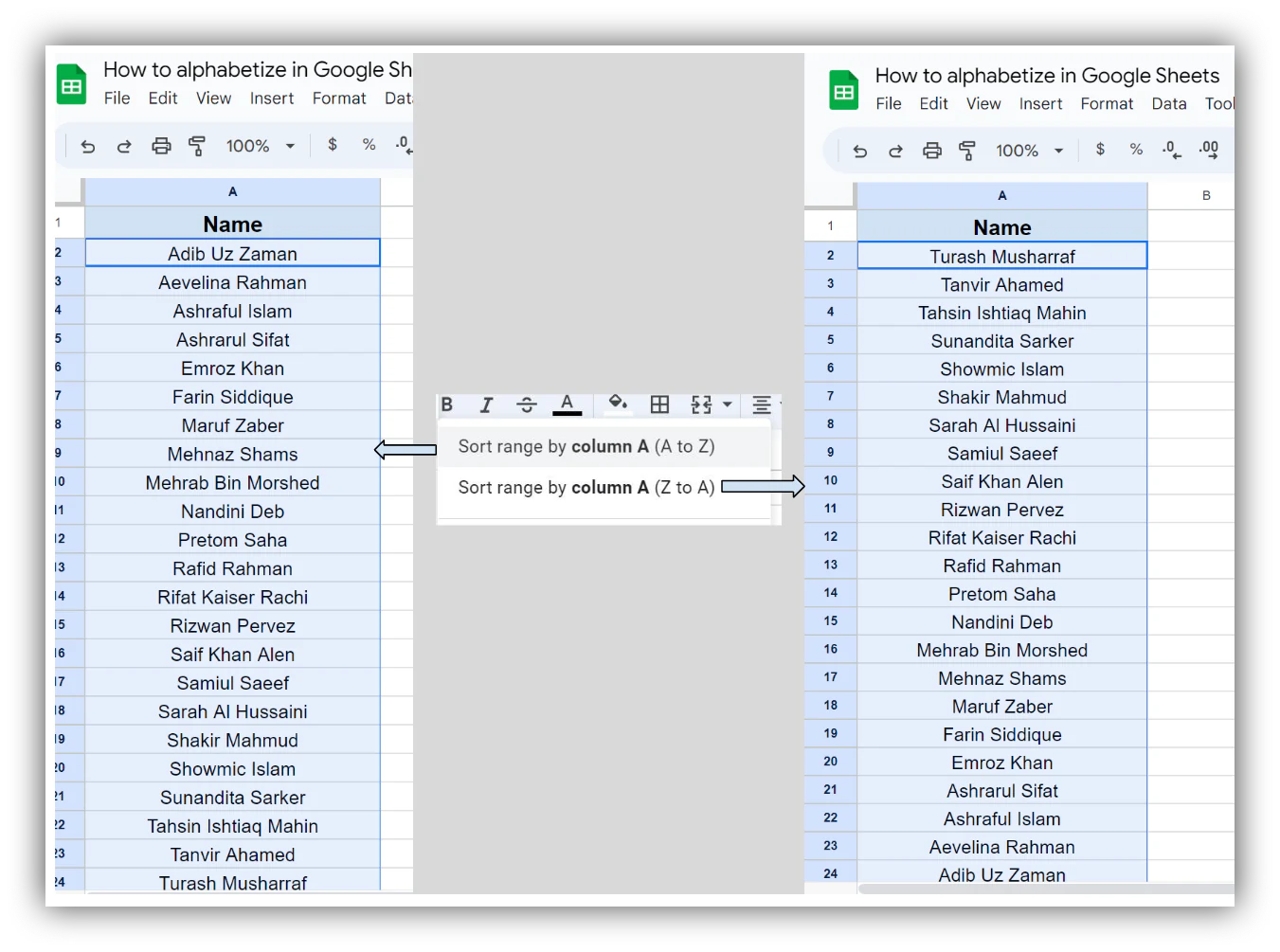
Your data is now alphabetized
That's it. Your selected range should now be sorted alphabetically.
How to alphabetize data in Google Sheets by using the filter feature
The filter feature is another way to alphabetize your data, though it only sorts entire columns rather than a specific range of cells. It's a good fit if you plan to re-sort or re-filter the same column often.
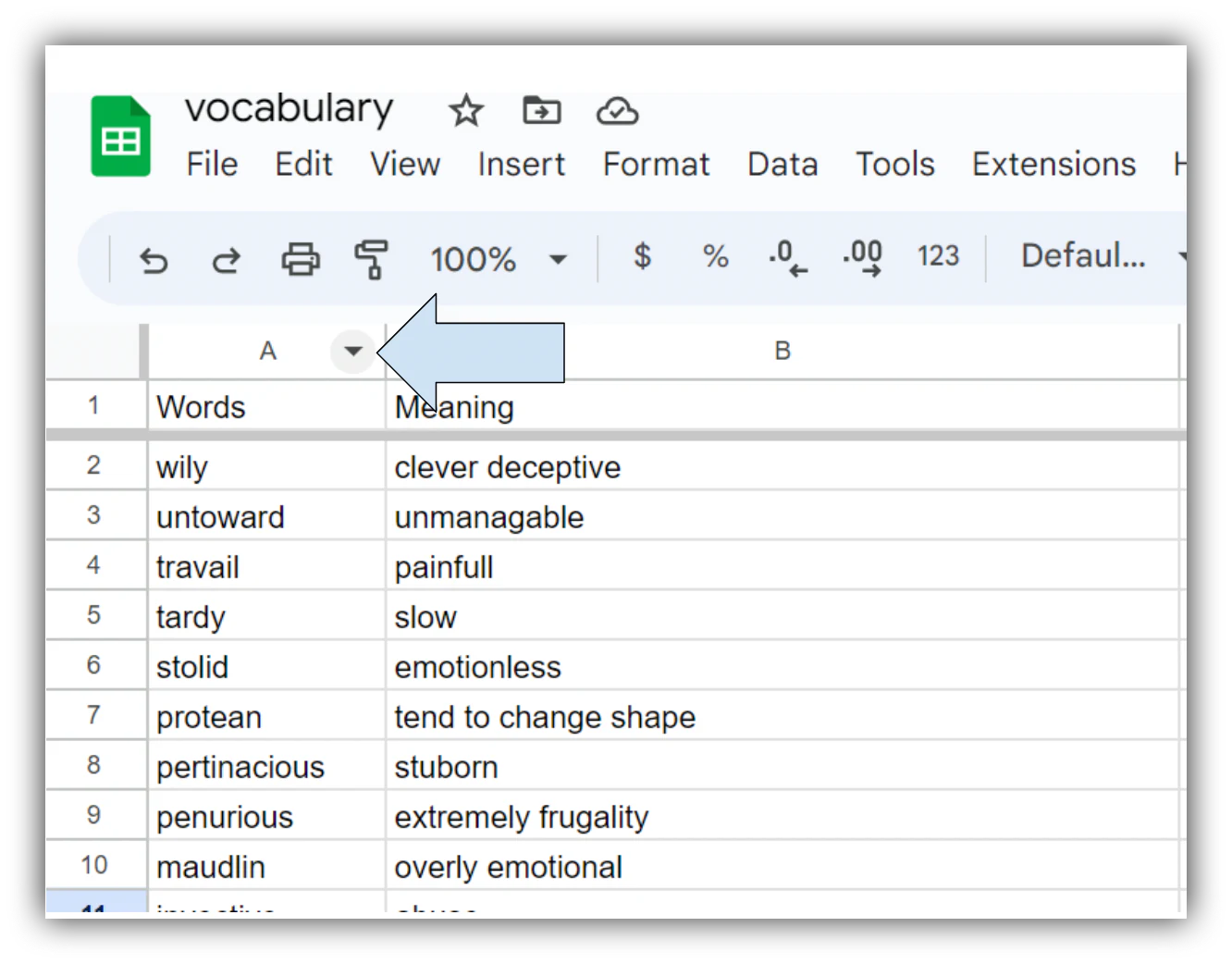
Open the in-cell menu of the column you want to alphabetize
Hover over the column letter until a drop-down arrow appears, then click it.
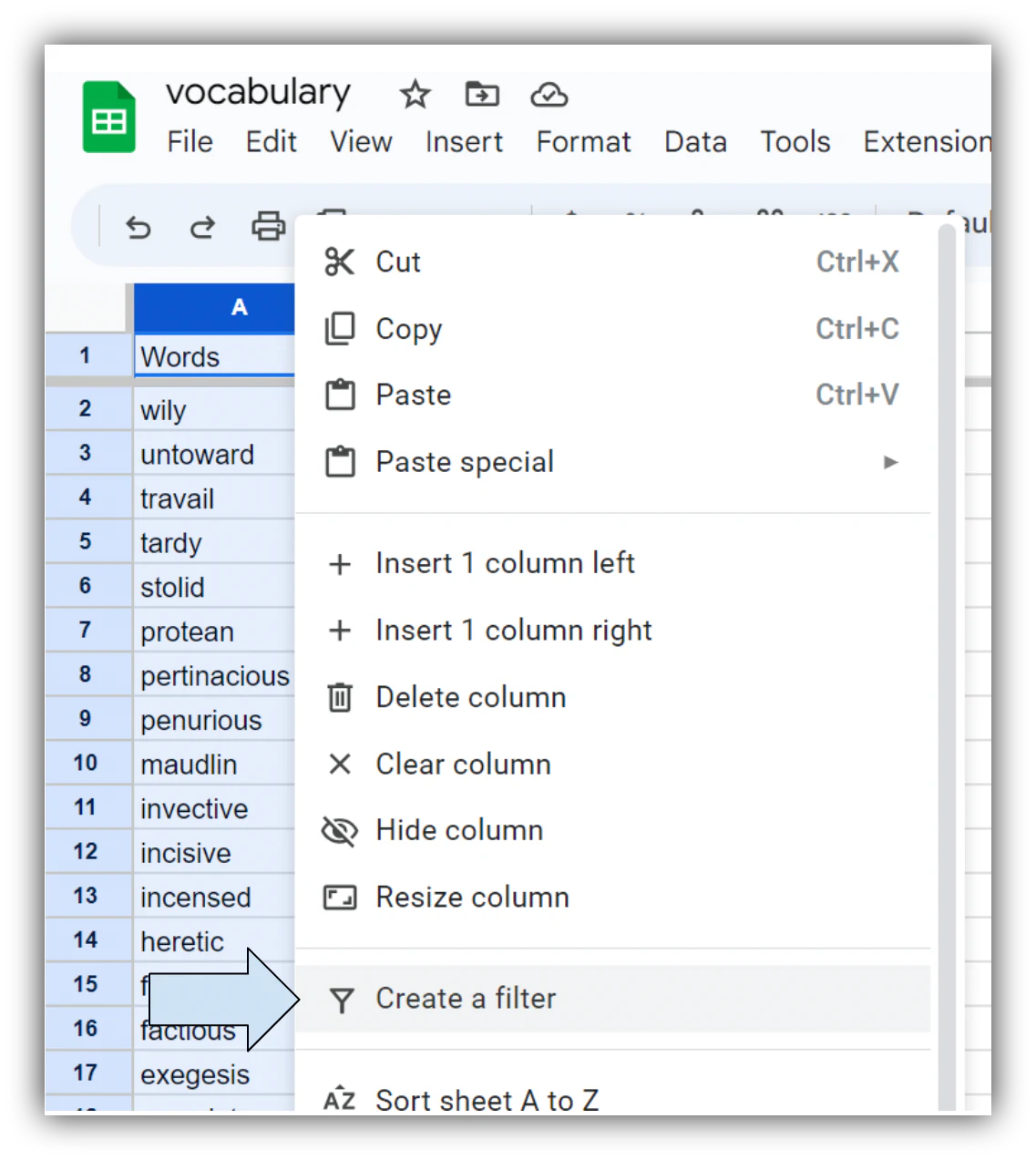
Create a filter
In the in-cell menu, click Create a filter.
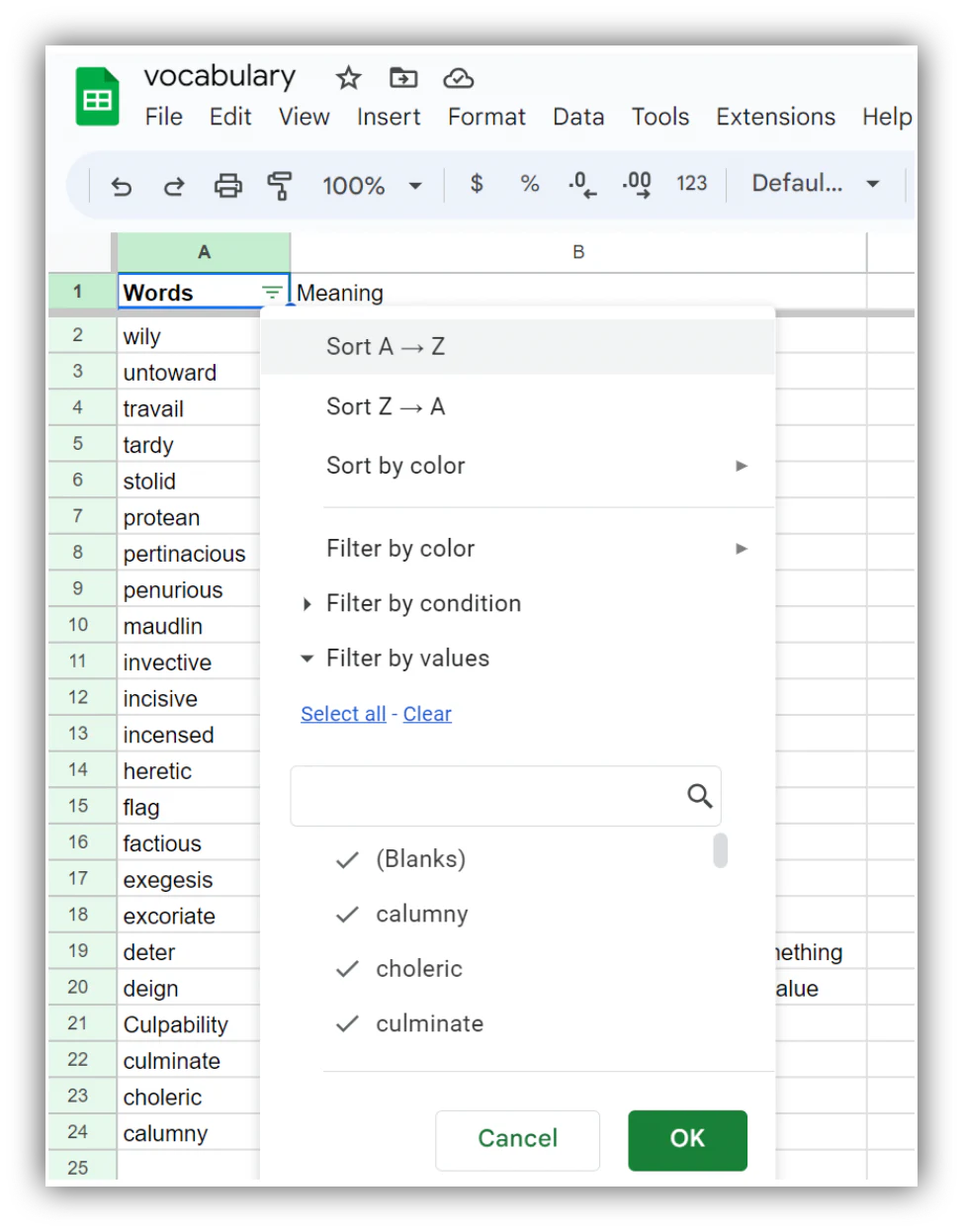
Choose the alphabetization method
An upside-down triangle icon now appears on the column. Click it to open the filter menu, then choose A to Z to alphabetize or Z to A to reverse the order.
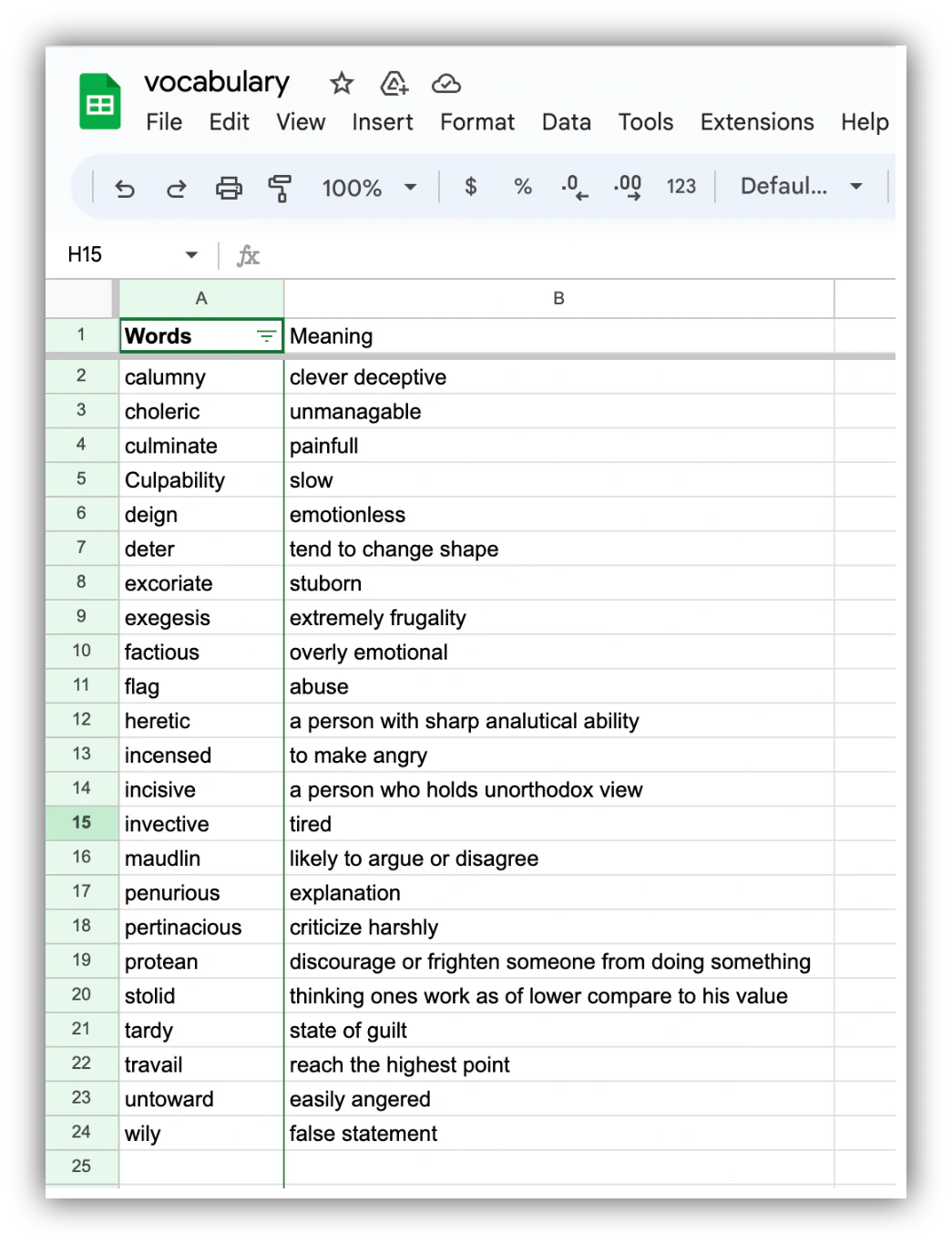
Your data is now alphabetized
Your column is now sorted alphabetically, and the filter controls stay in place for the next time you need to re-sort.
When sorting alone isn't enough
Alphabetizing helps you scan a spreadsheet faster, but it doesn't solve the deeper problems that show up once a sheet becomes something your whole team relies on daily. Filters, sorting, and hidden columns in Google Sheets are global. If one teammate sorts a column or applies a filter, everyone else sees that same view, which leads to people constantly overwriting each other's work.
There's also no real permission layer. You can share a whole file or lock specific cells, but you can't easily show one client only their own records while hiding everyone else's data. Teams often work around this by duplicating the sheet, manually deleting rows that shouldn't be visible, and emailing the copy, a process where a single missed row can expose confidential information.
If your Google Sheets file has become the operational backbone for two or more people, that's usually the sign it has outgrown the spreadsheet format. In that case, connecting it to Softr as a data source, or migrating it into a Softr Database, lets you build a proper interface on top: one where sorting and filtering are automatic, personalized to each user, and don't collide with anyone else's view. You can start by describing the app you want to the AI Co-Builder, or build it manually from a template, and set up users and permissions so each person only sees the data relevant to them.
Keep your data organized as it grows
Alphabetizing is a small habit that keeps a spreadsheet usable day to day, but it's not a substitute for structure. Freeze your headers, sort full ranges instead of single columns when data is linked across rows, and use the filter feature for columns you'll re-sort often. And if you find yourself alphabetizing the same operational sheet every week just to make sense of it, that's worth treating as a signal to build a proper interface for your Google Sheets data instead.
Frequently asked questions
Does alphabetizing a range in Google Sheets affect other columns?
How do I alphabetize data without affecting the header row?
Can I alphabetize by more than one column at once?
What's the difference between sorting a range and using the filter feature?
My spreadsheet has grown too complex for basic sorting. What are my options?