Transcript
AI app builders are insane right now. You can build almost anything in minutes, but once you try to use it in a real business with real users, things start to break. So I built something I could actually run my business on using Softr.
Not just a cool web app, but real software that runs everything in my business, no code, no devs needed, and completely free until you decide to scale. Its capability will genuinely blow you away. Before we get into the build, here is where Softr separates itself from typical generation tools and how well it actually works straight out of the gate.
You get your database, app, and automations all in one place, replacing tools like Airtable and Zapier. Logins, permissions, hosting, security, it is all built in from the start, instead of something you have to figure out or bolt on later.
[.blog-callout]
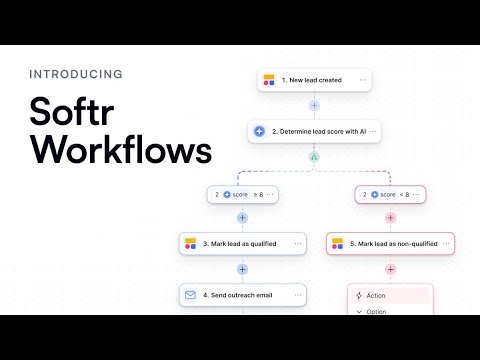
Note from Softr: When you want to automate processes without using external tools like Zapier, you can use native Softr Workflows. Keeping your logic close to your design helps consolidate tools and manage everything natively.
[.blog-callout]
Unlike most tools, you don't hit a wall. You can actually own, manage, and scale this yourself. It asks the right questions to structure your app properly, not just generate something and hope it works. It holds up with real users, real data, and real workflows instead of just a prototype that needs a lot of fixing.
Generate with AI, then tweak things your way, either visually with a click or using a Vibe-Coding block for custom changes without constant re-prompting. Today I am going to show you how to build a client portal and internal workflow system with AI, all in one place.
[.blog-callout]
Note from Softr: Building client portals for your business is incredibly fast. You can start from App templates or simply use the AI co-builder to generate a complete custom portal instantly.
[.blog-callout]
You could apply this use case to any business out there, but I have tailored this prompt to build it around my video production business and the workflow inside it. To get started using Softr for free, just log in using the given options on the site. Once in the dashboard, we are going to use the power of the AI Co-Builder.
Here is where the magic happens with the prompt. I am going to start by describing the use case and you will see it begin building in real time, not just the UI, but the whole system coming together. I have pasted that prompt in that I've already prepared.
You can see the main components here are a client portal, an internal dashboard, a CRM to manage clients, task management to assign to staff and team members, and role-based access with different permissions. Let's go ahead and send that off. After it digests the prompt, it walks you through a few simple questions to understand how your system should actually work.
It asks about users, what they are presented with, workflows, and the structure of the actual backend. Instead of guessing, it helps define the setup with you before it goes ahead and builds everything out. I have sped up the recording here so we can move through it a bit quicker, but you can still see what is happening.
It actually sets up Softr Databases for you in the background, so you are not messing around with external tools or trying to bolt things on manually. Early on here, it is already thinking about user groups and access, determining who can log in, what they can see, and how everything is controlled.
Before it even finishes building, it shows you exactly what you are getting, including the pages, the features, and the permissions. You are not guessing what the AI is doing because you can see it happen right in front of you.
As this runs, it builds the full structure, which includes databases, relationships, and very useful sample data. It pre-fills in all the fields so everything is visible and nothing is hidden behind the scenes. Once the full database is ready, the app builds straight on top of it with everything already connected and working.
During the build, you can see on the left-hand side each of the steps being taken along with descriptions. As you are building, you can take the time to read those steps as it goes through the process. That is all finished, and it took about seven and a half minutes.
We can stay inside the studio to do some editing or just try it out live straight away. It opens up in another window here to give us the full preview, and we will come back to the editor a little bit later to make a few changes. First, I will take a quick look around the fully built system, which is much more than just a single page.
Right now I am viewing it as the agency owner or admin. You have the home tab, which is essentially your dashboard with all your information. Looking inside the project page, we can see each of those different project phases with pre-filled sample data.
Let's open up this project for a customer testimonial which is currently in the script phase. We can see all the details of that particular project clearly laid out in the item details block. Let's say a team member says they finished the scripting and we can move on to filming.
We can just drag and drop that over in the kanban, and it is fully functioning immediately. We can also easily filter by priority or client. Next we have the tasks page, which serves as a to-do list of all the tasks across all our projects, showing who the task is assigned to and the due date.
Let's choose a random task, pick this one, and choose the edit action. If we wanted to adjust what had to be done in that task, we could do it here, or we could pre-populate it when creating the item. Moving on to clients, we can see our list of dummy clients and their contact details, which operates as our CRM.
As I said before, we can use API calls to link this with other external software if we want to bring that data into here. Alternatively, you can just build it natively and keep it safely inside the software you just generated.
[.blog-callout]
Note from Softr: While Softr integrates with multiple external data sources, using native Softr Databases is the most powerful way to manage your data directly within your app for maximum performance and functionality.
[.blog-callout]
Taking a look at deals, this is our pipeline for each of our potential clients. We have them in the lead phase, discovery phase, proposal sent, negotiation, won, and lost. Again, we have that drag and drop kanban functionality here too.
Coming back to projects, we have different viewing options to see exactly how it looks on desktop, tablet, and mobile displays. Switching between different user roles, you can see how the experience changes for clients, team members, and admins alike. Currently I am in the admin role and I have access to all five sections as shown before.
Let's say I switch to a team member view, the deals interface is displayed but I have restricted permissions. When I click this element, it says permission denied, which is exactly how I want it set up. Back in the editor, you can change user groups and permissions for each page to determine exactly who gets to see what.
Coming over to a client view, let's select Michael Chen and see what he experiences. It actually changes the visibility of what you see in the sidebar. This particular client can see all the projects going on across the database, which I wouldn't want in a live scenario.
I will need to dig into the editor to adjust those permissions so that Michael can only see the project specifically related to his company. Considering the AI essentially built this off its own back with guidance from me, it has done a pretty good job. It knew to only show a homepage for that client and the projects page instead of granting access to all the internal administration pages.
You can see that this is all built using structured blocks and components that are perfectly wired up to the data, which is why everything just works out of the box. If you want to customize things further, you can mix and match these blocks or extend them. If you need something highly advanced, you can drop in a Vibe-Coding block on top of this.
[.blog-callout]
Note from Softr: If a native component doesn't completely fit your advanced needs, use the Vibe-Coding block. You can simply prompt for the exact custom component you want, and it will generate it and connect to your database seamlessly.
[.blog-callout]
Coming back over to the studio, we can make visual changes right on the canvas. I mentioned before that we can use Ask AI to make changes inside the studio, or you can make them visually yourself. You can select any block and change things about its content, styles, visibility, and which devices can display it.
You can also define which user groups can view specific data inside a particular page. For this project page, when a user is logged in as a client, instead of them seeing every project, we can easily add a conditional filter. We set a condition where the client's name matches the primary field inside that project so they only see their own work.
You can do the exact same logic for the admin team or staff members so they only see the deals in the pipeline they are allocated to. That would be done via visual means using button presses, typing things in, and selecting fields. Alternatively, I could just ask AI to make it so that only associated clients can see the projects in that view.
Behind all this beautiful interface is the actual database holding the logic together. This is where all the information sits, and you can open it up and edit it easily. It is entirely structured and relational under the hood, making it incredibly powerful to run your business on.