
[.blog-callout]
TL;DR
- Google Sheets gives you five solid ways to remove duplicates: the built-in Remove duplicates tool, the
COUNTIFformula, add-on extensions, pivot tables, and Apps Script. This guide walks through all five. - The Remove duplicates tool is fastest for a quick cleanup. COUNTIF and pivot tables help when you need to inspect duplicates before deleting them.
- Deduping is a symptom, not a cure. A spreadsheet lets any value into any cell, so the same record keeps getting entered twice.
- To stop duplicates at the source, move your data into a structured database with unique fields and linked records. Softr Databases does this, and pairs your data with a real app your team can work in. [.blog-callout]
Google Sheets is an invaluable tool that helps with everything from quick calculations to detailed analysis. As your dataset grows, though, so does the risk of duplicates, and repeated rows can skew your results, inflate your counts, and quietly steer decisions in the wrong direction. The good news is that you have several reliable ways to clean them out.
In this guide, we'll walk through five practical methods to remove duplicates in Google Sheets, from the one-click built-in tool to a custom script. We'll also look at why duplicates keep reappearing in the first place, and what you can do to stop them at the source instead of cleaning them up over and over.
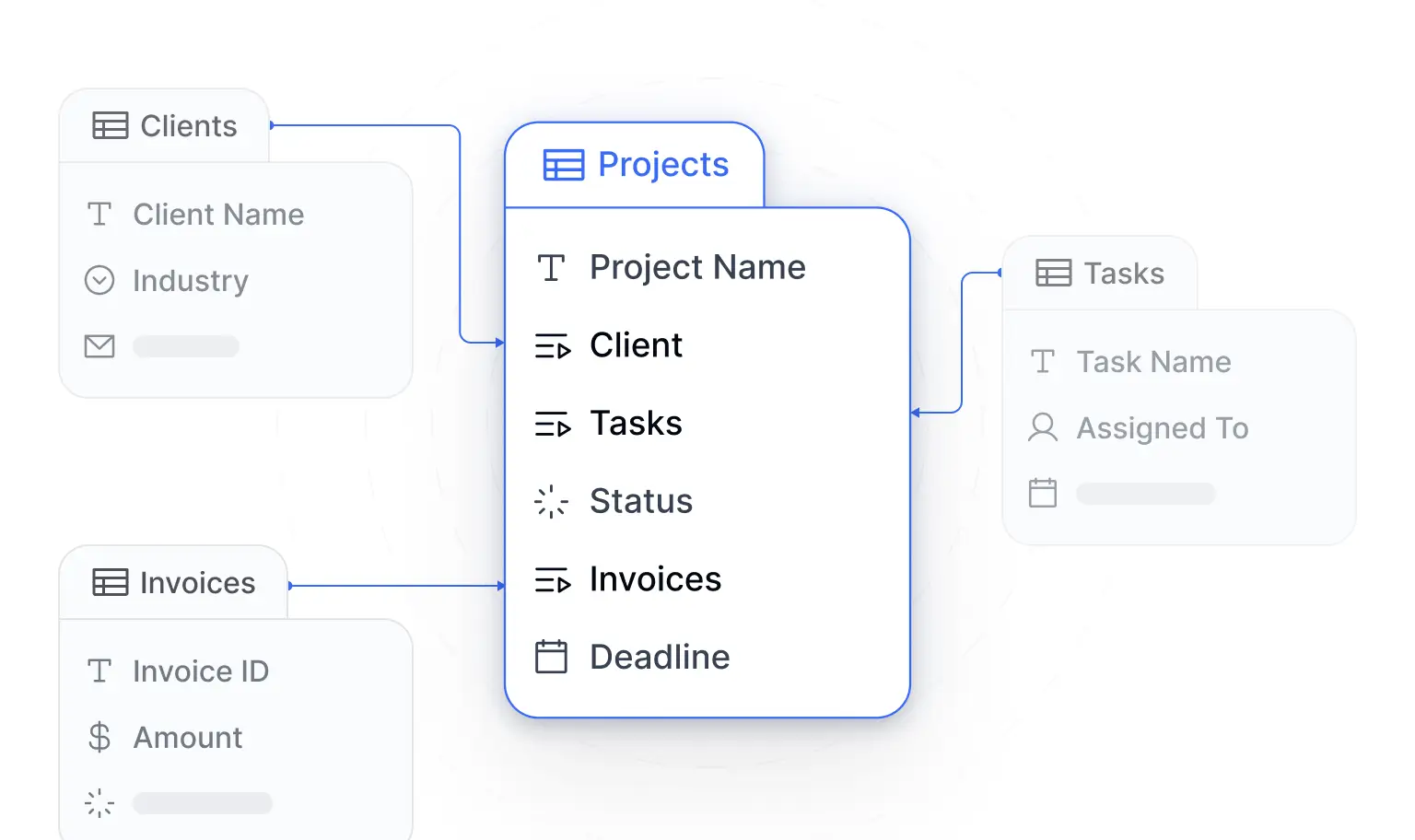
Before we dig into the methods, it helps to understand what you're really fighting. Duplicates aren't random. They show up because a spreadsheet has no concept of a unique record, so the same customer or invoice can be typed in twice with nothing to flag it. A structured database, where each row is a distinct record linked to others, removes that ambiguity entirely.
How to remove duplicates in Google Sheets, using the remove duplicates tool
Cost: $0
Time: 1 minute
What sets the remove duplicates tool in Google Sheets apart is its user-friendly interface and streamlined process that enables you to effortlessly pinpoint and eliminate duplicate entries. With just a few clicks, it analyzes data on your chosen dataset and offers a way to eliminate duplicate data, so that you have a more reliable dataset to work with.
Below are the steps to follow to use the remove duplicates tool to delete duplicate data in Google Sheets:
Step 1: Select the cells
Click and drag your mouse to select the range of cells that contains the data from which you want to remove duplicates.

Step 2: Open the Remove duplicates dialog box
In the top menu bar, click on “Data.” From the drop-down menu, choose “Data cleanup,” then select “Remove duplicates.”

Step 3: Configure the removal of duplicates
In the “Remove duplicates” dialog box that appears, you will find checkboxes next to each column in your selected range. Google Sheets will consider the combination of values in these columns to determine duplicates in your spreadsheet.
Check the "Data has header row" box if your selected dataset has column names so that Google ignores those rows when removing duplicates. Once you’ve configured the removal of duplicates, click on the "Remove duplicates" button at the bottom of the dialog box.

Step 4: Click on “OK”
Click on “OK” in the notification that appears showing you how many duplicates were found and removed to delete the duplicate rows.

Step 5: The duplicated data has been removed!
You’ve just finished removing all the duplicates with the remove duplicates tool. Now, all your data points are unique.

How to remove duplicates in Google Sheets, using the “COUNTIF” formula
Cost: $0
Time: 1 minute
Removing duplicates using the “COUNTIF" formula in Google Sheets is typically used when you want to identify and remove duplicate values from a specific range based on a certain condition or criterion. This method is particularly useful when you want to customize the duplicate removal process by considering specific factors.
Step 1: Select data range
Select the row you want to check for duplicates.

Step 2: Create a new column
Create a new column next to it. In this example, to find duplicates in column A, we’ll create column B next to it.

Step 3: Apply the formula
In a cell of your new column (such as the B2 in our example), insert the formula =COUNTIF(A$2:A2, A2)>1 to highlight the duplicates in column A.
You will need to adjust the formula based on your needs, but here’s what the formula means:
- COUNTIF(A$2:A2, A2): This part of the formula counts the number of times the value in cell A2 appears within the range of cells from A$2 (the first row in the range, anchored) to the current row A2 (the row that the formula is in). So, it checks how many times the value in A2 occurs within the range A$2:A2.
- >1: This part of the formula checks if the count obtained in step 1 is greater than 1. If it is, it means that the value in cell A2 appears more than once in the range from A$2 to the current row A2.

Step 4: Copy and Paste the Formula
Once you've entered the formula in the cell of the new column, drag down the fill handle, which is a small square at the bottom-right corner of the selected cell, with your mouse to copy the formula to the cells which you want to remove duplicates.
When a value shows up for the first time, the count will be 1, so the formula will return “False.” But when the value shows up a second time, the count will be 2, so the formula will return “TRUE.”

Step 5: Remove the duplicates
In order to remove the duplicates in your Google Sheets spreadsheet, you will need to do some ordering of the rows, so that the values that are duplicated are together, making them easier to delete.
Step 5.1: Select your new column
Select your new column, the one with the “TRUE” and “False” values.

Step 5.2: Sort the data
Now, you need to right-click on the header of the column and click on “Sort sheet A-Z.” This will separate the “TRUE” from the “FALSE” values.

Step 5.3: Select the duplicated values and delete
Now you know that the cells on the left of the ones with the value “TRUE” are duplicates. This means you can highlight the cells in the original column (column A, in our example) and delete those.
You can then delete the column you created to apply the COUNTIF formula.

If this feels like a lot of manual steps to keep your data trustworthy, that's because it is. The deeper issue is that a spreadsheet cell will accept anything you type, so there's nothing to stop the same value from being entered twice. A database avoids this by storing each piece of information once and linking related records together rather than copying values across rows.
"Using related fields is the way to make your data structure as robust and scalable as possible. It is way better, way more organized and structured than Excel." - Guillaume Duvernay, Builder at Softr
We'll come back to this at the end. For now, here are three more ways to handle duplicates directly in Google Sheets.
How to remove duplicates in Google Sheets, using add-on extensions
Time: 2 minutes
Cost: $0
Using add-on extensions is another quick way to remove duplicates in Google Sheets. In order to do so, follow the steps below.
Step 1: Select data range
Select the data range from which you want to remove the duplicates.

Step 2: Open Google Workspace Marketplace
Go to the "Extensions" menu at the top, choose "Add-ons," and then click on “Manage add-ons.

Step 3: Choose an add-on extension
In the Google Workspace Marketplace, search for “ remove duplicates for sheets” to see all the add-ons you can choose from. In this example, we will use Power Tools, created by Ablebits.

Step 4: Install the add-on extension
Once you’ve chosen an add-on extension, click on it to install it. You will need to select your Google Account, follow the prompts to grant necessary permissions, and then click on “Done.”

Step 5: Open the add-on’s Interface
In the menu bar, click on “Extensions,” then “Add-ons,” and finally click on “View document add-ons” to open the add-ons interface. Select the option for the add-on you installed.

Step 6: Click on “Dedupe & Compare”
If you installed the Power Tool add-on, then on the Power Tool sidebar, click on “Dedupe & compare.”

Step 7: Click on “Remove duplicate cells”
Next, select the option for the duplicates you want to remove. Power Tools gives you the option to remove duplicate rows and duplicate cells.
In this example, we will remove duplicate cells. If that’s your goal, click on the “Remove duplicate cells” option.

Step 8: Select range
In the dialog box that appears, confirm the range you want to check duplicate cells in. If they are not the correct ones, use the grid icon to manually select your desired range, then click on “Next >.”

Step 9: Choose the type of cells you want to find
Click on the drop-down arrow and select “Duplicates,” if it doesn't automatically appear, then click on “Next >.”

Step 10: Choose what to do with the found cells
Select the “Clear values” option, and then click on “Finish >.”

Step 11: The duplicates have been removed
The duplicate cells in your sheet in Google Sheets have now been removed.

How to remove duplicates in Google Sheets, using pivot tables
Time: 2 minutes
Cost: $0
Using pivot tables is a great way to identify and remove duplicate data on your spreadsheet. When using pivot tables on your data by a specific column or row, duplicate data appears as separate items when counts are greater than one. This is how they filter duplicates, making it easy to identify duplicate data.
Read the steps below to learn how you can remove duplicate data using a pivot table.
Step 1: Select your data range
Select the data on your sheet in Google Sheets from where you want to remove duplicate data.

Step 2: Open the Create a pivot table dialog box
On the top menu, click on “Insert,” and then click on “Pivot Table” on the drop-down menu.

Step 3: Create a pivot table
A dialogue box will appear, and you should see the data range you selected and choose where you want to place your pivot table. You can place it on your existing sheet or a new sheet.

Step 4: Design your pivot table
Now you need to design your pivot table in a way that will detect the duplicates. In order to do so, follow the below steps.
Step 4.1: Add the rows to the pivot table
On the pivot table sidebar, you can add the rows to your pivot table, by clicking on “Add” next to “Rows,” where you can add the rows from which you want to delete duplicate data.

Step 4.2: Add the columns to the pivot table
Now, you need to add the columns to the pivot table. To do so, click on “Add” next to “Columns.”

Step 4.3: Set up the values of your pivot table
In order to set up the pivot table to count the duplicates, so that you can then remove them, click on “Add” next to “Values.”

Step 5: Identify your duplicate
On the pivot table, you will see all your duplicates. The value represents the number of times the items have been duplicated. For example, the item blinder has been duplicated 6 times.

Step 6: Remove duplicates
Return to your original data and select the rows corresponding to the duplicate value you found in the pivot table, such as “Binder” in our example. After you’ve selected the row, right-click and click on “Delete row.”

Step 7: The duplicates have been removed
Once you’ve finished removing all the rows with duplicates, you can be assured that your dataset contains only unique values. See in the before and after image

How to remove duplicates in Google Sheets, using Apps Script
Time Taken: 3 minutes
Cost: $0
Another way to sort out duplicate data on your Google Sheets is by using Apps Script. You can use Apps Script to make Google Sheets run a script that identifies and eliminates duplicate data entries.
Follow the steps below to use Apps Script to remove duplicates in Google Sheets.
Step 1: Open the script editor
On the top menu, click on “Extensions,” then click on “Apps Script” on the drop-down menu.

Step 2: Code the script to check for duplicates
You can copy the below script to help you check for duplicate entries in your Google Sheets.
function removeDuplicates() { var sheet = SpreadsheetApp.getActiveSpreadsheet().getActiveSheet(); var data = sheet.getDataRange().getValues(); var seen = {}; var unique = []; for (var i = 0; i < data.length; i++) { var key = data[i][0]; // change [0] to the column index you want to check if (!seen[key]) { seen[key] = true; unique.push(data[i]); } } sheet.clearContents(); sheet.getRange(1, 1, unique.length, unique[0].length).setValues(unique);}Step 3: Customize the script
You should customize your script by replacing “[0]” with the index column you want to check for duplicates. Index columns refer to the column on the spreadsheet that provides a unique label for each row of data. In a spreadsheet, the first column is marked with a [0], [1] for the second column, and so on.
You can now adjust the script to handle different columns when needed. In our case, we want to remove duplicates on column D. Since it’s the fourth from the beginning, it will be marked with a [3] (the fourth column, as indexing starts from 0) on the script.

Go ahead and replace the [0] with the [3] on your script.

Step 4: Run the script
Save your script and click on the Run button at the top to run the script to remove duplicates.

Step 5: Click on “Advanced”
Google will ask for permission to access and change your spreadsheet. In order to grant the necessary permission, click on “Advanced.”

Step 6: Click on “Unsafe”
After you’ve clicked on “Advanced,” click on “Unsafe.” This will take you to the Apps Script editor, where you will see your duplicate removal function has been executed.

Step 7: The duplicates have been removed
After running the script, it removes all duplicated rows based on the column you specified in the code.

Stop cleaning duplicates and prevent them instead
Every method above works, and any of them will get your sheet clean today. But notice the pattern: you're cleaning the same mess again next week, because nothing in a spreadsheet stops a duplicate from being created in the first place. A spreadsheet cell accepts any value, so the same customer or order can be entered twice with no warning, and your "cleanup" never really ends.
The durable fix is to store your data somewhere that understands what a unique record is. That's the core difference between a spreadsheet and a database. A database uses typed fields and unique identifiers, so a duplicate gets rejected the moment someone tries to create it.
"Primary fields must be as unique as possible. A first name is not a great choice because you might have two people called Jane. Email is a great, unique identifier." - Guillaume Duvernay, Builder at Softr
This is where Softr comes in. Softr is a full-stack platform: it gives you a visual interface builder, native databases, automated Softr Workflows, and an AI Co-Builder, so your data and the app your team uses to work with it live in one place. Instead of opening a raw sheet, your team works in a real app with the right permissions, views, and guardrails.
Build on a database that rejects duplicates by design
When you set up your data, start with Softr Databases, the native option built right into the platform. You can also connect Airtable, Google Sheets, and 17+ other data sources if your data already lives elsewhere, including SQL databases, HubSpot, and a REST API connector.
A native database stops duplicates in three concrete ways:
- Unique fields: Set a field like email or order ID as the unique identifier, and the database refuses to create a second record with the same value.
- Linked records: Instead of typing a client name into every row, you store it once and link to it. A good rule of thumb is that any value you'd type into ten or more rows belongs in its own table.
- Typed fields: A date field only accepts dates, a number field only accepts numbers, so the messy free-text entries that break formulas never make it in.

Let AI build and clean your data structure
You don't have to design all of this by hand. The fastest way to start is to describe what you need to Softr's AI Co-Builder, and it builds a complete app and data structure for you. You can also start from a template or a blank canvas if you prefer.
The same AI can help once your data is in. The Database AI Co-Builder generates tables, fields, and relationships from a plain-language description, so you can ask it to set up a clean schema with the right unique fields instead of wiring it manually. And database AI agents can enrich, standardize, and fill in records automatically, which keeps incoming data consistent rather than letting messy entries pile up.

You can even close the loop with a Softr Workflow that checks for an existing record before creating a new one. For example, a lead capture form can search your database by email and link the request to the existing contact instead of spawning a duplicate account.
Plenty of teams have already made this switch. As one Softr user put it after moving off their old setup:
"It's fantastic to be able to create portals without writing a line of code, quickly but with great results. I was able to replace a WordPress site and a management system made in Excel." - Marco D., .NET Analyst Developer, G2 review
Move past one-off cleanups
Removing duplicates in Google Sheets is a useful skill, and the five methods above will keep your sheets tidy when you need them. But if you find yourself deduping the same data every week, that's the data telling you it has outgrown a spreadsheet. Build it on a structured database with unique fields and linked records, give your team a real internal tool to work in, and the duplicates stop before they start. Try Softr for free and let the AI Co-Builder set up your first clean database in minutes.
Frequently asked questions
What is the fastest way to remove duplicates in Google Sheets?
Why do duplicates keep coming back in my spreadsheet?
How do I prevent duplicate data entirely instead of cleaning it up?
Can I remove duplicates across multiple columns in Google Sheets?
Is Google Sheets good enough for managing my team's data?