How to integrate OpenAI GPT with Google Sheets


[.blog-callout]
TL;DR
- You can call OpenAI's GPT models directly from Google Sheets using Apps Script, without installing any extension.
- You need three things: OpenAI API access, a Google Sheet with a setup and prompt structure, and an Apps Script function that sends your prompt to the API and writes back the response.
- This method works for text tasks (summaries, edits, formula generation, Q&A) and can be adapted for other OpenAI endpoints like image generation or audio transcription.
- If you want your team to use this without touching Apps Script or authorization prompts, you can connect the same data to Softr and build a proper internal tool around it. [.blog-callout]
In this post, you'll learn how to call the OpenAI GPT API from Google Sheets without an extension. We focus on OpenAI's chat models, but the same setup works with other models available on your account.
This method works well for simple text suggestions, content edits, summarizing text, answering questions, and even generating Google Sheets formulas from plain-language descriptions. You can use a similar approach to call other OpenAI endpoints, such as image generation, translation, or audio transcription.
You need three elements to complete your OpenAI GPT and Google Sheets integration:
- OpenAI API access
- A Google Sheet
- An Apps Script function to connect your sheet to the API
The first step is to sign up for API access. OpenAI's signup process is quick, but keep in mind that pricing and any trial credits change over time, so check the current OpenAI pricing page before you start.
Next, you'll need the Google Sheet you'll use to store your setup data and prompts. This is the example we'll use:

To keep things organized, we use a second sheet to store raw data separately from the main sheet:

Finally, you need an Apps Script function to connect to the API and write the response back into your Google Sheet.
Apps Script is Google's built-in scripting language for Sheets, Docs, and other Workspace apps. It's based on JavaScript, and it lets you run code that reads and writes to your spreadsheet, calls external APIs, and reacts to actions like button clicks.
In our example, the script reads the parameters from the "setup" section, grabs the prompt you typed, and sends that data to the OpenAI API. It then reads the response and writes it back to your Google Sheet.
It's worth noting that OpenAI's API pricing varies by model. Each model is suited to different kinds of tasks, and pricing tiers change as OpenAI releases new models, so always check current rates rather than relying on numbers from an older article.
Text-based models are billed per token, and a token is roughly 4 characters or 0.75 words, though this varies by language and content. Tokens are consumed both by your prompt and by the response you receive, so longer prompts and longer answers both add to your bill.
How to get access to the OpenAI API
Cost: Varies by usage Time: 15–20 min
OpenAI offers multiple products beyond the API, including ChatGPT, image generation, and audio transcription. The API gives you programmatic access to the same underlying models that power ChatGPT, so you can call them from a script, an app, or in this case, a spreadsheet.
Since the API is a separate product from the ChatGPT consumer subscription, you need to sign up for an OpenAI account and request API access separately, even if you already pay for ChatGPT Plus.
Here's how to do it.
Step 1: Go to the sign-up page
Go to the OpenAI platform sign-up page. You might need to solve a captcha to confirm you're human.
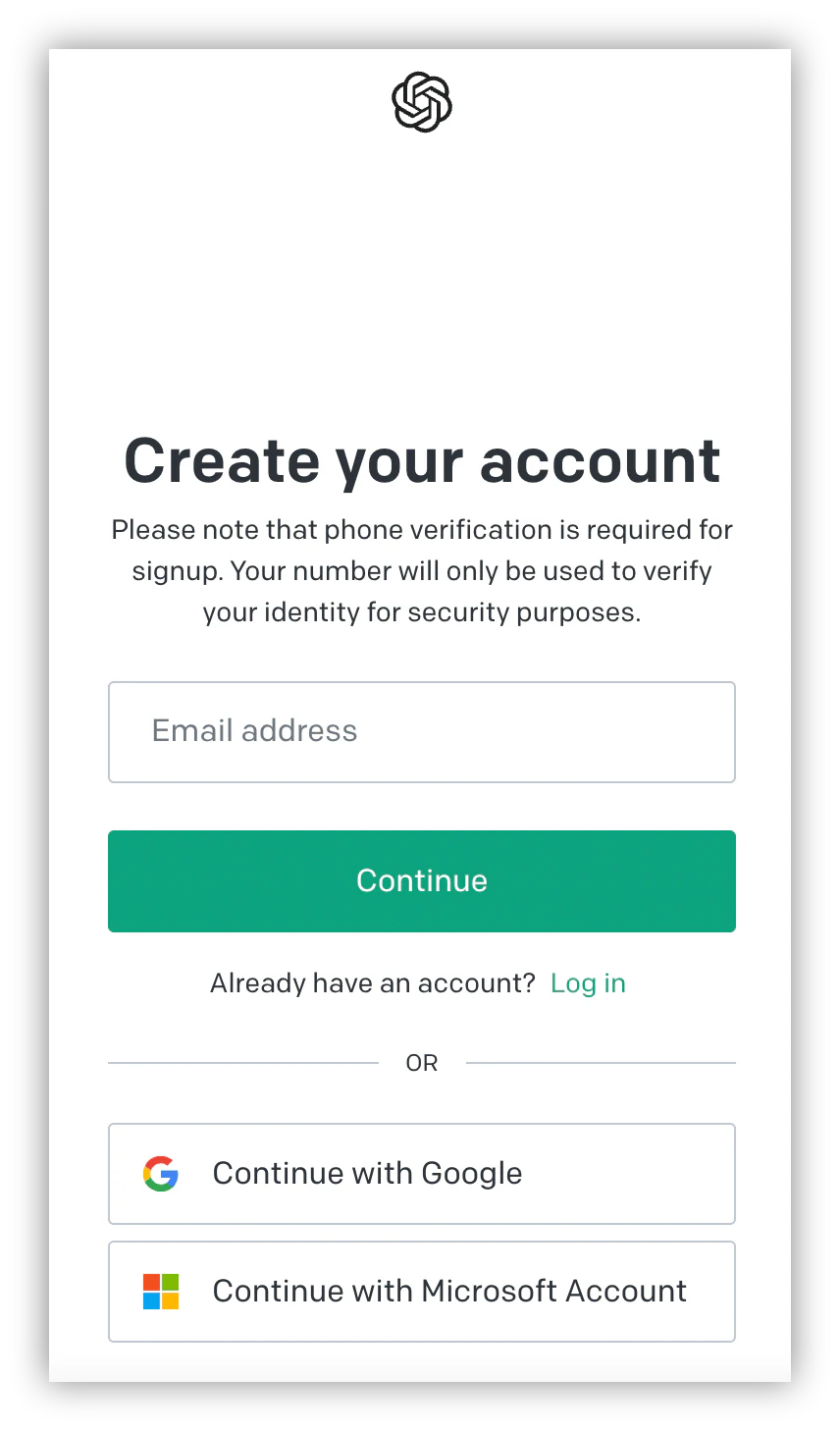
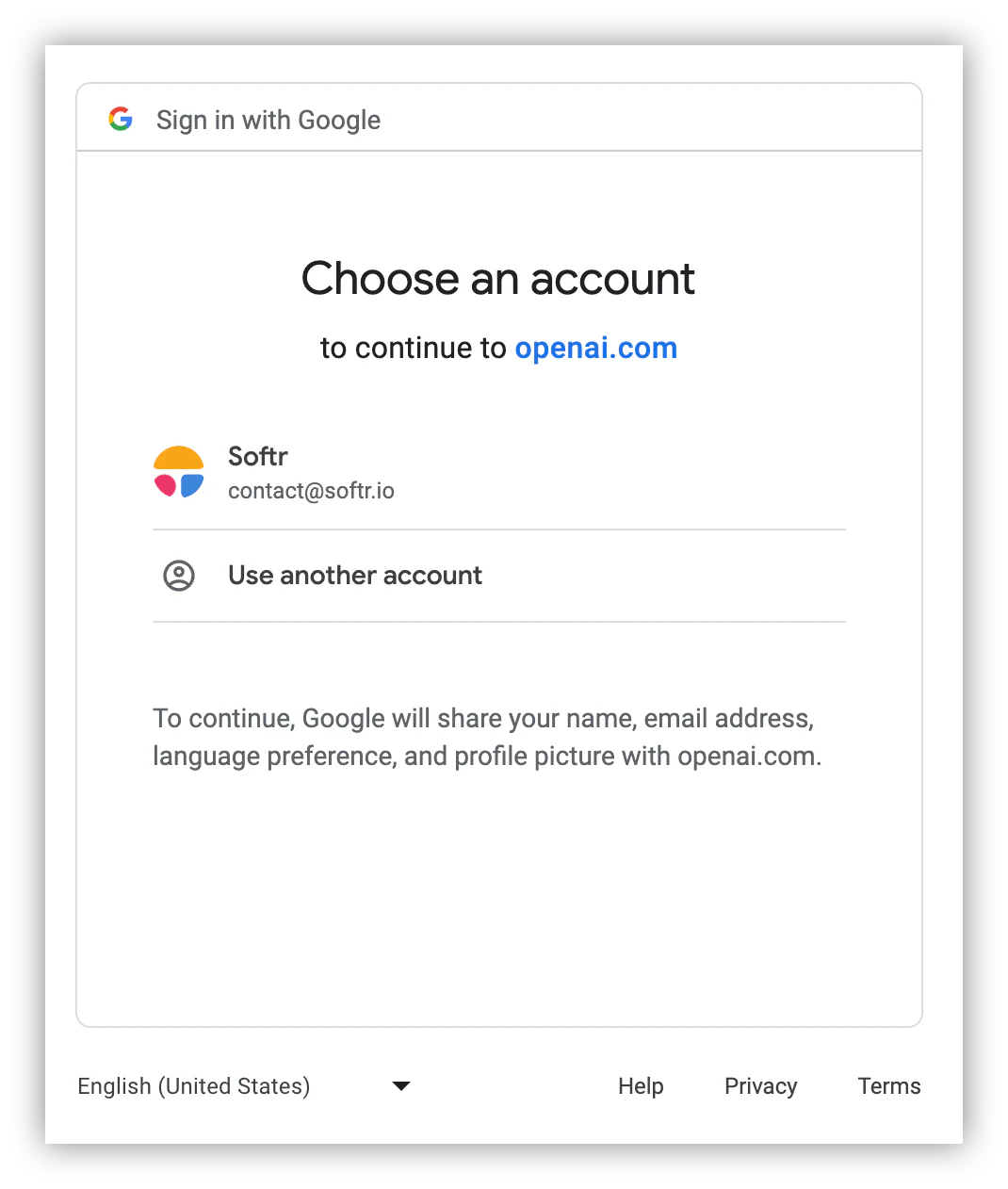
Step 2: Enter your email or use a Google or Microsoft account
Type in your email, or sign up faster using an existing Google or Microsoft account.
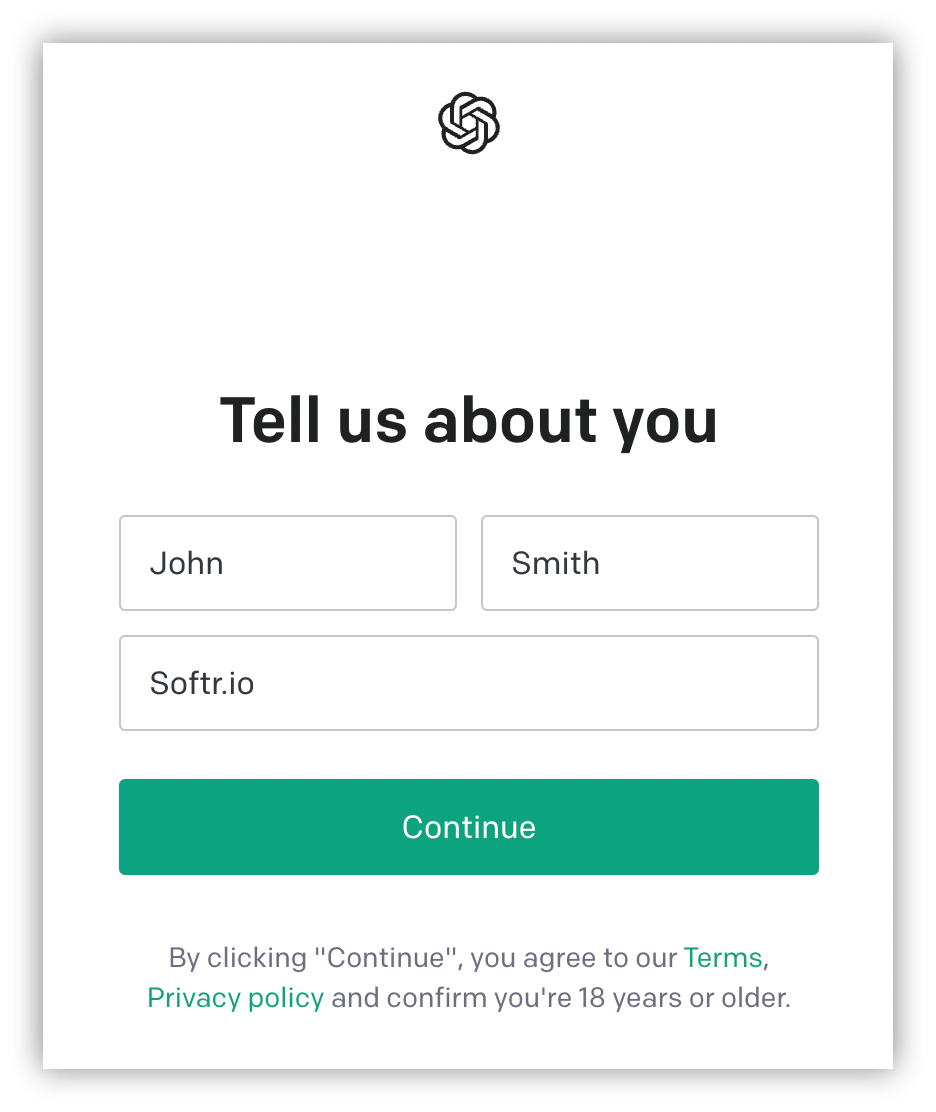
Step 3: Fill in your name
After verifying your email, add your first name, last name, and organization name.
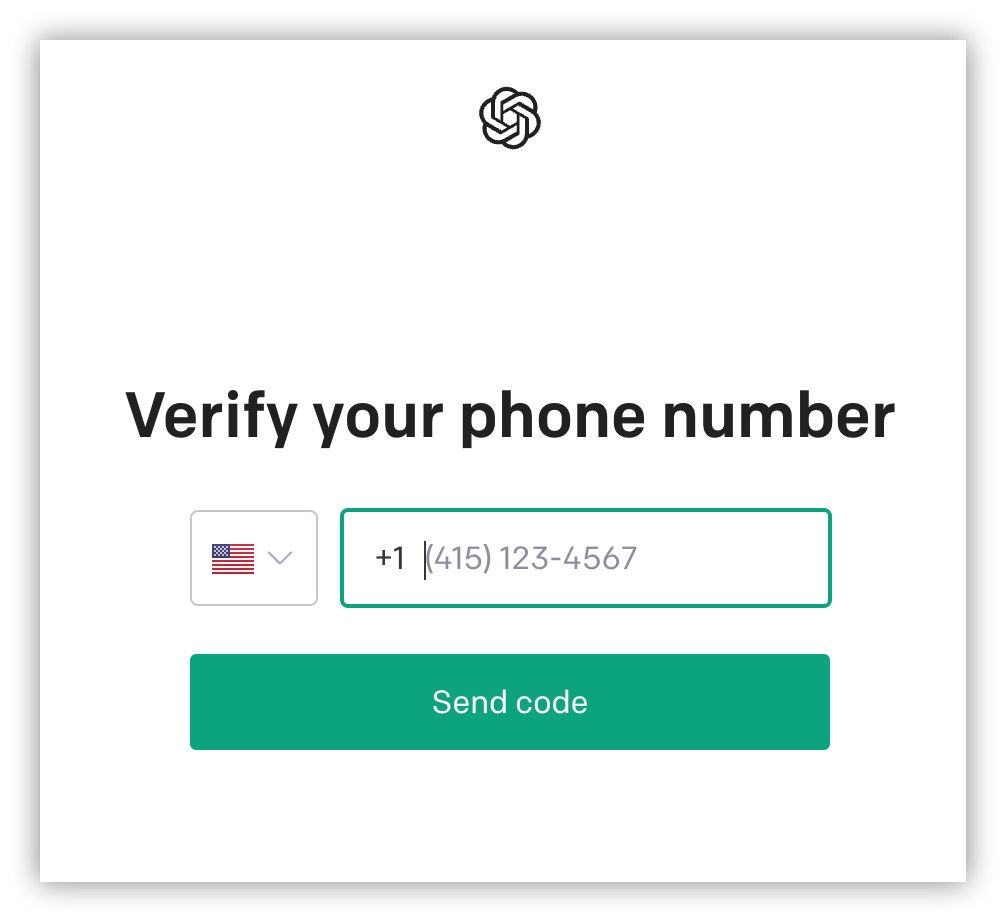
Step 4: Verify a phone number
To prevent abuse, OpenAI requires a phone number on your account. If you'd rather not use your personal number, you can use a free virtual number to verify your account instead.
Step 5: Enter the code
Once you receive the text message with your verification code, enter it on the OpenAI registration page.
Step 6: Go to your profile and find your API keys
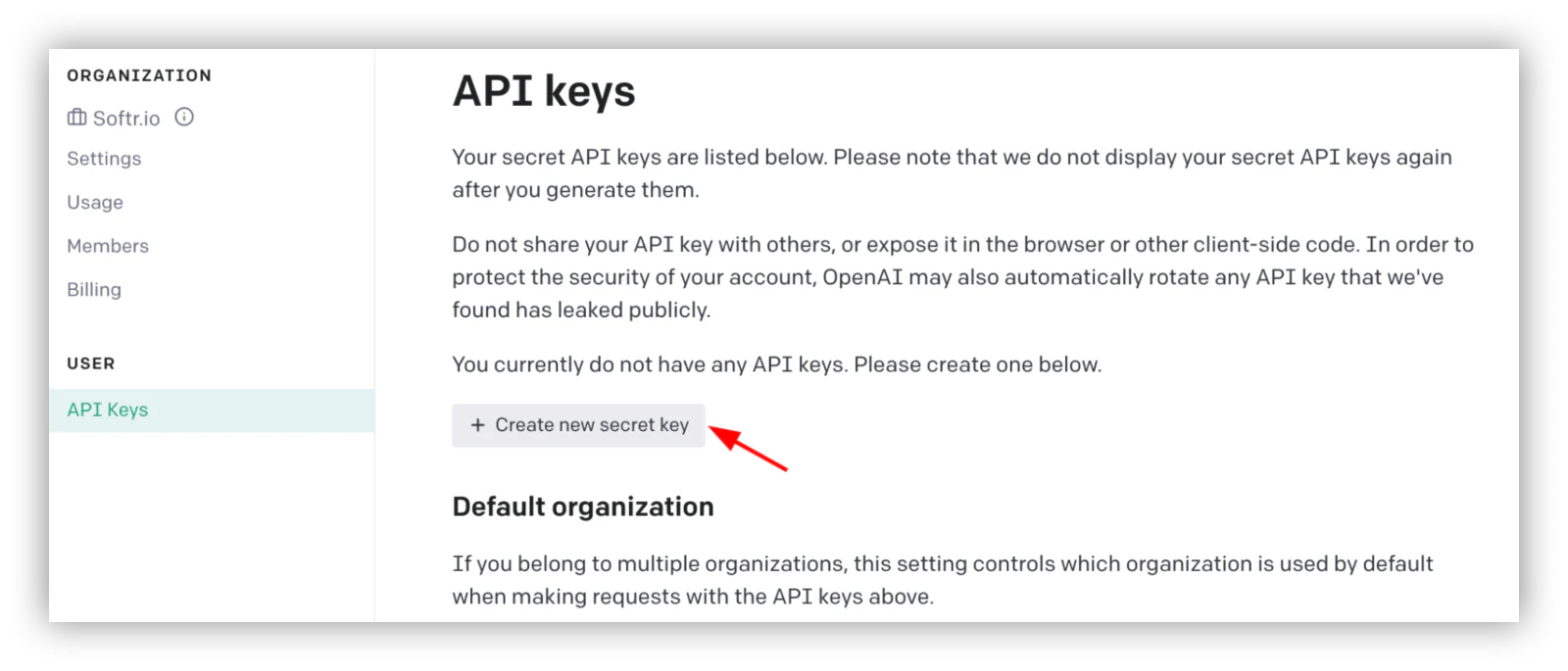
Once your account is verified, you should be logged in automatically. Click your avatar, then open your account settings to find the API keys section.
Step 7: Generate an API key
Click Create new secret key and store it somewhere safe. OpenAI only shows the key once. If you lose it, you'll need to delete it and generate a new one.
Step 8: Check your billing and usage
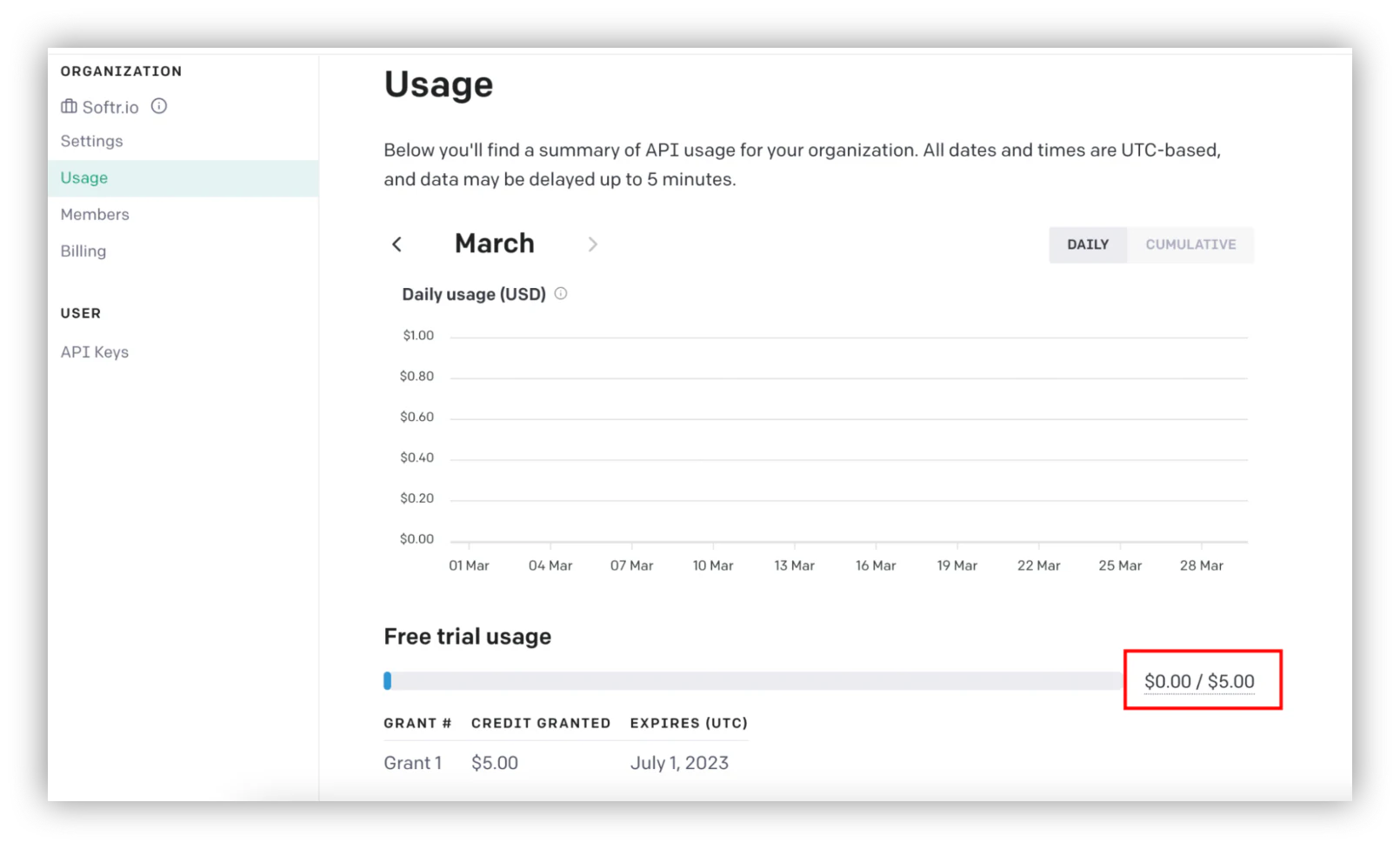
Go to the Usage or Billing section to confirm whether you have any starting credits. If not, you'll need to add a payment method before your requests will go through.
How to create a Google Sheet to integrate with OpenAI GPT
Cost: $0 Time: 30–45 min
Now that you have API access, let's build the Google Sheet that will store your setup and prompts.
In general, you'll use the OpenAI API by defining setup rules, writing a prompt, and clicking a button to get results. To keep data processing clean, we use a raw_chats sheet, and copy data from raw_chats into the main sheet using formulas.
Step 1: Create a new Google Sheet
Create a new sheet, or open an existing one if you're adding AI to a file you already use. You can go to sheets.new to create a Google Sheet directly.
Step 2: Create headers
Add headers to organize your content. You can follow this structure:
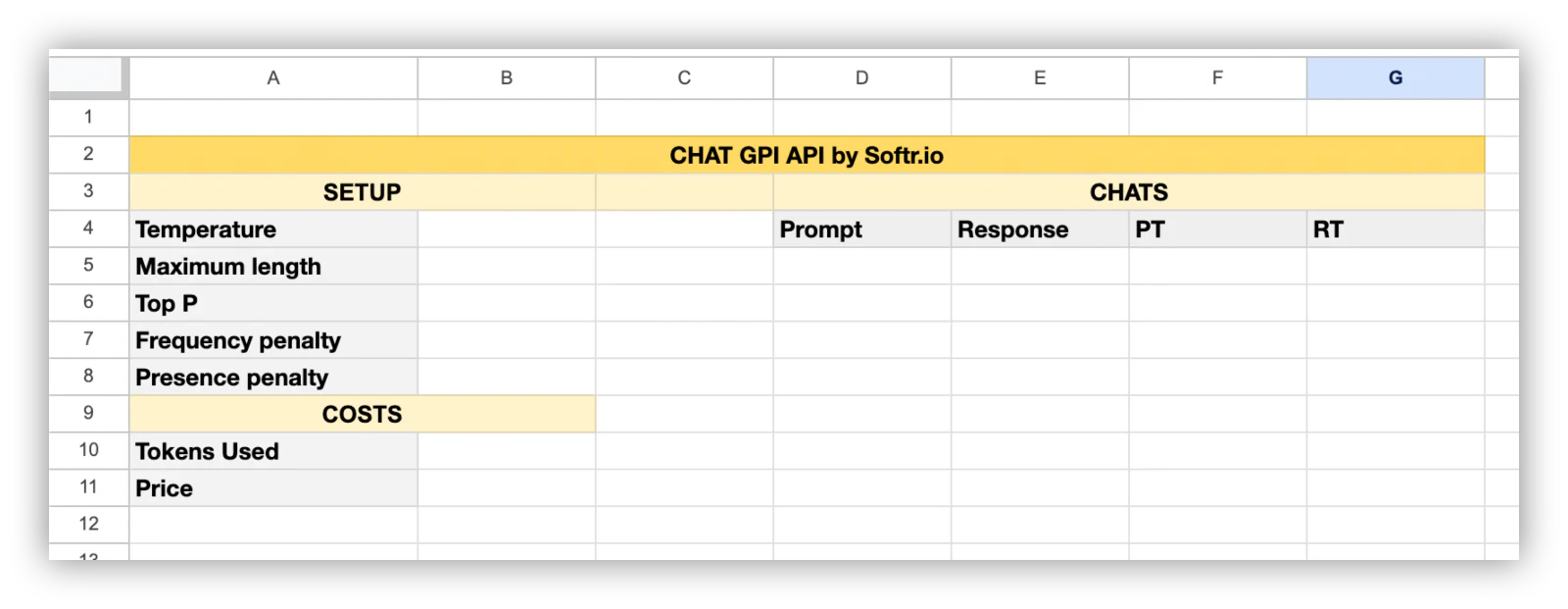
Step 3: Add the setup options
Add default values for the setup options and cost tracking. Here's a short description with recommended defaults for each:
- Temperature: Default: 0.7. Range: 0 to 2. Controls how random the responses are. At 0, you'll get nearly identical responses every time. At 1, you'll get similar replies with different wording. At 2, expect very different replies to the same prompt.
- Maximum length: Default: 256. Range: 0 to the model's limit. The maximum number of tokens the response can use. Higher values allow longer, more detailed responses.
- Top P: Default: 1. Range: 0 to 1. Limits the sampling pool to the top percentage of likely tokens. At 0.3, for example, only the top 30% of the sampling pool is considered.
- Frequency penalty: Default: 0. Range: -2 to 2. Positive values discourage repeated words, making it less likely you'll get the same lines verbatim.
- Presence penalty: Default: 0. Range: -2 to 2. Positive values discourage reusing tokens that already appeared, nudging the model toward new topics.
The "Tokens used" cell just sums the tokens in the chats section, using a formula like =SUM(F:F)+SUM(G:G).
The "Price" cell converts that total to a dollar estimate based on your model's current per-token rate. Update this formula whenever OpenAI changes pricing for the model you're using.

Step 4: Set up the chats section
The chats section holds a prompt, a reply, and the token usage. On the main sheet, users only type the prompt. The response and token count are pulled in from the raw_chats sheet using formulas like:
=raw_chats!A2=raw_chats!B2=raw_chats!C2Copy the first row's formulas down as far as you need, so every prompt row references the matching row number in raw_chats.

Step 5: Set up the raw_chats sheet
Create a new sheet called raw_chats and copy this structure into it:

Notice that the prompt here is a formula, like =GPT!D5. Copy this formula down to as many rows as you expect to need, so it auto-populates with each user's prompt.
Step 6: Add the "run" button
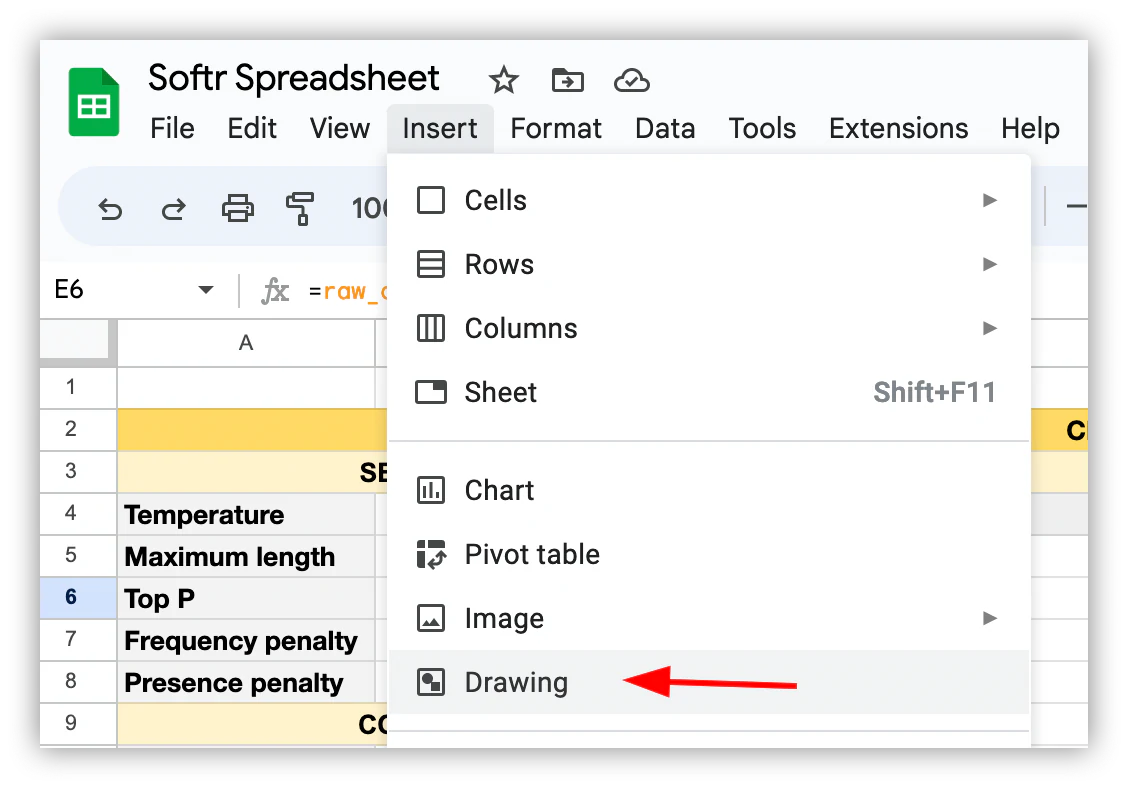
You need a button to trigger the API call. Go to Insert > Drawing, create a simple button, and place it on the main sheet:
Step 7: Assign the buttonGPT function to the button
Click the three dots on the button and assign it the buttonGPT function you'll create in the next section.

How to write a script to integrate OpenAI GPT and Google Sheets
Cost: $0 Time: 30–45 min
Now you'll write a script that takes these settings and sends them to the OpenAI API. In this example, we create two functions.
The first is the API call itself, chatGPT(). You can use it directly in a cell if you want, passing parameters as a formula, like =chatGPT("prompt", ...).
The second is buttonGPT(). This function loads the setup data from your sheet, sends the request via chatGPT(), and then writes the result back to your sheet.
Here's how to set it up.
Step 1: Open the Apps Script editor
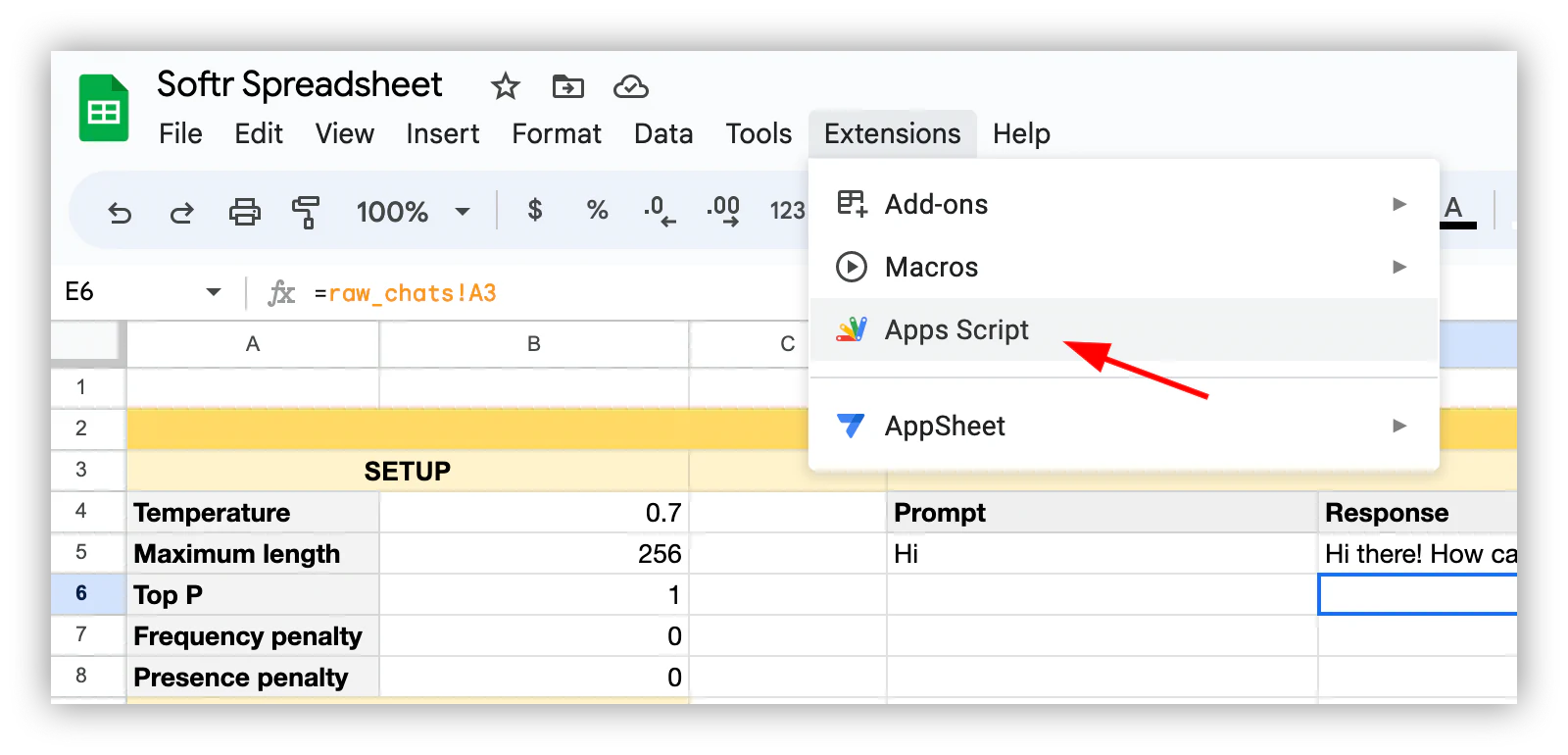
Go to Extensions > Apps Script to open the script editor:
Step 2: Paste the code
Replace the default function with a script that defines chatGPT() and buttonGPT(). The logic behind the code is:
chatGPT(): takes the parameters, builds the POST request to OpenAI's chat completions endpoint, sends it, and returns either the response text or the response plus token usage.buttonGPT(): reads the current sheet, finds the last row, reads the prompt, clears the prompt cell, callschatGPT(), and writes the response back.
Set the model parameter to whichever model your account has access to. Check OpenAI's model documentation for the current list, since available models and their names change over time.
Step 3: Save and run the functions
Once you save and run these functions, you'll see an authorization request that looks like this:

Make sure you authorize it.
Step 4: Log in to your Google account
After clicking Review permissions, log in to your Google account to authorize the script.

Step 5: Authorize the unverified app
Since this is a personal script, Google will flag it as unverified. Click Advanced to proceed anyway.

Then click Go to [your project name] (unsafe) to continue.

You may still need to confirm the specific permissions the script is requesting on your Google account.

This authorization flow, and having to repeat it whenever the script changes or a teammate opens the sheet, is one of the biggest friction points of running AI directly inside Apps Script. Keep that in mind if you plan to roll this out beyond your own use.
How to use Google Sheets with OpenAI GPT
Cost: $0 (beyond your OpenAI usage) Time: A few minutes per run
Now for the part that matters: getting OpenAI responses inside your Google Sheet.
Step 1: Write down your prompt
Type anything you want the model to do into the first empty prompt row.

Step 2: Make sure to hit enter
Apps Script runs on Google's servers, so make sure you hit Enter or click a different cell so the prompt value is saved and propagated correctly before you run the script.

Step 3: Click run
Click the Run button and wait a moment. You'll see a message while the script runs, then the result appears in your sheet.

(Optional) Step 4: Use the chatGPT() function directly
If you prefer, you can call chatGPT() directly from a cell, passing the prompt and any arguments you want.
The downside is that the API call fires every time the sheet loads, which can produce different answers on each load and consumes API credits every time, even if no one is actively using it.

Turning this into a real internal tool
This Apps Script setup is a solid way to prototype an OpenAI integration, but it has real limits once more than one person needs to use it: everyone shares the same spreadsheet, the unverified-app authorization prompt resurfaces for every new user, and there's no way to control who can see which prompts or responses.
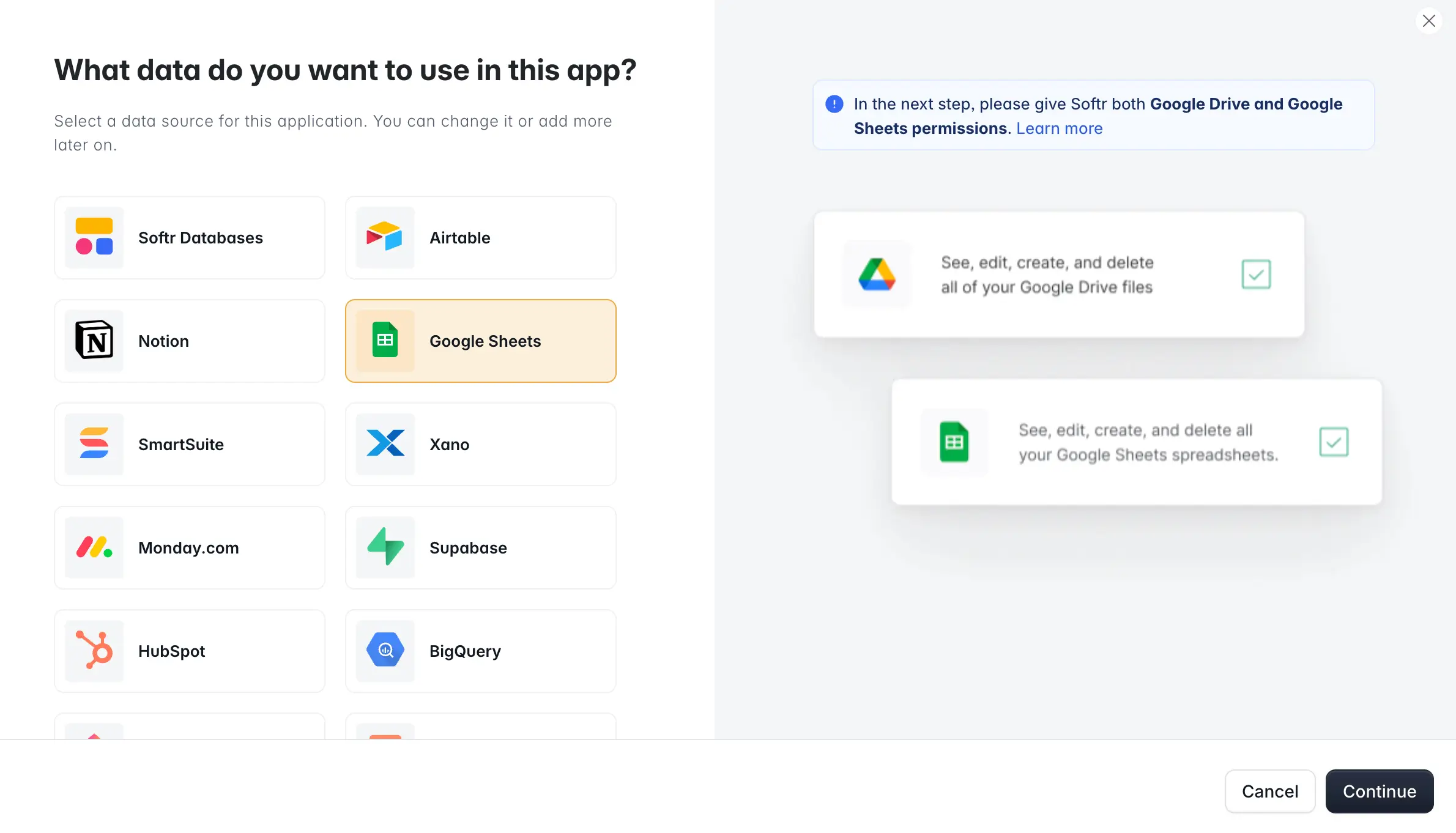
If you want your team to use this without touching Apps Script, you can connect the same Google Sheet to Softr and build an interface around it, or move the data into Softr Databases for a faster, more reliable native option. Either way, Softr gives you a real form to submit prompts (with validation, so no one runs a request with an empty field), users and permissions so only the right people can see certain prompts or responses, and a clean interface your team can use without knowing what Apps Script is.
Softr Workflows can also replace the run button entirely. Instead of a spreadsheet drawing tied to a script, a Softr Workflow can trigger automatically when a new prompt record is created, call OpenAI, and write the response back, no manual click required. And if you want AI to do more than answer a single prompt, Database AI agents can run on a schedule or on record creation to enrich data, classify records, or extract structured fields from uploaded documents, which goes further than a single chat completion call.
If you'd rather skip the manual setup entirely, describe what you want to Softr's AI Co-Builder (for example, "a tool where my team submits prompts and gets AI-generated responses, with an admin view of usage") and it will generate the database, forms, and permissions for you. You can then refine it visually or with the Ask AI feature layered on top for end users who want to query the data conversationally.
Start small, then decide if you need more than a spreadsheet
You've now got a working OpenAI integration inside Google Sheets, from getting API access to writing the Apps Script functions that send prompts and store responses. It's a genuinely useful setup for personal use or quick experiments.
The moment you need to share it with a team, control who sees what, or automate it beyond a manual button click, treat that as the signal to move past Apps Script. Connecting the same data to a proper interface saves you from re-authorizing scripts and babysitting a spreadsheet that was never built to be a shared tool.
Frequently asked questions
Do I need a paid ChatGPT Plus subscription to use the OpenAI API?
How much does it cost to run OpenAI prompts from Google Sheets?
Can I use a different AI model instead of GPT?
Why is my script returning the wrong prompt's answer?
Is there an easier way to give my team a proper interface for this, instead of a raw spreadsheet?