If you manage freelance writers, you know the struggle. Briefs live in Google Docs, invoices arrive by email, editorial guidelines are buried in some Notion page nobody can find, and every status update leads to back-and-forth. You keep thinking, "I wish we had a tool for this,” then you default to another spreadsheet and the struggle continues.
But it doesn’t have to be this way. This guide walks you through building a Content Management Portal in Softr. It's the same app Shiran Brodie, Head of Marketing at Softr, built in 90 minutes to manage her own team of freelance writers: two user groups (Admin and Writer), four database tables, and one workflow that notifies your finance team when an invoice is submitted.
If you'd rather start from the finished product, grab the Content Management Portal template, watch the full live build session on YouTube, or generate a custom portal instantly with the AI Co-Builder.
Why use Softr for content management
Most content teams piece together Google Docs for briefs, Slack for status updates, email for invoices, and a spreadsheet to keep track of everything.
Softr lets you replace this patchwork with a single app. Here's what makes it the right tool for content management:
- Writers self-serve: They log in, view their own assignments, check editorial guidelines, and submit invoices without emailing anyone.
- One database, one truth: Assignments, invoices, and guidelines all live in Softr Databases, not scattered across email attachments and shared drives.
- Security is built in: Writers only see their own data. Admins see everything. You don't have to think about this because user permissions handle it natively.
- Workflows close the loop: When a writer submits an invoice, your finance team gets notified on Slack or email automatically via Softr Workflows.
What you'll learn about building a content portal
In this tutorial, you'll build a complete content management portal. Specifically, you'll learn how to:
- Design a relational database with four interconnected tables (Users, Assignments, Invoices, Resources).
- Set up role-based permissions so Writers only ever see their own assignments and invoices.
- Build two distinct interfaces from the same data: an Admin dashboard for oversight, and a Writer portal for execution.
- Create an automated workflow that notifies your team when a new invoice is submitted.
- Embed external resources (like Notion docs) directly into your app for editorial guidelines.
Who is this content management portal for?
This portal is designed for content managers, marketing leads, or anyone coordinating work with freelance writers, editors, or agencies.
User groups and jobs to be done
The app serves two roles:
1. Admins (content managers, heads of marketing, finance)
These users need full oversight. Their jobs include:
- Assigning articles to writers with structured briefs.
- Tracking assignment status across the team.
- Reviewing and paying invoices.
- Maintaining up-to-date editorial guidelines.
2. Writers (freelancers, contributors)
These users need a clean, focused workspace. Their jobs include:
- Viewing their assigned articles and briefs.
- Checking editorial and style guidelines before writing.
- Submitting completed articles.
- Uploading invoices at the end of the month.
The content portal blueprint
Before we build, we plan. Success in Softr is 80% data structure. Here's the database schema and app pages we're going to create.
Portal database structure
We'll use Softr Databases to make four interconnected tables:
- Users: A single table for all people (Admins and Writers), distinguished by a Role field.
- Assignments: The articles and briefs your writers will work on.
- Invoices: Financial records that roll up multiple completed assignments.
- Resources: Editorial guidelines, style guides, and reference documents.
We separate Invoices from Assignments because one invoice can cover multiple completed articles. If invoices were in the same table as assignments, you'd have to invoice each article individually. That's inefficient and doesn't match how freelancers actually bill.
Content portal pages
- Admin Dashboard: KPI cards (assignments due, completed, invoiced), a list of all assignments, and access to invoices.
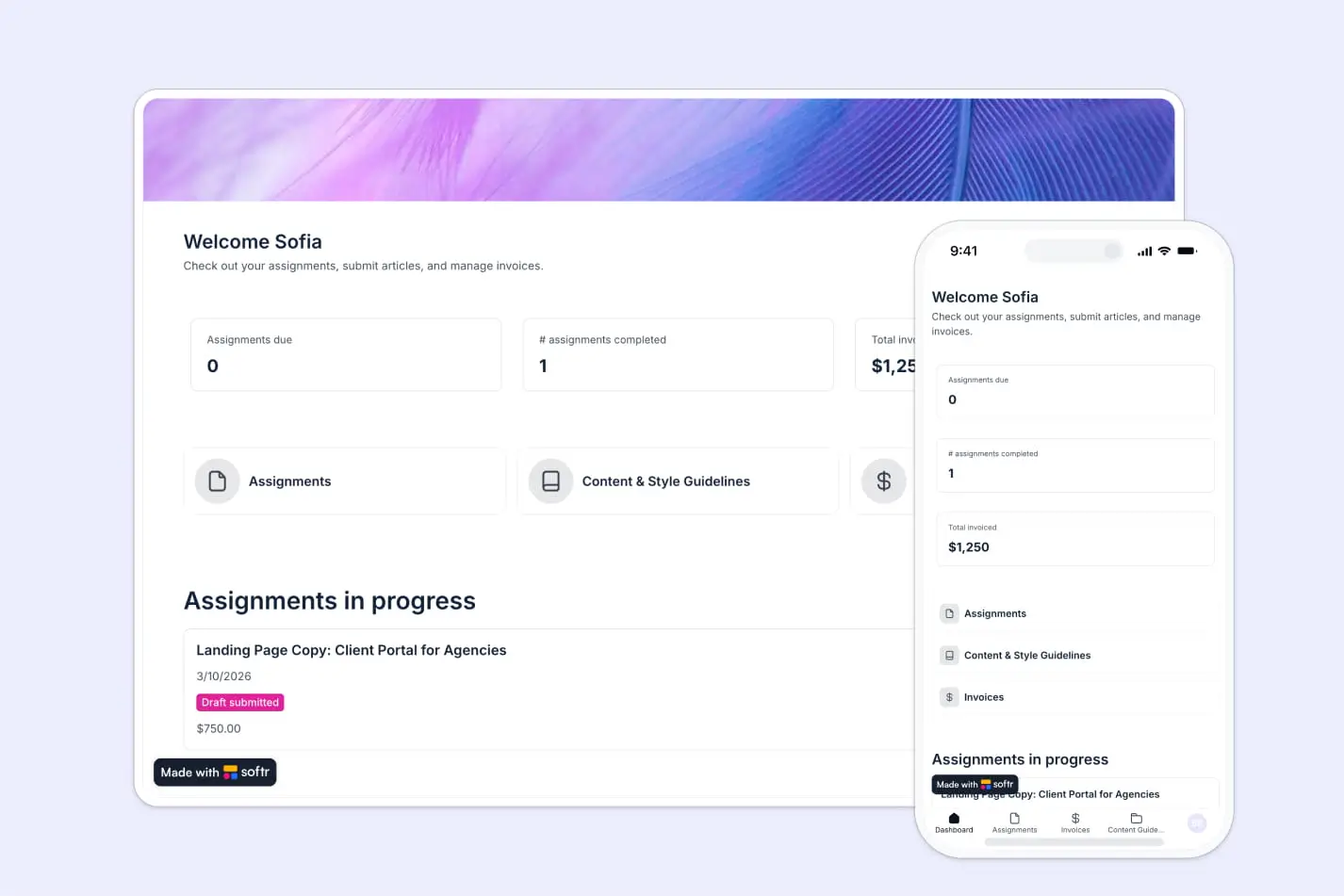
- Writer Home: Personal dashboard showing only their assignments, due dates, status, and quick access to guidelines.
- Assignment Detail (shared): A detail page where both admins and writers can view the full brief, status, and submission fields.
- Invoice Submission: A form for writers to submit invoices linked to their completed work.
- Resources / Guidelines: Embedded editorial guidelines (from Notion or directly in Softr Databases).
Part 1: Building your database in Softr
1.1. Configure the Users table
Open your Softr Database and locate the default Users table. This table will hold everyone who accesses the app, both admins and writers.
- Make sure
Emailis the primary field. Always use email as the unique identifier because names are not unique. - Add a Single Select field named
Rolewith options Admin and Writer. This single field drives the entire permission system later. - Add fields for
Full Name,Phone, and any other profile information you want writers to complete.
💡 Pro tip: Don't create separate tables for Admins and Writers. Keeping everyone in a single Users table makes authentication and permission management significantly easier to maintain.
1.2. Configure the Assignments table
This is the core of your content operation. Each record represents one article brief.
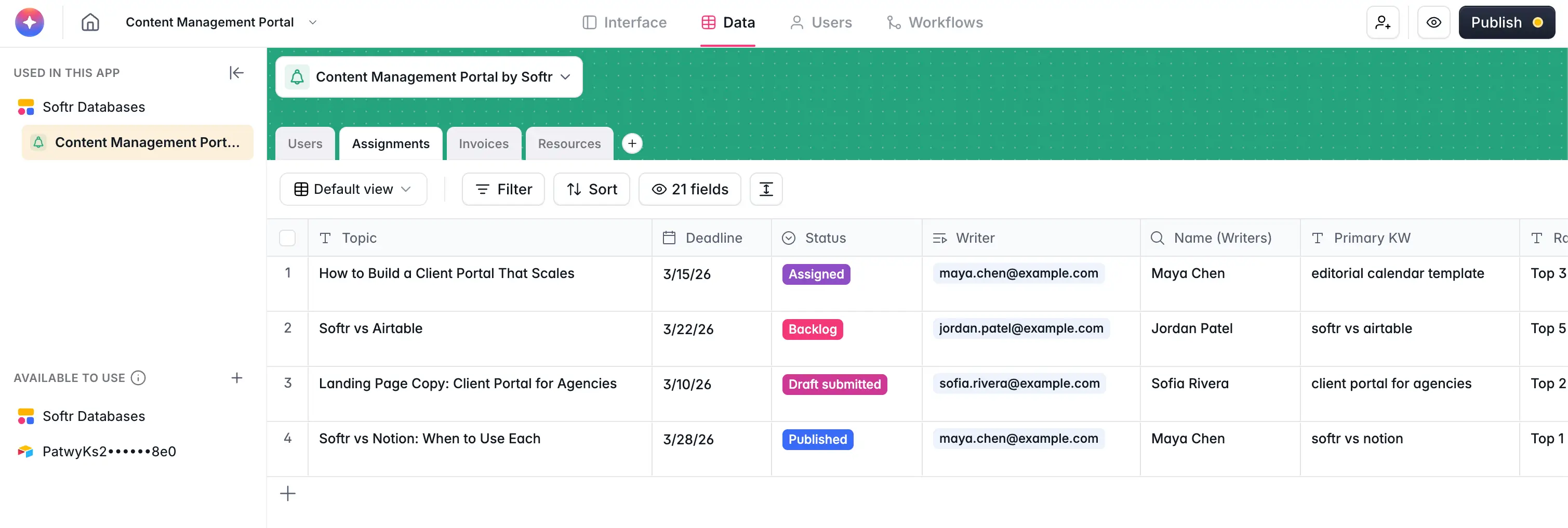
Create the Assignments table with these fields:
Topic(Text) — The article title or working nameBrief(Long Text) — The detailed writing instructions. This replaces the Google Doc you used to email aroundStatus(Single Select) — Options like New, In Progress, Submitted, In Review, Published.Deadline(Date) — When the draft is dueFee(Currency) — What the writer will be paid for this pieceWriter(Linked Record) — Links to the Users table. One writer can have multiple assignmentsSubmission(File) — Where the writer uploads their draft
By putting the brief directly into a database field, you eliminate the "doc sharing" problem entirely. The writer logs in, clicks their assignment, and reads the brief right there. No separate file to find or download.
1.3. Configure the Invoices table
Invoices are separate from assignments because freelancers typically invoice monthly for all completed work, not per article.
Create the Invoices table:
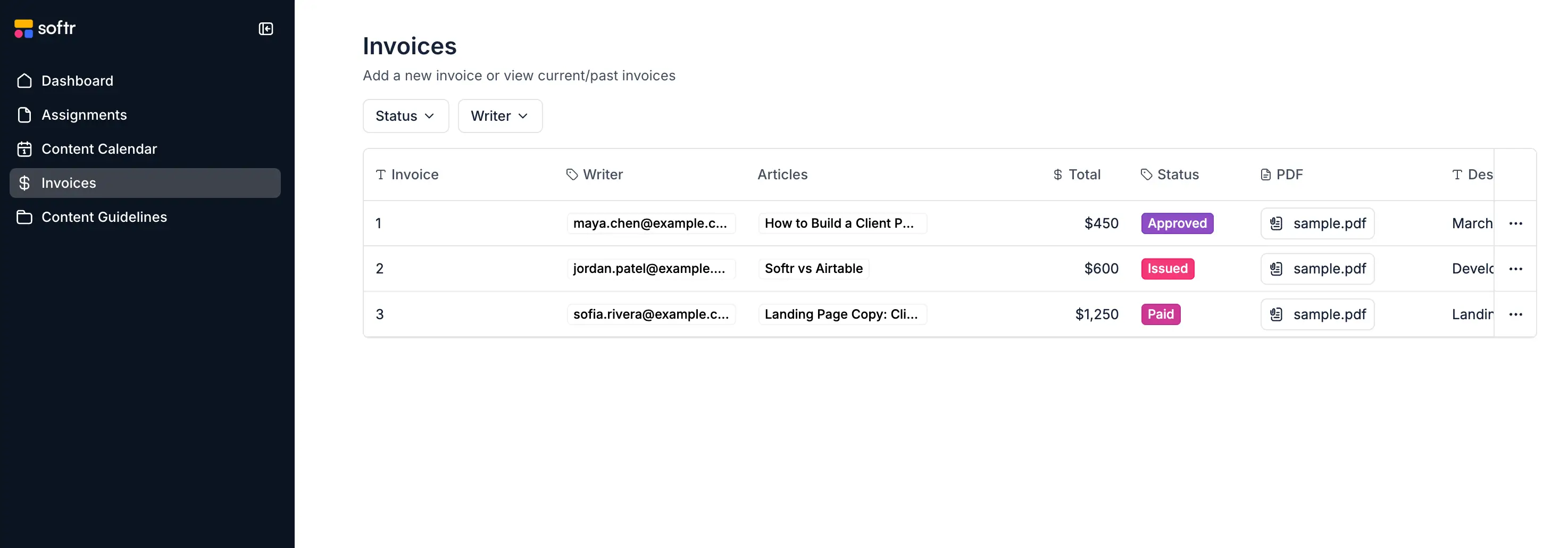
Invoice Number(Text) — For reference and trackingWriter(Linked Record) — Links to the Users tableRelated Assignments(Linked Record) — Links to Assignments. One invoice can reference multiple completed articlesTotal(Currency) — The invoice amountStatus(Single Select) — Submitted, Under Review, PaidInvoice File(File) — The actual PDF or document the writer uploads
1.4. Configure the Resources table
This table holds your editorial guidelines, style guides, gold standard articles, and any reference material writers need.
Title(Text) — The name of the resource (e.g., "Editorial Guidelines Q1 2026")Type(Single Select) — Guidelines, Style Guide, Gold Standard, OtherContent Link(URL) — An embed link to your Notion page, Google Doc, or any external referenceDescription(Long Text) — A brief summary of what this resource covers
💡 Pro tip: If you use Notion for your editorial guidelines and want to keep the formatting, you can embed any Notion page directly into your Softr app using the embed block instead of recreating the content. You get the best of both worlds: the rich formatting of Notion and the controlled access of Softr.
1.5. Understanding table relationships
Here's how the four tables connect:
- Users ↔ Assignments: One writer can have many assignments.
- Users ↔ Invoices: One writer can submit many invoices.
- Assignments ↔ Invoices: Multiple assignments can be grouped into one invoice.
With Rollup fields, you can calculate useful metrics directly in the database:
- On the Users table: total number of assignments, total invoiced amount.
- On the Invoices table: automatically sum the fees of all related assignments.
This means you can later display summary cards in your dashboard without writing any formulas in the app itself. The database does the math.
Part 2: Building the interface
2.1. Set up user management and groups
This is the most critical part of setup. To get started, navigate to Users in the Softr Studio.
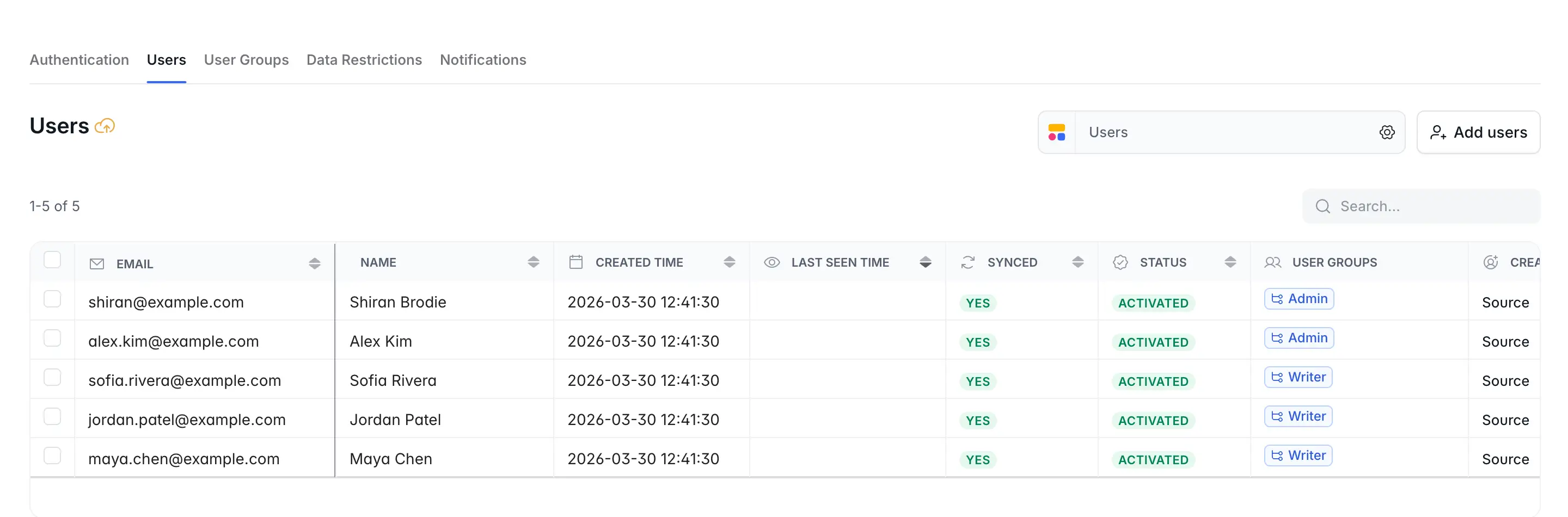
- Sync with your Users table. Instead of manually inviting every writer, sync your User Management with the Users table in your Softr Database. New writers are added to the database, and they automatically get access.
- Create User Groups. Define two groups:
- Admin — Condition:
Role is Admin - Writer — Condition:
Role is Writer
- Admin — Condition:
Because these groups are dynamic (synced to a database field), promoting someone to Admin is as simple as changing their Role in the database.
2.2. Set up Global Data Restrictions
Before building any pages, configure data restrictions. This is your safety net to ensure users only access what they’re meant to access.
Go to Settings > Data Restrictions and add rules for the Writer group:
- Assignments: Writers can only view assignments where
Writeris the logged-in user. - Invoices: Writers can only view invoices where
Writeris the logged-in user.
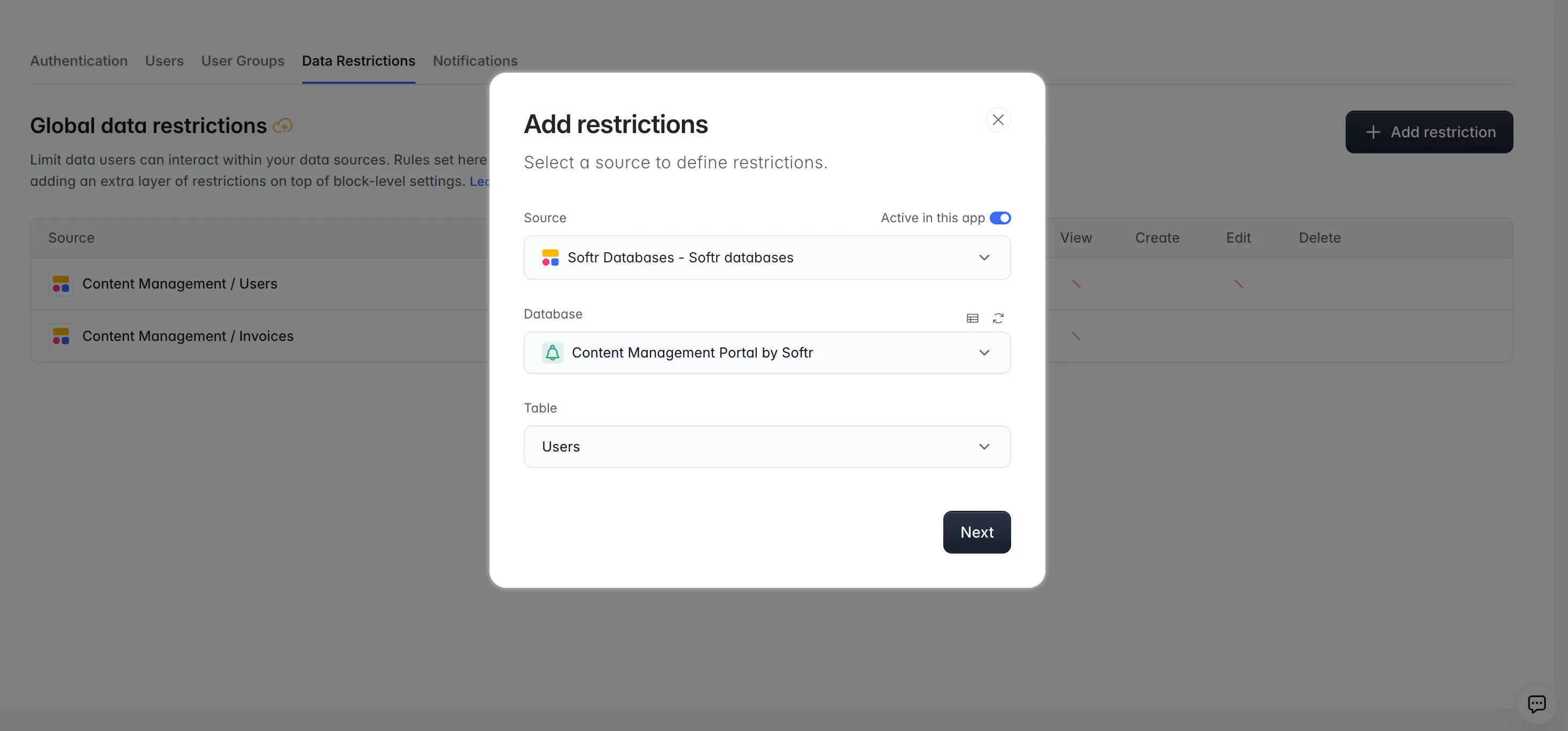
Global Data Restrictions act as a universal firewall. Even if you forget to add a filter on a specific page or block, the system will refuse to show a writer someone else's assignments or invoices. This is one of Softr's strongest security features for multi-user apps.
2.3. Build the Admin Dashboard
We want Admins to have a full content overview without clicking through dozens of pages. So, create an Admin Home page, and then add the following blocks:
- Metric Cards at the top: Total assignments due this week, total completed, total outstanding invoices. Use Rollup fields from the database to power these.
- Assignments Table (or List): Display all assignments across all writers, with filter and search enabled. Admins can filter by writer, status, or deadline.
- Invoices Table: A list of all submitted invoices with their statuses. When an invoice is submitted, the admin reviews it and marks it as Paid.
Set this page's visibility to Admin only so writers never see the global view.
2.4. Build the Writer Home
Create a Writer Home page, visible only to the Writer user group.
- Personal Summary Cards: Assignments due, assignments completed, total invoiced. Because we set up Global Data Restrictions, these cards automatically show only the logged-in writer's data.
- My Assignments List: A list or table showing the writer's assignments, with status badges. They can click into any assignment to see the full brief.
- Quick Links: Navigation to Guidelines and Invoice Submission.
2.5. Build the Assignment Detail page
This is a shared page that both admins and writers can access (they click on an assignment from their respective lists). Open it as a Sliding Modal to keep context.
On this page, show:
- The full brief (from the Long Text field)
- Status, deadline, and fee
- A file upload field where the writer submits their draft
- The submission status
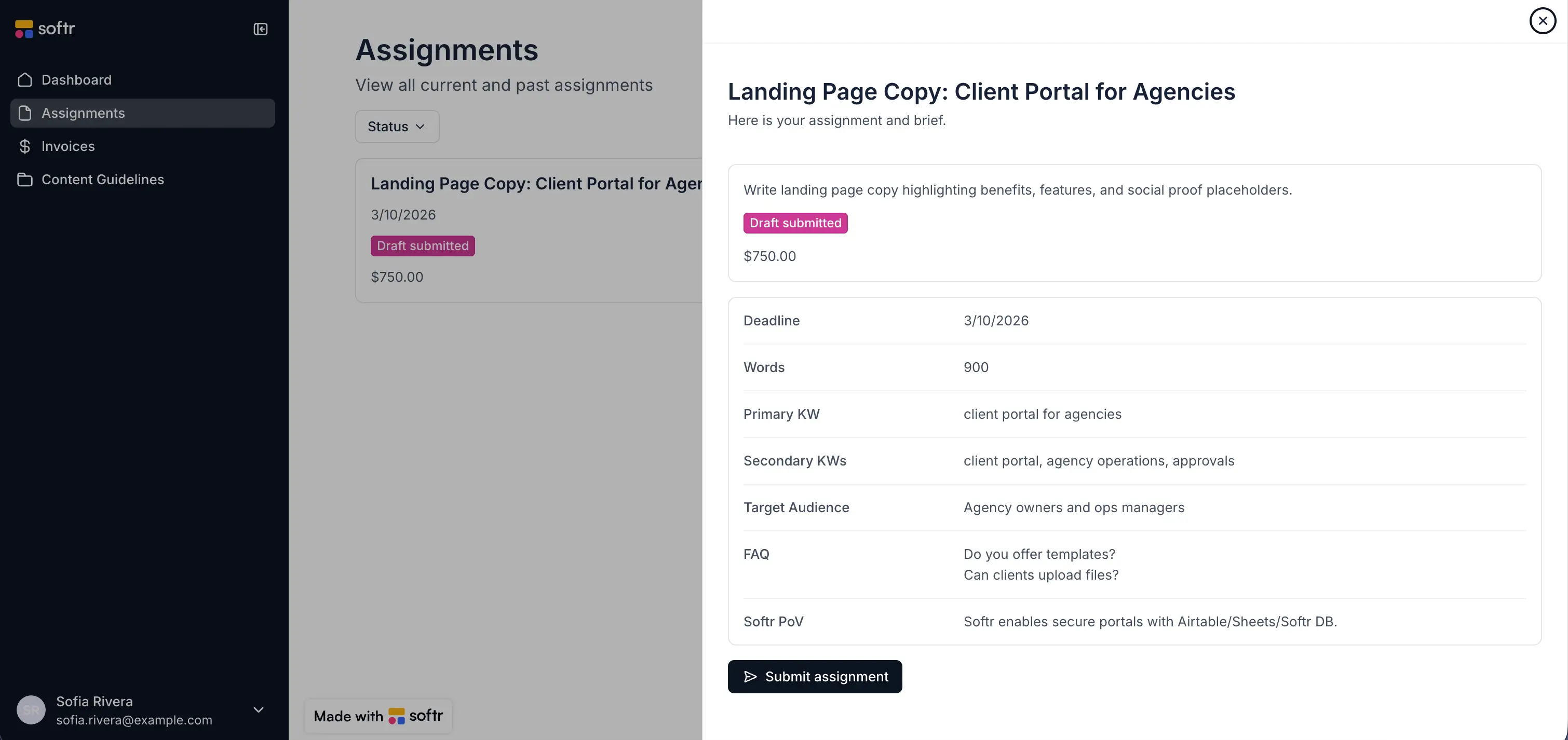
💡 Pro tip: Use button-level permissions to control actions. For example, only Writers can use the "Submit Draft" button. Only Admins can change the Status to "Published" or "In Review."
2.6. Build the Resources page
Add a page for editorial guidelines. You have two options:
- Notion Embed: Add a Custom Code block or Embed block and link to your Notion page. This preserves Notion's formatting and keeps it easy to update.
- Native Softr Databases: Store resources directly in the Resources table and display them as a list of cards. Writers click to expand.
Either method works. If your content team already lives in Notion for guideline docs, embedding is faster and avoids duplicating content.
Part 3: Automating with workflows
Now that the portal is built, the final layer to cover is automation. We'll use Softr Workflows to eliminate manual follow-ups via automated Slack or email messages.
3.1. Invoice submission notification
When a writer submits a new invoice, your finance team should know immediately.
- Trigger: Set a Softr Database trigger on the
Invoicestable for Record Created. - Action: Send a Slack message (or email) — Include the writer's name, invoice total, and the number of related articles.
Using variables from the trigger, map the relevant fields into the message body:
- Writer name:
@Writer - Invoice total:
@Total - Invoice file:
@Invoice File
That's it. Your finance person will now get a Slack notification the moment an invoice hits the database. No need to check email or open the app.
💡 Pro tip: Most internal automations don't need to be complex. "Something happens → notify someone" handles 80% of day-to-day operational workflows. Start simple, since you can always add AI processing later (e.g., summarizing the invoice contents in the notification).
3.2. Assignment status change notification
As a bonus, set up a second workflow that notifies the writer when their assignment status changes (e.g., from "Submitted" to "In Review" or "Published").
- Trigger: Record Updated in the Assignments table, where
Statushas changed. - Action: Send Email to the writer with the updated status.
This closes the feedback loop. Writers don't need to ask "Did you see my draft?" because they'll get an automatic notification.
Your portal is live
You just built a full-stack content management portal. Writers see their assignments and submit invoices. Admins see everything and get notified. The database holds the truth, and the permissions keep it safe.
The whole point of a tool like this is that you don't have to plan it out with an engineering team for weeks. You identify the problems (emailing briefs, chasing invoices, scattered guidelines), turn each pain point into a feature, and then you ship to real users.
👉 Get started with the Content Management Portal template or try Softr's AI Co-Builder.
Frequently asked questions
What is a content management portal?
Can I manage different types of content (not just blog articles)?
How do I onboard new writers to the portal?
Is this portal secure enough for managing freelancer payments?