


Transcript
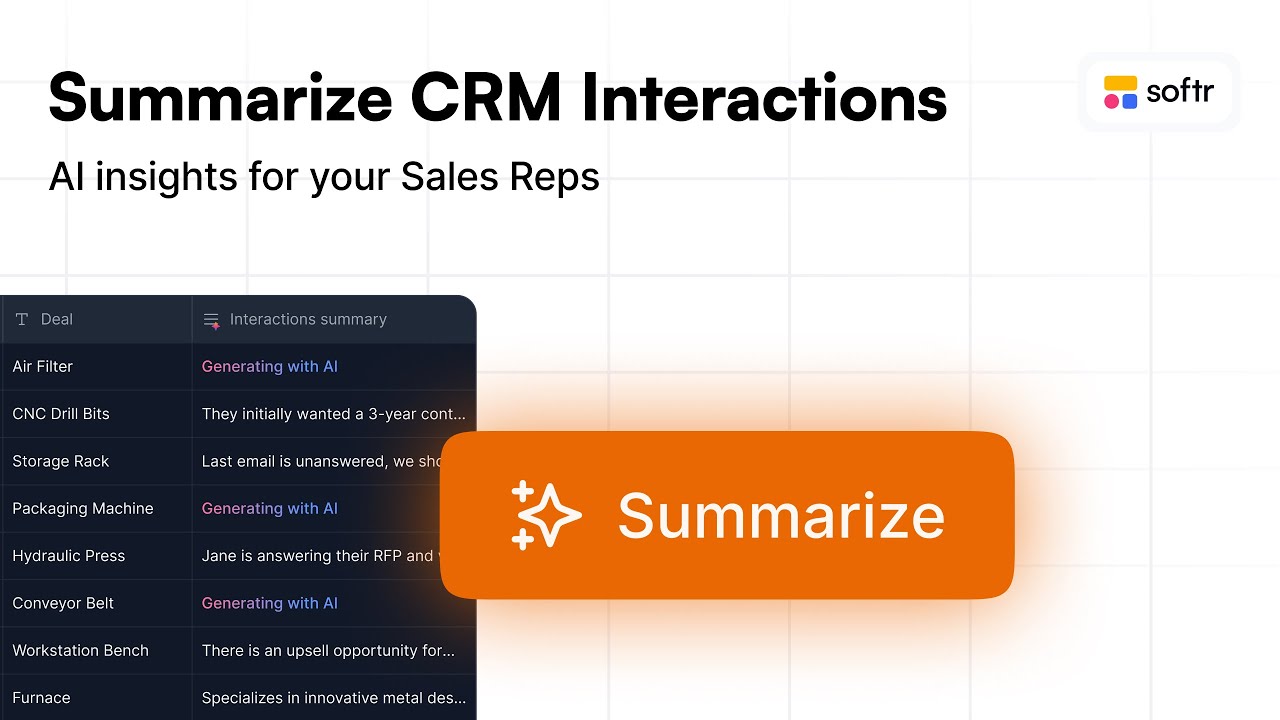
Let's look into a workflow that was very interesting to build. I have created a list for our deals that shows the interactions we have had with them.
I built a new button that, when clicked, displays a loading screen for a couple of seconds. After that, you get three bullet points summarizing the progress and status of the deal based on all the interactions and the initial request.
[.blog-callout]
If you want to build a similar system for managing your sales pipeline, check out our AI CRM template to get started immediately.
[.blog-callout]
In my item details block for the deals, I added a button that runs a custom workflow. Instead of just creating or editing a record, we are sending specific data like the deal ID to the workflow.
This workflow starts with a specific trigger called run custom workflow. You have to connect this trigger to the app, as we have done here.
Whenever a user clicks the button, it passes the deal ID which we reuse within the workflow. We also have an option to show a waiting screen while the background process runs.
[.blog-callout]
Note from Softr: You can build this entire logic using Softr Workflows. This allows you to keep your automation logic directly inside Softr rather than relying on external tools.
[.blog-callout]
We can customize the styles and the text of the waiting screen to let users know something is happening. The first step in the workflow is to use the deal ID to fetch all the data from that deal.
Next, we search for all the interactions that match the same company. This allows us to gather the full context of the six or so interactions we have stored for that specific deal.
Storing interaction content this way makes the app AI ready. In step four, we pass all those found interaction records and the initial demo request to an AI.
[.blog-callout]
You can also use the AI co-builder to generate these types of interaction summaries and database schemas automatically by simply describing your requirements.
[.blog-callout]
We provide the AI with formatting guidelines so it always returns three bullet points. What happens next is that we update the deal record to store that summary in a dedicated property.
Once the workflow is over, we show a success message saying the summary is ready. Navigation-wise, we stay on the same page but reload all the blocks on that page.
Reloading the blocks ensures the page refreshes so the user sees the latest summary. If more emails are exchanged later, the rep can just hit the summarize button again to refresh it.
We decided to make the trigger manual because you don't necessarily need to refresh the summary every single time an email is exchanged. This gives the user more control over when to use the AI credits.
![How to Use Softr Templates to Make Web Apps [2026 Full Guide]](https://cdn.prod.website-files.com/67a3700c65457964cf349cd4/69fe0f1ca830a8c8c54a86fd_3a6b01e9-9bbd-49d8-a51b-4a3a79e5f7f9.jpeg)