Transcript
Most people think building a CRM with AI is easy until you actually try to use it. It looks good at first, clean UI, nice dashboard, but the moment real users come in, things break.
Permissions don't work, data gets messy, and suddenly you're stuck fixing code you did not even write. I decided to test something out and see if I could build a fully working, production-ready CRM in one day.
We're going to be using Softr, a no-code full-stack AI app builder that's completely different from other AI coding tools. Softr comes with its own integrated database, workflow automation, user management, and enterprise-grade security built right in.
It's designed specifically for building real business software that actually works in production. Today, I'm going to build a complete CRM system from scratch and show you exactly how it handles real business scenarios.
From the homepage, you'll see three clear paths: describe your requirements with a prompt, start from scratch, or copy from a template. Templates are a solid option if you want to see proven business applications in action.
Today, I'll go with Softr's newly released AI Co-Builder. I have my prompt ready for a complete CRM system, and I'll paste it here.
[.blog-callout]
If you want to save time, the AI co-builder is the fastest way to get started. You can simply prompt for what you need to build your relevant text instantly.
[.blog-callout]
The AI Co-Builder starts creating the app immediately, but it's different from other AI tools because it asks follow-up questions instead of guessing what I need. For example, it asks how users will log in.
This is Softr acting like a business consultant, understanding actual requirements before building anything. I simply answer the questions and then select my navigation layout and color scheme.
Once our app is ready, let's explore what the AI Co-Builder has created. You can navigate between mobile, tablet, and desktop versions to see exactly how users on different devices will experience the application.
Whenever you move your mouse around the studio, you'll see blue highlighted boxes. These are called blocks, and each block has its own setting and functionality.
On the left-hand side, we have the pages panel where you can customize each page individually. Under pages, there's the theme option, which is your control center for site-wide changes to colors and typography.
Under the theme, we have settings where you can change essential elements like your logo and application name. One particularly important feature is version history, which lets you restore previous versions if you make a mistake.
The editor has four different sections. The first one is interface, which is what you and your users see when interacting with the application.
Next, we have data, the database section where any information entered into your CRM will be stored. You'll find placeholder data here that demonstrates how your actual client and user information will be structured.
[.blog-callout]
While Softr integrates with 17+ external data sources, Softr Databases is the powerful, native way to manage data directly within Softr for maximum performance.
[.blog-callout]
In case you don't have existing data, this built-in database system is perfect for you. But if you already have data set up somewhere else, you can connect those using third-party integrations.
The third section is users, where you can assign specific permissions to different team members. This includes authentication settings, user groups, and data restrictions to control who can access what information.
Finally, there's workflows. This is where Softr's complete platform approach really shows its value because you can create custom workflows with built-in integrations.
[.blog-callout]
Native Softr Workflows allow you to keep your logic as close to the design as possible, helping to consolidate tools and reduce reliance on third-party automation platforms.
[.blog-callout]
Everything stays integrated within your secure business environment. If I go to my pipeline, you can see it's directly connected to the database, meaning everything updates automatically.
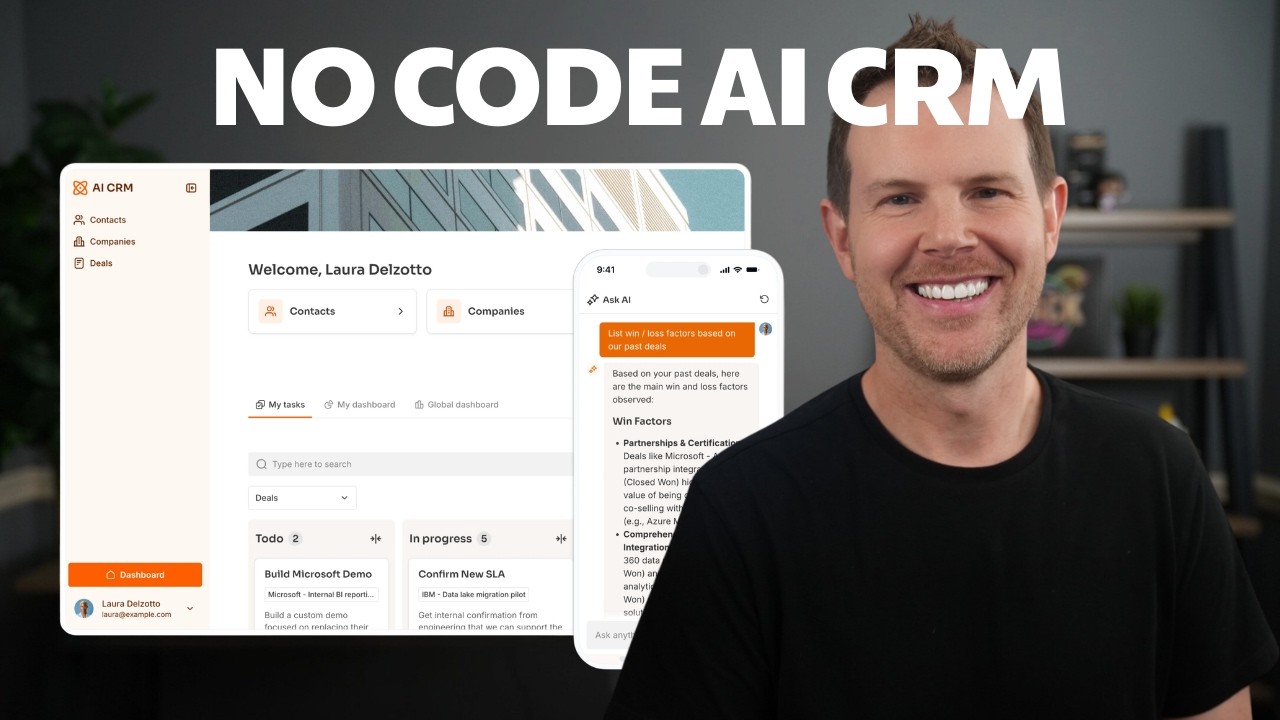
Moving on to the pipeline, I have a fully functional kanban-style sales board with columns like new, contacted, in progress, and closed. I can drag and drop deal cards between different columns.
Each card shows essential information like client name, deal name, and value. Notice there's an Ask AI button here that lets me query my entire CRM data intelligently.
If you want to edit the content of these deal cards, simply head over to the content tab. Since we have complete control over this block's content, I can customize everything directly from here.
I can easily change field positions by dragging them up or down, add new fields to display more information, or remove elements I don't need.
In the visibility tab, I can control exactly who sees this pipeline and what data they can access. I can set it to be visible only to logged in users or restrict it to specific user groups like admins versus sales reps.
I can also set up conditional filters in the source tab to control which database records are pulled into the block based on specific field values. Sales reps might only see their assigned deals, while managers see everything.
These are true database-level permissions that work by default. Users literally cannot access data they should not see, even if they try to manipulate URLs.
While all these native blocks cover most of what you need, there are moments when you want something completely custom. That's exactly where Softr's Vibe-Coding block comes in.
[.blog-callout]
If a native block doesn't quite fit your advanced needs, use the Vibe-Coding block to prompt for the exact custom component you want. It will generate it and connect to your Softr Databases seamlessly.
[.blog-callout]
I'm going to build a follow-up reminder panel that shows which leads need attention. I'll simply describe what I want in plain English, and Softr generates it instantly and already connected to my CRM database.
I can refine it further by simply asking the AI to make adjustments without rebuilding anything. This provides the speed of AI generation on top of a real production-ready CRM foundation.
If you're happy with your application, make sure to add some final touches from the settings tab. Set up your SEO, connect your custom domain, and configure your user authentication.
[.blog-callout]
Previously, there were limits on how many apps you could publish, but Softr now offers Unlimited Published Apps across all plans, including the Free plan.
[.blog-callout]
Once that's done, hit publish, and you're good to go. We have built a fully working CRM in just a few minutes using these powerful tools.