Transcript
As many have requested a tutorial on how to recreate a CSV upload feature within a Softr app using the Vibe-Coding block, we will be rebuilding this step-by-step for an app that allows you to upload a CSV of all your contacts into your database. We will get started with Softr Databases to create a new app, which will launch this empty setup. Right here, I will just hit create new database so we have a solid foundation to get started with.
[.blog-callout]
Note from Softr: While Softr integrates seamlessly with over 17 external data sources, Softr Databases is our powerful, native way to manage data directly within Softr for maximum performance.
[.blog-callout]
In the studio, we see that we have this new database. I can just go in here and use the AI Co-Builder to basically say I need a table with first name, last name, email, LinkedIn URL, and job title. So we have our table now, and I will just request dummy data by asking the AI to add six records in here.
[.blog-callout]
Note from Softr: Starting apps manually is a great approach, but another powerful option is to simply open the AI co-builder and prompt for what you want. It can generate complete apps, pages, or database schemas instantly, while still letting you tweak things manually later.
[.blog-callout]
That sounds good, and this is the starting point for our database. Basically, we will be building an interface to add records directly into this database. We could add more fields like the industry or add a table for companies and link them together, but right now we will start small.
I will just rename this database, and going back to our app, I will rename it in the exact same way. This is our app, and we could convert this element into a table block to simply display the contacts that we have. We are just missing the email right here, so we will quickly add that and name our section appropriately.
From there, we could of course have a button to allow users to add a contact, but that would be one by one. You would fill in the details of one contact, hit create, and it would add one single row. What we will build now is the capacity to actually bulk upload new contacts.
For example, for your sales reps, after they attend an event and want to add all their contacts to your CRM, they would need a bulk upload tool to do so. Let's remove this current block for now. Basically, the only thing we will need is to use a Vibe-Coding block.
[.blog-callout]
Note from Softr: Are you building a system to manage contacts for your sales team? Check out our ready-to-use AI CRM template to instantly deploy a fully functional CRM and start tracking leads and pipelines.
[.blog-callout]
I like to introduce it this way: for everything that you cannot do with native Softr elements, like a standard form, grid, table, inbox, or calendar, you have this option. Softr provides out of the box all the blocks that you need to build business apps. However, whenever you need something extra custom that has a very specific behavior or needs to look in a different way, you can drop in this Vibe-Coding block.
[.blog-callout]
Note from Softr: If a native block does not quite fit your advanced use cases, the Vibe-Coding block is your answer. You can simply prompt for the exact custom component you want, and it will generate it and seamlessly map it to your database.
[.blog-callout]
You just describe what you want, and the AI will be building this block for you. It is not coding a full app from scratch, but it is actually coding a specific block that natively connects to your data source in a secure way. This allows you to interact with your data safely, and the design of this block will perfectly match the global theme of your app.
Let's say we go for another accent color, like yellow this time. Now we will be asking for something and the new block will respect that design choice. First of all, I will be connecting this to my data source, and in our database settings, I will pick this specific contacts table.
There will be no conditional filter for now because what we will do next is actually ask for an interface that allows us to bulk import contacts through a CSV. I will be giving as many details as I can to make sure that the AI understands exactly my intent. The prompt will be: I need a block that allows me to drag and drop a CSV that I have with many contacts so that we can then bulk create these contacts in the database that we have connected.
When we drag and drop the CSV in there, we need to then display a way to map the columns from my CSV with the columns of the database. We need a very nice and intuitive interface where we can map those, but also have the option to decide if we skip one of the columns or not. We also need to make sure that we can only map to the destination columns once to avoid any conflict, and we need a visual way to present the way this whole mapping works.
Once we are done with the mapping step, we would go then to a next page that would actually list all the records that we had in our CSV. Then one by one, we can either click to actually create them using a sort of checkbox, or click a button to easily cancel that row. We would also add an option at the top to import all of them, while skipping the ones that we have already rejected.
I gave a lot of instructions here to be very clear. In the end, it is just three concise paragraphs, and you can even use a transcriber tool to make sure that your prompt is perfectly clear. I really like that we can perfectly understand what happened here.
I asked for a CSV upload, but then mapping the columns is critical because your sales team will probably have a CSV for which the column names do not exactly match what you have set up in your database. We want to anticipate that problem and make it easier to import by providing this column mapping feature that is also very common in large CRMs. For step three, I wanted to bring another layer of granularity where maybe we have three or four contacts in this CSV that we actually do not want to import.
We probably do not want to open our CSV externally somewhere else, manually delete these records, and then put it back into Softr. So the final priority is to let users decide exactly which records actually get created. Again, you can see that our global yellow theme has been perfectly applied to the Vibe-Coding block.
From there, we can just give it a try and hit preview to actually test it out in real time. I had prepared a dummy CSV right here, and I can clearly see that I can drag and drop it right into the block. I love that it actually thought about showing previews of the row values.
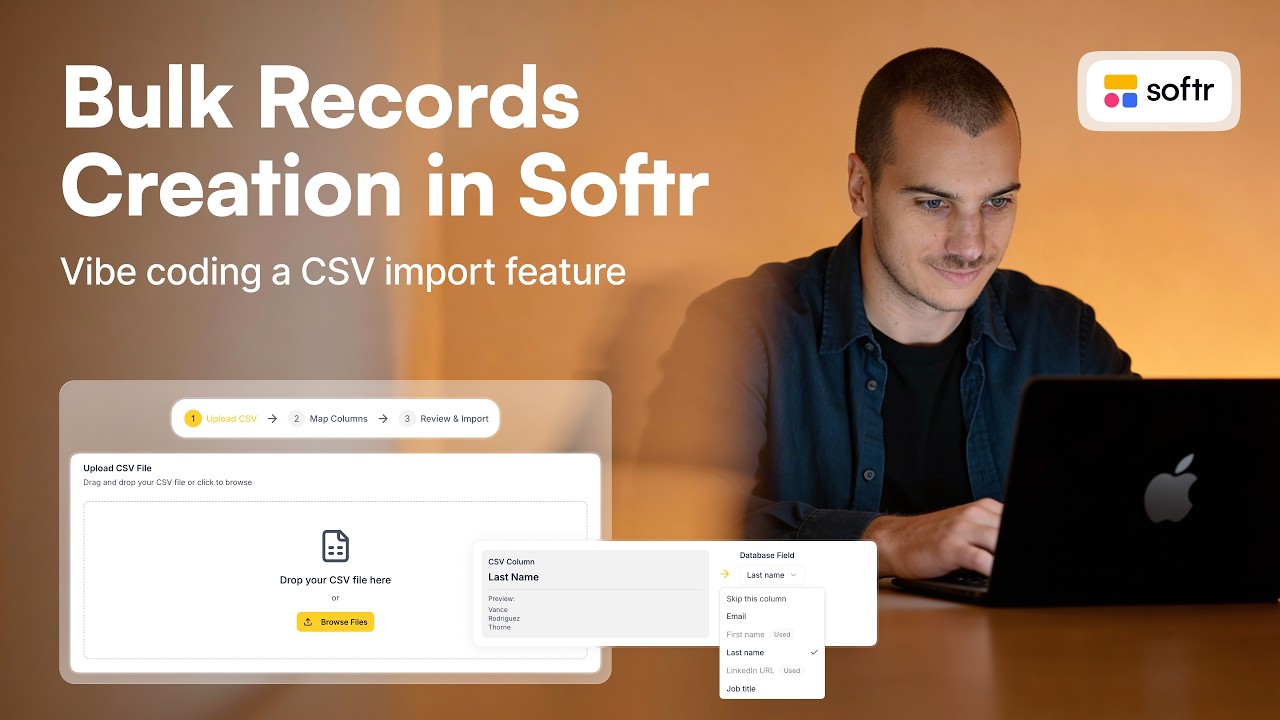
We have our CSV column here for last name, email, and so on. We have a visual preview of three values, which really helps us understand what was in there so we can map it to the right destination accurately. Something that I noticed right now that could be interesting to improve is to tell our block to auto-map the columns that have the exact same name.
In some cases, there is just an uppercase letter that is slightly different. We could ask the AI for a fuzzy matching configuration to suggest a V1 of this mapping automatically, which would be a brilliant evolution for our block. Now, I love how this is currently being mapped visually.
If we look here, we cannot use first name again because it is already in use, exactly as we requested to avoid duplicates. We can also manually skip a column if your CSV has too many fields and actually in your database you only need to store a few data points. In our case, I think we will map all of them, including email, LinkedIn, company name, and job title.
There was a slight mismatch when I initially created this CSV, and we do not explicitly have the job title field aligned, but I think it is totally fine. We can then hit continue to review, and this takes us to the last step of the upload process. When I mentioned a checkbox in the prompt earlier, actually it wasn't very clear phrasing.
What I had in mind is that you manually hit a button here that will directly create that record instantly, but actually this checkbox UI is a pretty smart way to handle it in bulk. Let's say three of those contacts will not make it, so we accept 12 out of 15 and we import them into the system. I really like how smoothly that functions.
Now if I look at my table again, I see that I have multiple pages populated. Initially, we had only created six records of dummy data, so it shows that our 12 newly imported records got added directly into the Softr list. From there, what could we potentially improve?
I mean, the component itself is perfectly functional. Maybe just adding this fuzzy matching for the columns would be the perfect next iteration. We can simply go right back into the prompt in the builder and ask the AI to try to pre-match columns based on fuzzy names so it automatically recognizes when the column names do not exactly perfectly match what you have in your database.