Transcript
Softr has introduced an exciting new feature called Comment Notification Rules. This is especially useful in a project management portal where you only want the people who belong to a specific project to receive notifications for the comments left on that project.
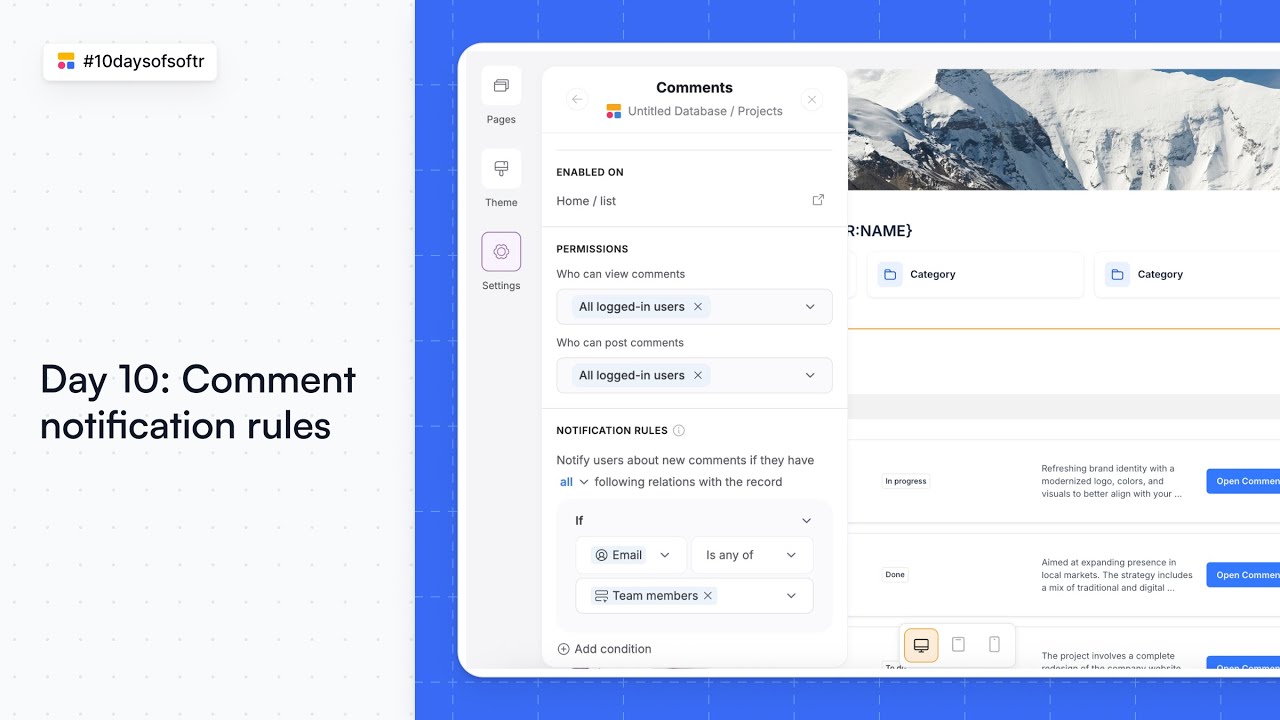
After adding an open comments button, you can navigate to the comment settings. From there, select the table in the database where the comments are being stored. This is where you will define your notification rules.
[.blog-callout]
If you are setting up your system from scratch, you can use the AI co-builder to generate your data structure and Softr Databases to store project information and comments securely.
[.blog-callout]
You can define who should be notified about new comments by adding a condition similar to conditional filters. For example, you can set a rule where the email of the logged-in user must match the team members associated with that project.
This conditional filter ensures that only those involved in the project get relevant notifications. It helps keep communication focused and reduces noise for users who aren't part of a specific task.
[.blog-callout]
For even more complex logic, you can explore Softr Workflows to trigger specific actions based on data changes, and check out our project management guides for more best practices.
[.blog-callout]
Setting up these rules is a simple way to manage permissions and keep your portal organized. This feature ensures that the right people stay updated on their work without over-notifying everyone else.