Transcript
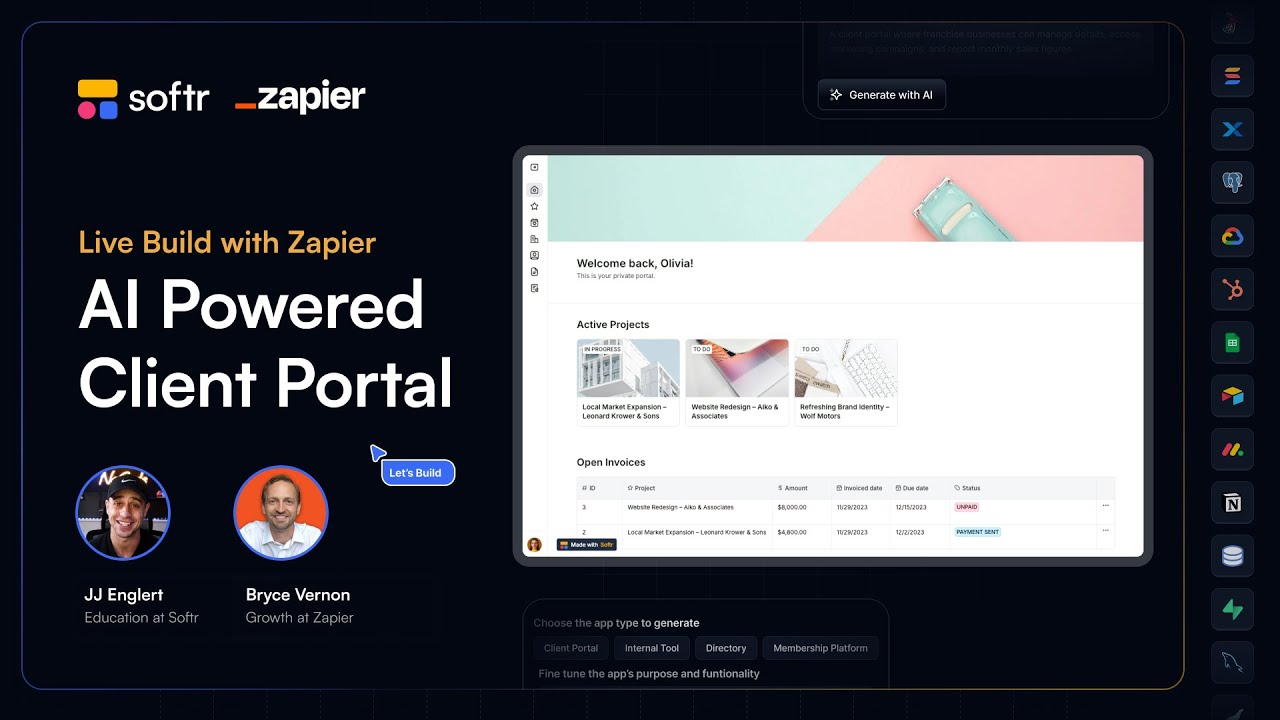
Today, we are going to be building an AI-powered client portal using Softr and Zapier. We are going to be using Softr latest blocks matched with Zapier's latest AI agents coming together to enrich your client portal experience. We are going to be building three different things that show what can be done with both of these platforms.
Zapier recently launched AI agents earlier this year, repositioning the branding to reflect exactly what they are. At Softr, we also just had a big launch where we introduced our new navigation, new tables, and new user blocks to make everything a lot more modern and beautiful. It is great to see a mix of beginners and power users here today.
Our mission is to build three specific things. First, we will create a client portal in Softr for an advertising agency managing clients and projects. We want to automatically fetch additional data for every new client added to the system.
[.blog-callout]
Note from Softr: Instead of manually building these workflows from scratch, you can use the AI co-builder to prompt for the specific app structure you need. It can instantly generate pages and database schemas for your portal.
[.blog-callout]
Once a new client is created, we will have Zapier actions running in the background to fetch information to enrich that client record. This adds more context for the team, such as industry and funding data, without manual entry. This makes the database much richer for the agency.
Second, we are going to create an upcoming meetings display in Softr. For each project, you will be able to see upcoming meetings for that specific client. We also want to have an AI agent automatically send preparation emails for those meetings.
Finally, we will create a view where the agency owner can open a Zapier Chrome extension and start chatting with the data. It will fetch data from the database and respond to questions about projects or clients. This makes it really easy for owners to get insights quickly.
In the Softr studio, we use a block-based premise where you can click on a block and adjust it accordingly. I am starting with the client portal template which comes with an Airtable base and demo data. This is helpful for seeing how Softr likes data to be formatted.
On the dashboard page, I am adding a static hero block to create a nice banner image. The main goal right now is to make it so we can create a new client in Softr. I am using a list block mapped to our database to show the company records.
In Softr, we use action buttons to allow users to add new records. I have configured a button to ask for the company name and logo. While Softr integrates with many sources, using Softr Databases is another powerful way to manage this data natively.
[.blog-callout]
Note from Softr: While this demo uses Airtable, you can utilize native Softr Databases to manage your client information directly within Softr for even better performance and tighter integration.
[.blog-callout]
Now we switch to the Zapier side to create the AI agents. In the configuration tab, we set up behaviors and data sources. We are setting a trigger so that every time a new record is added to the company table, the agent starts its work.
The instructions for the agent are written in plain English, just like talking to an assistant. We are telling it to research the company to find the industry, size, address, and website. Then it will update the Softr record with those details automatically.
AI agents understand "fuzzy" areas better than traditional automation. While an automation is a rigid string of events, an agent can reason and use the tools available to it to achieve a goal. This simplifies complex workflows into plain instructions.
Back in Softr, we can see the result in the client detail page. We use visibility settings to ensure that admins see internal notes while clients only see their own project details. It is easy to add fields like the company bio or amount raised using the Softr interface.
[.blog-callout]
Note from Softr: If you find that a standard block doesn't perfectly match your data visualization needs, the Vibe-Coding block allows you to prompt for a custom component that connects perfectly to your data.
[.blog-callout]
We are also adding a meetings tab using the tab container block. Inside that tab, we add a calendar block mapped to our meetings data. We use conditional filters so that the calendar only shows meetings related to the specific project being viewed.
For the meeting prep, we set a schedule trigger in Zapier to run every day at 4 p.m. The agent looks at all meetings for the next day, analyzes the project updates and tasks in the database, and compiles a status report. This report is then delivered via email.
[.blog-callout]
Note from Softr: You can consolidate your tech stack by using native Softr Workflows for many internal logic tasks, reducing the need for multiple external automation subscriptions.
[.blog-callout]
The Zapier Chrome extension allows for "God mode" where the admin can chat with the database while browsing the portal. You can ask who the project members are or what tasks are overdue. The agent retrieves this information from the connected data sources and provides instant answers.
Softr handles all the complex parts like authentication and user management automatically. You can toggle features like one-time passcodes or domain-restricted signups. This allows you to focus on the functionality of your client portal rather than the infrastructure.