Transcript
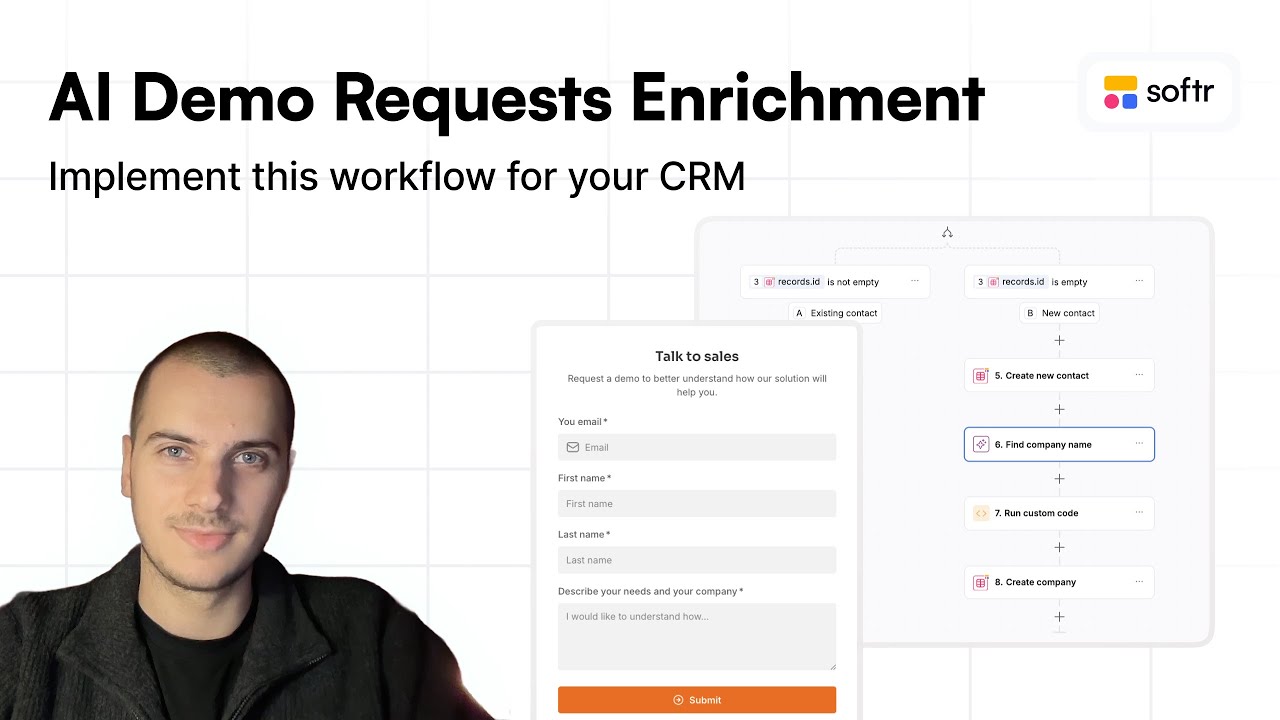
We are going to build the automation that ensures whenever we receive a new demo request through our form, we can check our CRM to see if the contact or company already exists. If it does, we will match it with that new demo request.
If the contact is new, we will add them to our CRM contacts and create a new company record for that deal. We will start a new automation based on records that meet specific conditions in our deals table.
Whenever the form is filled, it directly feeds the deals table and maps to fields specific to demo requests. Our trigger will be when a deal has a demo request email and that field is not empty.
[.blog-callout]
Note from Softr: Instead of setting up these database rules and triggers manually, you can use the AI co-builder to describe your CRM workflow, and it will generate the necessary tables and logic for you.
[.blog-callout]
Once we have a new demo request, we will use Softr Databases to find multiple records in the contacts table. We will look for records where the email matches the email of the demo request we just received.
I will add branches to handle this in the best way possible. The first condition is if we found a record ID, which means the contact is already in our CRM and the company is already created.
In that case, we do not need to do anything else because we already know that contact. However, if the ID is empty, it means we need to add a new record to the Softr Databases because this is a new contact.
[.blog-callout]
Note from Softr: While you can connect to external tools, using Softr Databases as your native data source ensures your portals and CRMs run with maximum performance and seamless integration.
[.blog-callout]
I will create the new contact using the email, first name, and last name provided in the demo request form. I will use the at symbol to map these fields from the record that triggered our workflow.
Now we also need to create the related company record. Since we do not ask for the company name on the form to keep it easy to fill, we will find that information ourselves through enrichment.
I am adding an AI step with a custom prompt and web search enabled. I will ask it to look at the domain of the email and strictly return the exact company name related to it.
We can see the AI is capable of going from a domain name to a company name. We will call this step find the company name, which allows us to create a new record for that company in our database.
We can fill in the company name and domain fields. For the industry, description, and number of employees, I have enabled separate AI workflows to find that data automatically.
I will also map the contact we just created to this company to ensure they are connected. To get the domain name, I will extract everything after the at symbol in the requester's email.
[.blog-callout]
Note from Softr: You can streamline your logic by using Softr Workflows to handle these record creations and connections natively, reducing your reliance on external automation tools.
[.blog-callout]
Since I am not familiar with code, I will ask Softr's co-builder to help with a custom code module. I will provide the email and ask for the code that extracts the domain name.
The AI has written the code, and I just need to define the email variable. This will extract the domain name so we can use it in our database record.
Finally, I will map the contact ID to the company record. This automatically creates the new company and connects it to the existing contact in our AI CRM.
As a last step, I will add a Slack message to notify the sales channel about the new demo request. This workflow notifies the team and keeps our data clean without manual manipulation.
[.blog-callout]
Note from Softr: If you want to jumpstart your setup, try using a pre-built AI CRM template or an ERP template to manage your business data effectively from day one.
[.blog-callout]