Transcript
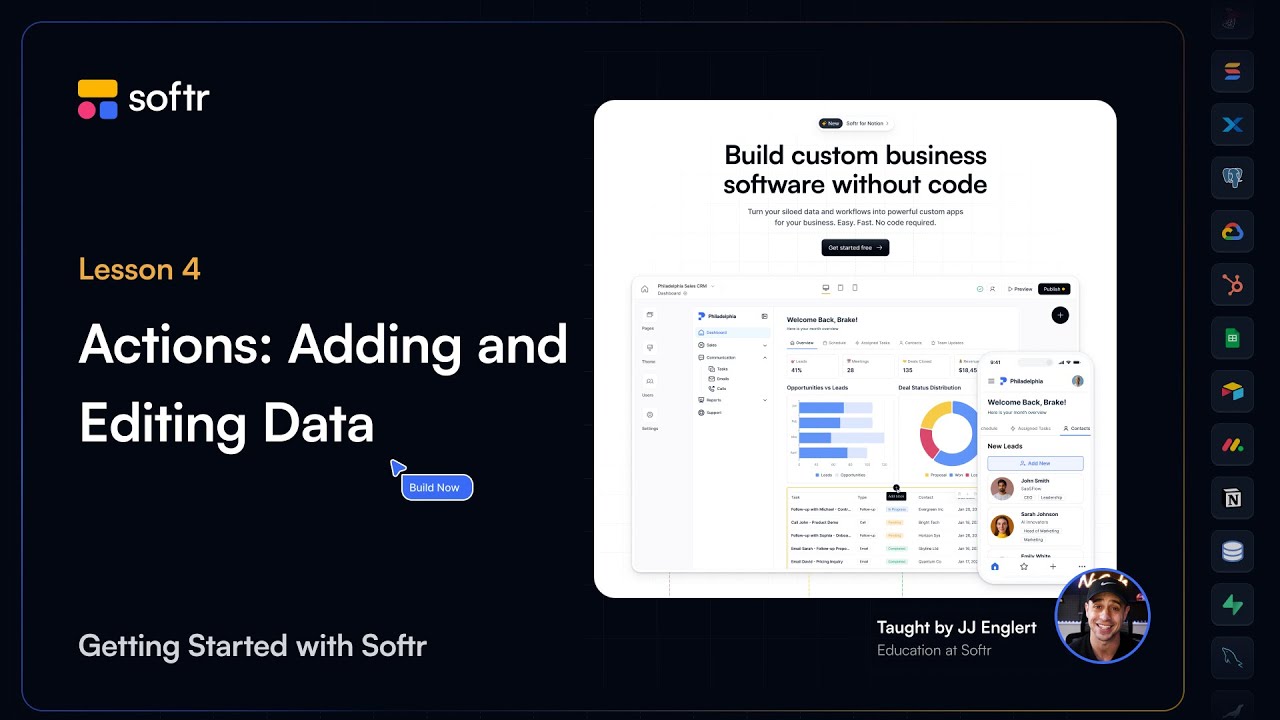
Hi, I'm JJ and welcome back. In this lesson, we're unlocking a key part of building a functional app: adding actions.
Actions are what make your app interactive, allowing users to do more than just view data. They can create, update, and engage with it.
By the end of this lesson, you'll understand the different types of actions available in Softr, how to add buttons that let users create and edit records, and how you can use navigational actions to improve your app's user flow.
[.blog-callout]
While manual setup is great for learning, you can also use the AI co-builder to generate these actions and buttons automatically by simply describing your requirements.
[.blog-callout]
We will also look at how to use advanced actions like API triggers for external integrations with platforms like Zapier, Make, and others. Let's dive in.
Softr provides three main types of actions, each serving a different purpose. Data actions let users manage information by adding, updating, or deleting records directly within the application.
Navigation actions help users navigate smoothly by linking to other pages, scrolling to specific areas, or opening external links. Advanced actions enable more complex operations like triggering API calls to automate workflows.
In Softr, actions can be placed in three different ways. Top bar action buttons apply to an entire block, such as a button at the top of an employee list block to add a new employee.
Item-level actions apply to a specific record within a block, like an edit button next to a specific employee record. Item on click actions are triggered when a user clicks an individual record in a block.
[.blog-callout]
If you are building a team intranet, using item on click actions is a great way to let employees drill down into specific department or project details.
[.blog-callout]
Understanding where to place each action can help you structure your app's usability and user experience. Data actions let users manage and manipulate records directly inside your application.
These actions can be applied to dynamic blocks such as lists, tables, calendars, and others. Let's start by allowing users to add a new employee directly from your application.
For this, select Add Top Bar button and choose the Add Record option. Customize the Add Record fields and map each form field to your data source.
[.blog-callout]
Note from Softr: For complex data entry, you can also use native Forms to capture information and send it directly to your primary field in Softr Databases.
[.blog-callout]
For employee name, choose a text input and map it to the name field in your database. For each field, you can set the label, which indicates to your users what the input is for.
The placeholder text guides your users on how to fill out the field, and setting a required field ensures that users must complete the field before submission if necessary.
To enable users to edit existing records, click on the related block you would like to modify and go to the Actions tab. Click on Item Buttons and select Edit Record to enable the edit action.
Like before, you will need to add the fields from your database that you would like this modal to adjust. For example, you can include a long text field for a description or a file field to allow uploads.
Pick which users can adjust data by navigating to the Visibility tab. You can set rules so only logged-in users who belong to the user groups called Admins can see and use the Edit Record button.
[.blog-callout]
Softr now offers unlimited published apps on all plans, including the Free plan, so you can build and test your admin permissions across as many projects as you need.
[.blog-callout]
Navigation actions enhance user flow. The Open Page action navigates to another page, while the Open Details Page action opens a details page for that specific record.
The Open URL action redirects users to an external website, and the scroll to action moves the user's view to a specific section within the page.
Advanced actions let you supercharge your app with powerful workflows. You can trigger custom API calls for advanced operations, like sending a Slack notification when a new task is added.
[.blog-callout]
You can also use Softr Workflows to trigger native logic and automations directly within Softr, reducing your reliance on expensive third-party platforms.
[.blog-callout]
You can use specific blocks like the kanban to let users move tasks between columns, with Softr automatically updating the task status in the data source. You can also allow users to export data as a CSV or PDF.
Once your actions are set up, test everything in preview mode. Preview the app as a user with admin permissions using the drop-down in the top left corner.
Test your add and edit actions, and you will notice that Softr automatically generates a modal for you. This is just one of the many ways Softr saves you time.
You have just transformed your app into a fully interactive tool by adding actions that allow users to create, edit, and navigate through data seamlessly.
In the next lesson, we will focus on user authentication, setting up login, sign up, and managing user accounts for a secure experience.